If you are running a Shopify and a WooCommerce store, side-by-side, and looking for ways to integrate them into one workflow, let me tell you. Connecting two stores is easy. Keeping them synced without creating chaos? That’s where things go wrong.
A lot of merchants start with simple setups. A plugin here, a CSV import there. At first, everything looks fine. Products are live, orders are coming in, and it feels like the system is working. Then slowly, problems start showing up.
Some setups work partially by syncing products but not orders. While others create more issues than they solve, like duplicate SKUs or overwritten pricing. Some fail silently during high-traffic periods.
According to a recent report by McKinsey, over 70% of retail operations face inefficiencies due to disconnected systems. That’s why choosing the right WooCommerce Shopify connector approach is critical.
Read this blog to learn what is the best way to connect Shopify with WooCommerce.
What Connecting Shopify to WooCommerce Actually Means for Ecommerce Business
Most stores don’t struggle because they lack tools. They struggle because their systems don’t talk to each other properly.
When Shopify and WooCommerce are not connected the right way, you start seeing small gaps, stock doesn’t match, orders get missed, and product details go out of sync. These issues don’t look big at first, but they quickly turn into lost sales and extra manual work.
That’s why connecting Shopify to WooCommerce is not just about having products on both platforms. It’s about making sure both stores stay in sync automatically.
In a proper Shopify WooCommerce integration, any change in one store is reflected in the other. If a product sells on Shopify, inventory syncs on WooCommerce instantly. If you add or update a product in WooCommerce, it appears on Shopify without manual effort.
A proper integration also ensures:
- Product titles, images, and variants stay consistent across both stores
- Orders from both platforms are managed in one flow
- Inventory remains accurate across all sales channels
Without this, you’re not running one system; you’re managing two separate ones.
What Goes Wrong When Shopify and WooCommerce Are Not Properly Connected
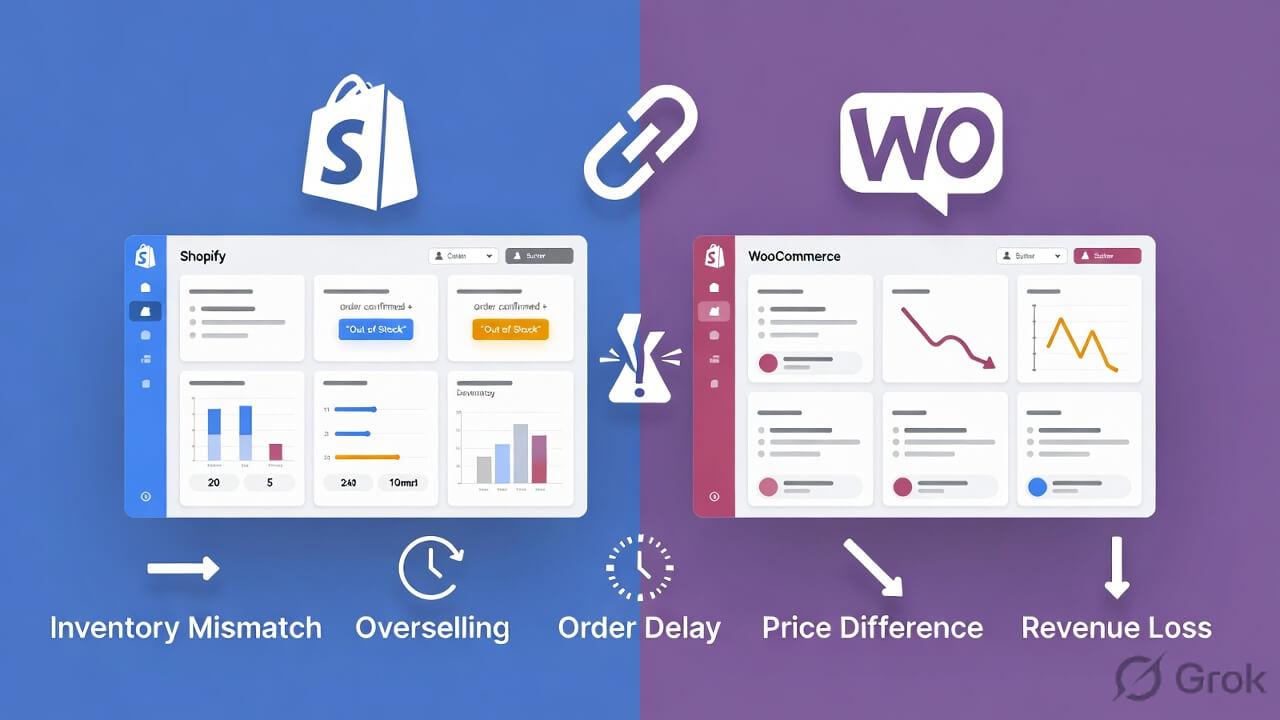
The issues usually don’t appear immediately when you are running Shopify and WooCommerce separately. At the beginning, everything works fine. But once your order volume increases, gaps start showing.
Here are the most common problems:
The Inventory Mismatch Problem
Stock levels often don’t match between Shopify and WooCommerce when updates are done manually. A product may show 20 units on Shopify but only 5 on WooCommerce. This creates confusion and leads to wrong order fulfillment. It also makes it hard to track your real inventory across the WooCommerce and Shopify stores.
Why Overselling Starts Happening
Overselling hurts your customer experience. One bad experience is enough not to make a customer return to your store again. Without real-time Shopify inventory sync with WooCommerce, products continue selling after stock runs out. This leads to refunds and order cancellations. It can also cause up to 30% loss in repeat customers due to a poor shopping experience.
When Your Product Listings Don’t Match
Without a proper Shopify WooCommerce integration, your product listings don’t stay consistent across both platforms. Prices, images, or variants may differ between stores, creating confusion and increasing the chances of incorrect orders. Shopify shows different product prices while WooCommerce shows something else.
Order Delays That Hurt Customer Experience
When Shopify and WooCommerce aren’t connected, retailers can see up to 20 to 30% delays in order processing. This sometimes leads to missed orders or delayed fulfillment. Slow syncing also affects shipping costs and timelines, which directly impacts customer satisfaction and increases support queries.
Revenue Loss Due to Disconnected Systems
Individually, these issues seem minor. But over time, they lead to lost sales, operational delays, and extra work for your team. Even a small mismatch in stock levels can result in lost conversions, directly affecting overall business growth. Over time, these losses add up and directly impact cash flow and long-term profitability.
What Changes When You Connect Shopify and WooCommerce the Right Way
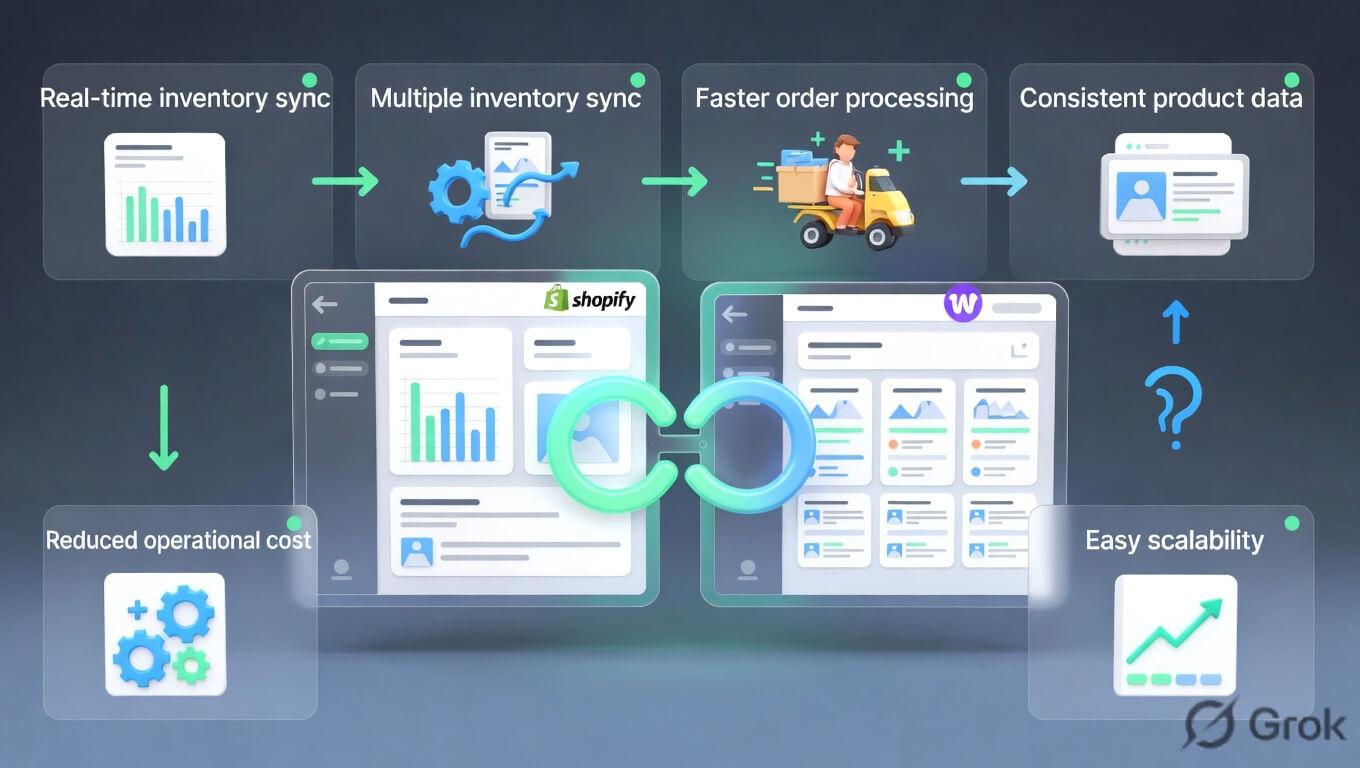
Once Shopify and WooCommerce are synced the right way, things become much easier to manage. The benefits go beyond convenience and directly impact revenue and efficiency.
No More Guesswork in Inventory
Stock updates automatically across both platforms, so you always know what’s actually available. The inventory syncs in real-time with no manual work required. If a product sells on Shopify, the WooCommerce store reflects the change immediately. This eliminates the guesswork and prevents stock discrepancies before they become customer complaints.
Orders Move Faster Without Manual Work
All orders are visible in one flow, making processing quicker and more organized. This improves multichannel order management and reduces delay. It even improves shipping speed and enhances customer satisfaction. When every order lands in the same queue automatically, your fulfillment team spends less time switching between dashboards and more time shipping.
Your Product Listings Stay Consistent
You don’t have to worry about mismatched listings. Everything stays consistent across stores. Product syncs, including images, pricing (such as regular price), and variation attributes, across both storefronts. This improves brand consistency and helps maintain better search engine optimization rankings.
You Stop Wasting Time and Money
Less time is spent on repetitive tasks like updating stock or checking orders. Businesses report saving up to 40% operational time when switching from manual processes to automated integration systems. That’s hours recovered every week that can be redirected towards your ecommerce business growth instead of data entry.
Your Store Scales Without Breaking
As your business grows, your operations remain stable instead of becoming harder to manage. You can expand product catalogs, enter new markets, and handle traffic spikes across both platforms without rebuilding your backend workflow. This ensures your operations stay efficient even as your business grows across multiple sales channels.
What a Good Shopify–WooCommerce Integration Should Actually Do
A proper Shopify WooCommerce integration is not just about connecting two stores. It should make both platforms work together without extra effort from your side. Once set up, everything should stay in sync automatically.
If something changes in one store, it should reflect in the other instantly. Whether it’s stock levels, product details, or order information, both platforms should always show the same data.
Real-Time Sync (Not Delayed Updates)
A good integration setup provides real-time syncing, not weekly or daily sync. This ensures stock levels stay accurate, prevents overselling, and keeps both stores’ inventory updated without manual intervention.
Product and Variant Matching
A reliable integration tool offers accurate mapping of products and their variants, including size, color, and other variation attributes. This prevents mismatched listings and ensures correct inventory updates at the variant level.
Orders That Sync Automatically
A proper system automatically syncs orders between Shopify and WooCommerce. This ensures all order details, including shipping address, billing address, customer data, and shipping information, are synced without delays.
Support for Multiple Stores and Warehouses
If you manage multiple warehouses or stores, the integration should provide real-time inventory visibility across all store locations and inventory levels. So one sale doesn’t create confusion in another store location.
Simple Setup Without Technical Headaches
The Shopify WooCommerce integration tool should be simple to configure without requiring technical expertise. Complicated setups often lead to errors and slow adoption. If it takes constant fixes to maintain, it’s not really solving the problem.
How to Connect Shopify With WooCommerce the Right Way
There are several ways to connect Shopify to WooCommerce. Some merchants use CSV file imports to import Shopify data, but this method is manual and does not support real-time updates. Others rely on the basic WooCommerce plugin or custom APIs, which require technical setup and often fail to sync orders and inventory accurately.
These methods may work for a short time, but they usually require constant monitoring and adjustments. For ongoing operations, most businesses prefer using a tool that keeps everything synced automatically.
Where QuickSync Fits In
QuickSync connects your Shopify and WooCommerce stores and keeps them in sync automatically. It ensures your products, inventory, and orders stay in sync across both platforms in real time, so you don’t have to manage them separately or fix mismatches manually.
QuickSync also supports variant-level syncing, automatic SKU mapping, and multi-location inventory tracking. This helps prevent stock errors, duplicate listings, and missed orders, especially as your store grows.
In short, it removes the need for manual updates and keeps both stores running as one system with real-time sync.
You can check for yourself why QuickSync is the best tool compared to other integration methods.
Integration Method | How It Works | Where It Fails | Long-Term Reliability |
|---|---|---|---|
CSV Import / Export | Manually export products from one platform and import them into the other | No real-time sync, high chance of outdated data, requires repeated manual effort | Not reliable as the business grows |
Basic Plugins / Extensions | Use simple plugins to connect limited data, like products or inventory | Partial syncing often misses orders or variants, breaks during high traffic | Works short-term, unstable later |
Custom API Integration | Developers create a custom connection between Shopify and WooCommerce using APIs | Expensive, requires maintenance, prone to bugs if not updated | Depends on ongoing technical support |
Automation Tools (e.g., QuickSync) | Fully automated, two-way sync for products, inventory, and orders in real time | No issues if configured properly | Built for long-term, scalable operation |
Step-by-Step: How to Connect Shopify to WooCommerce Using QuickSync
With QuickSync, you can connect both stores and start syncing data within minutes. Here’s how to do it:
Step 1: Create a QuickSync Account
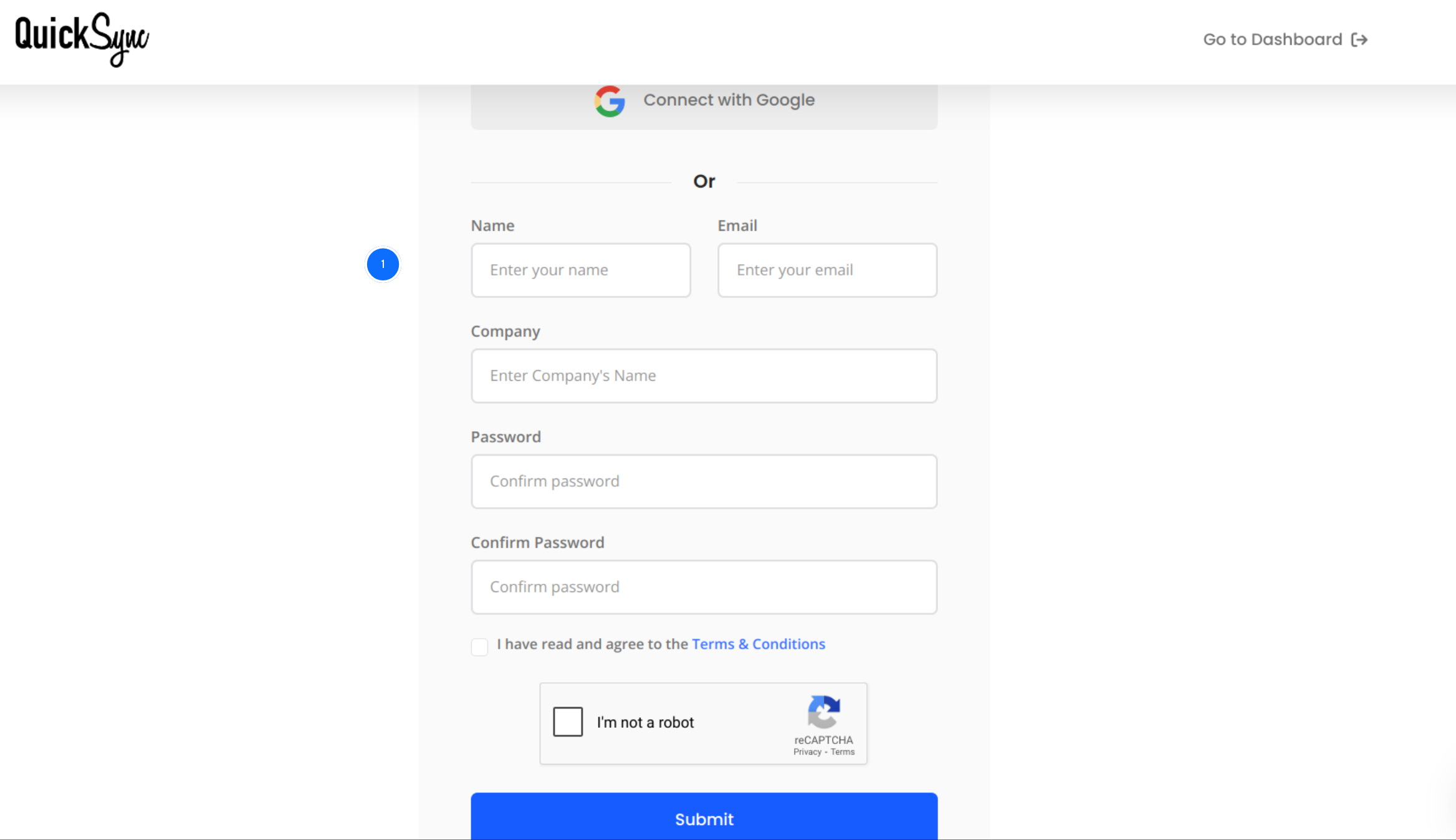
- Visit QuickSync. pro and sign up using your business email.
- Once registered, log in to your QuickSync dashboard.
Step 2: Integrate Shopify Store
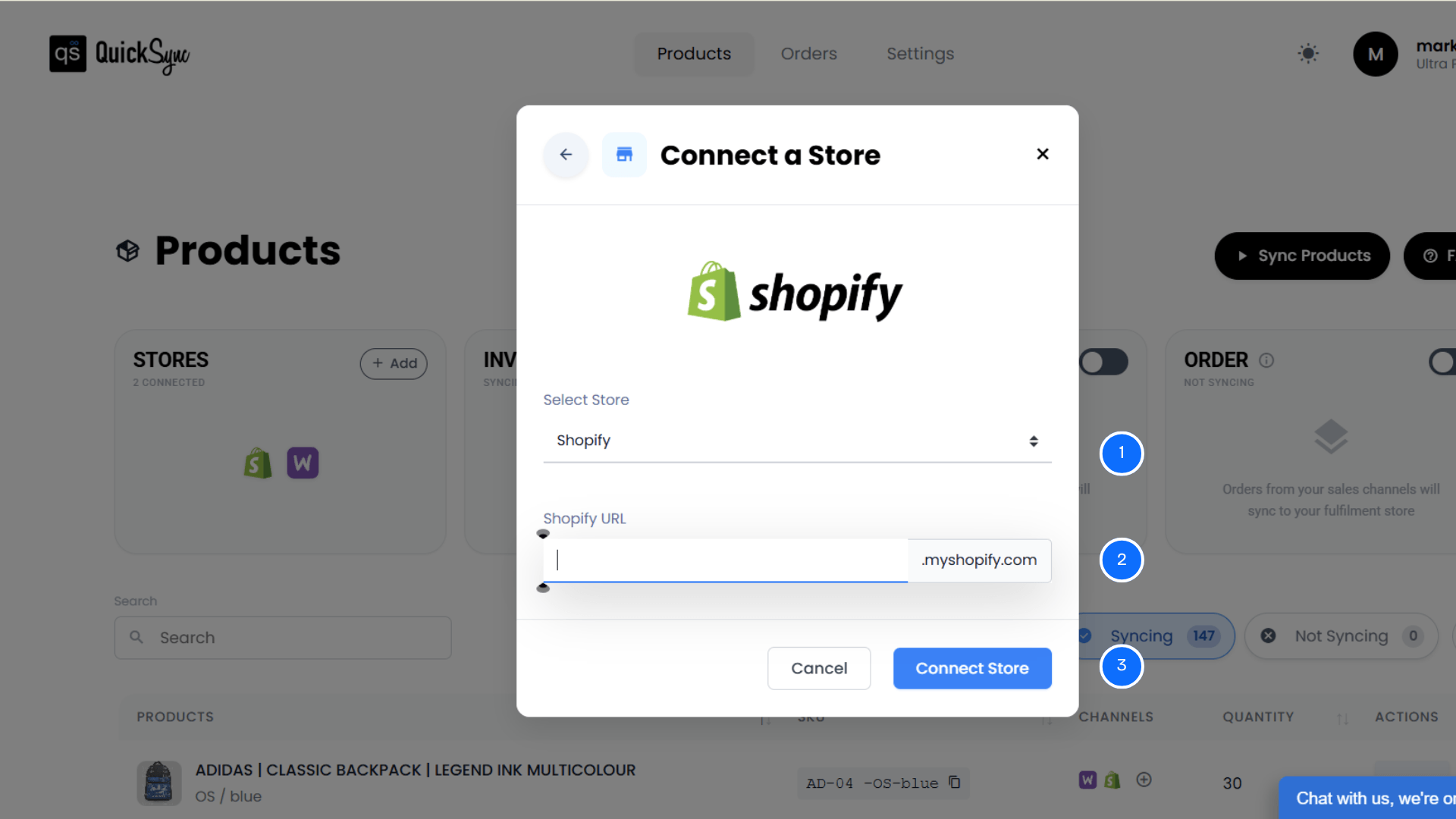
- In the QuickSync dashboard, you will see the Sync Products option. Click on it.
- Then, click Connect Store, then Add a Store.
- A new window will appear. From the options, select Shopify.
- Enter your Shopify URL.
- Log in to your Shopify account and approve permissions for products, images, inventory, and orders.
- QuickSync imports your shop details, locations, and products, with a progress bar showing status.
Step 3: Connect Your WooCommerce Store
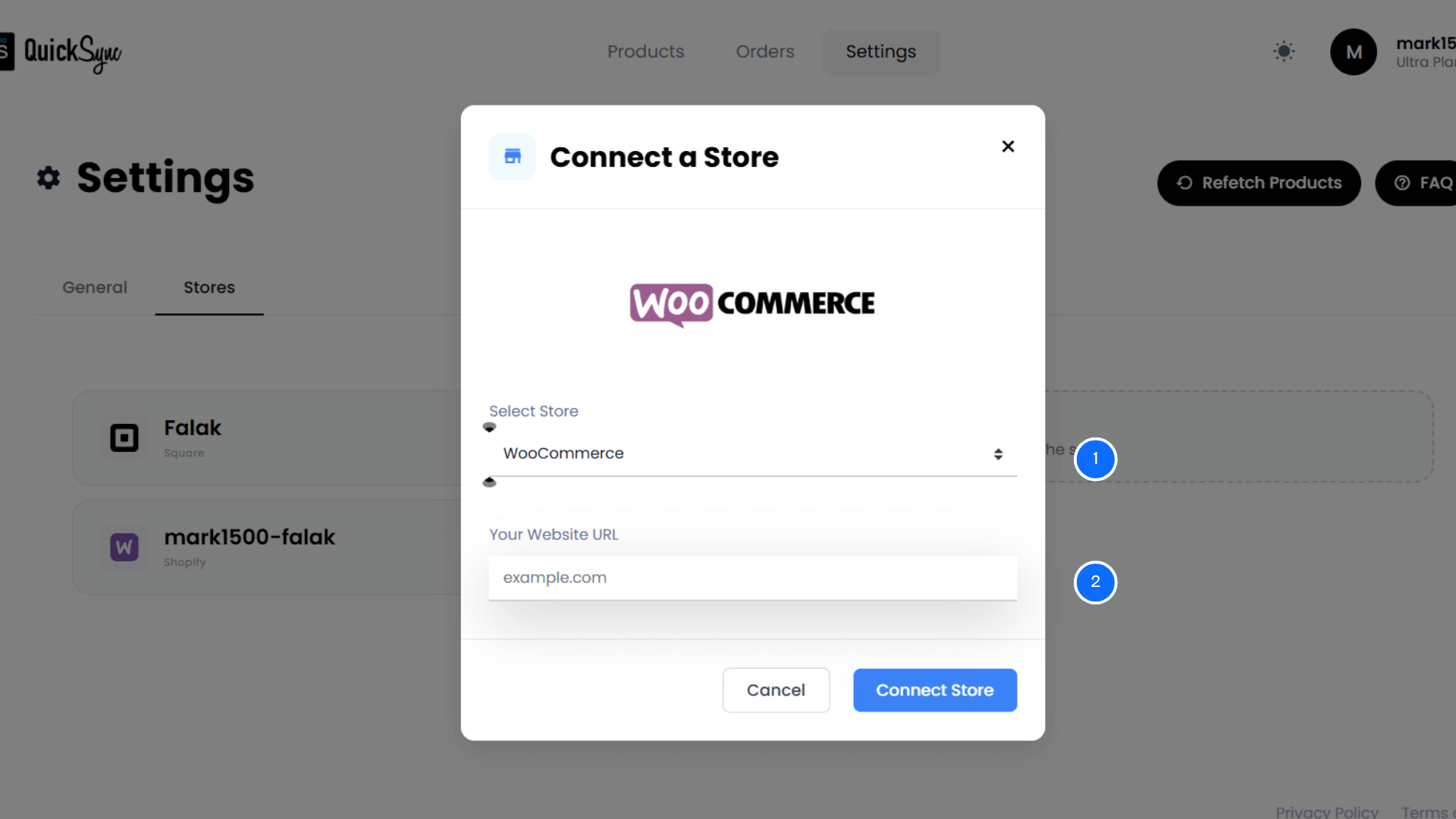
- From the same dashboard, click Add a Store again and select WooCommerce.
- Provide your WooCommerce store URL.
- Approve access for products, images, inventory, and orders.
- QuickSync imports store settings, categories, attributes, and products, with a progress indicator.
Step 4: Configure Sync Preferences
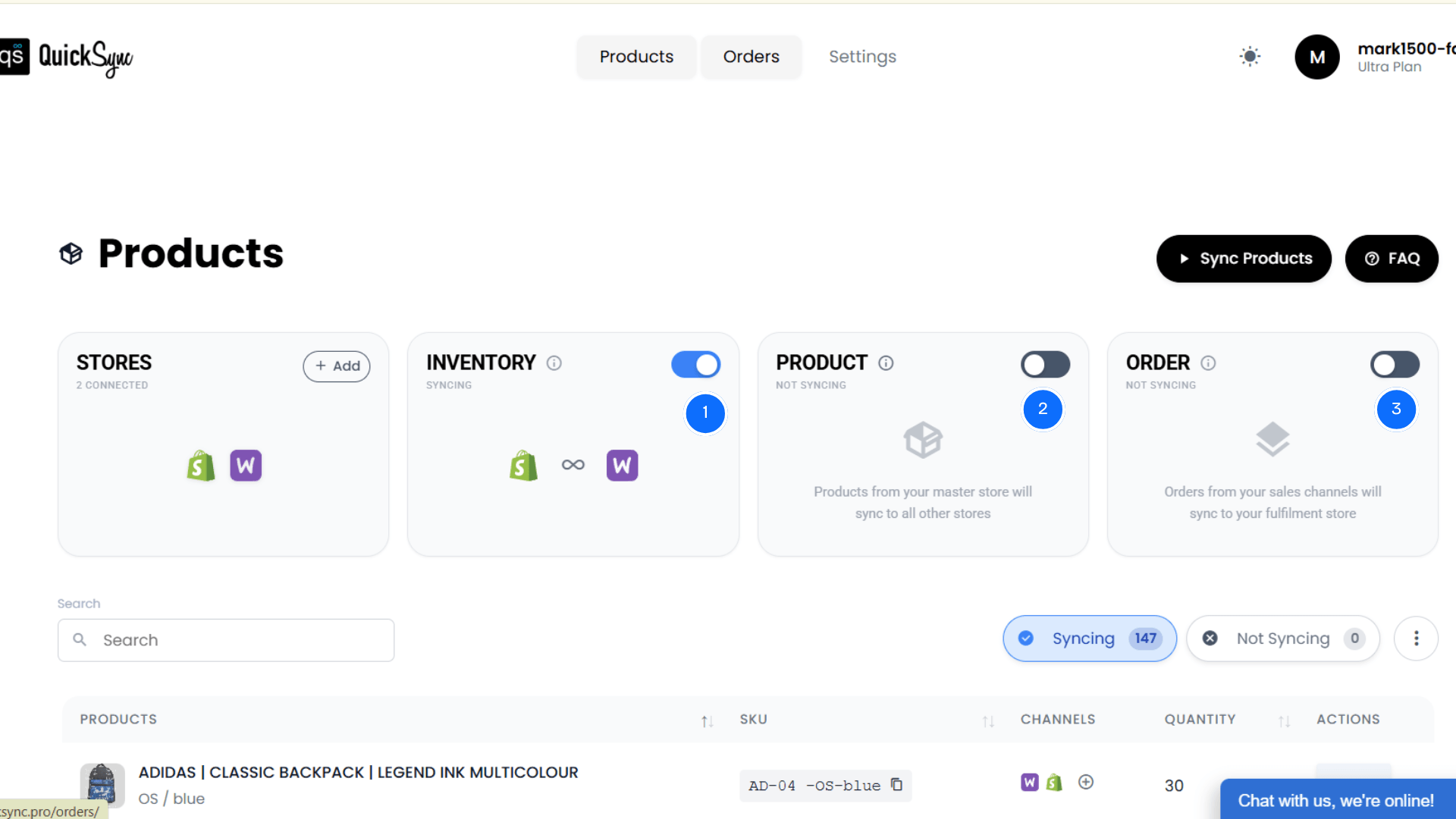
- Choose what to sync: products, inventory, and orders.
- Click Start Syncing to begin integration.
- Your Shopify store and WooCommerce store will now stay synced automatically in real time.
How to Keep Shopify and WooCommerce Running Smoothly After Setup
To maintain accuracy and efficiency, merchants should follow structured workflows when managing integration.
Keep product SKUs consistent
Accurate SKUs ensure products match correctly across both platforms, avoiding inventory mismatches and syncing errors. Even a small SKU mismatch can break the entire sync.
Review product data occasionally
Check missing images, mismatched product prices, or outdated info. Regular audits help maintain clean product data, improving customer experience and reducing listing inconsistencies.
Monitor syncing activity
Check for failed syncs or errors in your integration dashboard. Monitoring logs helps identify issues early and prevents small syncing errors from becoming bigger operational problems.
Keep order tracking updated
Keep shipping details aligned for potential customers. Accurate tracking updates improve transparency and reduce customer support queries related to order status.
Check product performance
Identify slow-moving products imported and adjust inventory levels. Tracking performance data helps optimize stock levels and prevent overstocking or understocking issues.
Conclusion
Running Shopify and WooCommerce together can either make your business smoother or turn it into a daily mess. It all comes down to how well they’re connected.
If both platforms aren’t properly synced, you don’t just lose time, you lose control. Stock goes out of sync, orders get messy, and you end up fixing issues instead of focusing on growth.
That’s where a tool like QuickSync changes things. It keeps everything aligned in the background, so your products, inventory, and orders stay accurate, without constant manual work.