In a growing ecommerce landscape where accurate bookkeeping is just as important as strong sales, connecting Shopify and QuickBooks has become a critical step for sustainable business management. When your sales platform and accounting system work in isolation, even small data gaps can affect reporting accuracy and financial clarity.
Have you considered the most efficient way to integrate Shopify with QuickBooks so your sales, fees, refunds, and taxes are recorded correctly? Many store owners rely on manual exports or summary entries at first. But as order volume increases, disconnected systems lead to reconciliation delays, reporting inconsistencies, and wasted time.
A structured Shopify and QuickBooks integration removes these challenges by automating how data flows between both platforms. QuickBooks reports that 68% of small business owners say accounting automation helps them spend more time growing their business instead of handling manual bookkeeping tasks
In this guide, you’ll learn how to connect Shopify and QuickBooks properly, helping you maintain accurate records without manual adjustments or ongoing reconciliation stress.
Importance of Connecting Shopify with QuickBooks Online
Shopify manages products, customers, inventory, and Shopify payments. QuickBooks manages accounting data like income, expenses, taxes, bank accounts, profit, and reports. Both platforms are powerful.
But they operate independently. And that’s where the problem starts.
For example:
- Shopify records gross sales per order.
- Shopify payouts combine multiple orders into one bank deposit.
- QuickBooks expects clean transaction lines tied to specific accounts.
- Shopify tracks refunds at the order level, while QuickBooks needs them recorded correctly against revenue.
- Shopify calculates sales tax automatically, but QuickBooks requires that tax to be posted to the correct liability account.
Without proper Shopify QuickBooks integration, you will struggle to match payouts to sales receipts. You may manually enter data, guess Shopify fees, or create messy journal entries. When you connect Shopify to QuickBooks properly, you:
- Sync sales data automatically
- Categorize Shopify fees correctly
- Track sales tax by tax rate
- Reconcile payouts in 5 minutes instead of 30+
For example, you make $1,000 in sales on Shopify, but after $80 in fees, only $920 is deposited into your bank. Without proper integration, you manually enter sales in QuickBooks and then struggle to understand why the payout doesn’t match.
With a proper Shopify QuickBooks integration, sales, fees, and payouts are recorded automatically, so reconciliation becomes fast and error-free.
If you care about keeping your books accurate, syncing the two platforms isn’t optional.
Accounting Issues Without Shopify QuickBooks Integration

Let’s talk about what really happens when you don’t connect Shopify with QuickBooks correctly.
Reconciliation Errors
When your Shopify and QuickBooks aren’t properly connected, your Shopify transactions won’t match your bank deposits. The main reason is that Shopify payouts combine multiple orders into a single deposit after deducting payment processing fees, refunds, and adjustments.
For example, you see $12,450 deposited into your bank account. But inside QuickBooks, total recorded sales show $13,100. The missing amount includes Shopify fees or refunds, but since everything is bundled together, it’s hard to identify manually. You end up checking transactions one by one, wasting 30 to 60 minutes per payout just trying to reconcile numbers.
Missing Shopify Fees
Shopify deducts transaction fees, payment processing charges, and sometimes app-related fees before transferring money to your bank. But QuickBooks does not automatically categorize those fees into an expense account unless your integration is configured properly.
If fees are not recorded correctly, your revenue appears higher than it actually is. That means your profit reports become misleading. You might think you earned $20,000 in profit, but after including fees, the real number could be significantly lower. Over time, this creates inaccurate financial reports and potential tax reporting problems.
Duplicate or Manual Data Entry
Many retailers manually enter Shopify sales data into QuickBooks, especially when they don’t have a proper sync setup. They copy daily totals, create journal entries, and manually record refunds and taxes.
This approach may work when you have 5 to 10 orders per day. But once your sales grow, manual data entry becomes risky. One missed refund, one duplicate entry, or one incorrect number can throw off your entire month’s accounting. Human error increases as order volume increases, making your financial data unreliable.
Incorrect Sales Tax Tracking
Shopify calculates sales tax automatically for every order based on location and tax rate settings. However, QuickBooks requires that the tax be mapped correctly to a liability account.
If your QuickBooks Shopify integration is not structured properly, sales tax may get recorded as income instead of a payable liability. That means your reports show inflated revenue and incorrect tax obligations. During tax filing, this creates confusion and may even lead to overpaying or underpaying taxes.
Refunds and Chargebacks Not Reflected Properly
Refunds and chargebacks are common in ecommerce. Shopify handles them at the order level, reducing the customer’s payment and adjusting the order details. But if your integration doesn’t sync refund data properly, QuickBooks may still show the full sale amount.
This creates inflated revenue figures. You may believe you earned $50,000 in sales. But after refunds and disputes, the actual number is lower. If refunds are not recorded correctly, your profit reports, tax calculations, and financial decisions are based on incorrect data, which affects long-term planning.
How to Connect Shopify and QuickBooks (Step-by-Step)

If you have wondered ‘how to connect Shopify and QuickBooks, ‘ you must understand that Shopify and QuickBooks do not have built-in features for integrating both stores. You cannot simply toggle a switch inside Shopify and connect it directly to QuickBooks.
That’s why a third-party integration tool is required. With a Shopify and QuickBooks jntegration tool like QuickSync, you can properly sync order data, sales receipts, refunds, and inventory. QuickSync connects and sync your Shopify inventory, product catalog, images, and orders in real time.
It connects Shopify with QuickBooks Online to automatically create Sales Receipts or Invoices (with payments), sync refunds, and update inventory accurately. With real-time data syncing and proper account mapping, QuickSync keeps your books accurate and eliminates double data entry.
Now, let’s break down how to connect Shopify and QuickBooks the correct way with QuickSync.
Step 1: Create Your QuickSync Account
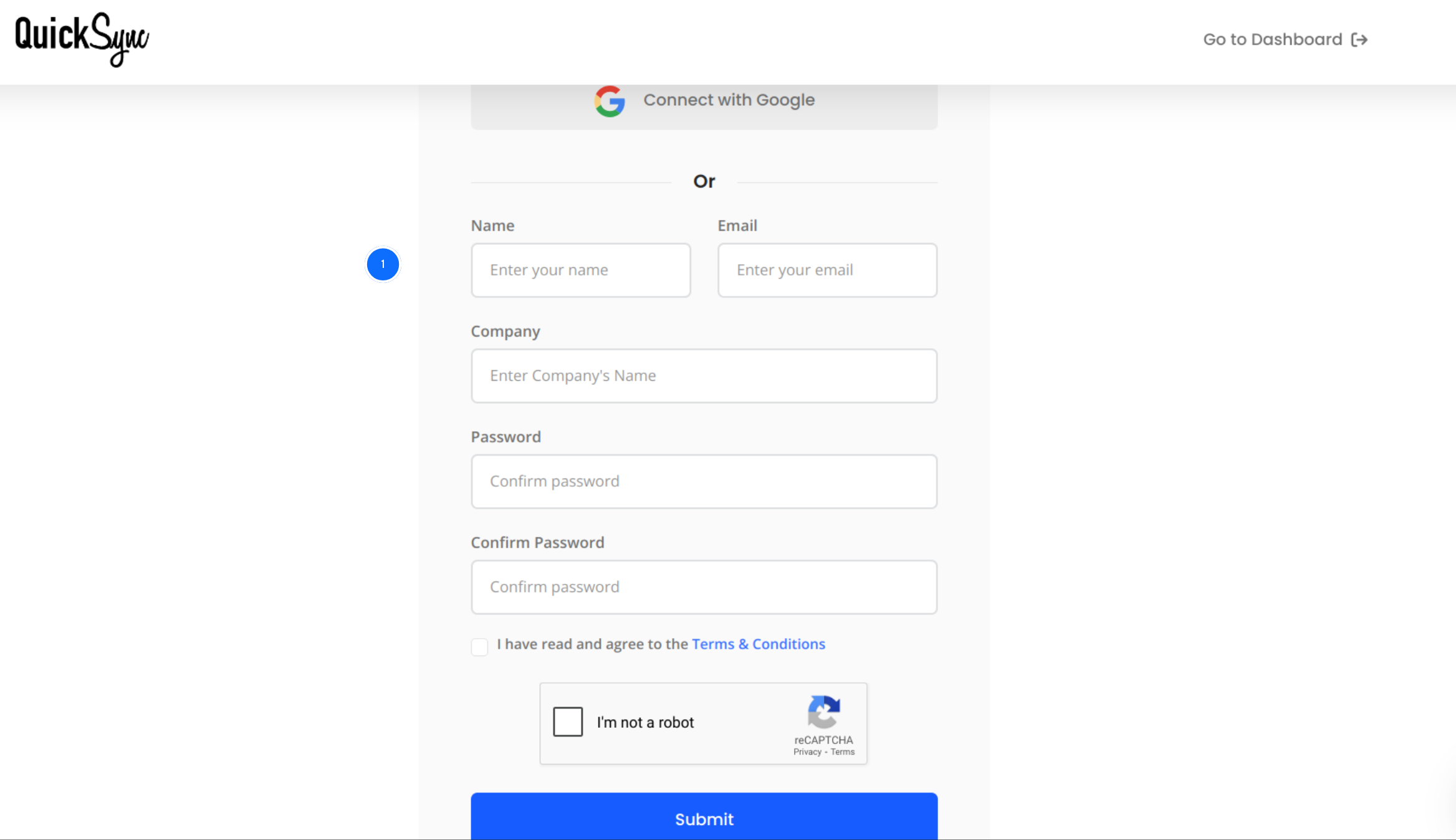
- Visit QuickSync.pro and click on the Sign Up button.
- Enter your details, including your name, email address, and company information, then complete the registration process.
- Once signed in, you will gain access to the QuickSync central dashboard, where you can manage all connected stores and integrations.
Step 2: Connect Your Shopify Account
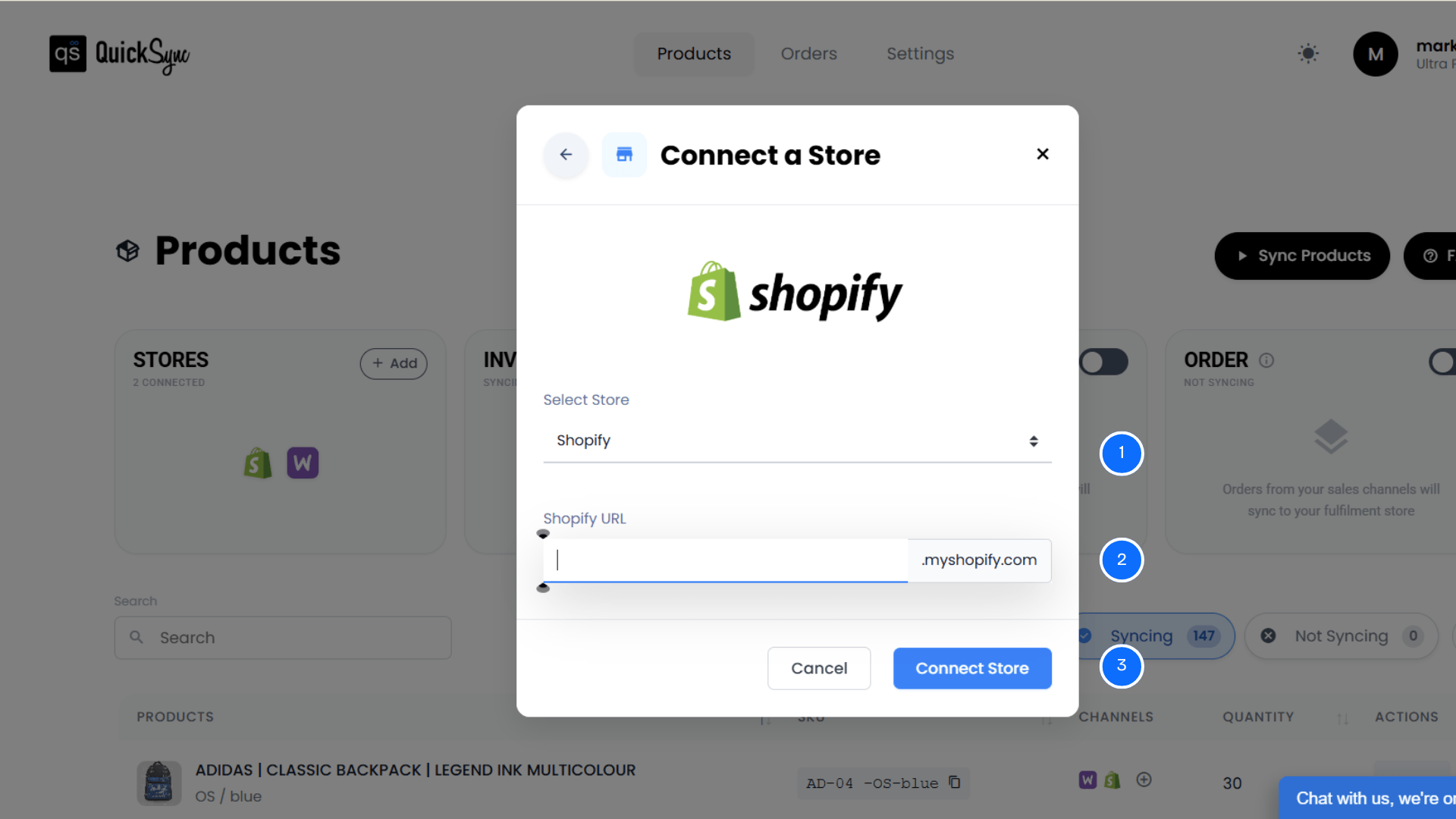
- After signing in, click Get Started from your dashboard.
- Select Shopify as your sales channel and enter your Shopify store URL.
- Click Connect a Store, log in to your Shopify account, and approve the required permissions for products, images, inventory, and orders.
- Once authorized, QuickSync will begin the initial import of your store details, locations, and product catalog.
Step 3: Connect Your QuickBooks Online Account
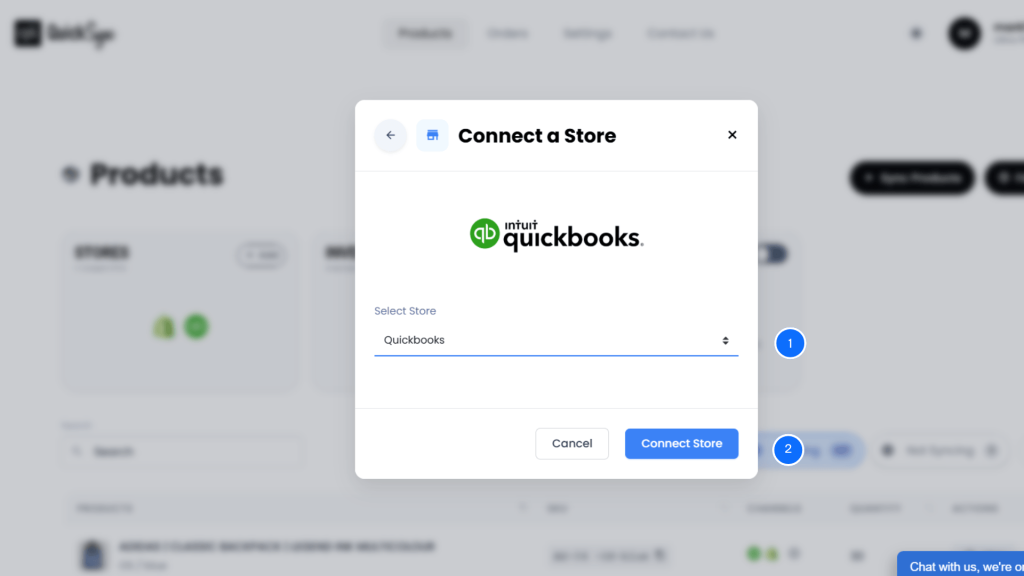
- Next, connect your QuickBooks Online account to QuickSync.
- Select QuickBooks, then click Connect a Store and log in to your QuickBooks account.
- Approve access for Items, Payments, and Accounting data.
- After authorization, QuickSync will automatically import your Company Information, Home Currency, Chart of Accounts, and existing product items.
Step 4: Configure Sync Preferences and Start Syncing
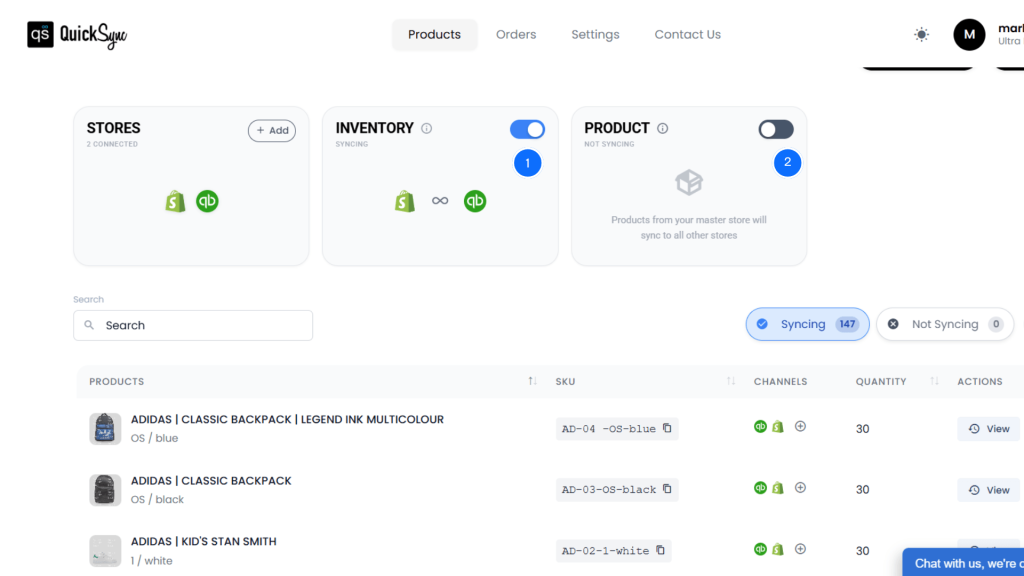
- Once both Shopify and QuickBooks are connected, you can configure your sync preferences.
- Choose whether you want to sync products, inventory, and orders based on your business needs.
- Click Start Syncing to begin the integration process.
- QuickSync will then automatically sync Shopify and QuickBooks items, inventory levels, sales receipts or invoices, payments, and refunds across your connected channels, ensuring accurate and consistent accounting data.
Benefits of Integrating Shopify and QuickBooks
Now, let’s look at what changes when you properly sync Shopify and QuickBooks. When the integration is done correctly, accounting stops being stressful. Your numbers make sense. Your reports become reliable. And you spend less time fixing errors.
Faster Reconciliation
When Shopify and QuickBooks are synced properly, your payouts match your recorded sales automatically. Each payout is broken down correctly into sales, fees, refunds, and taxes.
For example, if $12,450 is deposited into your bank account. QuickBooks already knows how that number was calculated. You don’t have to manually compare orders or check deductions. What previously took 30 to 45 minutes now takes under 5 minutes because the transaction data aligns correctly from the start.
Accurate Profit Reporting
A proper sync ensures Shopify fees are automatically categorized into the correct expense account. Refunds reduce revenue correctly. Payment processing charges are separated from income.
This means your financial reports reflect true net income, not inflated revenue numbers. If you generated $50,000 in sales but paid $3,000 in fees and processed $2,000 in refunds, your reports will clearly show the real profit. You can make decisions based on accurate numbers instead of assumptions.
Real-Time Inventory Updates
When Shopify and QuickBooks are synced, inventory levels update automatically as sales happen. Stock reductions in Shopify reflect inside QuickBooks without manual adjustments.
This prevents overselling and avoids stock mismatches between your storefront and accounting system. Whether you sell 5 units or 500 units in a day, your inventory records stay accurate in real time.
Seamless Order Sync & Flexible Fulfillment Setup
A proper integration ensures every Shopify order automatically appears inside QuickBooks with complete customer, product, tax, and payment details. You don’t have to recreate invoices or manually transfer order information between systems.
With tools like QuickSync, you can even set Shopify or QuickBooks as the fulfillment store, depending on how your operations are structured. This gives you full control over where orders are fulfilled while keeping accounting and inventory perfectly aligned.
Clean and Reliable Tax Reporting
When tax mapping is configured correctly, sales tax collected from Shopify orders flows directly into the right liability account inside QuickBooks.
This keeps your revenue and tax obligations separate. During tax filing, you don’t need to manually calculate totals from Shopify again. Your reports already show exactly how much tax you collected and how much you owe. That reduces stress and minimizes compliance risks.
Scalable Accounting as You Grow
Manual systems may work when you process 10 orders a day. But once you start handling 200 or 500 orders daily, manual bookkeeping becomes overwhelming.
With proper Shopify and QuickBooks integration, your accounting system grows with your business. Whether you process 100 orders or 10,000 orders per month, the data sync handles volume automatically. You don’t need to hire extra staff just to keep books updated.
Reduced Human Error
Manual data entry always increases the risk of mistakes. A missed refund, a duplicate journal entry, or an incorrect tax figure can distort your entire month’s financial data.
Automated syncing reduces human error significantly. Transaction data flows directly from Shopify into QuickBooks without copying and pasting. That consistency keeps your accounting accurate and your financial reports dependable.
Conclusion
If your sales are growing but your books feel messy, the issue isn’t Shopify or QuickBooks. It’s the lack of proper syncing between the two platforms.
If you want a structured and reliable Shopify QuickBooks integration, QuickSync is built specifically for ecommerce accounting. It handles real-time product syncing, automated sales receipts and invoices, refund recording, and proper fee categorization – without double entry.
Instead of fixing numbers every week, you can focus on growing your store.