
If you’re trying to figure out how to connect Shopify and Clover POS, you’re not alone. Many multichannel sellers struggle with inventory accuracy, fragmented sales data, and time-consuming manual updates when running Shopify alongside Clover POS. And here’s the bigger concern. The average inventory accuracy in multichannel selling is only about 83%, which means nearly one in five inventory records already contains an error.
At first, these gaps seem manageable. But over time, they compound. A product shows in stock when it isn’t. Orders come in that can’t be fulfilled. Customers are left waiting, or worse, they leave for a competitor.
And the irony is that the real challenge is choosing the right integration solution, but we got it. So here I am with another detailed blog post to help you choose the right Clover Shopify integration method and show you the step-by-step process. So get your cup of coffee and read on.
Shopify Clover Integration Is Not What You Think
Most multichannel sellers assume that Shopify to Clover POS integration is as simple as installing an app and letting it run. That is where things usually go wrong.
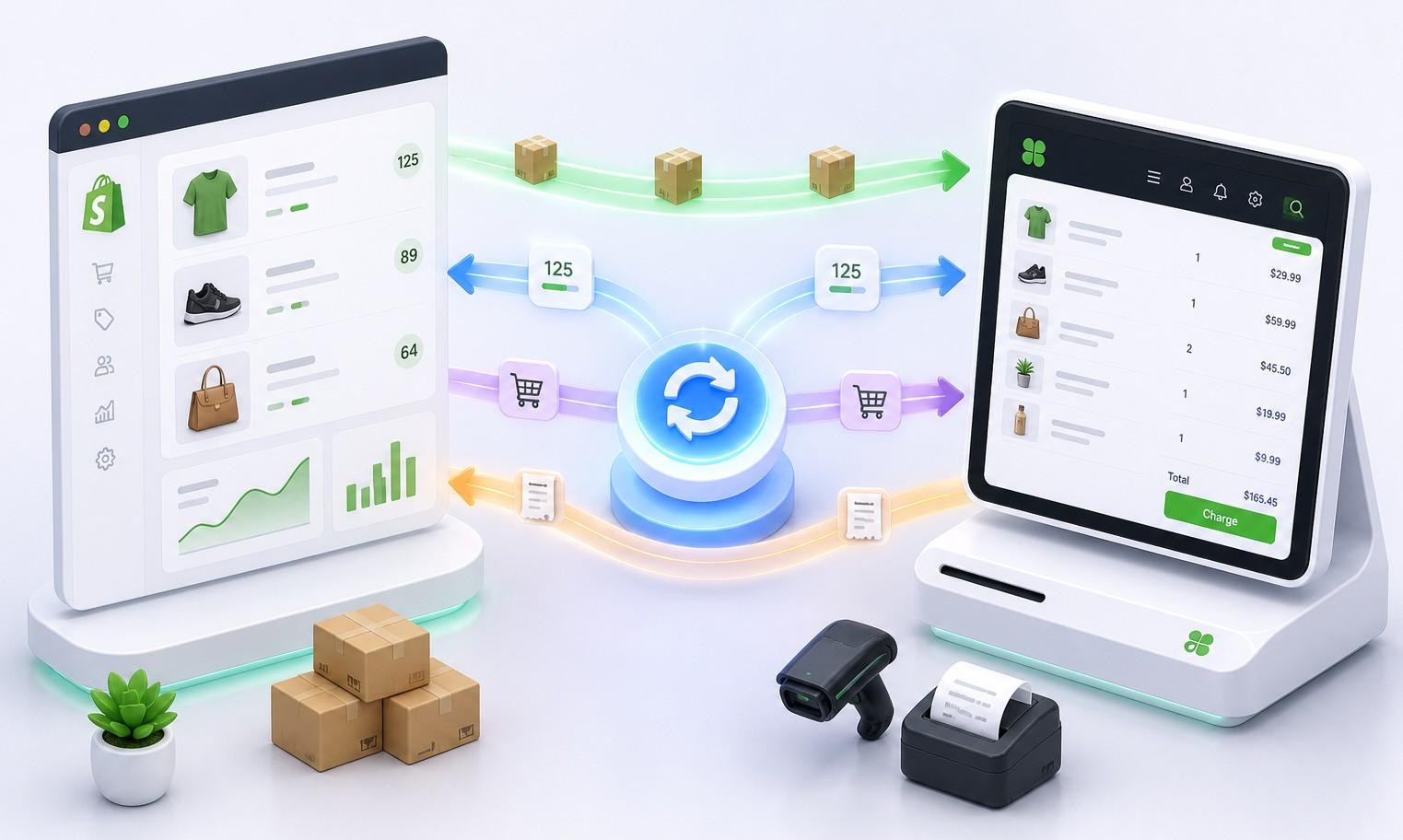
A basic connection might move some data between the two systems. But a real integration is not just about sharing data. It is about keeping everything updated automatically so your multichannel business runs smoothly.
For this to work properly, four simple things need to happen.
- Your Shopify products should appear in Clover POS. This means your staff does not have to add items manually at the register.
- Your inventory should update instantly on both sides whenever a sale happens, whether it is online or in-store.
- Your online orders from Shopify should show up in Clover POS, so all your sales are tracked in one place.
- Your in-store sales from Clover should update Shopify right away, so your online store always shows the correct stock.
When all of this works together, you are no longer managing two separate systems. Everything stays connected and accurate. But if any part is missing, you start seeing problems like wrong stock levels, missed orders, and confusing sales data.
Benefits of Syncing Shopify to Clover POS for Multichannel Sellers
Now that it’s clear what a real integration should look like, the next question is simple. What actually improves when you get it right? When you properly connect Shopify to Clover POS and keep both systems in sync, the difference shows up almost immediately in your day-to-day operations.
Below are the key benefits of Shopify and Clover POS integration.
Accurate Inventory Across Both Channels:
Every single sale, whether it happens online through Shopify or in-store through Clover POS, updates inventory automatically across both systems. The moment an item is sold at the register, your online store reflects the reduced stock. Likewise, when a customer places an online order, your in-store inventory adjusts instantly.
This removes one of the most common retail problems, which is overselling, and makes Shopify Clover inventory management seamless. Without syncing, the same product can appear available in both places at the same time, leading to double orders and fulfillment issues.
Products Set Up Once, Available Everywhere:
Instead of managing products separately in two systems, you only need to create and maintain your catalog once. That product information then flows across both Shopify and Clover POS, ensuring everything stays consistent.
This includes product names, SKUs, pricing, and variants such as size or color. When a product is updated in Shopify, the same change is reflected in Clover POS without requiring manual re-entry. This reduces human error and saves a significant amount of time, especially for stores with large catalogs.
Read More: Shopify vs Clover: Which POS System Is Better for Your Business?
In-Store Sales Flow Back to Shopify Instantly:
The same level of synchronization applies in the opposite direction. When a sale is made in-store through Clover POS, Shopify updates immediately to reflect that change in inventory.
This ensures that your online store is always accurate. Customers browsing your Shopify store will never see outdated stock levels based on in-store purchases that have already happened. It keeps both channels aligned in real time and removes the need for manual stock adjustments at the end of the day.
More Accurate Pricing and Margins:
When Shopify and Clover POS are connected properly, pricing and cost data stay consistent across both systems. This means your retail prices and product costs do not drift apart depending on where the sale happens.
As a result, your margins stay accurate without needing constant manual checks or corrections. This is especially important for businesses that frequently update prices or run promotions, because it ensures those changes are reflected everywhere at the same time.
Orders Stay Consistent Across Systems:
Order updates, such as cancellations or completions, are reflected across both platforms automatically. When a Shopify order is cancelled, it is updated in Clover POS without manual intervention. When an order is completed, that status is locked in and reflected everywhere.
This consistency ensures that your records remain clean and accurate across the board. It also eliminates the need for constant back-and-forth corrections between systems, which often becomes a hidden operational burden for growing businesses.
Read More: Does Clover Integrate With Shopify
Problems Sellers Face Without Shopify Clover POS Integration
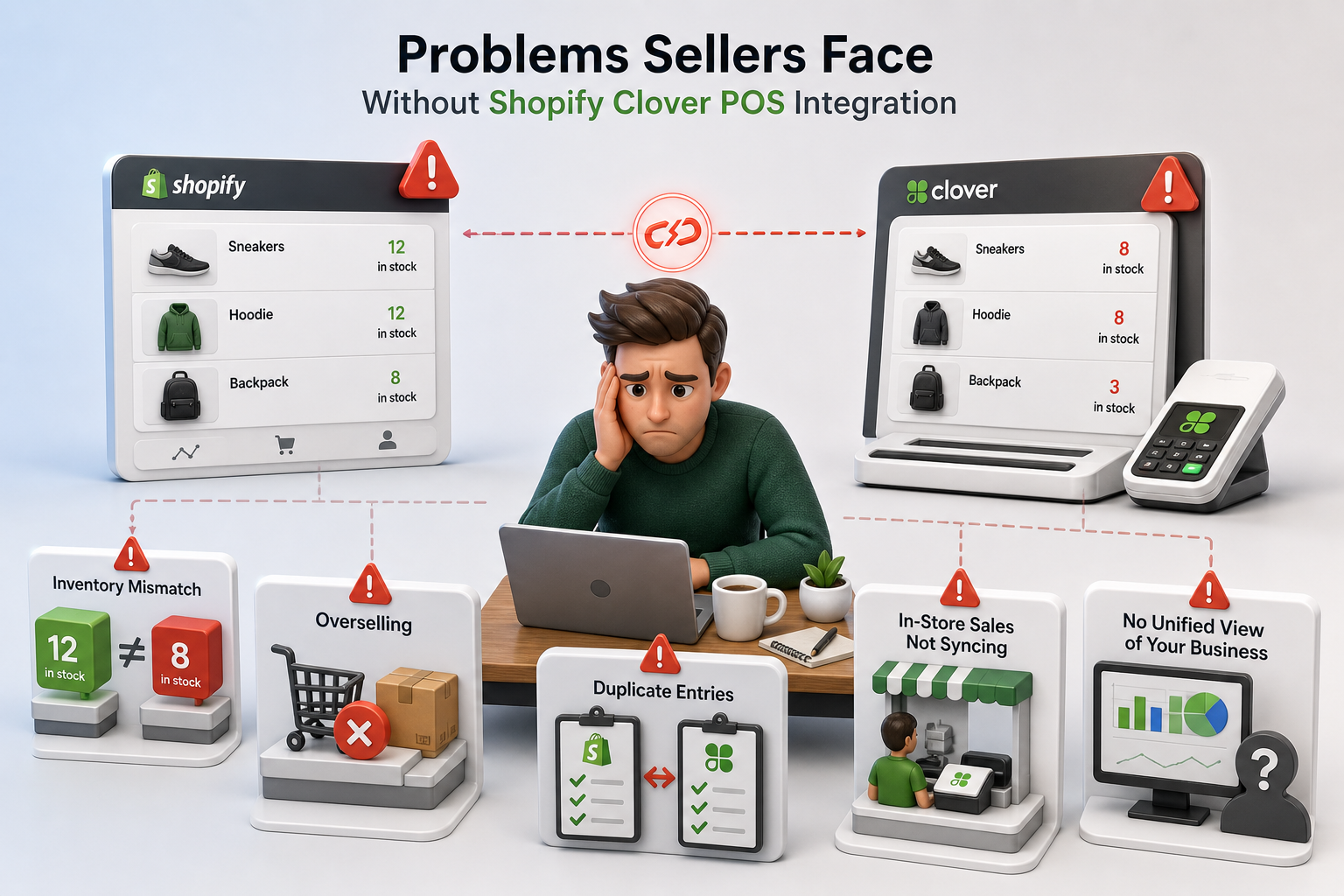
These problems rarely announce themselves all at once. They build up quietly while the business runs, and then they become impossible to ignore. Here is what happens when Shopify and Clover POS operate as two completely separate systems.
Inventory Mismatch Across Platforms:
Imagine your Shopify store shows 12 units in stock. Your Clover POS shows 12 units. A customer buys 4 at the register. Clover updates to 8. Shopify still shows 12. An hour later, 5 customers buy online. You have now sold 9 units you do not have.
This is not a hypothetical. According to Opensend, 58% of retailers operate below 80% inventory accuracy. That means more than half of retail businesses are regularly selling products with stock levels that do not reflect reality. For an individual retail business, those numbers translate directly into refunds, angry customers, and lost repeat business.
Overselling That Leads to Lost Sales:
When your Shopify store sells a product that your Clover POS has already cleared from stock, you have an oversold order. You have to cancel it, issue a refund, and send an apology. Most customers do not wait for that apology to arrive.
Nearly 70% of online shoppers switch to a competitor when an item shows as out of stock or when an order is cancelled after purchase. Overselling does not just cost you that sale. It costs you that customer permanently.
Duplicate Entries Lead to Errors:
Without integration, every new product has to be created in Shopify for the online store and then created again in Clover for the register. Every price change has to be made in both places. Every product description update, category assignment, and tax rate adjustment has to happen twice.
Each manual entry is an opportunity for a mismatch. A price updated in Shopify but missed in Clover means your staff charges the wrong amount at the register. These small errors compound across a catalog of hundreds of products until the two systems have almost nothing in common.
In-Store Sales Not Syncing:
Every sale processed through Clover that does not sync back to Shopify is a hole in your online inventory. Your Shopify stock count continues to drift further from reality with each passing hour. By the end of a busy weekend, your online store may be offering products you sold out of on Friday night.
Most of those errors start exactly here, with inventory records that were never updated because two systems were never talking to each other.
No Unified View of Your Business:
Without proper integration, your Shopify dashboard tells one story and your Clover dashboard tells another. Neither one is the full picture. You cannot see total revenue across both channels in one place. You cannot track which products are selling faster in-store versus online. You cannot identify your best customers across both platforms.
Running a retail business from two incomplete data sets is like trying to navigate with two different maps that do not quite cover the same territory. You always feel like something is missing. Because something always is.
The Different Methods to Connect Shopify and Clover POS
So we have seen the benefits and the problems if the Shopify store and clover pos are not connected. But how do we connect them? For that, we have three methods to connect Shopify with Clover POS.
But they are not equal in capability. The method you choose directly determines whether your systems stay aligned or slowly drift into the same problems you were trying to fix in the first place. So read between the lines of each method and understand carefully.
Method 1: Manual CSV Exports and Imports
This is the most basic and most common starting point in multichannel selling. Everything is handled manually across both systems, and spreadsheets are used as the bridge between online and in-store operations.
Typical workflow of Manual CSV Exports includes:
- Products are added separately in Shopify and Clover POS.
- Inventory is tracked and updated manually at set intervals.
- Sales are reconciled using spreadsheets at the end of the day or week.
- Online orders are manually entered into the POS when needed.
- Stock adjustments are made by hand after checking both systems.
This approach can work only for low-volume sellers where sales are minimal and changes are rare. However, it quickly becomes unstable as soon as transaction volume increases.
The key limitations of this method include:
- High risk of human error due to repeated manual data entry
- Delayed inventory updates leading to overselling or stockouts
- No real-time visibility across channels
- Time-consuming reconciliation that grows with business size
- Operational dependency on spreadsheets instead of automation
Method 2: Basic Connector Apps
The next method is using basic connector applications that promise to automate syncing between Shopify and Clover POS. These tools are easy to install and give the impression that the problem is solved within minutes.
Typical capabilities include automatic product syncing and limited inventory updates. However, as operations grow, several structural limitations become clear.
The main limitations of basic connector apps are:
- Often supports only one-way product sync instead of true bidirectional syncing.
- Limited or no support for product variants such as size, color, or SKU-level mapping.
- Inconsistent inventory updates between Shopify and Clover POS.
- Lack of reliable syncing for online orders and in-store transactions.
- No proper deduplication logic, leading to duplicate records during high traffic.
- Poor handling of API rate limits during peak sales periods.
- Limited regional support, especially for Clover EU setups.
While these tools reduce some manual effort, they do not create a truly unified system. Inventory still drifts over time, order data is often incomplete, and the gap between online and in-store operations continues to exist.
Method 3: QuickSync – All In One Integration Tool
The third method, QuickSync, offers full bidirectional integration to make Shopify and Clover POS operate as a single connected system rather than two separate tools. Unlike basic connectors, QuickSync’s approach is built to handle real retail volume and complexity. It focuses on accuracy, speed, and system reliability across all operations.
Key features and advantages include:
- Products sync in bulk from Shopify to Clover POS, including support for up to 100 variants per batch.
- Inventory updates happen in real time in both directions, ensuring no stock mismatches.
- Full per-variant mapping for SKUs, barcodes, pricing, and cost structure ensures accuracy at every level.
- Automatic category creation and consistent product structure across both platforms.
- Built-in handling of race conditions with controlled reconciliation timing after POS sales.
- Multi-location inventory support for businesses managing multiple stores or warehouses.
- Shopify orders are converted into complete Clover transactions with all line items, discounts, and fees accurately mapped.
- In-store Clover sales sync back to Shopify instantly with correct payment method tracking.
- High-frequency webhook processing, designed to handle peak traffic without delays.
- Advanced deduplication layers prevent duplicate orders even during high-volume sales bursts.
- Automatic API rate limit handling ensures uninterrupted synchronization.
This method does more than just connect stores. It eliminates the gap between them. Instead of managing Shopify and Clover POS separately, businesses operate with a single, continuously synchronized retail environment where data remains consistent, accurate, and real-time by design.
Which Method Should You Choose to Integrate Shopify & Clover?
After reviewing all three approaches, here is how they compare across the metrics that matter most for retail businesses running both an online store and a physical POS.
| Features | Manual | Basic Connectors | QuickSync |
| Setup Time | Ongoing, daily | Hours one-time | Minutes one-time |
| Product Sync Depth | Manual entry twice | Basic, no variants | Full per-variant mapping |
| Inventory Direction | One-way, delayed | Partial | Bidirectional, real-time |
| Order Sync | Manual | Limited | Both directions, atomic |
| Variant Mapping | None | None or limited | Per-variant, SKU-based |
| EU Support | N/A | Rarely | First-class Clover EU |
| Maintenance | Constant | Moderate | Automated |
By looking at the comparison, things should be clear to you also. Manual management and basic connectors handle parts of the problem. Only QuickSync addresses all of it. Full bidirectional sync, per-variant product mapping, atomic order creation in both directions, multi-layer reliability, and first-class Clover EU support in a single integration.
Things to Prepare Before Integrating Shopify with Clover
So now you know which methods you should choose for reliable, fast, and accurate syncing. But before you begin, ensure you have a few essentials in place to ensure the integration runs smoothly.
- An active Shopify store with your products, pricing, and inventory already set up.
- A configured Clover POS account ready for in-store sales.
- A QuickSync account to connect and automate data between both platforms.
That’s all you need to get started. No complex setup, no custom development, and no coding required.
Note: If you’re just getting started, make sure your product catalog and inventory are properly organized in Shopify before connecting it to Clover POS. A clean setup from the start helps avoid syncing issues later.
How to connect Shopify and Clover POS via QuickSync
Connecting Shopify to Clover POS using QuickSync is simple and fast. Even if you do not need to be a technical person, it’s a zero-coding process. So let’s get into the steps that will just take a couple of minutes.
Step 1: Sign up/Log in to your QuickSync Account
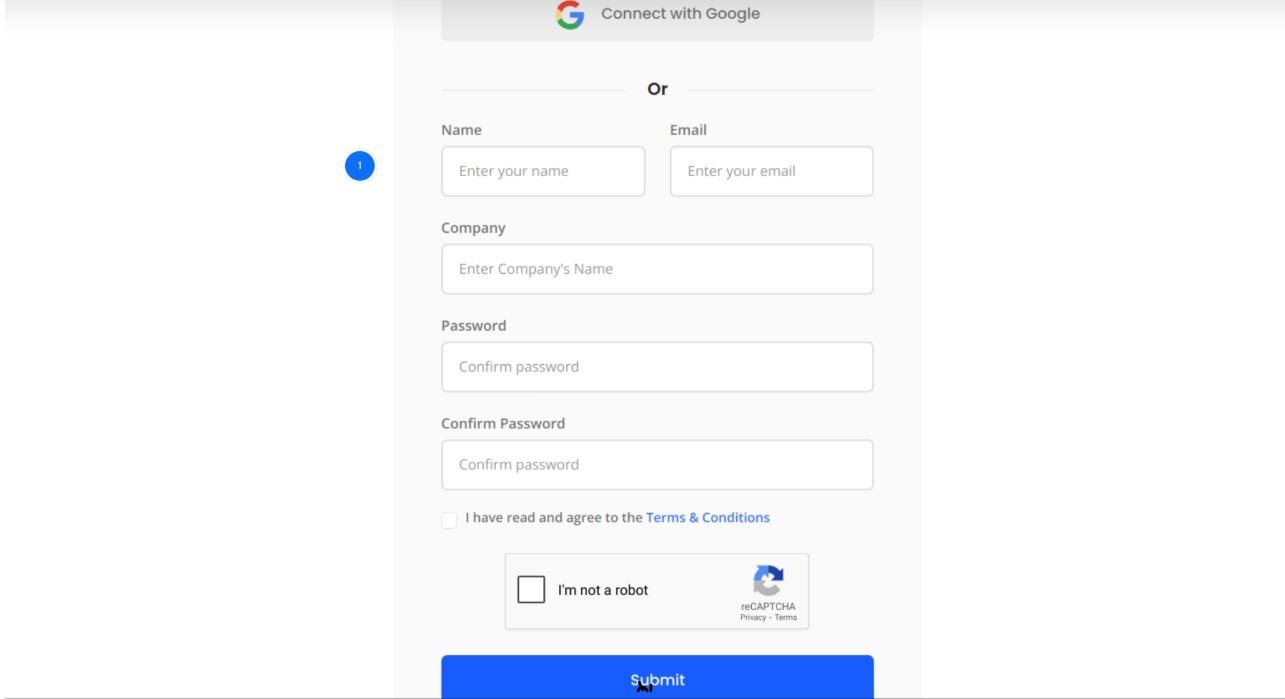
Go to QuickSync.pro and sign up for your free trial. If you already have an account, log in using your credentials to proceed.
Step 2: Connect Your Shopify Store
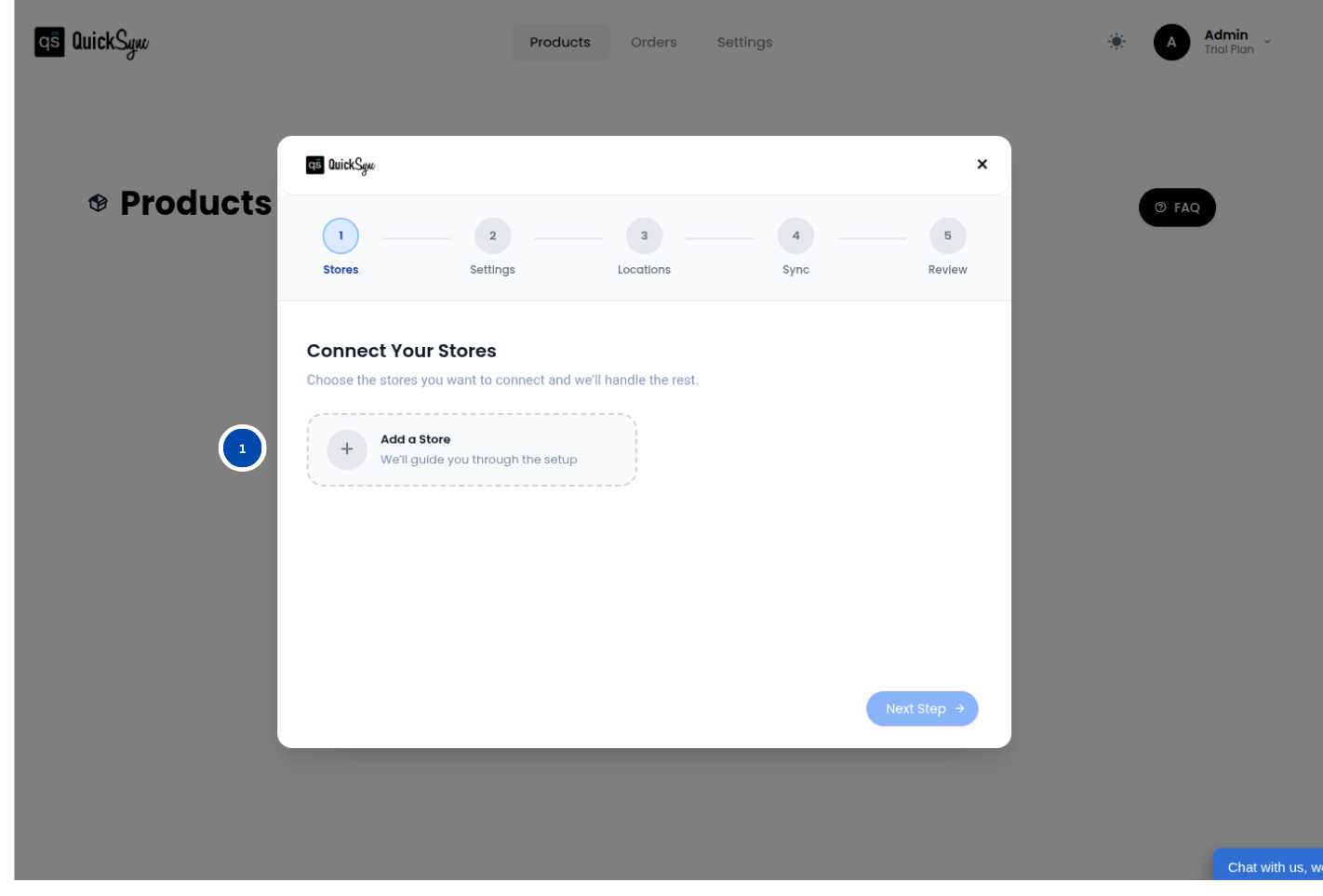
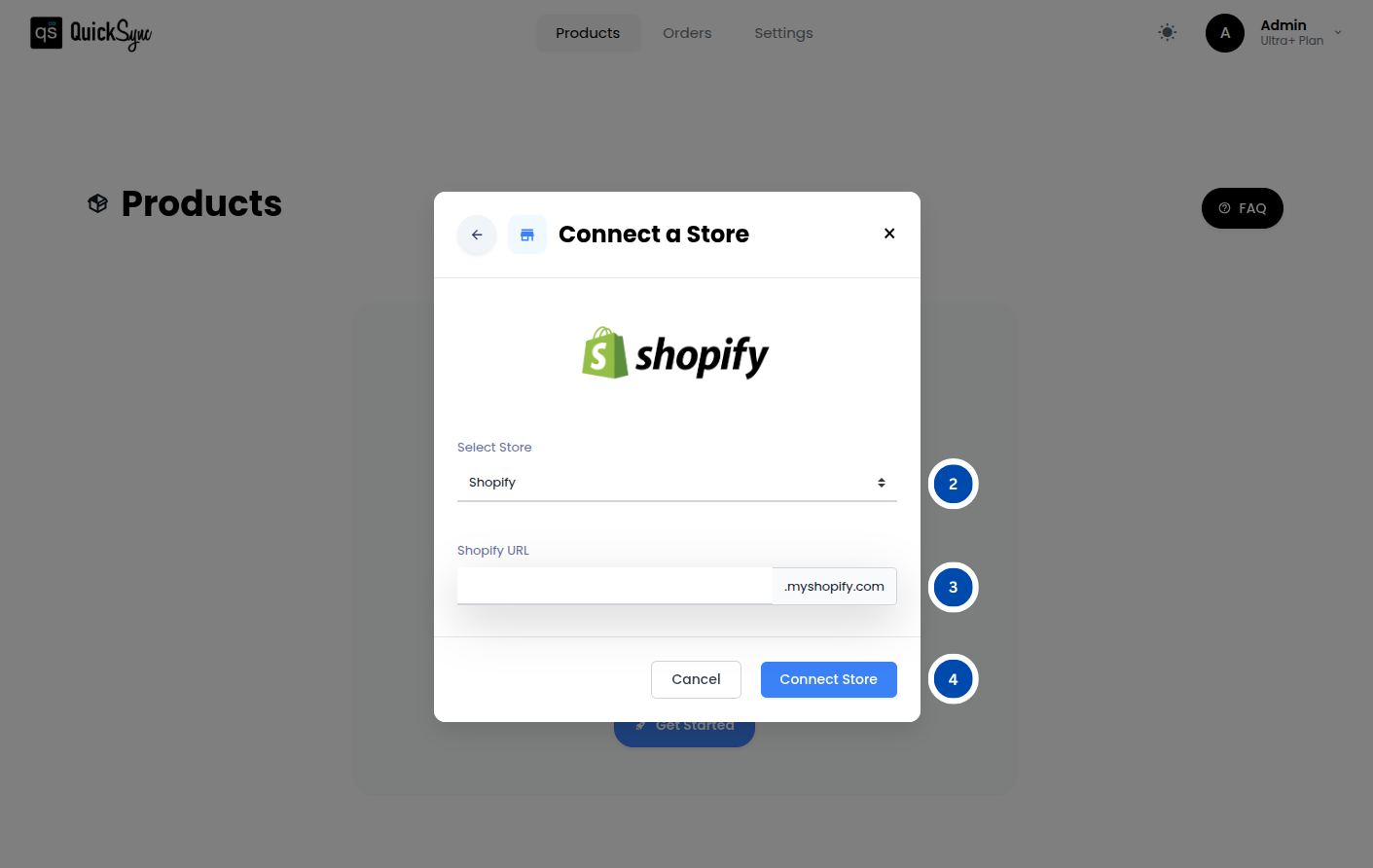
- After logging in, go to your QuickSync dashboard and click on Sync Products, then click Add Store.
- Then select Shopify and enter your store URL (for example: mark1002.myshopify.com).
- Next, click Connect Store, log in to your Shopify account, and approve access for products, images, inventory, and orders.
Once approved, QuickSync will begin importing your store data automatically. Just wait for the progress bar to complete before moving to the next step.
Step 3: Connect Your Clover POS
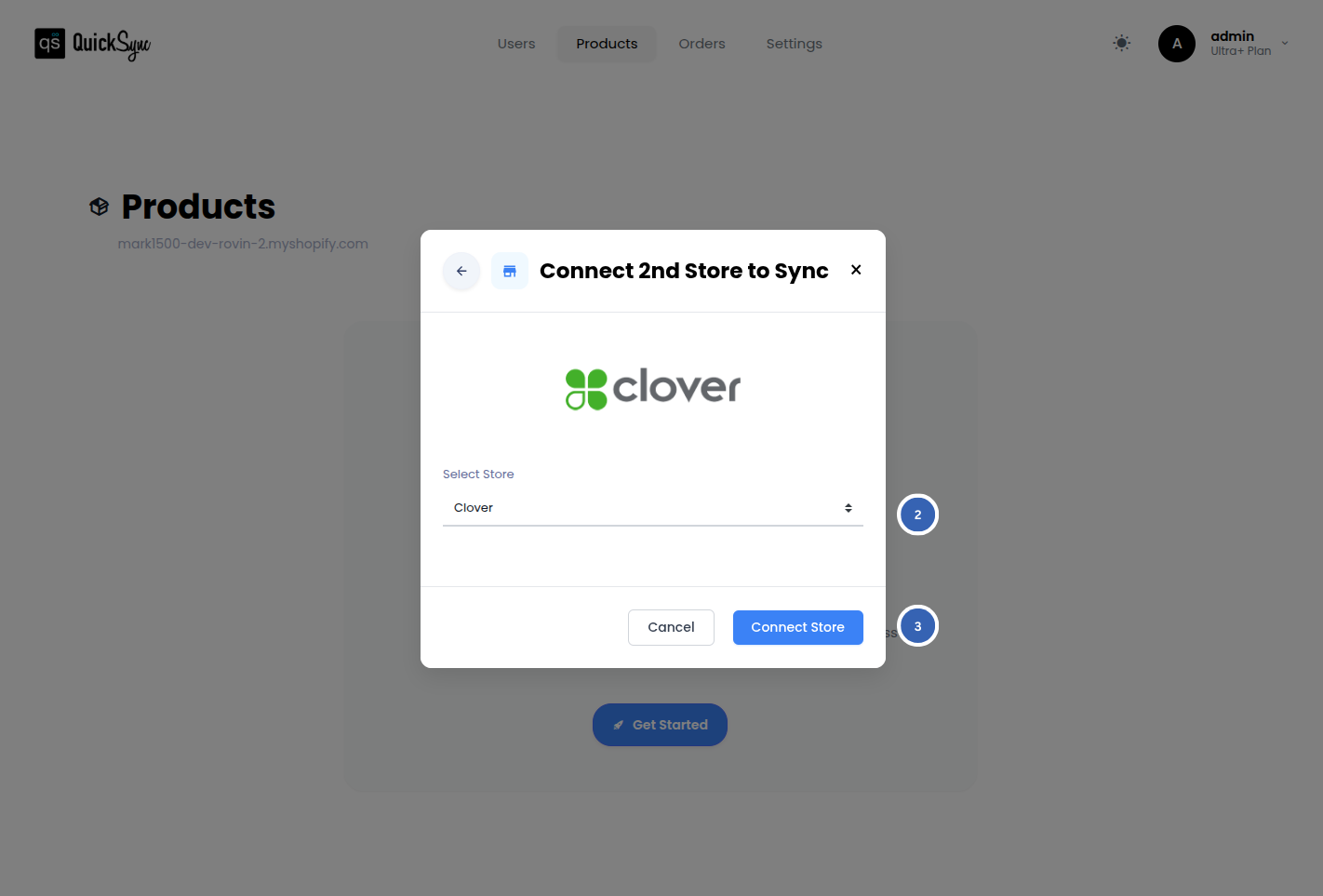
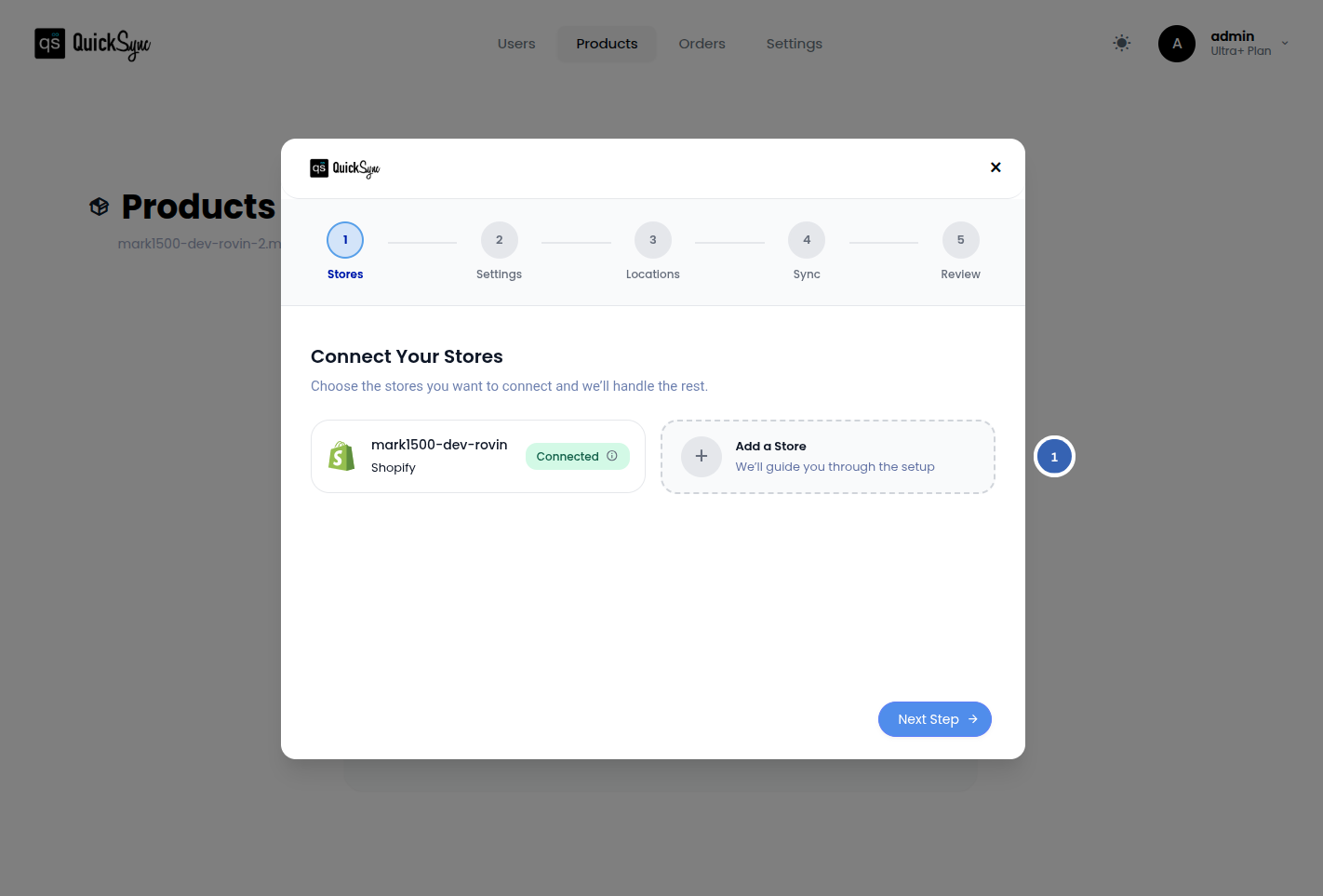
Go back to the QuickSync Dashboard and click on “Add a store” option (available just beside the connected Shopify store)
From the dropdown select
- Clover (For United States / Canada-based accounts)
- Clover EU (For European Union-based accounts)
Click Connect Store and log in to your Clover merchant account to authorize the connection
After successfully connecting, products, inventory, and orders will begin syncing automatically. A live progress bar on your dashboard allows you to track the integration status in real time.
Step 4: Choose Your Sync Preferences
Now, after connecting both channels, you need to choose your syncing preference:
- Product Sync: Enable per-variant mapping, category auto-mapping, color code sync, and visibility rules.
- Inventory Sync: Activate bi-directional stock updates and set your inventory tracking flag.
- Order Sync: Enable atomic order creation, external payment tender mapping, and POS order import.
- Pricing Sync: Confirm retail price and unit cost sync with conversion and capping rules.
- Tax Settings: Verify tax rate import and regional configuration.
Once configured, Shopify and Clover POS stay synchronized automatically. Product updates in Shopify propagate to Clover within minutes. In-store sales appear in Shopify instantly. Inventory stays accurate across both platforms.
Key Tips to Have Smooth Shopify and Clover Syncing
Getting the sync running is the first step. These tips are what keep it running smoothly as your catalog grows and order volume increases.
Keep Shopify as Your Master Store:
Every product update, price change, and category adjustment should originate in Shopify and flow to Clover through QuickSync. Never edit product data directly inside Clover after the sync is live. Even a small change made directly in Clover can create a conflict that overwrites your Shopify data on the next sync cycle.
Ensure All Products Have Clean SKUs:
SKU-based product linking is the backbone of the entire integration. Products without SKUs or with inconsistent SKU formatting will not link correctly. Before you run your first sync Shopify and clover pos session, audit your Shopify catalog and confirm that every product and variant has a unique, clean SKU assigned.
Start with a small batch before syncing the full catalog:
Before pushing your entire product catalog from Shopify to Clover, test with 10 to 20 products. Verify that categories appear correctly on Clover, that variant items are scannable with the right prices, and that inventory levels match between both platforms. Testing at a small scale takes fifteen minutes and prevents structural errors across hundreds of products.
Confirm Your Region Setting for Clover EU:
If you operate in Germany, the Netherlands, or Austria, make sure you select the Clover EU option during the connection setup. Using the standard US Clover connection for an EU account will route through the wrong API endpoints and OAuth flow. The EU connection uses EUR currency defaults and region-specific billing that US settings do not support.
Review Visibility Settings Before Your First Sync:
Inactive and archived Shopify products are automatically hidden from Clover POS when you link Shopify to Clover POS through QuickSync. Draft products remain visible. Before your first sync, review your Shopify product statuses to ensure your POS terminal shows exactly what you want your staff to see and nothing they should not.
Final Words: What Next!
Running Shopify and Clover POS without proper integration is not just inconvenient. It quietly costs you sales, time, and customer trust through mismatched inventory, missed orders, and constant manual fixes.
The merchants who truly grow are not managing two systems separately. They are the ones who understand how to connect Shopify and clover pos in a way that keeps everything aligned automatically.
QuickSync makes that possible with real-time inventory sync, accurate product mapping, and seamless order flow across both platforms.


