
Trying to import Etsy products to Shopify or import Shopify products to Etsy sounds simple until you actually start doing it. Product data doesn’t move cleanly between platforms. Titles break, SKUs mismatch, variants fail, and listings get duplicated.
This is where most merchants get stuck.
The problem isn’t that it’s hard to move products between platforms. The problem is that Shopify and Etsy speak different languages. Shopify expects rich HTML descriptions. Etsy demands plain text. Shopify lets you upload 250 images per product.
Shopify and Etsy are built differently. One is a full ecommerce platform. The other is a marketplace with strict listing rules. Moving product data between them without a proper workflow creates operational issues quickly.
Sometimes product descriptions don’t transfer properly. Variants don’t always map correctly. Size, color, and other options may fail to sync properly. Images don’t always sync cleanly. 76% of customers expect consistency, which means product data must match across Shopify and Etsy.
There are multiple ways to import products from Shopify to Etsy or Etsy to Shopify. But not all methods work long term. Some create more manual work instead of reducing it.
In this guide, I’ll break down how to import products properly, what problems to avoid, and what actually works when you scale. Also, this includes a step-by-step guide for a smooth importing process and tips to handle manual adjustments.
Why Import Products Between Shopify and Etsy?
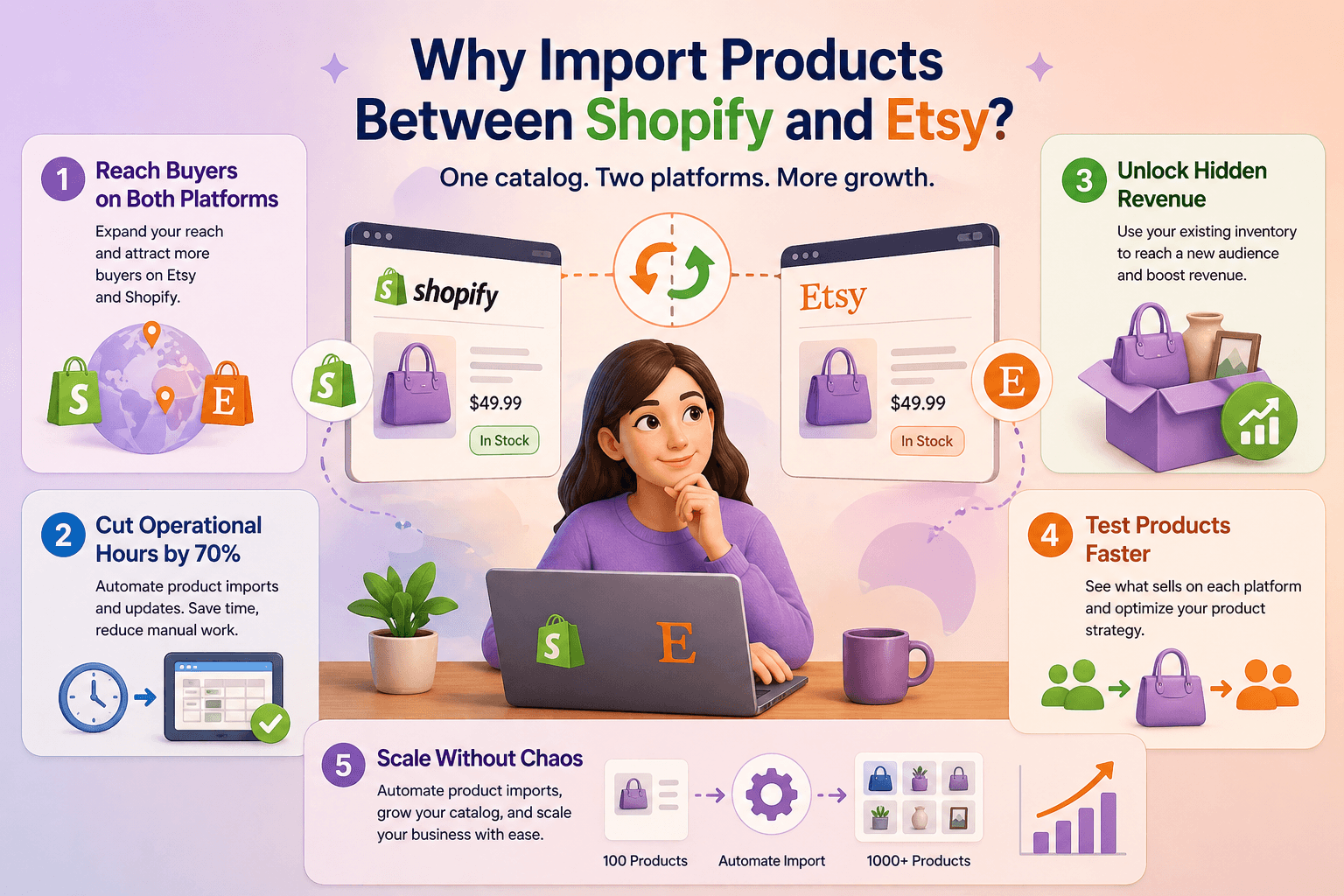
Selling on both Shopify and Etsy gives you reach and control. But only if your product data moves correctly between both platforms. Otherwise, you end up managing two separate catalogs.
Here’s what actually improves when you import products correctly.
Reach Buyers on Both Platforms Without Starting Over
Etsy shoppers don’t go to Shopify. Shopify customers don’t browse Etsy. Each platform has its own marketplace with its own search ranking system. When you import products to both, you double your visibility. This expands your reach beyond your Shopify online store. It brings consistent traffic without relying entirely on marketing efforts.
Cut Your Operational Hours by 70%
Uploading the same product twice, manually, takes roughly 15 minutes per product when you include photos, descriptions, pricing, and variants. If you have 200 products, that’s 50 hours of work before you sell anything. Even updating prices across both platforms when you run a sale takes hours of manual work. Using third party apps can help you sync automatically.
Unlock Hidden Revenue From Your Existing Inventory
Your Shopify store has products that would sell on Etsy. You already own the photos, descriptions, and pricing. You’re not creating new inventory. You’re putting existing products in front of a new audience. That’s pure margin improvement with minimal new work. It increases your overall sales.
Test Products Faster on Two Audiences
Some products perform better on Etsy. Others sell faster on Shopify. If you only test one platform, you never know. Multi-platform importing lets you see which products sell where, then adjust accordingly. Handmade sellers particularly see this: vintage items and craft supplies often outperform on Etsy while branded merchandise does better on Shopify.
Scale Without Operational Chaos
As your catalog grows, manual product uploads become impossible to manage. Importing products through automation tools helps you scale efficiently. Instead of hiring a part-time employee to manage product uploads across platforms, you automate the to shopify migration process. You can double your catalog without doubling your staff.
Read More: Does Shopify integrate with Etsy
How Product Data Differs Between Shopify and Etsy
Before you import products, you need to understand this. Shopify and Etsy handle product data very differently.
Shopify store gives you full control. You can structure product titles, descriptions, SKUs, variants, and media however you want. It’s designed for flexibility.
Etsy store works differently. It has strict rules around title formatting, tag limits (13 tags max), description structure, category taxonomy, image formats, etc.
Here’s where things break:
|
What It Is |
Shopify Allows |
Etsy Requires |
What Happens When You Import |
|---|---|---|---|
|
Product Title |
Up to 255 characters |
Maximum 140 characters |
Your title gets cut short or rewritten |
|
Description |
Formatted text with bold, bullet points, spacing |
Plain text only, no formatting |
All your formatting disappears |
|
Product Photos |
250 images per product |
10 images per product |
You pick your 10 best photos |
|
Variations (like size/color) |
Unlimited (Color + Size + Material + Fit) |
Only 2 variations allowed |
You have to drop some variation options |
|
Tags/Keywords |
Unlimited tags |
13 tags maximum |
You cut your tags in half |
|
Product Code (SKU) |
Optional |
Required |
Missing SKUs break inventory sync |
|
Price |
One price for all variants |
Different prices per variant |
Variant prices must be assigned individually |
The biggest surprise for most merchants? Etsy’s title requirements are difficult. Etsy has automated systems that reject listings with generic, keyword-stuffed, or promotional language in the title
A title like “Handmade Leather Wallet – BEST QUALITY – FREE SHIPPING – LIMITED OFFER” gets auto-rejected on Etsy. Shopify accepts it fine.
Different Methods to Import Shopify Products to Etsy
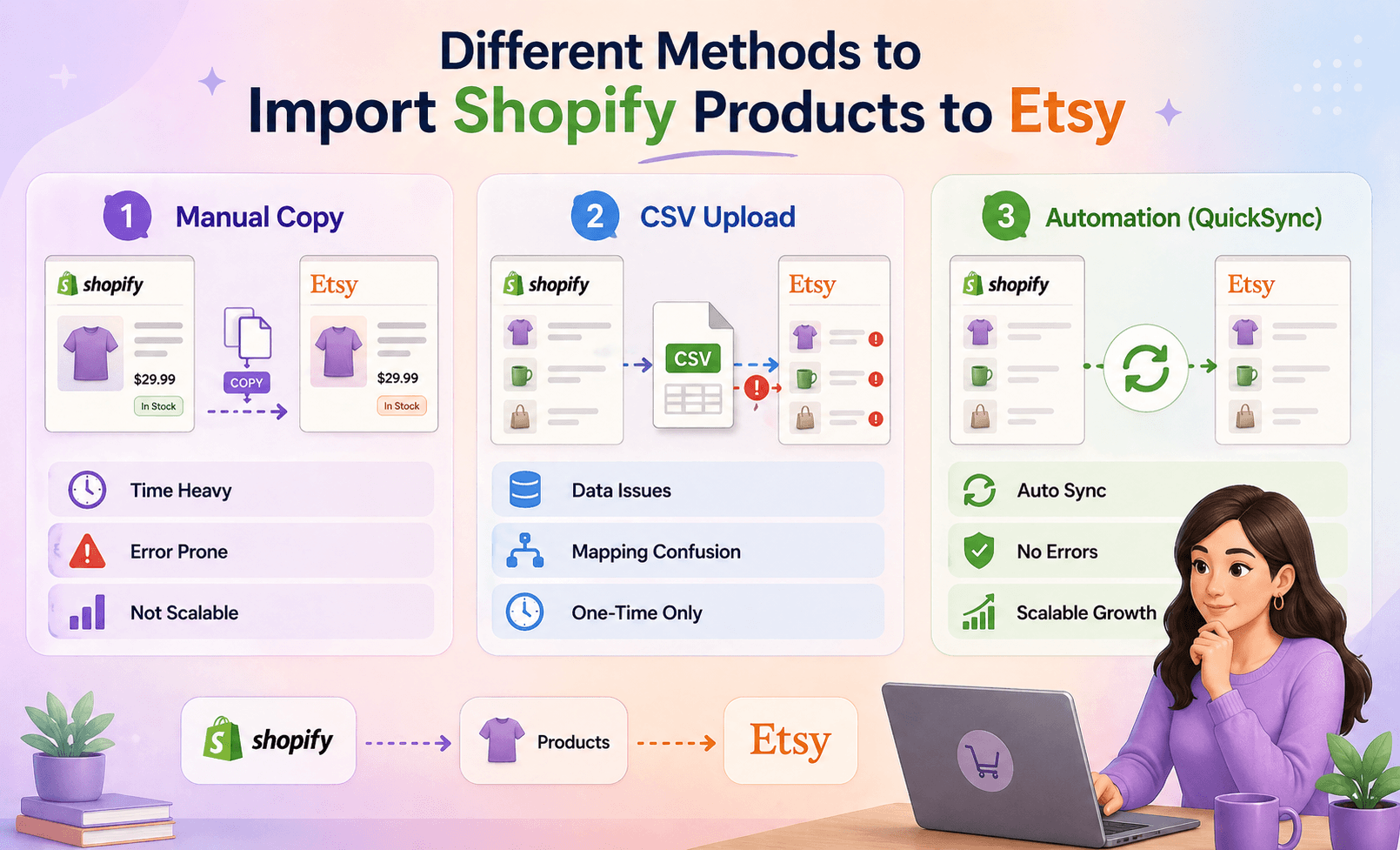
There are multiple ways merchants try to import products between Shopify and Etsy. Some work temporarily. Some create more problems than they solve.
Let me walk through each one so you understand the work involved, the cost, and when to use it.
Method 1: Manual Edit
This is where most sellers start. You manually copy product titles, descriptions, images, pricing, and variants from Shopify and recreate them inside Etsy.
It feels simple at first. But here’s the problem.
The whole process for 100 products takes upto 20 to 40 hours.
For 500 products? You’re looking at a week of part-time work, and you’ll still miss edge cases.
Every product needs to be recreated manually.
Variants need to be reconfigured.
Tags need to be rewritten for Etsy compliance.
As your catalog grows, this method becomes unmanageable. Even small mistakes can create listing errors, making it nearly impossible to maintain consistency across platforms.
Method 2: CSV File Import / Export
Some merchants think they can skip the manual editing. They export their Shopify CSV file, map a few columns, and upload it straight to Etsy’s Bulk Import tool. It sounds simpler than manually re-entering data. But CSV files have serious limitations.
Here’s the problem.
CSV files capture a snapshot at one moment. Any changes after export are lost.
Field mapping is confusing. Shopify’s “Title” doesn’t match Etsy’s “Listing Title”. Columns are named differently.
Variants break during import. Shopify shows variants as rows. The Etsy store wants them grouped. Data gets mangled.
Tags don’t translate to Etsy’s 13-tag limit. Most tags get rejected silently, and you discover missing tags days later.
Images often fail because Etsy is picky about image hosting. You think the import worked, but images never appear on the Etsy store.
This method works for one-time migrations under 50 products. But for ongoing product management, CSV files become a nightmare. You’re trapped re-exporting, re-mapping, re-uploading every time you change anything.
Method 3: Use QuickSync to Import Etsy Products to Shopify
Here’s where the game changes. QuickSync Etsy Shopify integration is built specifically for merchants who sell on multiple platforms. QuickSync offers a special ‘Product Sync’ feature for syncing products from Etsy to Shopify. Instead of importing once, you set up a continuous sync.
Your Shopify store becomes the master store. Every time you add a product, update pricing, or add images to Shopify, QuickSync handles the transformation and automatically lists it on Etsy.
QuickSync does the work that manual importing can’t:
Smart Title Sanitization: Your Shopify titles are rewritten to pass Etsy’s automated compliance checks. Promotional language is removed. Generic keywords are trimmed. Your “Handmade Leather Wallet – BESTSELLER – Ships Free” becomes “Handmade Leather Wallet by [Your Shop]” (Etsy-compliant, still keyword-rich for search).
HTML to Plain Text Conversion: Shopify descriptions are rich with HTML formatting. Etsy accepts only plain text. QuickSync modifies the HTML, reformats your text, and saves readability. No broken formatting. No lost information.
Image Handling Up to 20 Photos: Etsy technically supports more images with Etsy Plus, but most sellers need 8-12. QuickSync uploads all your Shopify images, resizes them for Etsy’s specs, and converts WebP images to JPEG on the fly.
Tag Compliance Automation: Shopify tags are messy. You might have “handmade-leather-goods”, “leather-wallets”, “women’s-accessories”, and more. Etsy allows 13 tags, max 20 characters each. QuickSync deduces, trims, and applies your tags automatically.
Intelligent Variant Folding: Your Shopify wallet comes in 5 colors and 3 sizes (15 variants). Etsy only handles 2 dimensions. QuickSync automatically folds these into Etsy’s system: Color (primary), and Size (secondary). All 15 variant combinations are represented on Etsy without needing manual reduction.
Per-Variant Pricing and SKU Mapping: Every variant keeps its own price and SKU. No flattened pricing. No missing inventory codes.
When to use it: QuickSync is the best option if you are looking to automate your product listing. If you have 100+ products, you plan to keep selling on both platforms long-term, and you want to eliminate manual work entirely, QuickSync is the most reliable tool.
Common Issues During Product Import between Etsy and Shopify (And How to Fix Them)

Even experienced merchants face problems when importing products between Shopify and Etsy. These issues don’t appear immediately. They show up as your listings grow.
Duplicate Listings on Your Source Platform
You import a product from Shopify to Etsy, but it also stays on Shopify. Now the same item appears on both stores, which is intentional, but the problem happens when merchants accidentally import it twice or create a manual listing on Etsy without deleting the original import.
You end up with two Etsy listings for the same product. This kills your Etsy shop’s visibility because Etsy’s algorithm treats duplicate listings as low-quality content.
The fix: Before importing, audit your destination platform. Check if the product already exists. Use SKU matching to prevent duplicate uploads.
With QuickSync, duplicate detection is automatic. It checks for existing products before syncing and prevents the same product from being listed twice on the Etsy store.
SKU Mismatches Causing Inventory Chaos
Your Shopify products have SKUs like “WALLET-BLK-LG” (color and size encoded). You import to Etsy, but Etsy doesn’t understand your SKU naming. Or worse, you imported without assigning SKUs at all.
Now, Etsy creates random SKUs automatically. When you later try to sync inventory between etsy and shopify, the systems can’t match products.
The fix: Assign SKUs to every product in Shopify before importing. Make sure your import tool maps SKUs correctly.
If you’re using QuickSync, SKU mapping is automatic. QuickSync also has the option of auto-assigning SKUs for products that don’t have one.
Missing Product Data After Import
You import 100 products. 95 comes through perfectly. 5 are missing descriptions, images, or pricing. This happens because the import tool encountered a formatting error or a field that it didn’t know how to handle.
The product is “created” on Etsy, but it’s incomplete, and Etsy’s algorithm deprioritizes incomplete listings in search.
The fix: Always do a QA check after importing. Spot-check 10% of your imported products on the destination platform. If you find missing data, re-import those specific products or use the destination platform’s editing tools to fill in gaps.
.QuickSync eliminates this problem by ensuring every field (descriptions, images, pricing) transfers completely. If data is missing, QuickSync alerts you immediately instead of silently failing.
Variant Incompatibility Between Etsy Store & Shopify
You have a Shopify shirt with Color, Size, and Material options (24 variant combinations). Etsy only lets you use 2-dimensional types. You can do Color and Size, but Material gets lost. When you import, some Etsy variants disappear or get combined incorrectly.
Customers can’t find the variant they want. You get angry reviews and cancellations.
The fix: Before importing variants, decide which 2 properties are most important for your product.
QuickSync handles this automatically through intelligent folding, but you need to think through your variant strategy first.
Rejected Listings Due to Etsy Policy Violations
You import a product listing, and Etsy’s automated compliance system rejects it. Common reasons can be title is too promotional, the description contains prohibited language, images include watermarks or logos, etc. These rejections make the product not appear on Etsy, but you might not realize it for days.
The fix: Understand Etsy’s prohibited items list and listing policies before importing. Avoid promotional language in the title. Don’t use watermarks on images.
If you’re using QuickSync, title sanitization prevents most rejections automatically.
What a Proper Shopify Etsy Product Import Tool Should Include
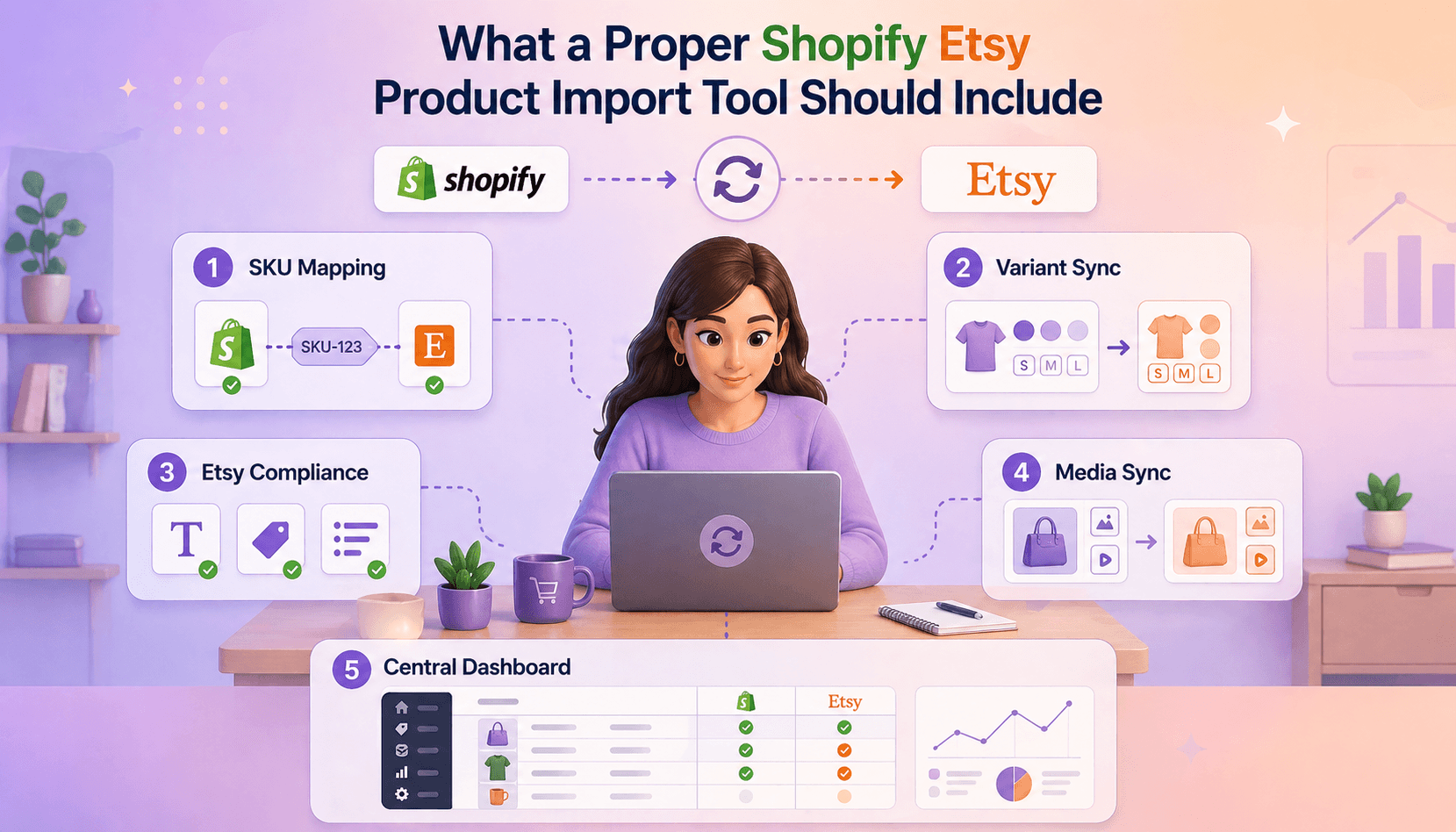
Most merchants think product import is just about moving listings. That’s not enough. A proper workflow ensures your product data stays consistent, compliant, and scalable across both Shopify and Etsy.
Here’s what a correct workflow actually includes.
Structured SKU Mapping
Every product must have a unique SKU that matches across Shopify and Etsy. This ensures accurate product mapping. It prevents duplicate listings and keeps inventory tracking aligned across platforms without manual corrections or mismatched product data.
Variant-Level Product Sync
A proper Shopify Etsy product sync tool must support variant-level syncing. This means each size, color, or style variation is tracked individually with correct pricing and stock levels. Without this, product listings lose accuracy, and inventory visibility gets messed up.
Etsy Compliance Formatting
Product titles, tags, descriptions, and categories must match Etsy’s requirements. A proper tool automatically formats Shopify data into Etsy-compliant listings. It helps avoid rejection errors and ensures products are published correctly without manual editing or rework.
Media and Asset Synchronization
The Etsy Shopify product management tool should sync Images and videos correctly during product import. A proper app ensures all product media is synced with the correct formats, order, and quality. So listings remain visually consistent across both Shopify and Etsy stores.
Centralized Product Management
The product sync tool should allow you to manage products from a single dashboard. A proper tool allows merchants to update listings once and reflect those changes everywhere. This reduces manual work. It maintains accurate product data across all connected sales channels.
How to Import and Sync Products Using QuickSync
Here’s what most merchants don’t realize: importing is the easy part. Keeping products in sync is where most systems fail. Let me show you why QuickSync solves this better than one-off imports.
Most merchants import their Shopify catalog to Etsy once, then manage both stores separately. This is where automation platforms like QuickSync actually save you time and money.
Instead of manually syncing every change, QuickSync watches your Shopify store. When you add a product, it appears on Etsy automatically.
When you adjust pricing, both platforms update simultaneously.
Your Shopify titles get rewritten for Etsy compliance.
Your HTML descriptions become clean plain text.
Your images are resized and converted.
Your variants are intelligently folded into Etsy’s system.
Your SKUs are preserved. Your tags are deduplicated.
You’re not managing two stores anymore. You’re managing your products from one master store like Shopify.
Compared to manual methods and basic tools, QuickSync offers a more reliable and scalable solution for importing Shopify products to Etsy. It ensures accurate data transfer, proper formatting, and real-time synchronization.
Here’s how to connect Shopify to Etsy using QuickSync for importing products.
Step 1: Create Your QuickSync Account
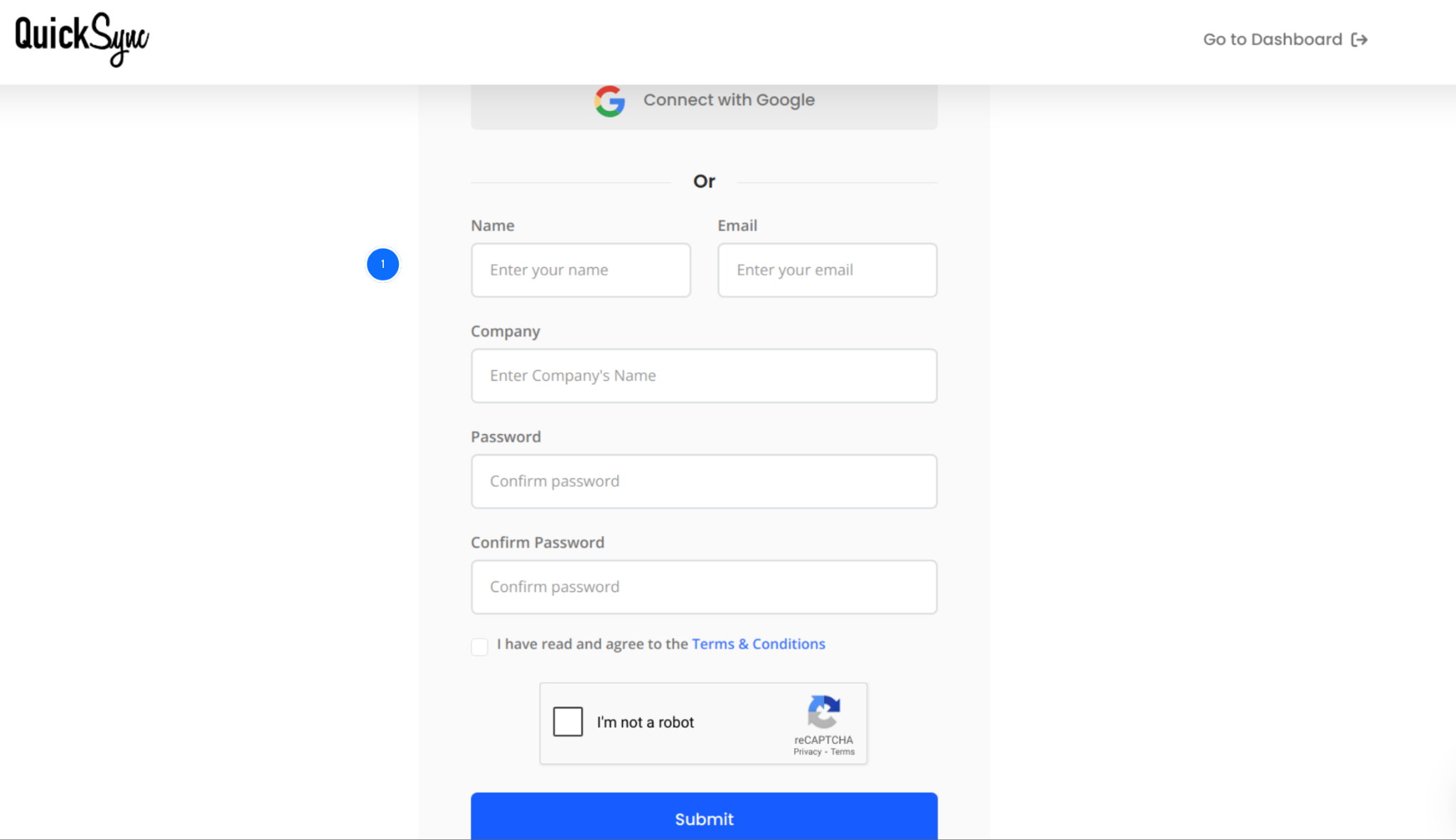
Go to quicksync.pro and sign up with your email and business details. Choose the plan that fits your product count and syncing needs.
Log in to your QuickSync dashboard. This is your command center. You’ll see sections for Connected Stores, Product Sync Settings, Inventory Sync Status, and Order Management.
Step 2: Connect Your Shopify Account
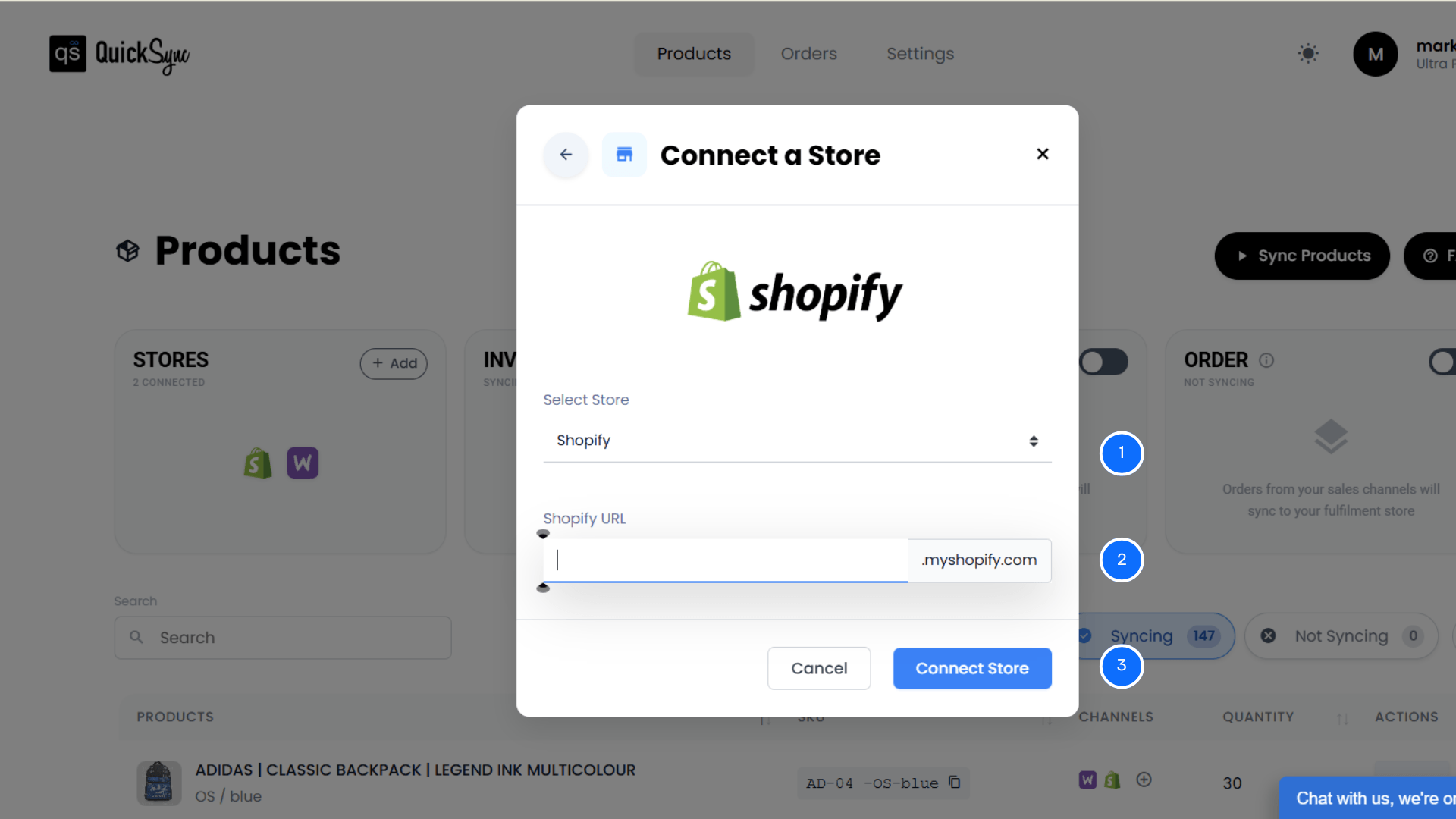
In the QuickSync dashboard, go to Dashboard > Sync Products > Add Store.
Enter your Shopify store URL (example: yourstore.myshopify.com).
Click “Add a Store” and log in with your Shopify admin credentials.
You’ll be asked to approve permissions for products, inventory, images, and orders.
QuickSync runs an initial import of your store details, locations, and full product catalog. You’ll see a progress bar.
Step 3: Connect Your Etsy Shop
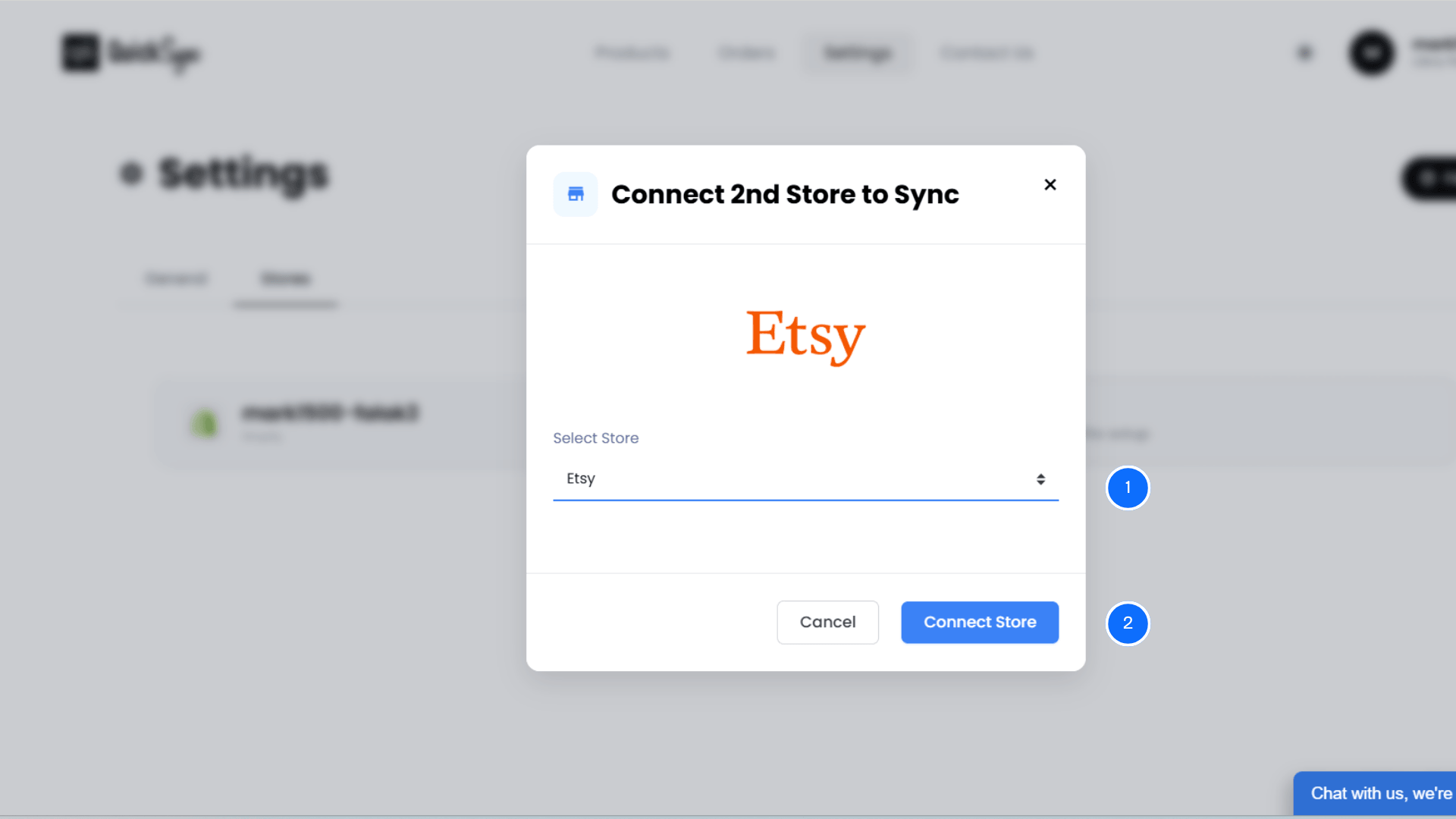
Make sure you have an active Etsy shop and an Etsy account before starting. If you don’t, create one now. You’ll need Shop Manager access.
Back in the QuickSync dashboard, go to Dashboard > Sync Products > Add Store.
Select Etsy from the list.
Log in with your Etsy account and authorize QuickSync to access your shop.
You’ll approve permissions for listings, inventory, and shipping settings.
Step 4: Configure Product Sync Rules
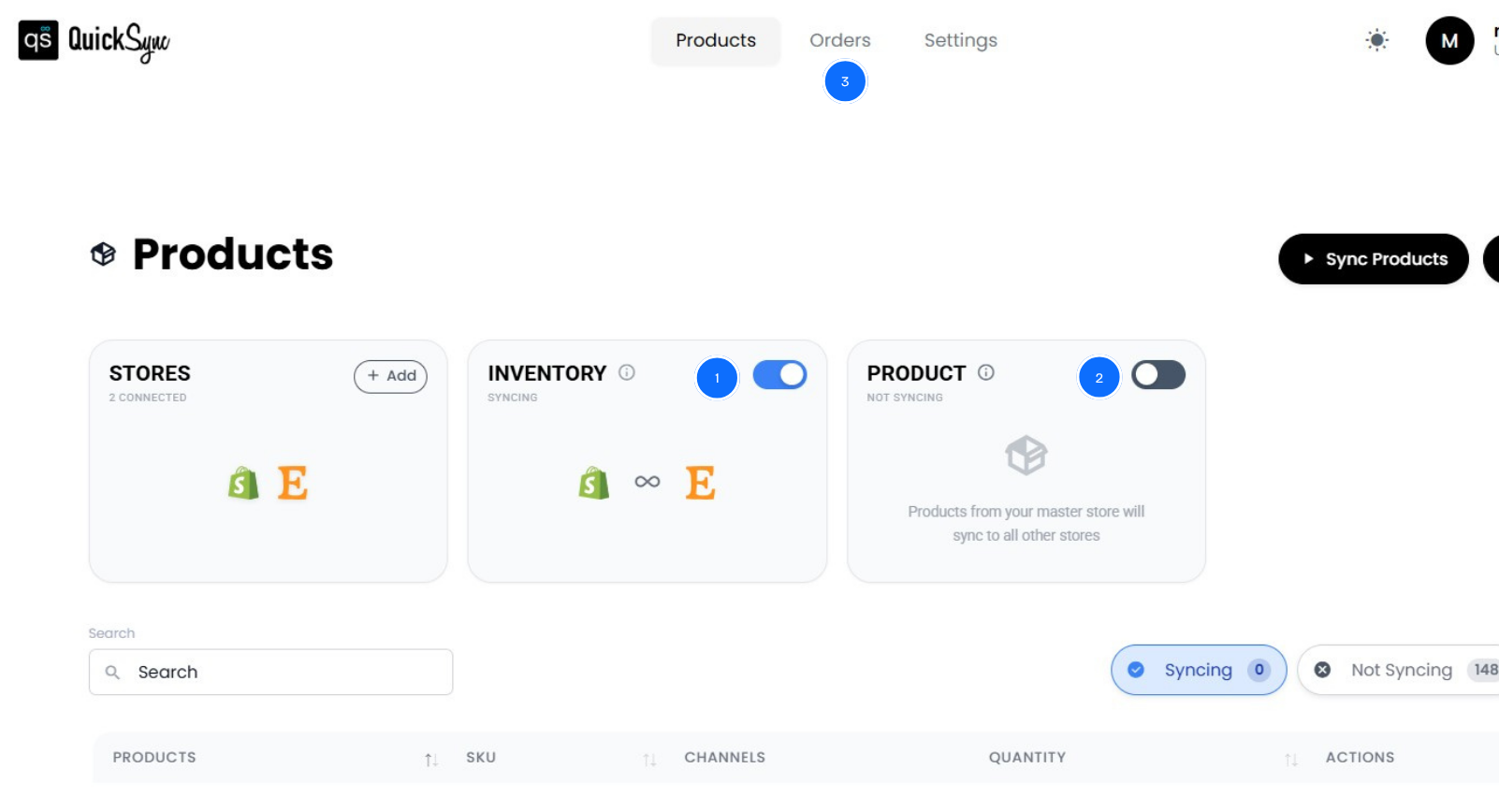
Now comes the configuration. This is where you decide how QuickSync behaves.
In your dashboard, go to > Product Sync. You’ll see toggle options:
Set Your Master Store: Which platform controls all product data? For most merchants, Shopify is the master. Every product change on Shopify flows to Etsy. This prevents conflicting updates.
Assign SKUs: If any of your imported Shopify products are missing SKUs, choose assign SKU.
Draft Mode for Etsy: Before publishing products live on Etsy, you can have QuickSync save them as drafts in your Shop Manager. This is huge if you want to review before paying Etsy’s listing fees. You can view each imported product, check images, verify pricing, and make manual tweaks. Then publish them all at once.
Select Products to Sync: You don’t have to sync your entire Shopify catalog. You can exclude collections (like sale items) or specific products. Choose wisely.
Once configured, hit “Start Product Sync“. QuickSync begins syncing and uploading your products from Shopify to Etsy.
Best Practices for Accurate Product Import Between Shopify and Etsy
You’ve set up your import. Now let’s make sure it actually works well. These practices ensure your Shopify Etsy product sync stays reliable as your business grows.
Keep SKU Structure Clean
Always maintain a consistent SKU structure across Shopify and Etsy before importing products. Clean SKUs ensure accurate product mapping and prevent duplicate listings. It allows inventory and variants to sync correctly across both platforms without manual intervention later.
Review Product Data Before Import
Before importing products, check titles, descriptions, tags, and images inside your Shopify store. Clean data ensures smoother imports and reduces formatting issues, missing attributes, or broken listings when products are transferred to Etsy’s stricter marketplace structure.
Use Draft Mode Before Publishing
Enable draft listings when importing products to Etsy. This allows you to review listings before they go live. Since Etsy charges listing fees, this step helps avoid unnecessary costs caused by incorrect imports or incomplete product data.
Avoid Manual Edits After Sync
Once product syncing is active, avoid editing listings separately on Shopify and Etsy. Manual edits create data conflicts and break sync accuracy. Always make updates from your master store to maintain consistent product data across platforms automatically.
Test With a Small Batch First (5-20 Products)
Don’t import your entire catalog on day one. Import 10-20 products that represent different categories and variants. Check them on Etsy. Look for formatting issues, missing images, incorrect pricing, and variant problems. Fix your import rules before scaling to 100+ products.
Conclusion
Importing products between Shopify and Etsy is not just a setup task. It directly impacts how your entire business operates across multiple sales channels.
Manual uploads, CSV imports, and basic tools may work initially. But they fail when your product catalog grows, and order volume increases. A proper Shopify Etsy product sync system eliminates these problems completely.
QuickSync does exactly that.
QuickSync handles product import, formatting, SKU mapping, variant syncing, and inventory updates automatically. Your listings stay consistent. Your data stays accurate. Your operations stay scalable. Instead of managing two separate stores, you run one connected system.


