Have you added WooCommerce and Shopify to your ecommerce selling channels and are now struggling to manage both stores properly?
Are you frequently dealing with inventory issues? Once you are fixing inventory, you see that orders are not processed correctly. And on top of that, you are copying and pasting product details from Shopify to WooCommerce or vice versa.
Take a breath, you are not alone.
Most of the ecommerce merchants selling on more than one store face these issues. But, they fix them also before they create major operational issues or a leak in your monthly profits.
The best way to reduce manual work and grow revenue from two ecommerce stores is to integrate Shopify with WooCommerce. In fact, businesses using integrated ecommerce systems see up to 20–30% improvement in operational efficiency as per McKinsey.
However, the fact is that there is no built-in feature to sync Shopify with WooCommerce. Therefore, merchants try different integration approaches to connect them into one unified operation.
There are some methods, like manual updates or CSV uploads, which may seem convenient at first. But often end up costing more time and effort than they save. That is why it is important to know the most reliable way to sync Shopify and WooCommerce.
Read this blog to know how to sync Shopify and WooCommerce, the best tools available, and how to manage both stores smoothly without inventory or order errors.
What it Means to Sync Shopify and WooCommerce and How Does it Work
Before we jump into how to sync Shopify and WooCommerce. Let’s understand what exactly integrating Shopify to WooCommerce means.
Here’s the thing: most merchants don’t fully understand. Syncing your Shopify store and WooCommerce store doesn’t just mean listing the same products on both platforms. That’s duplication.
What it actually means is that both stores communicate automatically, in real time, so your product data, inventory, and order details stay aligned across both sales channels.
Let me explain how it works.
When a customer buys a product on your Shopify store, a proper sync tool detects that sale instantly and updates the stock level on your WooCommerce store at the same time. The same happens in reverse.
Here’s what a complete Shopify WooCommerce sync covers:
- Stock levels update across both platforms in real time.
- Product titles, descriptions, prices, images, and variants stay consistent
- Orders from WooCommerce flow into your Shopify admin for centralized fulfillment
- Product images update automatically, so your WooCommerce store matches your Shopify catalog visually
Without all four of these working together, you’re running two separate online stores that happen to share the same physical inventory. That’s a recipe for errors. And in my experience, those errors start small and grow fast.
Benefits of Syncing Shopify and WooCommerce

Before we get into what goes wrong, let’s talk about what goes right when your two stores are properly connected. The benefits here are operational and financial. When you sync Shopify and WooCommerce accurately, it changes how your entire ecommerce business runs.
Here are the advantages of Shopify and WooCommerce integration.
Real-Time Inventory Accuracy Across Both Stores
When a product sells on WooCommerce, your Shopify stock updates instantly, and vice versa. Your Shopify and WooCommerce inventory levels are always accurate without any manual input. This alone eliminates the most common cause of overselling.
This gives you an accurate idea of when to restock products. You can plan your inventory in advance by looking at the stock data.
One Centralized Dashboard for All Orders
With order sync turned on, all WooCommerce orders flow directly into your Shopify admin. You manage every order from one dashboard. This saves an estimated 10 to 20 hours of weekly admin work. It cuts order fulfillment errors dramatically and protects your profit.
When customers receive orders on time, you get positive reviews. This eventually increases your store ratings.
Automatic Product Updates Without Double Work
With Shopify and WooCommerce integration, you get an accurate listing. You are also saved from doing a double product details upload. Update a product title, swap an image, or change a price in your master Shopify store. That update pushes to the connected WooCommerce store automatically.
No logging into the WordPress admin panel to repeat the same change
Consistent Listings and Variations Across Channels
If you are using an excellent WooCommerce Shopify connector, it also keeps your variants accurate. If your WooCommerce and Shopify stores have various product variants, you get consistency. Product variations like sizes, colors, and styles stay in sync across both stores. WooCommerce product attributes and Shopify variants are mapped correctly.
Fewer Returns and Refunds, More Revenue
In case you are someone who is dealing with a lot of returns and refunds. A Shopify WooCommerce integration will solve your problem. When product data is accurate. Fewer returns get processed. Fewer refund requests hit your account.
Research shows that the average return costs merchants 21% of the order value. So cutting returns directly protects your margin on every sale.
Common Problems Retailers Face Without Shopify WooCommerce Sync

Now that you get an idea about what syncing actually gives you. Let me walk you through what happens when it’s missing. From my experience, these problems don’t all show up on day one.
Everything feels manageable at the start. But as order volume grows, the gaps between unsynced platforms turn into serious operational breakdowns.
Overselling When Both Channels Sell the Same Stock
A product shows 5 units available on both Shopify and WooCommerce. You get 4 orders on Shopify and 3 on WooCommerce in the same hour. You only have 5 in stock. Now you’re cancelling orders and issuing refunds.
Research shows 40% of multichannel sellers cancel one in every ten orders due to stock errors. Every cancellation damages your brand.
Stock Mismatches That Get Worse Over Time
Every sale that goes unsynced creates a growing gap between what Shopify thinks you have and what WooCommerce shows. Returns processed on one Shopify don’t update on WooCommerce. Manual adjustments in one store don’t carry over.
Over time, your inventory becomes unreliable. Now you’re making fulfillment based on numbers that don’t reflect reality.
Hours Wasted on Manual Inventory Updates
Without proper sync, you’re logging into your Shopify admin after every WooCommerce sale to manually adjust stock. Then, do the same in your WordPress admin panel when Shopify orders come in. For small catalogs, that’s manageable at first.
For stores with 100-plus SKUs and multiple variants, that’s a big job that always causes errors due to manual updates.
Listing Errors and Inconsistent Product Data
When you manage product data separately on two platforms, inconsistencies show up. A product description gets updated in Shopify but not in WooCommerce. A price changes in one store but not the other. A new product image gets uploaded in Shopify, but WooCommerce still shows the old photo. Customers notice these differences, and it erodes trust in your brand.
Scattered Order Management Across Two Dashboards
Without order sync, you’re checking your Shopify admin for some orders and your WooCommerce order export settings for others. Urgent orders get buried. Shipping gets delayed.
Customer follow-ups fall through because no one is sure where the order actually came from.
What a Proper Shopify–WooCommerce Sync Tool Should Include
Not all Shopify and WooCommerce sync tools are built the same. And this is where a lot of merchants make mistakes. They grab the first connector app they find in the Shopify App Store, set it up in five minutes, and assume it’s working.
Then three weeks later, stock mismatches appear, orders go to the wrong dashboard, and they’re back to fixing errors manually.
A proper Shopify WooCommerce inventory sync workflow needs to include the following features from the start.
Real-Time Sync, Not Weekly or Daily Sync
Updates must happen the moment a sale is placed, not in batches every hour. Any lag creates a window for overselling. Real-time syncing is non-negotiable for any store processing regular orders across both platforms.
Multi-Location Warehouse Inventory Support
If you hold stock in multiple warehouses or fulfillment centers. Your sync tool must map and manage inventory across every location. Without this, available inventory calculations become inaccurate the moment stock moves between locations.
Correct SKU Mapping Even for Variants
Your sync tool must correctly match Shopify products to WooCommerce products at the variant level. Clean SKU mapping prevents wrong shipments, missing variations, and broken inventory counts when products have multiple options like size, color, or material.
Easy Setup with No Custom APIs Required
A good WooCommerce and Shopify sync tool should be easy to connect. You should not need custom APIs or developer support. The setup process should be quick and straightforward, even for retailers without technical experience.
Two-Way Product Sync with a Master Store
You designate one store as the Master Store. Every product update made there, whether it’s a title, description, image, price, or variant change, pushes to the connected store automatically. This keeps your product catalog consistent without double work.
Order Sync with Centralized Fulfillment
WooCommerce orders should flow into your Shopify admin so you can manage all orders in one place. Shipping carrier updates and tracking details should sync back to WooCommerce automatically. So your customers receive accurate order status updates. This includes handling orders with processing status correctly during the sync.
Best Methods to Sync Shopify and WooCommerce
Now let’s talk about the best way to sync Shopify and WooCommerce stores. There are various methods to sync WooCommerce and Shopify. Some integration methods will work in the start, but break once your SKUs increase.
While there are methods that still work accurately on automation, even when you get more orders, or you increase your listing size.
Let’s analyze the Shopify WooCommerce integration method one by one.
Method 1: Manual Updates
This is where most sellers begin. You log into your Shopify admin when a WooCommerce order comes in and adjust the stock count manually. You log into your WordPress admin panel when a Shopify order ships. You update product data in both systems separately every time something changes.
Here’s where this breaks: it doesn’t scale past a few dozen SKUs.
Human errors are inevitable. Manual syncing always fails when order volume is high, especially during sales spikes. You end up spending more time correcting stock errors than actually running your business. And it’s entirely unsustainable once you start selling any meaningful volume across both stores.
Method 2: CSV Exports and Imports
Some merchants try to bridge the gap by exporting product data and order export settings from one platform and importing the CSV file into the other. It feels like a step up from fully manual work. But it’s not much better in practice.
CSV syncing is not real-time. You’re working with data that was accurate when the export ran, not when it’s actually imported.
Between those two, more orders have come in, and your stock levels are already wrong. Product variations don’t always map correctly between platforms. This approach reduces some manual work but doesn’t eliminate the core risks.
Method 3: QuickSync (The Right Way to Do It)
This is where things actually change. QuickSync is a dedicated sync tool built for multichannel sellers who need their Shopify store and WooCommerce store to behave as one unified operation.
Here’s what makes QuickSync the smart choice over the first two methods:
- Real-time inventory sync across both stores, with no lag between a sale and a stock update
- Centralized order management ensures all WooCommerce orders flow into Shopify as the fulfillment store
- Automatic product sync, including images, prices, variants, and WooCommerce categories
- Multi-location inventory support across all your connected warehouses
- No custom APIs or developer involvement required during setup
Instead of patching two stores together with manual work or batch CSV files, you run one unified ecommerce business. That’s the actual difference between “connecting platforms” and doing it the right way.
How to Sync Shopify and WooCommerce Using QuickSync
Now that we have analyzed, QuickSync is the best way to sync Shopify and WooCommerce. Let me walk you through the QuickSync setup process.
It’s straightforward, and no technical experience is required. Most sellers complete this in under 30 minutes.
Step 1: Create Your QuickSync Account
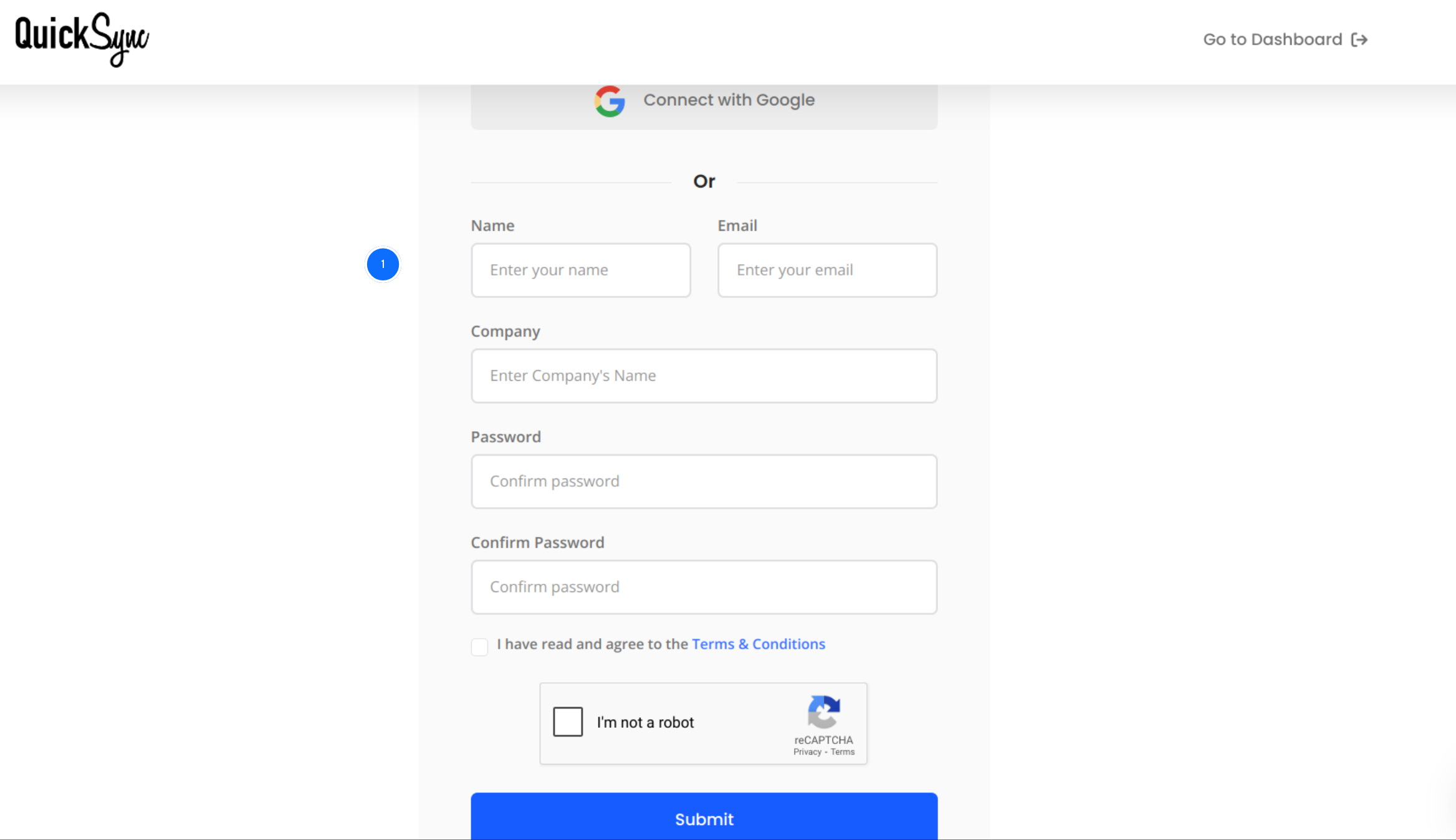
- Visit QuickSync.pro and click on sign up.
- Now fill out the sign-up form and get your login credentials.
- With your credentials, log in to the QuickSync dashboard. From here, you’ll manage everything: your connected stores, sync settings, and order flows.
Step 2: Connect Your Shopify Store
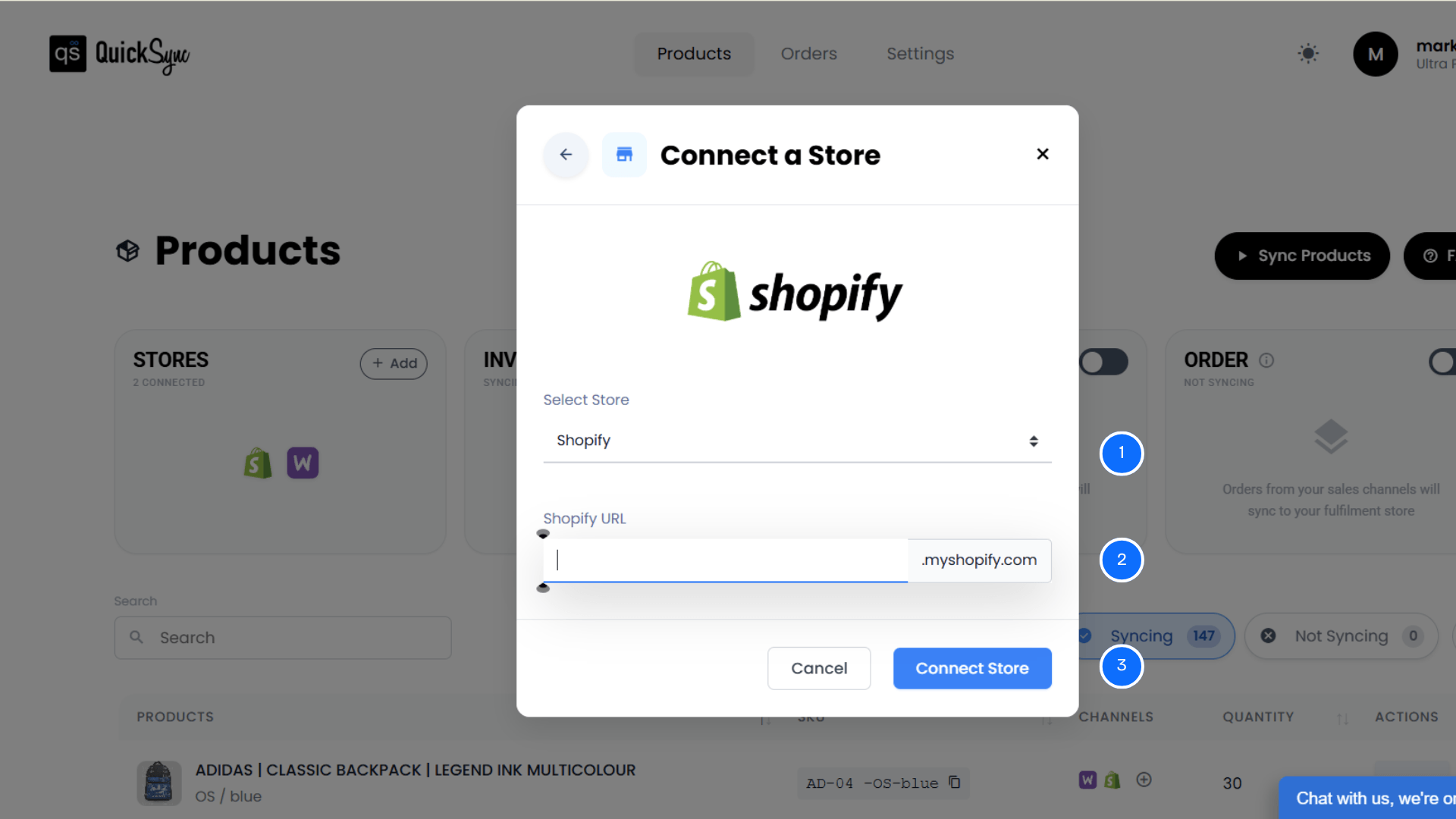
- Go to QuickSync Dashboard → Sync Products → Add a Store.
- Select Shopify from the list.
- Enter your Shopify store URL (example: mark1500.myshopify.com)
- Click Connect a Store and log in to your Shopify account
- Approve permissions for products, images, inventory, and orders
Once authorised, QuickSync begins an initial import of your shop details, locations, and products. You’ll see a progress bar in the dashboard while this runs. Larger catalogs take a few minutes. Keep the tab open.
Step 3: Connect Your WooCommerce Store
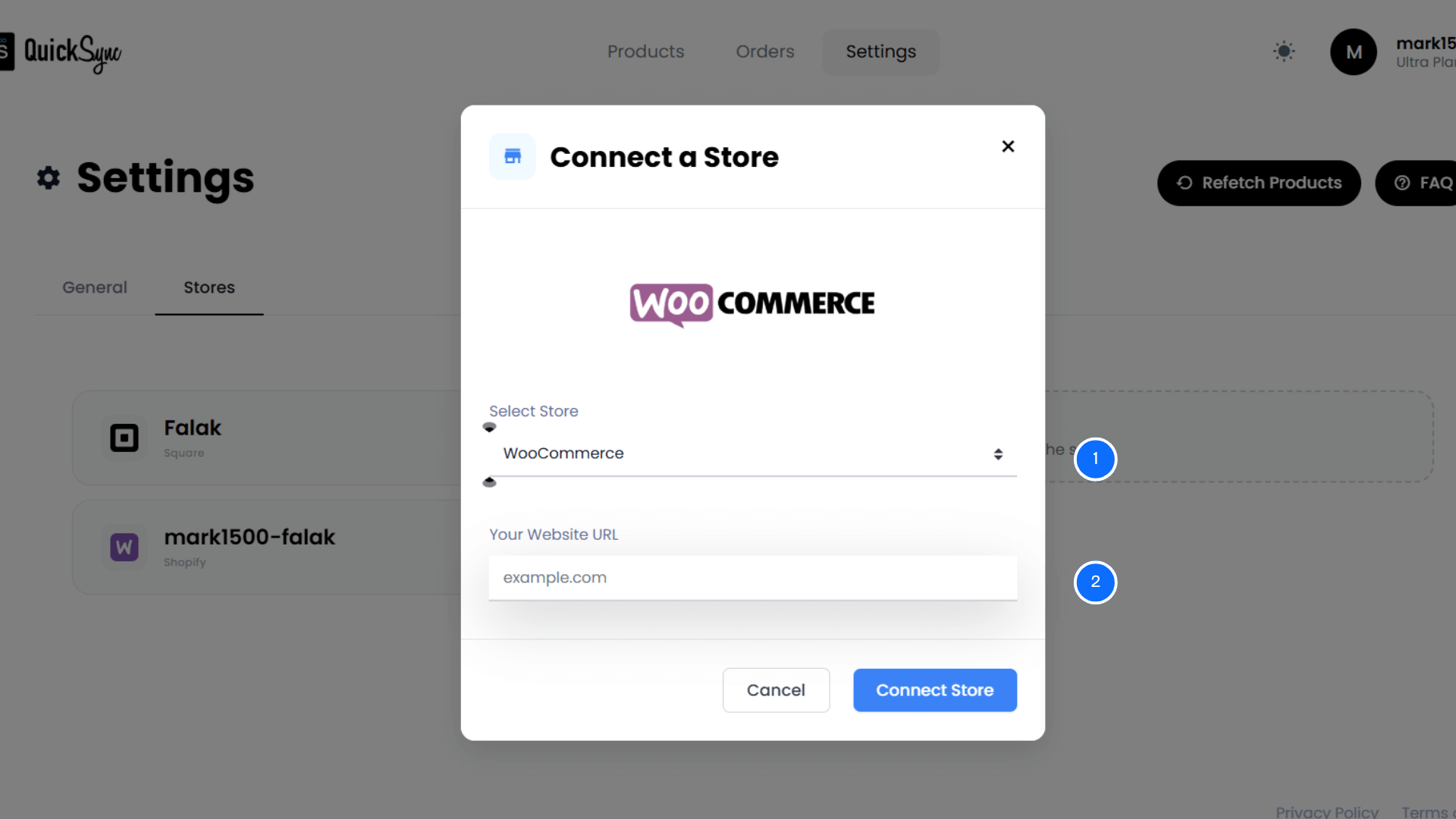
- Go to QuickSync Dashboard →Sync Products → Add a Store.
- Select WooCommerce from the ecommerce store list.
- Enter your website URL (example: http://www.example.com)
- Click Connect a Store and approve access so QuickSync can manage products, images, inventory, and orders
Once connected, QuickSync starts an initial import of your WooCommerce store settings, categories, and attributes, and your product catalog. Your Shopify products and WooCommerce products are then mapped together so syncing can begin.
Step 4: Choose What to Sync
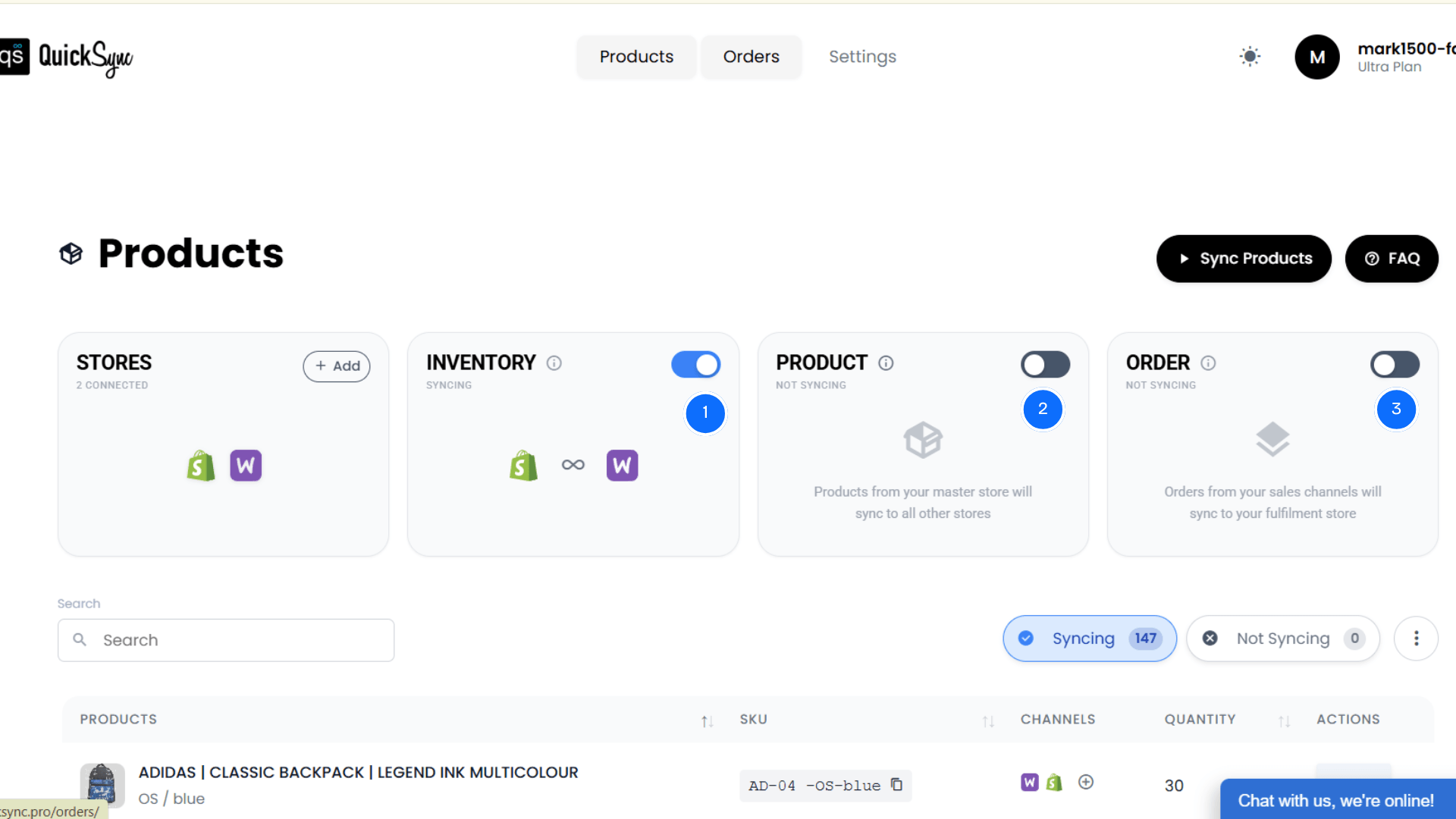
Inside your QuickSync dashboard, select which data you want to sync across your stores:
- Inventory sync: Automatically ON from the moment you install QuickSync. Stock levels stay accurate across both stores in real time after every sale, return, or manual adjustment.
- Product sync: Designate one store as the Master Store. All product updates made in that store push to the connected store automatically. Titles, descriptions, images, prices, SKUs, variants, and WooCommerce categories stay aligned.
- Order sync: All WooCommerce orders flow into Shopify as the centralized fulfillment store. Critical order details, including line items, shipping, and order, are all synced. You fulfill everything from your Shopify admin, and tracking syncs back automatically.
That’s it. Once these are configured, QuickSync handles your inventory, products, images, and orders automatically across both platforms. You stop switching between dashboards and start selling.
Tip to Keep Shopify WooCommerce Integration Running Smoothly
Connecting your stores is step one. What actually keeps your sync stable and accurate over the long term is how you manage the system after setup. I have seen merchants configure everything correctly and still run into problems a month later because they skipped a few basics.
Here’s what keeps your Shopify WooCommerce running without issues.
Test With One Product Before Syncing Your Full Catalog
Don’t connect both platforms and immediately enable sync across every product. Start with a single low-risk product first. Check that inventory, images, variants, and pricing appear correctly on both your Shopify store and WooCommerce store.
This catches SKU mapping issues and variant mismatches before they affect hundreds of products at once.
Map Your WooCommerce Categories Before You Connect
Mismatched category structures are one of the most overlooked causes of messy post-sync catalogs. Your WooCommerce categories and Shopify collections need to align before syncing begins. Review both structures and clean up inconsistencies first.
Products landing in the wrong categories after sync create listing errors that are tedious to fix at scale.
Set One Platform as Your Single Source of Truth
Pick one store as your Master Store and make all product updates there. Whether it’s your Shopify store or your WooCommerce store, commit to one. Avoid making direct edits to synced products on both platforms at the same time.
Conflicting updates create data mismatches that can break your sync and require manual cleanup.
Clean Your SKUs and Product Variations Before Connecting
Before you begin syncing, spend time reviewing your product catalog on both platforms. Make sure every product has a unique SKU. Make sure variant names and formats are consistent between your Shopify and WooCommerce stores.
A mismatch like “Blue-L” in Shopify and “Blue_L” in WooCommerce breaks the product connection and causes inventory to sync to the wrong variant.
Keep Your WordPress Plugins Updated Every Month
Outdated WordPress plugins are one of the most common reasons sync tools quietly lose their connection mid-operation. An old plugin version can block API access without triggering any visible error in your QuickSync dashboard.
Run a monthly check on your plugin versions inside your WordPress admin panel. It takes five minutes and prevents sync failures.
Conclusion
Most merchants who struggle with overselling, listing errors, and fragmented order management are not doing anything wrong. They are just missing one layer: a sync tool that sits between both platforms and keeps everything aligned automatically. Without that layer, every sale creates work.
QuickSync is built specifically to be that layer. It connects your Shopify store and WooCommerce store in real time, covering inventory, products, images, and orders in both directions.
That’s not a minor convenience. For merchants managing a growing product catalog across two platforms, it is the difference between scaling and dealing with errors.