If you sell online using Shopify and run your physical store with Clover POS, keeping inventory accurate is one of the biggest operational challenges
Your Shopify dashboard might show 10 units in stock, while Clover POS displays 18 units for the same product. This mismatch can lead to serious stock planning problems. You might reorder products, thinking inventory is low. You may oversell items that are already out of stock, and end up cancelling customer orders.
According to research from IHL Group, inventory distortion, including overselling and stock mismatches, costs retailers over $1.77 trillion globally every year.
While the market offers many inventory sync solutions, not all of them provide accurate or reliable synchronization. Some sync methods require constant manual checks. While others offer limited syncing options that fail as your business grows.
To learn how to sync inventory between Shopify and Clover POS, read this blog. It covers different methods to integrate Shopify with Clover and keep inventory synchronized.
What Syncing Shopify and Clover Inventory Actually Means
Before learning how to sync inventory between Shopify and Clover POS, it is important to understand what inventory synchronization actually involves. Many merchants assume it simply means stock levels update automatically after every sale on both platforms.
In reality, syncing Shopify and Clover inventory means connecting both systems so they automatically share product data, stock levels, and order updates. This ensures that inventory remains consistent across your online store and physical POS without manual updates.
Here’s how a proper Shopify–Clover inventory sync works:
- Inventory updates instantly after every online or in-store sale
- Products remain consistent across Shopify and Clover catalogs
- Stock quantities stay accurate across all sales channels
- Orders appear in both systems automatically
- Merchants manage inventory from a unified system
- Inventory update after order cancellations, product returns, or exchanges.
Think of it this way. Right now, you have two stores running separately. With a proper sync, you have one operation running across two sales channels. That is the actual difference it makes for your retail business.
Challenges Merchants Face When Shopify and Clover Inventory Are Not Synced

Here is the reality for retailers running Shopify and Clover POS without a sync in place. These problems do not arrive all at once. They build slowly, and by the time most merchants realise how serious they are, the operational damage is already done.
Overselling Products Across Channels
Overselling is one of the most frequent problems merchants face without inventory syncing. A product sells in your physical store through Clover POS, but Shopify still shows it as available. An online customer places an order immediately afterward. Now you must cancel the order and issue a refund.
These cancellations hurt customer trust and reduce your store’s reputation. Studies show that stock inaccuracies cause thousands of dollars in lost sales every year for retailers selling across multiple channels.
Inventory Counts Slowly Drift Apart
When Shopify and Clover run without integration, inventory numbers start drifting apart over time. Manual updates rarely happen instantly. Employees forget to adjust stock levels after busy periods. Small discrepancies accumulate and eventually create major inventory mismatches.
Once this happens, it becomes difficult to trust your stock numbers. You might reorder products unnecessarily or miss restocking fast-selling items. Accurate inventory data is essential for smart purchasing decisions.
Customer Experience Takes the Hit
Inventory problems rarely stay behind the scenes. Customers feel the impact quickly. A shopper orders a product online, expecting delivery. Later, they received a cancellation email because the product was already sold in-store.
That situation creates frustration and reduces repeat purchases. Customers expect accurate stock information across all channels. When inventory syncing fails, trust in the brand suffers.
Staff Wasting Hours on Inventory Fixes
Let me explain something most retailers underestimate. Manual inventory reconciliation takes a lot of time. Employees often spend hours comparing Shopify and Clover dashboards, adjusting stock counts, and investigating discrepancies.
Retail studies show many merchants spend 10–15 hours every week fixing inventory issues caused by disconnected systems. That’s valuable time that should be spent improving customer experience or growing the business.
Benefits of Syncing Inventory Between Shopify and Clover POS

Now let’s talk about the positive side of Shopify inventory sync with Clover POS.
Once Shopify and Clover inventory syncing is implemented correctly, operations become much smoother. Here are the biggest benefits merchants experience with the reliable Shopify and Clover integration.
Real-Time Inventory Accuracy
Real-time syncing ensures inventory levels update immediately whenever a sale occurs. If a product sells through Clover POS, Shopify instantly reflects the new stock level. The same applies to online orders.
This prevents overselling and ensures customers always see accurate product availability. Retailers using synchronized inventory systems report significantly fewer order cancellations and stock discrepancies.
Smarter Inventory Forecasting
Accurate inventory data enables better purchasing decisions. When Shopify and Clover share real-time stock information, merchants can clearly see which products are selling fastest across all channels.
This allows better demand forecasting and more efficient restocking. Businesses that maintain accurate inventory visibility typically experience fewer stockouts and reduced excess inventory.
Less Manual Work for Your Team
One of the biggest advantages of automated syncing is the reduction of manual work. Employees no longer need to update stock levels after every sale or reconcile discrepancies between systems.
Instead, inventory updates run automatically in the background. This saves time, reduces human errors, and allows your team to focus on serving customers and growing the business.
Better Customer Experience
Accurate inventory data directly improves the customer experience. When stock levels are synced between Shopify and Clover POS, customers see reliable product availability whether they are shopping online or in your physical store.
This reduces situations where customers place an order only to find the item is out of stock. Consistent inventory information builds trust and helps businesses deliver a smoother buying experience.
Lower Operational Costs
When Shopify and Clover POS inventory sync automatically, businesses reduce the need for manual inventory management and constant system checks. This means fewer hours spent correcting stock errors or managing inventory across multiple platforms.
Over time, automation helps reduce operational costs by minimizing manual labor. It prevents costly mistakes and allows businesses to run more efficiently with fewer resources.
What a Proper Clover and Shopify Integration Tool Should Include
Now that you understand the benefits of syncing Shopify and Clover, let’s talk about something important.
Not all integrations actually solve the inventory problem. Many software programs only partially connect the systems. They might sync products but ignore inventory. Others update stock every few hours instead of in real time.
That’s why merchants must understand what a proper Shopify Clover sync workflow should include. Here are the essential features every reliable inventory sync software should offer.
Real-Time Inventory Sync
Real-time syncing ensures that every sale updates inventory immediately across Shopify and Clover POS. If a product sells online or in-store, stock levels update instantly on both platforms. This prevents overselling and ensures customers always see accurate product availability.
Multi-Location Inventory Support
Retailers often manage inventory across multiple Clover POS locations, warehouses, or retail stores. A proper integration should track inventory per location rather than merging all stock into one pool. This ensures inventory counts remain accurate for each physical store location.
SKU Mapping and Automatic SKU Creation
Inventory syncing relies heavily on SKUs (Stock Keeping Units). If a product is missing a SKU or has different SKUs across platforms, syncing can fail. Good integrations automatically generate missing SKUs or map products correctly between Shopify and Clover.
Product Variant Inventory Sync
Modern ecommerce stores sell products with variants like size, color, or style. A proper Shopify–Clover sync must update stock for each product variant individually. Without variant-level syncing, merchants often face incorrect inventory counts across their product catalog.
Easy Setup Without Technical Work
Many merchants hesitate to integrate systems because they assume it requires complex development work. A good Shopify–Clover integration should allow merchants to connect both platforms in minutes without coding or technical setup.
Now that you understand what a proper integration should include, let’s look at the different ways merchants try to sync Shopify and Clover POS inventory.
Some methods work temporarily, while others provide long-term reliability.
Different Ways to Sync Shopify and Clover POS Inventory

Let me walk you through every method merchants use to manage inventory between Shopify and Clover POS. Some method at the start. Some never really work. Some fall short in the long run.
Let’s check different inventory management methods to sync Shopify and Clover inventory.
Method 1: Manual Updates
This is where most retailers begin. After every shift or at the end of each day, you pull a sales report from your Clover dashboard. Go through each product sold, and manually adjust the stock levels inside your Shopify admin.
You do the same in reverse when online orders come in.
- Your Clover POS and Shopify store are selling simultaneously throughout the day. By the time you update one system based on the other’s sales, more transactions have already happened.
- You are always working from data that is a few hours old. Human errors creep in during the manual entry. A product gets updated to the wrong quantity.
- A variant gets skipped. Over time, the gap between actual stock and recorded stock grows faster than your manual process can close it.
The honest truth: Manual is not a sync strategy. It is a delay on the same problem.
Method 2: CSV Import and Export
Some merchants try to bridge the gap by exporting a product or inventory report from Clover as a CSV file and importing it into Shopify, or vice versa. It feels more systematic than fully manual entry. The core problem does not change.
A CSV export captures a snapshot of your inventory at the moment the export runs. By the time you process the import on the other side, more sales have happened and those numbers are already outdated. F
- Formatting differences between Clover’s export structure and Shopify’s import template cause errors that either fail the import entirely or load incorrect data.
- Variants often do not map correctly. A
- nd there is no real-time inventory update, no order routing, and no error alerting built into a CSV workflow.
The honest truth: CSV is useful for a one-time product catalog migration. It is not a solution for ongoing inventory sync.
Method 3: The Clover App Market and Shopify App Store
Both platforms have their own app marketplaces. Clover’s App Market includes integrations and add-ons for Clover POS. The Shopify App Store includes thousands of third-party tools. The challenge is that most available connectors between Shopify and Clover POS offer limited sync depth.
- Basic connectors typically handle one-way product pushes or periodic batch syncs.
- They often do not support multi-location inventory, variant-level syncing, or automatic order routing.
- And because they are not built specifically for the Shopify and Clover POS combination, merchants frequently find themselves dealing with sync errors that the tool does not surface clearly.
Method 4: QuickSync- Best Clover Shopify Integration Tool
Manual updates and CSV imports may work temporarily, but they quickly break once your store begins receiving regular orders from both Shopify and Clover POS. Inventory changes happen too frequently, and keeping both systems aligned manually becomes nearly impossible.
This is where automation tools become essential.
A dedicated integration tool like QuickSync connects Shopify and Clover POS directly and ensures inventory updates happen automatically in real time.
QuickSync is a reliable inventory sync tool that offers several advanced syncing features designed specifically for multichannel merchants:
- Real-Time Inventory Sync: QuickSync automatically updates inventory levels between Shopify and Clover POS whenever a sale occurs.
- Product Catalog Syncing: QuickSync syncs your Shopify product catalog with Clover POS, including titles, descriptions, images, SKUs, and variants.
- Variant-Level Inventory Updates: For stores selling products with variants like size, color, or style, QuickSync tracks inventory at the variant level.
- Multi-Location Inventory Support: Retailers managing multiple Clover locations can sync inventory separately per location.
- Automatic SKU Matching and Generation: QuickSync automatically maps products using SKUs and can generate missing SKUs when needed.
- Order Syncing Between Stores: QuickSync also syncs orders between Shopify and Clover POS. This means your POS system reflects online orders automatically.
Because everything updates automatically, QuickSync removes the operational complexity of inventory management across multiple sales channels.
Compared to manual syncing or CSV imports, automated integrations provide the reliability and scalability that growing retailers need.
Here’s a quick comparison table for different methods of syncing Clover inventory with Shopify.
Method | Real-Time Inventory Updates | Variant Sync | Multi-Location Support | Automation Level | Scalability |
Manual Updates | No | Often missed | Not supported | None | Very poor |
CSV Import / Export | No | Limited | Not supported | Low | Poor |
Basic Marketplace Apps | Sometimes delayed | Partial | Limited | Medium | Moderate |
QuickSync (Recommended) | Real-time syncing | Full variant support | Multi-location ready | Fully automated | Highly scalable |
For merchants serious about multichannel selling, QuickSync is the most efficient way to link Shopify to Clover for inventory syncing without operational headaches.
How to Connect and Sync Shopify With Clover Using QuickSync
Setting up inventory syncing between Shopify and Clover doesn’t need to be complicated. Tools like QuickSync allow merchants to connect both systems in just a few steps.
Here’s how to connect Shopify to Clover using QuickSync.
Step 1: Create Your QuickSync Account
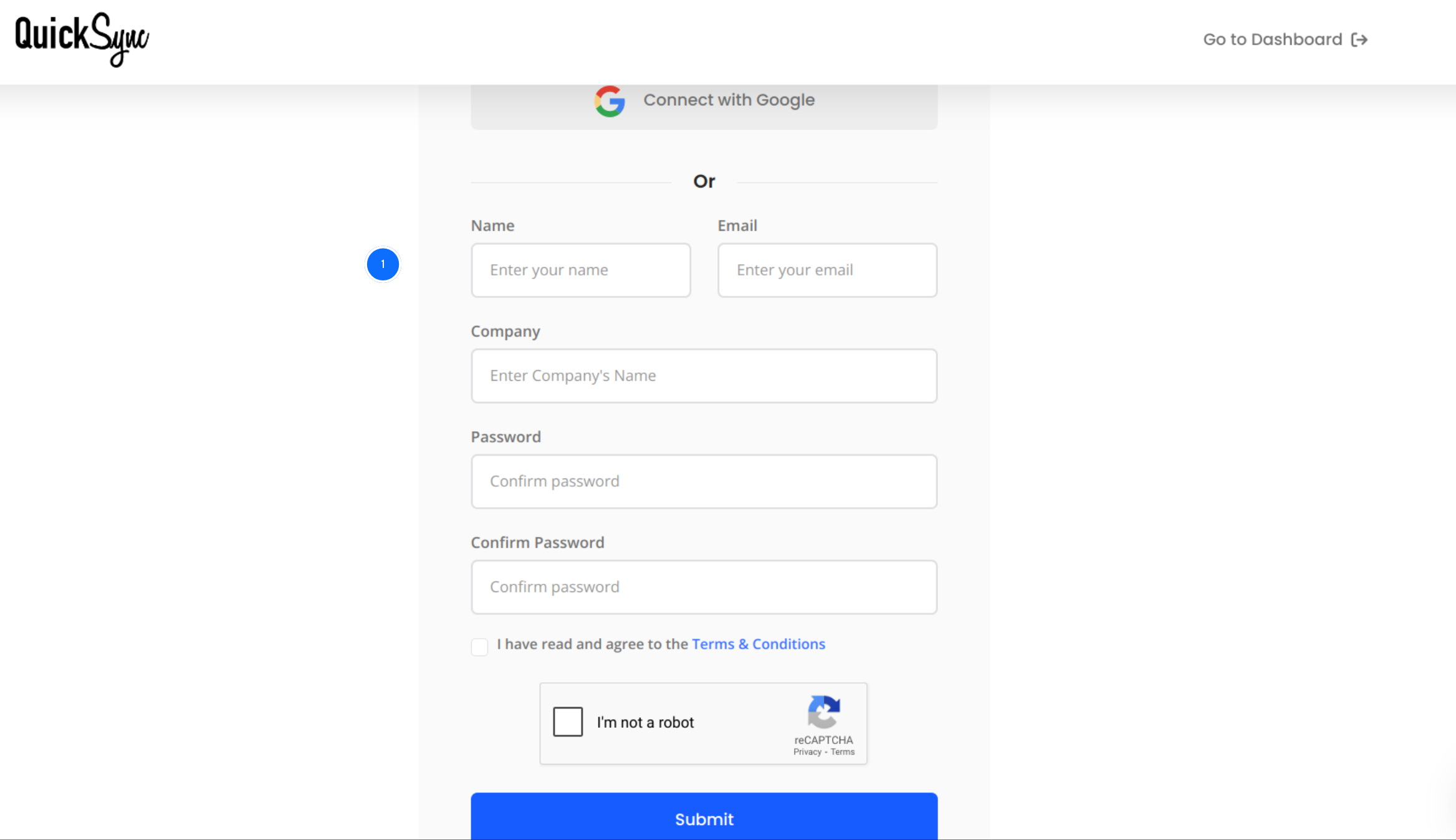
- Go to QuickSync.pro and click on Sign up.
- Enter your business details and set up your account.
- Log in to your QuickSync dashboard. This is where all your connected platforms, sync settings, and error logs live.
Step 2: Connect Your Shopify Store
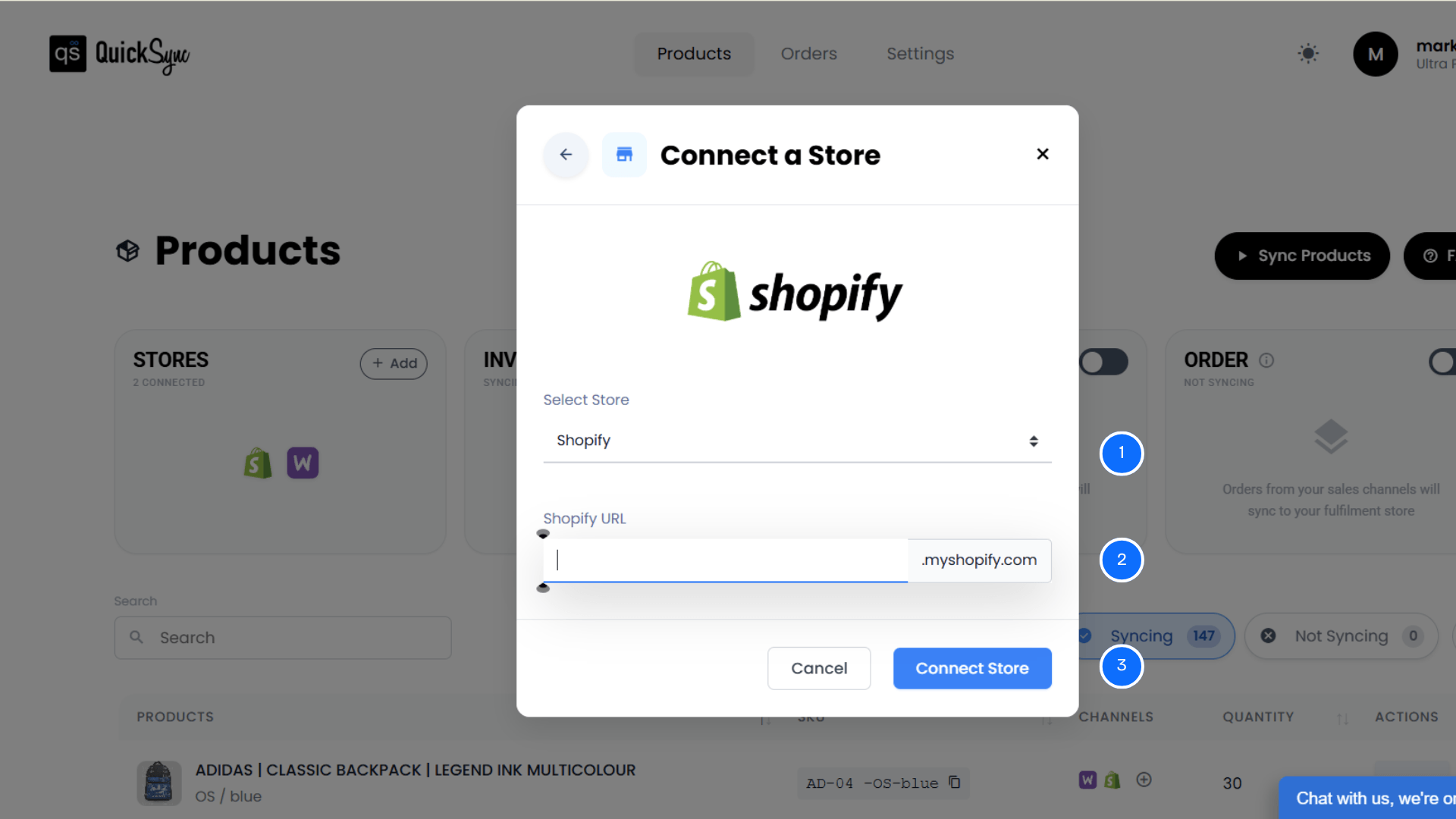
- Inside your QuickSync dashboard, go to Sync Products and click Add a Store.
- Select Shopify from the platform list.
- Enter your Shopify store URL, for example yourstore.myshopify.com.
- Click Connect a Store and log in to your Shopify account when prompted.
- Approve the permissions request so QuickSync can access your Shopify products, inventory locations, and orders.
- Your initial Shopify product import runs automatically. QuickSync pulls in your full catalog, all variants, current stock levels, and location data.
Step 3: Connect Your Clover POS
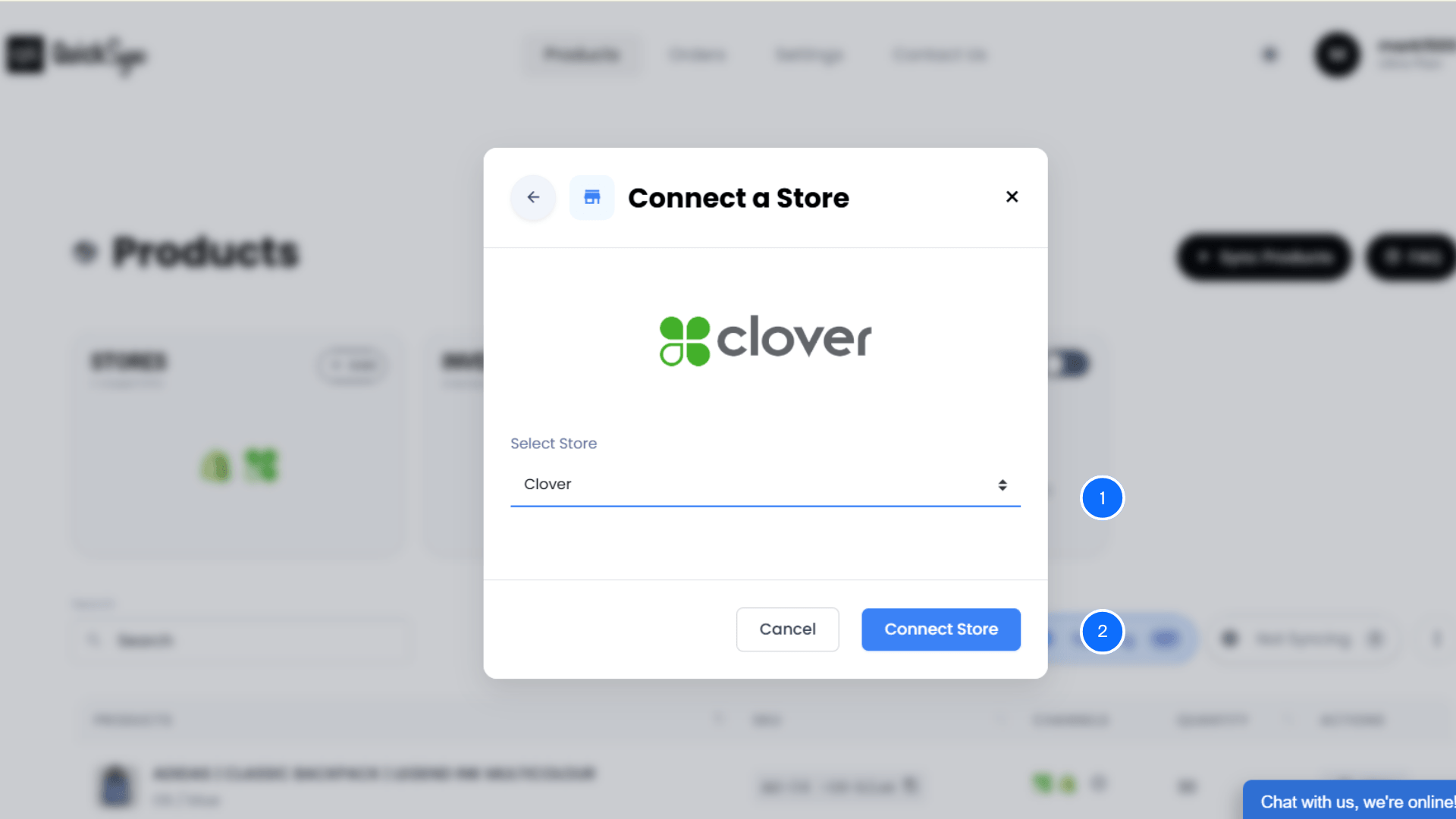
- Back in your QuickSync dashboard, go to Sync Products and click Add a Store again.
- Select Clover from the platform list.
- You will be directed to your Clover dashboard to authenticate your Clover POS account.
- Log in to Clover and approve the connection.
- QuickSync imports your Clover inventory items, categories, and existing stock counts.
- If you run multiple Clover POS locations, QuickSync imports all locations so you can map each one correctly.
Step 5: Choose What to Sync
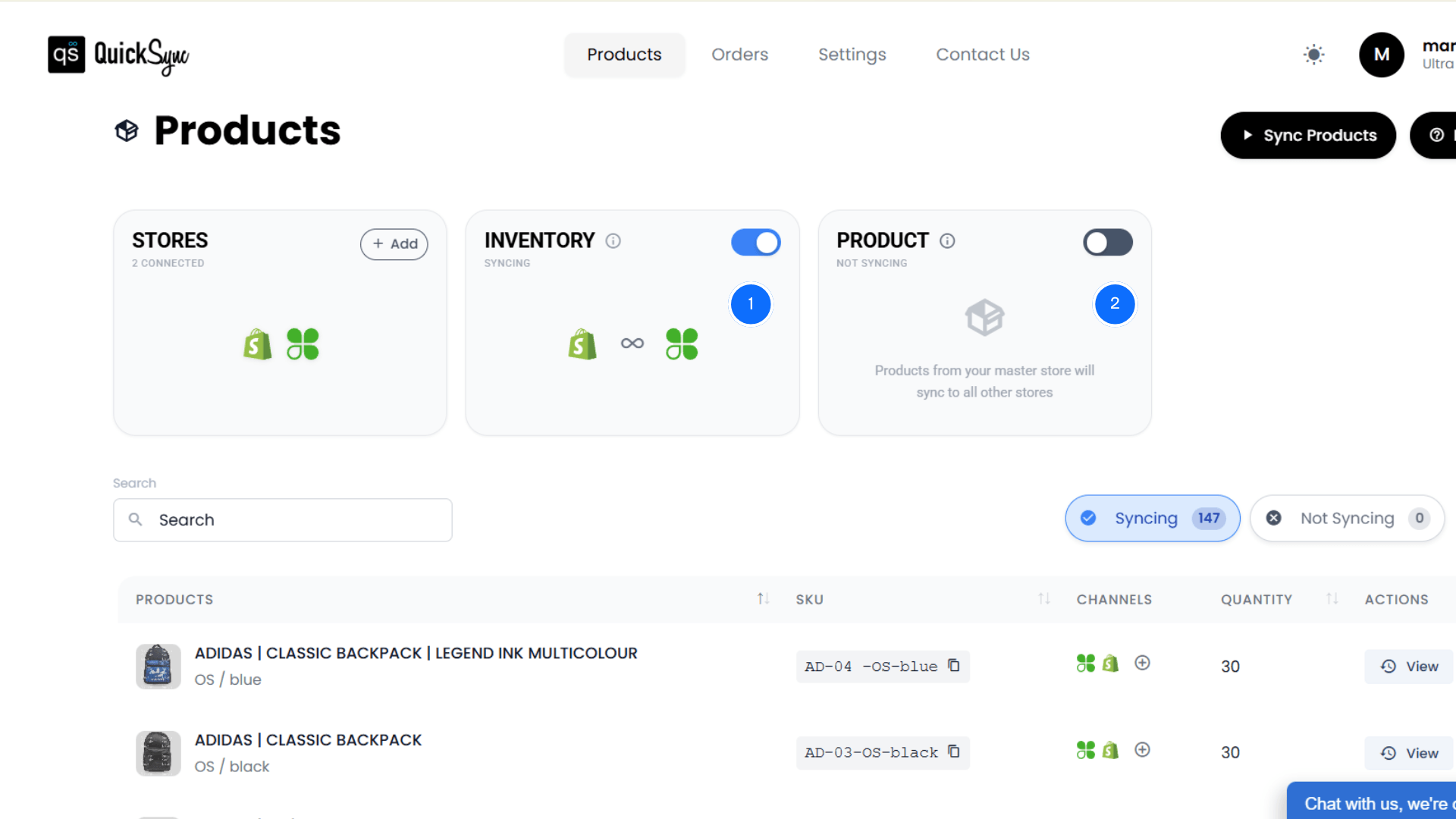
QuickSync offers much more than basic inventory syncing.
Inside the QuickSync dashboard, merchants can choose exactly what data they want to synchronize between Shopify and Clover POS. This flexibility allows businesses to build a complete integration between their online store and physical POS system.
You can enable:
- Inventory Sync – Keep stock levels aligned automatically across Shopify and Clover whenever a sale occurs.
- Product Sync – Sync product titles, descriptions, images, variants, and SKUs so your product catalog stays consistent across both systems.
- Order Sync – Automatically send Shopify orders into Clover POS so your team can manage online and in-store transactions from one place.
The best part is that QuickSync manages these processes automatically in the background.
Best Practices for Keeping Inventory Accurate Between Shopify and Clover
Even with a proper Shopify–Clover integration, there are a few best practices merchants should follow to maintain accurate inventory data.
Let me walk you through the habits that successful retailers use to keep their systems running smoothly.
Enable Variant-Level Inventory Tracking
Many Shopify stores sell products with variants such as size, color, or style. Make sure your syncing system tracks each variant individually. Without variant-level syncing, inventory quantities can become inaccurate, especially when certain product options sell faster than others.
Regularly Review Sync Logs
Most integrations provide logs that track inventory updates and system activity. Checking these logs regularly helps merchants identify issues like SKU mismatches or failed sync events. Early detection prevents minor syncing issues from turning into larger inventory discrepancies.
Avoid Manual Stock Adjustments During Sync
Once an automated sync tool like QuickSync is managing inventory updates, avoid making manual adjustments directly inside Shopify or Clover. Manual updates during active sync cycles can cause temporary inventory conflicts between systems.
Make All Product Changes Inside Your Shopify Admin
Once product sync is active, Shopify is your Master Store. All edits to product names, prices, descriptions, and variants should be made in your Shopify admin only. Changes made directly in your Clover dashboard can conflict and create data inconsistencies across both systems.
Set Low-Stock Alerts in Shopify for Your Fastest-Moving Products
Real-time sync keeps your counts accurate, but it cannot create more stock. Set up low-stock notifications in your Shopify admin for your top sellers so you get an alert when a product is approaching zero. This gives you time to reorder before you run out.
Conclusion
Running Shopify for online sales and Clover POS for in-store transactions is a strong retail setup. But without proper integration, both systems maintain separate inventory records.
That disconnect leads to stock mismatches, overselling, and constant manual updates.
Syncing inventory between Shopify and Clover POS solves this problem by keeping stock levels accurate across both platforms. Every sale updates inventory instantly, ensuring customers always see the correct product availability.
QuickSync is built specifically for this. It connects your Shopify store and Clover POS with real-time inventory sync, variant-level product syncing, multi-location support, and automatic order routing. You set it up once. It runs in the background. Your stock counts stay accurate whether you are selling online, in-store, or both at the same time.