If you’re still manually entering Square transactions into QuickBooks Online every night, you already know the drill: missed entries, duplicate transactions, sales tax errors, and a reconciliation process that eats hours you don’t have. Here’s the truth: manual work is costing your business more than just time; it risks your financial management and business growth.
According to QuickBooks, 61% of small business owners say they regularly struggle with cash flow management. So the real question isn’t whether you should sync Square and QuickBooks, but how and which method actually works best for your B2B setup.
Wondering if there is a native integration or if you need a third-party connector? The answer is: yes, there are several ways to integrate Square with Intuit QuickBooks, and they’re not all equal in terms of features, automation, and support.
Read this blog to discover the best way to sync Square and QuickBooks, the key benefits of the integration for B2B merchants, and how to choose the ideal tool to optimize your bookkeeping and operational workflows.
What Does Square and QuickBooks Sync Actually Mean for Your Business
Before you connect Square to QuickBooks Online, let’s understand what Square and QuickBooks synchronization actually means. The Square integration with QuickBooks is not just a one-time data import; it’s an ongoing, automated sync that maps your Square transactions, fees, refunds, and sales tax directly into your QuickBooks Online account in real-time or near real-time.
Here’s what gets synced with a proper Square QuickBooks integration:
- Square transactions recorded: Every sale in your Square account, whether card payments, cash, or gift cards, flows automatically into QuickBooks as a transaction.
- Square fees: Processing fees are itemized separately so your financial records reflect actual net revenue, not gross sales.
- Square refunds: Refunds are linked back to original sales, maintaining accurate income and expense tracking.
- Inventory updates: Stock levels adjust automatically in QuickBooks when sales occur in Square, preventing overselling.
- Sales tax: Taxes collected at checkout are mapped to correct liability accounts in QuickBooks, simplifying tax filing.
- Daily sales summaries or individual transactions: Depending on your volume, the sync can import a daily summary or detailed individual sales.
- Order sync: Orders processed through Square appear in QuickBooks, providing a full picture of sales activity.
This seamless integration eliminates manual data entry, reduces errors, and ensures your accounting system reflects your true business performance.
Why B2B Merchants Struggle Without Square and QuickBooks Integration
Managing Square and QuickBooks separately creates more headaches than most B2B merchants anticipate. Here are the most common problems when your accounts aren’t synced properly:
Duplicate Transactions
When your bank feed and Square integration run simultaneously, the same sale may be recorded twice in QuickBooks, inflating your revenue figures inaccurately. Nearly 20% of bookkeeping errors in small businesses stem from duplicate entries. Detecting and fixing these can consume valuable time.
Square Fees Not Showing Up
Every sale you process through Square takes between 2.6% and 3.5% as a fee. If that is not recorded separately, your revenue numbers are wrong. You think you earned $10,000, but after fees, it was $9,650. That gap adds up fast when you are processing hundreds of transactions a month.
Sales Tax Doesn’t Match
Square collects tax at checkout, and QuickBooks tracks it on its end. When both are not configured the same way, the numbers never match. One wrong setting means wrong tax filings at the end of the quarter. For businesses selling across multiple states, this gets messier because every state has a different rate.
Transactions Missing From QuickBooks
You processed 80 sales today, but QuickBooks is only showing yesterday’s data. Most basic integrations sync once every 24 hours. So your books are always running a full day behind your actual Square sales. That means any decision you make mid-day is based on incomplete numbers.
Refunds Not Recorded Correctly
On average, 16% of retail sales are returned. When a refund happens in Square, it needs to cancel out the original sale in QuickBooks. When it doesn’t, your books are still counting that money as income. You are making decisions based on revenue that is already back in the customer’s pocket.
Benefits of Connecting Square & QuickBooks
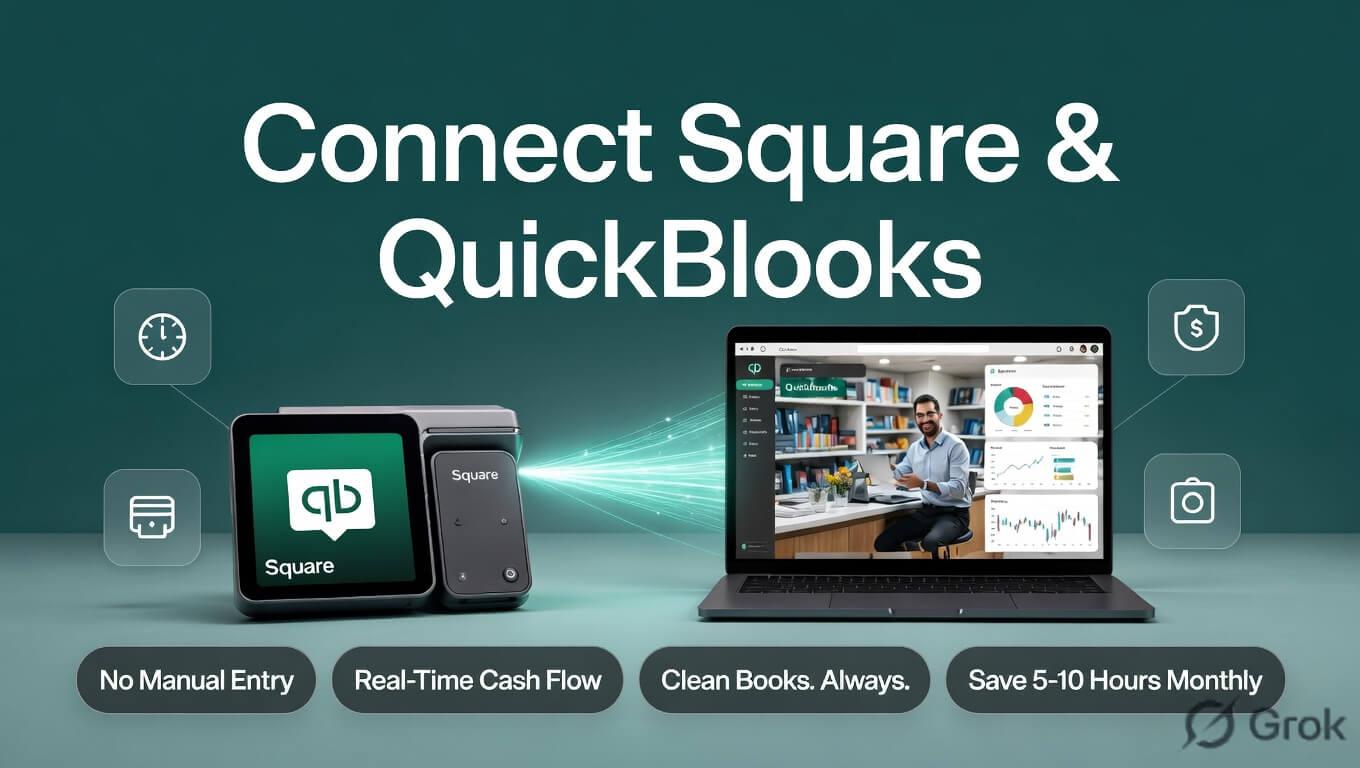
A lot of merchants set up the integration just to save time. But let me tell you, the benefits of QuickBooks and Square integration go further than that.
Here is what actually changes when Square and QuickBooks sync together the right way.
No More Manual Data Entry
With Square and QuickBooks integration, retailers don’t have to manually enter every sale, fee, and refund into their books. Whatever happens in Square shows up in QuickBooks automatically. No double entry, no missed transactions. This helps merchants stop wasting time or hiring an extra team for manual load.
Always Know What You Are Actually Making
Syncing Square and QuickBooks gives you a clear picture of your revenue, expenses, and profit all in one place. You are not jumping between two platforms trying to piece together your numbers. This helps merchants make smarter pricing and spending decisions because everything they need is already sitting in QuickBooks, updated and accurate.
No More Chasing Numbers at Month End
With Square and QuickBooks connected, retailers don’t have to spend hours matching sales with their books every month. Your transactions, fees, and refunds are already in QuickBooks and ready to review. Most merchants save 5 to 10 hours every month just on reconciliation. This helps merchants close their books faster.
Your Cash Flow Is Always Up to Date
By connecting Square and QuickBooks, your cash flow report reflects real numbers every single day. You are not working off data that is 24 to 72 hours old. You open QuickBooks, and the numbers are already there. This helps merchants spot cash flow problems early instead of finding out at the end of the month when it is too late to act.
Clean Books When It Matters Most
With Square and QuickBooks syncing daily, retailers don’t have to worry about messy financials when a lender or investor asks for reports. Clean, accurate books built on real Square data close deals. This helps merchants show up prepared, whether it is tax season, a loan application, or a conversation with an investor.
What a Reliable Square and QuickBooks Integration Should Do Automatically
Before you connect Square with QuickSync, you must understand what a good integration actually looks like, because not all sync tools are built the same, and the difference between a basic connector and a proper integration tool shows up fast once you are running real transaction volumes.
A reliable Square and QuickBooks integration should do the following without any manual input from you:
- Real-time or daily automatic sync: Your Square transactions should flow into QuickBooks consistently in real time. You should never have to manually trigger a sync or wonder whether yesterday’s sales made it into your books.
- Accurate fee separation: Square fees are deducted before deposits hit your bank. A proper sync records gross Square sales as income and logs Square fees as a separate expense line, so your books reflect what actually happened, not just what landed in your account.
- Clean handling of Square refunds: Refunds need to be recorded against the original transaction, not as a standalone entry. A well-built integration handles this automatically, so your reconciliation process stays clean.
- Flexible mapping to your chart of accounts: Your integration should allow you to sync Square sales with QuickBooks. It should map Square fees, refunds, and taxes to the specific accounts in your QuickBooks Online setup, not just dump everything into a single income line.
- Multi-location support: If you run Square across more than one location, the integration needs to handle that, aggregating or separating data by location depending on how your QuickBooks account is structured.
- Easy to use: A good integration should not require a developer to set up or an accountant to maintain. The process should be simple enough that any merchant can get it running without outside help. If the tool is complicated to use, it will not be used correctly.
How To Connect & Sync Square With QuickBooks
Now that you have a good understanding of what a proper integration should look like, let us talk about how to actually connect Square and QuickBooks. There are a few ways to connect Square and QuickBooks, like the native connector, third-party tools, but most merchants find they either lack key features or need constant maintenance to keep running properly.
That is where QuickSync stands apart. It is built specifically for Square and QuickBooks Online integration. With QuickSync, Square products, inventory, orders, and sales directly sync into QBO. No double entry. No manual work. QuickSync handles invoices, payments, and refunds in near real time. Fees are separated correctly. Multiple Square locations are supported. Your books stay accurate across every connected channel, automatically.
Getting started with Square and QuickBooks integration is straightforward with QuickSync. Just follow these simple steps to sync Square and QuickBooks.
Step 1: Create Your QuickSync Account
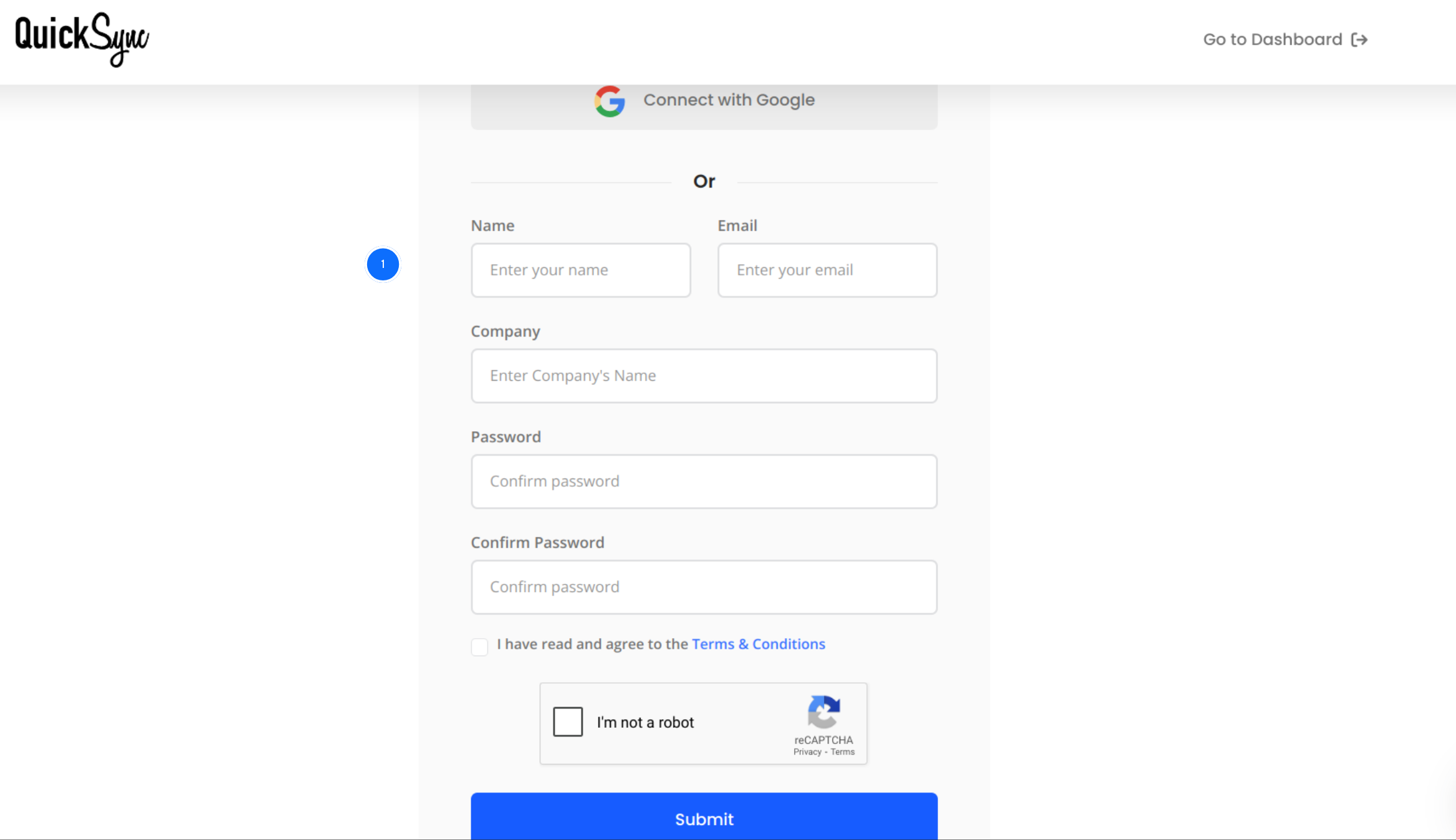
- Visit QuickSync.pro and click the Sign Up button.
- Enter your name, email address, and company details to complete registration.
- Once signed in, you will enter the QuickSync dashboard, where you can manage all your connected stores and integrations.
Step 2: Connect Your Square Account
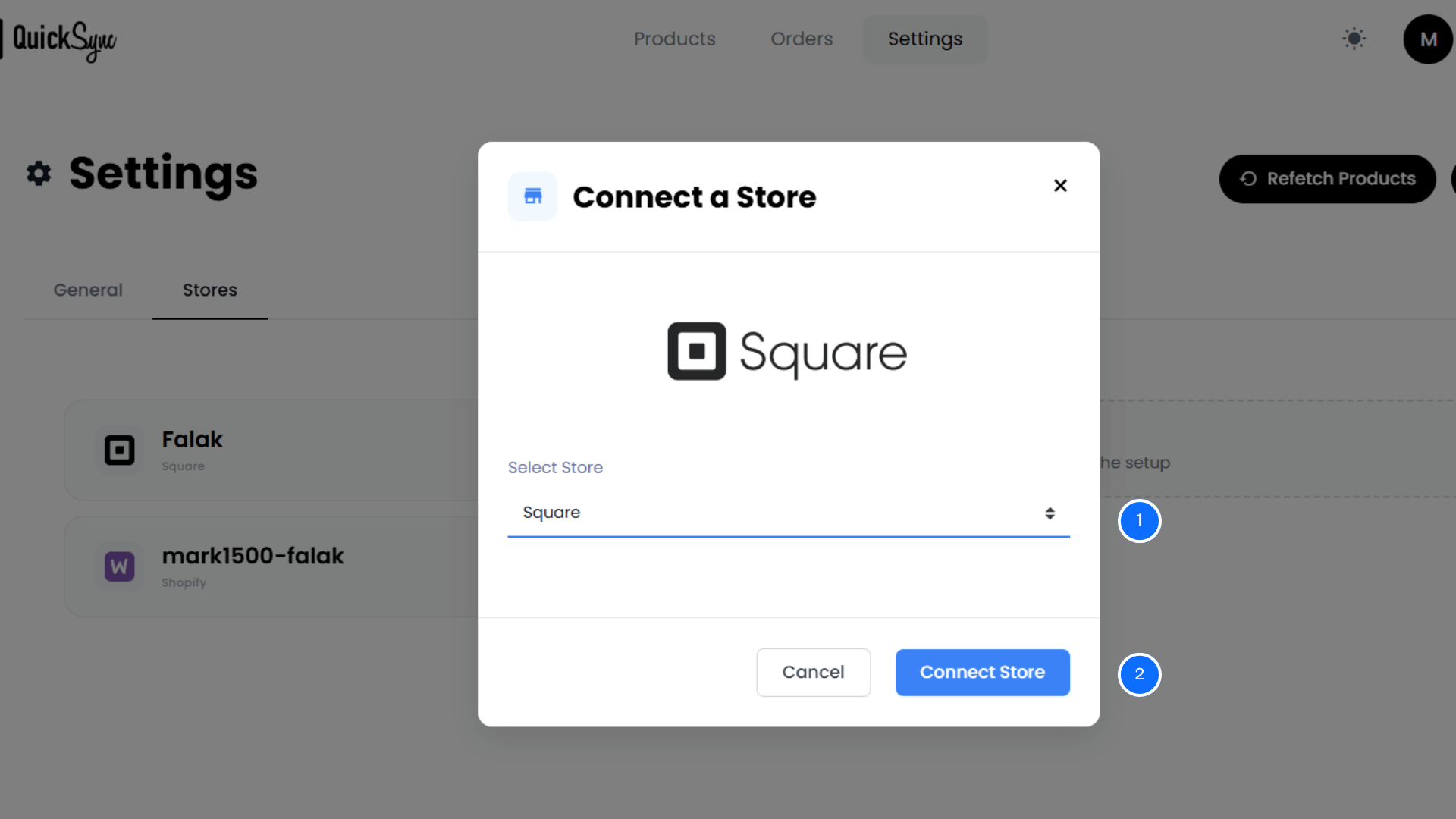
- From your QuickSync dashboard, go to Sync Products and click Connect Store, then Add a Store.
- A new window will appear. Select Square as your sales channel.
- Log in to your Square account and approve the requested permissions for products, inventory, customers, and orders.
- Once authorised, QuickSync will automatically begin the initial import of your locations and product catalog. You will see a progress bar in the dashboard while this runs.
Step 3: Connect Your QuickBooks Online Account
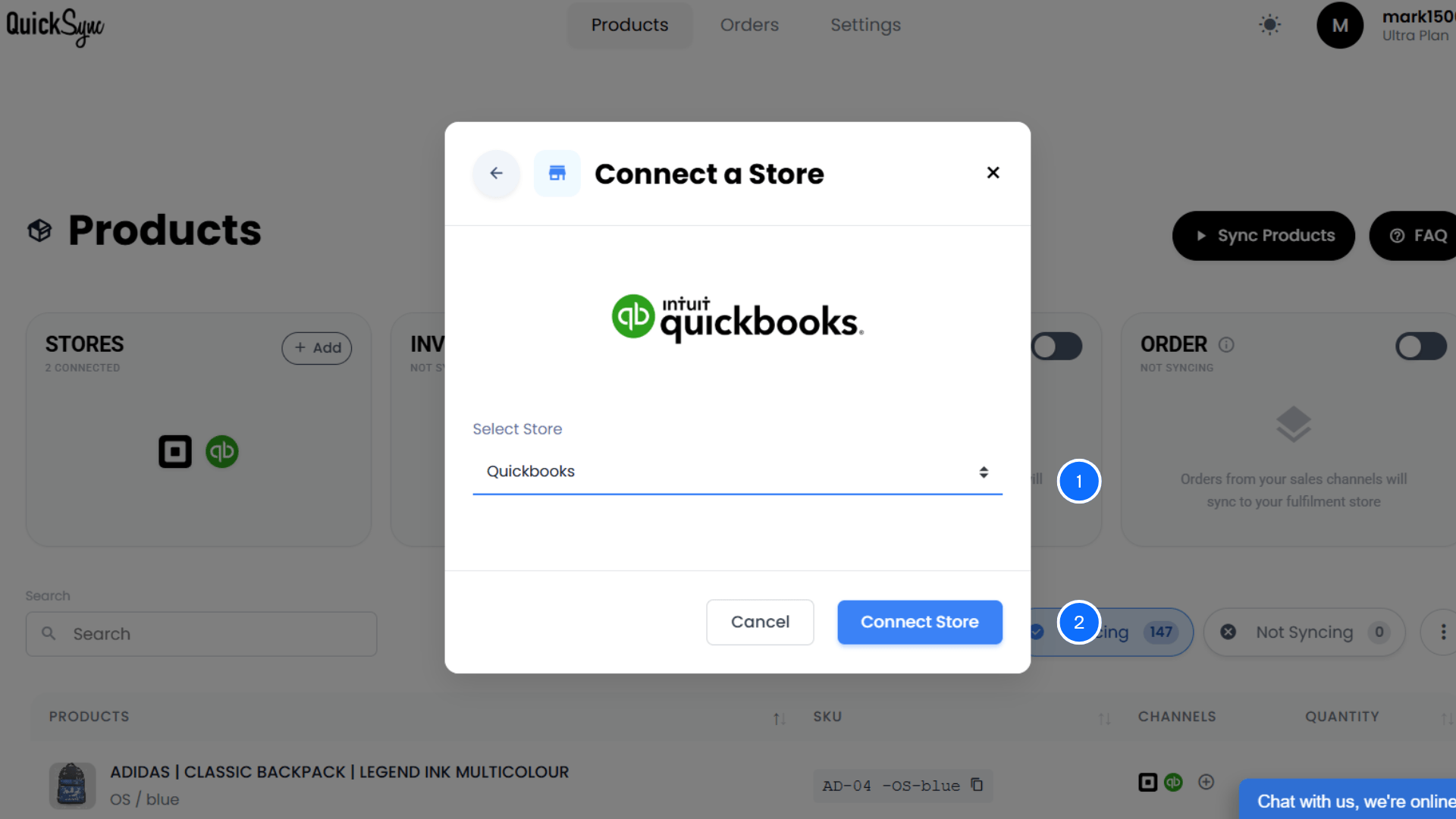
- From the same dashboard, click Add a Store again and select QuickBooks Online.
- Log in to your QuickBooks account and approve access for Items, Payments, and Accounting.
- Once authorised, QuickSync will automatically import your Company Information, home currency, Chart of Accounts, and existing Items. You will see a progress bar in the dashboard while this runs.
Step 4: Configure Your Sync Preferences and Start Syncing
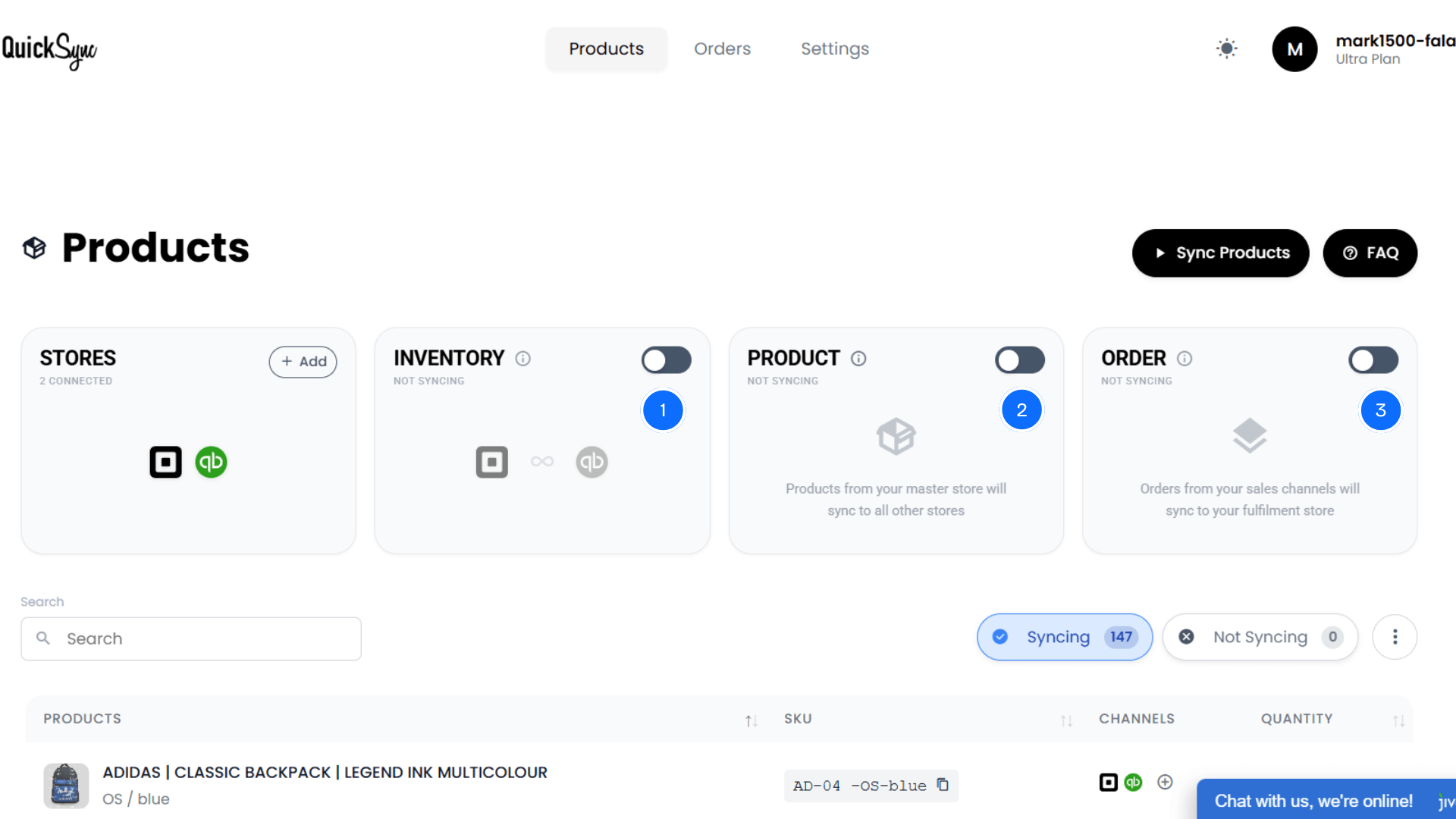
- Once both Square and QuickBooks are connected, configure your sync preferences from the dashboard.
- Choose whether to sync products, inventory, and orders based on your business needs.
- Click Start Syncing to begin the integration.
- QuickSync will now automatically sync your Square and QuickBooks items, inventory levels, sales receipts, invoices, payments, and refunds across your connected channels, keeping your books accurate without any manual work.
How to Keep Your Square and QuickBooks Integration Running Clean
Setting up the integration is a great first step, but getting the most out of it comes down to how consistently you manage it going forward. A few simple habits around your sync settings, reconciliation process, and account mapping can make a significant difference in how clean and reliable your financial records stay over time.
Here are some best practices that retailers follow to make the most of Square QuickBooks integration.
- Review your bank feed weekly: Check that Square deposits hitting your bank account match what QuickBooks has recorded via the integration. The deposit amount from Square is always net of fees, so make sure your books reflect gross sales minus Square fees as separate line items rather than just recording the net deposit.
- Audit for duplicate transactions monthly: Run a transaction report in QuickBooks and scan for any entries that appear both from the Square integration and the bank feed. Delete or merge duplicates before closing the month.
- Verify sales tax balances: Before filing any sales tax returns, cross-reference your QuickBooks sales tax liability account against the sales tax report from your Square account. They should match. If they don’t, the discrepancy usually lies in how refunds or discounts were processed.
- Reconcile your Square account balance: If you carry a Square balance before transferring to your bank, make sure that balance is reflected as a current asset in QuickBooks. This is a commonly missed item that creates cash flow reporting errors.
- Keep your sync settings consistent: Avoid changing your account mapping or sync preferences mid-month. Any changes made during an active period can create mismatches between what has already been recorded and what comes in after the change.
Conclusion
At some point, every merchant gets tired of doing the same manual work that a good integration can handle automatically. You have better things to focus on than copying transactions between two platforms.
QuickSync connects Square and QuickBooks in minutes and keeps everything in sync from that point forward, from your sales, fees, to your refunds, and your inventory. All of it, done automatically.