
If you are trying to figure out that does clover integrate with QuickBooks, chances are you are already dealing with late-night reconciliations. You run sales through Clover POS and manage finances in QuickBooks, yet the numbers still do not match.
So what is going wrong? In most cases, it is not the connection itself but how it is set up. Many Clover QuickBooks integration solutions simply push data as bulk entries. At first, this may seem fine. However, over time, it creates gaps and inconsistencies.
As a result, errors build up, reports become unreliable, and reconciliation turns into a recurring task. Instead of saving time, the system adds more work. That’s why here is the detailed blog teaching you what proper integration looks like, what mistakes to avoid, and how to integrate Clover to QuickBooks in a way that keeps your books accurate and reliable. Read on.
Does Clover Integrate with QuickBooks?
Yes, Clover integrates with QuickBooks. But the answer needs more context than that. If you use Clover (point of sale) with QuickBooks, there are three common ways to connect them.
First is manual work. You download the Clover data and upload it to QuickBooks. This works for small stores, but it takes time and often leads to mistakes.
Second is a basic connector. This sends data automatically, which saves time. However, it usually sends totals only and does not organize the data properly.
Third is a third-party integration tool. This records each sale correctly in QuickBooks with all details, so your books stay clean and accurate.
So, yes, Clover integrates with QuickBooks. But choosing the right setup is what keeps your numbers correct.
What Does Clover QuickBooks Integration Actually Mean?
Many multichannel sellers think they are synced because sales totals show up in QuickBooks. In reality, that is just data being pushed over, not true integration.
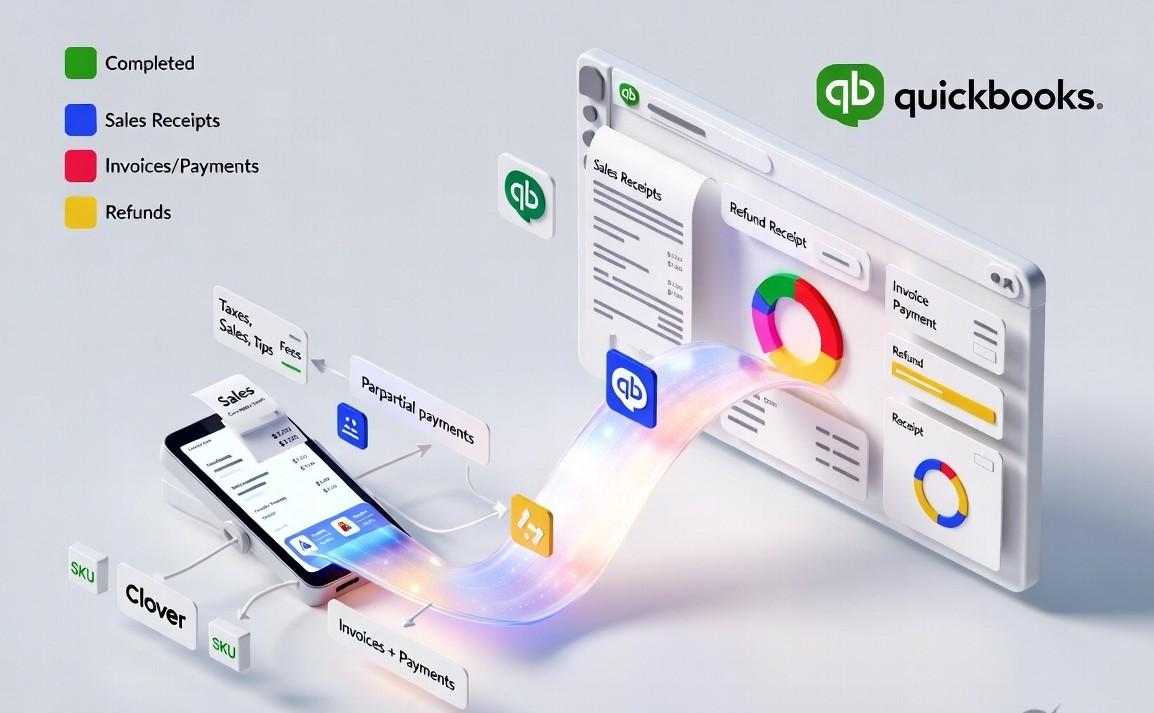
A proper Clover and QuickBooks integration means every sale from Clover POS is recorded correctly in QuickBooks automatically. A fully paid sale becomes a sales receipt. A partial payment becomes an Invoice with a payment. A refund becomes a refund receipt, and you do not have to decide anything. The system handles it for you.
It also keeps everything organized. Taxes, discounts, tips, and fees are recorded separately. Products are matched to the right accounts, so your reports stay accurate.
In short, real integration keeps your books clean without manual fixes.
Problems Sellers Face Without the Right Clover QuickBooks Integration
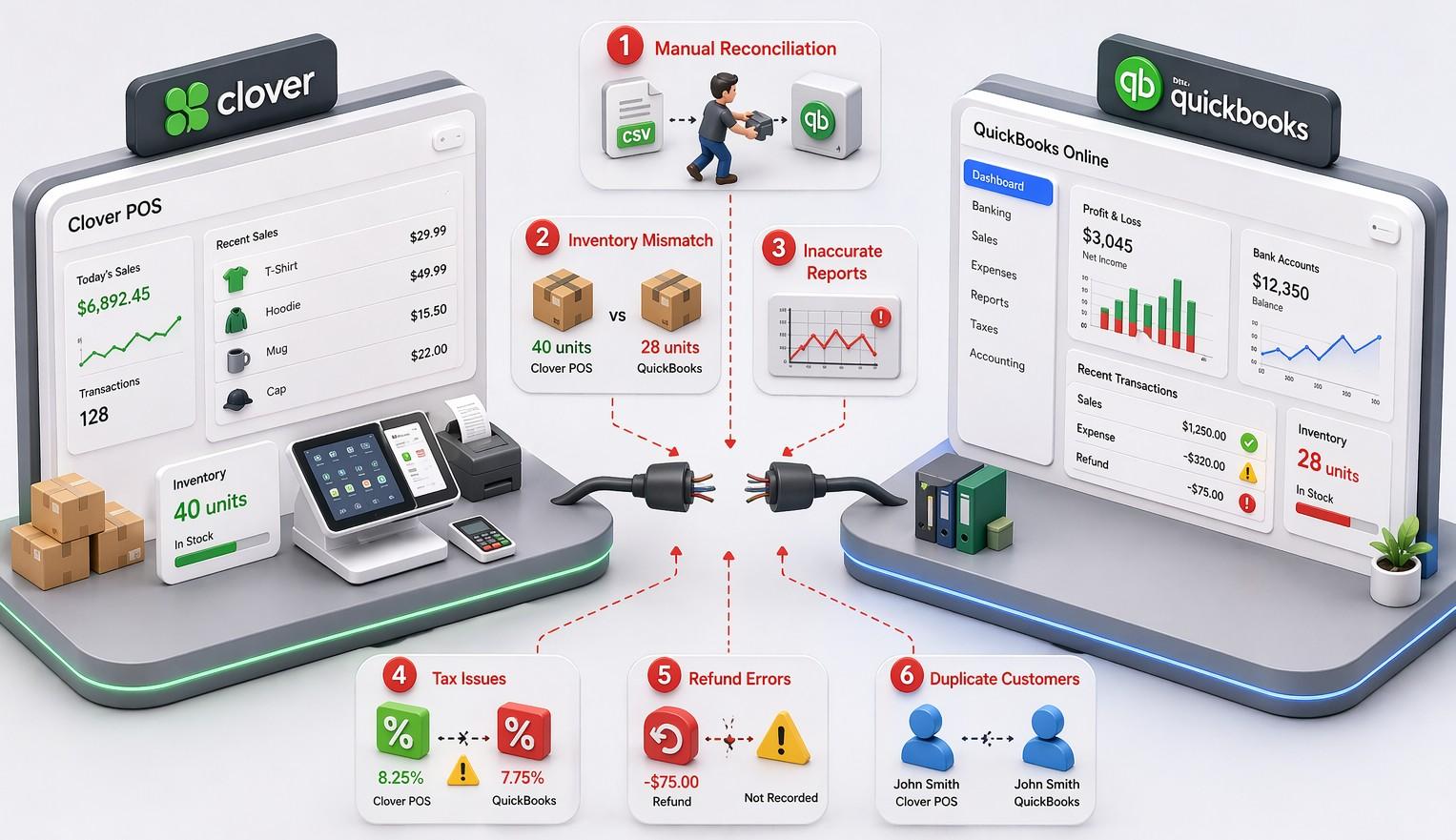
Retail owners who manage Clover POS and QuickBooks separately or use weak connectors often run into the same set of problems. The tricky part is that these issues do not show up instantly. Instead, they build up slowly and only become obvious during reconciliation or tax season.
Manual Reconciliation Drains Time and Money:
Without proper integration, sales data has to be moved manually from Clover into QuickBooks. This usually involves exporting files, adjusting the format, assigning categories, and matching numbers with bank deposits.
At first, it may seem manageable. However, even a single day of sales can take up to an hour to process. Over a month, that turns into days of lost time. On top of that, manual work increases the chance of mistakes. A small error, like a wrong number or incorrect category, can create discrepancies that take even more time to fix.
Incorrect Account Mapping Distorts Your Reports:
When products are not properly linked to the right accounts in QuickBooks, everything starts to mix together. Sales from different categories, such as products, services, or digital items, are all grouped into one place.
At the same time, inventory and cost tracking may not update correctly. This means your cost of goods sold stays the same even when you are making sales, which leads to incorrect profit calculations. In the end, your financial reports no longer reflect what is actually happening in your business.
Inventory Mismatches Create Confusion:
Clover POS tracks how many items you have in stock, while QuickBooks tracks the value of that inventory. If these two systems are not properly synced, the numbers start to mismatch.
For example, you might see 40 items in Clover but only 28 in QuickBooks. This creates confusion for both accounting and purchasing. Over time, it can lead to overstocking, running out of items unexpectedly, or incorrect cost calculations.
Tax Reporting Becomes Risky:
Taxes collected through Clover need to match what you report and pay. If tax data is grouped incorrectly or sent without proper structure, your tax reports can become inaccurate. This increases the risk of paying too much, too little, or facing issues during an audit.
For most businesses in regions like Canada, where tax rules are more detailed, accuracy becomes even more important.
Refunds and Discounts Create Confusion:
Refunds, discounts, and partial payments need to be recorded correctly to keep your books accurate. If they are not handled properly, they can create negative balances, unmatched deposits, or confusing revenue numbers.
For example, a refund should be recorded clearly as a refund, not just as a negative sale. When systems do not handle this properly, it becomes harder to understand what actually happened in your transactions.
Customer Records Become Disorganized:
Customer data can also become messy without proper integration. Some sales may not have customer details at all, while others may create duplicate records with slightly different names.
Over time, this leads to a cluttered customer list that is difficult to manage. It can also cause issues with invoices, reporting, and communication.
All of these problems might seem separate, but they come from the same root cause. It is not your business that is failing. It is the way your systems are connected.
Benefits of Clover QuickBooks Integration for Multi-Channel Sellers
When Clover POS and QuickBooks are properly connected, the impact goes far beyond saving time. It improves accuracy, reduces manual work, and gives you financial data you can actually rely on.
Automatic Accounting Entries:
Every transaction from Clover is automatically recorded in QuickBooks in the correct format. Completed sales are recorded as Sales Receipts, partial payments become Invoices with Payments, and refunds are handled properly as Refund Receipts.
Even discounts, taxes, and fees are recorded in the right way without manual input. This removes guesswork and ensures your accounting stays consistent from the start.
Accurate Financial Reports:
If every product is properly linked to QuickBooks accounts, your financial reports remain accurate and meaningful. This includes how income, costs, and inventory are recorded across your system.
- Sales are mapped to the correct income accounts
- Cost of goods sold is recorded correctly
- Inventory values reflect real stock levels
As a result, your Profit and Loss statement and balance sheet always show the true financial health of your business without requiring cleanup later.
Clean Financial Records:
A proper integration keeps your financial data organized and consistent across both systems.
- Every transaction is tracked and linked properly
- Duplicate entries are prevented automatically
- Missing or broken records are avoided
- Data stays synchronized between systems at all times
This ensures your books are always clean, reliable, and ready for reporting or review whenever needed.
Accurate Inventory Tracking:
Inventory stays aligned between Clover and QuickBooks Online in real time. Physical products automatically update stock levels when sold, while digital products are handled separately. This keeps your inventory records accurate and helps you avoid both overstocking and unexpected shortages. It also ensures your inventory value in QuickBooks reflects what is actually available in your store.
Organized Customer Data:
Customer information stays consistent and well-structured across both platforms. New customers are created automatically when needed, and duplicate records are avoided through proper matching. Even anonymous sales are still assigned a fallback customer entry, so nothing is left untracked. This helps keep your customer list accurate and usable over time.
A proper integration between Clover and QuickBooks does more than reduce manual work. It keeps your financial data accurate, your reports reliable, and your entire business system running in sync without constant corrections.
Different Methods to Integrate Clover POS to QuickBooks Online
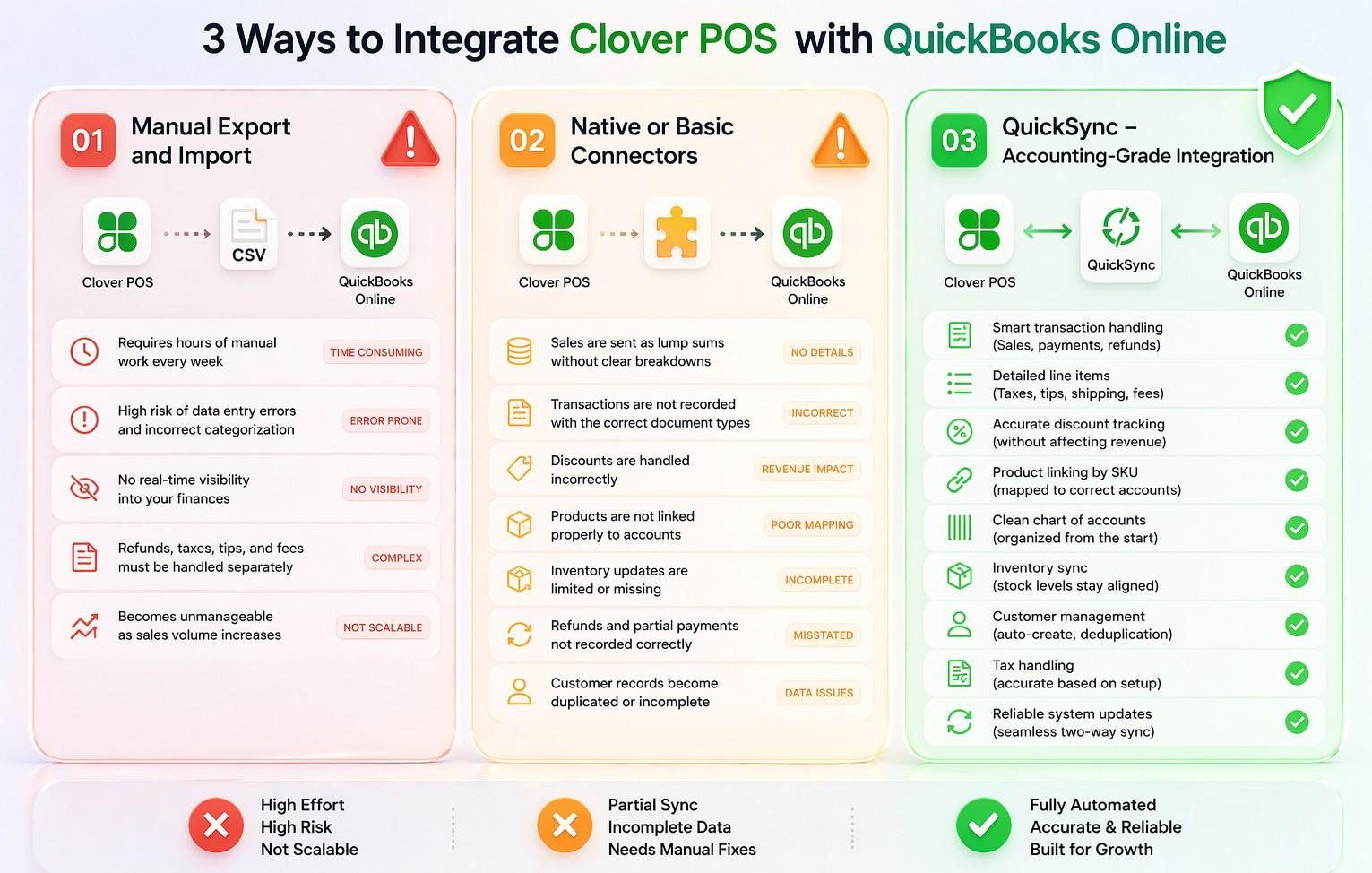
There are three ways to connect Clover to QuickBooks. They are not equal, and the differences go far beyond convenience. They determine whether your books are accurate enough to trust, accurate enough to audit, and accurate enough to make real business decisions from.
Method 1: Manual Export and Import
This is the most basic approach. You export sales data from Clover, adjust it to match QuickBooks, and then upload it manually. Some businesses try to do this daily. Most switch to weekly or monthly because it quickly becomes too time-consuming.
Why it fails:
- Requires hours of manual work every week
- High risk of data entry errors and incorrect categorization
- No real-time visibility into your finances
- Refunds, taxes, tips, and fees must be handled separately
- Becomes unmanageable as sales volume increases
This method may work for very small businesses, but for anything with regular sales, it turns into a constant time drain.
Method 2: Native or Basic Connectors
Basic connector apps link Clover and QuickBooks and automatically send data between them. On the surface, this feels like a complete solution. However, these tools often move data without understanding it.
Why it fails:
- Sales are sent as lump sums without clear breakdowns
- Transactions are not recorded with the correct document types
- Discounts are handled incorrectly, affecting revenue reporting
- Products are not linked properly to accounts
- Inventory updates are limited or missing
- Refunds and partial payments are not recorded correctly
- Customer records can become duplicated or incomplete
In short, the data shows up in QuickBooks, but it is not structured correctly. As a result, accountants still need to spend time fixing and adjusting everything.
Method 3: QuickSync – Accounting-Grade Integration
QuickSync is designed to do more than just move data. It ensures every transaction is recorded correctly from the start, which is what true Clover QuickBooks integration should look like.
What QuickSync does differently:
- Smart transaction handling: Sales, payments, and refunds are recorded with the correct document types automatically
- Detailed line items: Taxes, tips, shipping, and fees are all separated clearly
- Accurate discount tracking: Discounts are recorded properly without affecting revenue incorrectly
- Product linking by SKU: Each item connects to the correct accounts for income, costs, and inventory
- Clean chart of accounts: Financial data is organized correctly from the beginning
- Inventory sync: Stock levels stay aligned between Clover and QuickBooks
- Customer management: Customer records are created automatically and kept organized without duplicates
- Tax handling: Taxes are applied and recorded correctly based on your setup
- Reliable system updates: Changes sync smoothly between both platforms
QuickSync does not just transfer data. It organizes and records it in a way that keeps your books accurate, clear, and ready for reporting.
In the end, the method you choose makes all the difference. A basic connection may save a little time upfront, but only a proper integration gives you financial data you can actually trust.
Which Clover QuickBooks Integration Method Should You Go With?
After reviewing all three approaches, here is how they compare across the metrics that matter most for retail businesses and their accountants.
| Features | Manual CSV | Basic Connectors | QuickSync |
| Setup Time | Hours per week | Hours (one-time) | Minutes (one-time) |
| Document Accuracy | Manual, error-prone | Generic push only | Sales Receipt, Invoice, Refund Receipt auto-selected |
| Account Mapping | None | Limited | Full Chart of Accounts, SKU-based |
| Inventory Sync | Manual | Basic | Bidirectional, real-time |
| Customer Handling | None | Partial | Auto-create, fallback, deduplication |
| Tax Support | Manual | Basic line item | Canada tax codes, line-itemized |
| Audit Readiness | Low | Low | High, HMAC-verified |
| Maintenance | Constant | Moderate | Automated, self-healing |
Looking at the above comparison, one thing is clear now. Manual CSV and basic connectors can move data. Only QuickSync creates the correct accounting documents, maps to the right accounts, handles tax and customers properly, and produces books that are audit-ready from day one.
For retail business owners who need to close their books confidently, hand clean financials to their accountant, and never worry about whether a Clover sale was recorded correctly in QuickBooks, QuickSync is the only method that reliably delivers that outcome.
How to Connect Clover to QuickBooks Using QuickSync
Connecting Clover POS with QuickBooks using QuickSync is simple with zero learning curve. Once set up, your sales, products, and financial data stay automatically aligned so your books are always accurate.
Step 1: Sign Up or Log In to QuickSync
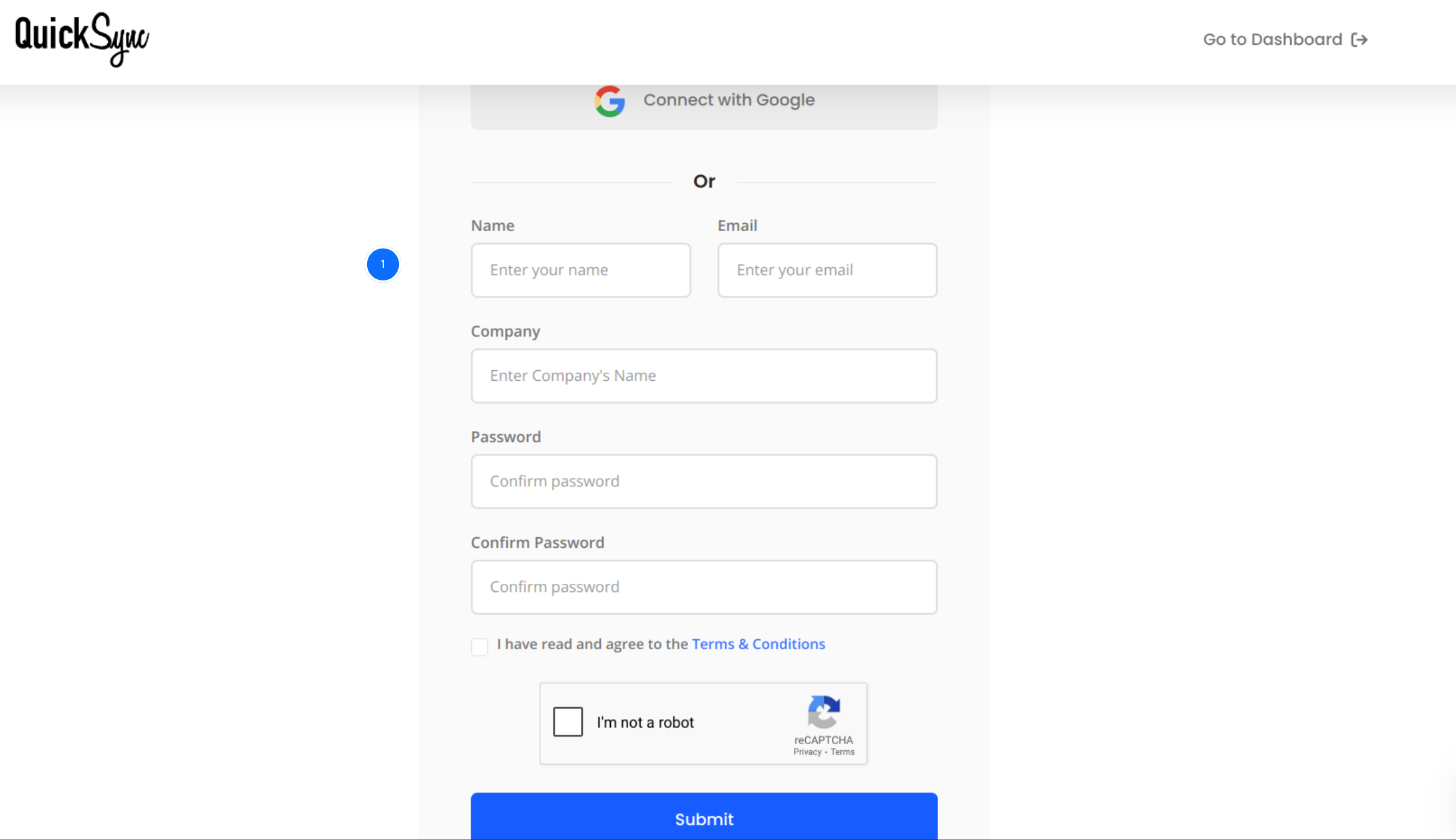
- Start by creating a QuickSync account. If you already have one, simply log in with your existing details.
- Once inside, you will be guided to connect your first platform.
Step 2: Connect Clover POS
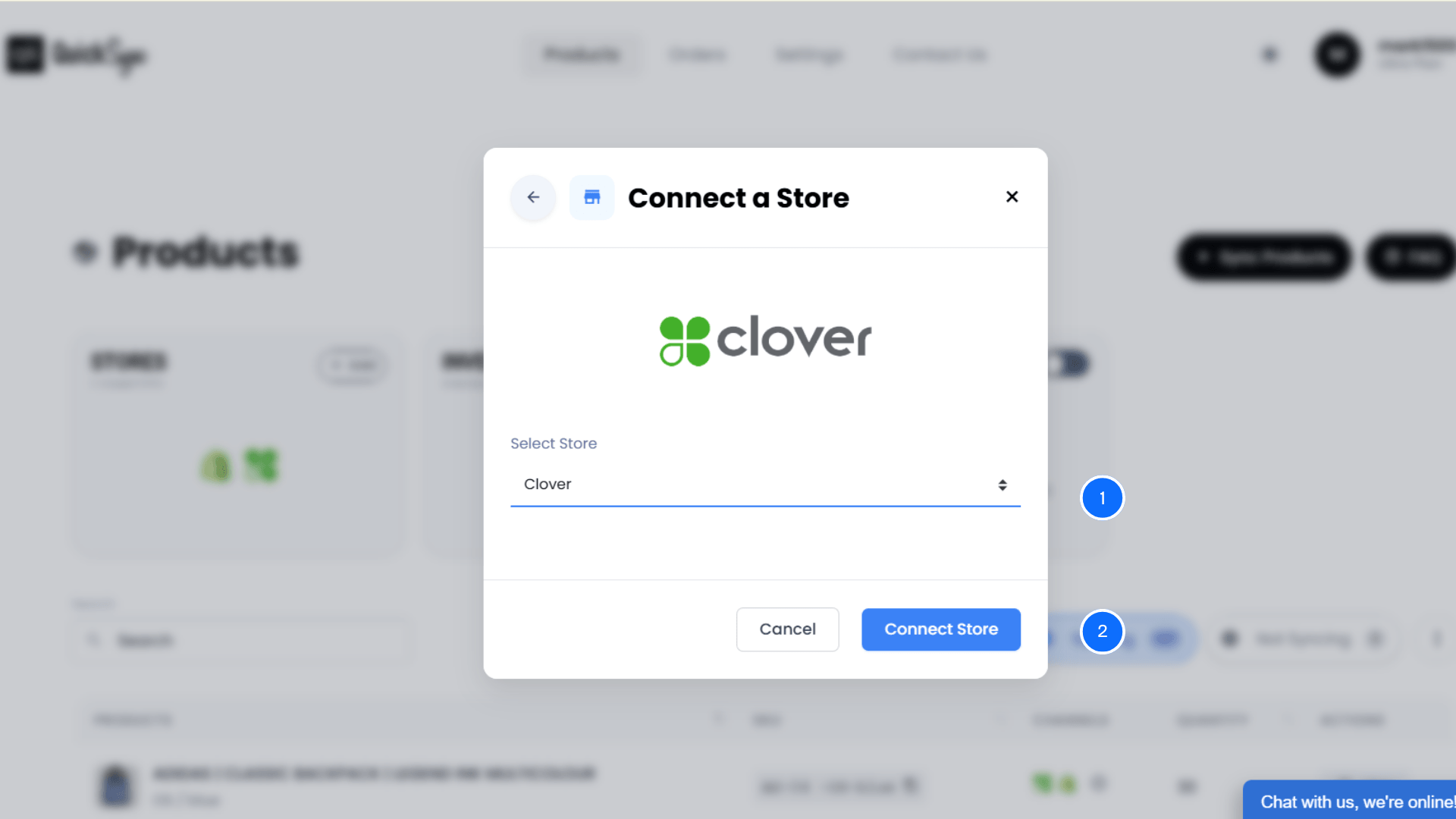
- Go to Dashboard → Add a store
- From the dropdown select
- Clover (For United States / Canada-based accounts)
- Clover EU (For European Union-based accounts)
- Click Connect Store and log in to your Clover merchant account to authorize the connection
Step 3: Connect QuickBooks Online Account
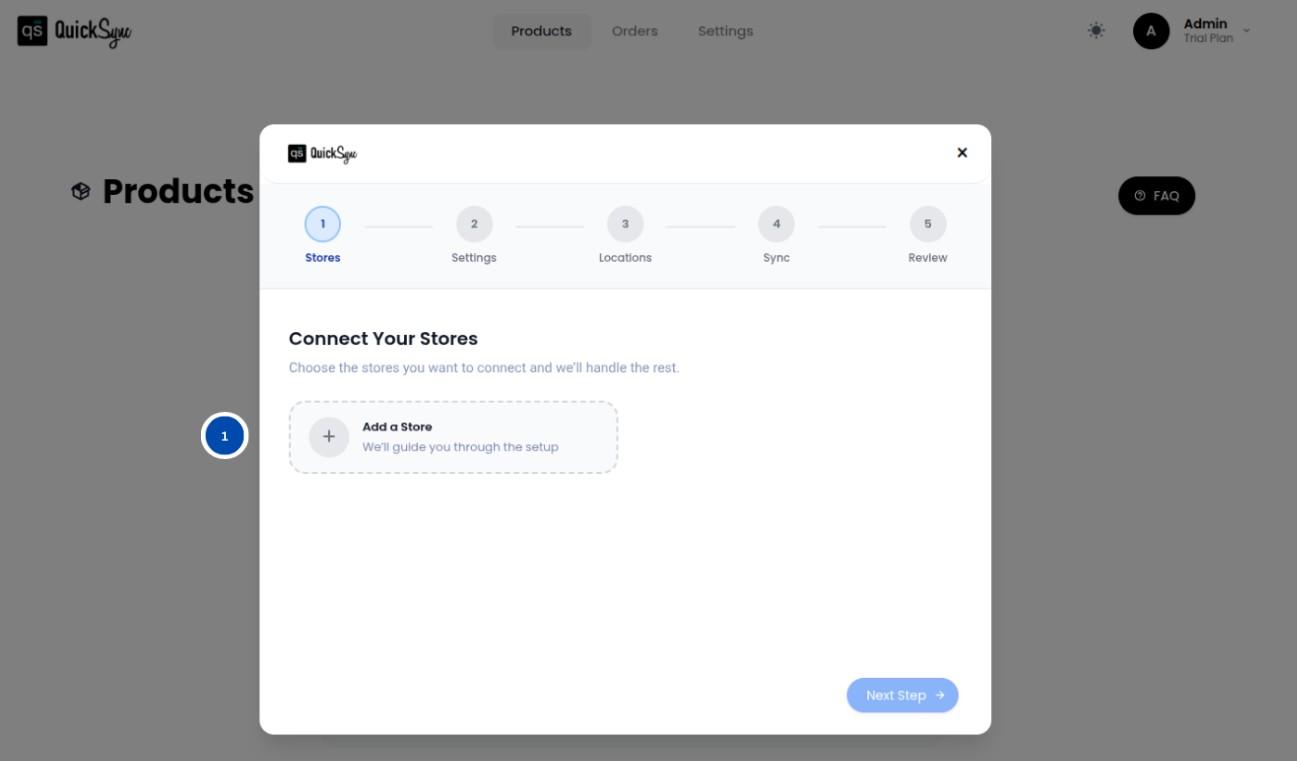
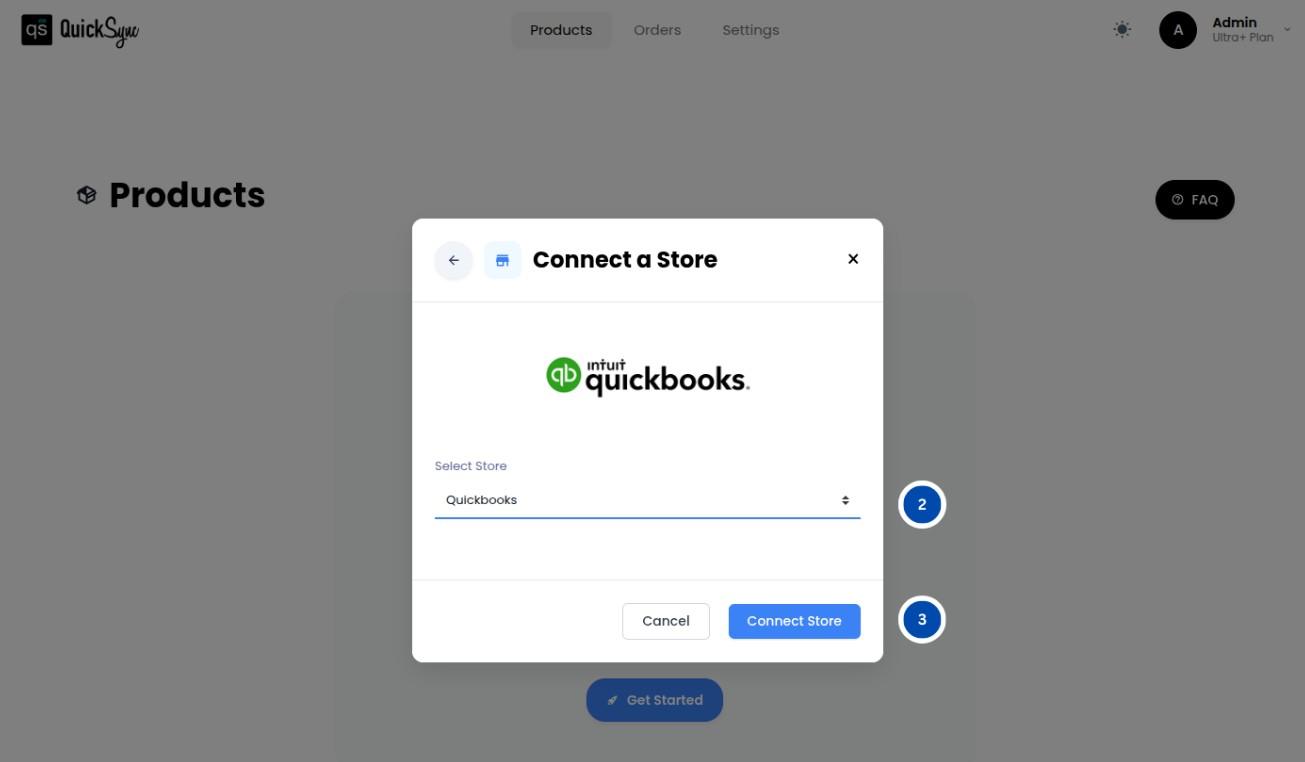
- Go to Sync Products to get started.
- Open the Store section and click Add Store to connect a new platform.
- Select QuickBooks, then click Connect a Store, log in, and approve access for items, payments, and accounting data.
Once connected, QuickSync will automatically import your company details, chart of accounts, home currency, and items; wait for the progress bar to complete before continuing
Step 4: Set Your Sync Preferences
Finally, choose how you want your systems to work together. This step turns QuickSync into your full accounting automation system.
Once everything is set, QuickSync automatically starts syncing Clover transactions into QuickBooks in the correct format. Your books stay updated in real time, without manual data entry work or corrections.
Best Practices for Effortless Clover QuickBooks Sync
Setting up the integration is only the first step. To keep everything running smoothly as your business grows, these simple best practices will help you avoid errors and keep your books accurate.
Use Clover as the Source Store:
Always treat Clover POS as the place where all sales happen, and QuickBooks as the place where your financial records live.
In simple terms, all sales, refunds, and payments should start in Clover POS and automatically flow into QuickBooks. Try not to create manual entries in QuickBooks for Clover activity, because doing so can easily lead to duplicate records and confusion in your books.
Check Account Mapping First:
Before you start using the system with real sales, take a few minutes to check how everything is connected.
- Make sure each product category goes to the correct income account
- Confirm that costs and inventory are mapped properly
- Review your QuickBooks account structure before going live
This small step helps prevent bigger cleanup work later.
Do Weekly Checks:
Even though everything runs automatically, it is still a good idea to do a quick weekly review. It does not take long, but it helps you stay confident that everything is working correctly.
Just compare your Clover sales with QuickBooks, check for any missing or unmatched items, and make sure refunds and discounts look correct. This simple habit helps you catch small issues before they become bigger problems.
Set Tax Correctly:
If your business is in Canada, make sure your tax settings are properly configured during setup. Taxes like GST, PST, and HST need to be applied correctly in QuickBooks.
The system can handle this automatically, but it is still important to confirm everything once during setup so your tax reports stay accurate from the beginning.
Know Inventory Limits:
It is important to understand that inventory sync works best for a single location. If your business has more than one store, QuickBooks will only track inventory for the main location you choose.
So, plan your setup carefully and decide which location you want QuickBooks to reflect. This helps avoid confusion later when checking stock levels.
Test Before Going Live:
Before fully starting, it is always smart to test the system with a few sample transactions.
Run two or three sales in Clover and check how they appear in QuickBooks. Look at the document type, product details, and customer records. This quick test takes only a few minutes but helps you avoid bigger problems later when real sales start flowing in.
The Bottom Line: What’s Next!
So, does Clover integrate with QuickBooks? Yes, it does. But the real question is whether your setup actually works the way your business needs. Simple tools and manual methods can transfer data, but they cannot keep it clean or properly structured. Over time, this leads to errors, confusion, and extra work during reconciliation.
But no more worry now. QuickSync is there to automatically create correct accounting entries, map products properly, sync inventory, and keep customer data clean and organized.
Start your free 14-day trial at QuickSync.pro. No credit card needed. Connect Clover to QuickBooks the right way from the start.