If you’re selling on Shopify and managing your books in QuickBooks, your numbers might not be telling the truth.
Sales show up in Shopify. Deposits land in your bank. But inside QuickBooks, those deposits rarely match your actual revenue. Refunds get missed. Taxes don’t always line up. And as your store grows, these small gaps turn into bigger financial issues.
The issue isn’t your business. It’s the disconnect between the two systems.
When Shopify and QuickBooks aren’t synced properly, reconciliation becomes guesswork. The solution isn’t just connecting the platforms. It’s syncing them the right way.
In this guide, you’ll learn exactly how to sync Shopify and QuickBooks, compare your options, and set up a system that keeps your books accurate as you grow. Read on.
What Does Syncing Shopify and QuickBooks Really Mean?
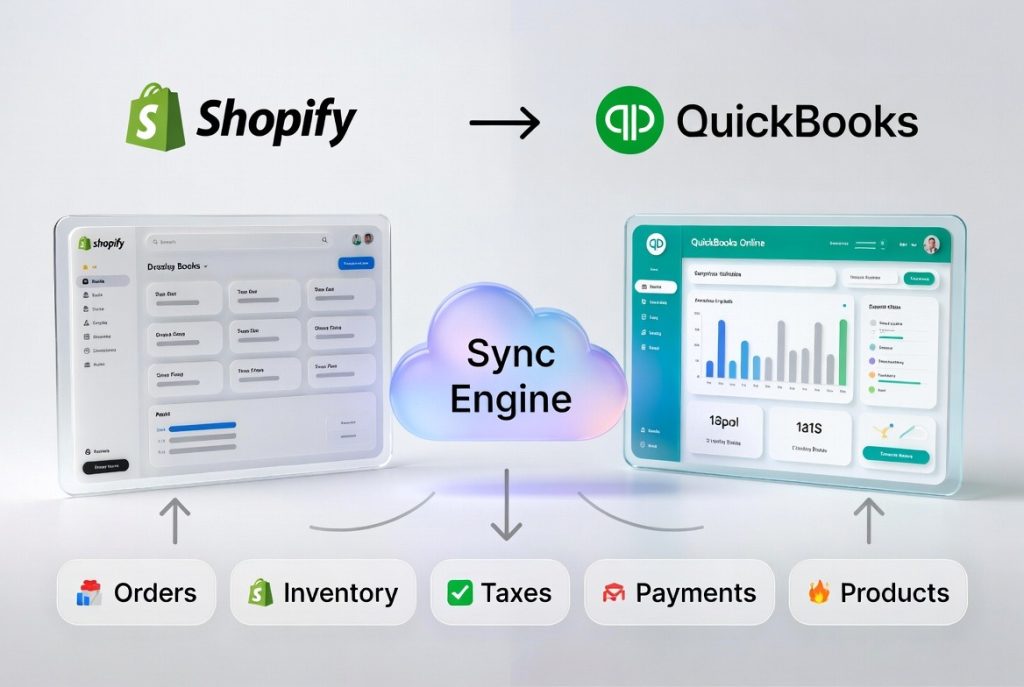
Many multichannel sellers think “syncing” is just exporting a CSV from Shopify once a month and importing it into QuickBooks. That’s not syncing. That’s manual data entry, and it’s prone to mistakes.
Real syncing is automated and continuous. It means that every sale, refund, inventory change, and tax adjustment in Shopify flows directly into QuickBooks without you lifting a finger. Your books stay accurate, your inventory stays aligned, and your taxes stay correct, all in real time.
If you’re still updating stock by hand, copying orders, or matching payments yourself, your systems aren’t connected.
A reliable syncing process keeps your products, inventory, orders, pricing, and even images aligned perfectly. When these layers work together automatically, your books reconcile, taxes stay accurate, and cash flow is clear even during your busiest sales days.
Problems Ecom Sellers Face When Shopify & QuickBooks Are Unsynced
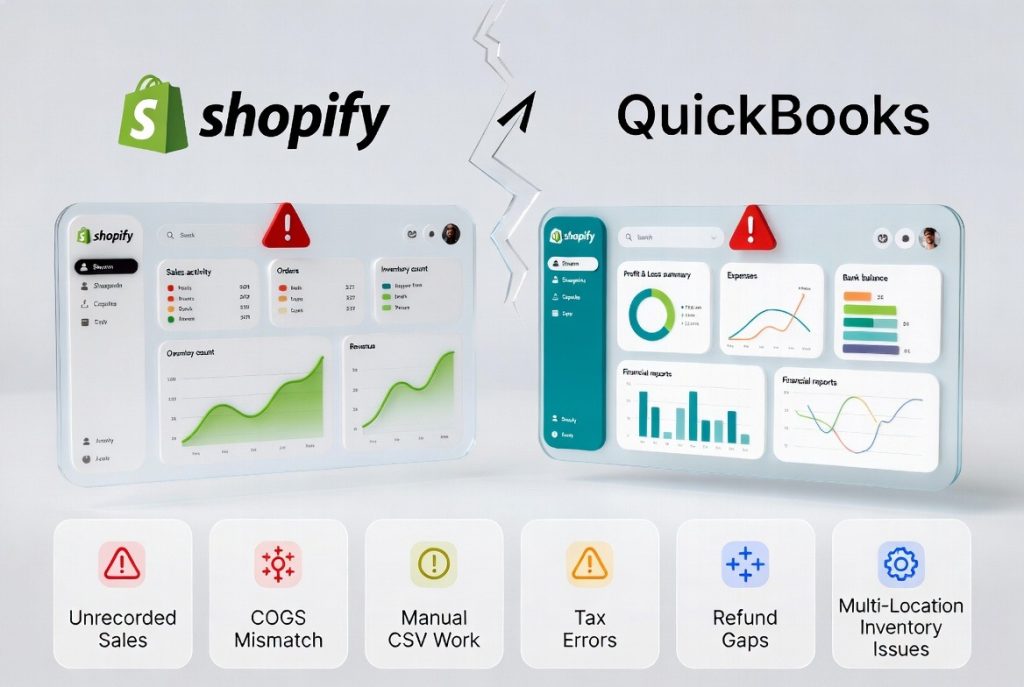
After auditing hundreds of multichannel selling operations, we saw a clear pattern. Many sellers claim they’re “connected” to QuickBooks, but in reality, they are not.
Here’s the difference: a connection simply pushes data. Real sync protects your financial integrity, prevents blind spots, and ensures your numbers are accurate. Without it, even small discrepancies can quietly drain revenue, your brand reputation, and trust.
Here are the key problems that Shopify sellers face when they are not synced with QuickBooks:
Unrecorded Sales and Revenue Leakage
Your Shopify store processes orders 24/7. But if QuickBooks isn’t updated in real-time, sales can sit unrecorded for days or weeks. Financial reports start showing cash that doesn’t exist, and revenue that has already arrived goes missing.
The consequences can be serious, such as inaccurate profit and loss statements, missed tax deductions, overpaid liabilities, and failed audits. Businesses relying on manual entry experience error rates of up to 4%, which multiply as sales volume grows.
Inventory and COGS Mismatches
Shopify tracks inventory for fulfillment. QuickBooks tracks inventory for accounting. Without proper sync, these two records live in separate realities. Your cost of goods sold becomes a guessing game rather than accurate data.
This leads to inaccurate balance sheets, incorrect gross margins, tax reporting errors, and phantom stock that appears available but isn’t accounted for financially.
Poor inventory synchronization affects nearly half of small businesses, with mid-sized retailers losing an average of $1.1 million annually due to mismatched data.
Hours Lost to Manual Work
Exporting Shopify reports, formatting them for QuickBooks, and manually importing transactions consumes hours every week. As order volume increases, this approach becomes unsustainable and error-prone.
Manual processes lead to transcription errors, delayed reporting, wasted staff time, and inconsistent data formats across platforms.
In fact, many businesses report that manual accounting tasks consume up to 60 extra hours per month, which equals more than 5 full working days spent reconciling and correcting data.
Tax Calculation Errors and Compliance Risks
Sales tax in Shopify is calculated based on the customer’s location. QuickBooks needs this data to remit taxes accurately. Without automated syncing, tax liabilities become estimates instead of precise calculations.
The result? Underpayment penalties, overpayment that drains cash flow, and audit triggers from inconsistent filings.
Refund and Return Tracking Gaps
When a customer returns a product, Shopify processes the refund. But if QuickBooks isn’t updated, your revenue remains overstated and inventory counts drift apart.
This causes inaccurate financial reporting, mismatched inventory, customer balance issues, and distorted customer lifetime value metrics. With e-commerce return rates averaging 20–30%, even small synchronization failures can impact significant transaction volume.
Multi-Location Inventory Mess:
Shopify supports multiple warehouse locations, while QuickBooks tracks inventory as financial assets. Without proper sync, stock transfers and location-specific counts create accounting headaches.
Inventory can be recorded in the wrong location, fulfillment delays occur due to inaccurate stock visibility, transfer transactions may not hit the general ledger, and consolidated reports can mask the performance of individual locations.
Methods to Connect and Sync Shopify with QuickBooks
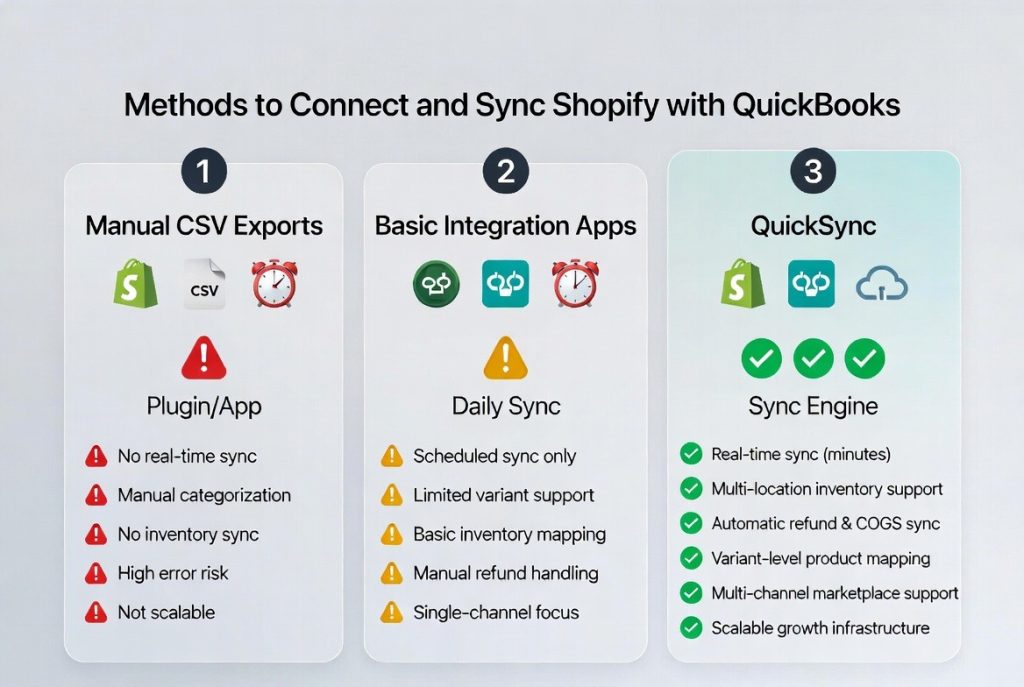
Now that we’ve seen how quickly problems can grow when Shopify and QuickBooks aren’t properly synced, the next question is obvious: how do you actually connect these platforms correctly?
Not all methods are created equal. Choosing the wrong approach can create even bigger headaches as your order volume grows. From manual workarounds to fully automated systems, there are three main ways sellers sync Shopify with QuickBooks.
Method 1: Manual CSV Exports and Imports
For sellers just starting out, exporting Shopify data as a CSV and importing it into QuickBooks can work. Many early-stage businesses use this approach to validate their product and sales model before investing in automation.
How it works:
- Export sales reports from Shopify as a CSV
- Format the data to match QuickBooks import requirements
- Categorize transactions and assign tax codes manually
- Import via the QuickBooks Online import tool
- Reconcile discrepancies by hand
Who it’s for:
Sellers with fewer than 50 orders per month and simple product catalogs. It’s acceptable for testing, but it’s not scalable.
Limitations:
- No real-time data; books are always behind
- Manual categorization errors are common
- No inventory sync; COGS must be calculated separately
- Breaks under higher transaction volume
- Tax calculations require manual verification
Method 2: Basic Integration Apps
When monthly CSV imports aren’t enough, basic integration apps offer more automation. They speed up the process but still come with significant limitations.
Typical features:
- Scheduled data sync (usually daily)
- Basic sales receipt creation
- Simple product mapping
- Limited inventory tracking
Who it’s for:
Sellers processing 50–500 orders per month with straightforward catalogs.
Limitations:
- Daily sync still leaves blind spots in cash flow
- Limited support for variants or complex product structures
- Multi-location inventory synchronization is usually missing
- Refunds and adjustments often require manual intervention
- Most apps support only one sales channel
Method 3: QuickSync – A Unified Financial Sync Engine
For high-volume or multi-channel sellers, QuickSync is a game-changer. It’s a full synchronization platform designed for fast-growing commerce.
Why QuickSync stands out:
- Real-time sync keeps books updated within minutes
- Multi-location inventory support aligns Shopify with QuickBooks
- Refunds and returns sync automatically for accurate revenue recognition
- Variant-level product mapping handles complex catalogs effortlessly
- Support integration of Shopify, Amazon, eBay, Etsy, and 10+ marketplaces
With QuickSync, sellers aren’t just moving data. They’re building a reliable, scalable system that keeps pace with growth, protects margins, and prevents the operational headaches we highlighted earlier.
What to Look for in a Shopify QuickBooks Syncing Solution
Not all multichannel integration solutions are equal. Some simply move data, while professional-grade solutions keep your financials accurate, your inventory aligned, and your business running smoothly.
That’s why it is crucial to check the following essential capabilities in the Shopify and QuickBooks syncing solution:
Real-Time or Near Real-Time Transaction Sync
Your sync should update QuickBooks within minutes of any Shopify transaction. Waiting hours or days to import data creates blind spots, making reconciliation difficult and cash flow decisions risky. Real-time syncing ensures financial accuracy, faster decision-making, and no surprises at month-end.
Multi-Location Inventory Support
If you stock products across multiple warehouses or retail locations, your sync must align Shopify’s location data with QuickBooks inventory tracking. Without this, inventory assets appear consolidated even when they are distributed, leading to fulfillment errors and accounting mistakes. Multi-location support ensures accurate balance sheets and smooth inventory management.
Automated Tax Code Mapping
Sales tax is complicated, varying by jurisdiction, product type, and customer exemptions. Manual coding increases the risk of mistakes, audits, and penalties. Automated tax mapping ensures every transaction carries the correct codes for compliant filing and accurate liability tracking.
Refund and Return Synchronization
Returns are part of e-commerce. Your sync must handle refunds automatically—reversing revenue, updating inventory, and adjusting customer records. Complete return synchronization prevents revenue inflation from unrecorded refunds and keeps financials accurate.
Variant and Bundle Support
Modern stores often sell products with options, kits, or bundles. Your sync must map these structures into QuickBooks without creating duplicates or breaking inventory tracking. Proper variant handling ensures accurate COGS and prevents confusion as your catalog grows.
Intelligent Error Handling
No system works all the time perfectly. A robust sync solution includes clear error reporting, automated retries for failed transactions, and alerts when human attention is needed. Proactive error management catches small issues before they become month-end reconciliation nightmares.
QuickSync delivers all these capabilities in a single system, keeping Shopify as your operational hub while ensuring QuickBooks reflects real-time financial reality. Stop risking tax errors, cash flow blind spots, and reconciliation headaches.
Which Shopify QuickBooks Sync Method Is Best for Multichannel Sellers?
After reviewing the three main ways to sync Shopify with QuickBooks, the next question is simple: which method actually works for growing businesses? Not all approaches scale equally, and choosing the wrong one can create costly mistakes as orders and complexity increase.
Here’s a clear side-by-side comparison:
| Feature | Manual CSV | Basic App | QuickSync |
| Setup Time | 2 – 4 hours initially, weekly ongoing | 1 – 2 hours | 10 – 15 minutes |
| Sync Frequency | Weekly or monthly | Daily | Real-time (under 5 minutes) |
| Multi-Location Support | None | Limited | Full support |
| Inventory Sync | Manual only | Basic | Automated |
| Tax Code Automation | None | Partial | Full automation |
| Refund Sync | Manual entry | Often manual | Automatic |
| Variant Handling | Error-prone | Limited | Robust mapping |
| Multi-Channel Ready | No | No | Yes (10+ channels) |
| Error Recovery | Manual detection | Basic alerts | Intelligent auto-recovery |
| Monthly Maintenance | 10–20 hours | 3–5 hours | Under 1 hour |
Manual CSVs or basic apps are fine in the early days. But before your first tax season or investor review, move to QuickSync. As transactions and complexity grow, simple tools become a liability. You risk missed deductions, compliance issues, and poor cash visibility. If you want real growth and control, QuickSync is essential.
How to Sync Shopify and QuickBooks Using QuickSync?
Syncing Shopify with QuickBooks is easier than most sellers think. With QuickSync, you can connect both platforms in minutes without any technical skills. Once set up, sales, orders, products, and inventory stay automatically aligned so your books are always accurate.
Step 1: Sign Up or Log In to QuickSync
If you are new to QuickSync, start by creating an account. If you already have one, simply log in with your credentials.
Step 2: Connect Your First Platform (Shopify)
Next, link your Shopify store.
- Enter your Shopify store URL
- Authorize QuickSync to access products, orders, inventory, and customer data
QuickSync will automatically read your Shopify catalog and prepare it for syncing.
Step 3: Connect Your Second Platform (QuickBooks)
After Shopify is connected, link to QuickBooks Online.
- Authorize QuickSync to access your QuickBooks account
- Grant permissions for products, sales, and transactions
This connection ensures your Shopify data flows directly into QuickBooks accurately.
Step 4: Choose Your Sync Preferences
Finally, choose what data you want to sync between Shopify and QuickBooks:
- Sales and orders
- Products and inventory
- Refunds and returns
Once your preferences are set, QuickSync automatically keeps both platforms in sync in real time. Orders, inventory, and financial records update automatically, so you can focus on growing your business.
Best Practices to Keep Shopify and QuickBooks in Perfect Sync
Connecting Shopify and QuickBooks is just the first step. Even with the right tools, your success depends on how you manage the sync and your financial workflows. Sellers who scale smoothly follow consistent processes, while those who don’t often run into reconciliation issues, tax surprises, and cash flow headaches.
Use Shopify as Your Main Source of Truth
All sales, refunds, inventory changes, and customer interactions should start in Shopify. Editing financial records directly in QuickBooks creates conflicts and messy books. QuickSync acts as the messenger. Process transactions once in Shopify, and everything updates automatically in QuickBooks. One operational system, one accurate set of books.
Keep Syncing in Real Time
Daily or weekly syncing leaves gaps where your financial data doesn’t reflect reality. Fast-moving e-commerce magnifies these gaps, causing missed opportunities and compliance risks. Real-time syncing keeps your books current, ensures cash flow decisions are based on accurate data, and eliminates month-end reconciliation headaches.
Monitor Inventory and Product Accuracy
Even with automated syncing, it’s important to periodically check that product details, stock levels, and variants match between Shopify and QuickBooks. Correct any discrepancies early to avoid overselling, inaccurate COGS, and accounting errors. Keeping your inventory clean ensures your financial reports stay accurate as you grow.
Reconcile Frequently
Even with automatic syncing, small issues can happen. Checking deposits, inventory adjustments, and outstanding refunds weekly keeps problems from growing. Weekly reconciliation takes just a few minutes and prevents hours of detective work at month-end.
Automate Before You Scale
Manual accounting might work when volumes are low, but automation is critical as your business grows. Promotions, product launches, and seasonal peaks create transaction volumes that overwhelm manual systems. Automation protects cash flow, ensures compliance, and frees your time for growth activities.
Plan for Multi-Channel Growth
Even if you only sell on Shopify today, set up a system that can grow with you. QuickSync allows you to add Amazon, eBay, Etsy, or wholesale channels later without overhauling your workflow. Your sync infrastructure should scale with your business, not limit it.
Following these best practices ensures that your Shopify QuickBooks integration stays accurate, reliable, and ready to support growth at any scale.
The Bottom Lines: What Next!
Summing it up, all Syncing Shopify and QuickBooks is not just about saving time. It is about protecting your revenue, staying compliant, and making decisions with accurate numbers. If you are wondering how to sync Shopify and QuickBooks the right way, the answer lies in choosing a system built for accuracy and growth.
Manual work and basic apps might work in the beginning, but as your store grows, small gaps turn into costly mistakes. Real-time, automated syncing keeps your inventory aligned, your taxes accurate, and your financial reports reliable.
If you are serious about scaling with confidence, it is time to upgrade your system.