If you’re manually moving product inventory and sales data between WooCommerce and QuickBooks, you’re spending 8-12 hours every week on tasks that could run automatically.
That’s 400+ hours per year, more than 10 full work weeks, copying numbers you already generated. And with every manual entry, you risk a 4% error rate that can cost growing businesses $20,000 or more annually in mistakes alone.
Managing your WooCommerce store while managing QuickBooks separately can create problems. Your sales are in WooCommerce, but your accounting is in QuickBooks. If they are not connected, you have to export reports, edit spreadsheets, and import data manually.
However, the good news is that this is easy to fix. A right syncing tool connects WooCommerce and QuickBooks automatically, keeping orders, inventory, taxes, and payments updated in real time.
In this guide, you’ll learn how to sync WooCommerce and QuickBooks the easy way, compare your options, and choose a system that grows with your business without the manual headaches. Read on…
What Is WooCommerce QuickBooks Integration?
Many sellers think “integration” means exporting a CSV file from WooCommerce and importing it into QuickBooks. That’s not integration. That’s manual data entry, and it leads to mistakes.
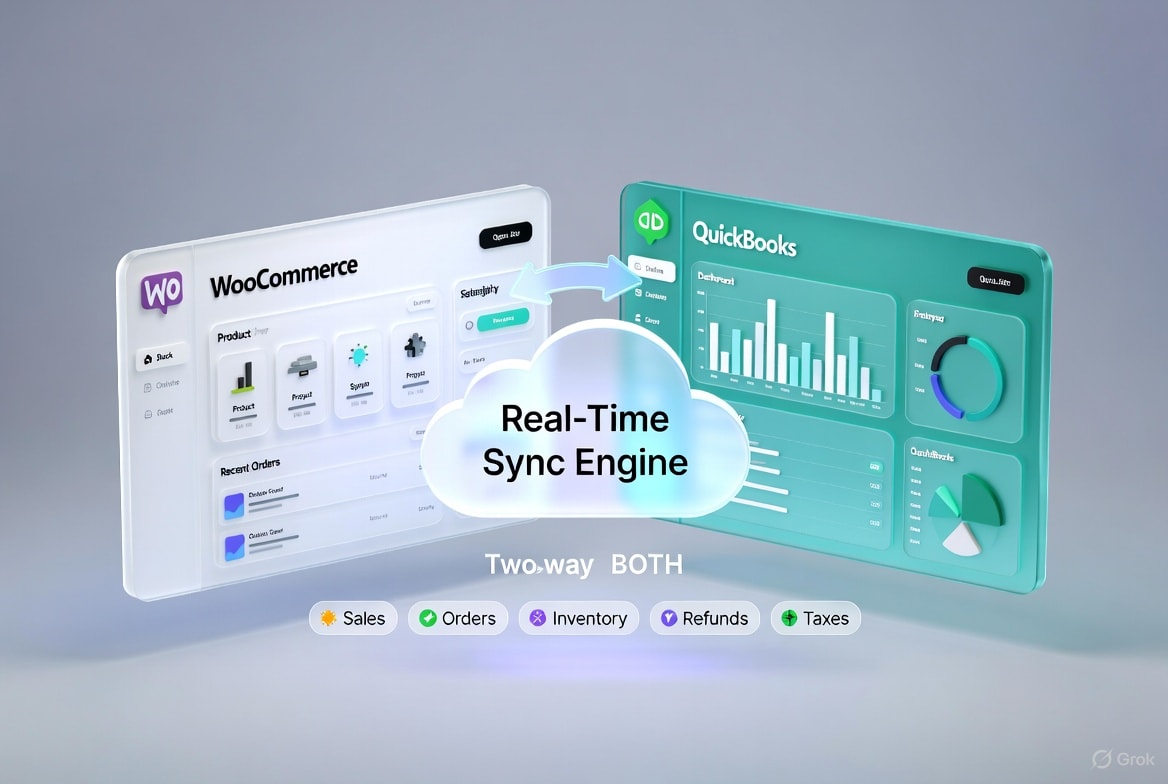
Real integration means your systems talk to each other automatically. Every sale, refund, inventory change, and tax adjustment in WooCommerce flows directly into QuickBooks without you copying anything.
Your product details, inventory levels, and order history stay aligned across both platforms.
If you’re still:
- Updating stock manually in two places
- Matching bank deposits by hand
- Recalculating fees and taxes manually
- Fixing duplicate entries
Then your systems aren’t integrated. They’re loosely connected and fragile.
What Elements WooCommerce QuickBooks Syncing Should Include
A good integration connects all your important data at the same time and syncs them all. But if even one part is missing, your operations and reports can become inaccurate.
Here’s what real synchronization should cover:
Data Layer | What It Syncs Automatically | Why It Protects Your Business |
Products | Names, variants, SKUs, pricing, tax status | Maintains accurate inventory valuation and cost tracking |
Inventory | Stock levels, warehouse locations, adjustments | Prevents overselling, phantom stock, and COGS errors |
Orders | Sales, refunds, customer data, fulfillment status | Ensures clean books and accurate revenue reporting |
Pricing | Base price, discounts, promotional rules | Protects profit margins and reporting consistency |
Images | Product and variant media | Keeps product records consistent across systems |
When these layers sync automatically:
- Your product catalog remains structured
- Inventory counts match financial records
- Orders reconcile without manual intervention
- Profit and loss statements reflect reality
- Cash flow visibility becomes clear and reliable
This is the difference between “data moving” and true integration.
Common Challenges When WooCommerce and QuickBooks Are Not Synced
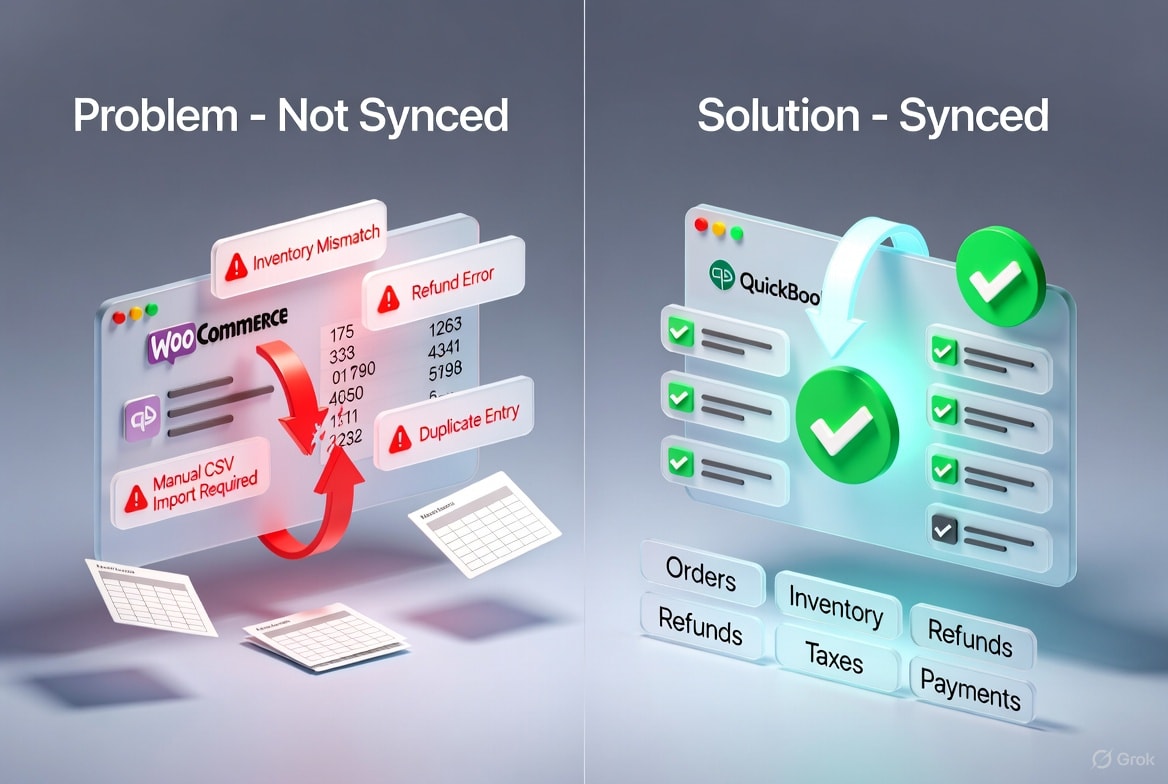
When WooCommerce and QuickBooks are not synced, small problems slowly turn into big ones. At first, it may feel manageable. You export a file. You import it. You fix a few numbers.
But as your orders grow, the mistakes grow too.
When your store and your accounting software don’t talk to each other automatically, you end up doing everything by hand. And that creates confusion, stress, and financial risk.
Here’s what really happens when the two systems are not synced.
Lost Time on Manual Work:
If you are not using automatic sync, you have to:
- Export sales reports from WooCommerce
- Format the spreadsheet
- Import it into QuickBooks
- Match payments manually
- Fix errors one by one
This might work when you have 20 orders per month. But when you have 200 or 500 orders, this becomes exhausting. Manual work always leads to mistakes. And mistakes in accounting cost money.
Inventory Mismatch and Confusion:
WooCommerce updates stock for shipping. QuickBooks tracks inventory for accounting. If they are not connected, the inventory numbers can become inaccurate over time.
This kind of mismatch is common. In fact, the average inventory accuracy across businesses is only about 83%, meaning nearly one in five inventory records contains an error.
When inventory numbers are unreliable, you may:
• Oversell products you don’t have
• Run out of stock unexpectedly
• Record product costs incorrectly
• See profit margins that don’t reflect reality
These issues cost time and money. Poor inventory accuracy leads to stockouts, lost sales, and inventory that fails to match your accounting. Inaccurate stock also contributes to higher storage costs and unhappy customers.
Refund and Order Tracking Issues:
WooCommerce processes customer refunds and returns. QuickBooks only updates if the systems are connected. Without syncing, your revenue can appear higher than it actually is.
Returns are common in e-commerce, and on average, about 30 percent of orders are returned. When refunds are not synced, you may:
- Show money in your books that you do not actually have
- Have wrong inventory counts
- See reports that do not match reality
These mistakes add up quickly, making it harder to track revenue and manage inventory accurately.
Unreliable Financial Reports:
Without real-time syncing, your books can show outdated or incomplete information. You might think you have more inventory than you actually do. You could miss tax deductions that you qualify for.
Product costs can become guesses, and order profits may not be clear. These issues make it hard to trust your financial data and make accurate business decisions.
Multi-Location Inventory Problems:
If you store products in more than one warehouse, unsynced systems cannot track inventory by location accurately. This can cause delays in order fulfillment and show products as available when they are not.
It can also lead to mistakes in accounting and inventory management. Keeping your systems synced ensures each warehouse’s stock is tracked correctly and your operations run smoothly.
Benefits of WooCommerce QuickBooks Integration For MultiChannel Sellers
Now that you’ve seen what goes wrong when WooCommerce and QuickBooks are not synced, let’s look at what changes when they are connected properly.
When both systems work together automatically, the stress goes down, and control goes up.
Instead of fixing mistakes, you focus on growing your store.
Here’s what proper integration actually gives you.
Accurate Financial Records:
When data between Woo and QuickBooks syncs in real time, your books always reflect what is actually happening in your store.
This means:
- Sales numbers are correct
- Refunds are recorded properly
- Inventory values match reality
- Profit margins are clear
You don’t have to guess your true cash position. You can see it instantly. Accurate numbers help you make better business decisions with confidence.
Better Inventory Control:
When your inventory is synced, both WooCommerce and QuickBooks show the same numbers. You always know what products are in stock, where they are located, and their financial value.
This prevents overselling and unexpected stockouts. It also keeps your accounting accurate. With better inventory control, you face fewer surprises and have a clearer picture of your business.
Smarter Order Management:
When orders move automatically from WooCommerce into QuickBooks, your data stays accurate. Product details, prices, taxes, and customer information are recorded correctly every time.
Accurate order management is crucial. Studies show that shipping errors cost US businesses over $17 billion annually due to returns, corrections, and delays.
With synced systems, you always know what was sold, refunded, or adjusted. Fulfillment is faster, and your financial records stay clean.
Easier Tax Compliance:
Sales tax can be confusing. Different states and products have different rules. When WooCommerce and QuickBooks are synced, tax information updates automatically with every sale.
This helps you categorize sales correctly, reduce filing mistakes, and avoid penalties. It also saves time during tax season.
Instead of worrying about audits, your records stay organized and accurate.
Save Your Precious Time:
Automatic syncing takes the manual work out of managing your store and accounting. You no longer need to:
• Export reports
• Format spreadsheets
• Import transactions
• Match numbers manually
What used to take hours every week now happens in the background. Orders, inventory, and financial data update automatically, so you can focus on growing your business.
Different Methods to Connect WooCommerce to QuickBooks
Once you understand the problems caused by unsynced WooCommerce and QuickBooks data, the next question is obvious: how do you actually connect these platforms?
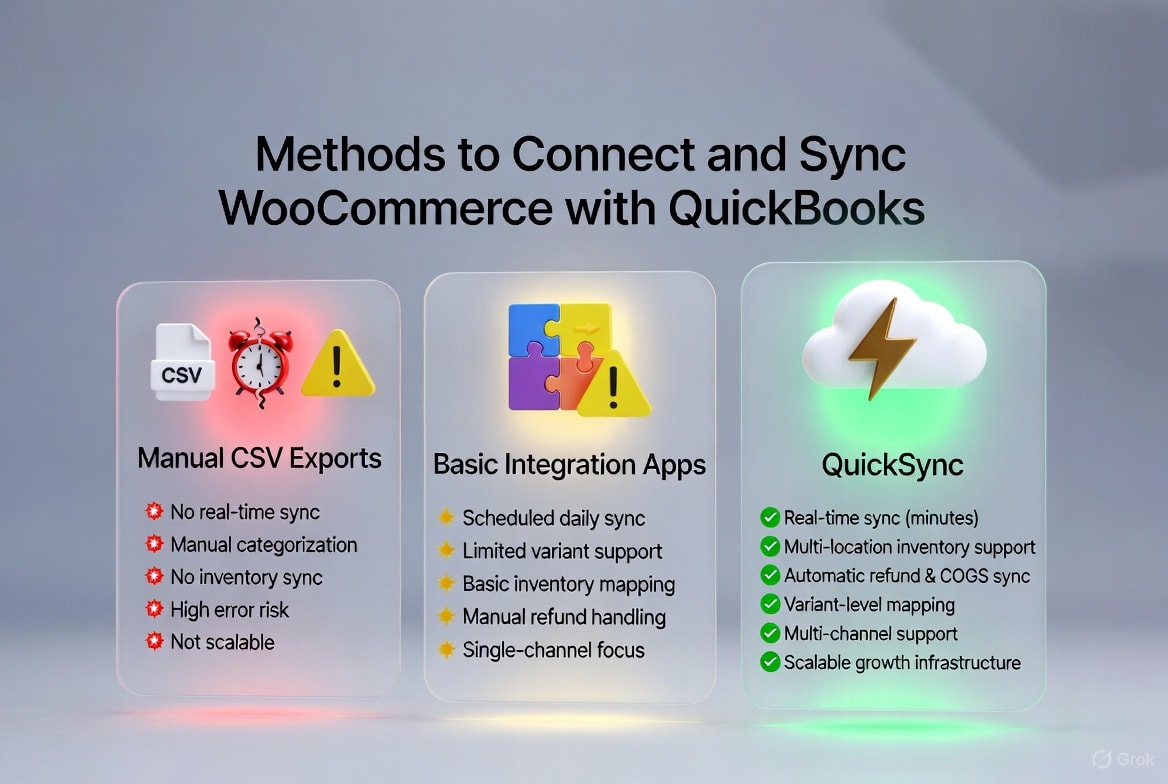
Not all methods are the same. Choosing the wrong approach can create bigger headaches as your order volume grows. From manual workarounds to fully automated systems, there are three main ways sellers sync WooCommerce with QuickBooks.
Method 1: Manual CSV Export and Import:
For newbie sellers just starting, exporting WooCommerce data as a CSV and importing it into QuickBooks can work. Many early-stage businesses use this method to test their products and sales models before investing in automation.
It works as follows:
• Export sales and order reports from WooCommerce as a CSV file
• Format the data to match QuickBooks import requirements
• Assign categories and tax codes manually
• Import the file into QuickBooks
• Reconcile any discrepancies by hand
However, this method has certain limitations too, which are mentioned below:
• No real-time data; books are always behind
• Manual errors are common
• Inventory is not synced
• Breaks down with higher order volume
• Tax calculations require manual verification
Method 2: Basic Integration Plugins:
When manual CSV imports aren’t enough, basic integration plugins offer some automation. They speed up the process but still have limitations.
Typical features include:
• Scheduled syncing (usually daily)
• Basic sales receipt creation
• Simple product mapping
• Limited inventory tracking
The Limitations of using basic integration plugins are as follows:
• Daily sync can leave gaps in cash flow
• Limited support for product variants or complex catalogs
• Multi-location inventory tracking is usually missing
• Refunds and adjustments often require manual intervention
Method 3: QuickSync – A Unified Sync Platform:
For growing or multi-channel sellers, QuickSync is a complete synchronization platform. It keeps WooCommerce and QuickBooks fully aligned in real-time.
QuickSync stands out for the following features:
- Real-time syncing updates your books within minutes
- Multi-location inventory is tracked accurately
- Refunds and returns sync automatically for correct revenue
- Variant-level product mapping handles complex catalogs
- Supports WooCommerce plus multiple marketplaces and channels
With QuickSync, you do not just move data. You get a system that scales with your business, protects your margins, and prevents the operational headaches that slow down growth.
Which Method Is Best to sync WooCommerce and QuickBooks accounts?
Now that you understand the differences between manual CSVs, basic plugins, and QuickSync, the next question is obvious: which syncing method is right for your business?
For very small sellers, manual or basic syncing methods can work temporarily. But here’s the catch: upgrade before complexity forces you to.
Once you start processing 500+ orders per month, adding product variants, or stocking multiple locations, basic tools often strain and break.
QuickSync is not just an upgrade. It’s the infrastructure multichannel sellers need from the start. With full product, inventory, and order syncing, QuickSync scales with your business and keeps everything accurate in real time.
Here’s a quick comparison of the three methods:
Feature | Manual CSV | Basic Plugin | QuickSync |
Setup time | 4–6 hours | 1–2 hours | 15 minutes |
Sync speed | Weekly | Daily | Real-time (under 5 min) |
Product & inventory sync | Manual | Basic | Full automation |
Order processing | Manual entry | Partial | Complete with refunds |
Tax automation | None | Partial | Full |
Variant support | Error-prone | Limited | Full |
Multi-location inventory | No | No | Yes |
Multi-channel | No | No | Yes (10+ platforms) |
If you’re serious about saving time, minimizing errors, and scaling your WooCommerce business efficiently, QuickSync clearly outperforms manual CSV imports and basic plugins. It provides full automation, real-time syncing, and robust multi-channel support, making it the best long-term solution.
Try QuickSync free for 14 days and see how effortless the WooCommerce and QuickBooks integration process is.
How to Sync WooCommerce and QuickBooks Using QuickSync
Now that you know why QuickSync is the best choice for growing sellers, setting it up is simpler than you might think. In under 20 minutes, you can have WooCommerce and QuickBooks fully synced, with orders, inventory, and financial data updating automatically.
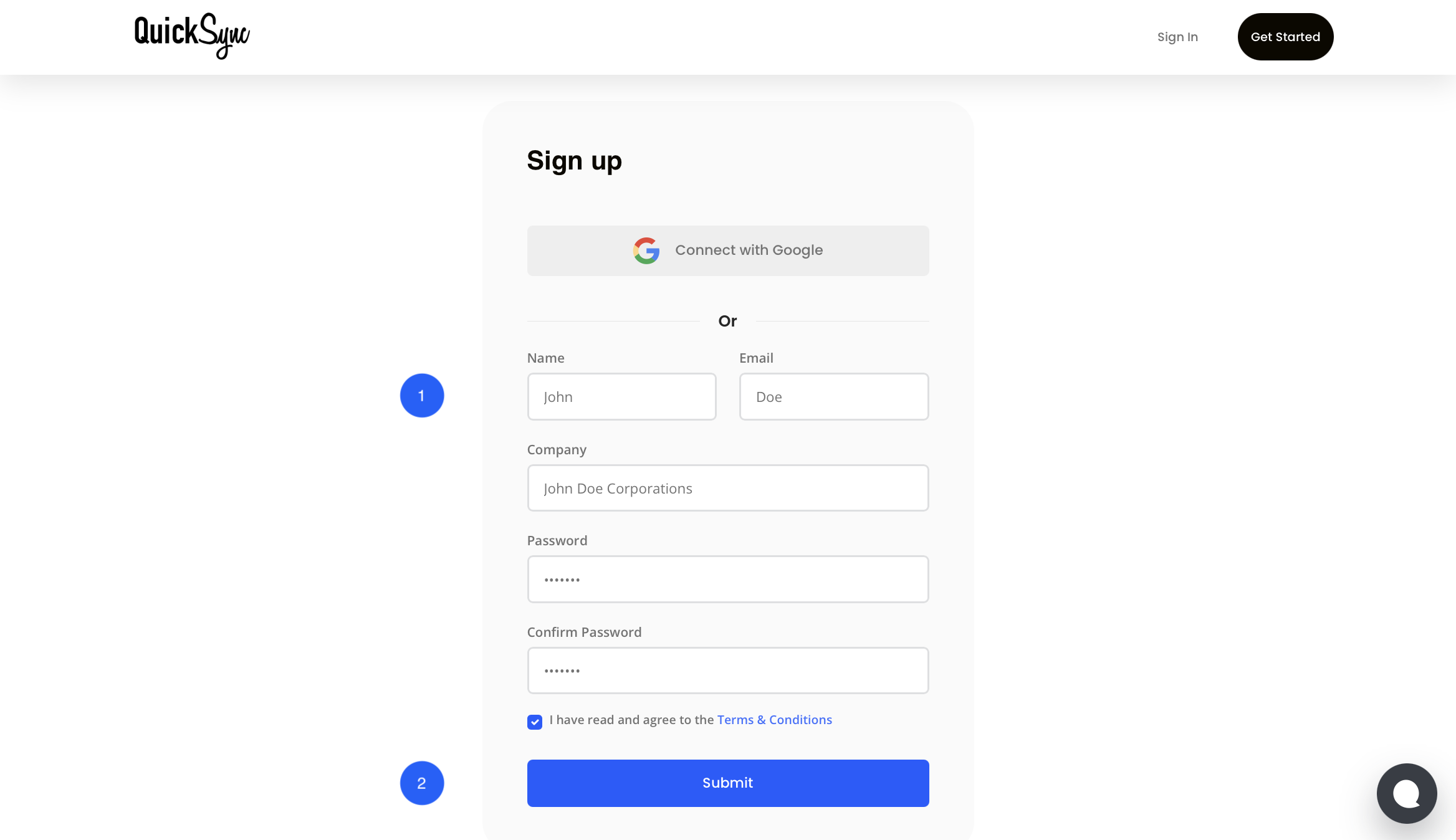
Step 1: Create Your QuickSync Account:
- If you’re new to QuickSync, start by signing up and selecting WooCommerce as your main platform. If you already have an account, simply log in.
Step 2: Connect WooCommerce Store:
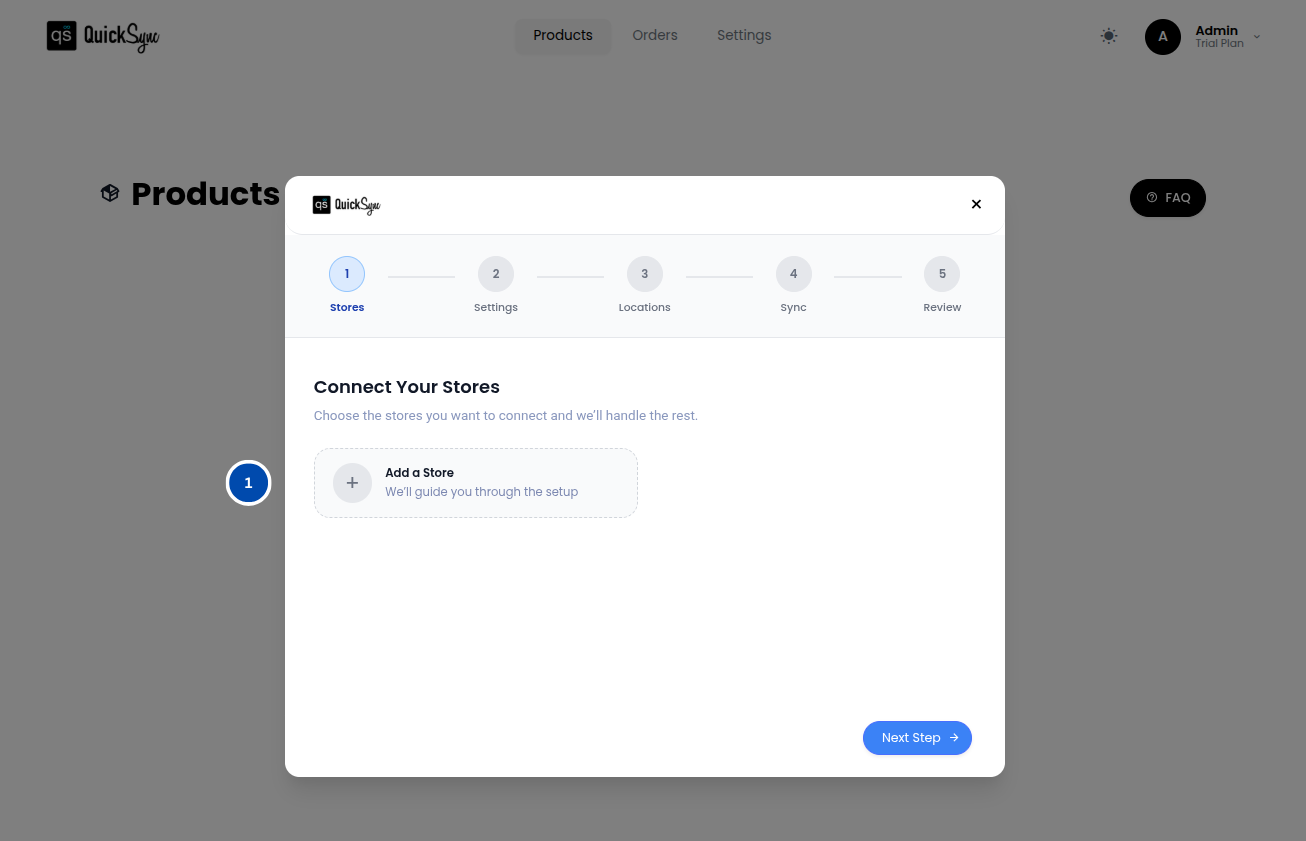
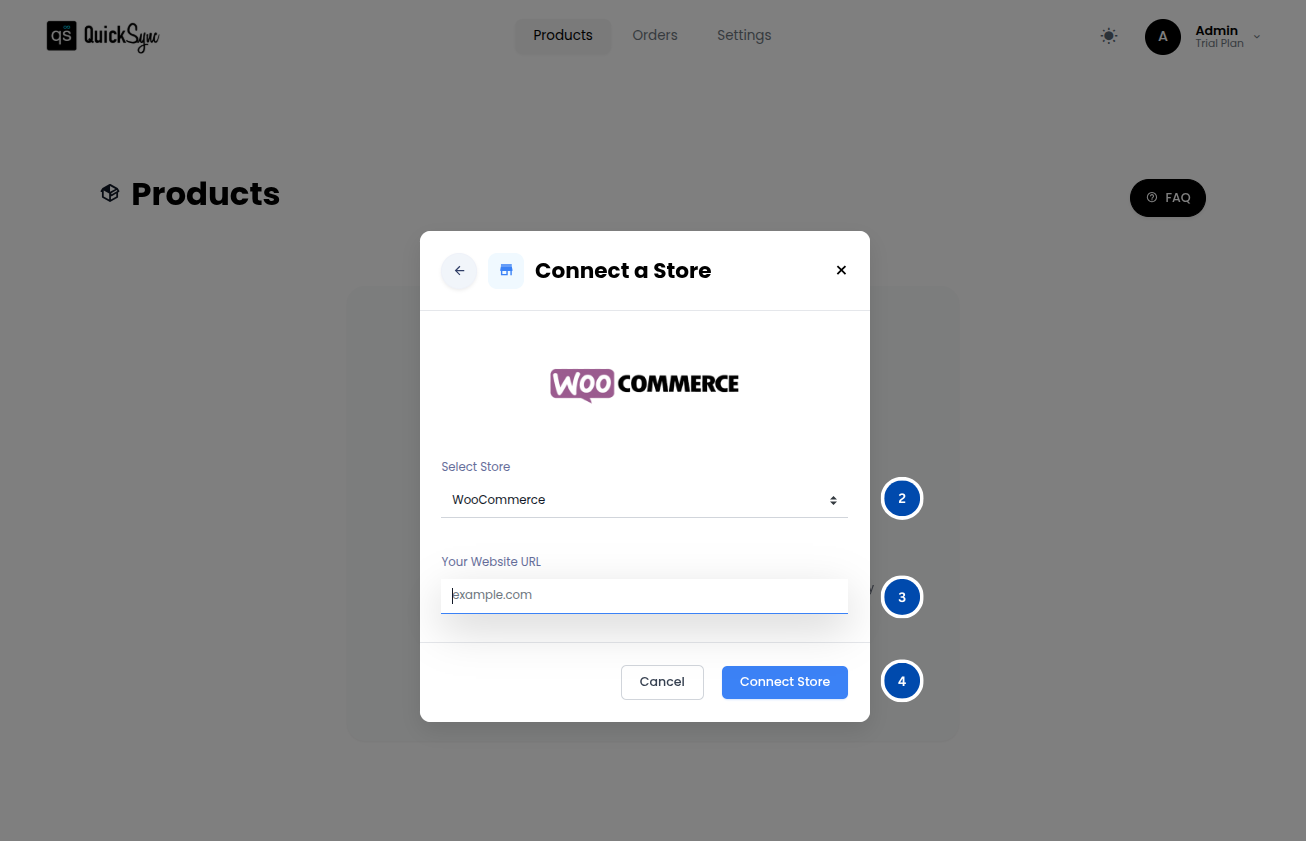
- Go to Dashboard → Add a Store → Select WooCommerce
- Enter your store URL (for example: http://www.xyz.com)
- Click Connect a Store and approve the access request. This allows QuickSync to manage your products, images, inventory, and orders on your behalf.
- Once approved, QuickSync will automatically import your store data, including your settings, categories, attributes, and products.
You will see a progress bar on your dashboard while this runs. Wait for it to complete, and your WooCommerce store will be ready to use.
Step 3: Connect QuickBooks:
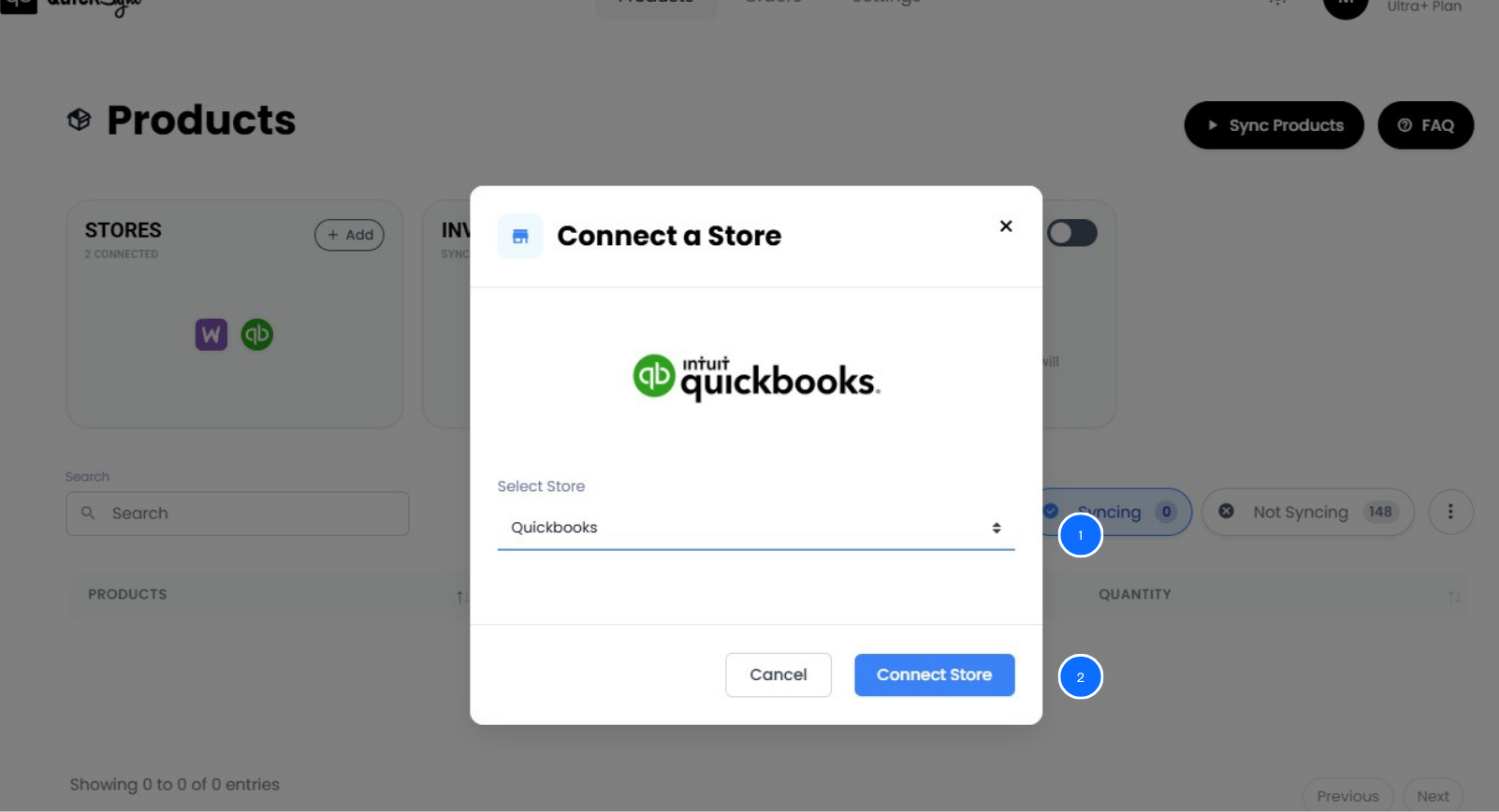
- Go to Dashboard → Add a Store → Select WooCommerce
- Click Connect a Store and approve the access request. This allows QuickSync to manage your products, images, inventory, and orders on your behalf.
- Once approved, QuickSync will automatically import your store data, including your settings, categories, attributes, and products.
You will see a progress bar on your dashboard while this runs. Wait for it to complete, and your WooCommerce store will be ready to use.
Step 4: Set Your Sync Preferences:
Choose exactly what information you want QuickSync to update automatically between WooCommerce and QuickBooks:
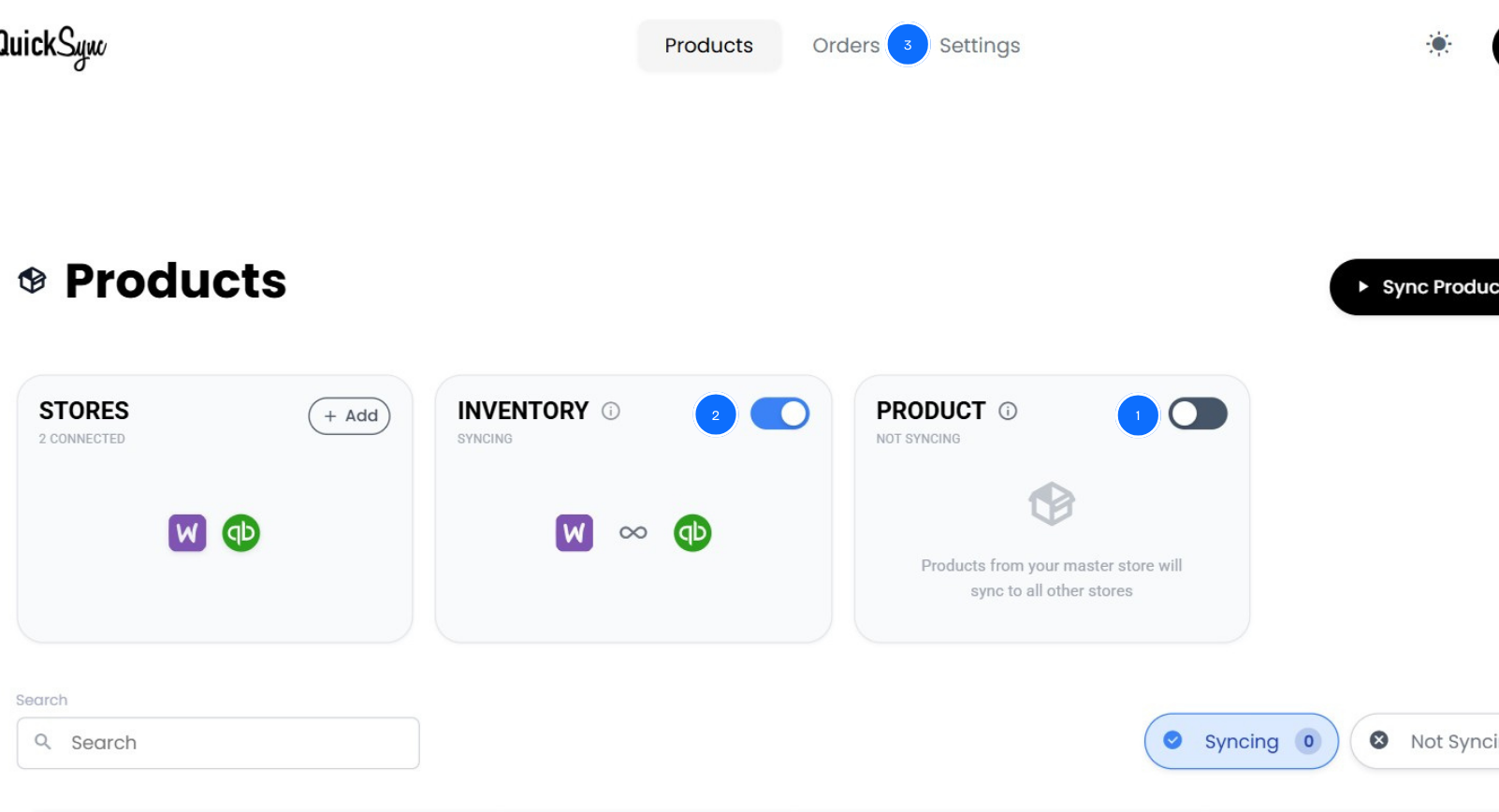
- Products, orders and inventory
Once configured, QuickSync keeps everything aligned in real time. Your orders, inventory, and finances stay accurate automatically, giving you more time to focus on growing your business.
Best Practices for Smooth WooCommerce + QuickBooks Sync
Connecting WooCommerce and QuickBooks is only the first step. Your success depends on how you manage the integration and your daily workflows. For that, we got some key practices for multichannel Sellers to have consistent and smooth syncing.
Use WooCommerce as Your Main Source of Truth:
All sales, refunds, inventory updates, and product changes should start in WooCommerce. Editing QuickBooks directly can create conflicts. QuickSync updates QuickBooks automatically so you maintain one accurate set of books.
Keep Syncing in Real Time:
Daily or weekly syncing leaves gaps that can affect cash flow, inventory, and reporting. Real-time updates keep your financial data current and reliable, eliminating month-end surprises.
Monitor Inventory and Product Accuracy:
Even with automation, check that stock levels, variants, and product details match between WooCommerce and QuickBooks. Fix discrepancies early to prevent overselling, incorrect COGS, and accounting errors.
Reconcile Weekly:
Spend 10–15 minutes each week reviewing deposits, refunds, and inventory adjustments. Small checks prevent bigger problems later and keep reporting accurately.
Plan for Multi-Channel Expansion:
Even if you only sell on WooCommerce today, choose infrastructure that can grow. QuickSync allows you to add Amazon, eBay, Etsy, or wholesale channels later without disrupting your workflow.
Following these best practices ensures your WooCommerce and QuickBooks integration remains accurate, reliable, and ready to support business growth.
The Bottom Lines: What Next?
Running WooCommerce and QuickBooks without proper sync is like running a store with blurry vision. You might get by, but mistakes cost more as you grow.
The right sync brings clarity. Real-time product updates. Accurate inventory. Clean order records. Confident decisions. Scalable growth. QuickSync delivers complete synchronization, keeping your products accurate, inventory aligned, orders flowing, and financial reports reliable.
Wondering how to sync WooCommerce and QuickBooks without stress or errors? QuickSync is the answer.
Replace Spreadsheets With Real-Time Sync
No more CSV exports, formatting spreadsheets, or fixing accounting errors. Start your free 14-day QuickSync trial today. No credit card required.