On this page
Each Clover account keeps its own products, stock, and orders. Across two or more stores that means the same SKU can sell twice before anyone notices. Syncing multiple Clover accounts puts one count behind every till.
The simplest solution is to connect multiple Clover accounts in one centralized dashboard. When all accounts are linked together, your data stays accurate, operations run smoothly, and you get complete visibility from a single dashboard.
Related: see the Clover on QuickSync page for what QuickSync moves between these shops, then start a 14-day trial.
Key Benefits of Syncing Multiple Clover Accounts
Syncing multiple Clover accounts keeps every store connected and accurate in real-time. Products, inventory, and orders stay consistent across all locations without manual updates. By syncing your Clover accounts, you can:
- Keep inventory accurate across locations – Avoid overselling or inventory mismatches by ensuring all stores have up-to-date inventory data.
- Automate sales and data tracking – Reduce manual updates and let your systems communicate seamlessly.
- Simplify business reporting – Get a clear, combined view of sales and performance across all locations.
- Save time and prevent mistakes – Minimize human errors, streamline operations, and focus on growing your business.
If managing multiple accounts feels overwhelming, syncing them is the easiest way to stay organized and keep your business running smoothly.
How Does Clover Handle Multiple Accounts?
Clover’s system is designed to support businesses with multiple locations, but each account operates separately by default. Therefore, sales, inventory, and customer data don’t sync automatically, which can make management tricky.
Common challenges include:
- No automatic syncing: Data must be updated manually across accounts.
- Reporting difficulties: Overall performance requires pulling reports from each account.
- Higher risk of errors: Manual updates can lead to discrepancies.
Different Ways to Connect Multiple Clover Accounts Effectively
There are several ways to sync multiple Clover accounts, depending on the size and technical capacity of the business. Each method offers different levels of automation and flexibility.
1. Clover’s Built-In Multi-Location Setup
Clover’s built-in multi-location feature allows limited catalog sharing across stores under the same merchant ID. While it helps track sales and reporting for businesses with multiple locations, it doesn’t automatically sync detailed inventory or orders between separate Clover accounts. For full real-time syncing, partner apps or custom solutions are needed.
2. Custom API Integration
Businesses with specific needs can use Clover’s API to build a custom solution for syncing data between accounts. While this provides flexibility, it requires ongoing maintenance, coding expertise, and frequent updates whenever Clover modifies its API function.
3. Third-Party Integration Tools
Third-party integration tools like QuickSync automate syncing between multiple Clover accounts without any coding. They handle products, inventory, and orders in real-time, providing an easy, scalable solution for multi-store management.
Why Choose QuickSync Over Clover’s Built-In and API Methods
Third-party tools like QuickSync make syncing effortless. Sellers can connect multiple Clover accounts in minutes and keep products, inventory, and orders in real-time.
While Clover’s built-in tools and custom API setups are limited to an extent. The built-in option only shares catalogs within one account, while custom APIs need ongoing technical work.
QuickSync stands out because it offers:
- Real-time product and order syncing
- Automatic data updates across all connected stores
- Dedicated support for Clover US and EU accounts
- Simple plug-and-play setup without coding
- Makes Clover inventory management more seamless
For businesses managing multiple locations or accounts, this approach saves time and reduces the complexity of maintaining multiple systems.
Steps to Connect Multiple Clover Accounts Using QuickSync
Syncing multiple Clover accounts through QuickSync includes only a few simple steps. The process is easy and doesn’t require technical expertise. But before connecting multiple Clover accounts, ensure you have:
- QuickSync account. If you don’t have one, sign up here.
- Admin access to each Clover account you want to connect.
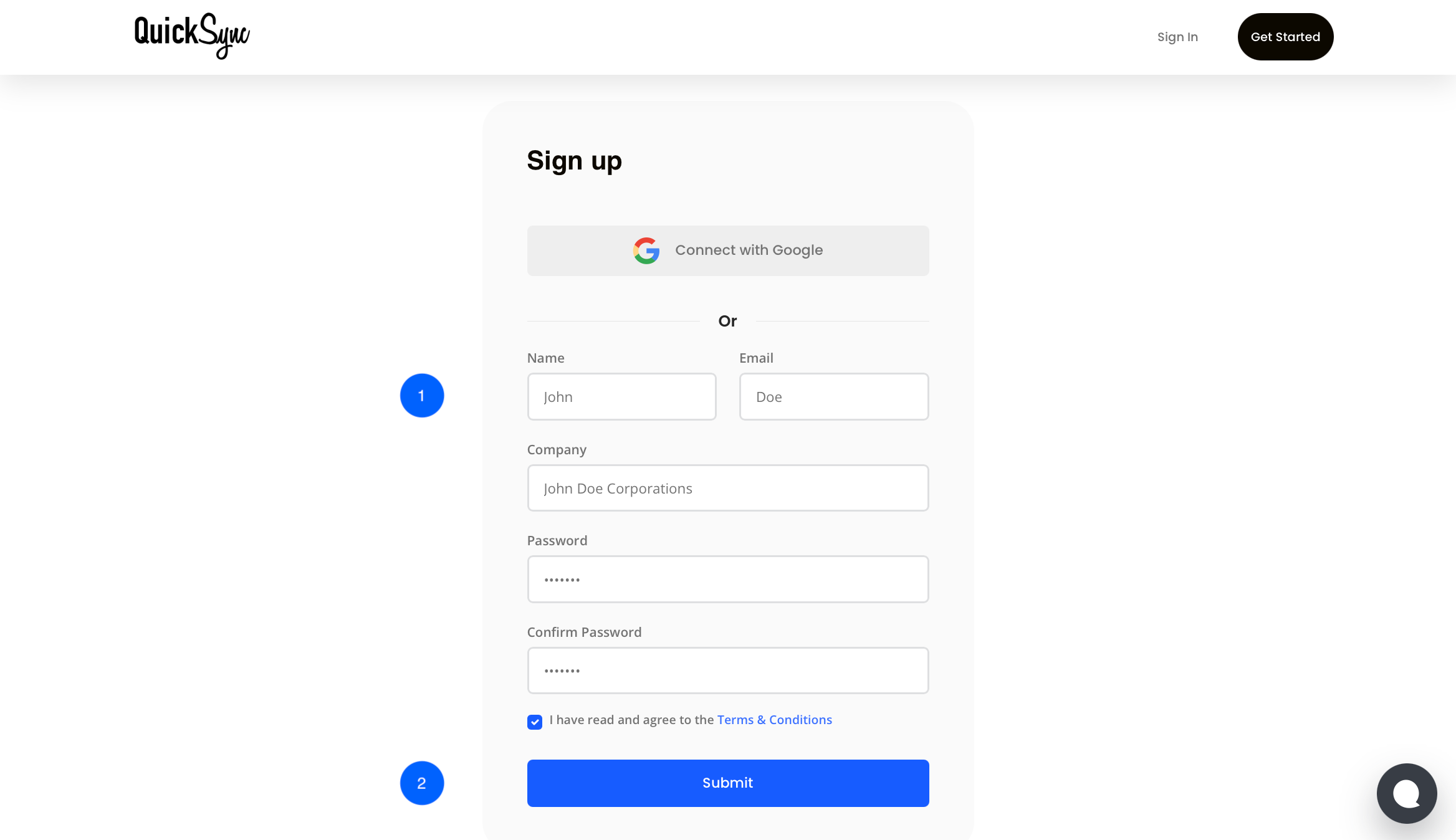
Step 1: Sign Up for Quicksync
- Firstly, visit the Quicksync.pro website.
- Create an account using details, such as name, email address, company name, or log in if you already have one.
Step 2: Connect Each Clover Account
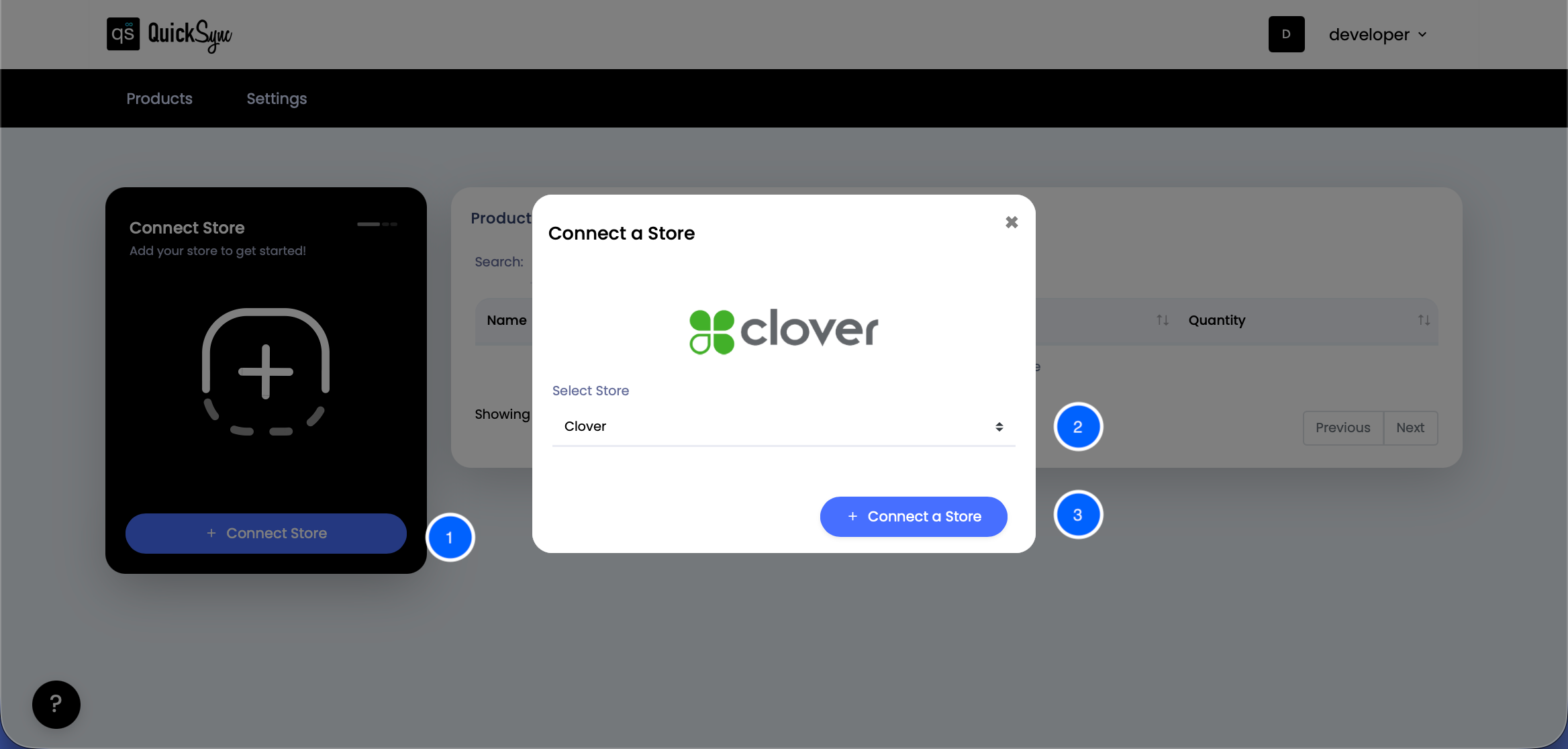
- Go to Quicksync Dashboard and click on “Connect Store”.
- From the dropdown, choose one of the following:
Clover – if your account is in the U.S. or Canada
Clover EU – if your account is in the European Union
- Clover – if your account is in the U.S. or Canada
- Clover EU – if your account is in the European Union
- Click Connect a Store, then log in to your Clover merchant account. You’ll see a progress bar on the dashboard while the connection is being set up.
Repeat the same steps and connect additional Clover accounts.
Step 3: Choose What to Sync
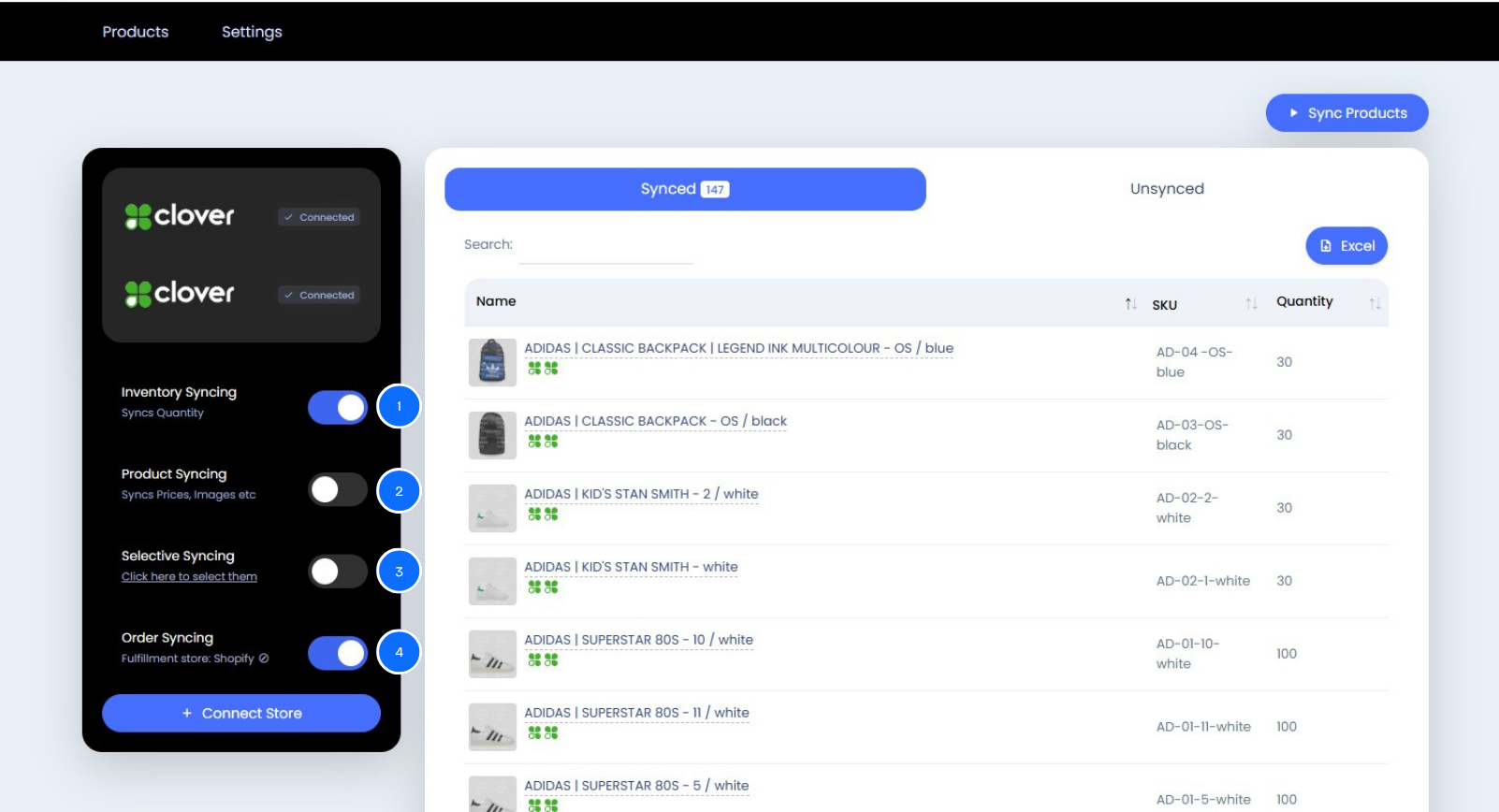
Now, choose what you want QuickSync to sync, such as products, inventory, or orders.
- Sync Inventory: Sync inventory levels in real time with automatic updates on both platforms.
- Sync Products: Auto-sync product details (price, description, images, SKUs) across both platforms.
- Sync Orders: Orders from the Clover will be routed to the Fulfillment Store.
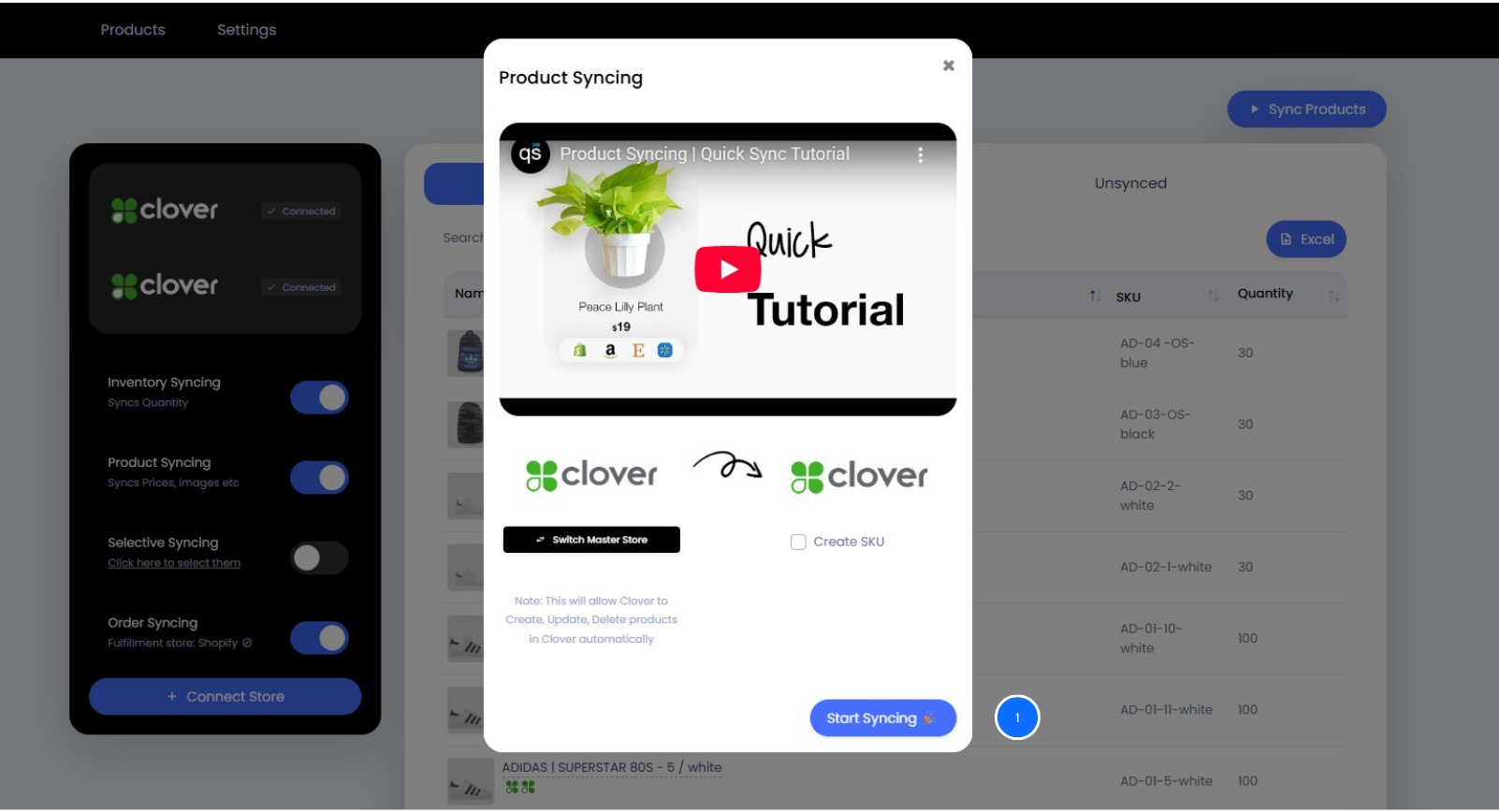
Step 4: Start Syncing
- Click Start Sync, and QuickSync will begin automatically syncing your products, stock, and orders across all Clover accounts in real time.
If you are adding new products in stores, QuickSync ensures that everything matches seamlessly across all locations. It’s the kind of system that makes your daily work much easier and more reliable.
Note: Only future orders will be synced — historical ones won’t be imported.
Final Words
Managing multiple Clover accounts doesn’t have to be difficult. When you connect multiple Clover accounts through QuickSync, everything stays in sync automatically. Whether you manage two stores or twenty, QuickSync helps your business stay accurate, fast, and efficient.
Start syncing with QuickSync today and enjoy a 14-day free trial!