
Many retailers today sell both online and in physical stores. Some run their ecommerce store on Shopify while using Clover POS for in-store payments.
If you are planning to expand to multiple sales channels, like from Clover to Shopify, one question comes up quickly.
Can Clover integrate with Shopify? Well, the answer is yes. But you need a third-party integration tool to sync Shopify with Clover, as there are no built-in features in Shopify or Clover POS that directly integrate the two systems.
Retailers expanding to multiple channels without proper integration often face inventory mismatches, missed orders, and duplicated work when managing product listings. In fact, Inventory shrinkage and stock inaccuracies cost retailers about $61 billion annually due to theft, administrative errors, and poor inventory systems.
This is why many experts recommend connecting Shopify with Clover using a reliable third-party integration solution. These tools help synchronize inventory, orders, and product data between both systems.
In this guide, we will explain whether Clover integrates with Shopify, the challenges merchants face, and the best ways to connect both platforms.
Does Clover Integrate with Shopify?
Yes, Clover POS can integrate with Shopify. However, this integration does not happen natively.
Both platforms do not offer a built-in connection. They cannot automatically share inventory, product data, or orders on their own.
To connect Shopify with Clover, merchants usually use a third-party integration tool. These tools create a bridge between both systems and keep data synchronized.
Without an integration tool, each platform works independently.
How Shopify and Clover Work Together Without Integration
When merchants run both systems without integration, each platform manages its own data.
Shopify manages the online store, ecommerce checkout, and online orders.
Clover POS manages in-store payments and POS transactions
Products may exist on both platforms, but they are stored separately.
Inventory updates in Clover do not update Shopify automatically.
Online sales on Shopify do not adjust Clover inventory.
Merchants must manually update stock levels across both systems.
Over time, this manual process becomes difficult to manage. Inventory counts can drift apart. Orders may become harder to track across systems.
This is why most retailers connect Shopify and Clover using a third-party integration solution. These tools synchronize inventory, product listings, and orders between both platforms. They allow merchants to manage online and in-store sales more efficiently.
Common Inventory and Order Issues Without Shopify Clover Integration
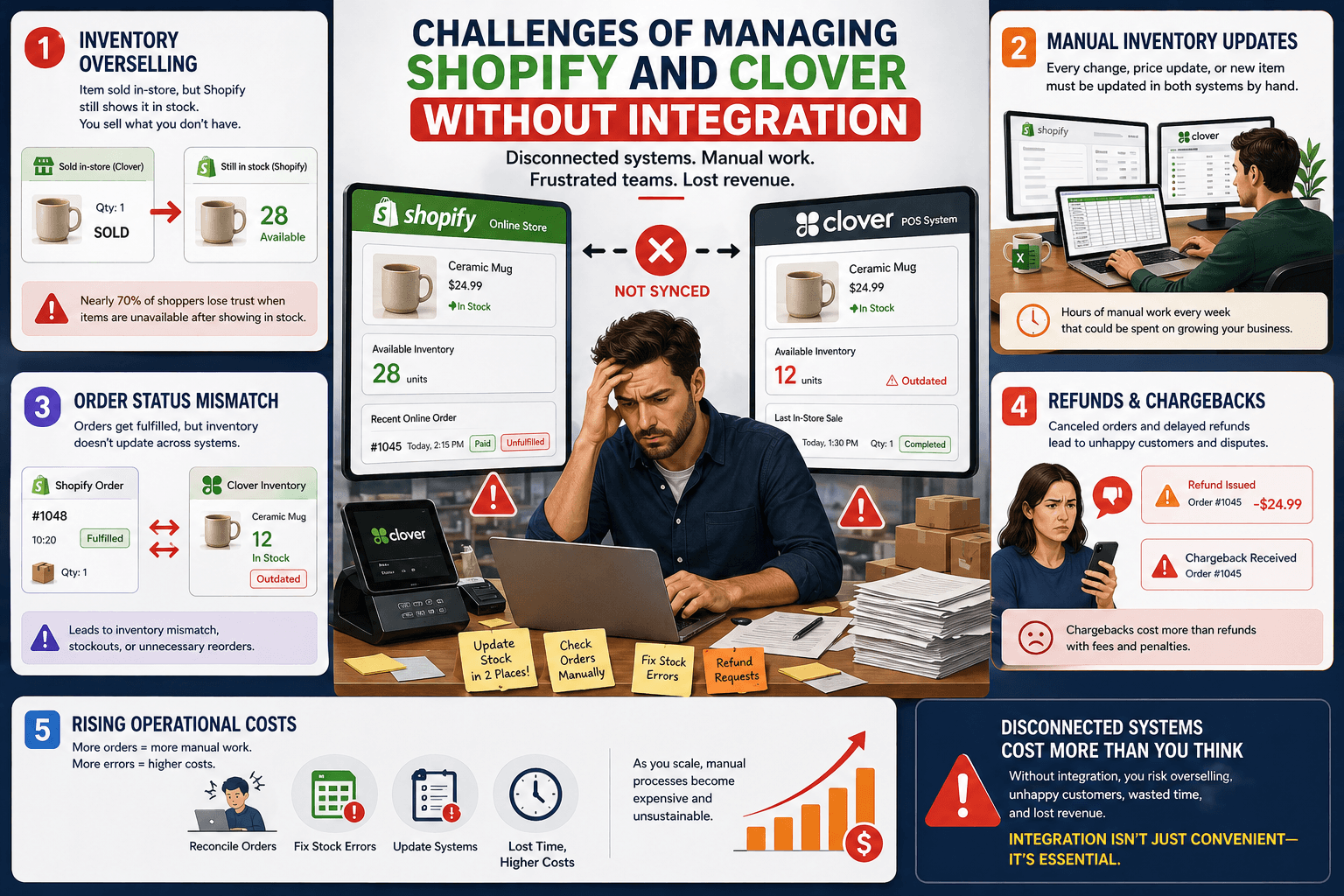
I’m going to be direct here. If you’re using both Shopify and Clover right now without a sync in place, you’re already living with some version of these problems. They start as minor inconveniences and turn into real operational headaches as your order volume grows.
Clover Oversells Your Online Shopify Inventory
Your Clover POS processes a sale in your retail store. Your Shopify inventory doesn’t update. Another customer orders the same product online thirty minutes later. You don’t have the stock. You cancel the order, issue a refund, and deal with a negative customer experience.
Research shows nearly 70% of shoppers say their perception of a business is damaged when an item is unavailable after being shown as in stock. That damage happens fast.
You’re Updating Inventory in Two Places Manually
Every product change, price update, stock adjustment, or new item you add to your Clover inventory has to be replicated in Shopify by hand. And every Shopify order has to be manually reflected in your Clover account.
For a store with 50 SKUs and decent daily volume, that manual work adds up to hours every week that should be spent serving customers.
Order Statuses Fall Out of Sync
An online order comes in through Shopify. It gets fulfilled from your store’s physical stock. But your Clover inventory still shows the old quantity. A week later, your team checks the Clover device, sees stock that doesn’t exist, and either reorders unnecessarily or oversells again.
These issues create an inventory mismatch and an order mess. When a new order comes, merchants don’t have sufficient stock to process the order on time.
Refunds and Chargebacks Start Increasing
When inventory data is inaccurate, orders get canceled more often. Customers who have already paid expect fast refunds. If refunds are delayed or the issue repeats, some customers escalate the dispute through their payment provider.
Chargebacks are expensive. Beyond refunding the order, businesses often pay additional processing fees and penalties, which slowly eat into profit margins.
Operational Costs Keep Rising as You Scale
As order volume increases, the lack of integration becomes more expensive to manage. Staff spend more time reconciling orders, fixing stock errors, and manually updating systems instead of focusing on growth.
What starts as a simple workaround turns into hidden operational costs that increase every month as your store handles more online and in-store orders.
Benefits of Connecting Shopify and Clover
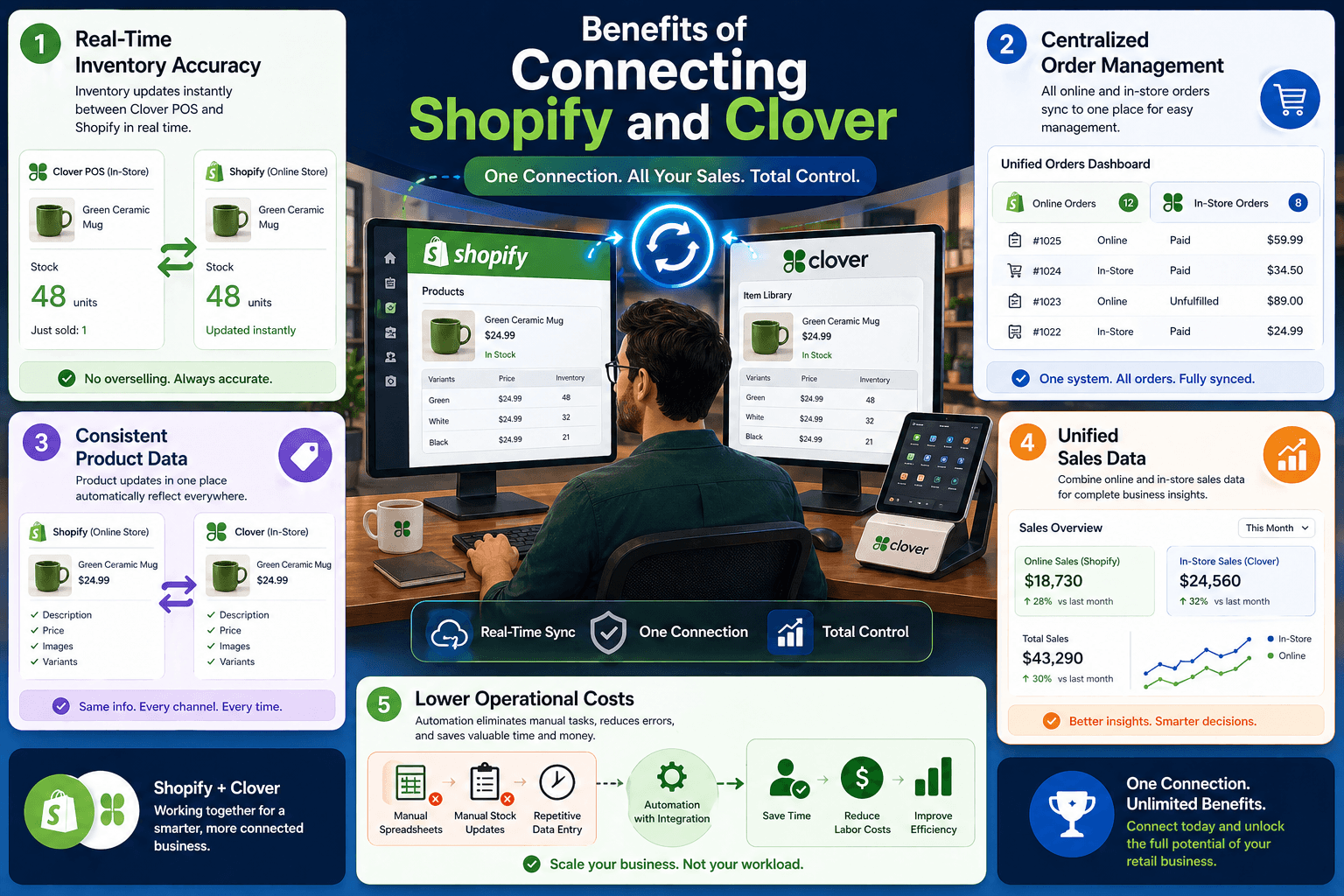
Now that you understand the problems, let’s look at what happens when merchants properly connect Shopify and Clover.
A proper Shopify Clover integration helps unify online and offline operations. This creates smoother workflows and better customer experiences.
Here are the biggest benefits of connecting Shopify with Clover merchants.
Real-Time Inventory Accuracy
When Clover and Shopify are integrated, inventory updates automatically across both platforms.If a product sells in-store using Clover POS, stock updates instantly in Shopify. Real-time inventory syncing helps prevent overselling. It keeps product availability accurate across all sales channels.
Your stock levels are accurate across both online and in-store channels without any manual input. Accurate stock protects every sale you make.
Centralized Order Management From One System
With order sync enabled, Shopify orders flow into your Clover account for processing alongside your in-store transactions. You manage orders from one system instead of two dashboards. Employees no longer need to manually confirm inventory or adjust stock levels after each sale.
Your team always has a complete picture of what needs to be fulfilled. You see faster fulfillment and happier customers with a proper order management system.
Consistent Product Data Across All Customer Touchpoints
When your Clover Shopify integration is set up with a Master Store, product updates made in one place push to the other automatically. Price changes, description updates, new images, and variant additions.
Your in-store customers and your online store customers always see the same product information. Brand consistency across your physical and digital presence, handled automatically.
Better Business Decisions With Unified Sales Data
When your Clover POS and Shopify online store are integrated, your sales data flows into one place. You see your total inventory position, your in-store performance, and your online sales performance together.
No more reconciling two separate reports. No more making, buying, or pricing decisions based on partial information. You finally have a complete picture of how your business is actually performing across all sales channels.
Lower Operational Costs as Your Store Grows
Managing Shopify and Clover separately often means hiring extra staff or spending more hours in manual inventory updates. The small operational tasks, like maintaining an Excel sheet or register, slowly increase your business costs as order volume grows.
With a proper Shopify Clover integration, you reduce manual work and lower administrative overhead. It helps merchants control operational expenses while scaling their business.
Different Methods to Integrate Clover with Shopify
When it comes to connecting Clover to Shopify, there are three approaches most merchants consider. Some of them are workable for a short time only.
Let me walk through each one honestly.
Method 1: Manual Updates
This is where most retailers start. You run your Clover POS for in-store transactions and manage your Shopify online store separately. When a product sells in-store through Clover, you log into the Shopify admin and adjust the stock manually. When an online order comes in, you update your Clover inventory by hand.
Here’s where this breaks: It doesn’t scale beyond a very small product catalog. Manual updates always lag behind real sales volume. Errors are inevitable when staff are busy at the counter.
During peak periods like weekends or holiday seasons, the gap between what your systems show and what you actually have in stock grows fast. This isn’t a workflow. It’s a liability.
Method 2: CSV Import and Export
Some merchants export product or inventory data using CSV files. The process usually involves exporting product data from Clover, editing the spreadsheet, and then importing the updated file into Shopify.
Here’s where this breaks: CSV sync is never real-time. The data you export is accurate at the moment of export, not when it’s imported, and not after subsequent sales happen in between. Product attributes don’t always translate cleanly between Clover’s item structure and Shopify’s product format.
And any manual edit made directly in either platform after an export corrupts your clean data immediately. This method reduces some manual effort but eliminates none of the actual inventory management risk.
Method 3: QuickSync (The Right Way to Do It)
This is where your Shopify Clover integration actually works. QuickSync is a dedicated Clover Shopify integration tool built for multichannel retailers who need their Clover POS and Shopify online store to operate as one unified business. Not two systems running in parallel.
Here’s what makes QuickSync the smart choice over every other method:
Real-time inventory sync between Shopify and every connected Clover location, the moment a sale occurs on either channel
Full product sync, including titles, descriptions, images, prices, SKUs, and variants from your designated Master Store
All Shopify orders flow into your system for centralized processing alongside your in-store Clover transactions
Multi-location inventory support across all your Clover devices and retail locations
No custom API credentials or developer involvement required for setup
Instead of stitching together two platforms manually, you run one connected retail business. That’s the actual difference.
How to Integrate Clover POS with Shopify Using QuickSync
Integrating Clover with Shopify using QuickSync is very simple. You don’t need any technical experience or developers. Follow these steps to connect Clover with a Shopify store using the QuickSync integration tool.
Step 1: Create Your QuickSync Account
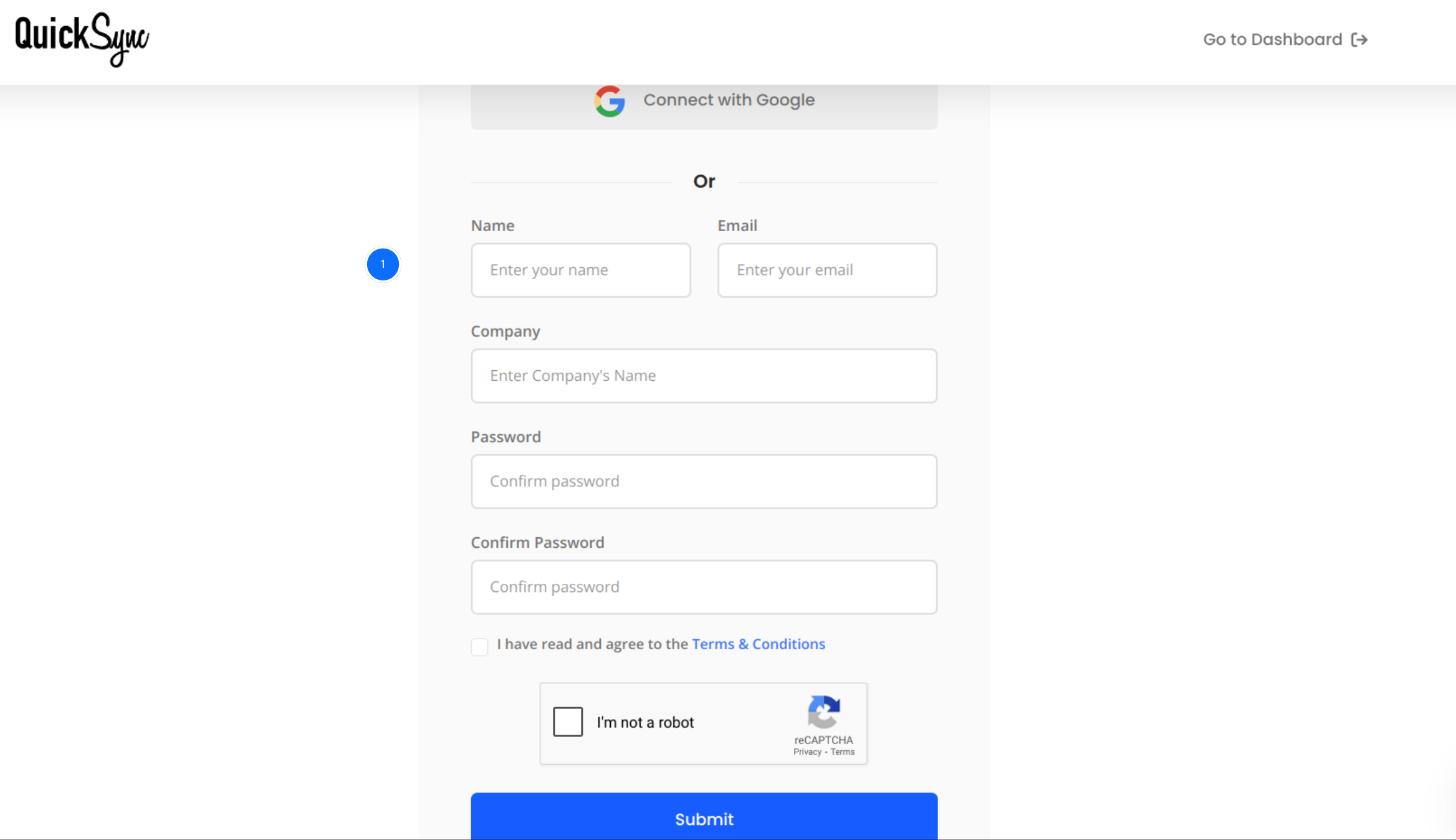
Go to quicksync.pro and sign up with your name, email, and business details.
If you already have a QuickSync account, log in and open your dashboard.
This is your central hub for managing all connected stores, sync settings, and order flows.
Step 2: Connect Your Clover Account
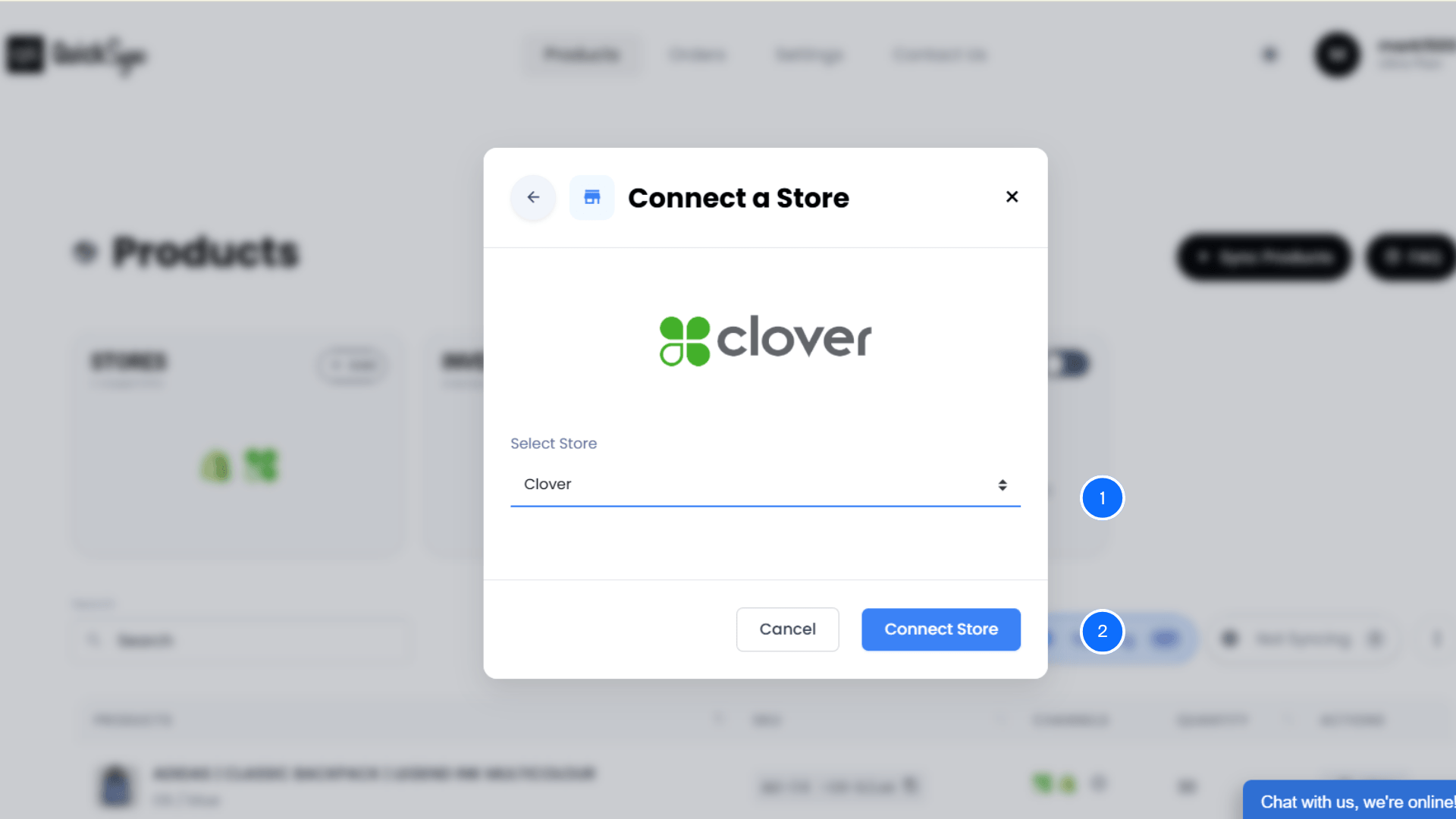
Go to Dashboard → Sync Products→ Add Store.
Log in with your Clover credentials and authorise QuickSync to access your Clover inventory, products, and orders.
Select which Clover locations you want to include in the sync.
QuickSync imports your Clover inventory items and maps them to your Shopify products by SKU.
Step 3: Connect Your Shopify Store
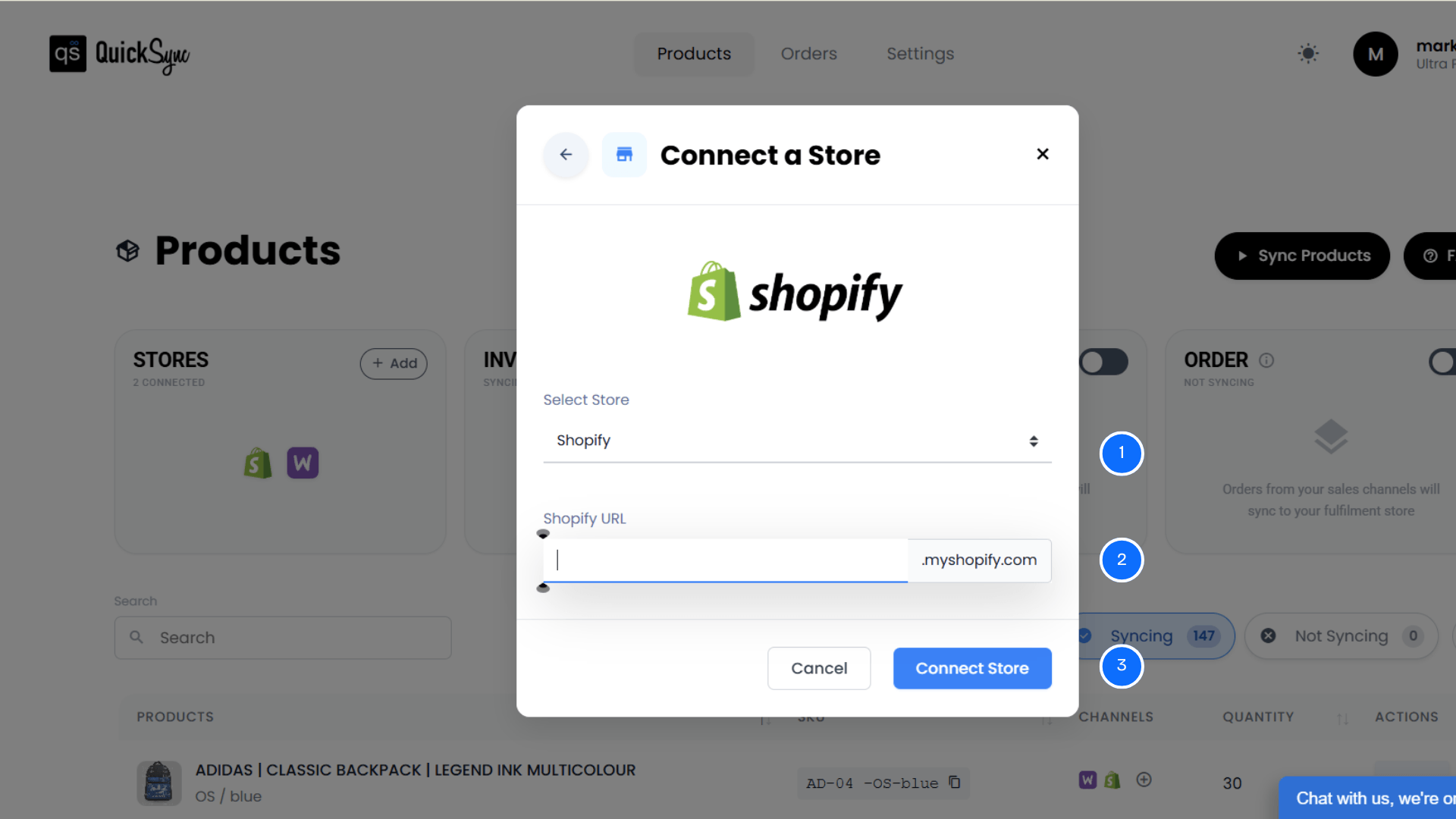
Go to Dashboard → Sync Products → Add Store.
Select Shopify from the stores list.
Enter your Shopify store URL (example: mark1500.myshopify.com)
Click Add a store and log in to your Shopify account.
Approve permissions for products, images, inventory, and orders.
Once authorised, QuickSync runs an initial import of your Shopify store details, locations, and product catalog. You’ll see a progress bar in the dashboard while this runs.
Step 4: Configure Your Sync Settings
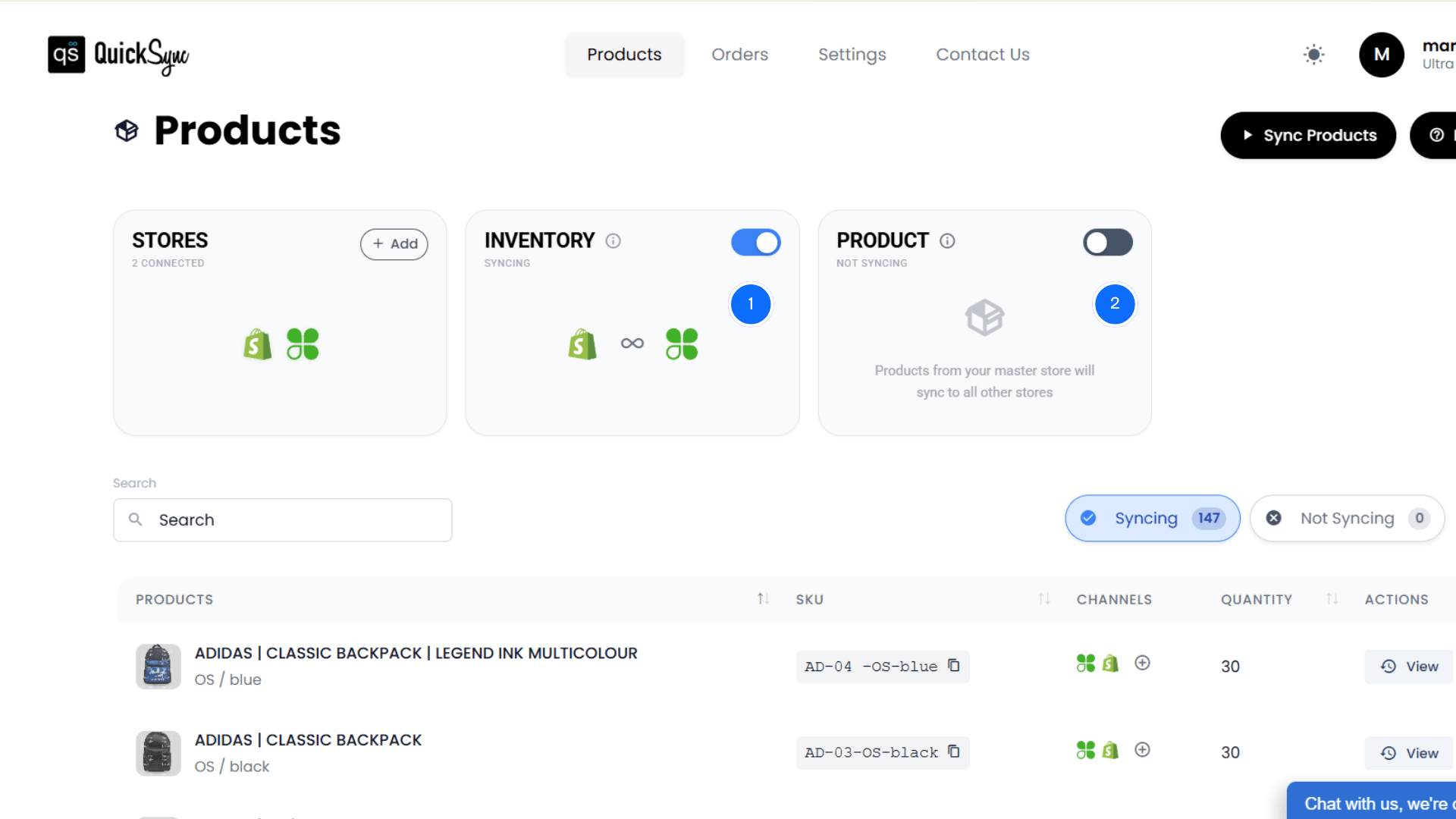
Once you have integrated Clover and Shopify with QuickSync, you are all set to go.
Visit the QuickSync dashboard to see sync preferences.
You will see various syncing options; you can click on the toggle to use those features.
Here’s how each QuickSync feature works for Clover Shopify integration.
Inventory sync activates automatically from the moment both platforms are connected. Stock levels update across Shopify and all connected Clover locations in real time after every sale, return, or manual adjustment.
Product sync: Designate your Master Store. Product updates made in the Master Store push to the connected platform automatically. All product details stay aligned without manual duplication.
Order sync: Enable Shopify order sync so online orders flow into your central dashboard. Your team is fulfilled from one complete view of all active orders across online and in-store channels.
Once configured, QuickSync manages inventory, products, and orders across both platforms automatically. Your in-store and online operations are finally running as one system.
Pros and Cons of Using Clover with Shopify
Before you commit to integrating Clover with Shopify, it’s worth being honest about what the setup gives you and where its limitations are. Here’s a clear breakdown of the pros and cons of connecting Shopify with Clover.
Pros
Unified Online and In-Store Selling
Shopify manages your online store and ecommerce orders. Clover POS handles in-store payments and POS transactions.
When both platforms are connected with an integration tool, merchants can manage online and offline sales together. This creates a strong omnichannel retail setup and helps businesses reach more customers.
Reliable POS Hardware for In-Store Payments
Clover POS devices are widely used in retail stores and restaurants. The hardware supports multiple payment methods.
Customers can pay using debit cards, credit cards, or contactless payments. This provides a smooth checkout experience in physical stores.
Manage Operations from a Single Dashboard
With the right integration tool, merchants can manage key operations from one dashboard. This includes inventory updates, product listings, and order management.
Instead of switching between platforms, retailers can track sales and inventory from one place. This makes daily operations easier and reduces manual work.
Easier Multichannel Growth
Using Shopify and Clover POS together helps merchants expand into multiple sales channels.
Businesses can run a professional ecommerce store while accepting in-store payments. With integration, both systems stay connected as the business grows.
Cons
Managing Two Systems Can Increase Complexity
Running both Shopify and Clover POS means working across two platforms. Merchants often switch between dashboards to manage products, inventory, and orders.
Using an integration tool like QuickSync connects both systems. It allows merchants to manage operations from one place.
Clover’s Inventory Limit Can Become a Constraint
Clover POS supports inventory up to around 15,000 SKUs. This can limit retailers managing large product catalogs.
A sync solution like QuickSync helps merchants manage inventory across platforms more efficiently.
Shopify Orders Do Not Automatically Appear in Clover
Orders placed on a Shopify store do not automatically appear in Clover POS. Merchants may need to track online and in-store orders separately.
Using QuickSync syncs orders across both platforms. This keeps order management organized.
What a Proper Shopify–Clover Integration Should Include
Not all integration tools handle the Clover Shopify integration the same way. Some only sync inventory but leave product data and orders disconnected. Others run on delayed batch updates instead of real-time sync.
Before choosing how to connect Clover to Shopify, here’s exactly what a complete integration workflow needs to cover.
Real-time Inventory Sync
Stock levels must update across Shopify and Clover the moment a sale occurs on either platform. Any delay creates a window for overselling. Real-time is the baseline requirement, not a premium feature.
Two-way product sync with a Master Store
You designate one platform as your Master Store. Product updates are made and pushed to the connected platform automatically. Titles, descriptions, images, prices, SKUs, and variants stay consistent across both systems without manual duplication.
Order sync into a central dashboard
Shopify orders should flow into your Clover account, and in-store Clover sales should be reflected in your Shopify admin for centralized reporting and inventory tracking. All order statuses should update automatically across both platforms.
Multi-location Clover inventory support
If you operate multiple Clover locations, your integration must map and sync inventory across every location against your Shopify store accurately. A sale at one physical location must reduce the shared inventory pool that feeds your online store.
Easy setup with no coding required
A retail store owner should be able to complete the integration setup without a developer. Standard authentication, not custom API credentials, should handle the connection between Clover and Shopify.
Best Practices for Shopify Clover Integration
Now comes the final part. Integrating Shopify with Clover is a good step towards simplifying your operations. However, what keeps your Clover Shopify integration stable and accurate over the long term is how you manage it after it goes live.
Here are five practices that will keep your Clover Shopify integration running smoothly.
Standardize Your SKUs Before You Connect
Before connecting Clover to Shopify, audit your SKU structure on both platforms. Every product needs a unique SKU. The SKU format must match across both systems. A product called “BLU-SM” in Clover and “Blue-Small” in Shopify will not map correctly.
And that single mismatch causes inventory counts to go wrong at the variant level. Clean SKUs before you sync, not after.
Test With a Small Batch of Products First
Don’t enable sync across your full Clover catalog and Shopify store on day one. Choose ten to fifteen products that represent your main categories and variant types. Verify that inventory, prices, images, and variants appear correctly across both platforms before expanding to your full catalog.
This catches mapping issues before they affect hundreds of items.
Designate One Platform as Your Master Store and Commit to It
Choose either Shopify or Clover as the single source of truth for product data and stick to it. Make all product edits, price changes, and description updates in that platform only.
Direct edits to synced products in the other platform create data conflicts that are time-consuming to resolve. It can cause incorrect information to appear on one channel.
Reconcile Your Multi-Location Clover Inventory at Setup
If you run multiple Clover locations, map every location correctly inside QuickSync before enabling inventory sync. Each physical location’s stock counts need to be accurately reflected in the integration before orders start flowing.
Getting this right at setup prevents misallocated stock counts across your retail network from day one.
Review Sync Logs Weekly for Silent Errors
Automation handles your daily inventory and order sync without manual input. But it doesn’t mean you should never check on it. Spend ten minutes each week reviewing your QuickSync dashboard for any sync errors, failed updates, or inventory discrepancies. A silent error caught on Tuesday is far easier to fix than a wave of oversold orders on a busy Saturday.
Conclusion
Here’s the bottom line on Clover and Shopify. Two excellent platforms to sell and earn double profits. One problem: they don’t talk to each other by default.
If you’re asking, “Does Clover integrate with Shopify?”, the honest answer is: not on its own. But with QuickSync, it does. Properly, automatically, and in real time.
And every hour you spend manually keeping them aligned is an hour your business is operating on incomplete, inaccurate data.
QuickSync is built precisely for this. It connects your Shopify online store and your Clover POS in real time, covering inventory, products, and orders across all your locations.
Stop running two systems manually. Connect Clover to Shopify with QuickSync and start treating your in-store and online business as one unified operation.