If you are trying to figure out, “Does Square integrate with QuickBooks?” the short answer is “yes.” However, the real question is whether that integration actually saves you time or creates more work.
In fact, manual data entry typically produces error rates between 3% and 5%. So, for a business processing around 500 transactions each month, that can easily translate into 180 to 300 errors per year quietly sitting in your books. And when your Square sales and QuickBooks records are not properly connected, you do not just lose precious time but also gradually lose revenue and sales.
That is exactly where this guide comes in. It will walk you through how QuickBooks integrates with Square in real-world scenarios, what data actually syncs, which methods work best, and how you can set up automation that keeps your books clean without constant manual reconciliation. Read on.
Does Square Integrate with QuickBooks?
At this point, the question is not just whether integration exists, but whether it actually works the way your business needs it to. Yes, Square integrates with QuickBooks. But not all integrations are built the same, and that is where most of the problems begin.
Some connections only transfer high-level sales data. Others go deeper, creating structured financial records with properly mapped taxes, tips, discounts, and fees. And that difference is what separates clean books from ongoing accounting headaches.
Many multi-channel sellers overlook this early on. They search “does Square work with QuickBooks,” install an app, and move on. Weeks or months later, they find themselves fixing mismatched revenue, tracking down missing transactions, and trying to explain inconsistencies to their accountant.
So the real objective is not just integration. It is about having a system that delivers accurate, consistent, and fully automated financial synchronization you can trust.
What Does Proper Square QuickBooks Integration Really Do?
A real Square QuickBooks integration does more than just push total sales into QuickBooks. It automatically converts each Square transaction into the correct QuickBooks record without manual decisions.
- Full payment becomes a sales receipt.
- Partial payment becomes an Invoice with a linked payment.
- The refund becomes a refund receipt.
It also keeps every detail properly structured. Including transactions, taxes, tips, shipping, discounts, and fees are recorded separately, so reports stay clean and accurate. Products are matched using SKUs, inventory updates automatically, and revenue is assigned to the correct accounts.
Essential Factors That Get Synced (and Why It Matters)
- Sales records: Each transaction is categorized correctly from the start
- Line-item details: Taxes, tips, and fees are separated for clear reporting
- Product matching: SKUs ensure accurate revenue and inventory tracking
- Account mapping: Income, expenses, and inventory are assigned correctly
- Inventory sync: Stock levels stay consistent across both systems
- Customer data: Clean, duplicate-free user records are maintained
- Orders and fulfillment: Status, tracking, and cancellations update automatically
- Payout matching: Square deposits align with QuickBooks for simple reconciliation
When everything syncs correctly, Square and QuickBooks function as one system. When it does not, errors build up quickly and lead to manual work, confusion, and wasted time.
Why You Should Integrate Square with QuickBooks Online
If you are still on the fence about whether connecting these two platforms is worth the effort, consider what it actually costs you to keep them separate.
Studies show that 58% of retailers operate below 80% inventory accuracy, causing frequent overselling and stockouts. When Square and QuickBooks are disconnected, your inventory figures in QuickBooks are always playing differently from what is actually happening at the point of sale.
If you integrate Square with QuickBooks, then these problems are eliminated directly:
- Eliminating manual data entry and minimizing human error in the process.
- Keeping inventory levels accurate across your sales channels.
- Ensuring every Square sale, refund transaction, and payout is correctly recorded in QuickBooks.
- Saving your team hours every week that would otherwise go toward copying data between platforms.
- Giving your accountant clean, accurate books instead of a mess of unreconciled transactions.
- Helping you make better business decisions based on financial data you can actually trust.
The integration is not just a convenience but a necessity for every size of business.
Different Methods to Connect Square to QuickBooks
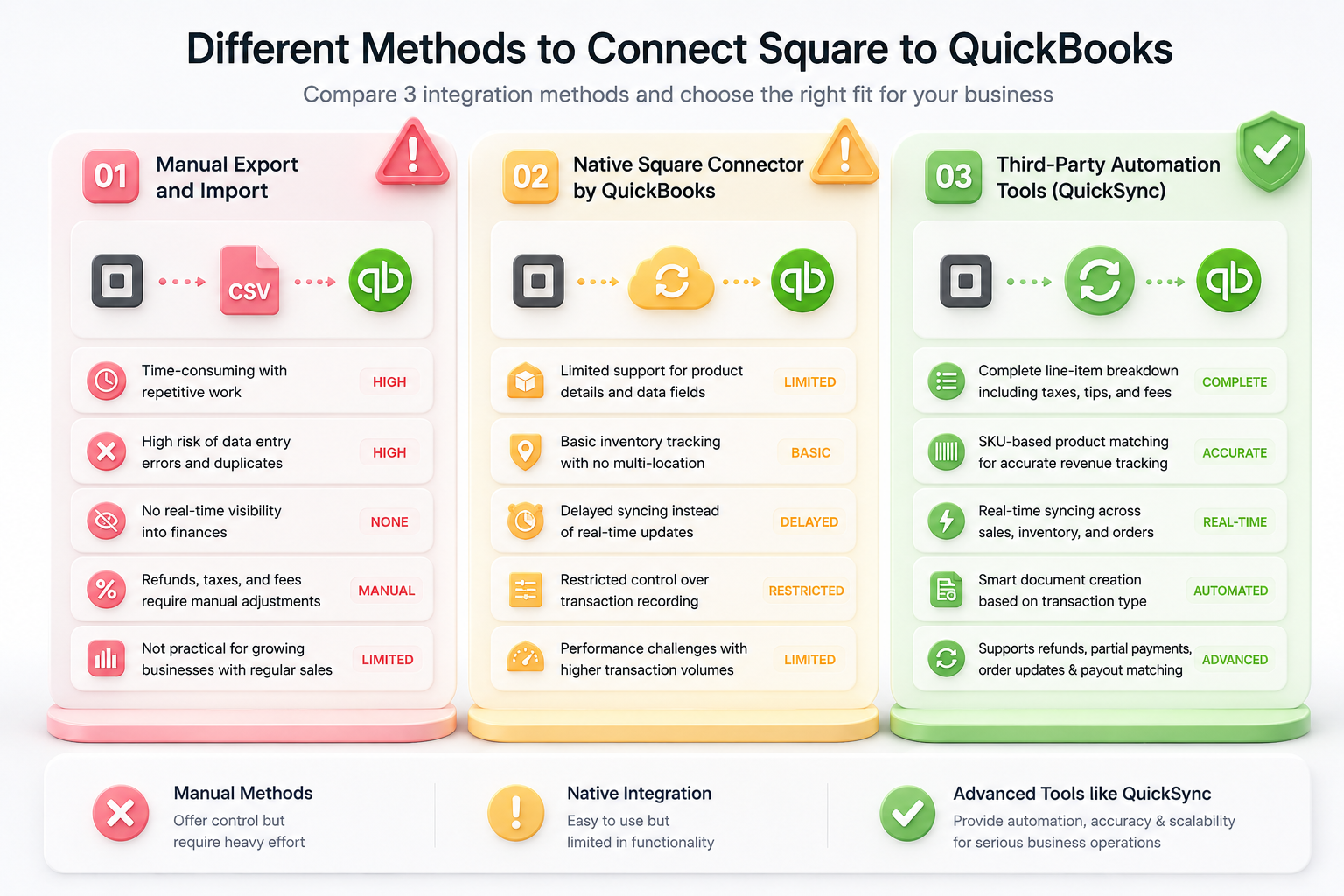
So far, you are crystal clear that Square-QuickBooks integration is possible, and there are strong reasons to integrate and sync both of these platforms. But now comes the main part, which is choosing the method of connecting Square with QuickBooks.
For that, we brought the three key methods below for you and compared them precisely. So that you choose the right one; otherwise, you know overselling, stockouts, and inaccurate inventory will hit you (if chosen wrong). Here is a clear comparison to help you choose the right fit.
Method 1: Manual Export and Import
This is the foremost and basic method, and in this, you export sales data from Square as a CSV file and import it into QuickBooks manually. Some businesses do this weekly or monthly to reconcile their books.
However, it can be simple to start and does not require additional tools, but the process is entirely manual and depends on consistency. It has some serious limitations that you must go through below.
Limitations:
- This is time-consuming with repetitive work.
- High risk of data entry errors and duplicates.
- This has no real-time visibility into finances.
- Refunds, taxes, and fees require manual adjustments.
- Not practical for growing businesses with regular sales.
Method 2: Native Square Connector by QuickBooks
The Square Connector app by QuickBooks is the built-in integration provided by QuickBooks Online. It allows you to automatically sync Square transactions into QuickBooks with minimal setup, making it suitable for small businesses with straightforward sales needs.
It is easy to activate and works well when your transaction volume is low, and your accounting structure is simple. However, as operations become more complex, their limitations become more noticeable.
Limitations:
- Limited support for product details and data fields.
- Basic inventory tracking with no multi-location functionality.
- Delayed syncing instead of real-time updates.
- Restricted control over how transactions are recorded in QuickBooks.
- Performance challenges with higher transaction volumes.
Method 3: Third-Party Automation Tools (QuickSync)
The third method is using third-party tools to integrate Square with QuickBooks. When we say “third party,” then there comes QuickSync, which is built for businesses that need accurate, automated, and seamless integration between Square and QuickBooks.
It focuses on turning raw transaction data into structured accounting records without manual work. The key advantages of choosing this method are as follows:
Key advantages:
- Complete line-item breakdown including taxes, tips, and fees.
- SKU-based product matching for accurate revenue tracking.
- Real-time syncing across sales, inventory, and orders.
- Smart document creation based on transaction type.
- Support for refunds, partial payments, and order updates.
- Automatic corresponding payout matching for easier reconciliation.
So which method wins here? Manual methods offer control but require heavy effort. Native integration is easy but limited. Advanced tools like QuickSync provide the automation, accuracy, and scalability needed for serious business operations, with a 14-day free trial.
How to Connect Square to QuickBooks Using QuickSync (Step-by-Step)
Setting up Square and QuickBooks integration just takes a few minutes. You do not even need to be a technical person, as it’s just a couple of clicks here and there, and boom! Your integration is done. Let’s see the steps to connect and sync Square and QuickBooks via QuickSync.
Step 1: Create Your QuickSync Account
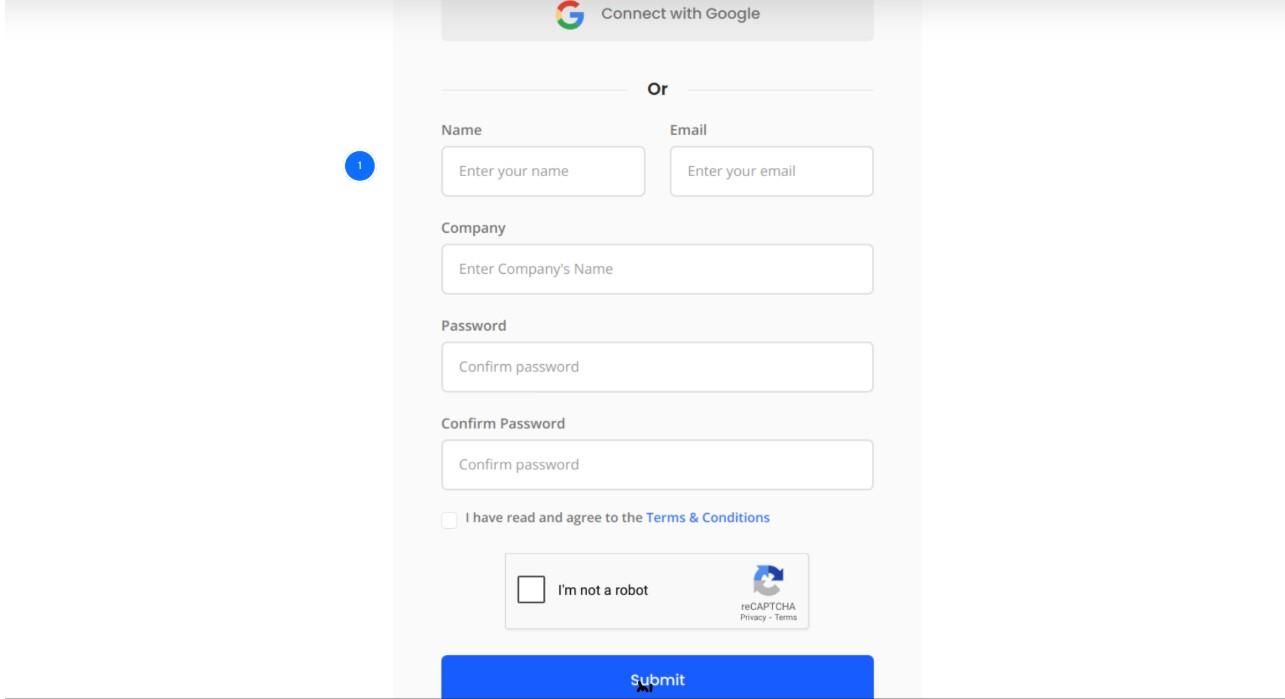
The first step is to sign up for QuickSync. If you already have an account on QuickSync, then simply log in to the dashboard using your credentials. And the dashboard will guide you through connecting your first platform.
Step 2: Connect Your Square Account
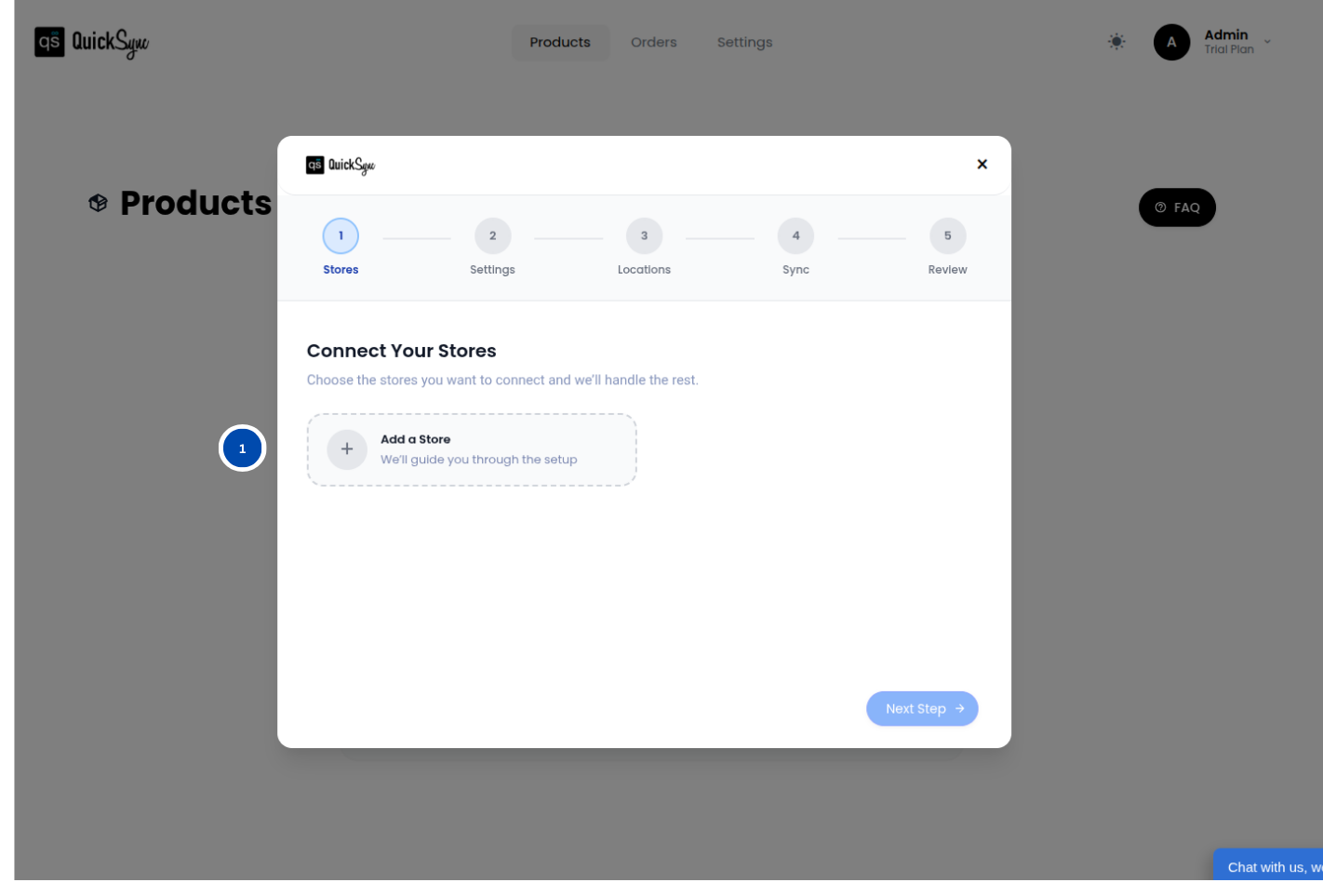
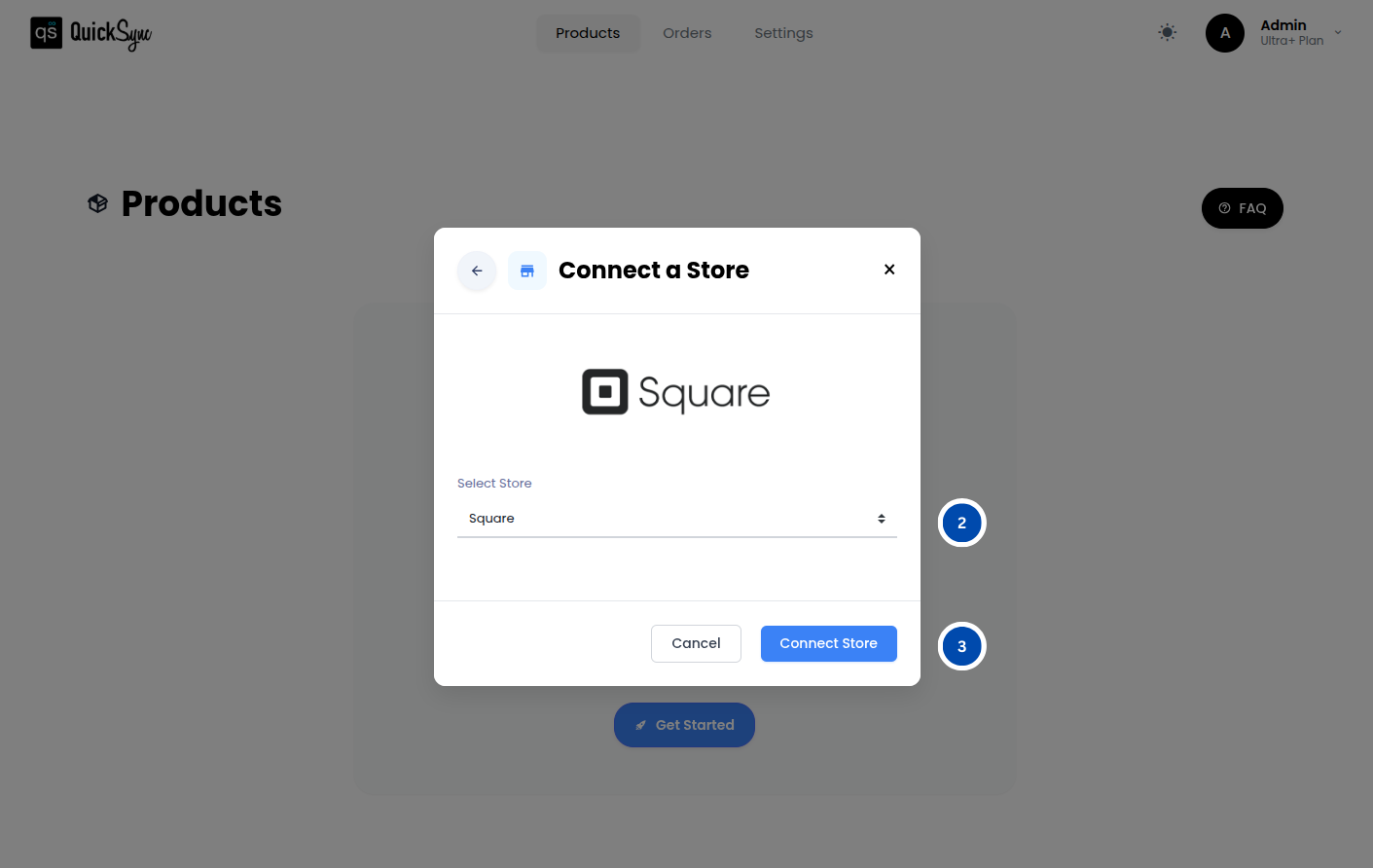
The next step is to connect your Square account to QuickSync.
- For that, go to “Sync Products”, then click on “Add a Store”.
- Then select Square and click Connect Store.
- After that, log in to your Square account.
Once connected, QuickSync will begin automatically importing your store data, including products, locations, and recent transactions.
Step 2: Connect Your QuickBooks Account
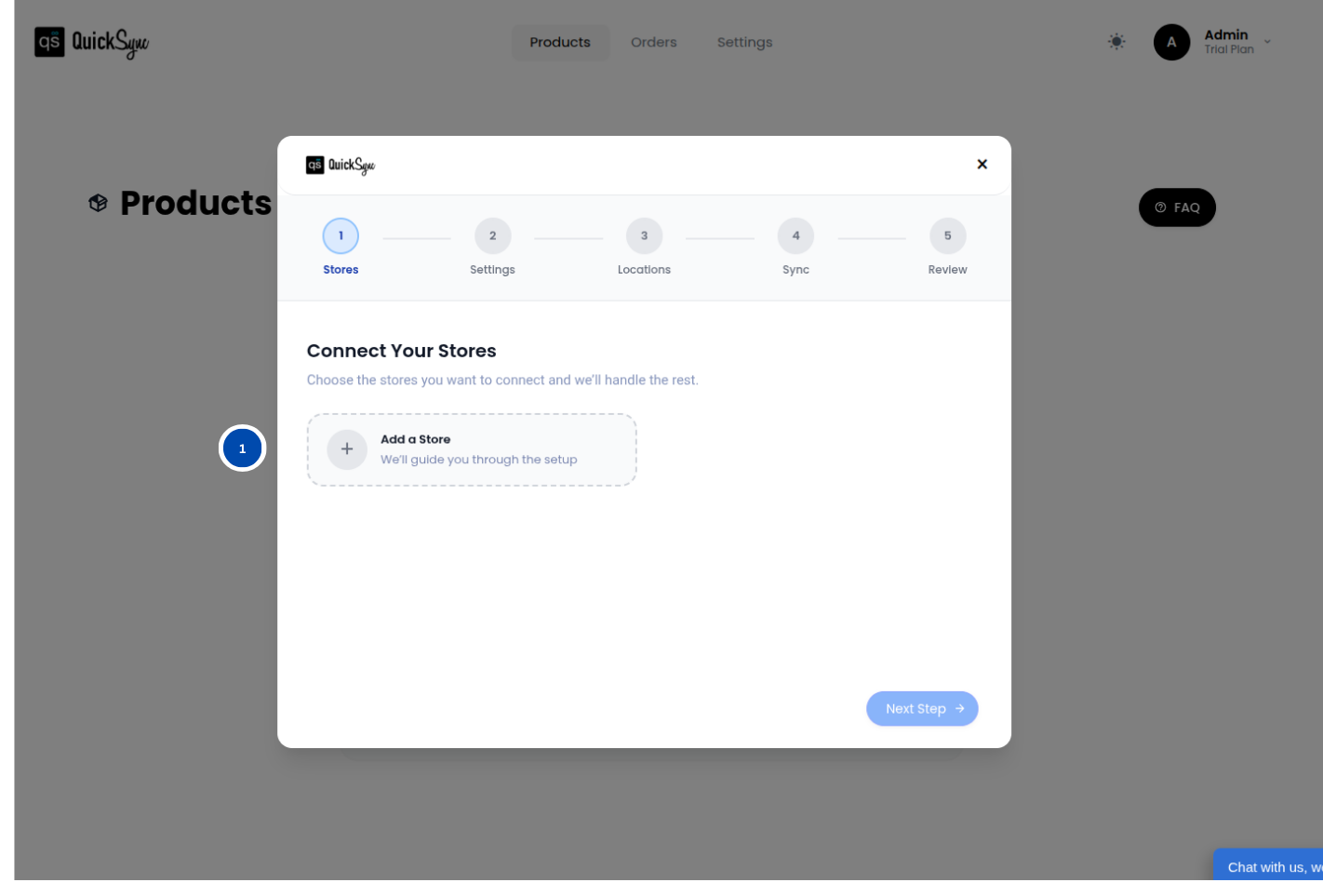
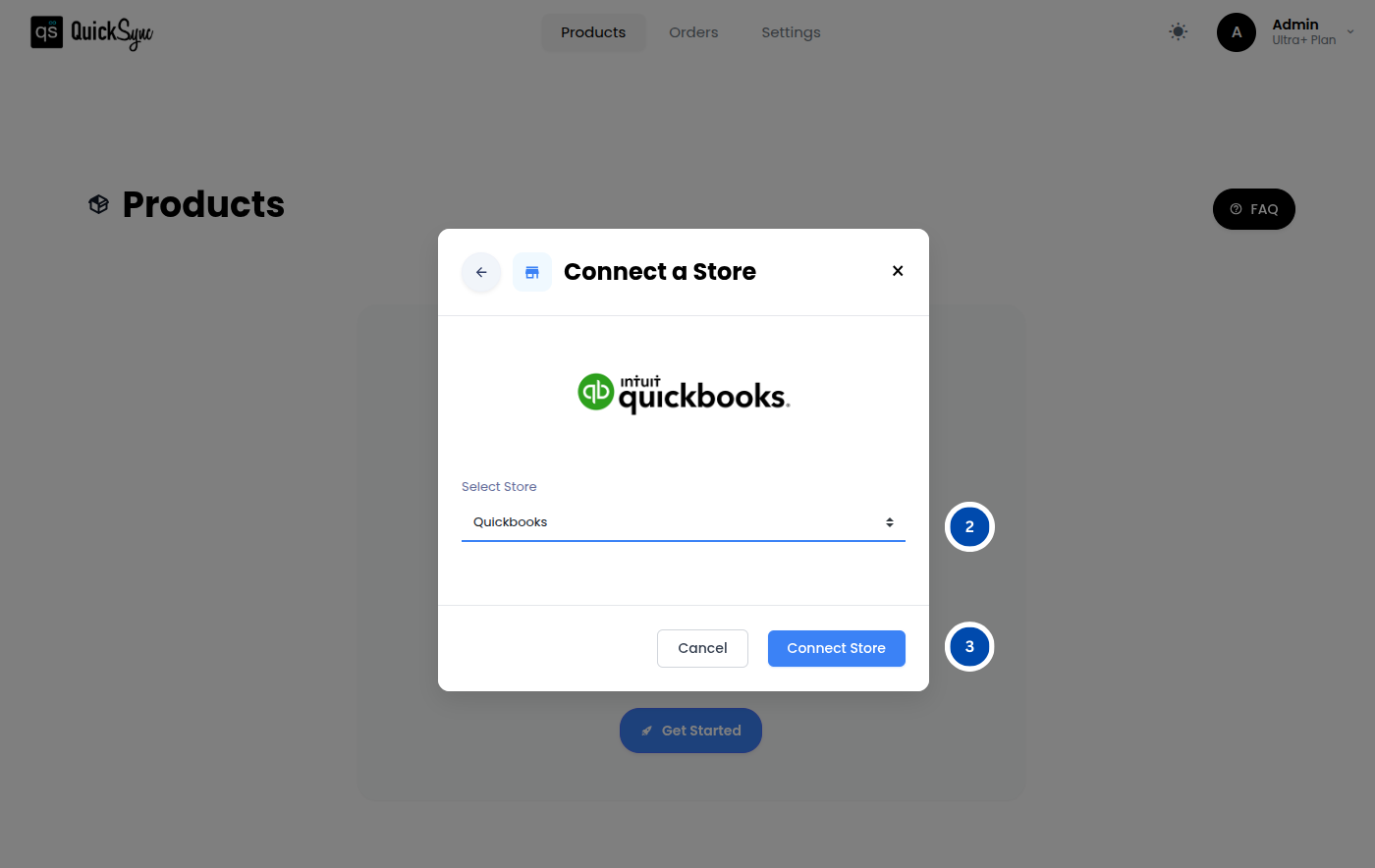
Now connect QuickBooks to complete the integration.
- For that, repeat the same steps, click on “Add Store” and select QuickBooks Online.
- Click Connect Account and log in.
- Approve access for accounting, items, and payments data
After authorization, QuickSync will sync your company settings, chart of accounts, currency, and existing items into the system.
Step 4: Set Your Sync Preferences and Start Syncing
Finally, define how you want Square and QuickBooks Online to work together. This step activates QuickSync as your full accounting automation system.
Once configured, QuickSync automatically begins syncing Square transactions into QuickBooks in the correct structure. Sales receipts, invoices, refunds, inventory updates, and payouts are all recorded in real time, keeping your books accurate and up to date without manual work or corrections.
How Square and QuickBooks Work Together (Sales, Taxes, Payouts)
Once the integration is live, here is how data actually flows between Square and QuickBooks.
Accurate Sales Sync Without Errors or Gaps:
Every completed sale in Square is synced to QuickBooks as a properly structured transaction. Line items, product details, quantities, and prices are all carried across so your QuickBooks sales records accurately reflect what happened at the point of sale. This means your revenue figures in QuickBooks are always current without anyone needing to manually enter a single sale.
Clean, Audit-Ready Tax Records:
Tax data collected at the point of sale in Square is mapped to the correct tax accounts in QuickBooks. This is particularly important for businesses that operate across multiple tax jurisdictions or need clean tax records for reporting and filing. The integration ensures tax amounts are correctly attributed rather than lumped into a generic sales figure.
Accurate Payout Recording in QuickBooks:
Square payouts are synced to QuickBooks so your bank deposits reconcile cleanly. Rather than trying to manually match a Square payout to a collection of individual transactions, the integration gives your accountant a clear, structured record of what each payout represents.
Refunds and Cancellations:
Refunds processed in Square are reflected in QuickBooks as proper credit entries. Cancelled orders that were previously synced are also handled correctly, ensuring your books do not carry revenue from orders that were never fulfilled.
Tracking and Carrier Data:
For businesses managing shipping, Square syncs tracking numbers and carrier names through the integration. This means order fulfillment data is visible in QuickBooks alongside the financial record of each transaction, which is useful for both customer service and internal reporting.
Square-QuickBooks Integration Problems You May Face (How to Solve Them)
Even with a solid connection between Square and QuickBooks, issues can still appear as your setup grows or becomes more complex. These problems often come from configuration gaps or integration limitations, and can lead to inaccurate records or extra manual work.
Here is what to watch for and how to fix it.
Duplicate Transactions: This is one of the most common problems, especially during the initial sync. If your integration does not have built-in deduplication logic, the same transaction can appear in QuickBooks more than once.
- How to Fix: Use an integration tool like QuickSync that includes deduplication as a core feature. If duplicates have already appeared, identify them through QuickBooks transaction reports and delete the extras manually before re-running a clean sync.
Mismatched Accounts: Sales, taxes, and fees from Square sometimes land in the wrong accounts in QuickBooks if the mapping was not configured correctly during setup.
- How to Fix: Review your chart of accounts in QuickBooks and ensure each Square data type (sales, fees, taxes, tips) is mapped to the correct account inside your integration settings. QuickSync allows you to configure this mapping precisely.
Inventory Discrepancies: If inventory is not syncing in real time, stock levels in QuickBooks can fall behind what Square reflects, especially in high-volume periods.
- How to Fix: Enable webhook-driven real-time sync rather than relying on scheduled batch updates. Also, confirm that your multi-location settings are correctly configured if you operate more than one Square location.
Products Not Syncing Correctly: Variants, images, or SKUs sometimes fail to sync if the product data in Square is incomplete or formatted incorrectly.
- How to Fix: Audit your Square product catalogue before syncing. Ensure every product has a complete SKU, accurate pricing, and properly structured variants. QuickSync will flag products with missing required fields so you can fix them before they cause sync failures.
Connection Dropping or Syncing Stopping: Occasionally, the connection between Square and Intuit QuickBooks can drop due to expired authorization tokens or API changes.
- How to Fix: Re-authenticate both accounts inside your integration tool. QuickSync monitors connection health and will alert you if a reconnection is needed, so you are not left with a silent sync failure.
Summing It Up: What Next!
So, does Square integrate with QuickBooks? Absolutely. And when the integration is set up correctly, it eliminates one of the most persistent operational headaches in multichannel selling.
The key takeaway from this guide is that not all integration methods are equal. For businesses that want accurate, real-time, and scalable syncing across products, inventory, orders, taxes, and payouts, a dedicated tool like QuickSync is the right choice.
If you are ready to connect Square to QuickBooks without the manual work, QuickSync is offering a free 14-day trial with no credit card required.
Set it up fast and let it run.