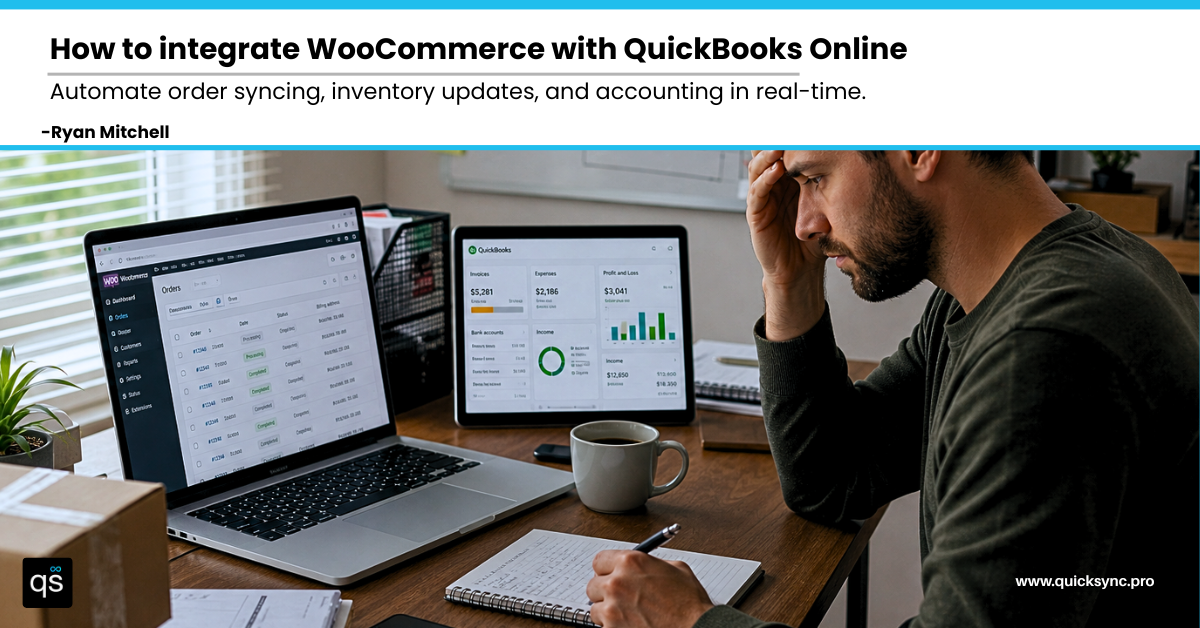
Running a WooCommerce store while managing your books in QuickBooks feels like operating two separate businesses. You process orders all day in your WooCommerce store, then spend nights copying that order data into spreadsheets, hoping your finances stay accurate that way.
But does it have to be this exhausting?
If you are researching how to integrate WooCommerce with QuickBooks, you have probably realized that simply installing a QuickBooks integration plugin is not enough. The real challenge is keeping your WooCommerce data and accounting records aligned without constant manual data entry eating up your evenings.
Let us fix that.
Does WooCommerce Integrate with QuickBooks?
Yes, WooCommerce does integrate with QuickBooks. However, it does not come with a built-in integration. To connect both platforms, you need a QuickBooks integration plugin, a WooCommerce connector, or a third-party automation tool.
These tools act as a bridge between your WooCommerce and QuickBooks, allowing you to sync data, automate invoice creation, and keep your accounting updated without manual effort.
Benefits of WooCommerce and QuickBooks Integration
Proper WooCommerce and QuickBooks integration reduces stress, increases control, and frees you to focus on growing your store. Here are the key benefits for multi-channel sellers:
Accurate Financials:
Real-time syncing ensures your books always reflect actual sales, refunds, inventory values, and profit margins. You can see your true cash position instantly, enabling smarter business decisions.
Better Inventory Control:
Synced inventory means WooCommerce and QuickBooks always show the same stock levels and values. This prevents overselling, stockouts, and accounting errors, giving you a clearer picture of your business.
Smarter Order Management:
Orders automatically flow from WooCommerce to QuickBooks with correct product details, prices, taxes, and customer info. Accurate order management speeds fulfillment and keeps financial records clean.
Easier Tax Compliance:
Automatic updates of tax information for each sale help you categorize sales correctly, reduce filing mistakes, and stay audit-ready. Tax season becomes simpler and less stressful.
Save Precious Time:
Automatic syncing eliminates manual tasks like exporting reports, formatting spreadsheets, importing transactions, and matching numbers. Orders, inventory, and finances update in the background, freeing you to focus on growth.
Problems When WooCommerce and QuickBooks Are Not Connected
If your WooCommerce store is not connected to QuickBooks using the right integration tool, problems don’t appear immediately. They grow quietly and hit hard as your store scales.
Below are the key problems:
Manual Data Entry Wastes Hours:
Every new order has to be manually typed into QuickBooks. By the time you finish, several new orders have already arrived. For example, if you process 50 orders a day, you could spend hours just entering data instead of focusing on growing your store. QuickSync automates this completely, saving time and reducing stress.
Transactions Get Lost or Duplicated:
Orders can fail to sync or appear twice in QuickBooks. Imagine selling a product online and later discovering it was never recorded, or the same order shows up twice in your accounting. This makes your financial reports unreliable and creates extra work to fix errors.
Invoices and Books Get Messy:
Manual bookkeeping leads to mistakes like wrong invoices or mismatched payments. For instance, you might charge a customer the correct amount in WooCommerce but record it incorrectly in QuickBooks. Fixing these errors can take hours and may upset customers if not caught quickly.
Inventory Numbers Don’t Match:
Your WooCommerce stock might show 40 items, QuickBooks shows 38, and your warehouse has 32. This mismatch can cause overselling, angry customers, or tying up money in unsold inventory. QuickSync keeps all systems aligned automatically, preventing lost sales and confusion.
Taxes Become Complicated:
Without synced data, your WooCommerce orders and QuickBooks records don’t match. For example, sales tax collected in WooCommerce might not appear correctly in QuickBooks, making tax filing stressful and error-prone. QuickSync ensures all your tax data is accurate and ready for filing.
What True WooCommerce and QuickBooks Integration Looks Like
Real WooCommerce–QuickBooks integration means both platforms communicate seamlessly in real time. When a customer places an order, QuickBooks automatically generates invoices. When inventory changes, both systems update simultaneously, keeping your store accurate and your accounting stress-free.
Here’s what typically flows between the two systems:
| Data Type | What Syncs | Business Impact |
| Orders | Order details, payments, shipping charges, product discounts | Eliminates manual data entry and reduces errors |
| Inventory | Stock levels, SKUs, new products | Prevents overselling and keeps inventory accurate |
| Products | Names, descriptions, categories, prices | Maintains consistent listings across platforms |
| Customers | Contact info, purchase history | Supports personalized marketing and customer insights |
| Financials | Taxes, income accounts, expense postings | Ensures accurate financial reporting and bookkeeping |
Advanced integration solutions also:
- Handle multiple currencies, automatically matching invoice currency to your WooCommerce base currency
- Support parent and child product categories for complex catalogs
With full integration, your WooCommerce store and QuickBooks work as one unified system, saving time, reducing errors, and providing a clear picture of your business at any moment.
Different Methods to Connect WooCommerce to QuickBooks
Choosing the right way to connect WooCommerce with QuickBooks can directly impact how smoothly your accounting runs. Each integration method comes with its own strengths, limitations, and level of complexity. Some are built for simplicity, while others focus on automation and scalability.
Here we go with an honest comparison to help you decide what fits your store best.
Method 1: Official QuickBooks WooCommerce Connector
This is the native integration provided by Intuit, built for simple WooCommerce stores that need basic syncing. It allows you to connect your store directly to QuickBooks with minimal setup and manage fundamental data synchronization like products and orders.
It’s a direct solution from Intuit with no initial third-party fees and offers a straightforward setup process. Product mapping is simple, making it easy for beginners to get started quickly.
Limitations:
- Limited account mapping options
- Cannot assign different accounts to different product types
- Syncing is delayed (not real-time)
- Struggles with bulk data syncing
Method 2: WooCommerce QuickBooks Plugins
Another way is to use some plugins for multichannel integration. These plugins provide enhanced functionality compared to the native connector. They support both QuickBooks Online and Desktop and allow more detailed syncing control.
They enable product syncing, support manual one-click sync, and provide more flexibility in managing WooCommerce and QuickBooks data.
Limitations:
- Complex setup with asset, income, and deposit account configurations
- Polling-based syncing leads to delays
- Weak error handling may cause unnoticed sync failures
- Requires frequent updates for WordPress compatibility
Method 3: Third-Party Automation Tools (QuickSync)
QuickSync represents the most advanced and reliable approach for integrating WooCommerce with QuickBooks. It is built for small to big multichannel sellers that need automation, accuracy, and real-time data synchronization without technical hassle.
QuickSync stands out with its modern, automation-first approach. It ensures seamless and accurate syncing while reducing manual work significantly. Key advantages include the following:
- Auto Payment Recording: Invoices and receipts marked paid automatically
- Product Visibility Mapping: Active and draft products synced accurately
- Continuous Sync: Orders and products updated in real time
- Accurate Order Syncing: Orders synced with full financial data
- Marketplace Integration: Etsy, Shopify, and other platforms synced to QuickBooks
Method 4: Custom API Integration
This method involves hiring developers to build a fully customized integration tailored to your business workflows. It offers maximum flexibility and control over how data flows between WooCommerce and QuickBooks.
It allows complete customization of syncing logic, supports complex accounting structures, and can integrate with legacy or additional systems as needed.
Limitations:
- High development cost (often $10,000+)
- Requires ongoing maintenance after updates
- No dedicated support system for troubleshooting
Each integration method fits different business needs, from simple setups to fully custom solutions. While basic connectors and plugins work for smaller stores, they often lack scalability.
For those growing and starting in multichannel selling, QuickSync stands out as the most efficient and reliable option with real-time automation and minimal effort.
Which Method Should You Choose to Sync WooCommerce and QuickBooks
Choosing the right method early can help you avoid accounting errors, delayed reporting, and inventory mismatches. Below is a side-by-side comparison of all four WooCommerce and QuickBooks integration methods based on key operational factors:
| Feature | Official Connector | Plugins | QuickSync | Custom API |
| Setup time | 30–60 minutes | 2–4 hours | Less than 15 minutes | Weeks to months |
| Sync speed | Delayed (scheduled) | Hourly or manual | Real-time (instant updates) | Depends on build |
| Order syncing | Basic | Moderate | Accurate with full financial data | Fully customizable |
| Product sync | Simple mapping | Advanced but manual setup | Smart visibility mapping (active/draft) | Fully customizable |
| Bulk sync | Limited | Moderate | Fast and reliable | Depends on implementation |
| Multi-channel support | No | Limited | Yes (Etsy, Shopify, and more) | Possible with extra development |
| Error handling | Minimal | Basic alerts | Automatic recovery with notifications | Manual monitoring required |
| Scalability | Low | Medium | High | High (but costly) |
In short, basic connectors and plugins may work in the early stages, but they often create delays and manual work as you grow. QuickSync stands out by offering real-time syncing, automation, and multi-channel support, making it the most reliable choice for scaling WooCommerce businesses.
How to Integrate WooCommerce with QuickBooks using QuickSync Step by Step
After comparing all the available integration methods, QuickSync clearly stands out as the most reliable option for WooCommerce and QuickBooks integration. The next step is understanding how to actually set it up. The good news is that the process is simple, fast, and does not require any technical expertise.
Step 1: Sign up/Login QuickSync Account
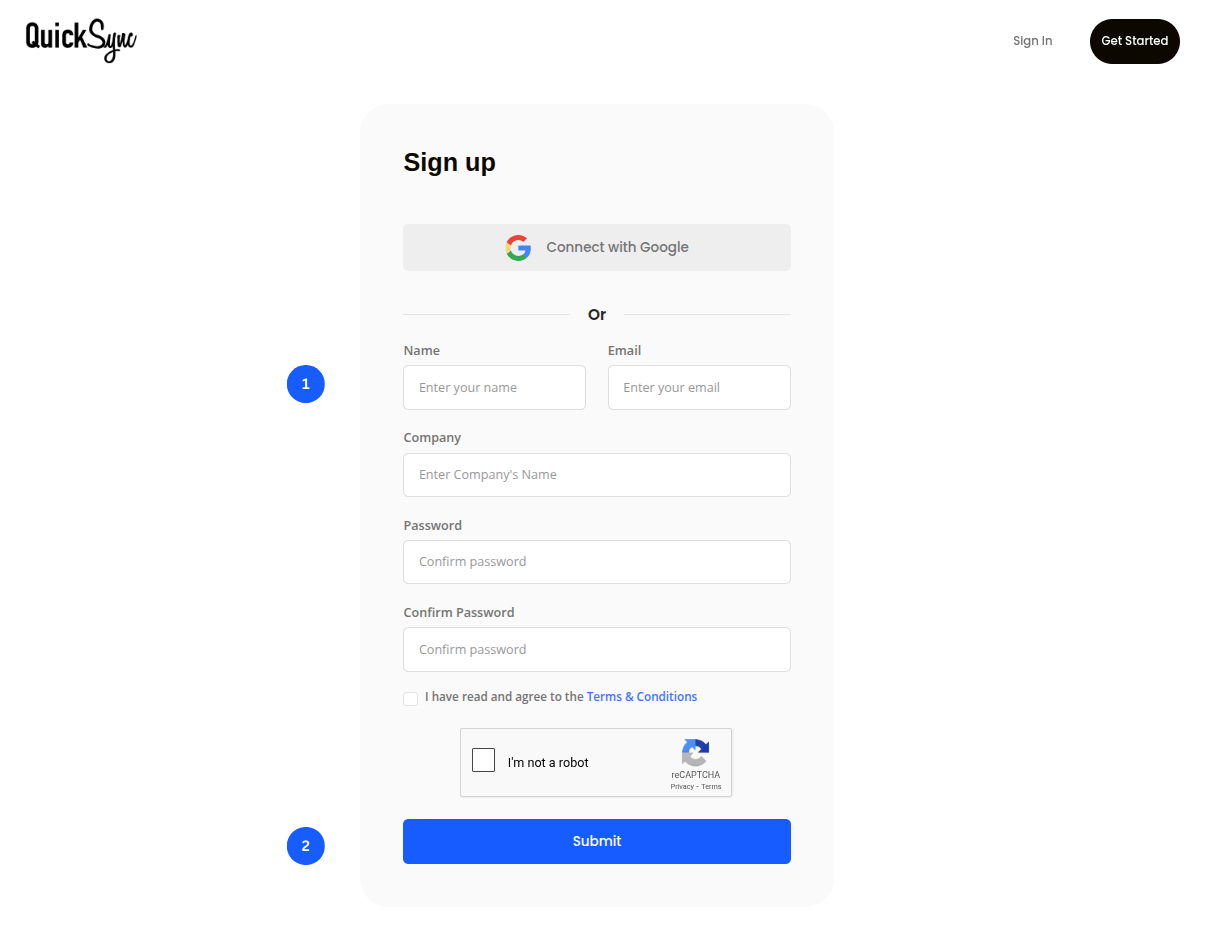
- If you are new to QuickSync, start by signing up and selecting WooCommerce as your primary store during onboarding.
- If you already have an account, simply log in and access your QuickSync dashboard to begin the setup.
Step 2: Connect Your WooCommerce Store
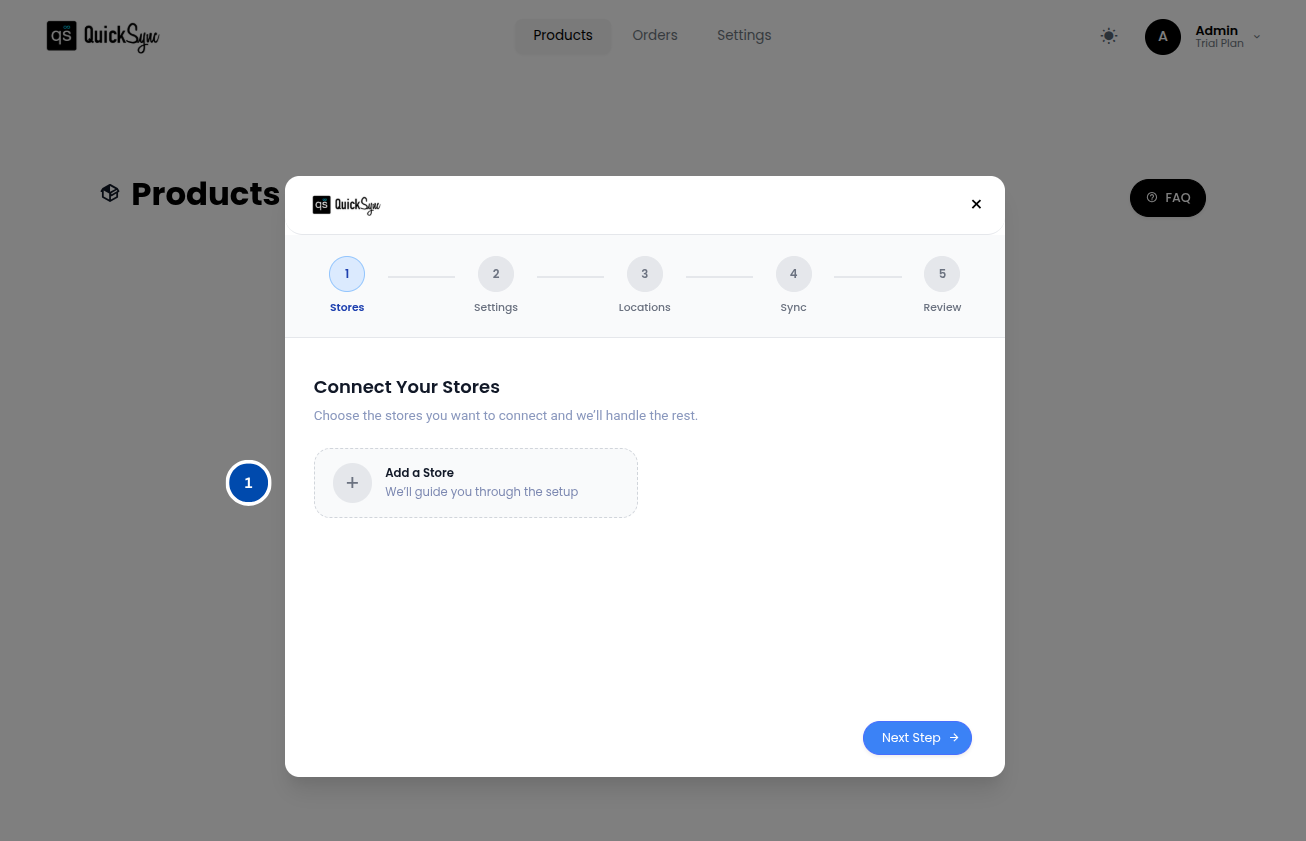
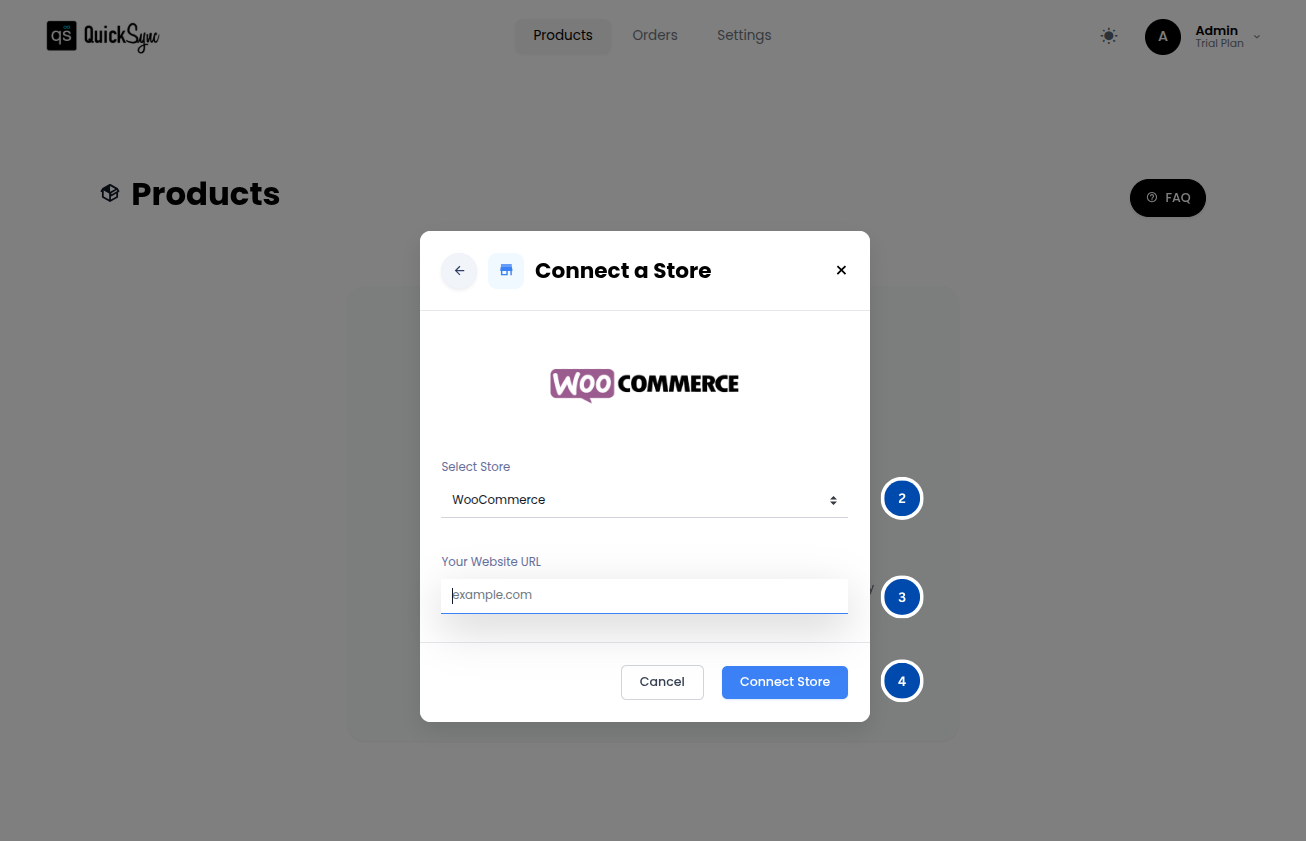
- Go to your QuickSync dashboard, navigate to Store → Add a Store, and select WooCommerce.
- Enter your store URL (for example: http://www.yourstore.com) and click Connect a Store.
- Approve the access request to allow QuickSync to sync your products, inventory, orders, and other store data.
- Wait for the automatic data import to complete. Once the progress bar finishes, your WooCommerce store will be connected and ready to use.
Step 3: Connect QuickBooks Online
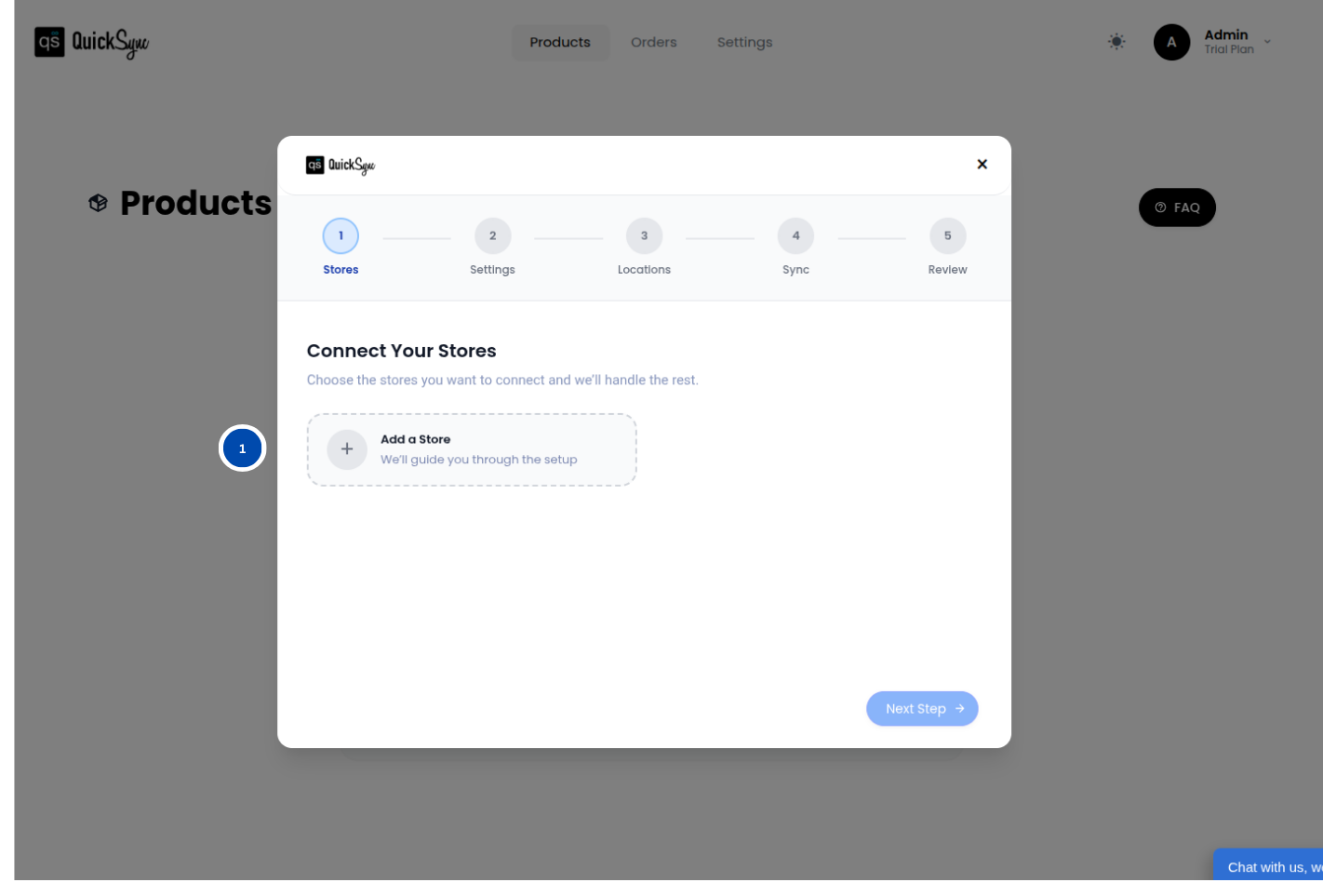
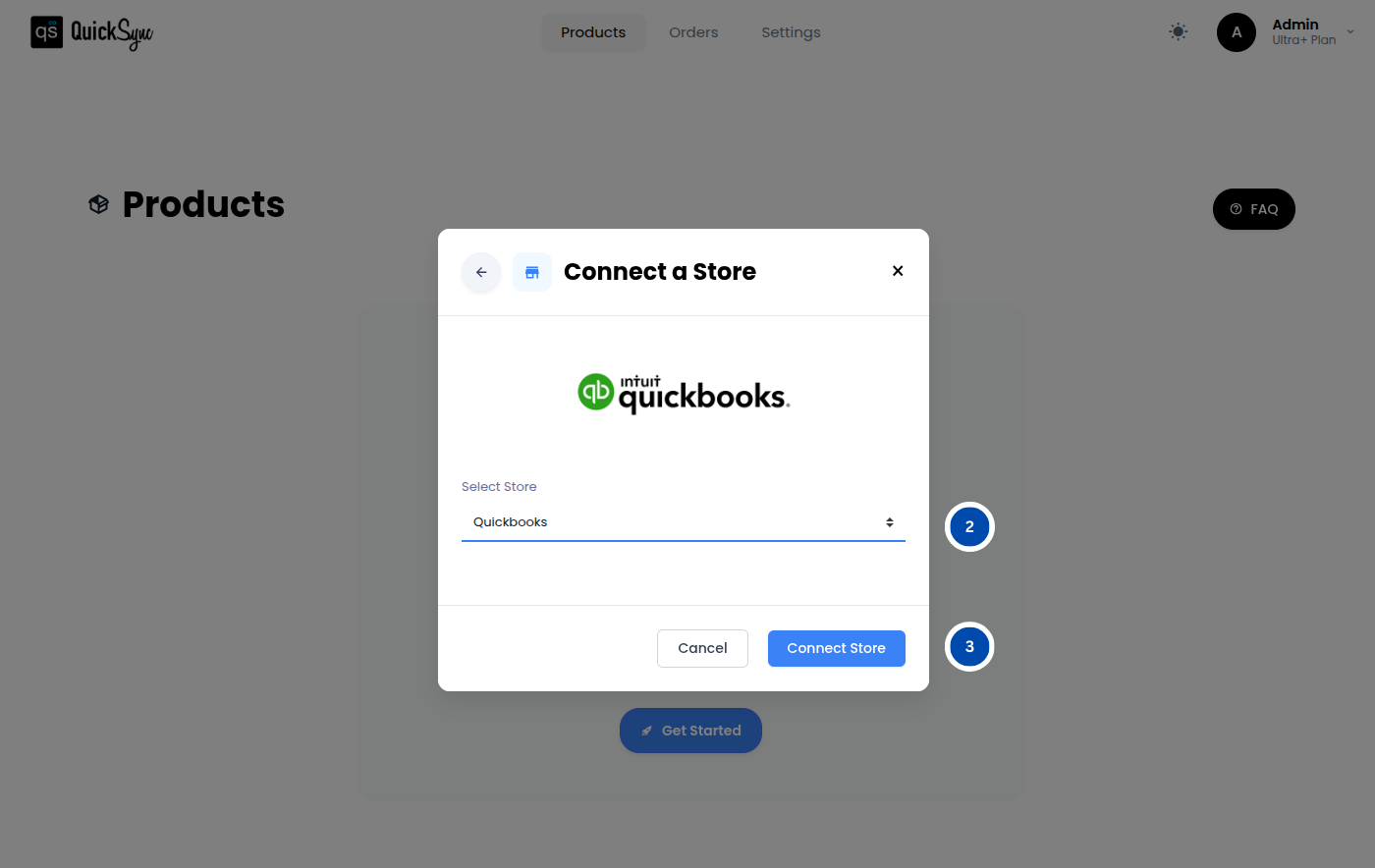
- Go to Sync Products → Store → Add Store, then select QuickBooks.
- Click Connect a Store and sign in to your QuickBooks account.
- Approve the requested access for Items, Payments, and Accounting.
- QuickSync will automatically import your company information, home currency, chart of accounts, and existing items.
Step 4: Set Your Sync Preferences
Choose exactly what you want QuickSync to sync automatically between WooCommerce and QuickBooks:
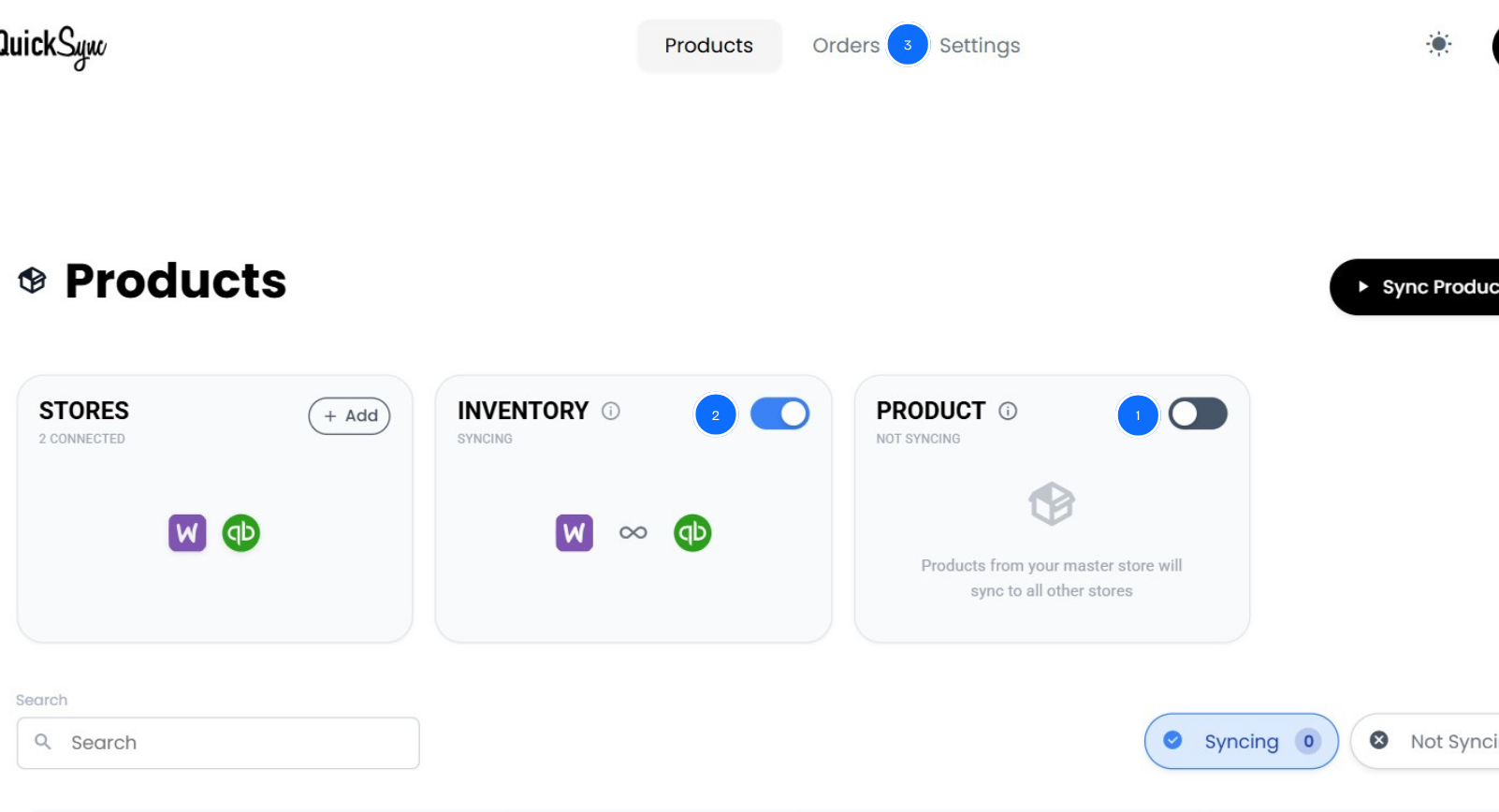
- Products, orders, and inventory
Once configured, QuickSync keeps everything aligned in real time, giving you more time to focus on growing your business.
Best Practices to Optimize WooCommerce QuickBooks Integration
Connecting WooCommerce to QuickBooks is just the first step. Keeping data accurate and workflows efficient requires consistent practices. Here are key tips for smooth syncing:
Use WooCommerce as Primary:
All sales, refunds, inventory updates, and product changes should start in WooCommerce. Avoid editing QuickBooks directly. QuickSync updates QuickBooks automatically to maintain one accurate set of books.
Enable Real-Time Sync:
Daily or weekly syncing can cause gaps in cash flow, inventory, and reporting. Real-time updates keep your financial data current and reduce month-end surprises.
Check Inventory Accuracy:
Regularly verify stock levels, product variants, and details between WooCommerce and QuickBooks. Fix discrepancies early to prevent overselling and accounting errors.
Reconcile Weekly:
Spend 10–15 minutes each week reviewing deposits, refunds, and inventory adjustments to catch issues early and maintain accurate reporting.
Plan for Multi-Channel Growth:
Even if you sell only on WooCommerce now, ensure your setup can scale. QuickSync allows adding Amazon, eBay, Etsy, or wholesale channels later without workflow disruption.
Final Words
Running WooCommerce and QuickBooks separately causes manual data entry, inventory mistakes, and tax headaches. Basic plugins often fail as your store grows. Now you can see exactly how to integrate WooCommerce with QuickBooks and keep your orders, inventory, and finances accurate automatically.
QuickSync automates syncing, keeps reports accurate, and provides support when you need it. Stop guessing if your books match reality.
Start your free 14-day trial today. No credit card is required. Connect your WooCommerce store to QuickBooks Online in minutes and focus on growing your business.