Running multiple WooCommerce stores can help you expand into new markets, manage different brands, or separate your B2B and B2C operations. However, managing several stores manually quickly becomes time-consuming and increases the risk of costly mistakes.
Every inventory update, product change, price adjustment, or new listing often has to be repeated across each store. Missing even one update can lead to overselling, inaccurate product information, canceled orders, and unhappy customers.
The good news is that you don’t have to manage every WooCommerce store separately. With the right synchronization solution, you can automatically sync inventory, products, pricing, and orders across all your connected stores.
In this guide, you’ll learn the different ways to sync multiple WooCommerce stores, compare the pros and cons of each method, and discover the easiest way to manage all your stores from one place.
📌 Key Takeaways
- Managing multiple WooCommerce stores manually increases the risk of inventory errors, inconsistent product data, and slower order fulfillment.
- WordPress Multisite, manual management, and CSV imports can help in certain situations, but they don’t provide real-time synchronization.
- Syncing your WooCommerce stores automatically with an integration tool keeps inventory, products, prices, and orders consistent across every connected store.
- Using one centralized sync solution reduces repetitive work, prevents overselling, and helps your team operate more efficiently.
- QuickSync lets you manage multiple WooCommerce stores from a single dashboard with real-time inventory, product, and order synchronization.
- Choosing the right synchronization method makes it easier to scale your business without increasing operational complexity.
Can You Connect and Sync Multiple WooCommerce Stores?
This is one of the most common questions WooCommerce merchants ask: Can you sync multiple WooCommerce stores? The short answer is yes. You can connect multiple WooCommerce stores and synchronize products, inventory, pricing, and orders using the right synchronization tool.
However, before looking at the different syncing methods, it’s important to understand when running multiple WooCommerce stores makes sense and whether it’s the right approach for your business.
Unlike platforms that include built-in multi-store management, WooCommerce treats every store as an independent website. Each store has its own WordPress installation, product catalog, customer database, and order management system.
As a result, changes made in one WooCommerce store don’t automatically appear in another unless you use a synchronization solution.
Many growing businesses operate multiple WooCommerce stores to serve different markets, manage separate brands, or support different business models. Syncing these stores helps maintain consistent inventory, product information, and pricing while reducing manual work.
When Multiple WooCommerce Stores Make Sense
- Different brands: You manage multiple brands, each with its own website, design, and product catalog.
- Regional or international stores: You operate separate WooCommerce stores for different countries or regions to support local currencies, languages, taxes, or shipping options.
- B2B and B2C stores: You sell wholesale and retail through separate WooCommerce stores with different pricing, catalogs, and customer groups.
- Different product categories: You separate product lines into dedicated stores to provide a more focused shopping experience and simplify marketing.
When Multiple WooCommerce Stores Are Not Needed
If you only operate one business with one online store, you don’t need multiple WooCommerce stores. Managing everything from a single store is usually simpler and requires less maintenance.
Running multiple WooCommerce stores also increases the amount of work involved. Without an automation WooCommerce integration tool, you’ll need to update inventory, products, pricing, and orders separately for every store. As your business grows, this manual work becomes difficult to manage and increases the risk of inventory errors and inconsistent product information.
The Biggest Challenges of Managing Multiple WooCommerce Stores Manually
As the number of WooCommerce stores grows, so does the workload. Without store integration, keeping every WooCommerce shop accurate becomes much harder. Here are some of the challenges of selling on multiple WooCommerce stores without integration.
Inventory Becomes Difficult to Control
Managing inventory across multiple WooCommerce stores is one of the biggest challenges. You sell a product in one store. Then you switch to another dashboard and update inventory manually. Even a short delay can cause overselling. It also leads to canceled orders and unhappy customers.
Inaccurate inventory affects purchasing decisions. It also makes inventory planning more difficult. Forecasting demand becomes much less reliable.
Manually Add Product Data
Every product change must be repeated across all your WooCommerce stores. Whether you’re updating prices or changing descriptions, the same task is repeated. As your catalog grows, these updates take hours instead of minutes. This repetitive process increases the risk of errors and inconsistencies across your stores.
Your team spends less time on marketing and customer engagement. It also leaves less time for work that grows your business.
Order Fulfillment Slows Down
Every WooCommerce store has its own order queue. Your team logs into different stores throughout the day. Orders aren’t processed from one place. This slows fulfillment and creates unnecessary confusion. Busy sales periods become even harder to manage. This increases customer complaints and affects your brand name.
Without centralized order management, maintaining fast and accurate fulfillment becomes much more difficult.
Manual Errors Become More Common
The more stores you manage, the easier it becomes to miss small updates. You might forget to change a price. You might leave an item in stock after it sells out. You might publish outdated product information. These mistakes seem small, but they often lead to bigger issues such as refund requests and poor inventory planning.
Over time, they can reduce repeat sales. Syncing multiple WooCommerce stores helps prevent these manual errors by ensuring data consistency across all connected sites.
Operating Costs Keep Growing
Managing multiple WooCommerce stores manually increases operating costs. Your team spends hours updating products, checking inventory, and fixing avoidable mistakes. According to McKinsey, employees spend nearly 60% of their time on repetitive work that could be automated.
That time could be spent on marketing, customer support, or sales instead. Those activities create far more value for your business.
Benefits of Syncing Multiple WooCommerce Stores
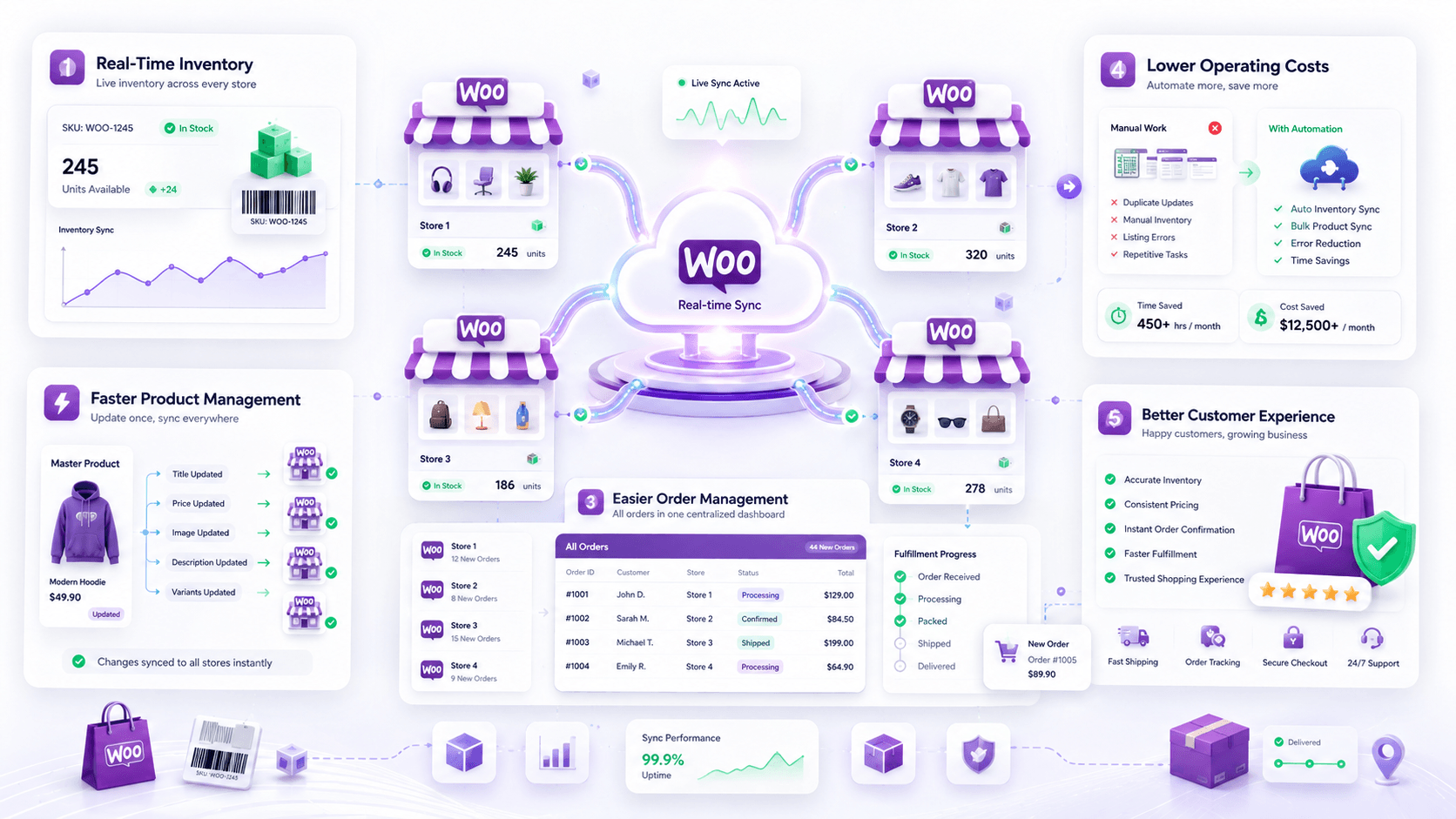
Syncing multiple WooCommerce stores lets you manage everything from one place. You no longer need to update every store separately. Here are the biggest benefits of syncing multiple WooCommerce stores.
Real-Time Inventory Sync Every Store
Once your WooCommerce stores are synced, inventory updates automatically after every sale or restock. You no longer need to log into different stores to update stock manually. This helps prevent overselling across WooCommerce sites. This makes inventory management easier for multichannel sellers.
You’ll always have a clear view of available stock. This makes purchasing decisions much easier. WooCommerce inventory sync tool also improves inventory planning so you never overspend.
Faster Product Syncing & Management
If you are syncing WooCommerce stores with an integration tool, product management becomes easier. Product updates only need to be made once. Whether you’re changing prices, images, or adding new products, every update syncs across stores. This removes repetitive work.
New products, seasonal offers, and price changes go live much faster across every store, ensuring accuracy and timely availability.
Easier Order Management
Another advantage of syncing multiple WooCommerce stores is easier order management. Instead of checking several dashboards, your team works from one organized dashboard. This speeds up WooCommerce order fulfillment. Customers receive their orders faster.
That leads to a better shopping experience and improved customer satisfaction. Syncing shipping details across stores ensures orders are fulfilled accurately and on time.
Lower Operating Costs
Syncing multiple WooCommerce stores reduces the manual work needed each day. Your team spends less time updating inventory and correcting listing errors. They also spend less time maintaining separate stores. As repetitive tasks become automated, productivity improves without adding staff.
This helps you scale your business. It also reduces routine operating costs. Automated syncing minimizes human errors, saving costs associated with order cancellations and refunds.
Better Customer Experience
Customers always see accurate inventory, pricing, and product information. Consistent information reduces confusion before and after every purchase. Faster fulfillment improves customer satisfaction. It also reduces support requests. Reliable shopping experiences encourage repeat purchases.
Greater trust often leads to better reviews and higher customer retention. Syncing product variations and stock levels ensures customers find the same products available across all your stores, enhancing their shopping convenience.
Different Methods to Sync Multiple WooCommerce Stores
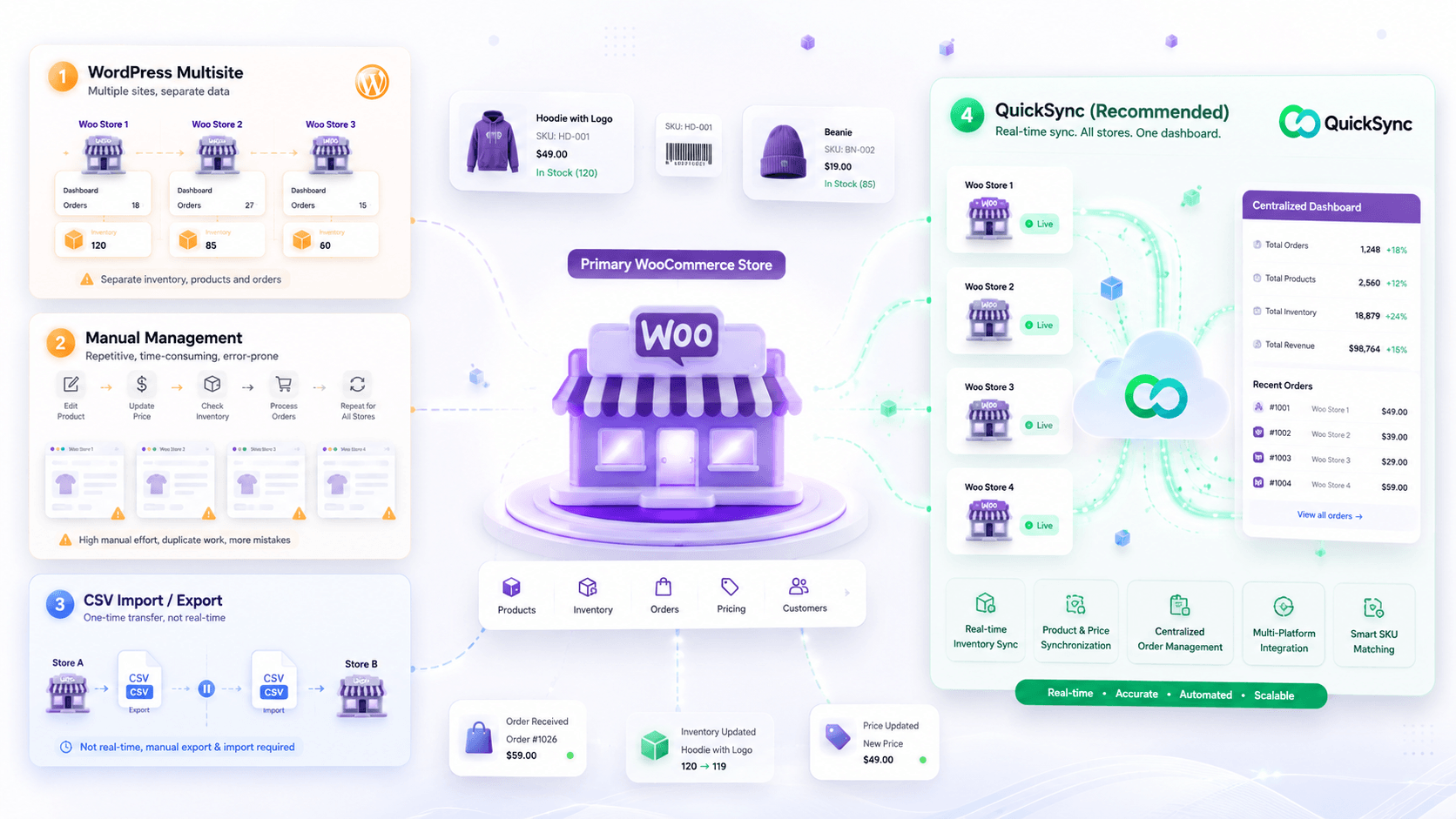
There are several methods and techniques to sync multiple WooCommerce stores. However, not every method delivers the same results. Some syncing methods reduce a small amount of work. Others fully automate inventory, products, and order management.
The right solution depends on your WooCommerce business size. It also depends on your product catalog and future growth plans. Below are the four most common methods to sync multiple WooCommerce stores.
Method 1: WooCommerce Multisite
Many businesses start with WordPress Multisite because it’s built into WordPress. This feature lets you create and manage multiple websites from one WordPress installation. It makes website administration easier.
It’s useful for managing different brands or regional websites under one network. WooCommerce itself has limitations here. It supports multiple stores only through WordPress Multisite. It doesn’t offer this as a native feature.
Why WooCommerce Multisite isn’t ideal for long-term growth
Before you begin, enable Multisite during network setup. Back up your current WordPress installation first. You’ll also need your server address and site information. These details are required to configure the network correctly.
- Inventory doesn’t update automatically across all your connected WooCommerce stores.
- You need to update products separately in every WooCommerce store you manage.
- Orders stay in different store dashboards instead of one central location.
- Customers must create separate accounts for each WooCommerce store they visit.
- Price changes need to be made manually across every connected store.
- Daily management becomes more difficult as you continue adding new stores.
- Limited isolation can create security risks across separate sites in the same network.
- Maintaining the entire multisite network requires ongoing WordPress technical knowledge.
Method 2: Manual Store Management
Some merchants simply manage every WooCommerce store separately. They update inventory, prices, products, and orders individually whenever changes occur. While this works for very small businesses. It quickly becomes overwhelming as more products and stores are added.
Managing multiple online stores manually creates repetitive work every day. Even experienced teams struggle to maintain complete accuracy across different stores.
Why manual management doesn’t scale
- Inventory must be updated manually every time a product is sold or restocked.
- Every product change must be repeated across all your WooCommerce stores.
- Orders need to be checked and processed from multiple store dashboards.
- Manual updates increase the chances of inventory and pricing mistakes.
- Your team spends valuable hours on repetitive store management tasks.
- Managing several WooCommerce stores becomes harder as your business grows.
- Reporting requires collecting and combining data from different stores manually.
- Expanding into new stores takes more time, effort, and operational resources.
Method 3: CSV Import & Export
CSV files allow merchants to export product information from one store and import it into another. This method can move large product catalogs more quickly than manual entry. This makes it useful for occasional migrations or bulk uploads.
However, CSV files only transfer data once. They don’t create a live connection between stores. Every inventory update, price change, or product edit requires another export and import process.
Why CSV Files Aren’t a Long-Term Solution
- Inventory doesn’t update automatically after products are sold in another store.
- Every product update requires a new CSV export and import process.
- Price changes must be exported and imported every time they occur.
- Orders remain separate and never sync between your WooCommerce stores.
- CSV files quickly become outdated after inventory or product changes.
- Import errors can create duplicate, missing, or incorrect product information.
- Large product catalogs require more time to export and import.
- Daily store management still depends heavily on manual updates and spreadsheets.
Method 4: QuickSync (Recommended)
If you need a long-term solution, QuickSync is built for the job. It helps you sync multiple WooCommerce stores with ease without any technical skills. Unlike manual methods or WordPress Multisite, QuickSync automatically syncs products, inventory, and orders across connected stores. QuickSync removes repetitive work from your daily life and helps you scale your WooCommerce business.
Why QuickSync Is the Smarter Long-Term Solution
- Real-Time Inventory Sync: Automatically updates inventory across every connected WooCommerce store.
- Product Synchronization: Syncs product titles, descriptions, prices, categories, product images, attributes, and variations automatically.
- Centralized Order Management: Syncs WooCommerce orders between sites into one dashboard.
- Smart SKU Matching: Matches products using SKUs to prevent duplicates and inventory conflicts.
- Bulk Product Sync: Transfers thousands of products without spreadsheets or manual catalog rebuilding.
- Automatic Price Updates: Keeps pricing consistent across every connected store without duplicate edits.
- Multi-Platform Integration: Connects WooCommerce with Shopify, Etsy, eBay, Clover, and other sales channels.
- Variant-Level Sync: Keeps every size, color, and SKU synchronized across connected WooCommerce stores.
Quick Comparison of All Four Methods
Choosing the right approach depends on your business size and future plans. The table below compares all four methods of syncing multiple WooCommerce stores.
| Feature | WooCommerce Multisite | Manual Management | CSV Import & Export | QuickSync |
|---|---|---|---|---|
| Setup Difficulty | Requires moderate network setup | Simple to start but time-consuming | Moderate setup with recurring imports | Simple and easy to set up |
| Real-Time Inventory Sync | Not supported | Requires manual updates | One-time sync only | Automatic real-time synchronization |
| Product Synchronization | Manual product updates | Manual product updates | One-time product import | Automatic product synchronization |
| Order Management | Orders managed separately | Orders managed separately | Orders managed separately | Centralized order management |
| Scalability | Limited for growing businesses | Poor for multiple stores | Moderate scalability | Built to scale with your business |
| Risk of Human Errors | High due to manual tasks | Very high | Moderate | Very low through automation |
| Best For | Businesses managing different market segments under one WordPress multisite network | Very small WooCommerce stores | One-time product migrations | Growing businesses managing multiple WooCommerce stores |
Things to Prepare Before Syncing Multiple WooCommerce Stores with QuickSync
Take a few minutes to prepare before connecting your WooCommerce stores. These few steps will make setup faster and help prevent inventory errors, duplicate products, and synchronization issues later.
- Administrator access to every WooCommerce store: Make sure you have administrator access to every WooCommerce store you want to connect. Limited user permissions won’t allow you to authorize QuickSync or manage sync settings.
- A QuickSync account: Create your QuickSync account before starting. Once logged in, you can connect multiple WooCommerce stores and manage inventory, products, and orders from one dashboard.
- Accurate inventory levels: Check that inventory counts are correct before enabling synchronization. QuickSync syncs your existing stock levels, so inaccurate inventory will also be synchronized across stores.
- Choose your primary WooCommerce store: Decide which WooCommerce store will be your primary store. Product updates, pricing, descriptions, images, and other catalog changes should always start from this store.
- Clean product data: Review your product titles, SKUs, prices, images, and categories before syncing. Clean product data improves matching accuracy and reduces duplicate products across connected stores.
How to Sync Multiple WooCommerce Stores Using QuickSync
If you’ve decided to sync your WooCommerce stores with QuickSync, follow these steps. Getting started with QuickSync is easy. The setup takes just a few minutes.
Once connected, QuickSync automatically keeps your inventory, products, and orders synchronized. Here’s how you can sync multiple WooCommerce stores using QuickSync.
Step 1: Sign Up for QuickSync
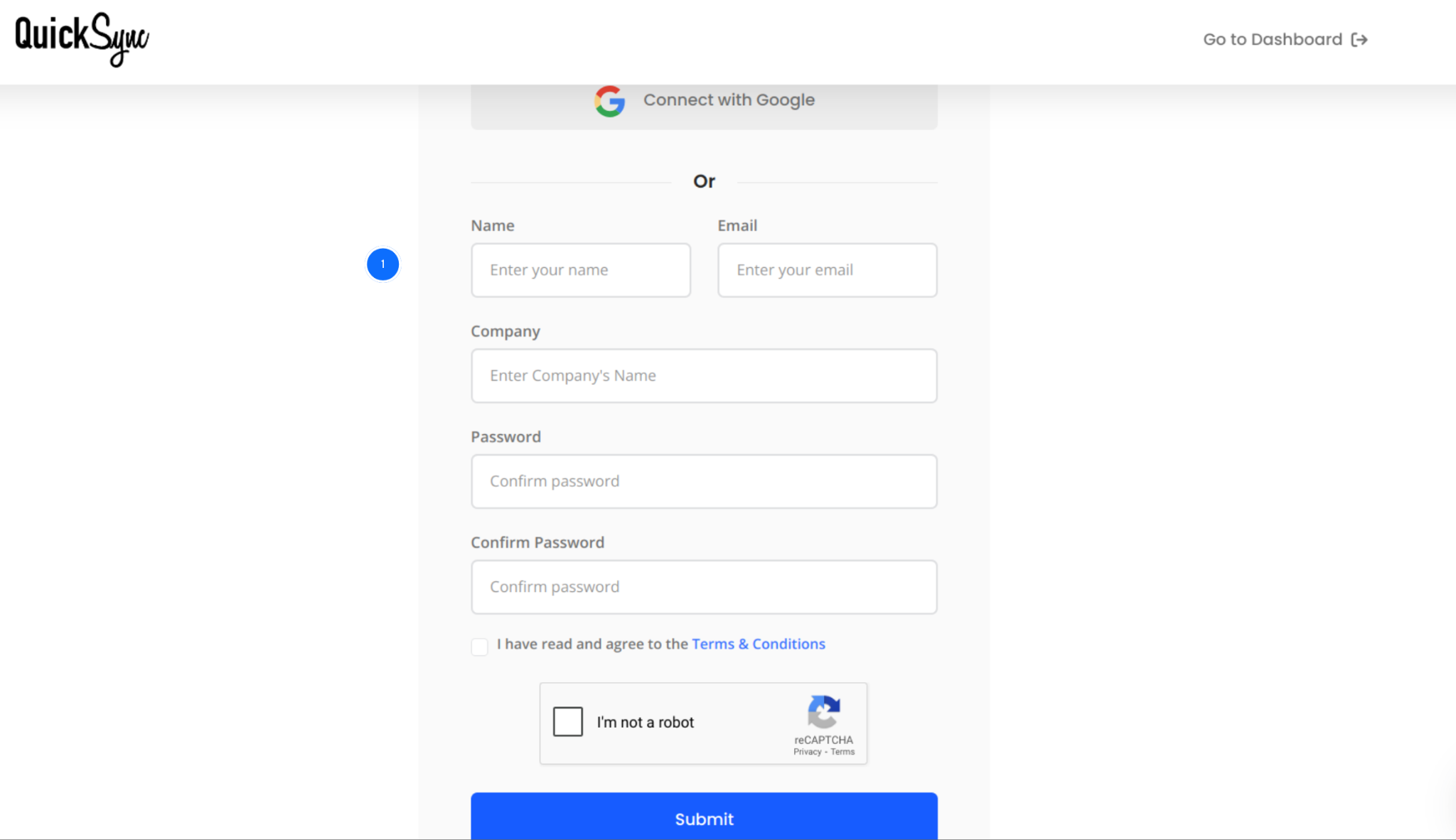
- Visit quicksync.pro and sign up.
- Create your QuickSync account by entering your business details.
- Once your account is ready, log in to access the QuickSync dashboard
Step 2: Connect Your First WooCommerce Store
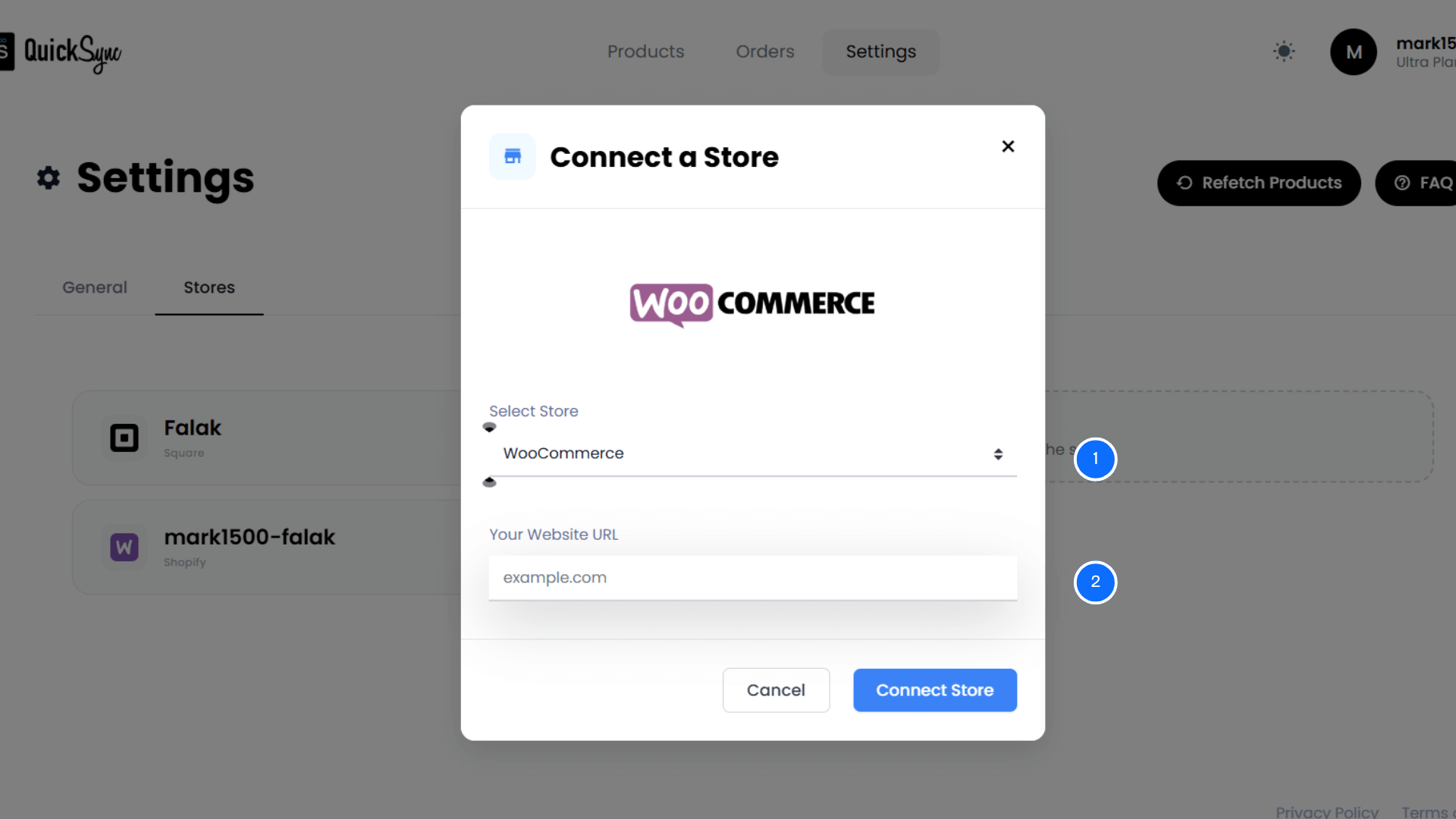
- From your QuickSync dashboard, click Connect Store and select WooCommerce.
- Enter the required store details, authorize the permissions, and complete the setup.
- Your primary WooCommerce store will now be connected and ready for synchronization.
Step 3: Connect Your Second WooCommerce Store
- Repeat the same process to connect your second WooCommerce store.
- From your QuickSync dashboard, click Connect Store and select WooCommerce.
- Enter the required store details, authorize the permissions, and complete the setup.
Step 4: Configure Sync Settings and Start Syncing
Once you have connected all the WooCommerce stores, you can configure sync settings from the QuickSync dashboard. You can toggle between inventory sync, product sync, and order sync, or all.
- Inventory Sync: Turn on Inventory Sync to automatically synchronize inventory across all connected WooCommerce stores. Every sale, refund, or stock adjustment updates inventory in real time.
- Product Sync: Choose your primary WooCommerce store as your main catalog. Changes to titles, descriptions, prices, images, SKUs, and variants automatically sync to every store.
- Orders Sync: Enable Order Sync to bring orders from all connected WooCommerce stores into one centralized dashboard. Process, track, and fulfill customer orders from one place.
Once you’ve selected your preferred synchronization options, click Start Syncing. QuickSync will immediately begin keeping your connected WooCommerce stores synchronized automatically.
Expert Tips to Manage Multiple WooCommerce Stores
Managing multiple WooCommerce stores becomes much easier with automation. Following a few best practices makes daily operations even smoother. These tips will help you run multiple WooCommerce stores without any hassle.
Use Unique SKUs Across Every Store
Every product should have a unique SKU before synchronization begins. Matching SKUs helps QuickSync identify products across connected stores. This prevents duplicate listings and inventory mismatches. It also makes inventory tracking much easier.
Choose One Source of Truth
Choose one WooCommerce store as your primary product catalog. Make product updates in that store whenever possible. One source of truth prevents conflicting information between stores. It also keeps product data consistent across your business.
Review Inventory Regularly
QuickSync automatically syncs inventory across WooCommerce stores. Even so, regular inventory reviews remain important. Routine checks help identify damaged products, warehouse issues, and unexpected stock changes. Fixing these issues early prevents customer order problems and improves inventory visibility.
Monitor Sync Activity
Check your synchronization dashboard regularly. Confirm that inventory, products, and orders are updating successfully. Reviewing sync activity helps you spot problems early. Small issues are much easier to fix before customers notice them.
Keep Your WooCommerce Store Updated
Always use the latest supported versions of WordPress, WooCommerce, and installed plugins. Keeping your WooCommerce installation updated improves compatibility. It also enhances security and ensures synchronization continues working reliably.
Common Mistakes to Avoid When Syncing WooCommerce Stores
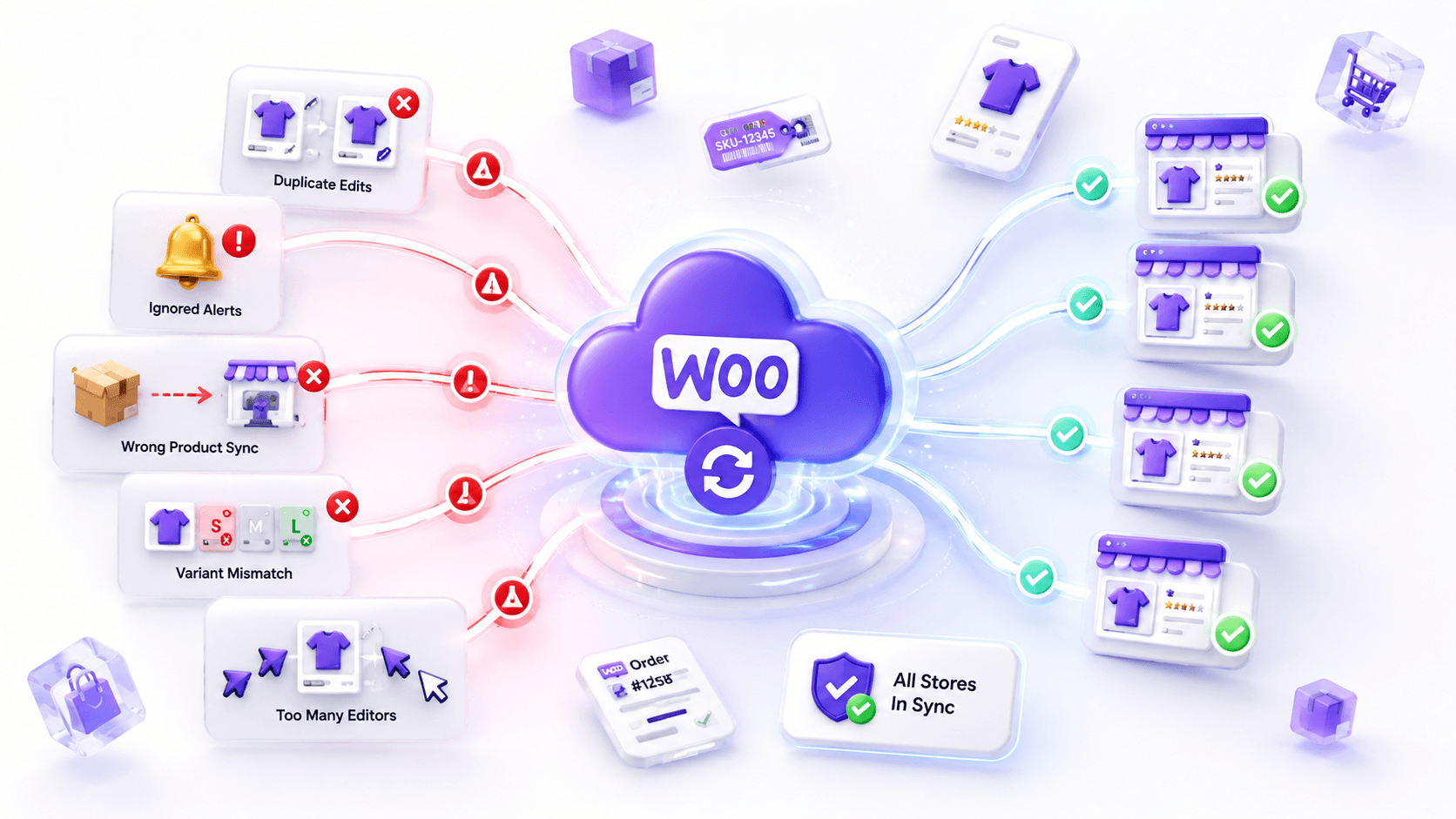
Connecting your WooCommerce stores is only the first step. The way you manage them afterward matters just as much. Avoid these common mistakes to reduce manual work and get the best results from your sync setup.
Updating Products in Every Store
Once your stores are connected, stop editing products separately. Choose one store as your main catalog. Make every product update there. QuickSync automatically updates your other stores. This saves time and keeps listings consistent.
Ignoring Sync Notifications
Don’t assume everything is working perfectly. Check your sync history every few days. Make sure products, inventory, and orders are updating correctly. It only takes a minute. Small checks help prevent bigger problems later.
Syncing Products You Don’t Sell Everywhere
You don’t have to sync every product to every store. If different stores sell different products, use QuickSync’s selective sync option. With this option, you can sync only some products. This keeps your catalogs clean and makes products easier to manage.
Ignoring Product Variants
Make sure every product variant has the correct SKU and inventory. Missing or incorrect variants often cause stock mismatches between stores. Keeping variant information complete helps QuickSync synchronize products accurately.
Giving Multiple Team Members Full Access
Too many people editing products at the same time can create unnecessary mistakes. Assign clear responsibilities to your team. Let one person manage catalog updates whenever possible. This keeps product information accurate and avoids conflicting changes.
Final Thoughts
Managing multiple WooCommerce stores shouldn’t mean spending hours updating inventory. It shouldn’t mean fixing product listings or switching between dashboards. As your business grows, manual processes become harder to manage. They also increase the risk of costly mistakes.
WordPress Multisite and CSV imports work for basic needs. However, they aren’t built for real-time synchronization.
If you need a faster solution, QuickSync is built for the job. It automatically syncs inventory, products, pricing, and orders.
You only need to make changes once. No coding. No spreadsheets. No repetitive updates. Just accurate data, smoother operations, and more time to grow. Whether you manage two stores or twenty, QuickSync scales with your business.
Start 14-day trial, no credit card. See how easy multi-store management can be.