
Are you planning to migrate your existing WooCommerce store to Shopify? If you are, you might face issues while importing products, and most merchants don’t realize it until it’s too late.
Importing products from WooCommerce to Shopify sounds simple. Export, upload, done. But the reality is messier. Your product names, images, sizes, and inventory work one way in WooCommerce. Shopify uses a different system entirely.
When you try the simple approach, export from WooCommerce, import into Shopify, things fall apart. Images break. Product variants don’t match up. Inventory numbers get confused. Your imported data becomes inconsistent.
Basic CSV uploads fail because they can’t handle these differences. Manual work is slow and error-prone. You need a solution designed specifically for this problem.
This is exactly why product sync tools exist. They understand both platforms and sync your WooCommerce product data correctly with Shopify rules.
According to Baymard Institute, 50% of ecommerce sites fail to show the right product listing information, which can make shoppers dismiss relevant products or abandon the site entirely.
Read this blog to know exactly how to import products from WooCommerce to Shopify. This guide covers exactly what you need to do to migrate your WooCommerce products to your Shopify store without losing data or creating duplicate listings.
What Product Data Can Be Imported Between WooCommerce and Shopify
First, let’s understand whether you can import products from WooCommerce to Shopify or not, and what product details are exactly important. To answer your question, yes, you can import products from WooCommerce to Shopify. However, there are certain limitations.
WooCommerce allows you to export product data directly from your WordPress admin as a CSV file, including details such as product titles, descriptions, prices, categories, and variants.
Shopify also provides a built-in import feature inside the Shopify admin. You can upload a properly formatted import file (CSV) and import products into your Shopify store without needing coding or technical setup.
Here is the type of product data merchants commonly import between WooCommerce and Shopify:
Product titles
Product descriptions
Product images
Product prices
SKUs
Inventory quantities
Product categories
Tags
Variants such as size, color, and material
Product status and visibility
However, both platforms only handle the basic data transfer. They do not automatically adjust product structure, fix variant mapping, or ensure data consistency between systems. That means after import, you still need to review your product catalog carefully to make sure everything is correctly organized and working as expected.
That’s why you need proper Shopify WooCommerce integration tools to import products from one store to another.
Why Merchants Move Products Between WooCommerce and Shopify
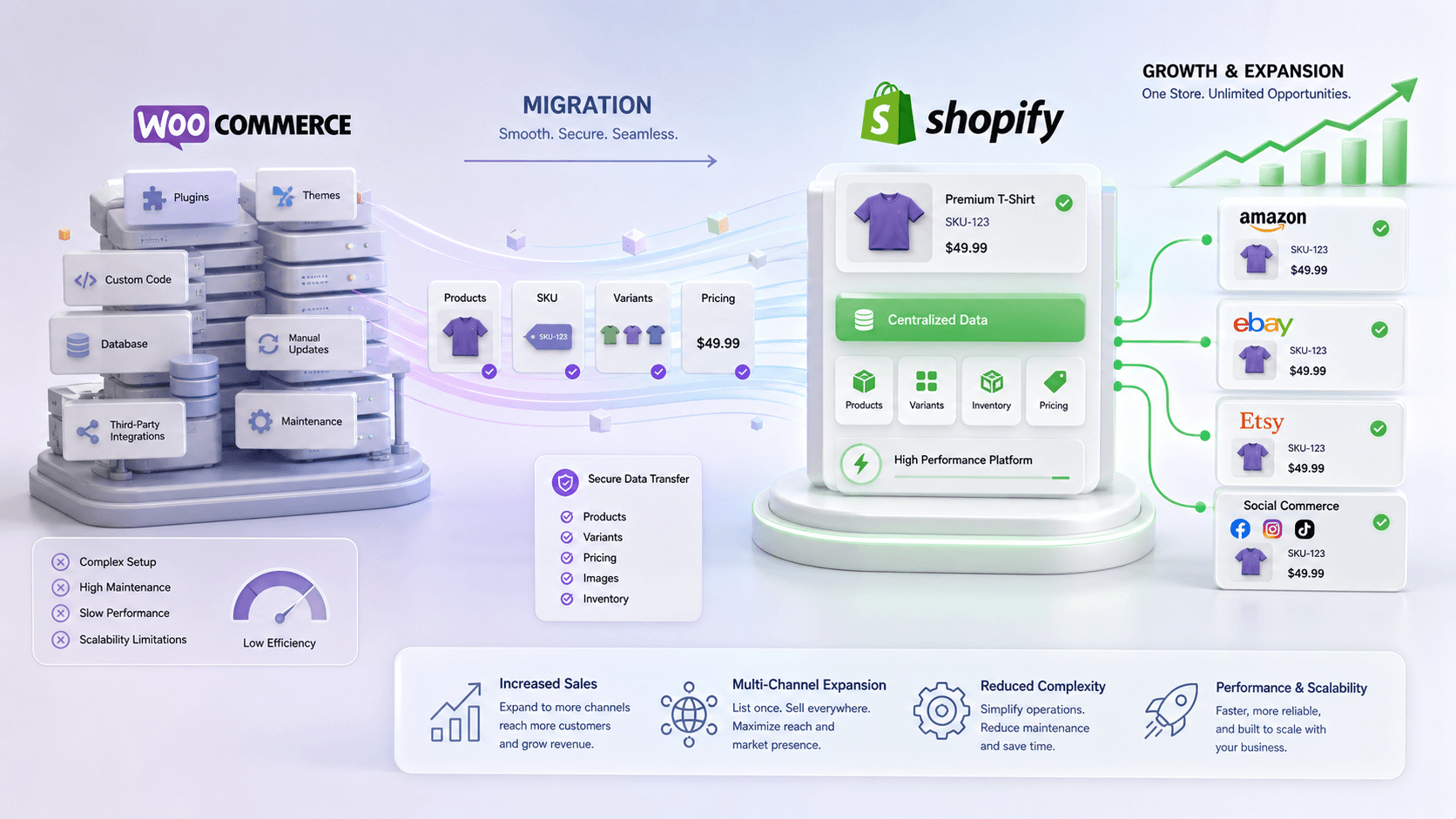
Moving products between WooCommerce and Shopify is not just a platform change. It affects how your store manages products, inventory, checkout, payments, customer records, and future sales channels.
Here’s why many merchants import products from WooCommerce to Shopify.
Increase Sales Opportunities
Importing products from WooCommerce to Shopify helps you access a stronger ecommerce ecosystem. Shopify supports multiple sales channels, faster checkout, and better integrations, including Shopify Payments. This allows merchants to reach more customers and improve conversions. It also increases overall sales across their online store operations.
Expand to More Sales Channels
Shopify makes it easier to sell across platforms like Amazon, eBay, Etsy, and social commerce channels. Moving WooCommerce products to Shopify allows merchants to expand into multiple marketplaces without rebuilding listings. It helps them grow visibility and capture demand from different customer segments.
Reduce Operational Costs
Managing a WooCommerce store often involves hosting, plugins, maintenance, and developer support. Shopify reduces these technical dependencies. Importing products to Shopify helps merchants lower operational costs by simplifying store management. This reduces backend issues and minimizes ongoing maintenance expenses.
Improve Store Performance and Scalability
Shopify offers better performance, faster loading speeds, and scalable infrastructure. Importing products from WooCommerce to Shopify helps merchants move to a platform built for growth. This allows them to handle higher traffic, manage larger catalogs, and scale operations without technical limitations.
Centralize Product Data Across Platforms
Importing products helps create a structured product catalog that can be used across multiple platforms. Instead of managing product data separately, merchants can maintain consistency in titles, variants, SKUs, and pricing. This also reduces confusion. It keeps product updates consistent across all connected sales channels.
How WooCommerce and Shopify Handle Product Data Differently
Before you import products, you need to understand this clearly. WooCommerce and Shopify do not store product data in the same way.
WooCommerce works inside WordPress. It uses products, categories, tags, attributes, variations, custom fields, plugins, and media files from your WordPress admin. Shopify uses products, variants, collections, media, inventory locations, and metafields inside the Shopify admin.
That difference matters during migration.
Here’s what usually changes:
WooCommerce categories may become Shopify collections or category links.
WooCommerce attributes may need Shopify variant options.
WooCommerce product images may need valid image URLs or actual files hosted on Shopify.
WooCommerce product descriptions may carry HTML formatting.
WooCommerce variation data must map correctly to Shopify variants.
WooCommerce stock must sync to Shopify inventory.
WooCommerce order data and customer records need separate handling.
Here’s what most store owners miss.
Importing product data is not only about uploading a CSV file. It is about making sure the imported data products behave correctly inside the new Shopify store. That’s why merchants need a proper product sync software to import Shopify product data to WooCommerce.
Common Problems When Importing WooCommerce Products to Shopify
Product import issues usually happen because WooCommerce and Shopify treat product data differently. A product may look simple on the surface, but its images, variants, categories, tags, and inventory can break during migration.
Here are the common issues merchants should avoid.
Duplicate Products and SKU Conflicts
You import 500 products from WooCommerce. Then you realize SKUs don’t match. Or worse, you import the same product twice because your data cleanup wasn’t thorough. Now you have 1,000 listings in Shopify.
Your customers see duplicates. Your inventory is split across phantom products. This doesn’t get fixed automatically. You’re manually deleting products for days.
Missing or Broken Product Images
WooCommerce stores images one way. Shopify hosts them differently. When you export images from your WordPress admin, they often don’t transfer correctly. URLs break. AVIF files don’t render in Shopify. Image alt text gets stripped.
Your product listings look broken. Google can’t read the images for image search. You lose visibility and trust with customers who see “image not found” placeholders.
Variant Mapping Failures (Simple vs. Variable Products)
This is the hidden killer. WooCommerce has “variable products” with attributes. Shopify calls them “variants.” They’re similar, but not identical. If your data mapping doesn’t account for this, you end up with hundreds of “simple products” when they should be variants of one master product.
Your customers can’t filter by color or size. Your inventory counts are inflated. Your storefront is messy.
Data Loss in Custom Fields and Product Descriptions
WooCommerce lets you create custom fields. Shopify doesn’t import these. HTML formatting in descriptions sometimes breaks. Rich text becomes plain text. Embedded videos disappear. Your detailed product information gets messed up.
The product details that drive conversions get disturbed or mangled during the import. You’re left with skeleton product listings that need rebuilding.
Inventory Mismatches Between Platforms
The worst scenario: you import products into Shopify, but your WooCommerce store is still live. A customer buys in WooCommerce. Your Shopify inventory doesn’t update, or vice versa.
Now you have oversold products, backorder problems, and unhappy customers. Without real-time syncing, your two stores work against each other instead of together.
Different Methods to Import Products from WooCommerce to Shopify
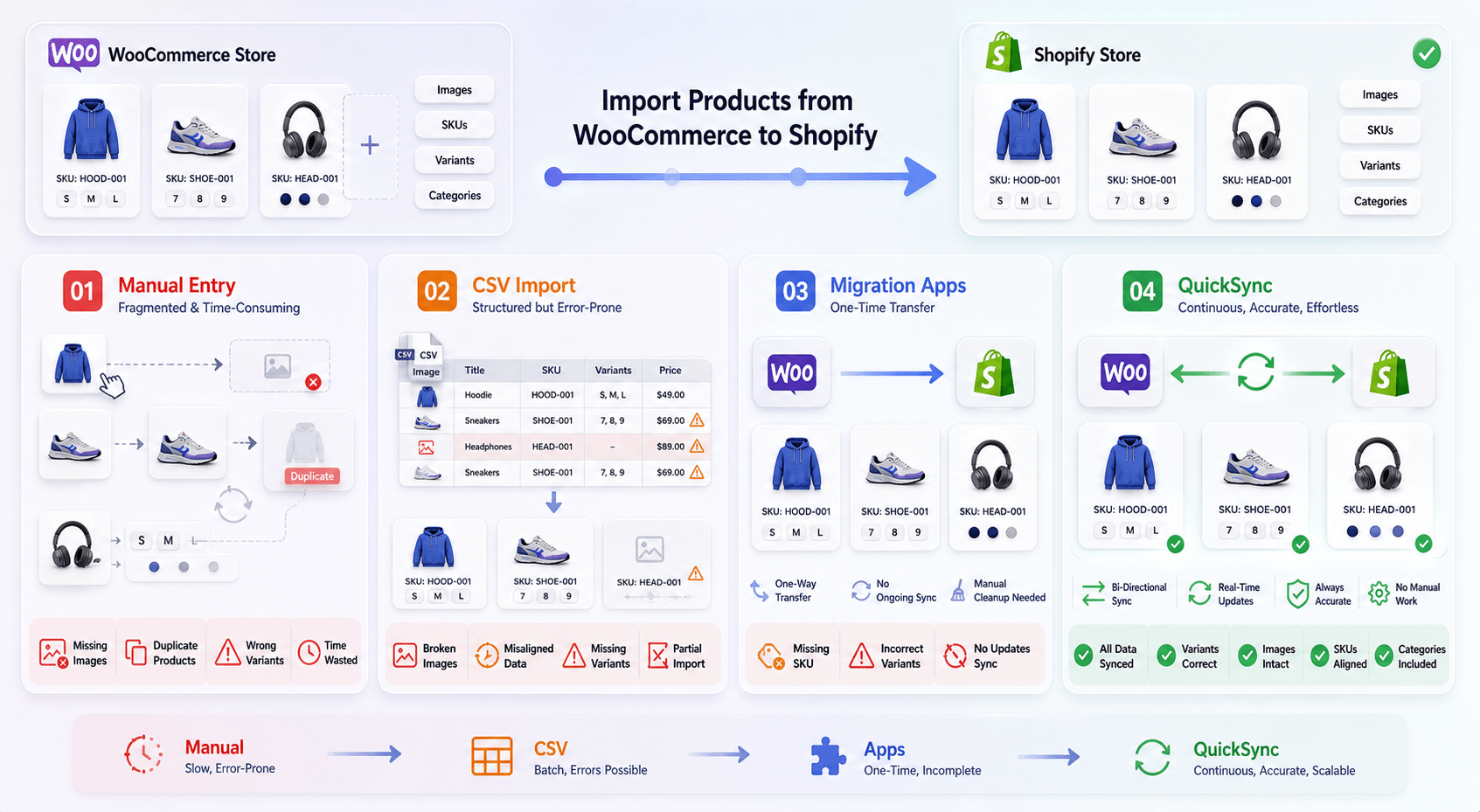
There are several ways to import WooCommerce products to Shopify. Some methods are simple. Some methods are safer. Some work only for small stores.
Let’s break down each method to connect Shopify to WooCommerce for the product import file:
Method 1: Manual Product Entry
Manual product entry means copying product data from WooCommerce and recreating products inside the Shopify admin. This includes titles, descriptions, images, prices, variants, SKUs, categories, and inventory values.
This method gives control, but it is slow.
It works only for very small catalogs with limited products.
For growing stores, it quickly becomes difficult to manage.
Manual entry often leads to errors like duplicate listings, missing images, incorrect variant mapping, and inconsistent product WooCommerce data.
It also increases the chances of skipping important details like SKUs or pricing.
Managing updates later becomes even harder. Every product change has to be done manually again, which adds more time and effort.
In the long run, manual product entry is not scalable and creates more operational problems than it solves.
Method 2: CSV Import and Export
WooCommerce allows merchants to export products as CSV files, and Shopify allows product imports through CSV. This is one of the most common migration methods.
However, it still requires careful preparation before importing.
CSV files need correct formatting.
Shopify requires specific column structures for titles, descriptions, variants, SKUs, and inventory fields. Even small errors in formatting can break the entire import.
Images must have valid and publicly accessible URLs. If image links are incorrect, products may import without images.
Variant data also needs to be structured properly, or products may lose options or pricing details.
There is no real-time validation during import. Errors are often discovered only after the data is uploaded, which leads to additional cleanup work.
In the long run, CSV import is useful for one-time migration but not reliable for accurate, error-free product management.
Method 3: Shopify Migration Apps
Shopify migration apps are designed to help merchants move data from WooCommerce to Shopify. However, most apps focus only on one-time data transfer, not ongoing product management.
This can help with one-time migration.
Product data may still require cleanup after migration. Issues like incorrect variant mapping, missing SKUs, or broken images can still occur.
Many apps also have limitations when handling complex product catalogs with multiple variants, custom fields, or large data volumes.
There is also limited control over how product data is mapped during migration. This can lead to inconsistencies across your Shopify store.
Migration apps help move data quickly, but they do not provide a complete solution for maintaining accurate and consistent product data.
Method 4: QuickSync Product Sync Tool (Most Reliable Method)
QuickSync is built for merchants who need more than a one-time import. QuickSync offers a product sync feature especially built for Shopify and WooCommerce stores. It helps sync product data between WooCommerce and Shopify in a cleaner and more structured way.
QuickSync supports product sync, inventory sync, order sync, SKU mapping, images, variants, and platform-specific product structures.
For WooCommerce and Shopify, QuickSync can help manage:
Simple and Variable Product Mapping: QuickSync keeps product structure clean when syncing between platforms. Single products stay simple. Multi-variant products remain structured with proper variation data. This avoids workarounds and keeps your catalog easier to manage after migration.
Full HTML Description Sync: WooCommerce and Shopify both support rich product descriptions. QuickSync keeps formatted descriptions clean, including tables, embedded images, and layout details. This helps avoid stripped formatting, broken content, or messy product pages after import.
Tag and Category Sync: Tags and categories matter for store organization. QuickSync helps move product tags and categories correctly, keeping filtering, search, and product organization more consistent between WooCommerce and Shopify after the migration process.
Image Sync and Format Handling: Product images often break during manual imports. QuickSync syncs product images and handles problematic formats where needed. This helps reduce broken image links and keeps product pages visually complete after import.
Variant Data and Attribute Sync: QuickSync keeps variant data structured, including size, color, material, pricing, SKUs, weight, dimensions, and tax settings. This prevents flattened products and helps maintain accurate product details across both platforms.
Automatic SKU Mapping and Generation: QuickSync uses SKUs to match products correctly between WooCommerce and Shopify. If products are missing SKUs, the system can help assign them. This ensures accurate product identification. QuickSync makes Shopify WooCommerce inventory management convenient.
Weight, Dimensions, and Shipping Data Sync: QuickSync transfers product weight and dimensions for each variant. This ensures shipping calculations remain accurate after migration. Proper data sync helps avoid issues with shipping rates, fulfillment, and processes.
This makes QuickSync a stronger option for merchants who want accurate product movement and ongoing sync.
How QuickSync Simplifies WooCommerce Shopify Product Sync in Real Time
Compared to other Shopify WooCommerce integration options, such as manual uploads, CSV files, and basic migration apps, QuickSync offers a more reliable way to import products from WooCommerce to Shopify. It is designed for accurate product sync, not just one-time data migration.
QuickSync helps keep product data clean across both platforms. It supports simple and variable product mapping, full HTML description sync, category sync, tag sync, image handling, SKU mapping, product visibility mapping, inventory sync, and order sync.
Here’s how to get started.
Step 1: Create Your QuickSync Account
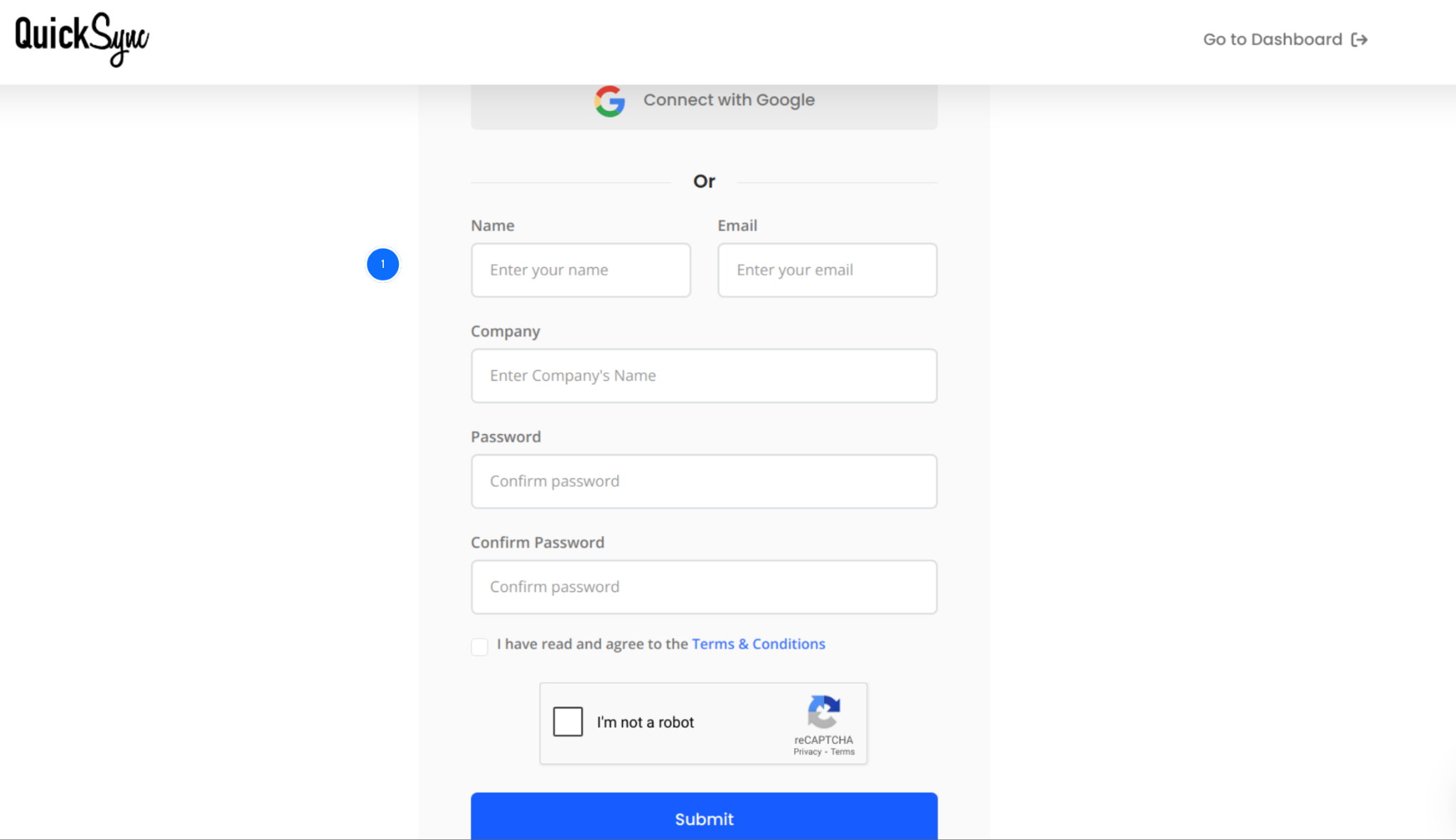
Go to quicksync.pro and sign up with your email and business details.
If you already have an account, log in and open your dashboard.
This is where you manage connected stores, product sync settings, inventory sync, and order flows.
Step 2: Connect Your Shopify Store
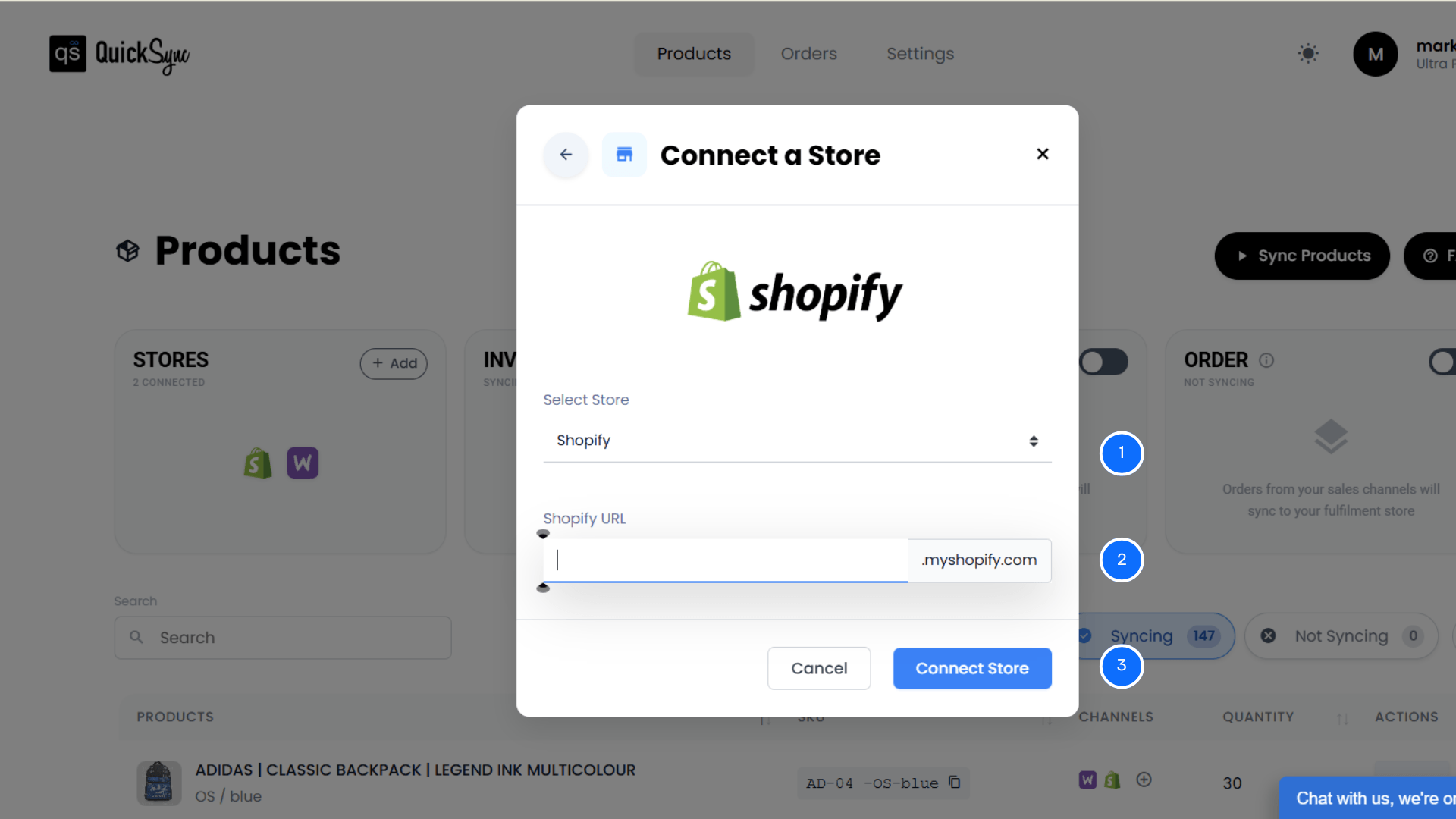
From the QuickSync dashboard, go to Sync Products → Add Store.
Enter your Shopify store URL, such as yourstore.myshopify.com.
Log in to your Shopify admin and approve permissions for products, images, inventory, and orders.
QuickSync then imports your Shopify store details, locations, and product catalog.
Step 3: Connect Your WooCommerce Store
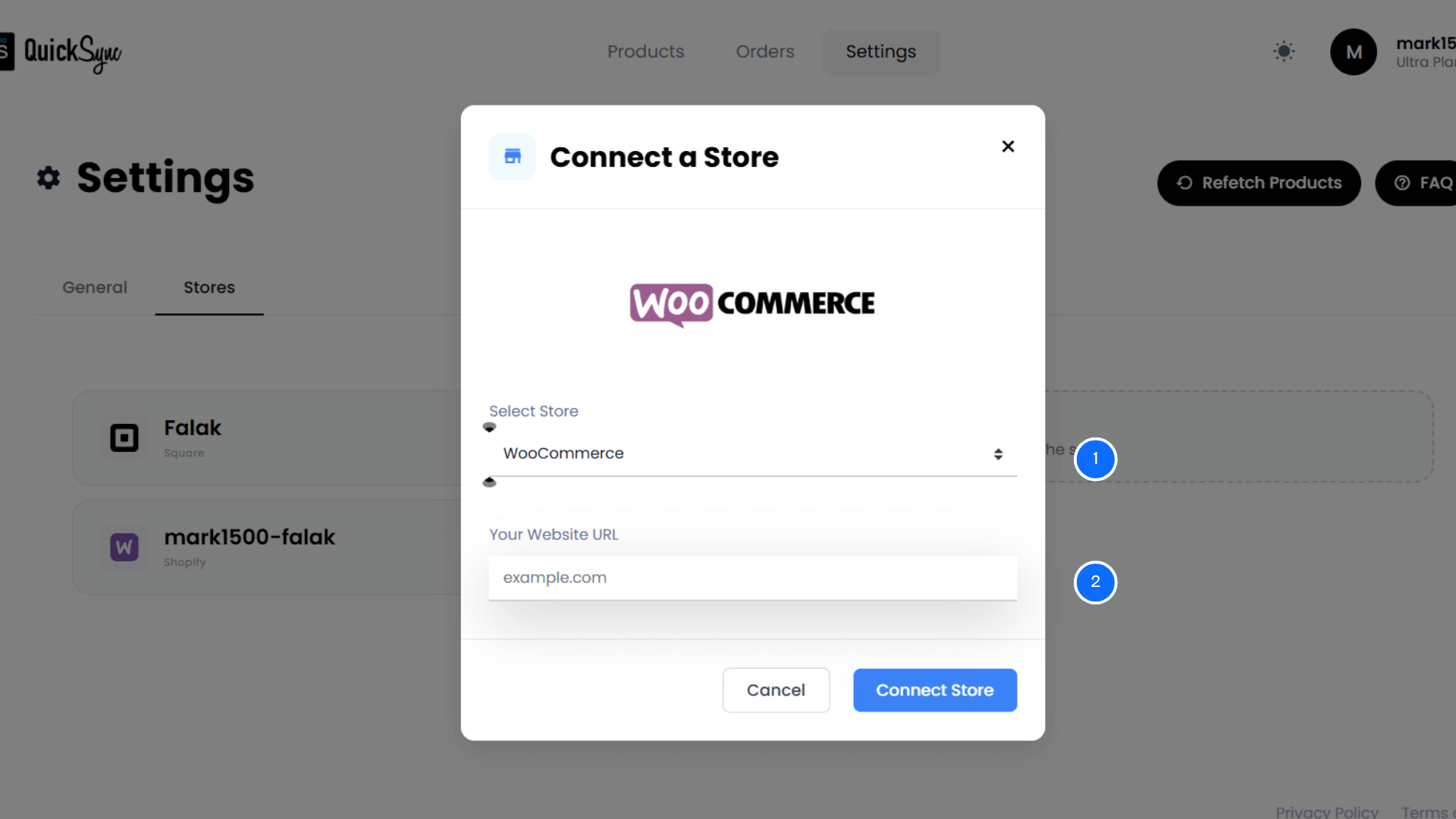
Similarly, from the QuickSync dashboard, go to Sync Products → Add Store.
Select WooCommerce from the platform list.
Enter your WooCommerce store details, domain, consumer key, and consumer secret.
Approve the connection so QuickSync can access product WooCommerce data, inventory, orders, and store information.
QuickSync connects directly to your WooCommerce store without forcing your data through a third-party proxy.
Step 4: Configure Product Sync
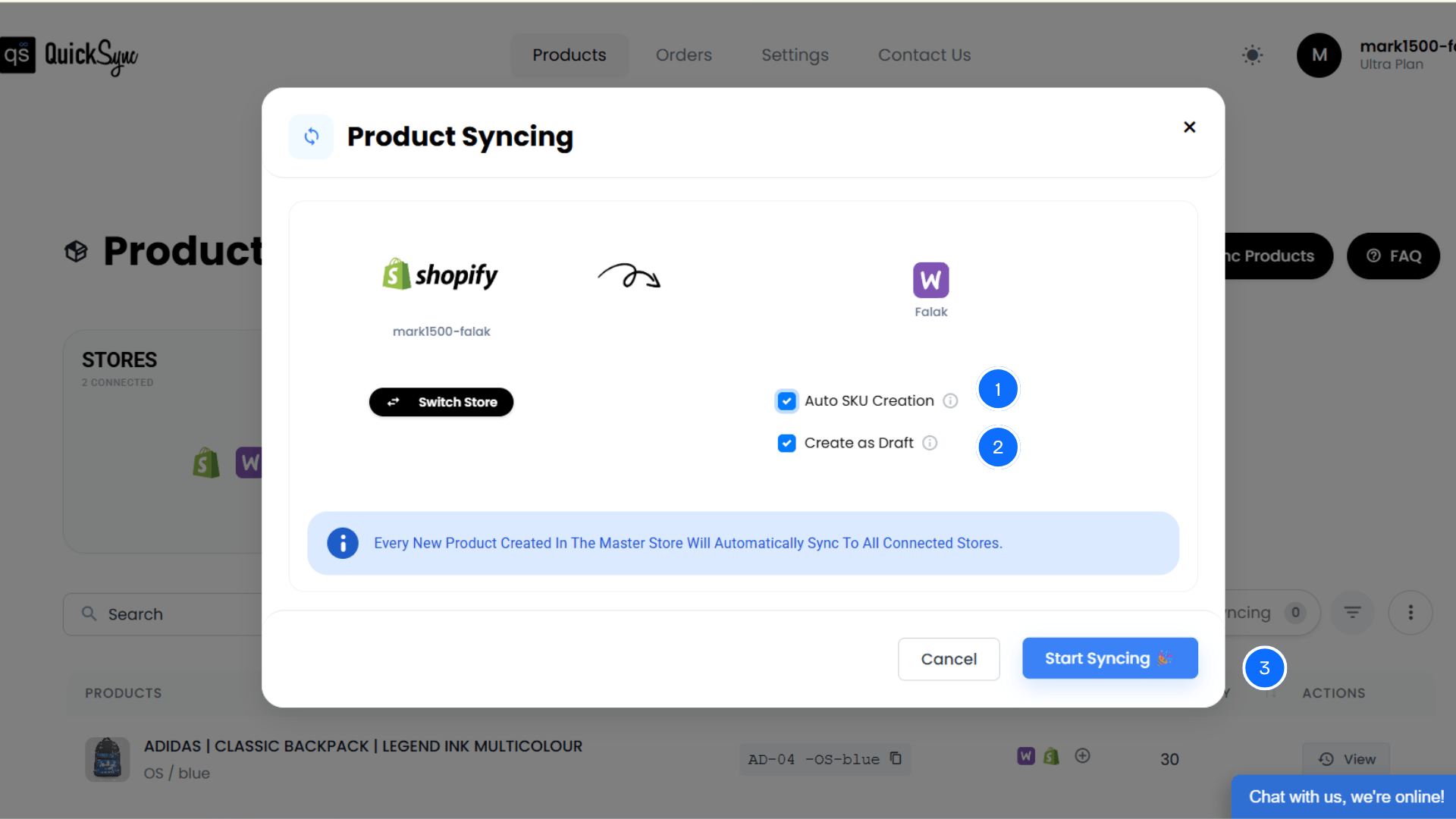
Go back to the QuickSync dashboard and enable Product Sync.
Select your Master Store, which acts as the primary source for all product data updates. You can choose Shopify or WooCommerce as the master store. Any changes in the product details made in the master store will automatically be reflected in the connected store.
If any products are missing SKUs, you can enable the “Create SKU” option. QuickSync will automatically generate and assign SKUs to ensure accurate product mapping between Shopify and WooCommerce.
You can also enable “Create Draft” to keep selected products in draft mode, allowing you to review and edit them before publishing.
Finally, start the product sync. QuickSync will automatically keep product titles, descriptions, images, categories, tags, SKUs, pricing, and variants synced across both WooCommerce and Shopify.
Best Practices to Import WooCommerce Products Without Errors
Importing products is one part of the process. Keeping your catalog clean after import matters more. Follow these best practices before and after moving products from WooCommerce to Shopify.
Assign SKUs Before You Start Migrating
Every product needs a unique SKU before you import. Go through your WooCommerce store and assign SKUs to every product. Use a consistent format. Include your product category in the SKU if possible (e.g., SHIRT-001, SHOE-042). This helps catch duplicates at a glance.
Verify Images and Alt Text During Import
Images are your first impression. Broken images kill trust and conversions. Before and after import, check that all images display correctly. Make sure alt text is there. This helps with SEO and accessibility. If images are broken after import. Fix the root cause so it doesn’t happen again.
Keep Your Original WooCommerce Data as Backup
Never delete your WooCommerce store immediately after migration. Keep it live for 30 days as backup. If something goes wrong during import, you can reference the original data. After 30 days of successful Shopify operation, you can safely archive or shut down WooCommerce.
Ensure Pricing and Compare-at Prices Are Accurate
Before importing, review product pricing and compare-at prices carefully. Make sure each variant has the correct price set. Incorrect pricing can affect profit margins. Clean pricing data ensures Shopify displays accurate discounts and avoids confusion for customers.
Clean Duplicate or Unused Product Data
Before starting the import, remove duplicate products and unused data from your WooCommerce store. Extra or outdated entries can create confusion after migration. Keeping only relevant product data helps maintain a clean catalog.
Conclusion
Importing products from WooCommerce to Shopify is not only about moving data. It is about building a cleaner product system for your next stage of growth.
Manual uploads and CSV files may work for small catalogs. But they often create broken images, duplicate listings, SKU problems, and data gaps.
QuickSync gives merchants a better way.
QuickSync helps import WooCommerce products to Shopify while keeping product data, variants, images, categories, tags, inventory, and orders synced. Instead of fixing product errors after migration, you can manage product sync from one connected dashboard.
If you want a cleaner migration and a stronger product workflow, QuickSync is built for that.


