On this page
- Issues Retailer Faces When WooCommerce Inventory is Not in Sync
- Benefits of Keeping Inventory Sync for WooCommerce Stores
- Does WooCommerce Have an Inventory Management System?
- What to Look for in a Good WooCommerce Inventory Sync Tool
- How QuickSync Makes Inventory Sync for WooCommerce Easy?
- How to Sync WooCommerce Inventory With QuickSync
- Tips to Keep Your WooCommerce Inventory Flowing Smoothly
- Thinking About the Next Step for Managing WooCommerce Inventory
Inventory management among multiple WooCommerce stores or even a WooCommerce store and a physical POS like Square is a nightmare for retailers. You update stock in one store, then log in again on another store’s dashboard to revise stock levels. This is not only time-consuming but prone to many errors.
That’s where WooCommerce inventory sync tools come in. These tools automatically update your stock levels across every connected channel in real time. Dive into this blog to know how to keep WooCommerce inventory sync, the best WooCommerce inventory integration tools, and more.
Issues Retailer Faces When WooCommerce Inventory is Not in Sync
Let’s be honest, without WooCommerce inventory syncing, many mistakes can happen, such as:
- An item sells out on one WooCommerce site but shows as available on another.
- You accidentally oversell something you don’t have.
- Or worse—you spend hours updating product listings manually instead of focusing on growth.
Benefits of Keeping Inventory Sync for WooCommerce Stores
When your product inventory syncs for WooCommerce stores automatically, life gets a lot easier. Here’s how:
- No more double-selling – Inventory updates instantly, so what’s sold in one place is reflected everywhere.
- Time back in your day – Skip the spreadsheets and manual updates.
- Confidence to expand – Add new sales channels or multiple platforms without adding complexity.
- Happy customers – Accurate stock status means fewer order issues and faster fulfillment.
It’s one of those behind-the-scenes upgrades that can make a huge difference and is a true game-changer for store owners.
Does WooCommerce Have an Inventory Management System?
Yes, WooCommerce does come with a built-in stock management system that helps you keep basic control over your products. You can set stock quantities for each item or variation, and enable low-stock and out-of-stock alerts.
However, WooCommerce’s built-in system has its limits. It only manages inventory for one store at a time. It doesn’t automatically sync stock levels across multiple WooCommerce stores, physical retail outlets, or other platforms like Shopify, Amazon, or eBay.
That’s why to keep inventory sync for WooCommerce stores, you need an excellent third-party tool. A WooCommerce inventory management plugin can prevent these issues by automatically synchronizing inventory levels and product data across all your WooCommerce stores.
What to Look for in a Good WooCommerce Inventory Sync Tool
Before you invest in any WooCommerce inventory management tools, it’s important that you check out some important factors. Not all inventory sync solutions are created equal, and our comparison of ten inventory tools covers where each one stops. Here’s what you should look for:
- Real-time updates – Your inventory syncing tool for WooCommerce should update inventory in real time as soon as changes happen, to ensure accurate stock management across all stores.
- Easy setup – You shouldn’t need a developer or technical know-how to get started with a WooCommerce inventory sync tool.
- Supports Bulk Syncing – If you manage a large catalog, your tool should handle bulk syncing efficiently—without slowing down your site or running into timeout issues.
- Selective and Flexible Sync Options – A good WooCommerce inventory sync plugin should give you full control over what gets synced. You should be able to exclude specific products, categories, or variations, giving you flexibility to manage your multi-store setup efficiently.
- Responsive Support – Choose a tool that provides good customer support services. So, if you get stuck with WooCommerce inventory integration, they are there to assist you in every step.
How QuickSync Makes Inventory Sync for WooCommerce Easy?
QuickSync is the best inventory syncing tool for WooCommerce products that offers all of the above inventory sync features. With QuickSync, retailers can sync the product inventory of multiple WooCommerce stores in real-time.
QuickSync can connect a WooCommerce store with other platforms. You can connect Square to WooCommerce, Shopify to WooCommerce, Amazon to WooCommerce, etc, and automatically sync your stock levels in real time. Apart from the above-listed features, QuickSync also offers:
- Multi-Location Inventory Tracking – QuickSync supports multi-location inventory, making it perfect for businesses with multiple warehouses, retail shops, or fulfillment centers. It tracks stock levels separately for each location and updates them automatically after every sale or adjustment.
- Affordable Plans – QuickSync offers a 14-day free plan with core features for basic needs, and a pro version that includes a premium support team, such as priority email assistance. If you encounter any issues, support or solutions are offered immediately to ensure a smooth experience.
- Order Fulfillment and Tracking – You can set WooCommerce as your order fulfillment destination store, allowing orders from other connected platforms to automatically flow into WooCommerce. This means you can manage, process, and track all WooCommerce orders directly from one place.
- Product Syncing – QuickSync also provides complete product detail syncing, keeping titles, SKUs, attributes, product images, and other basic product information consistent across every connected platform for accurate order processing and tracking.
How to Sync WooCommerce Inventory With QuickSync
QuickSync is an easy-to-use tool. Follow these simple steps to sync WooCommerce inventories.
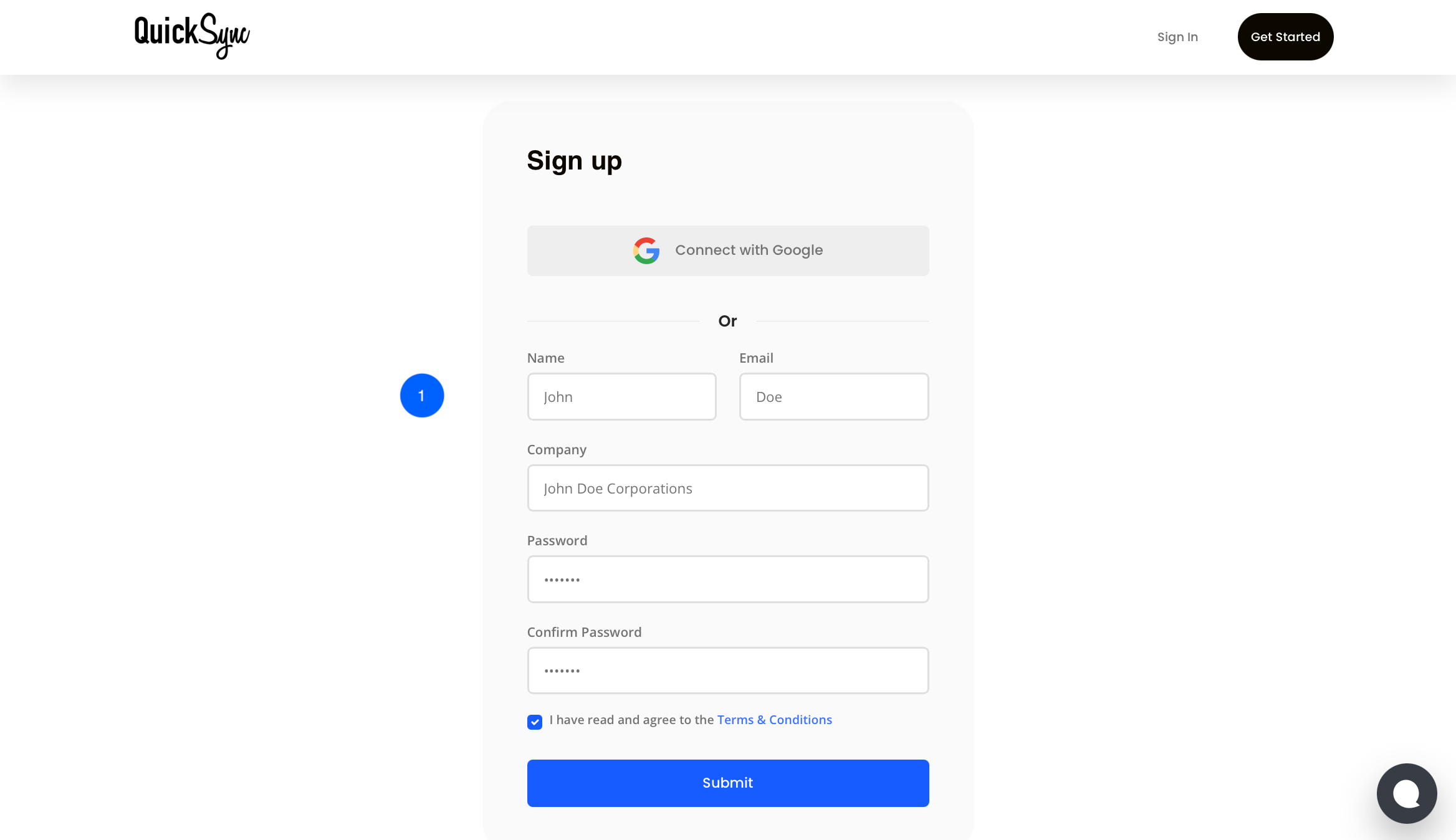
Step 1: Sign Up on QuickSync
- Visit QuickSync.pro and click on sign in.
- Provide details like name, company name, email address, and generate a password.
Step 2: Connect WooCommerce Store
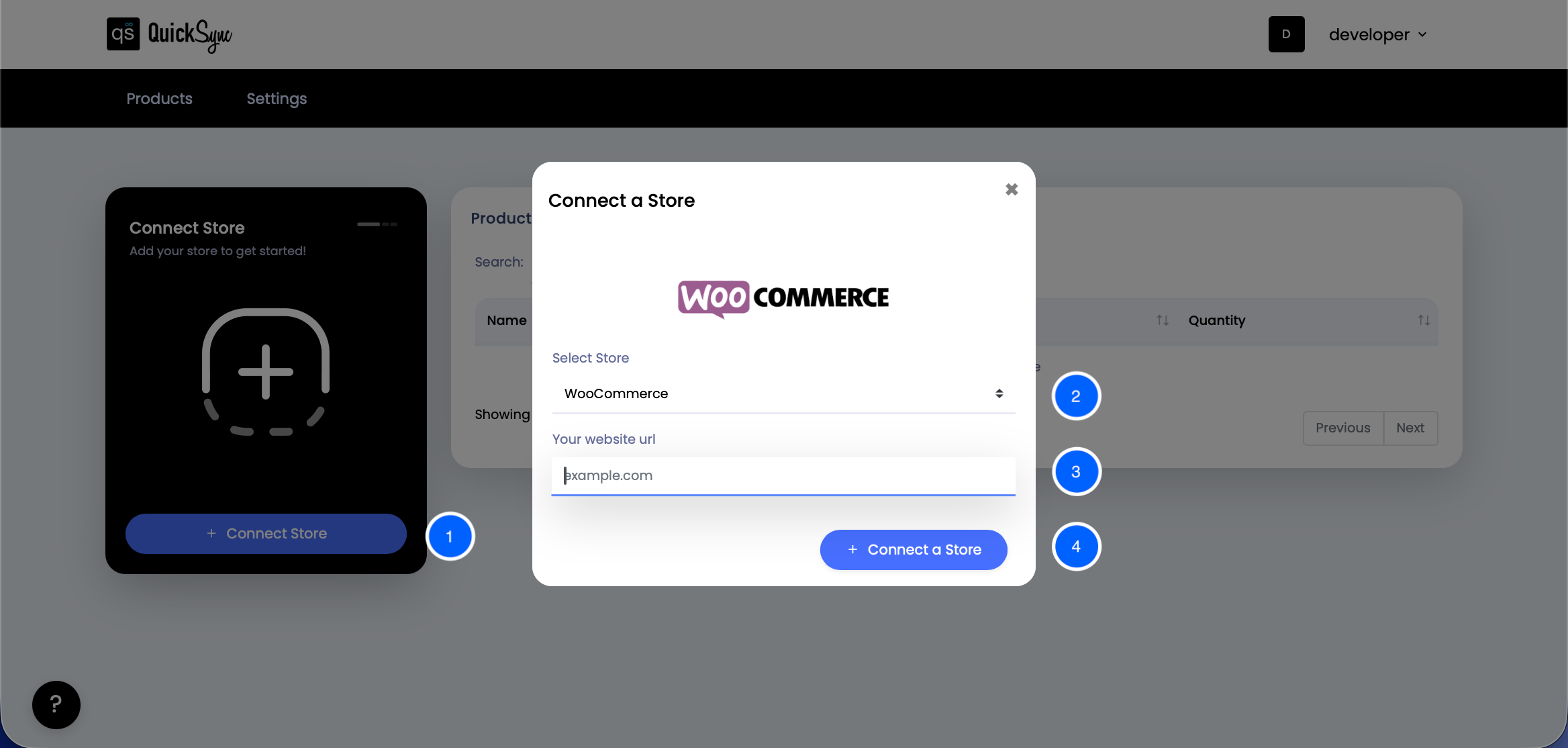
- Once you have signed in with your details, click on the “Connect Store” option.
- Link the initial WooCommerce store.
- Type the website URL.
- Select Connect a store.
Step 3: Connect Other WooCommerce Stores or Other Sales Channels
- If you want to sync inventory between WooCommerce stores, then choose WooCommerce as your second store, follow the same steps as above.
- If you want to sync WooCommerce inventory with other stores, such as Amazon, Etsy, or eBay, then choose that e-commerce store from the options.
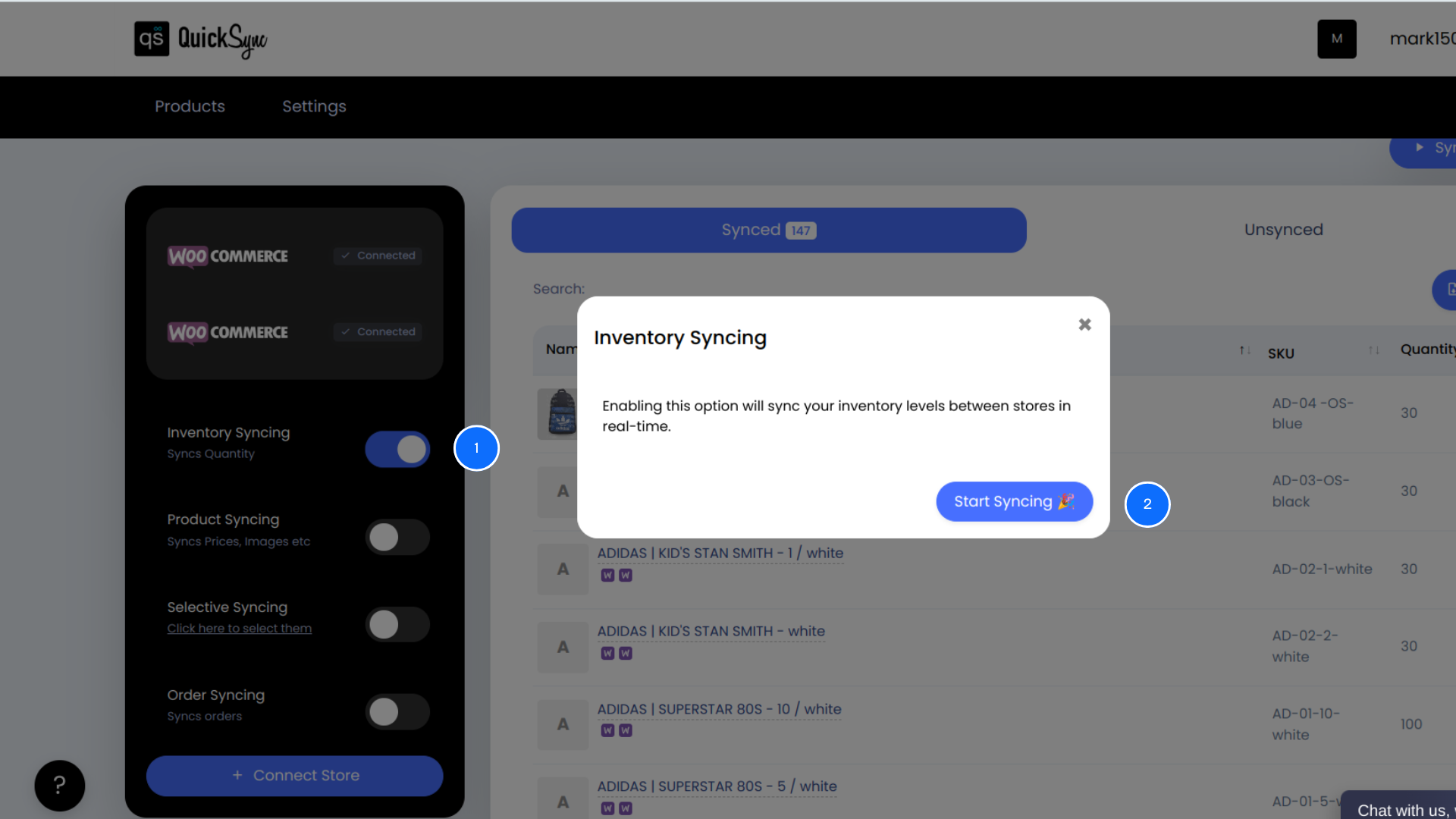
Step 4: Start Inventory Syncing
- Now, to sync inventories between the stores you connect, choose the inventory syncing option provided on the left side of the dashboard.
- Click on start syncing, and your inventory will be automatically synced and kept up to date.
Tips to Keep Your WooCommerce Inventory Flowing Smoothly
To get the most out of syncing your WooCommerce inventory, here are a few friendly tips:
- Back up your stores before the first sync—just in case.
- Test with a few products first to make sure everything looks good.
- Use the dashboard to check sync activity and fix issues fast. The dashboard is designed to make syncing for WooCommerce easy to monitor and manage.
- Update product info in one place and let it cascade automatically.
- Don’t hesitate to contact support—QuickSync’s support team is helpful and fast.
Read More: How to Connect WooCommerce and Square
Thinking About the Next Step for Managing WooCommerce Inventory
If you’ve been juggling inventory across multiple platforms and it’s eating up your time, QuickSync can help you take back control. It’s easy to set up, and it keeps WooCommerce inventory sync automatically. No spreadsheets. No confusion. Just smooth operations and happy customers.
Ready to make your WooCommerce inventory management simpler? Try QuickSync today and stop worrying about inventory updates.