Most eBay sellers have opened their Seller Hub at least once. Many of them click around for a few minutes and then leave without fully understanding what they were looking at. That is not a criticism. The dashboard contains a significant amount of information, and without a clear map of what each section does, it is easy to feel overwhelmed and go back to managing things the way you always have.
The problem is that sellers who do not understand their eBay seller dashboard are missing the early warning signs of performance problems before they become costly. They are also missing the tools that could help them grow sales, price more competitively, and reduce fees. All of that data is sitting in the dashboard, organized and ready to act on. It just needs to be understood first.
This guide covers everything: what the eBay Seller Hub is and what it was built for, how to access it, what every tab does in plain language, how to read your performance metrics, what the confusing terminology actually means, and how to handle eBay inventory when you also sell on other platforms.
TL;DR: eBay Seller Dashboard at a Glance
| → The eBay Seller Hub is a free, all-in-one dashboard that centralizes tools and data analytics to help sellers manage and grow their eBay business from one place. → It includes seven main tabs: Overview, Orders, Listings, Marketing, Performance, Payments, and Research. The Seller Dashboard tracks your selling performance for up to 12 months. → Critical threshold: a transaction defect rate above 2% drops you to Below Standard seller status. → Key financial benefit: Top Rated Seller status earns a 10% discount on final value fees on qualifying listings. → Keep inventory accurate across every channel: If you sell on multiple platforms, real-time inventory syncing can help prevent overselling, cancellations, and performance issues. → Check Seller Hub regularly: Treat it as an early-warning system so you can spot and fix problems before they become costly. |
What Is the eBay Seller Dashboard?
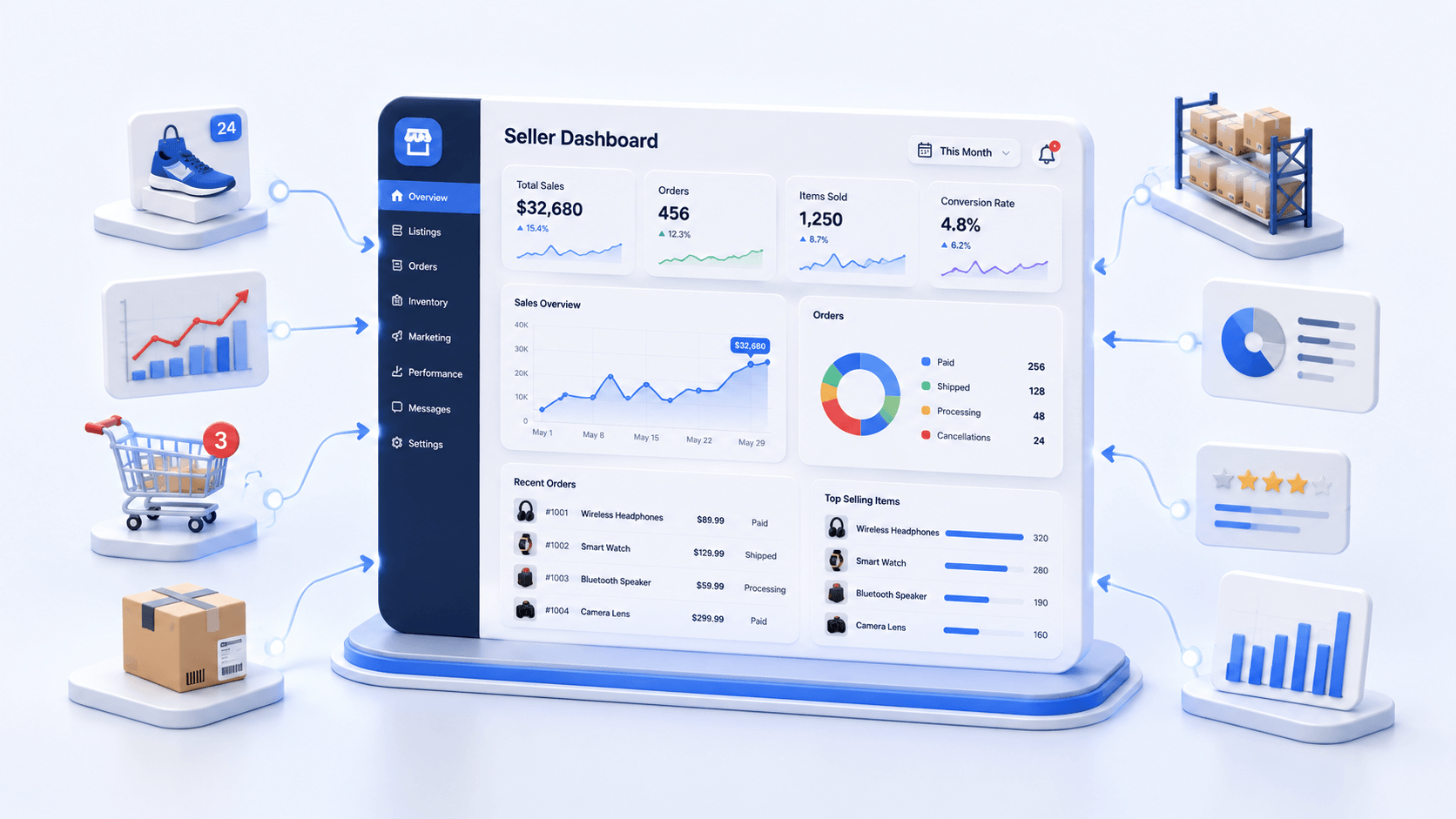
If you have ever searched for your eBay performance data and found yourself bouncing between different pages without knowing where exactly to look, the Seller Hub was built to fix that. It brings everything into one place so sellers do not have to hunt across multiple eBay pages to understand how their business is doing.
The eBay Seller Dashboard and eBay Seller Hub refer to the same thing. The eBay Seller Hub is a free, all-in-one dashboard that centralizes tools and data analytics to manage and grow an eBay business. It is the command center for every seller on the platform, whether you are selling a handful of items or managing thousands of active listings.
What Can eBay Sellers Do With eBay Seller Hub?
eBay Seller Hub is to help eBay sellers manage their store, track performance, and make better decisions from one central dashboard. Instead of checking different pages for orders, sales data, and account updates, sellers can access everything they need in one place.
The Seller Dashboard does more than show reports. It also helps sellers understand eBay policies, monitor account health, and identify potential issues before they affect their business.
With up to 12 months of performance data available, sellers can analyze long-term trends instead of making decisions based only on short-term changes. This makes it easier to understand what is working and where improvements are needed.
What are the New Changes in eBay Seller Hub in 2026
The eBay Seller Hub has continued to evolve. AI-driven features in the eBay Seller Hub now include messaging assistants and automated feedback tools that reduce the manual work involved in routine seller communications.
These additions make the dashboard more than a reporting tool. For sellers who handle tons of messages, the AI messaging assistant alone can save meaningful time every week.
Now that you know what the eBay Seller Dashboard is and what it is designed to do, the next practical step is getting there.
How to Access the eBay Seller Dashboard Step by Step
Accessing the eBay Seller Hub is simple once you know where to find it. Whether you are opening it for the first time or returning to manage your store, you can reach the dashboard in just a few steps.
Steps to Activate Seller Hub for the First Time
- Sign in to your eBay account
Go to eBay.com and log in using the account you use for selling. - Open My eBay
Click your account name in the top-right corner and select My eBay from the dropdown menu. - Switch to Seller Hub
If you have not enabled Seller Hub yet, look for the Switch to Seller Hub option on the right side of the page and select it to activate the dashboard. - Save the Seller Hub page for quick access
Once Seller Hub is activated, bookmark the page so you can return to your dashboard faster in the future. You can usually access it directly through ebay.com/sh/overview.
How to Access the eBay Seller Hub on Your Mobile
If you manage your eBay selling from a mobile device, the eBay Seller Hub is accessible through the eBay app. Just follow these steps:
- Open the eBay app on your mobile device.
- Tap your account icon to open your account menu.
- Select Seller Hub or Selling from the available options.
Once you enter Seller Hub, you can quickly check important store information, including:
- Sales updates to monitor your recent performance.
- Order details to manage pending and completed orders.
- Account health information to stay aware of your seller status.
- Key business insights to track how your store is performing.
The mobile version of the dashboard includes the core sections of the full desktop version, though some advanced features and data views are easier to navigate on a desktop browser.
Once you are inside the Seller Hub, the first thing you will see is the Overview tab. That is where we start in the next section.
Understanding eBay Seller Dashboard Tabs and Their Meaning
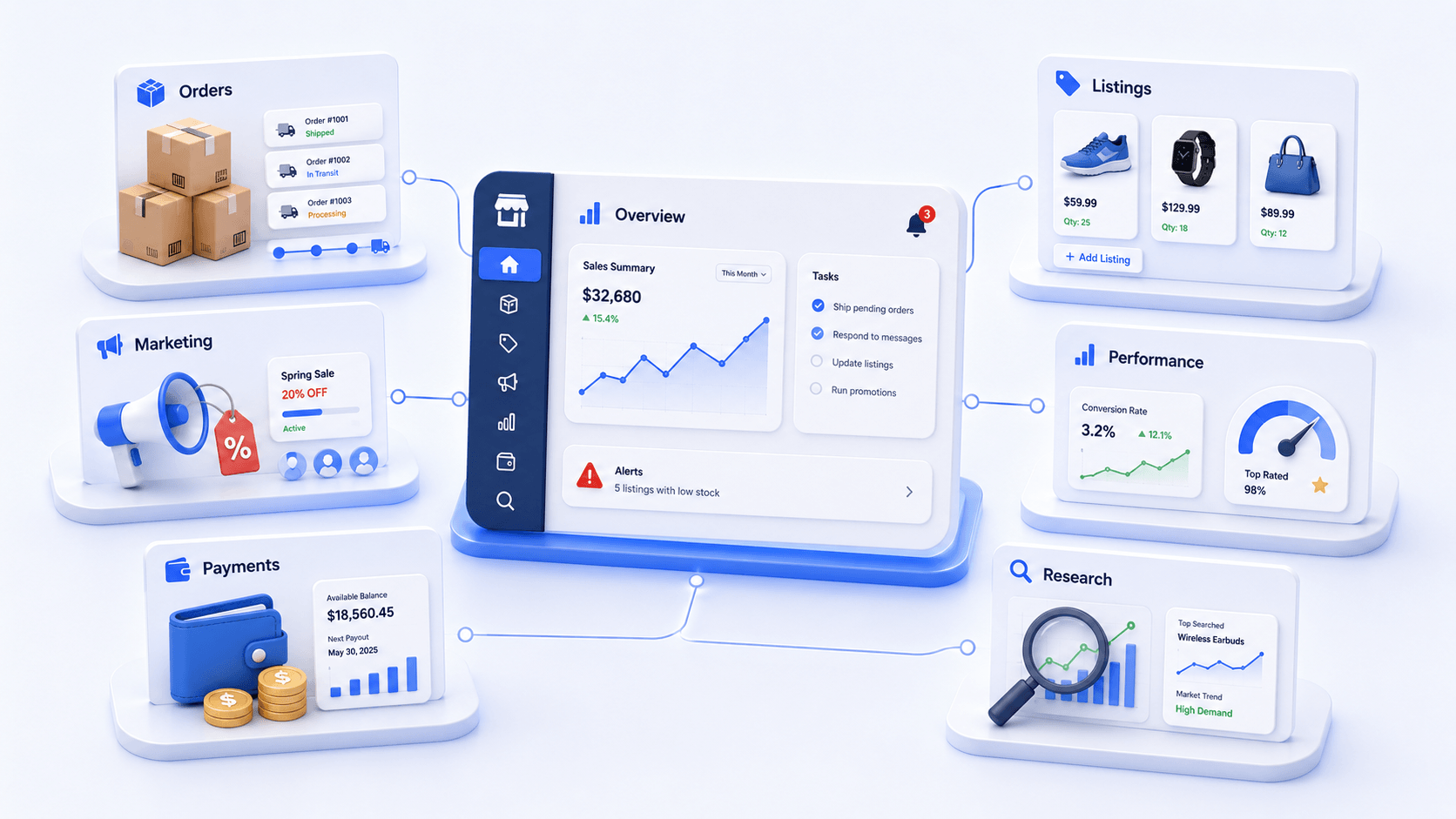
The eBay Seller Hub is divided into seven main tabs, with each section designed for a specific part of managing your store. Knowing the purpose of each tab helps you find important information faster and use the dashboard more effectively.
Let’s look at each Seller Dashboard tab and how it can help you manage your eBay business.
Overview Tab
The Overview tab is the first screen you see when you open eBay Seller Hub. It gives you a quick summary of your store performance, helping you understand what needs attention without checking multiple sections.
Think of it as your daily control center. From one place, you can quickly review:
- Pending tasks such as orders waiting for shipment or actions that need completion.
- Recent sales activity to monitor your store performance.
- Customer feedback updates to stay aware of buyer satisfaction.
- Performance alerts that may require immediate action.
Instead of searching through different areas of Seller Hub, the Overview tab highlights the most important updates first. This makes it easier to identify urgent issues, prioritize daily tasks, and keep your eBay operations running smoothly.
Orders Tab
The Orders tab is the central hub for managing your eBay order fulfillment process. It brings all your orders together in one place, making it easier to track their status and complete important fulfillment tasks.
From the Orders section, you can:
- View order statuses including pending payments, orders waiting for shipment, and completed deliveries.
- Confirm shipments and update order details after dispatch.
- Print shipping labels to speed up your fulfillment workflow.
- Monitor delivery progress and identify potential issues.
- Handle order-related problems directly from the dashboard.
For sellers handling multiple orders every day, the Orders tab becomes one of the most important parts of Seller Hub. It helps keep fulfillment organized, reduces missed tasks, and ensures customers receive their orders on time.
Listings Tabs
The Listings tab is where you manage everything related to your eBay product listings. It gives you a complete view of your active listings, including important details such as product titles, available quantities, pricing, and listing status.
From the Listings section, you can:
- Create and update listings to keep your product information accurate.
- Monitor active listings and review important details in one place.
- Adjust prices and quantities as your inventory changes.
- Use bulk editing tools to update multiple listings at the same time.
Bulk editing is especially useful for sellers managing large catalogs. Instead of opening each listing individually, you can make changes across multiple products at once, whether you need to update prices, adjust stock levels, or end several listings together.
Marketing Tab
The Marketing tab helps sellers improve listing visibility, create promotions, and attract more customers. It brings together eBay’s built-in marketing tools, allowing sellers to promote products and understand buyer behavior from one place.
Inside the Marketing section, sellers can access tools such as:
- Promoted Listings: Increase product visibility by paying for additional exposure in eBay search results.
- eBay Coupons: Create discounts and special offers to encourage purchases.
- Promotions: Set up deals such as markdown sales and other promotional campaigns.
- Email Marketing: Reach buyers who have previously interacted with your store through targeted campaigns.
- Buyer Insights: Analyze customer behavior by tracking new, repeat, and one-time buyers.
The Buyer Insights feature is especially useful for understanding customer patterns. Knowing which buyers return and which only purchase once helps sellers create better marketing strategies, improve customer retention, and focus promotions where they have the most impact.
Performance Tab
The Performance tab is one of the most important sections in eBay Seller Hub for sellers who want to maintain strong account health and improve their overall performance. It provides detailed insights into how your store is performing and highlights areas that may need attention.
Inside the Performance section, you can track important metrics such as:
- Transaction defect rate to monitor order-related issues.
- Late shipment rate to measure how consistently you meet handling times.
- Cases closed without seller resolution to identify customer service problems.
- Conversion rate to understand how effectively your listings turn views into sales.
The Performance tab also helps you identify underperforming listings by analyzing factors like views, impressions, and conversion rates. Instead of making random changes, sellers can use this data to understand what is affecting sales and take targeted actions.
Payments Tab
The Payments tab gives sellers a complete view of their eBay finances, including payouts, expenses, and transaction history.
Inside the Payments section, you can see an overview of your account balance, including money due and money that has been deposited, along with a full record of your payouts.
This is where sellers can understand their actual cash flow from eBay sales, verify that payouts have arrived correctly, and access any financial reports they need for accounting purposes.
Research Tab
The Research tab helps sellers understand market trends, analyze product demand, and make better decisions about sourcing and pricing. It includes access to eBay’s built-in research tools, including the Terapeak product research tool.
With the Research tab, sellers can:
- Analyze historical sales data to understand how similar products perform.
- Review sold prices to set more competitive pricing strategies.
- Check sell-through rates to identify products with strong buyer demand.
- Study seasonal trends and long-term market patterns before making inventory decisions.
Terapeak is especially valuable because it goes beyond basic listing information. It allows sellers to see what products have sold for, how frequently they sell, and how market demand changes over time.
By using these insights, sellers can make more informed decisions about product selection, pricing, and inventory planning.
Now that we have covered all seven Seller Hub tabs, the Performance tab deserves a deeper look. It plays a major role in maintaining your seller status and directly impacts your visibility and growth on eBay.
Understanding Your eBay Seller Performance Metrics
The Performance tab is not just a report card. It is an early warning system. The metrics it tracks are the same ones eBay uses to determine your seller level, your visibility in search results, and whether you qualify for the fee discounts that can meaningfully improve your margins.
The eBay Seller Dashboard provides deeper insights into sales performance, customer service ratings, and compliance with eBay policies. Understanding what each metric actually measures and what the thresholds are is the foundation for protecting and improving your account standing.
Transaction Defect Rate
The Transaction Defect Rate shows how often your orders result in problems for buyers. It is one of the key metrics eBay uses to evaluate your seller performance and determine your account health.
A defect can happen when:
- A buyer reports a problem with an order.
- A case is closed without a successful seller resolution.
- An issue affects the overall buying experience.
Keeping this percentage low is important because it directly impacts your:
- Seller level and account standing.
- Search visibility on eBay.
- Access to seller benefits and fee advantages.
To maintain Top Rated Seller status, sellers should keep their defect rate below 0.5%. If the rate goes above 2%, eBay may classify the account as Below Standard, which can reduce visibility and restrict selling activity.
For example, if you complete 200 orders per month, just four defects can push your rate to the 2% threshold. This small margin is why preventing issues through accurate inventory tracking, reliable fulfillment, and fast customer support is far more effective than trying to fix performance problems later.
Late Shipment Rate
The Late Shipment Rate measures how often orders are shipped after the handling time you promised to buyers. It helps eBay determine how reliably you fulfill orders and maintain a smooth customer experience.
A shipment is considered late when:
- Tracking shows the package was shipped after your stated handling time
- Tracking information is not uploaded within the expected timeframe
Keeping this metric low is important because shipping delays can affect your seller standing and reduce buyer confidence.
Sellers should aim to keep their late shipment rate under 3% to maintain good standing. A late shipment rate above 10% can lead to restrictions on a seller’s shipping options, including limitations on the handling times you are allowed to advertise. The practical impact of shipping restrictions is that your listings become less competitive in search because buyers filter for fast shipping sellers.
Cases Closed Without Seller Resolution
This metric tracks buyer disputes that eBay had to step in and close because the seller did not resolve them directly. Each case closed without seller resolution counts as a defect against your account.
The target is to keep this at 0.3% or below for top-rated status. The important thing to understand about this metric is that it is entirely within the seller’s control. A buyer who contacts you with a complaint allows you to resolve the situation before it becomes an eBay case. Proactive, fast responses to buyer concerns prevent most disputes from escalating to a level where eBay has to intervene.
Sales Overview
The Sales Overview section in eBay Seller Hub gives you a quick snapshot of how your store is performing. It helps you monitor recent sales activity without needing to analyze individual reports.
You can review performance across different time periods, including:
- Last 7 days → Helps you understand immediate sales activity and recent changes
- Last 90 days → Helps identify broader trends and long-term performance patterns
This makes it easier to determine whether a sales drop is part of a bigger trend or simply a short-term fluctuation. Instead of reacting to daily changes, sellers can use this data to make more informed decisions about inventory, pricing, and marketing strategies.
Conversion Rate
The Conversion Rate is one of the most useful metrics for understanding listing performance. It shows the percentage of visitors who complete a purchase after viewing your product.
This metric helps you identify whether your problem is:
- Traffic: Not enough buyers are finding your listings
- Conversion: Buyers are finding your listings but choosing not to purchase
For example:
- A listing with many views but few sales may need better images, competitive pricing, or a stronger description.
- A listing with fewer views may need improved keywords, promotion, or visibility strategies.
The Performance tab makes it easier to find these gaps by showing which products attract attention but fail to convert. This allows you to optimize individual listings instead of making unnecessary changes across your entire store.
| “Top Rated sellers don’t wait for eBay to send a warning. They check the Performance tab regularly, spot declining metrics early, and act before a small issue becomes a bigger problem. Setting personal thresholds below eBay’s limits gives you time to fix the trend before it affects your seller status.” – Marija Bacelic, Inventory Sync & Inventory Management Expert |
Important eBay Seller Dashboard Terms Sellers Should Know
Managing an eBay store means working with different performance metrics, reports, and account indicators. However, these terms can become confusing if you do not know exactly what each one measures.
Understanding these definitions helps you avoid common mistakes, such as fixing the wrong problem or making unnecessary changes to your listings. Below is a simple and quick reference for the terms that sellers most commonly search for and find confusing.
| Term | What It Means | Why It Matters |
| Year-to-Date Total | Your cumulative sales or transaction figures from January 1 of the current year through today | Gives you a full-year performance picture so you can compare how this year is tracking against previous years |
| Transaction Defect Rate | The percentage of your transactions that resulted in a problem such as a buyer complaint or an unresolved case | eBay uses this to determine your seller level. Above 2% pushes you to Below Standard status |
| Cases Closed Without Seller Resolution | Buyer disputes that eBay had to step in and close because the seller did not resolve them directly | Each one counts as a defect. Resolving buyer issues before they escalate prevents this metric from rising |
| Service Metrics | A group of performance measurements covering transaction defects, late shipments, and unresolved cases | Collectively they determine whether you are Top Rated, Above Standard, or Below Standard |
| Evaluation Period | The rolling 12-month window eBay uses to assess your performance metrics | eBay looks at your last 12 months of activity, not just recent transactions, when determining your seller level |
| Seller Level Assessment | The formal review eBay runs monthly to determine whether your status should change based on recent performance | Your seller level directly affects your search visibility and fee rates |
| Conversion Rate | The percentage of listing views that resulted in an actual sale, calculated as Quantity Sold divided by Total Page Views | A low conversion rate means your listings are getting seen but not purchased, pointing to pricing or listing quality issues rather than traffic problems |
| Late Shipment Rate | The percentage of orders where tracking showed shipment after your stated handling time or where no tracking was uploaded | Sellers should aim to keep this under 3%. Above 10% triggers shipping restrictions from eBay |
Your eBay Seller Dashboard numbers are not just performance indicators. They can directly influence your business results.
Once you understand what each metric means, the next step is seeing how keeping them within the right range can give you financial benefits, avoid unnecessary losses, and improve your overall profitability.
How Better Seller Performance Directly Lowers Your eBay Fees
Better seller performance is not just about avoiding penalties. It can also help you save money on eBay fees and improve your profit margins.
eBay charges a final value fee on each sale, but many sellers do not realize that their seller level can affect the fees they pay. Keeping your performance metrics strong can help you qualify for valuable fee benefits and keep more money from each sale.
The Top Rated Seller Fee Discount
Being a Top Rated Seller can also help you save money on eBay fees. Eligible sellers can get a 10% discount on final value fees for qualifying listings.
To qualify, sellers must meet eBay’s Top Rated Seller requirements and offer 30-day returns on eligible listings. Once you qualify, the discount is applied automatically to each qualifying sale.
For example, if your average final value fee is $5 per sale and you make 100 sales each month:
- 10% discount = $0.50 saved per sale
- 100 sales = $50 saved per month
- 12 months = $600 saved per year
For sellers with higher sales volume, the savings can add up quickly. The key point is that you can reduce your eBay fees simply by maintaining strong seller performance and meeting the requirements for Top Rated status.
What Top Rated Seller Status Requires
To qualify as a Top Rated Seller on eBay, you need to meet the following criteria based on your performance over the past 12 months.
- Minimum 100 transactions: you need at least 100 transactions with US buyers in the past year.
- Transaction defect rate: Should be 0.5% or below.
- Cases closed without seller resolution: Should be 0.3% or below.
- Late shipment rate: Should be 3% or below.
- Tracking uploaded on time: 95% or more of transactions must have tracking uploaded within your stated handling time.
Meeting these criteria consistently is what the Performance tab is designed to help you do. The Seller Dashboard allows sellers to view their current status and understand exactly where they stand against each requirement at any time.
Other Financial Benefits of Good Seller Standing
Strong seller performance can benefit your business in more ways than just lower fees. Good seller standing can help you:
- Get better search visibility: Strong performance can help your listings appear more prominently in eBay search results, giving you more exposure without spending extra on ads.
- Access better support: Above Standard and Top Rated sellers may receive priority access to eBay customer support.
- Get new features sooner: eBay may give higher-performing sellers earlier access to new tools, programs, and features.
These benefits can make a real difference as your store grows. If your seller metrics are not where you want them to be, improving them can help you protect your account, increase visibility, and reduce unnecessary costs.
How to Improve Your eBay Seller Performance Metrics
Each metric in the Performance tab tells you something different about your store, so the solution depends on the problem. A high defect rate needs a different fix than late shipments. Likewise, improving your conversion rate requires a different approach.
Here’s what you can do to improve each key eBay seller performance metric.
Reducing Your Transaction Defect Rate
Sellers should regularly review their metrics on the eBay Seller Dashboard to improve their selling performance. The most effective way to reduce your defect rate is to prevent defects from occurring rather than trying to dispute them after they are recorded.
- Respond to buyer messages within 24 hours: Quick responses give you a chance to solve buyer concerns before they turn into formal cases or negative experiences.
- Keep your listings accurate: Make sure your titles, descriptions, images, item specifics, and condition accurately match what the buyer will receive. Clear and accurate listings can help reduce “item not as described” complaints.
- Resolve issues proactively: When a buyer raises a concern, address it quickly instead of waiting for the situation to escalate. A fast and helpful resolution can prevent a simple issue from becoming a formal case.
- Handle return requests quickly: Review and respond to return requests as soon as possible. Clear communication and timely resolutions can help prevent return-related issues from affecting your seller performance.
Reducing Your Late Shipment Rate
Late shipments can quickly hurt your seller performance, especially when they happen repeatedly. The key is to set realistic expectations and build a fulfillment process that helps you ship orders on time.
Here are a few practical ways to reduce your late shipment rate:
- Only list products you have ready to ship: Avoid listing items that you still need to source after receiving an order. Having stock ready makes it easier to meet your handling time.
- Set realistic handling times: Choose a handling time you can consistently meet. A two-day handling time that you meet almost every time is better than promising one-day handling and regularly missing it.
- Upload tracking promptly: Add tracking as soon as you dispatch an order. This helps keep your shipment records updated and gives buyers visibility into their delivery.
- Automate your shipping process: Use Seller Hub shipping settings and automation where possible to reduce manual steps and process orders faster.
Improving Your Conversion Rate
If your listings are getting plenty of views but few sales, the problem may not be visibility. It may be that buyers are seeing your products but not feeling confident enough to buy.
Start by using the Performance tab to find listings with high views but low conversion rates. Then focus on improving those listings first.
Here are some practical ways to increase your conversion rate:
- Check your pricing with Terapeak: Use the Terapeak tool in the Research tab to see what similar products have actually sold for. If your price is significantly higher than comparable sold listings, consider adjusting it.
- Improve your main image: Your main image is often the first thing buyers see in search results. Use a clear, high-quality image that shows the product accurately and makes it easy for buyers to understand what they are getting.
- Use the Offers dashboard: Review your outgoing and pending offers and consider sending offers to interested watchers. A small discount can sometimes turn an interested buyer into a customer.
- Make your descriptions more useful: Answer the questions buyers are likely to have before purchasing. Include important details such as condition, dimensions, compatibility, what’s included, and your return policy.
Using the Marketing Tab to Boost Sales
The Marketing tab gives you several ways to increase visibility and drive more sales on eBay. You can use Promoted Listings, markdown sales, volume discounts, and email campaigns to reach more buyers and encourage purchases.
But if you sell on multiple channels, getting more sales creates another challenge: keeping your inventory accurate everywhere.
Managing eBay Inventory When You Sell on Multiple Channels
The eBay Seller Hub works well when eBay is your only sales channel. It keeps track of your eBay orders, listings, inventory, and performance in one place.
The problem starts when you sell the same products on eBay, Amazon, Shopify, Etsy, or other channels.
For example, a product sells on Shopify, but your eBay listing still shows the old quantity. If another buyer purchases that item on eBay before the inventory is updated, you have an oversell on your hands.
This can lead to:
- Cancelled orders
- Unhappy buyers
- Inventory mismatches
- Negative feedback
- Higher defect rates
The eBay Seller Hub can manage your eBay inventory, but it cannot automatically keep stock synced with sales happening on other platforms. That is where real-time multichannel inventory sync becomes essential.
How QuickSync Protects Your eBay Metrics Across Channels
QuickSync connects eBay with Shopify, Amazon, Etsy, TikTok Shop, WooCommerce, Square, Clover, and Lightspeed to sync supported inventory changes. eBay stock and orders are checked every two minutes; processing and retries can add time.
Shopify sends supported stock changes by webhook, while eBay changes are found through scheduled checks. QuickSync processes the change and sends the supported quantity update to the other store. Verify delivery time and use a stock buffer where needed.
For multichannel eBay sellers, this can help reduce:
- Overselling
- Order cancellations
- Inventory mismatches
- Defects caused by unavailable stock
Accurate inventory is more than an operational convenience. It can also help you protect the seller performance metrics you work hard to maintain.
The Bottom Lines
Summing it up, the eBay Seller Dashboard puts your orders, listings, marketing, payments, research, and performance data in one place. By monitoring key metrics like defect rate, late shipments, and conversion rate, you can protect your seller standing and reduce unnecessary costs.
For multichannel selling, however, there is one gap: eBay cannot see inventory changes happening on other platforms. A sale on Shopify or Amazon can leave your eBay listing showing stock that no longer exists.
Real-time inventory sync closes that gap, helping keep your inventory accurate and reduce overselling across channels.