Many retailers use Square POS for in-store payments and WooCommerce on WordPress for online sales. Both platforms work well independently. However, problems begin when they operate as separate systems.
When Square and WooCommerce are not connected, inventory, pricing, product details, and variations can quickly fall out of sync. Businesses often spend hours each week manually reconciling sales and stock data, increasing the risk of overselling and reporting errors.
58% of retailers operate below 80% inventory accuracy, causing frequent overselling and stockouts, as per Opensend.
To avoid these issues, retailers need a proper Square and WooCommerce integration. Since neither platform offers a fully automated, built-in syncing solution, a structured integration method or third-party automation tool is essential.
If you’re looking to sync Square and WooCommerce correctly, this guide will walk you through the best way to do it.
What Syncing Square and WooCommerce Actually Means
When retailers search for “how to sync Square and WooCommerce,” they usually expect basic inventory updates and order tracking. However, true integration goes far beyond simple syncing. A proper Square-WooCommerce connection ensures real-time product updates, accurate stock levels, and automatic order reconciliation.
Syncing means more than avoiding overselling; it solves common operational headaches like Syncing Square with WooCommerce means:
- Connecting your Square account with your WooCommerce store securely
- Sharing product data, descriptions, and pricing between platforms
- Updating stock levels automatically across all sales channels
- Syncing orders in real time from Square POS and WooCommerce
- Keeping payment processing, checkout details, and receipts aligned
- Maintaining accurate customer data across both systems
- Reconciling online and offline sales to prevent double counting
- Tracking product variants like size, color, and bundles consistently
A proper Square and WooCommerce integration doesn’t just connect two systems. It creates a unified workflow where inventory, orders, and customer data flow automatically. Retailers can focus on sales and growth instead of constantly updating spreadsheets or correcting errors.
Common Product, Inventory, and Order Sync Problems
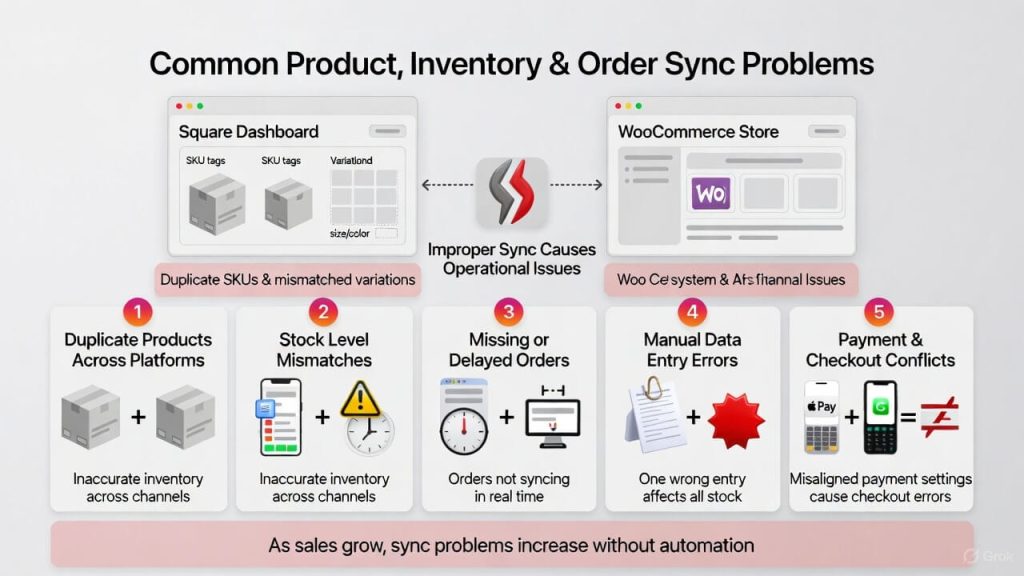
Many retailers try to manage Square and WooCommerce separately. It works at first. But as sales grow, problems increase like:
Duplicate Products Across Platforms
When you create products manually in both Square and WooCommerce, duplicate SKUs and mismatched product variations appear. A new product added in the Square dashboard may not match the WooCommerce store listing. This creates confusion in reporting and fulfillment.
Even a small 5–10% duplication rate in product records can significantly distort inventory valuation.
Stock Level Mismatches
If you don’t properly sync Square inventory with WooCommerce, online sales won’t reduce POS inventory, and vice versa. This leads to overselling or inaccurate stock levels. Customers may complete checkout only to learn the item is unavailable.
Research shows that stockouts can cause retailers to lose up to 4% of annual sales, and disconnected channels significantly increase that risk.
Missing or Delayed Orders
Sometimes Square orders do not appear in WooCommerce orders. Or online purchases fail to reflect inside the Square dashboard. Without real-time sync settings, merchants must log into multiple platforms to verify each purchase manually.
For stores processing 200+ orders per month, even minor sync delays can create reconciliation backlogs quickly.
Manual Data Entry Errors
Manual data entry increases mistakes. Updating inventory in two systems takes time. One wrong number affects stock levels everywhere. Over time, manual work slows your business and increases risk.
Studies show manual data entry carries an average 1–4% error rate, which increases with order volume increases.
Payment & Checkout Conflicts
Payment settings may differ between systems. WooCommerce supports digital wallets like Apple Pay. Square supports Cash App Pay and in-person payments. If payment gateway settings are misaligned, checkout errors appear.
Considering ecommerce cart abandonment averages nearly 70%, even small payment errors can further reduce completed transactions.
Benefits of Connecting Square & WooCommerce
Running your store on Square and WooCommerce separately can create unnecessary operational gaps.
When both systems are properly connected, data flows consistently between your POS and online store.
This connection helps reduce errors, improve visibility, and simplify day-to-day management.
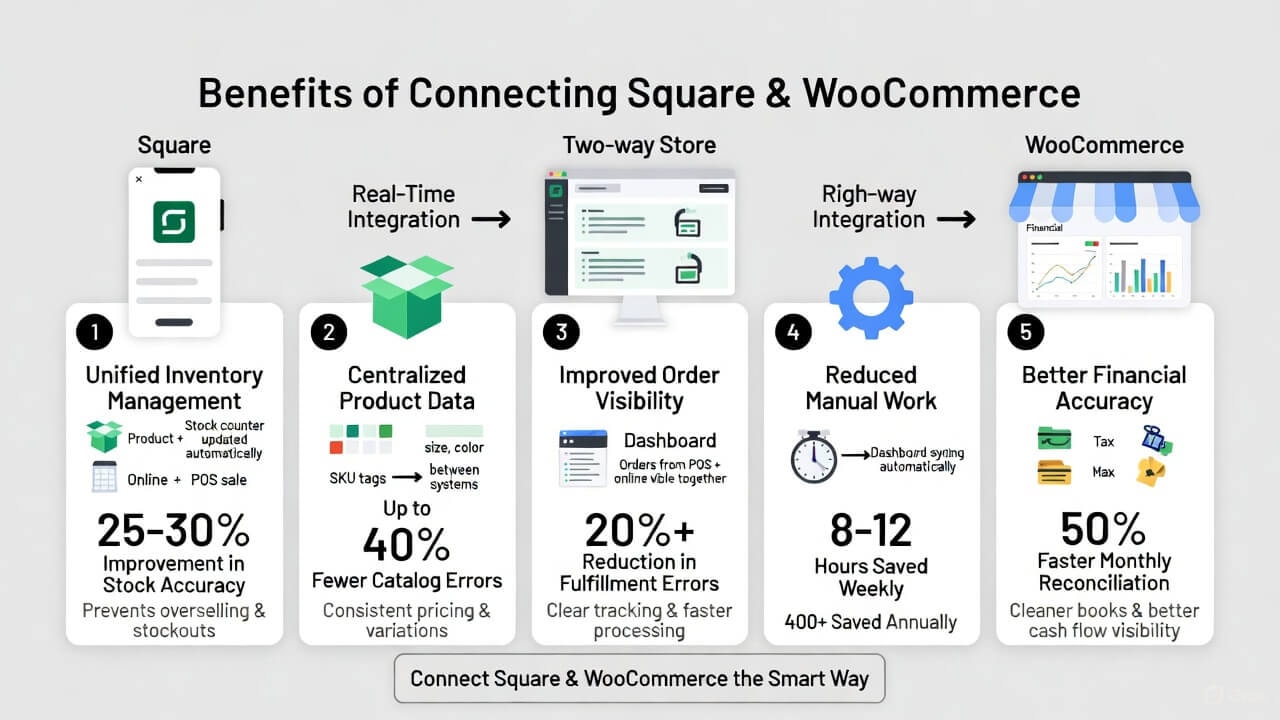
A Square and WooCommerce integration offers advantages like:
Unified Inventory Management
When you sync Square inventory with WooCommerce, stock syncs automatically after every sale. Whether the purchase happens online or in person, inventory syncs in real-time. This inventory management helps ensure accurate stock levels and prevents overselling.
Businesses using an automated inventory sync tool report up to 25–30% improvement in stock accuracy compared to manual tracking.
Centralized Product Data
A Square Woocommerce integration allows synced product details across platforms. Product variations, pricing, size, and color stay in sync in both stores. This reduces duplicate product listings and simplifies managing inventory.
Centralized product management can reduce catalog errors by up to 40%, especially for stores managing multiple variants.
Improved Order Visibility
Square orders and WooCommerce orders appear clearly inside dashboards. This improves fulfillment speed and reduces confusion. Recurring customers and WooCommerce subscriptions also stay organized.
Studies show that improved order visibility can reduce fulfillment errors by 20% or more, directly impacting customer satisfaction.
Reduced Manual Work
Automating Square POS and WooCommerce removes repetitive updates. Instead of logging into each platform daily, data flows automatically. Square simplifies daily operations when inventory and orders stay in sync.
Automation can save growing retailers 8–12 hours per week, freeing up over 400 hours annually for higher-value tasks.
Better Financial Accuracy
When Square and WooCommerce stay connected, sales data, taxes, and payment records remain aligned across systems. This reduces reconciliation errors and improves reporting clarity.
Businesses that automate sales and payment syncing report up to 50% faster monthly reconciliation, leading to more reliable cash flow visibility and cleaner financial records.
What a Proper Square-WooCommerce Sync Should Include
Before connecting Square with WooCommerce, merchants need to understand what true synchronization actually involves. With a complete two-way synchronization covering products, inventory, and orders, operational issues are reduced.
Two-Way Inventory Sync
A smart Square WooCommerce inventory sync tool should update stock in both directions. When you sell online, your stock decreases in Square. When you sell in person using Square POS, WooCommerce stock updates instantly. This two-way inventory sync prevents stock mismatches.
Product Variation Mapping
A proper Square WooCommerce sync goes beyond basic product syncing. Product variations like size, color, or bundles must also map correctly between stores. Accurate mapping ensures correct fulfillment and checkout details.
Order & Customer Data Sync
Another important aspect of a streamlined Square WooCommerce sync is that customer data should transfer automatically. Order details must reflect across platforms for tracking and fulfillment. The order sync helps track orders from one channel and complete fulfillment on time.
Detailed Error Messages & Sync Logs
A strong integration provides detailed error messages when something fails. Sync logs help identify product data conflicts. It also identifies missing SKUs or stock errors. Without clear logs, troubleshooting becomes difficult.
How To Connect & Sync Square With WooCommerce Using QuickSyc
Square and WooCommerce do not offer a fully automated, built-in feature that connects both systems seamlessly. You cannot simply turn on a setting inside Square or WooCommerce and expect inventory, orders, and product data to sync perfectly.
That’s why a third-party integration tool is required. With a Square WooCommerce integration tool like QuickSync, you can properly sync inventory, product listings, pricing, and orders in real time.
Here’s how you can connect Square with WooCommerce using QuickSync.
Step 1: Create Your QuickSync Account
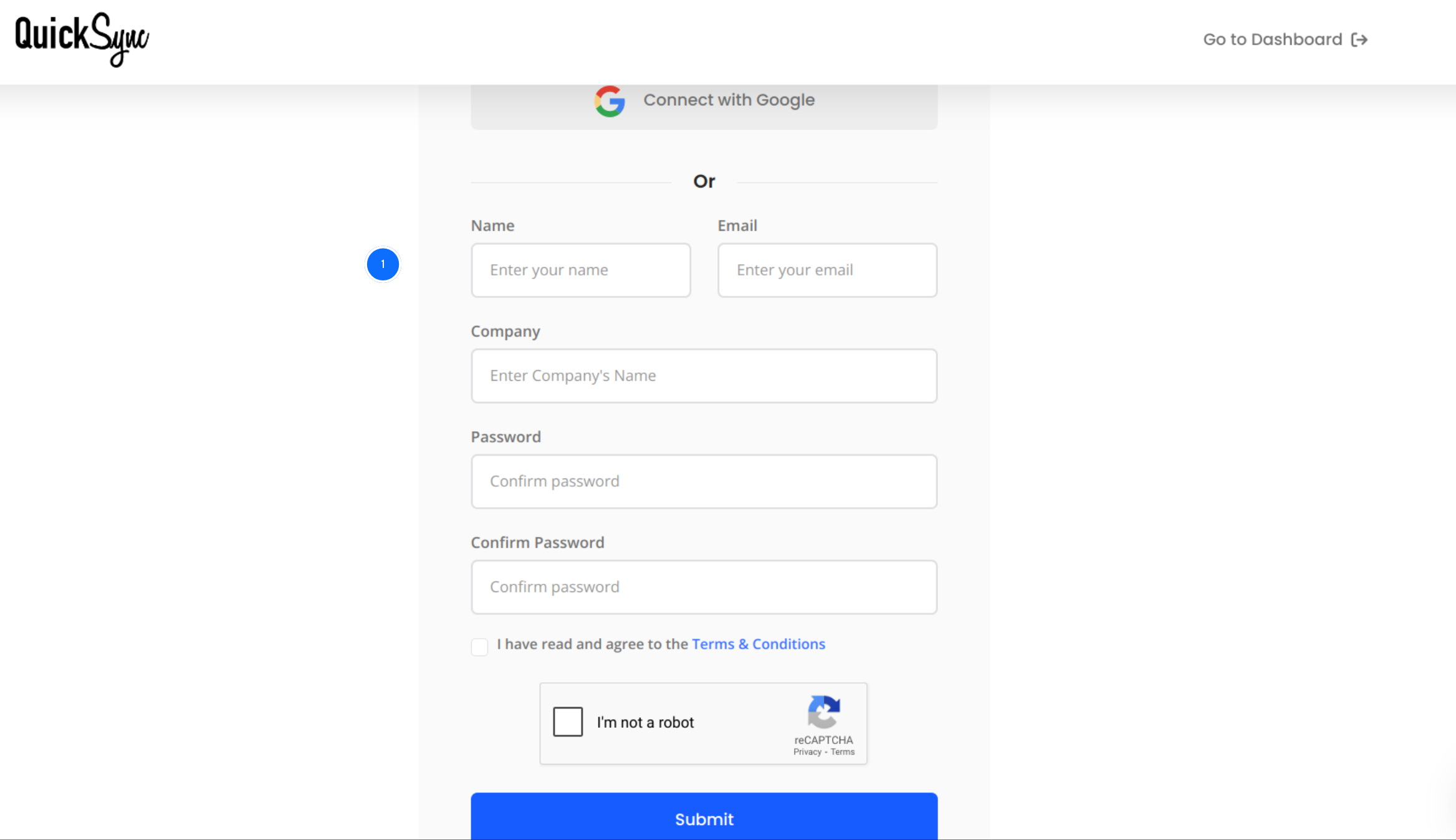
- Visit QuickSync and click on the Sign Up button.
- Enter name, email address, and business details to create your account.
Once registered, you will get access to the QuickSync central dashboard. In the QuickSync dashboard, you can manage connected platforms and sync settings.
Step 2: Connect Your Square Account
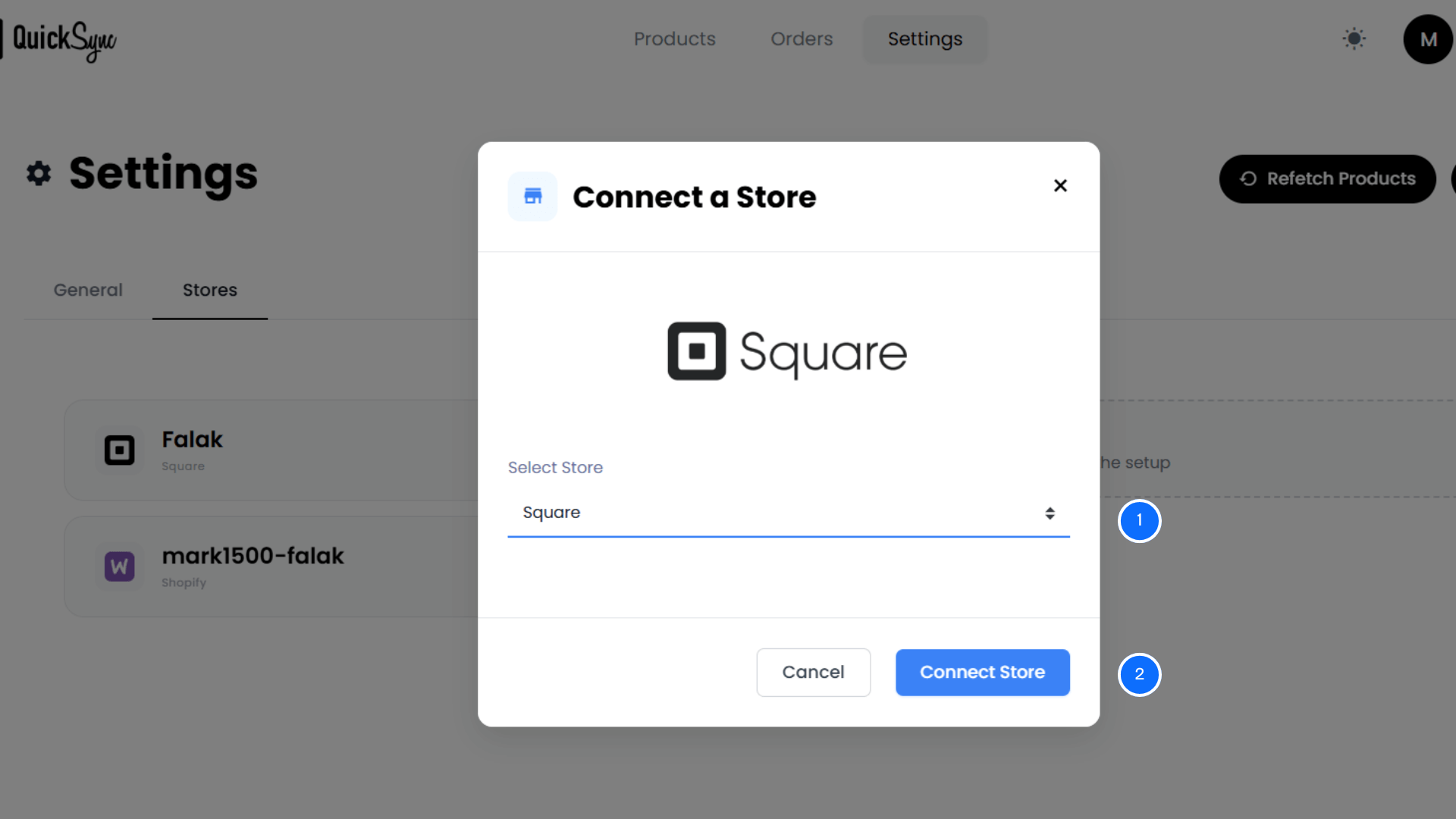
- After logging into the dashboard, go to Dashboard → Connect Store.
- Select Square from the available sales channels.
Click Connect a Store and log in to your Square account.
Approve the required permissions for products, inventory, customers, locations, and orders.
Once authorized, QuickSync will begin the initial import of your Square data, including:
- Store locations
- Product catalog
- Inventory levels
You will see a progress bar in the dashboard while the import process runs.
Step 3: Connect Your WooCommerce Store
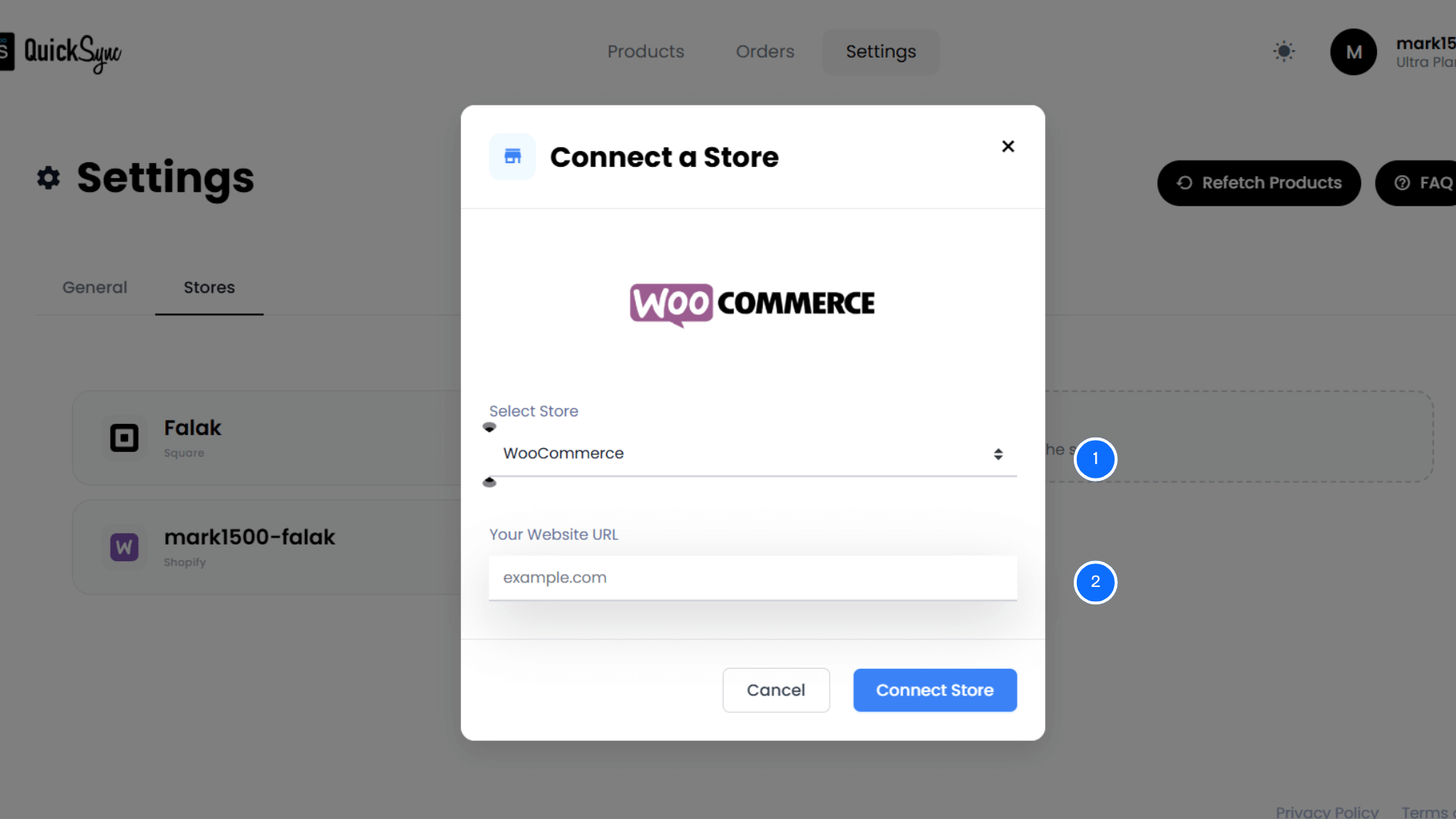
- Next, go to Dashboard → Connect Store → Select WooCommerce.
Click Connect WooCommerce. - Enter your WooCommerce store URL.
Approve access so QuickSync can manage products, images, categories, inventory, and orders. After authorization, QuickSync will automatically import:
- Store settings
- Categories and attributes
- Product listings and variations
A progress bar will appear in your dashboard while the import completes.
Step 4: Configure Sync Settings and Start Syncing
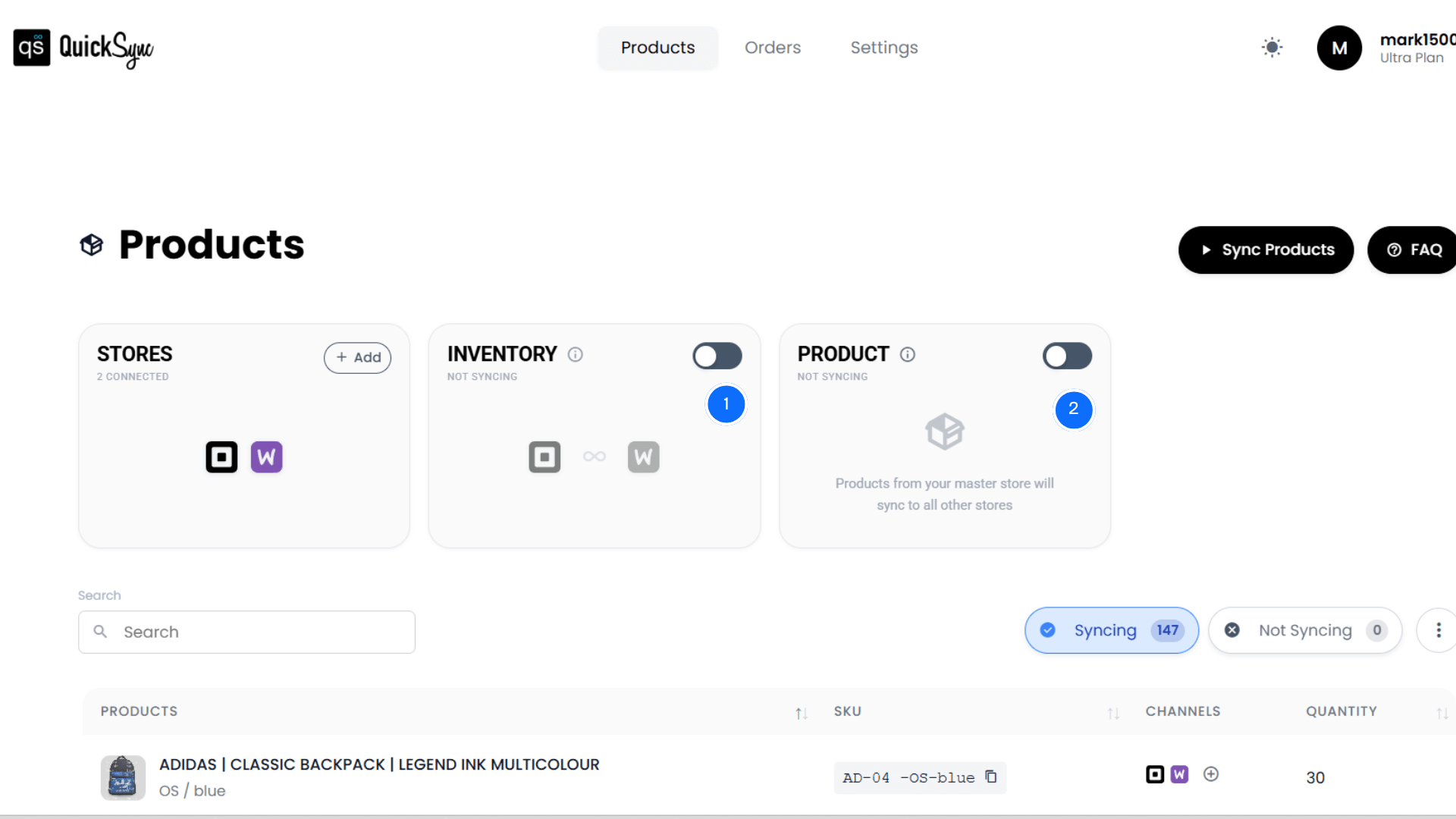
Once both Square and WooCommerce are connected, configure sync preferences based on your business needs.
Choose what you want to sync, such as:
- Products and product updates
- Inventory levels
- Orders and refunds
- Pricing and variations
Click Start Syncing to activate the integration.
QuickSync will now automatically sync Square POS and WooCommerce in real time.
Best Practices for Square and WooCommerce Integration
After syncing WooCommerce and Square, retailers should continuously monitor performance to ensure everything functions as expected. Ongoing oversight is essential to maintain data accuracy and operational stability.
The following best practices help merchants prevent issues and ensure WooCommerce Square integration continues to operate efficiently.
Keep One System as the Source of Truth
Decide whether Square or WooCommerce will control product data. Always make changes in the main channel first and avoid editing products in both platforms. This prevents duplicate SKUs and inconsistent pricing across your channels.
Audit Inventory Weekly
Even with automation, check stock levels weekly. Compare physical inventory with digital counts in Square and WooCommerce. Regular audits help catch syncing errors early. It prevents overselling or stockouts that can upset customers.
Monitor Sync Logs
Check sync logs and detailed error messages regularly. Fix minor issues quickly before they impact orders or inventory accuracy. Monitoring logs ensures seamless integration. It helps avoid delays, lost sales, or customer complaints.
Train Staff on POS and Online Workflow
Make sure your team understands how Square and WooCommerce syncing work. Staff should know how in-person sales and online orders affect inventory. Proper training reduces mistakes and ensures smooth operations.
Enable Automated Notifications
Set up alerts for low stock, failed syncs, or payment issues. Automated notifications keep you informed in real time about what’s happening in your stores. It also allows you to take immediate action to prevent overselling or avoid delayed shipments.
Segment Inventory by Location
If you have multiple warehouses or store locations, track inventory separately. Syncing by location ensures the correct stock is available for each center. It reduces shipping errors and customer dissatisfaction.
Conclusion
Running online and in-store sales should not feel like managing two separate businesses. When Square and WooCommerce operate independently, small gaps in data quickly turn into larger operational problems.
Since built-in features do not provide a complete, automated two-way WooCommerce Square integration, retailers need a more structured solution. That’s where QuickSync makes the difference.
QuickSync is designed specifically to connect Square POS and WooCommerce with real-time automation. It syncs products, variations, pricing, and inventory across both platforms.