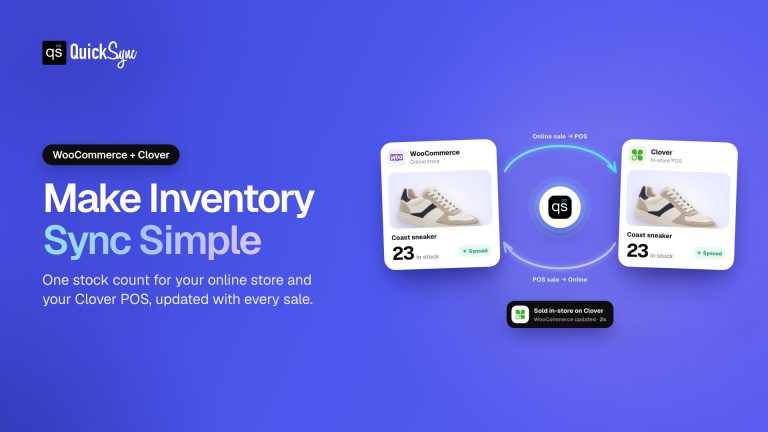
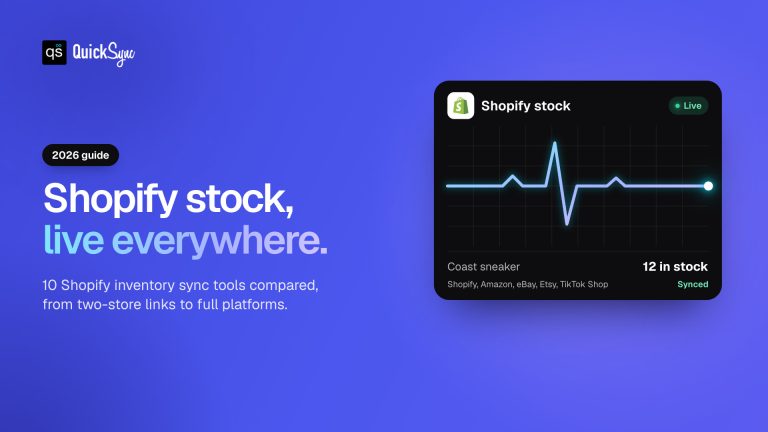
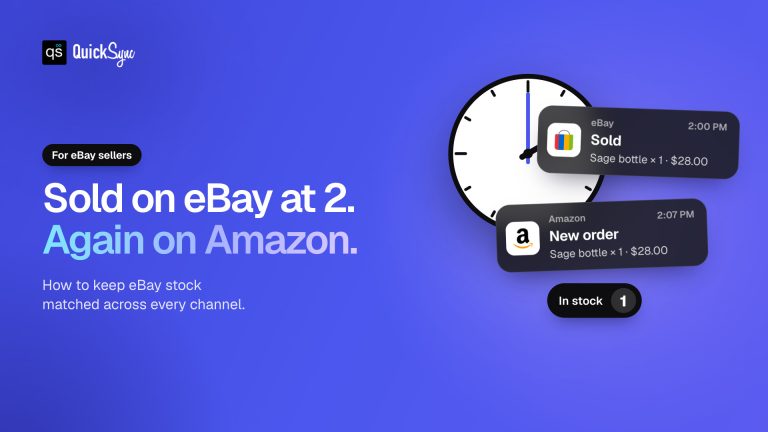
If you are running a WooCommerce store and selling through other stores or sales channels, keeping inventory updated can become difficult very quickly.
You may be checking stock in WooCommerce, updating another marketplace, and then adjusting quantities again after an order comes in.
The problem gets bigger as your catalog grows. More products mean more SKUs to track. Product variations make things even harder.
That is where WooCommerce inventory sync comes in.
It connects your WooCommerce store to other sales channels and keeps inventory quantities in sync across them. The key is choosing a method that fits how often your inventory changes and how many channels you manage.
In this guide, I’ll explain how WooCommerce inventory sync works, the different ways you can manage it, which method makes sense for different stores, and how you can use QuickSync to automate the process.
📌 Key Takeaways
- WooCommerce can manage inventory within one store, but shared stock becomes harder across multiple stores and channels.
- Inventory sync connects separate stock records and keeps product quantities updated across connected platforms.
- SKUs and product variations are important for matching the right products and stock levels.
- Manual updates and CSV files can work for smaller catalogs, but become harder as inventory changes more often.
- QuickSync can connect WooCommerce with supported ecommerce, marketplace, and POS platforms for inventory synchronization.
- The right sync method depends on your stores, sales channels, inventory setup, and how often your stock changes.
Does WooCommerce Have an Inventory Management System?
Yes, WooCommerce does come with a built-in stock management system that helps you keep basic control over your products. You can set stock quantities for each item or variation, and enable low-stock and out-of-stock alerts.
However, WooCommerce’s built-in system has its limits. It only manages inventory for one store at a time. It doesn’t automatically sync stock levels across multiple WooCommerce stores, physical retail outlets, or other platforms like Shopify, Amazon, or eBay.
That’s why, to keep inventory synced for WooCommerce stores, you need an excellent third-party tool. A WooCommerce inventory management plugin can prevent these issues by automatically synchronizing inventory levels and product data across all your WooCommerce stores.
What Are the Benefits of a WooCommerce Inventory Sync Tool?
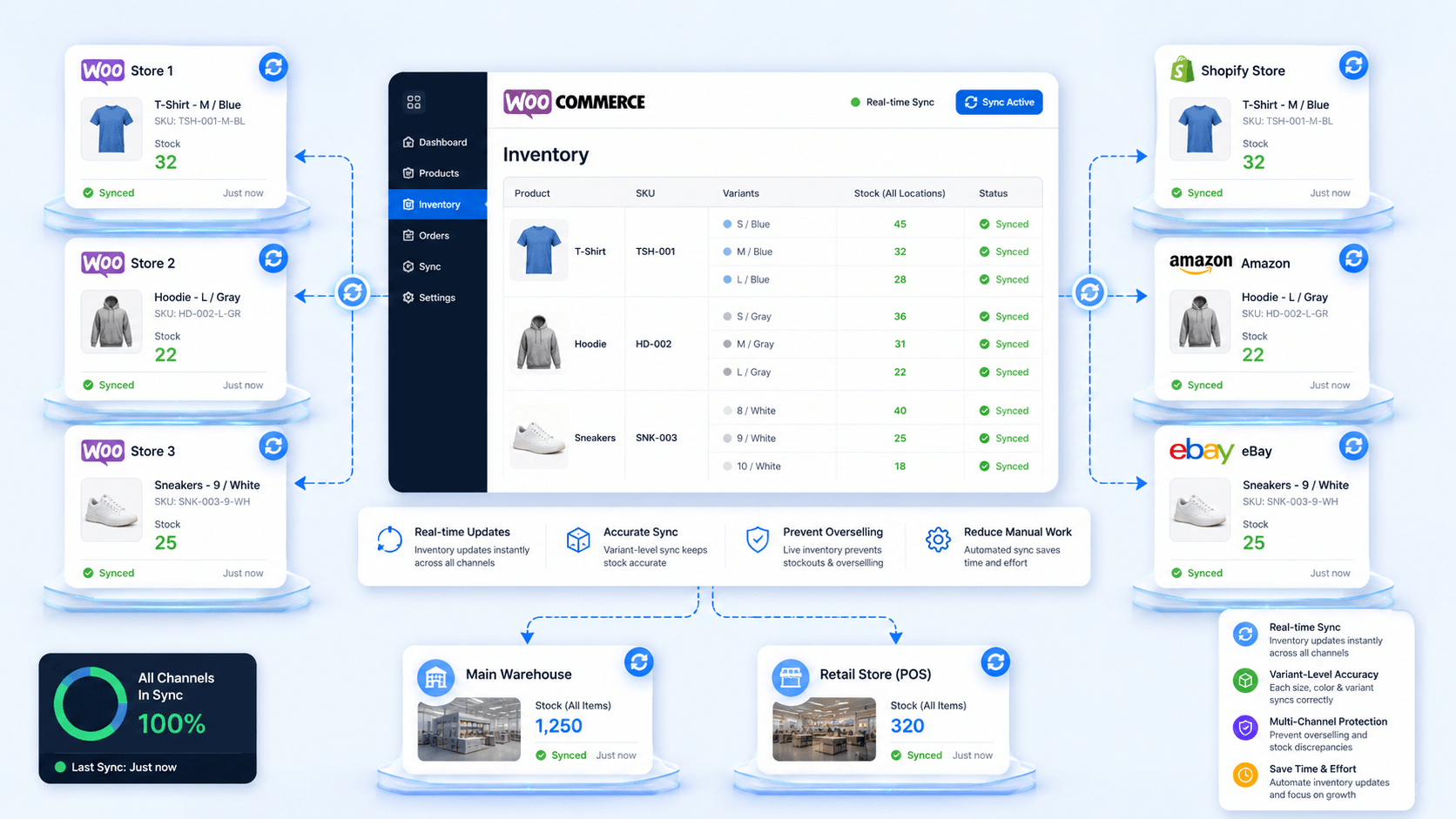
Now, let’s get into the benefits of using a WooCommerce inventory management tool.
The main reason to use one is simple. You want your inventory to stay updated without doing everything manually.
When you sell across multiple stores and sales channels, inventory can change throughout the day. A sync tool keeps those changes moving between your connected platforms, so your stock stays updated as you sell.
Automatic Inventory Updates
One of the biggest benefits of using WooCommerce inventory sync software is that your inventory updates automatically. You don’t need to update inventory or worry about inaccurate stock numbers manually. A real-time sync tool updates inventory the moment a sale, return, or exchange happens.
Accurate Variant Sync
If you are selling multiple variants across stores alongside WooCommerce, the tool will match each variant correctly. If you sell a size M on Shopify, it will deduct the stock from size M in WooCommerce. It will not deduct the stock from the whole T-shirt product. This is very important when each variant has different stock.
Keep Inventory Synced Across Multiple WooCommerce Stores
If you are managing multiple WooCommerce stores, keeping the same inventory updated can become difficult. A WooCommerce inventory sync tool connects your stores and keeps inventory synced. When inventory changes in one store, the same stock change can be reflected across your other connected WooCommerce stores.
Prevent Overselling Across Sales Channels
When the same product is listed on multiple channels, you need every channel to know when stock changes. Real-time inventory sync updates the available quantity after a sale. This helps prevent another channel from selling stock that has already been sold somewhere else.
Manage Inventory Across Multiple Locations
If your inventory is spread across warehouses, stores, or fulfillment locations, you need more than one overall stock number. A sync tool can keep inventory connected across different locations. This makes it easier to track available stock and keep the right quantities updated across your selling channels.
Reduce Manual Inventory Work
You don’t have to update every connected platform whenever inventory changes. The sync tool handles those updates for you. This saves your team from repeatedly checking stock quantities, changing numbers, and comparing different stores throughout the day. You can make the inventory change once and let the system handle the rest.
Also Read: Why is My WooCommerce Inventory Not Updating?
Which WooCommerce Inventory Sync Method Is Right for You?
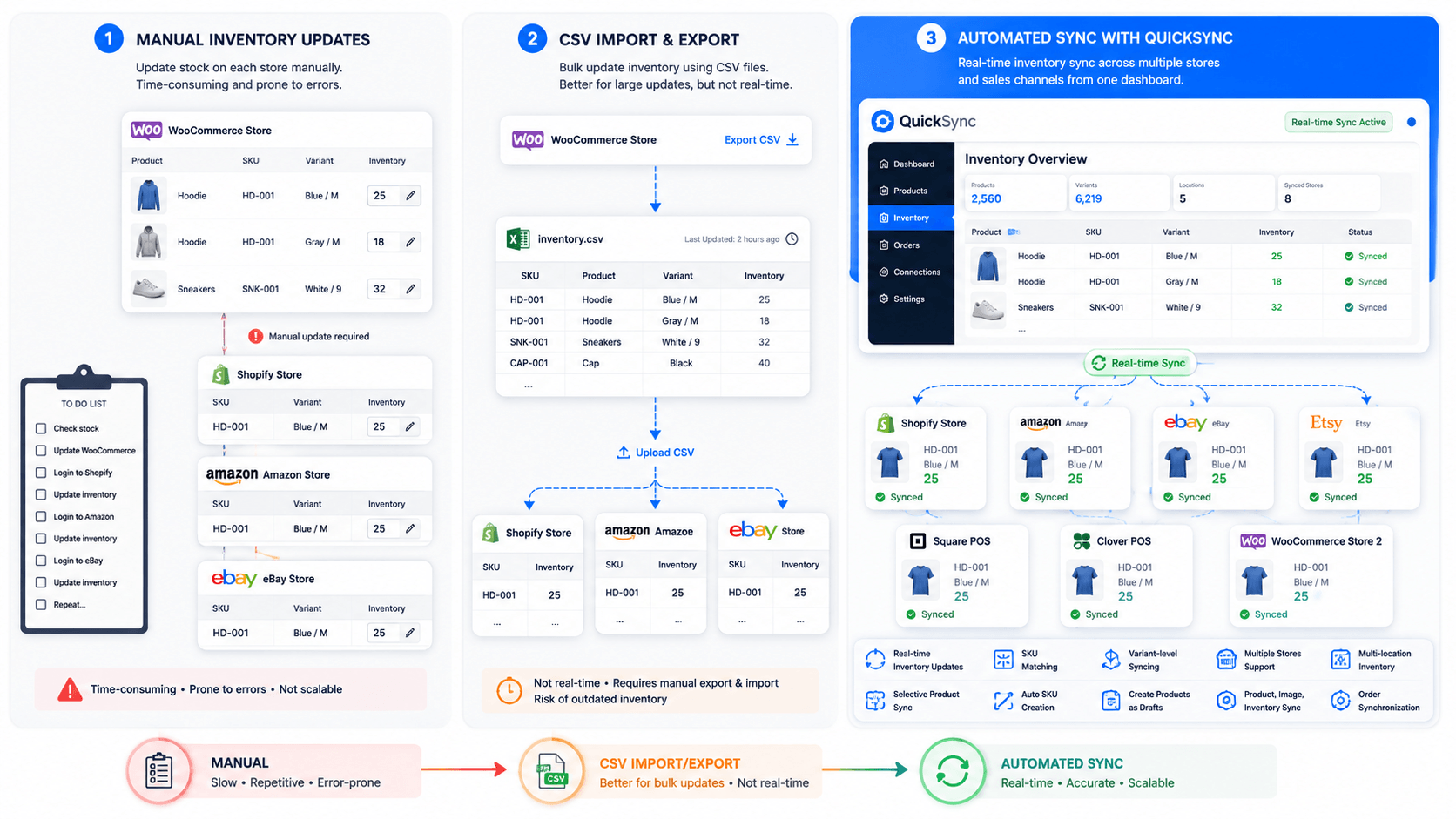
There are a few ways to manage and sync WooCommerce inventory. You can update stock manually, use WooCommerce’s built-in inventory features, work with CSV files, or use dedicated inventory sync software.
Let’s look at the different inventory management methods for WooCommerce.
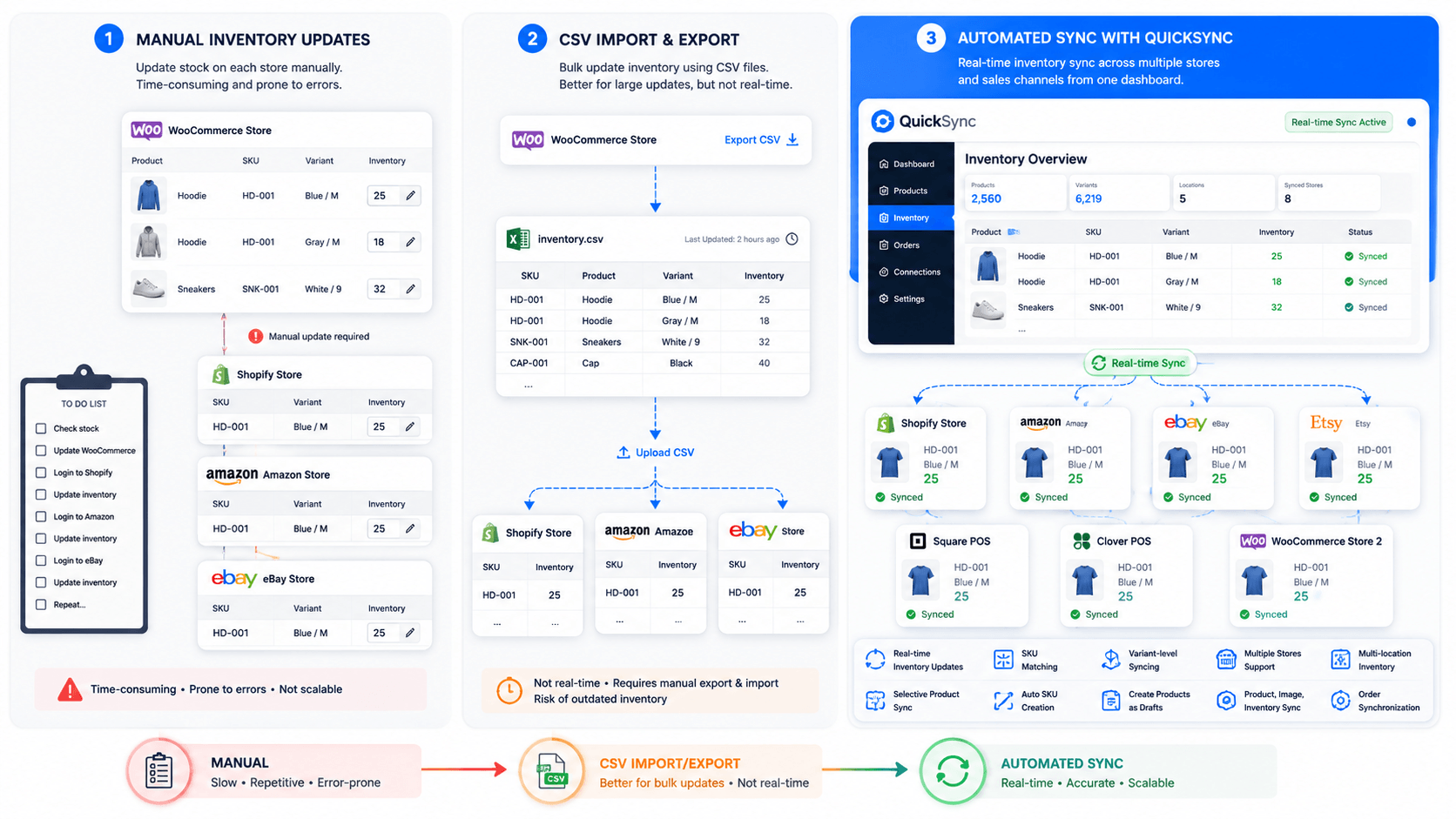
Method 1: Manual Inventory Updates
Manual inventory updates are the simplest option. You check your stock, change the quantity, and update it wherever else you sell. This can work if you have a small catalog and inventory does not change often.
The problem starts when your inventory changes throughout the day. Every sale, return, or exchange can mean another update. As you add more products and sales channels, keeping everything updated manually takes more time.
- You can start managing stock immediately, but every inventory change still needs a manual update.
- Manual updates work for small catalogs, but become difficult as your product count grows.
- You have full control over stock changes, but that also means handling every update yourself.
- You can manage different stores separately, but their stock quantities may not stay aligned.
- You can update product variations individually, but larger catalogs make this process harder to maintain.
- You do not need another integration, but you also do not get automatic inventory syncing.
Also Read: WooCommerce Amazon Sync: How to Connect and Manage Both Stores Easily
Method 2: CSV Import and Export
CSV files give you a way to update inventory in bulk. You can export your WooCommerce products, change stock quantities, and import the updated file again.
This can be useful when you need to make occasional changes. It becomes less practical when inventory keeps changing throughout the day. You still have to prepare the file, upload it, and repeat the process whenever your stock changes.
- You can update hundreds of products together, but every new change requires another file.
- CSV files are easy to edit, but they do not keep inventory connected between platforms.
- Bulk updates can save time, but preparing and uploading files still takes manual work.
- You can change product quantities quickly, but the uploaded data can become outdated after new sales.
- You can manage product data in one file, but matching products across stores still needs attention.
- CSV works for occasional updates, but fast-moving inventory needs more frequent changes.
Method 3: WooCommerce Inventory Sync Software: QuickSync
QuickSync is built for merchants who need to keep WooCommerce inventory synced across different stores and sales channels. You can connect WooCommerce with Shopify, Amazon, eBay, Etsy, Square, and Clover, then manage your connections from one dashboard.
The main advantage is that inventory does not need to be updated separately on every platform. QuickSync can sync inventory, products, images, and orders while also giving you control over which products you want to sync.
QuickSync offers WooCommerce integration with supported Amazon, Etsy and eBay workflows. eBay stock and orders are checked every two minutes. Etsy stock is checked every two minutes and orders every five. These are check intervals, not delivery guarantees. Amazon orders are checked every two minutes; stock writes target merchant-fulfilled listings.
- Real-time inventory updates: QuickSync updates connected stores when inventory changes, so you do not have to keep checking each platform after every sale or stock adjustment.
- Product matching by SKU: If you already sell the same product on two stores, QuickSync can match the products using their existing SKU. This keeps both listings tied to the same inventory.
- Variant-level syncing: QuickSync does not treat every product as one stock number. It can match individual variants, so each size, color, or option keeps its own inventory quantity.
- Multiple WooCommerce stores: If you run more than one WooCommerce store, you can connect them and sync their shared inventory. This keeps stock changes moving between the stores instead of managing each one separately.
- Selective product syncing: You may not want every product on every store. QuickSync lets you choose the products you want to export or sync, giving you more control over your catalog.
- SKU creation during export: Some products may not have SKUs when you first export them. QuickSync can create SKUs during the export, so those products have an identifier for future syncing.
- Create products as drafts: You do not have to publish every exported product immediately. QuickSync can create products as drafts, giving you time to check the listing before making it live.
Also Read: How to Connect WooCommerce to eBay
What Should You Look For in WooCommerce Inventory Sync Software?
Not every inventory sync tool works in the same way. Some focus mainly on inventory. Others also sync products, orders, images, and product variations.
The important thing is to check how the tool handles your actual inventory setup. Look at the platforms you use, the number of stores you manage, and how your products are structured.
Here is what I recommend checking before choosing a WooCommerce inventory sync tool:
- Real-Time Inventory Sync: Inventory should update automatically when stock changes.
- SKU Mapping: The tool should match the correct products across connected platforms.
- Variant Sync: Product variations should be handled separately where each variant has its own stock.
- Multiple Store Support: Check whether you can connect multiple WooCommerce stores.
- Multi-Location Inventory: This matters if your inventory is spread across different stores or warehouses.
- Selective Sync: You should be able to choose which products or listings you want to sync.
- Product Sync: Check whether the tool can move product information and images along with inventory.
- Order Sync: Orders should be supported if you want inventory and fulfillment to stay connected.
- Simple Setup: The connection process should not require custom development or complicated technical work.
If you are looking for a tool that covers all of these requirements, I would recommend QuickSync. It supports automatic inventory syncing, SKU and variant matching, multiple WooCommerce stores, multi-location inventory, selective syncing, product and image syncing, and order syncing. It also brings these connections together in one dashboard, so you can manage your inventory without updating every store separately.
How to Sync Inventory in WooCommerce With QuickSync
Getting started with QuickSync for WooCommerce inventory sync is quite simple. You don’t need any technical skills or coding knowledge.
Here is how you can get started.
Step 1: Sign Up on QuickSync
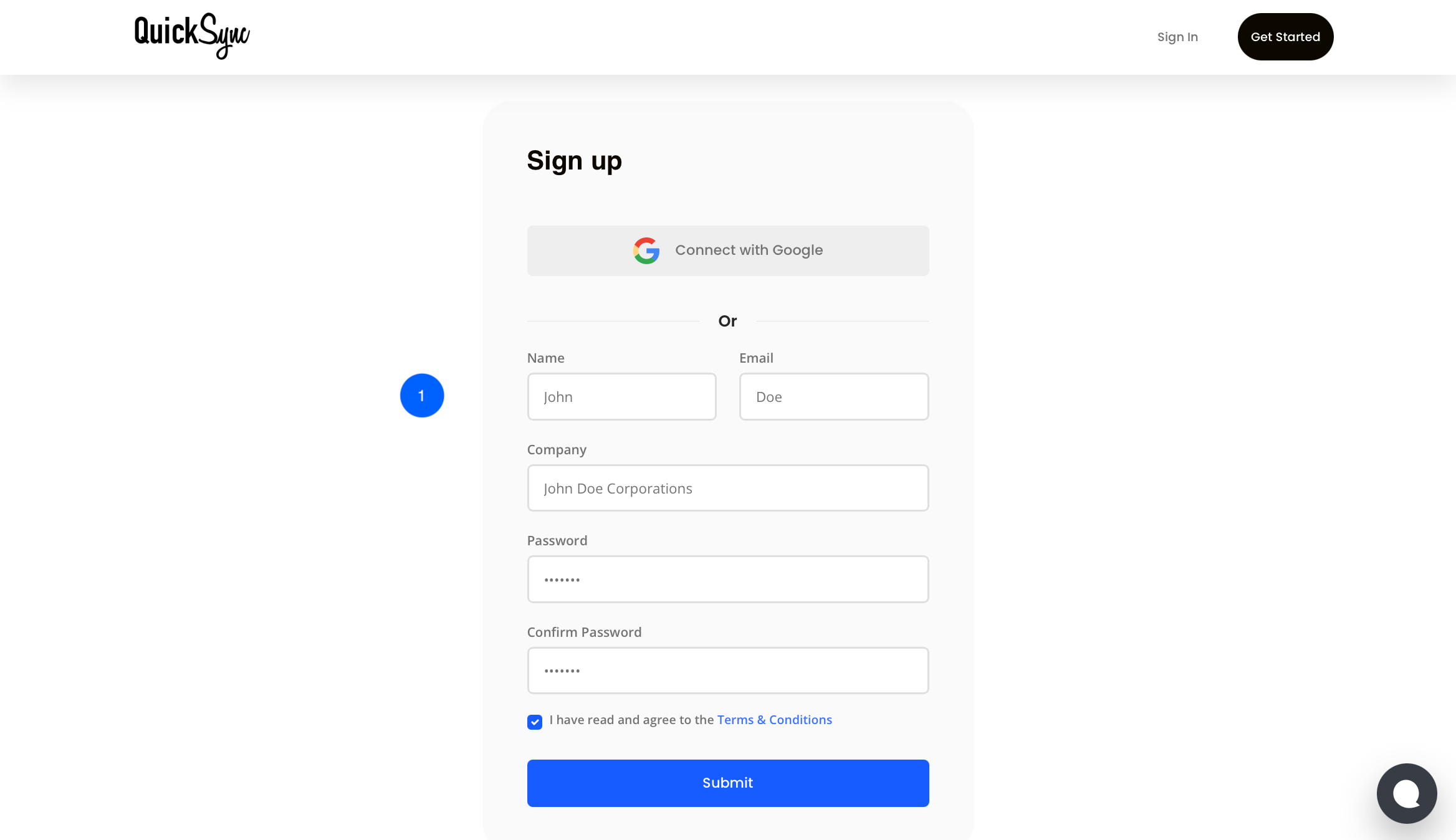
- Visit QuickSync.pro and click Sign In. Enter your name, company name, email address, and password to create your account.
- If you already have an account, simply sign in and open your dashboard.
Step 2: Connect Your WooCommerce Store
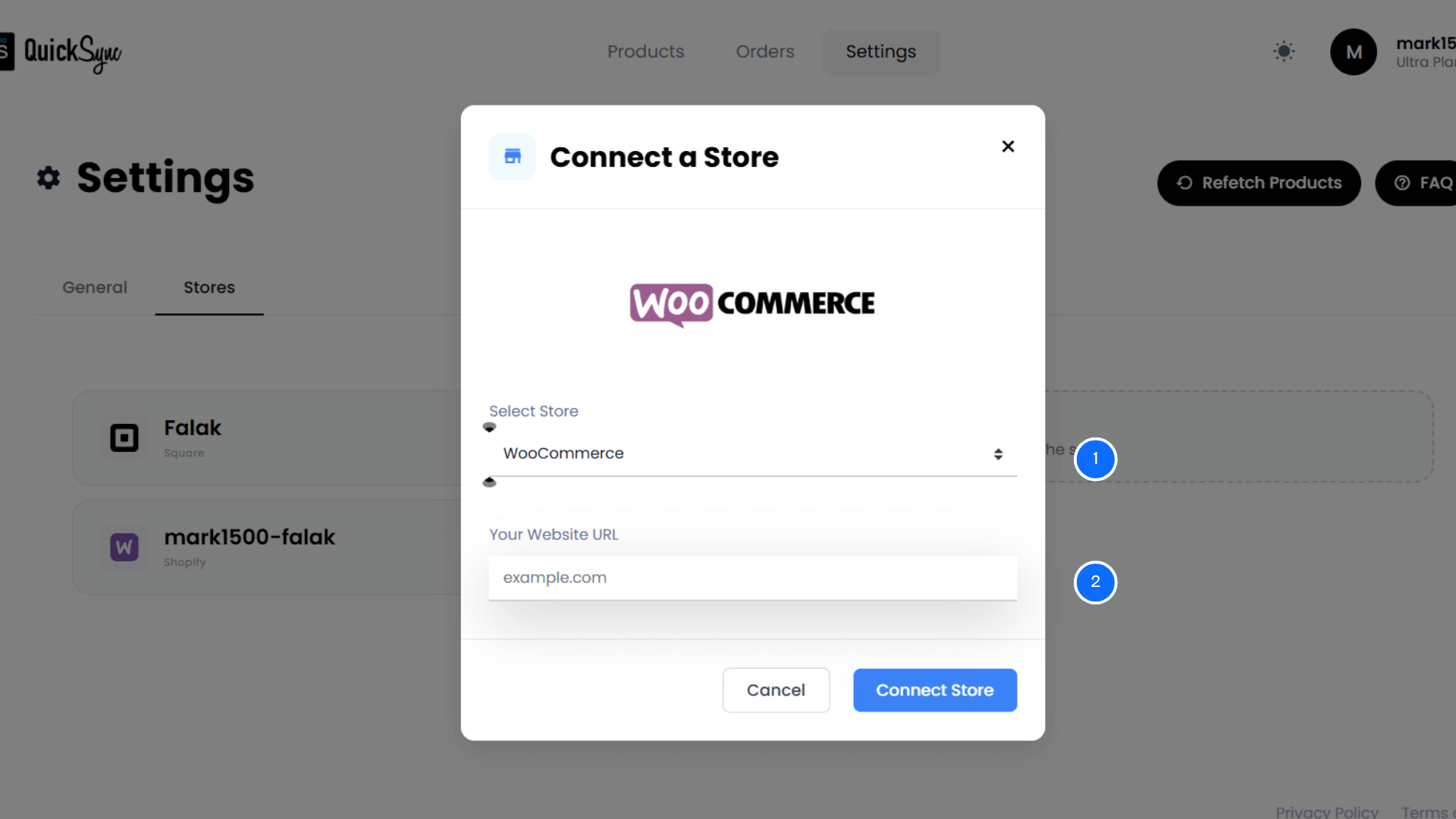
- After signing in, click Connect Store from your QuickSync dashboard. Link your initial WooCommerce store by entering your website URL and selecting Connect a Store.
- Follow the connection process to give QuickSync access to your WooCommerce store.
Step 3: Connect Other WooCommerce Stores or Sales Channels
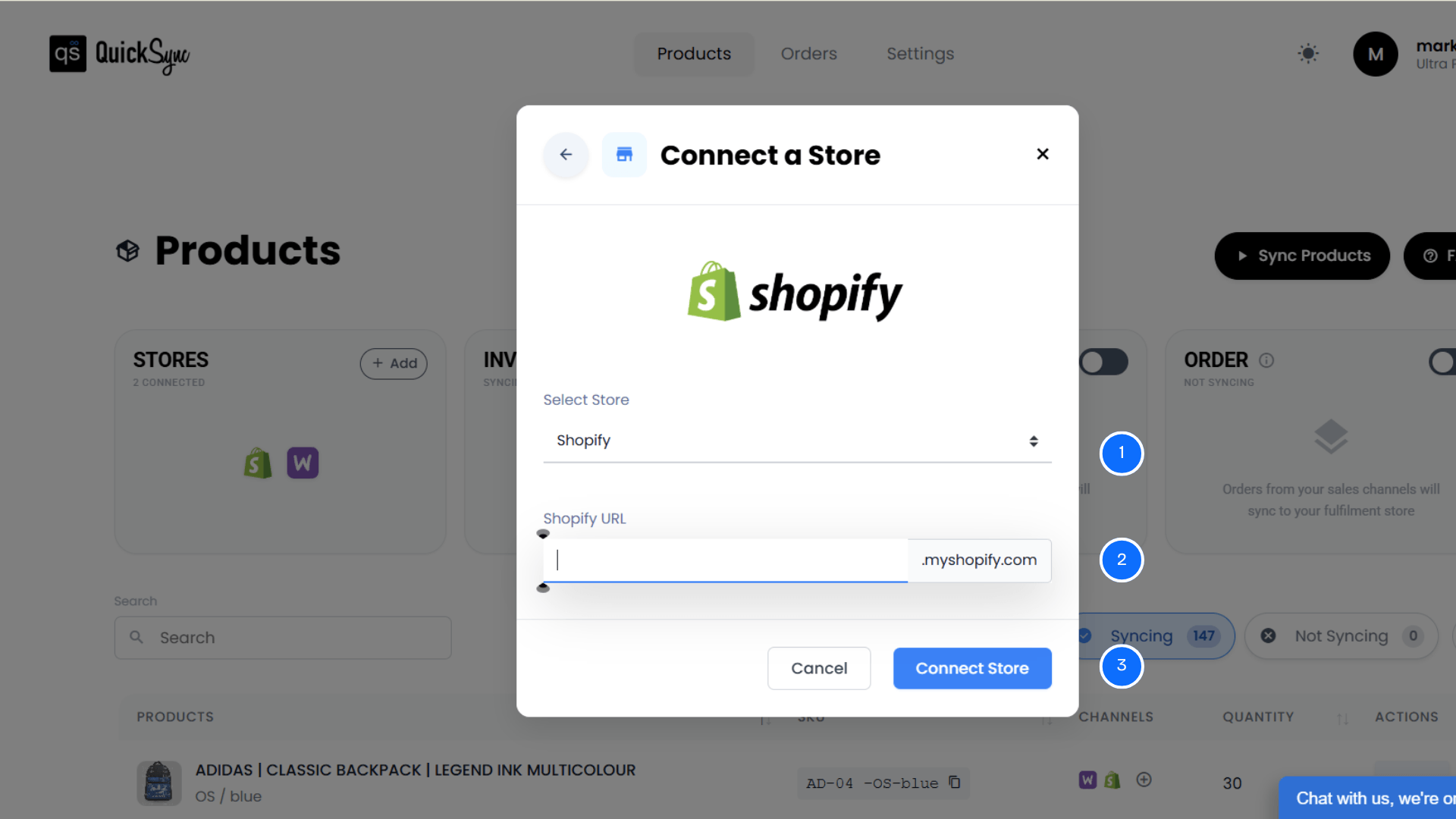
- If you have another WooCommerce store, choose WooCommerce and repeat the connection process.
- You can also connect other supported platforms such as Shopify, Amazon, eBay, Etsy, Square, or Clover. Select the platform you want to connect and follow the steps shown in QuickSync.
Step 4: Start Inventory Syncing
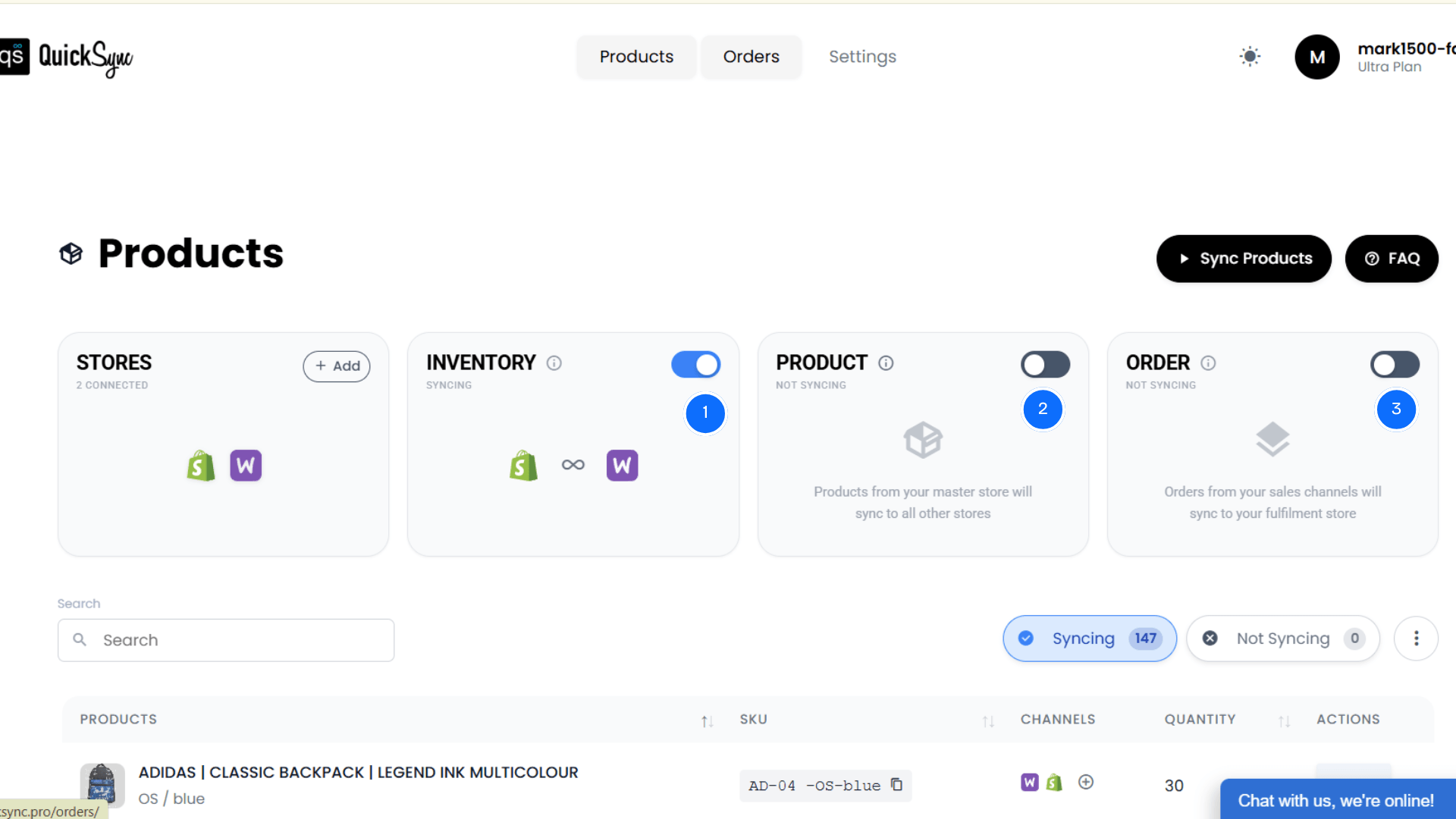
- Once your stores are connected, choose the inventory syncing option from the left side of your QuickSync dashboard.
- Click Start Syncing. QuickSync will begin syncing your inventory and keep the connected stores updated as inventory changes.
Tips for Managing WooCommerce Inventory After Integration
Once your WooCommerce inventory is connected with other stores or sales channels, the work does not completely stop. You still need to keep your catalog clean, check sync activity, and make sure your inventory settings are working correctly.
Keep Your SKUs Consistent
Use the same SKU for the same product across connected platforms. This makes product matching easier and helps the inventory sync identify the correct item. If your SKUs are different, review and update them before adding products to another sales channel.
Review Your Inventory Before Syncing
Check your WooCommerce inventory before starting a new sync. Make sure stock quantities are correct and inactive products are removed or archived. Starting with clean inventory data makes it easier to avoid mismatched quantities after the integration goes live.
Check Your Product Variations
Review your product variations before syncing them with other platforms. Make sure sizes, colors, and other options are mapped correctly. Each variation should have the right SKU and inventory quantity so stock changes affect the correct product variation.
Monitor Your Sync Activity
Check your sync dashboard regularly after the integration is live. Look for failed product, inventory, or order updates. Finding a sync issue early is easier than discovering it later when several products already have incorrect inventory quantities.
Remove Products You No Longer Sell
Keep your product catalog clean by removing or archiving products you no longer sell. Old listings can create unnecessary sync activity and make your catalog harder to manage. A cleaner catalog also makes it easier to review active inventory.
Review Low-Stock Products
Keep an eye on products that are getting close to their minimum stock levels. When inventory is connected across multiple channels, stock can change quickly. Reviewing low-stock products regularly helps you reorder before an item reaches zero and becomes unavailable.
Conclusion
If you are looking for a way to keep WooCommerce inventory updated across multiple stores or sales channels, there are several options available. Manual updates and CSV files can work for smaller or less frequent inventory changes. WooCommerce’s built-in tools are also useful when WooCommerce is your main selling platform.
The process becomes different when you are selling the same inventory through several channels. You need product matching, variant syncing, and automatic inventory updates to keep stock quantities aligned.
QuickSync connects WooCommerce with platforms such as Shopify, Amazon, eBay, Etsy, Square, and Clover. It can sync inventory, products, images, and orders while giving you control over which products and stores you want to connect.
If you are ready to stop updating the same inventory in multiple places, QuickSync gives you a way to keep those stores connected from one dashboard.