Selling online with WooCommerce and in-store with Clover sounds like a smart growth move. Until your inventory starts telling two different stories.
Clover says the item is sold. WooCommerce still shows it as in stock. A customer places an order. Your team checks the shelf. The product is gone.
Now you are dealing with a canceled order, a refund, and a disappointed customer. That is the real problem with disconnected inventory.
Inventory is not just a number in your dashboard. It controls what customers can buy, what your team can fulfill, and what your business can reorder with confidence. When those numbers are wrong, sales, service, and stock planning all suffer.
In fact, IHL Group reports that retailers lose 6.5% of sales to out-of-stocks and overstocks. That is why WooCommerce Clover inventory sync becomes essential.
A proper WooCommerce Clover inventory sync tool updates stock automatically after every sale. There are different ways to sync inventory between platforms. From manual updates, CSV imports, to automation tools, there are several approaches. But not every method is reliable enough for long-term growth.
Read this blog to know how to sync WooCommerce with Clover inventory sync. Know about different inventory sync methods. Learn how QuickSync automates inventory between both platforms.
Skipping the setup and after the specifics? The WooCommerce and Clover integration page covers what moves in each direction, and the one field Clover has no room for.
What Syncing WooCommerce and Clover Inventory Actually Means
Before we dive into how to sync inventory, let’s first understand what WooCommerce Clover inventory sync actually means.
WooCommerce and Clover are two separate systems. WooCommerce manages your online store, product listings, checkout, and online orders.
Clover POS manages your in-store sales, inventory, payments, and retail counter operations. When both platforms are not connected, they do not automatically share inventory data.
Syncing WooCommerce and Clover inventory means both platforms communicate automatically. When a product sells through WooCommerce, Clover stock updates. When a product sells through Clover POS, WooCommerce stock updates. The goal is to keep inventory levels accurate across both online and offline stores.
Here’s what proper WooCommerce Clover inventory sync includes:
Stock updates after every WooCommerce online order.
Clover POS sales reduce WooCommerce stock automatically.
Returned products update inventory across both systems.
Refunded orders can adjust stock where needed.
Exchange-related stock changes are reflected properly.
Clover item stock and WooCommerce inventory stay aligned.
SKU-based matching helps connect the correct items.
Staff can avoid constantly checking two dashboards.
Inventory updates can happen in the background.
Challenges Merchants Face When WooCommerce and Clover Inventory Are Not Synced
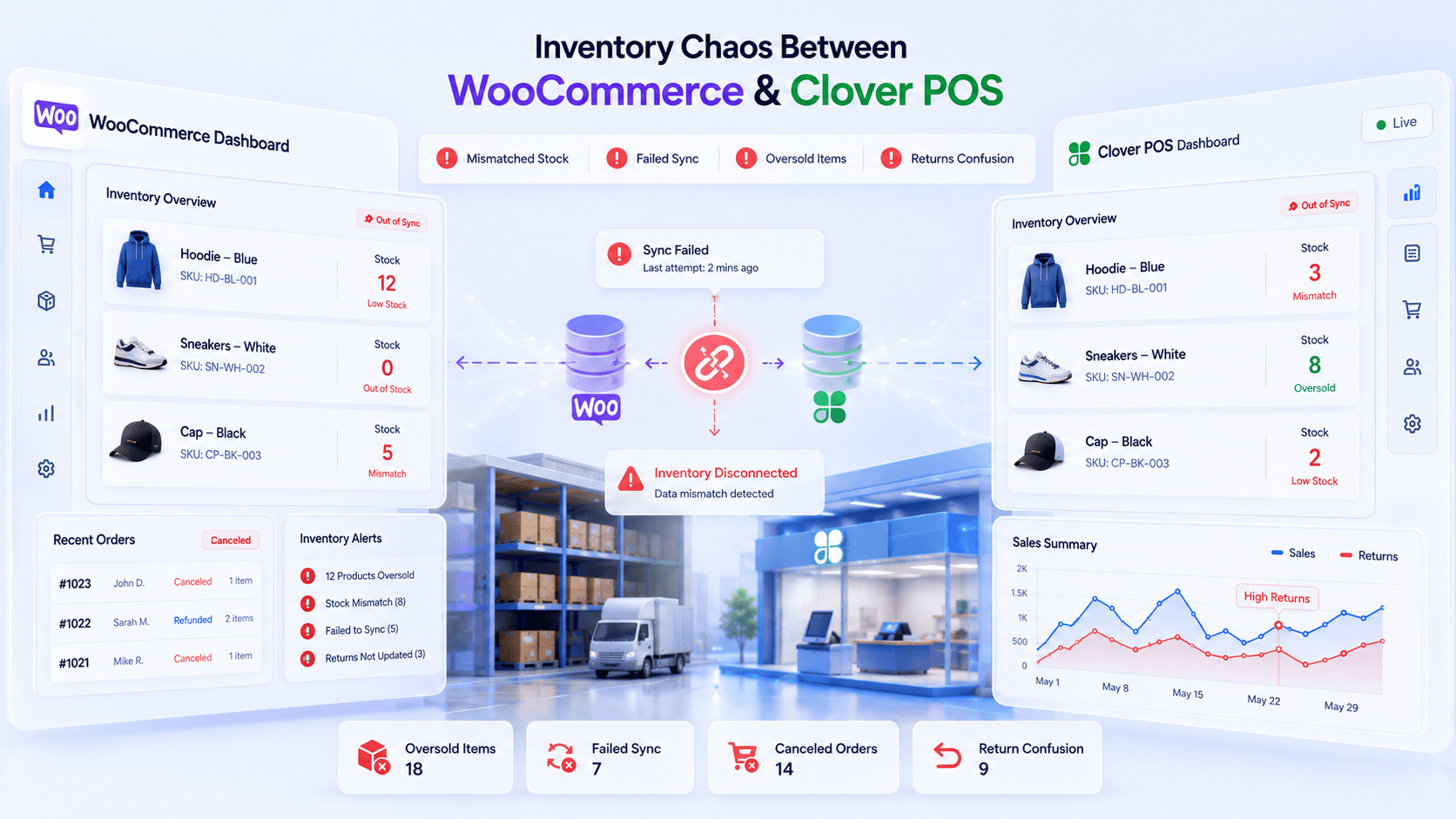
Running WooCommerce and Clover separately with inventory sync creates hidden problems. At first, it may look manageable. But every sale, return, and stock adjustment adds more room for error.
Here’s what merchants have to deal with when Clover and WooCommerce inventory is not synced.
Inventory Counts Become Unreliable
When WooCommerce and Clover are not synced, inventory levels start drifting apart. Clover POS may show one item stock count, while WooCommerce shows another. This makes it harder to know what is actually available.
Poor inventory visibility leads to weak purchasing, fulfillment, and stock decisions. Over time, even small stock differences create larger reporting gaps.
Overselling Becomes a Daily Risk
Overselling happens when WooCommerce shows stock that Clover has already sold. This creates canceled orders, refunds, customer complaints, and extra support work. Even small inventory delays can become costly during busy sales periods and promotions. Even in high-demand product launches.
Repeated overselling also affects customer trust and future purchase intent. It can increase refund handling and delay fulfillment. It may weaken your store’s operational reliability.
Manual Updates Waste Staff Time
Manually updating inventory between WooCommerce and Clover introduces human errors. Staff must log into both platforms after every sale, track spreadsheets, and reconcile discrepancies. This process typically consumes several hours weekly for small stores.
This creates unnecessary labor costs and slows daily operations. As order volume grows, manual updates become harder to audit and easier to get wrong.
Returns and Exchanges Create Confusion
You can’t avoid returns and exchanges if you want to run a successful e-commerce business. Managing inventory after every return or exchange is another tricky part. Your staff might forget to update the inventory after a return. You might deduct the wrong stock for the exchange product.
Without sync, these small changes create larger inventory mismatches. This affects reorder planning, item availability, and customer service accuracy.
Customer Experience Issues and Lost Sales
Inventory mismatches lead to order cancellations that frustrate customers. Imagine a customer purchasing an item online and receiving a confirmation email. Then getting notified that the item is unavailable. Overselling can cost more than one lost order. Reports suggest that each oversell can eat upto 15% of future revenue as it damages customer trust.
Customers who experience order cancellations rarely become repeat buyers. Your online store’s reputation suffers from negative reviews.
Also Read: How to Sync Multiple WooCommerce Stores
Benefits of Syncing Inventory Between WooCommerce and Clover POS
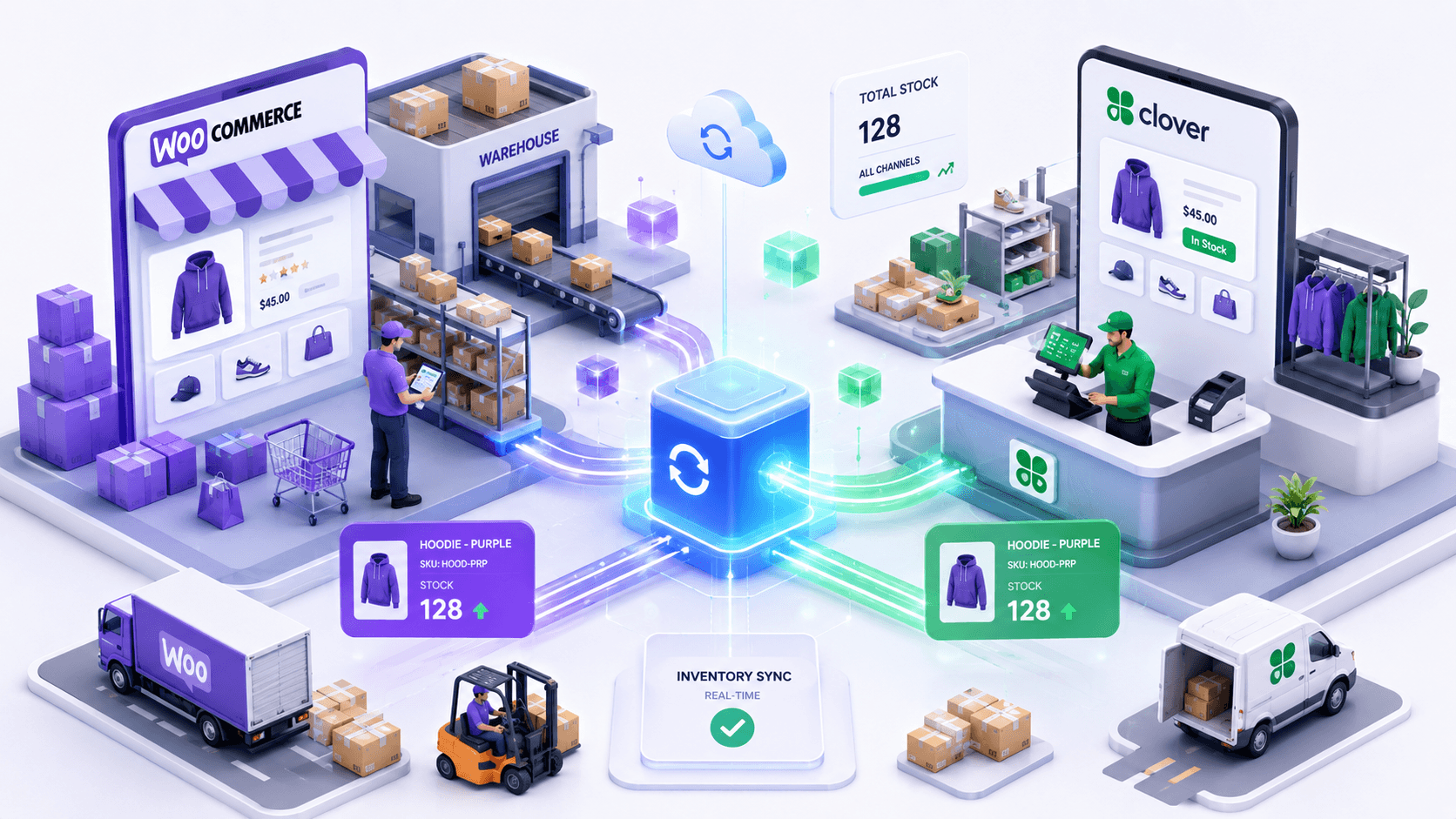
Proper WooCommerce Clover inventory sync transforms operations from chaotic to streamlined. The benefits extend beyond just accurate stock counts. Let me explain how inventory synchronization improves every aspect of your multichannel business.
Real-Time Inventory Accuracy
When you sync Clover POS and WooCommerce inventory with an automation tool, you get accurate inventory. Inventory sync tools update stock after every sale, refund, exchanges.
This helps merchants see their actual stock level from one central dashboard. With clearer inventory visibility, merchants can reduce unnecessary stock purchases.
No Manual Inventory Updates
Manual stock updates take time and often create errors. This can be avoided with inventory sync tools. The best inventory app for Clover and WooCommerce removes the need to update quantities separately.
Your team spends less time correcting stock numbers and more time managing orders. It also reduces operational dependency on spreadsheets, admin checks, and repeated back-office work.
Smart Variant Sync Support
If you sell multiple product variants across Clover and WooCommerce, inventory management becomes more complex. Products with sizes, colors, bundles, or custom options need accurate variant-level syncing.
A smart WooCommerce Clover sync tool updates the exact product variation. It helps prevent confusion when customers buy specific product options online or in-store.
Improved Customer Satisfaction and Trust
Accurate inventory means fewer order cancellations and shipping delays. Customers see what’s actually available and receive what they ordered. When an order is placed in WooCommerce, the inventory is deducted in both stores.
This reliability builds trust and encourages repeat purchases. Your online store’s reputation improves through positive reviews and customer loyalty.
Better Business Decision Making
Accurate, real-time inventory data helps you make better buying and stocking decisions. One case study showed a 40% reduction in inventory costs through better forecasting. It helped the business avoid both overstocking and stockouts.
You can spot slow-moving products and plan promotions with more confidence. A reliable Clover WooCommerce inventory sync tool also reduces overselling incidents.
What a Proper WooCommerce Clover Integration Tool Should Include
Not all integration tools deliver the same value for WooCommerce Clover inventory sync. Some offer basic connectivity while lacking critical features. A proper WooCommerce Clover integration tool should do more. It should support stock, SKUs, variants, locations, and orders.
Here are the features you should look for in a WooCommerce Clover inventory sync tool.
Real-Time Inventory Sync
Check how the tool discovers each kind of change. QuickSync receives supported WooCommerce changes by webhook, while Clover sale-stock checks run 30 minutes after order import. Queue processing and platform responses can add time.
Automatic SKU Creation
SKU matching helps connect the correct WooCommerce and Clover products. If products lack SKUs, the tool should auto-generate them during the initial sync. Automatic SKU creation reduces product mapping errors. It also prevents the creation of duplicate products.
Variant-Level Sync
Products with sizes, colors, bundles, or options need variant-level inventory sync. A proper tool should update the exact sellable item, not only the parent product. This keeps stock accurate for every product variation across WooCommerce and Clover POS.
Inventory Spoofing
Inventory spoofing lets merchants control displayed stock levels. You can reserve some Clover inventory while showing adjusted WooCommerce stock. This helps protect in-store availability. It gives merchants more control over online inventory visibility.
Multi-Location Inventory Support
Merchants with many Clover locations or warehouses need flexible inventory rules. The tool should sync multiple WooCommerce stores and Clover inventory locations accordingly. It should allow merchants to choose a main location or set custom rules for each sales channel.
Different Ways to Sync WooCommerce and Clover POS Inventory
There are different methods to sync WooCommerce and Clover POS inventory. Each approach has different requirements, costs, and limitations. Some methods are simple but limited.
Some work only for small catalogs. Others are built for real inventory automation. Let’s explore different methods to sync WooCommerce and Clover inventory one by one.
Method 1: Manual Inventory Updates
Manual inventory management is what most retailers start with, thinking it will work. In the manual method, retailers update inventory themselves.
Merchants usually rely on registers and Excel reports for keeping an inventory tab. Some merchants also use Clover reports and WooCommerce inventory screens to manage stocks. This method seems free, but it costs in labor and errors.
Why manual updates are not good long-term:
Real-time sync is impossible because humans can’t update instantly after each transaction
Error rates increase as staff mistakes lead to typos and missed entries
Scalability disappears when order volume exceeds manual processing capacity
Training costs rise as staff must learn both platform interfaces thoroughly
Double data entry wastes hours that could be focused on sales and customer service
Overselling becomes common during busy periods when updates lag behind sales
Staff confusion grows when different team members show different stock numbers
Manual updates may work for a very small store. But once orders increase, this process becomes slow, risky, and difficult to trust.
Method 2: CSV Import and Export
Another method for Clover WooCommerce inventory sync is CSV import/export. In this method, merchants can download inventory data from one store and upload it to the other. Some merchants export Clover inventory and import it into WooCommerce. Others adjust WooCommerce stock and upload changes manually.
Why CSV import and export fall short:
CSV files only capture inventory data at one specific update point.
Inventory records become outdated as soon as new sales happen.
SKU mismatches may update the wrong WooCommerce or Clover products.
Product variants may not map accurately between the two connected systems.
Returns and exchanges still require manual stock corrections afterward.
CSV files are useful for one-time product movement. They are not a reliable method for ongoing WooCommerce Clover inventory sync.
Method 3: Basic Connector or Plugin
Some merchants use basic connectors or plugins to integrate WooCommerce and Clover. These tools may handle simple product sync or limited inventory updates. For small setups, this may feel enough in the beginning.
Why basic connectors may not be enough:
Sync updates may not happen in real time across platforms.
Complex product variants may not map between systems.
Clover location inventory may not sync with complete accuracy.
SKU conflicts can create product matching and stock errors.
Support may be limited when sync failures need resolution.
Basic connectors can help with light syncing. But growing merchants need stronger automation, better reliability, and cleaner inventory control.
Method 4: QuickSync Inventory Sync Tool
QuickSync is the real-time sync solution designed for WooCommerce Clover inventory management. QuickSync offers all the important features needed for managing WooCommerce Clover inventory effectively.
This tool eliminates the limitations of other methods. QuickSync connects your WooCommerce store and Clover account directly, handling bidirectional sync.
It helps merchants reduce overselling, keep managed stock active, and sync POS sales. With QuickSync, merchants get various inventory management features such as:
Real-Time Updates: It syncs supported stock changes automatically. Clover sale-stock checks run 30 minutes after order import; stock edits can arrive by webhook.
Automatic SKU Generation: It creates SKUs automatically for products which doesn’t have one.
Variant-Level Sync: It can handle product variations seamlessly with proper attributes and mapping.
Inventory Spoofing: QuickSync displays stock levels strategically while maintaining accurate internal counts.
Multi-Location Support: QuickSync can sync multiple Clover accounts‘ inventory correctly across all locations.
Source Store Control: Merchants can choose the baseline store for accurate starting inventory.
Stock Visibility Control: Sellers can manage what customers see without changing real stock.
Return Stock Updates: Returned products update inventory automatically across both connected systems.
- Multichannel sync: With QuickSync, you can integrate more ecommerce channels. You can connect WooCommerce to eBay, sync WooCommerce with Clover, connect Square to WooCommerce, etc.
QuickSync gives merchants a scalable way to sync WooCommerce and Clover POS inventory. Instead of checking stock manually, you can let QuickSync update inventory, products, and orders in the background.
How to Connect and Sync WooCommerce With Clover Using QuickSync
Since QuickSync is the easiest way to sync WooCommerce and Clover inventory, here’s how to get started. QuickSync makes WooCommerce Clover inventory sync simple.
You do not need to update stock by hand. You do not need to check spreadsheets. You do not need to switch between WooCommerce and Clover all day.
QuickSync connects both platforms and keeps them updated. It is built for merchants who sell online with WooCommerce and in-store with Clover POS. It syncs inventory, products, and orders, so both systems work together with less manual work.
Follow these steps to connect your stores.
Step 1: Create Your QuickSync Account
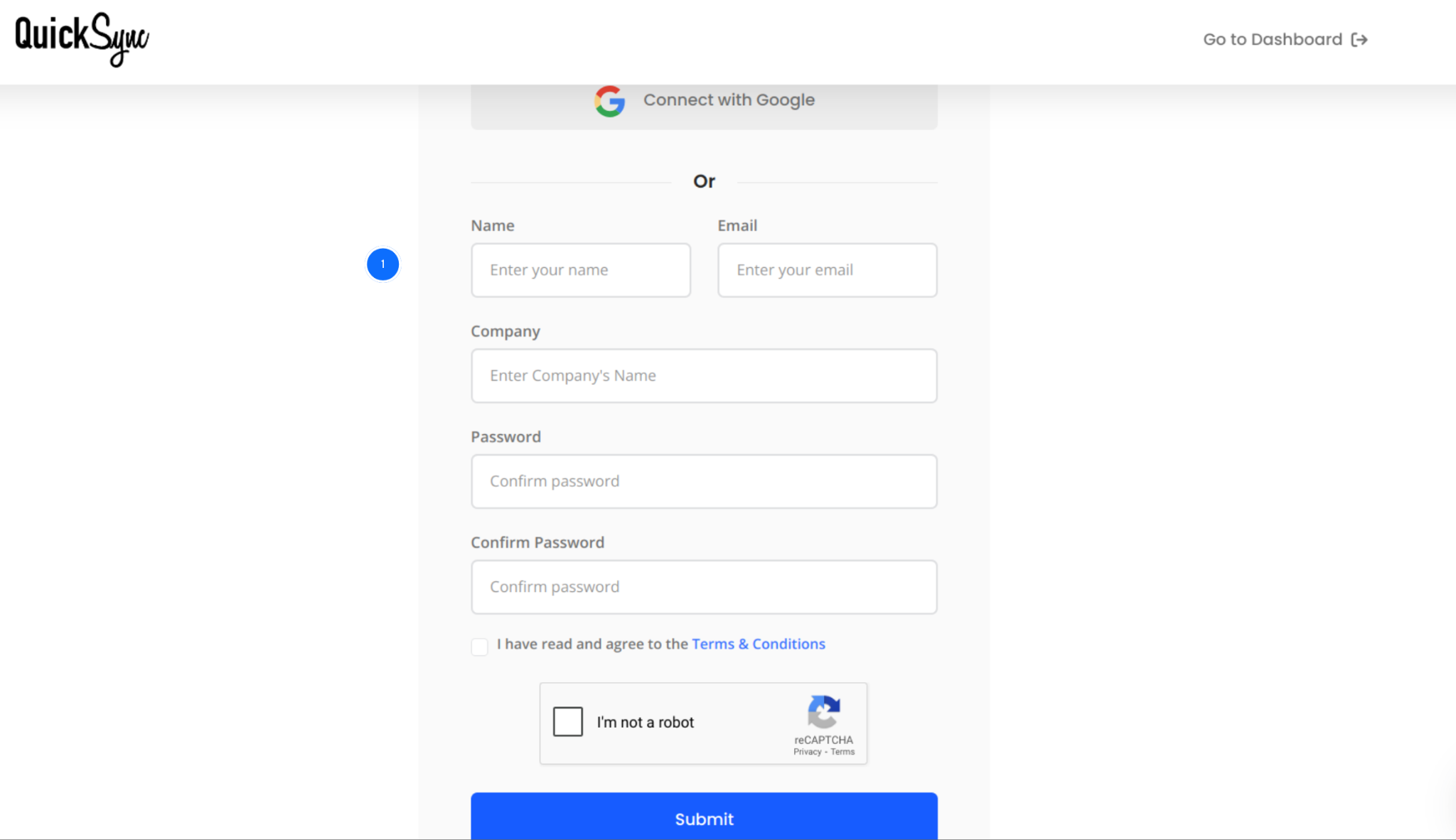
Go to quicksync.pro and sign up with your email and business details.
If you already have an account, log in and open your dashboard.
This dashboard is where you manage connected stores and inventory sync settings.
Step 2: Connect Your WooCommerce Store
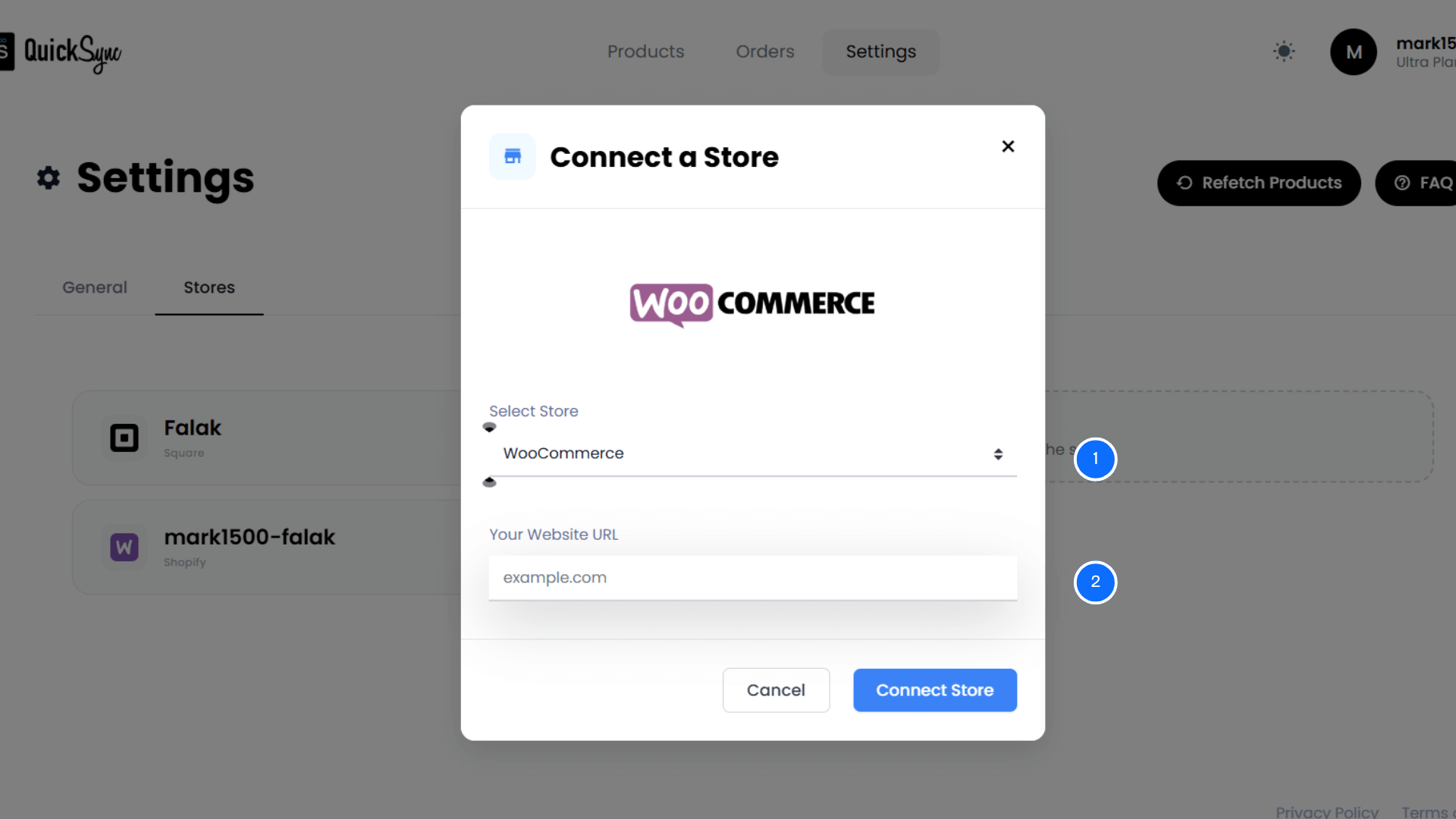
From the QuickSync dashboard, go to Sync Products → Add Store.
Select WooCommerce from the platform list.
Enter your WooCommerce store details, including your domain, consumer key, and consumer secret.
Approve the connection so QuickSync can access product data, inventory, and store information.
Step 3: Connect Your Clover Account
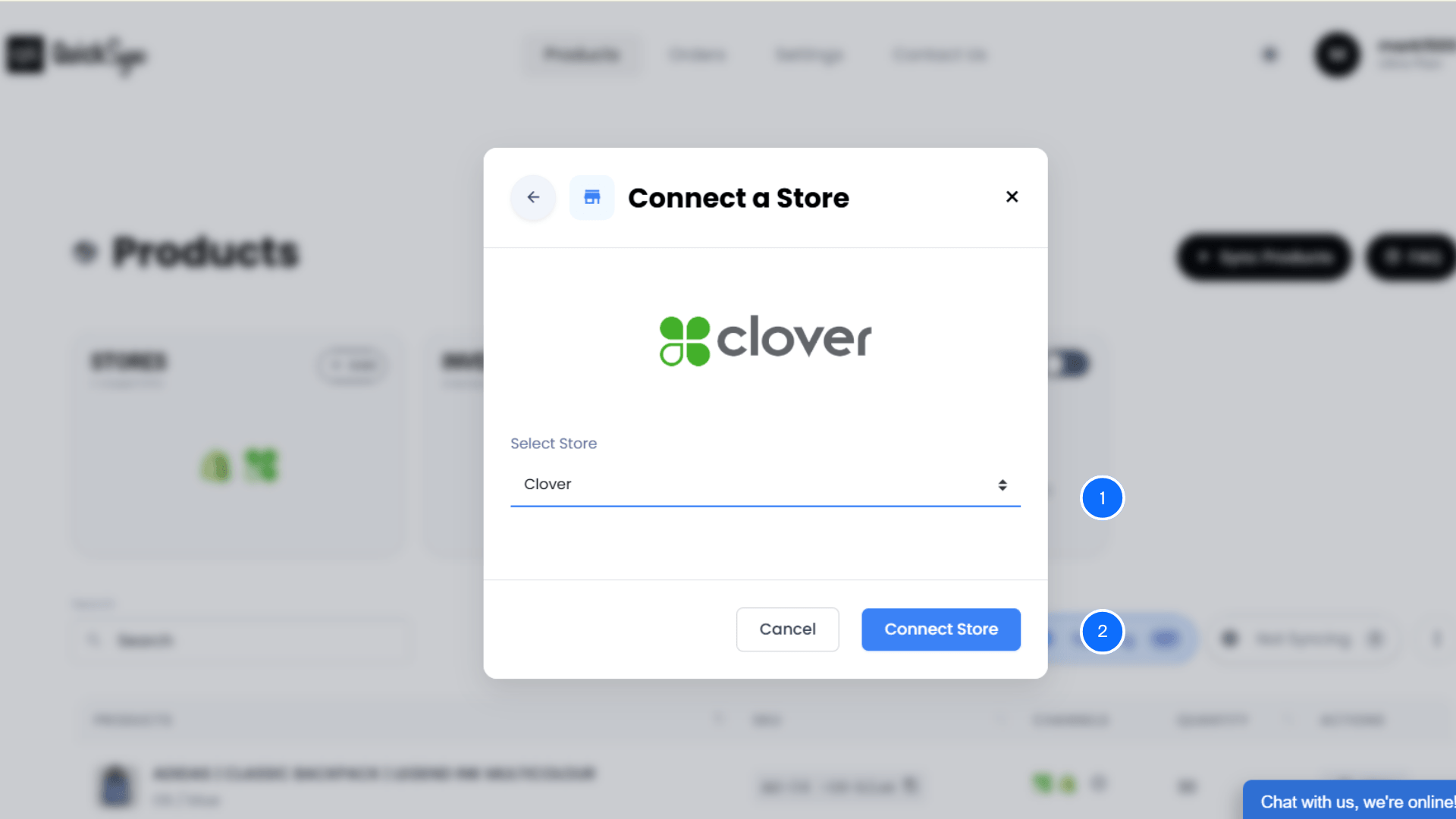
Go to Dashboard → Sync Products → Add Store.
Select Clover from the available platform options.
Log in with your Clover credentials.
Authorize QuickSync to access your Clover inventory, products, orders, and locations.
Select which Clover locations you want to include in the sync.
Step 4: Configure Inventory, Product, and Order Sync
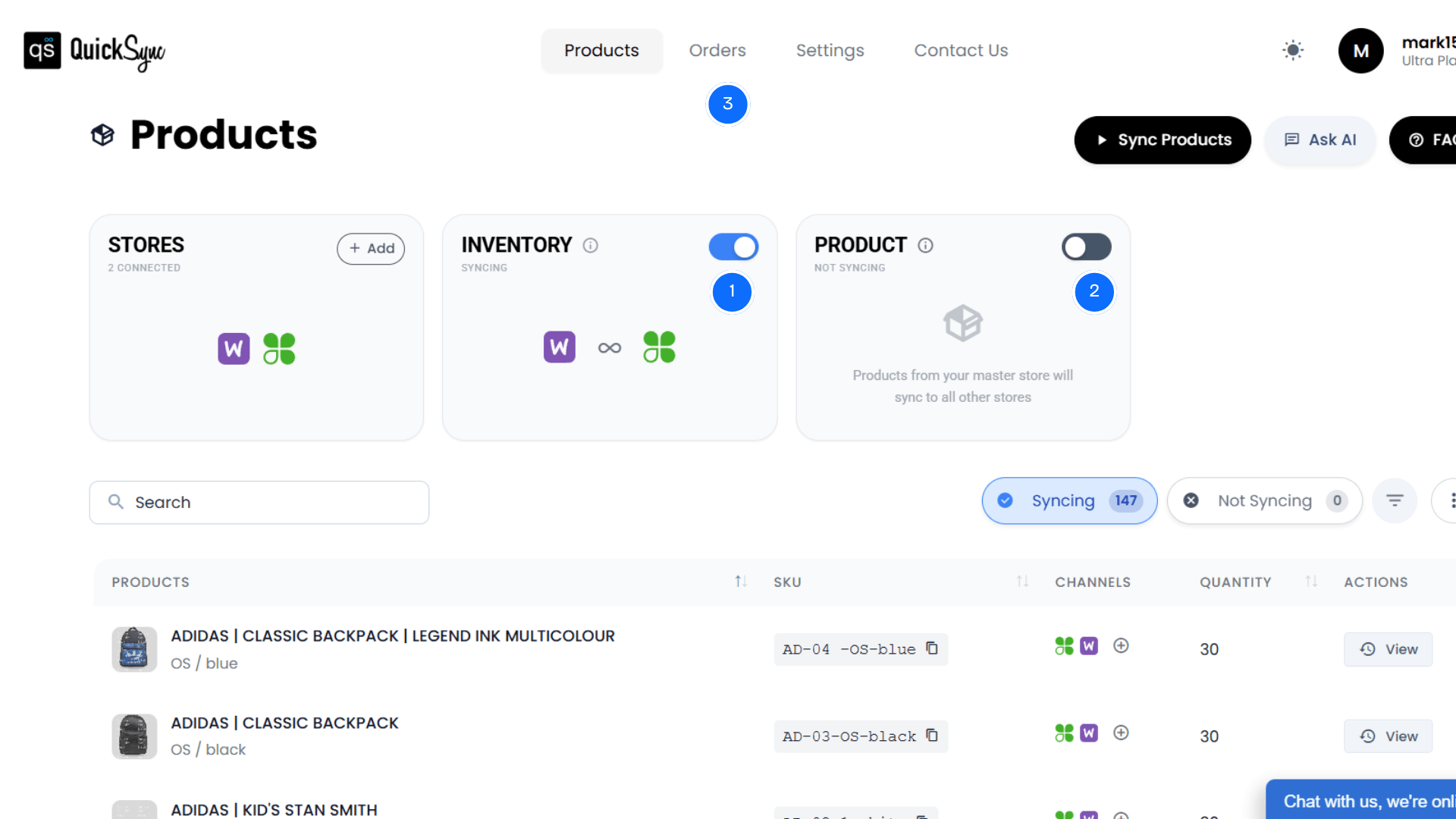
Once both stores connect, the inventory sync toggle activates automatically. Your WooCommerce store and Clover account begin communicating immediately.
Choose your Source Store in the pop-up window. The store on the left acts as the Source Store. Click Switch Store if you need to change it.
Select your sync options:
Export Products (Optional): Send selected products from the source store to the destination
Create SKU (Optional): QuickSync auto-generates SKUs for products missing them
Create as Draft (Optional): Exported products stay hidden until you publish them
Click Start Syncing to begin the process. QuickSync exports products and establishes the bidirectional inventory connection.
Tips to Keep Inventory Accurate Between WooCommerce and Clover POS
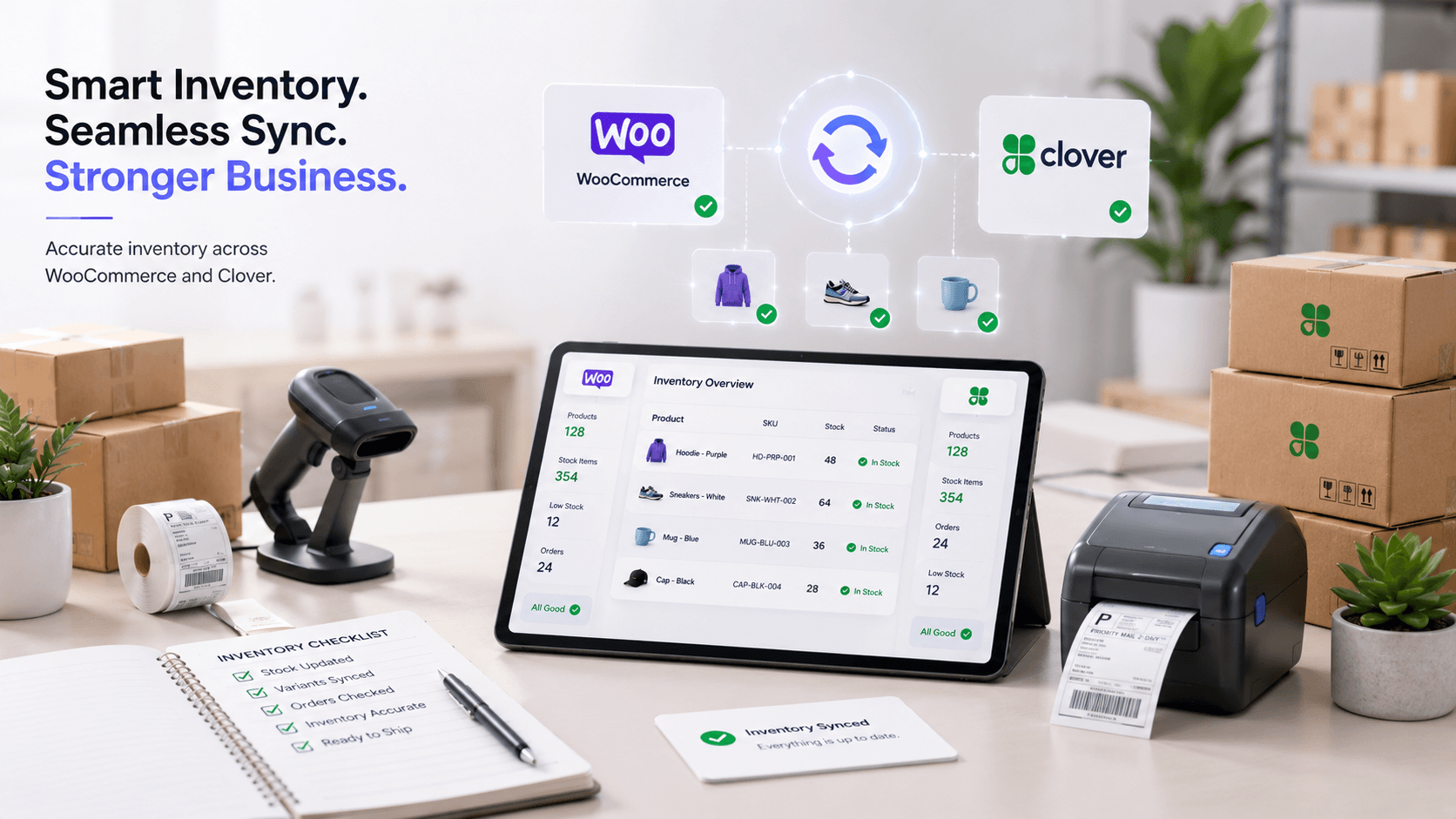
Inventory sync works best when your setup is clean. WooCommerce and Clover both need structured product data. Small mapping issues can create bigger stock problems later.
Let me share how successful merchants manage their synchronized inventory.
Choose the Right Source Store
Before you start, choose where your correct inventory is saved. It can be WooCommerce or Clover. QuickSync will use this store as the main source and send the right stock numbers to the other platform. This helps prevent wrong stock data from syncing at the start.
Review Clover Locations
Check which Clover locations should connect to WooCommerce before syncing. Not every location may sell online. Clean location selection helps QuickSync update the right stock. It prevents incorrect inventory visibility on your online store.
Avoid Manual Stock Updates
Once QuickSync manages inventory, avoid manual stock changes in both systems. Manual overrides can create temporary mismatches. Make stock changes from your chosen source store. Then let QuickSync update the connected platform automatically.
Monitor Early Sync Logs
Check QuickSync sync activity during the first few weeks. This helps catch SKU conflicts, mapping errors, or failed updates early. Early monitoring keeps inventory reliable before small issues turn into larger operational problems.
Use Draft Mode Carefully
If you export Clover products into WooCommerce, use draft mode when needed. This lets you review titles, images, prices, and descriptions before products go live. It helps prevent incomplete listings from appearing online.
Conclusion
WooCommerce and Clover can work well together. But only when inventory stays accurate across both systems. If your online store and POS are not connected, every sale creates another chance for error.
That is where WooCommerce Clover inventory sync becomes important.
Instead of checking two dashboards or updating spreadsheets. QuickSync keeps supported WooCommerce and Clover inventory changes connected through webhooks and scheduled sale-stock checks. Stock updates after online orders, so your team can trust the numbers they see.
Fewer oversells, fewer cancelled orders. Less manual work and better control over both online and in-store operations.