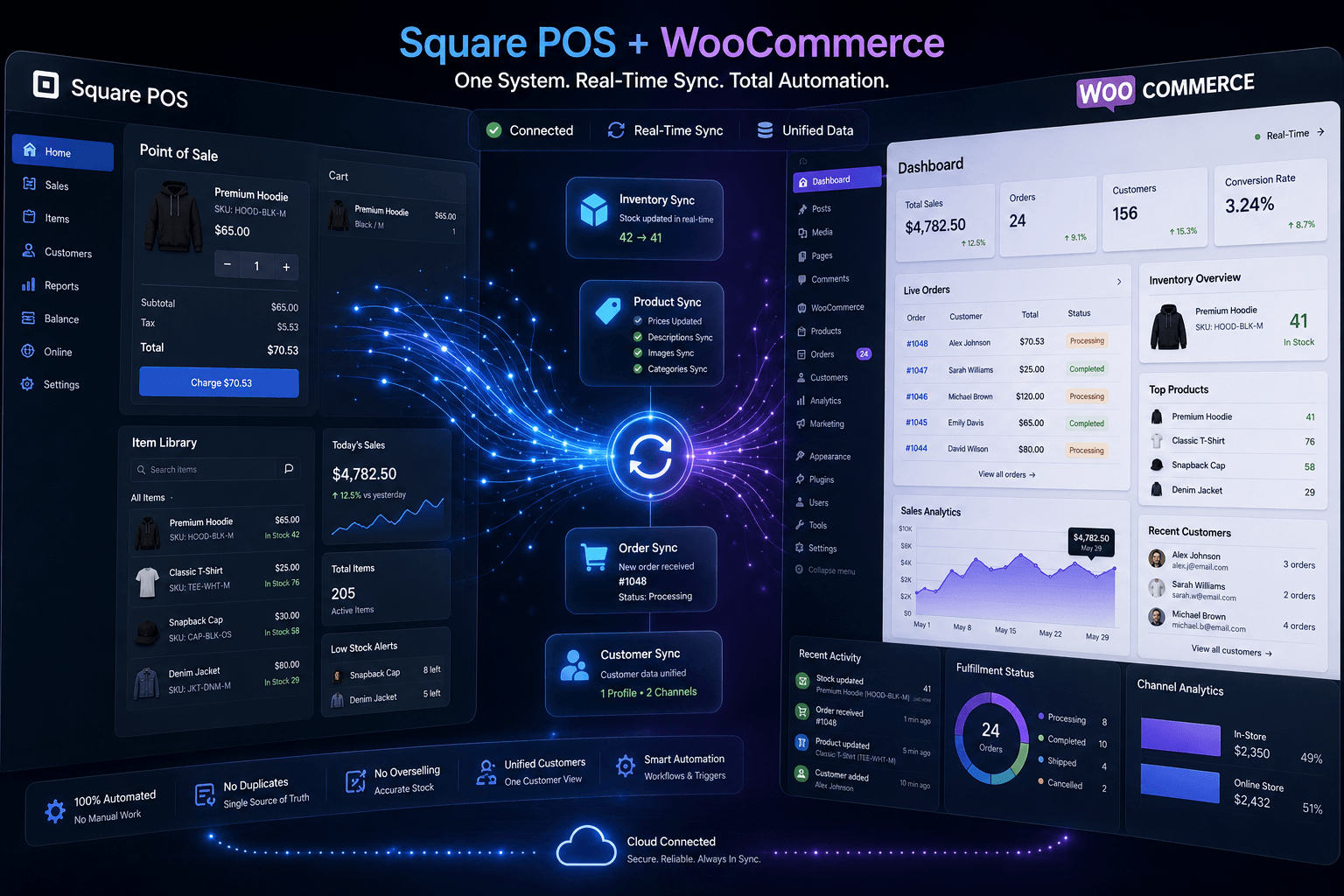
Connecting Square to WooCommerce is not just about linking two platforms. It is about making your online store and physical POS work as one system.
When merchants manage Square and WooCommerce separately, orders come in from both channels. One store sale doesn’t update the other store’s inventory. WooCommerce products might not reflect on Square POS with accurate titles and descriptions. Product catalogs drift out of sync.
The result? Overselling, frustrated customers, and hours spent reconciling data that should match automatically.
This disconnect costs real money. According to research on multichannel inventory management, businesses with sync delays of just 15 minutes face a 56.2% overselling probability when stock runs low.
That’s why connecting Square and WooCommerce matters. When integrated properly, you get unified inventory, automatic order flow, and accurate product data across both platforms. You don’t need to do double-entry or any manual reconciliation.
But here’s the reality: not all integration methods work equally well. Native plugins offer basic functionality. Custom API development gets expensive fast. However, third-party Square WooCommerce integration tools like QuickSync deliver complete sync without the complexity.
This guide covers exactly what WooCommerce Square integration syncs, how to connect Square to WooCommerce, common issues and fixes, and how QuickSync simplifies the entire process.
What WooCommerce Square Integration Actually Syncs
Let me explain what WooCommerce Square integration actually means. Many merchants think integration only means adding Square as a payment option on the WooCommerce checkout page. But that is only one part of it.
A proper WooCommerce Square integration connects your Square POS and WooCommerce store so both platforms can share important business data. This means your products, stock changes, orders, payments, customers, and catalog sync automatically. Instead of switching between the Square dashboard and the WooCommerce admin repeatedly, you get a cleaner way to manage both online and in-person sales.
Here’s what a complete WooCommerce and Square integration helps you manage:
When an item sells through Square POS or WooCommerce, stock levels update across both platforms. This helps you avoid overselling, wrong stock counts, and last-minute order cancellations.
Your product names, prices, SKUs, barcodes, categories, images, and variations can stay synced between WooCommerce and Square. You do not need to create or edit the same product twice.
WooCommerce orders and Square POS orders can move into one dashboard. This makes fulfillment easier because your team does not need to check two platforms for every sale.
A connected setup helps you manage key sales data from one dashboard. You spend less time moving between WooCommerce, the Square dashboard, spreadsheets, and manual reports.
When products, stock, or orders change, the integration handles the update for you. This reduces manual work and lowers the chances of human error.
That is the real purpose of WooCommerce Square integration. It is not just about connecting two apps. It is about helping your online store and Square POS work like one system.
Why Businesses Connect Square with WooCommerce
You might be thinking: “I’ve managed this manually for a while. Do I really need to sync these?”
Yes. Here’s why, and I’ll be direct about this.
Every manual process is a tax on your business. It costs time, creates errors, and doesn’t scale. Here’s why businesses connect WooCommerce and Square.
No More Overselling with Real-Time Sync
Real-time inventory sync prevents the nightmare of selling products you don’t have. When a sale happens at your Square POS, WooCommerce stock levels update instantly. Research shows overselling costs businesses an average of $47 per cancelled order; multiply that across dozens of incidents monthly, and the savings become significant.
When WooCommerce receives an order, Square inventory updates. This reduces manual checks, missed updates, late fulfillment, and refund risk caused by inaccurate stock levels.
Accurate Product Catalog Without Double Work
Another benefit of connecting Square to WooCommerce is that you no longer have to list a product twice. Add a product on Square, and it will automatically be synced and listed on WooCommerce. With integration, you can manage product data easily without double updates. Product sync keeps your WooCommerce store and Square POS catalog aligned.
Titles, prices, SKUs, barcodes, images, categories, and variations can sync automatically. Your team does not need to create the same product twice. This saves time and reduces catalog errors across your online store and Square hardware.
Automated Order Management
Right now, a customer buys online, and you have to manually tell your warehouse to pack it. Or you create an order manually in your fulfillment system. Or both. With full sync, you can manage both Square and WooCommerce.ommerce orders from a unified dashboard.rd.
Fulfillment status updates automatically. Your team sees every order in one platform without switching between dashboards. Register sales appear in WooCommerce’s reporting instantly.
Unified Customer Data From Online and In-Store
Right now, you have two customer databases. Someone who buys online is a stranger when they walk into your store. You can’t offer personalized service. You can’t see their purchase history. You can’t identify your best customers across channels.
With sync, every purchase from every channel feeds one customer profile. You can identify repeat customers. You can actually do targeted sales and marketing because you know who your customers really are.
Reduced Operational Costs
Let’s talk numbers. The average retailer spends 4-6 hours per week on inventory management alone. That’s 200-300 hours per year. Automation cuts labor costs tied to manual sync processes. Staff time previously spent on data entry and error correction redirects to revenue-generating activities.
Fewer oversell cancellations mean fewer refunds, less customer service time, and stronger retention rates. Connecting Square and WooCommerce helps reduce these hidden costs.
On Shopify rather than WooCommerce? Connecting Shopify to Square solves the same POS-to-online mismatch.
Different Ways to Integrate WooCommerce and Square POS
Different methods exist for connecting Square to WooCommerce. Some offer basic functionality. Others provide complete sync capabilities. Understanding each approach helps you choose the right solution for your business needs.
There are three main approaches merchants consider. Let me break down what each actually does and why most eventually switch to the third option.
Method 1: Native Integration
The WooCommerce Square plugin (often called Square for WooCommerce) provides a built-in connection between platforms. It enables the Square payment gateway on your checkout page. It syncs basic product data and offers inventory sync based on SKU matching. The plugin is free and supported through WooCommerce documentation.
However, native integration has significant limitations:
Inventory sync runs on scheduled intervals (often 15 minutes or longer), not real-time, creating overselling risk during busy sales periods
Products with multiple attributes (like size AND color) have limited support or require workarounds
Order sync from Square to WooCommerce captures only status updates for Completed and Cancelled orders, not full order details
Refunds created in Square don’t sync back to WooCommerce orders
Multi-location support doesn’t work properly. Typically, only one active Square location works properly
Advanced pricing rules, promotions, and loyalty programs aren’t fully supported
Method 2: API/Custom Setup
Custom development uses Square’s and WooCommerce’s REST APIs to build your own integration. Developers write code and webhooks to push and pull data between platforms, handling mapping, error-handling, and scheduling. This approach offers maximum flexibility and control.
The challenges make it impractical for most businesses:
Requires technical expertise in PHP, WordPress development, and Square APIs. It means significant developer costs
Ongoing maintenance is needed as both platforms update their API versions and requirements
Building webhook logic and polling systems for inventory, orders, and products is time-intensive
Security concerns around token management, endpoint protection, and rate limit handling
No vendor support for custom code; troubleshooting falls entirely on your team
Scaling issues emerge under high-order volumes or peak traffic periods
Initial development plus hosting, monitoring, and updates adds up quickly
Method 3: Third-Party Integration Tools like QuickSync
This is the best method to sync Square and WooCommerce if you want more than a basic payment connection.
A third-party integration tool like QuickSync connects WooCommerce and Square with a stronger sync layer. It helps sync products, inventory, orders, prices, SKUs, customer details, and Square POS data between both platforms without custom coding.
The third-party WooCommerce Square integration tool gives you a ready system with guided setup and dashboard controls
Here’s why third-party integration stands out:
Real-time sync: Integration tool keeps your WooCommerce and Square data moving automatically. Inventory, products, orders, SKUs, prices, and customer details can be synced between both platforms without manual entry.
Easier store management: You can manage the integration yourself from a simple dashboard. There is no need to hire a developer, write code, or maintain a custom API setup.
Complete integration coverage: Third-party sync tools like QuickSync not only connect payments. It supports the full sync across products, stock, orders, catalog data, and customer records.
Better for daily operations: A third-party tool is built for real business use. It helps reduce manual updates, platform switching, missed stock changes, and order handling delays.
Multi-location Square POS support: Such tools help manage inventory across different Square locations. Each location can have its own stock count.
Pricing stays consistent: Integration tool helps keep regular prices, sale prices, and compare-at prices aligned between WooCommerce and Square.
Built for different types of sellers: An integration tool can support different types of stores. It includes online stores, retail shops, POS sellers, and merchants selling both online and in person.
More affordable than custom development: A third-party tool is usually more affordable than building a custom API setup. You do not need to pay large developer fees.
How to Connect Square to WooCommerce (Step-by-Step)
Since a third-party sync tool is the best method to connect to Square to WooCommerce, let me walk you through exactly how it works using QuickSync.
QuickSync is purpose-built for Square to WooCommerce integration. QuickSync is designed specifically for syncing WooCommerce stores with Square POS. It offers real-time inventory sync, automated order flow, product and price updates, and SKU synchronization.
Instead of managing stock levels in two places, fixing product mismatches, and checking Square orders separately, QuickSync keeps both platforms connected in the background.
Here is how to connect WooCommerce and Square with QuickSync.
Step 1: Create Your QuickSync Account
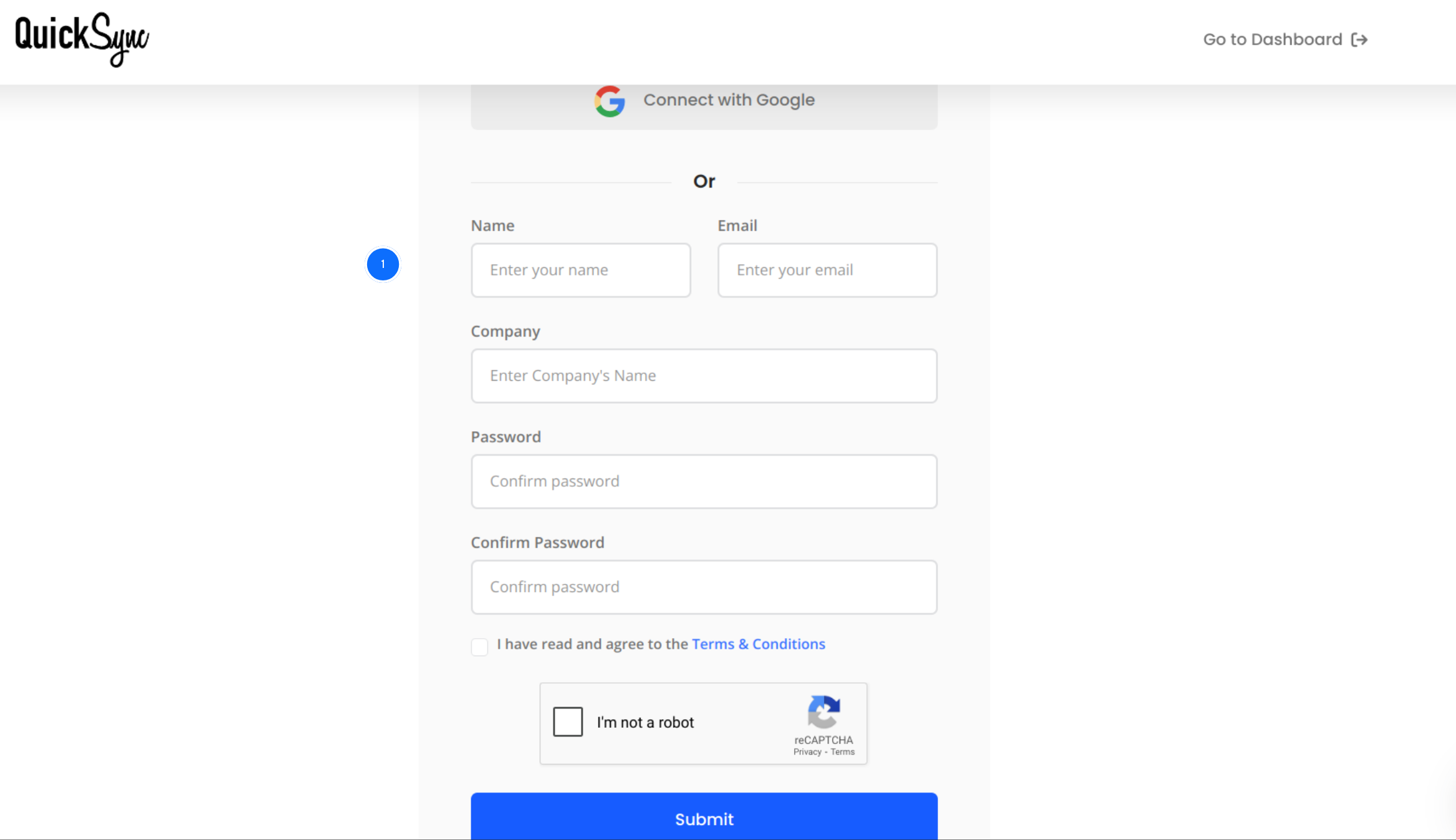
Visit QuickSync and click the Sign Up button. Enter your name, email address, and business details to create your account.
Once registered, you’ll gain access to the QuickSync central dashboard.
This dashboard is where you manage your connected platforms, sync settings, store data, product sync, inventory sync, and order sync.
Step 2: Connect Your Square Account
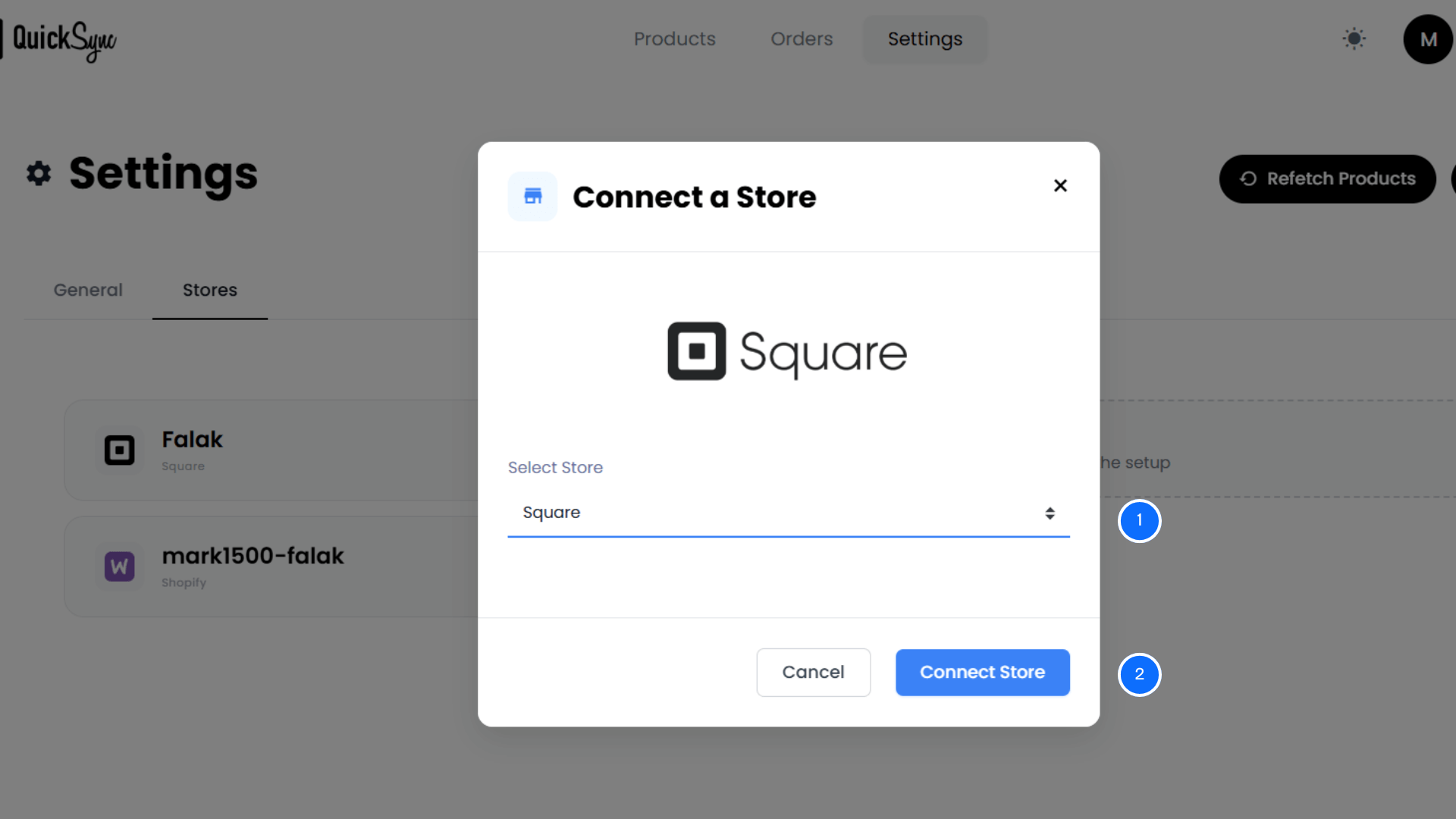
After logging into the dashboard, go to Dashboard → Sync Products → Add a Store
Select Square from the available sales channels.
Click Connect a Store and log in to your Square account using your login credentials.
Approve the required permissions for products, inventory, customers, locations, and orders.
Once authorized, QuickSync begins the initial import of your Square data.
Step 3: Connect Your WooCommerce Store
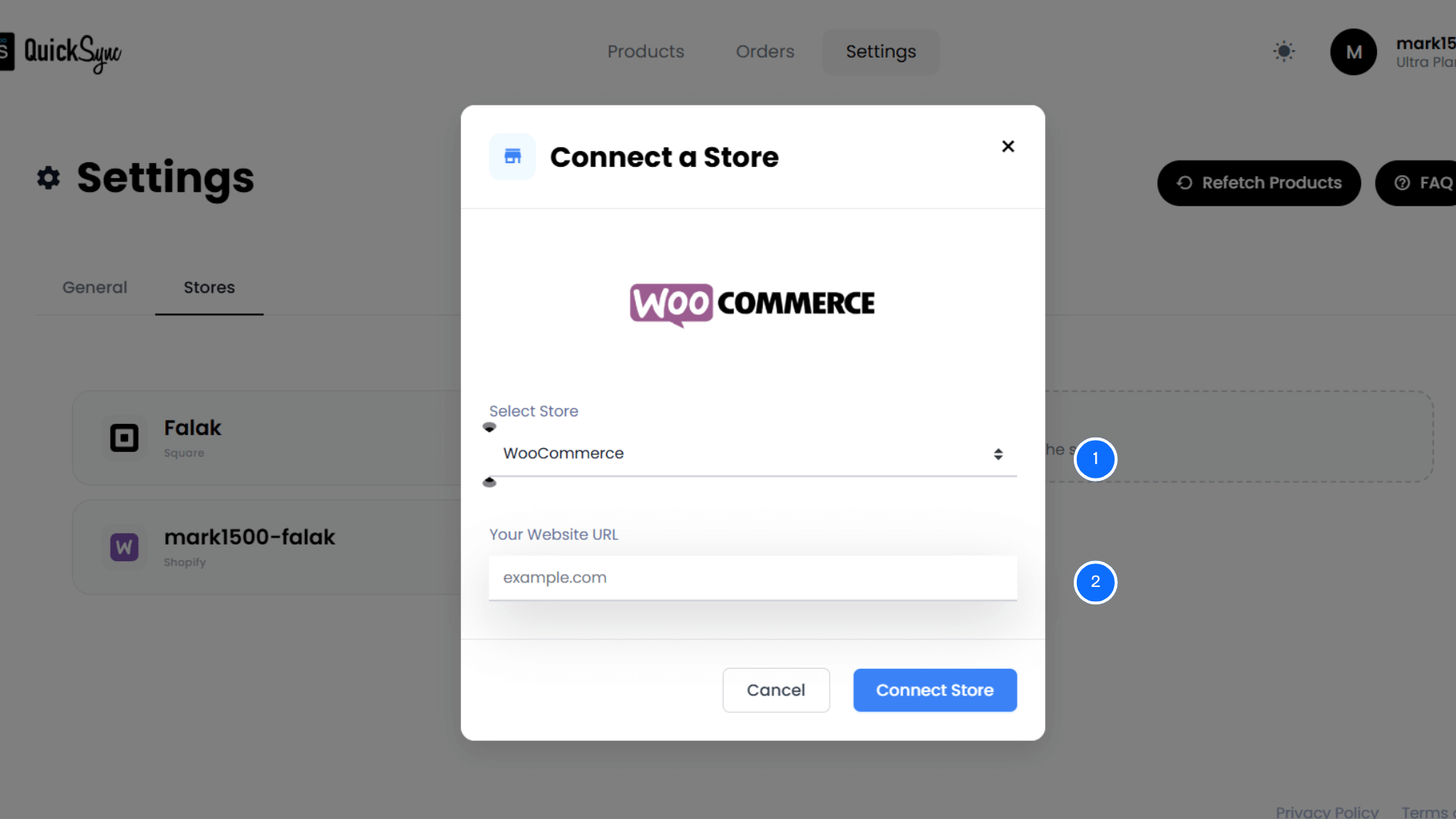
Next, go to Dashboard → Sync Products → Add a Store
Select WooCommerce from the various available sales channel options. Click Connect WooCommerce.
Enter your WooCommerce store URL. Approve access so QuickSync can manage products, images, categories, inventory, and orders on your WooCommerce site.
Step 4: Configure Sync Settings and Start Syncing
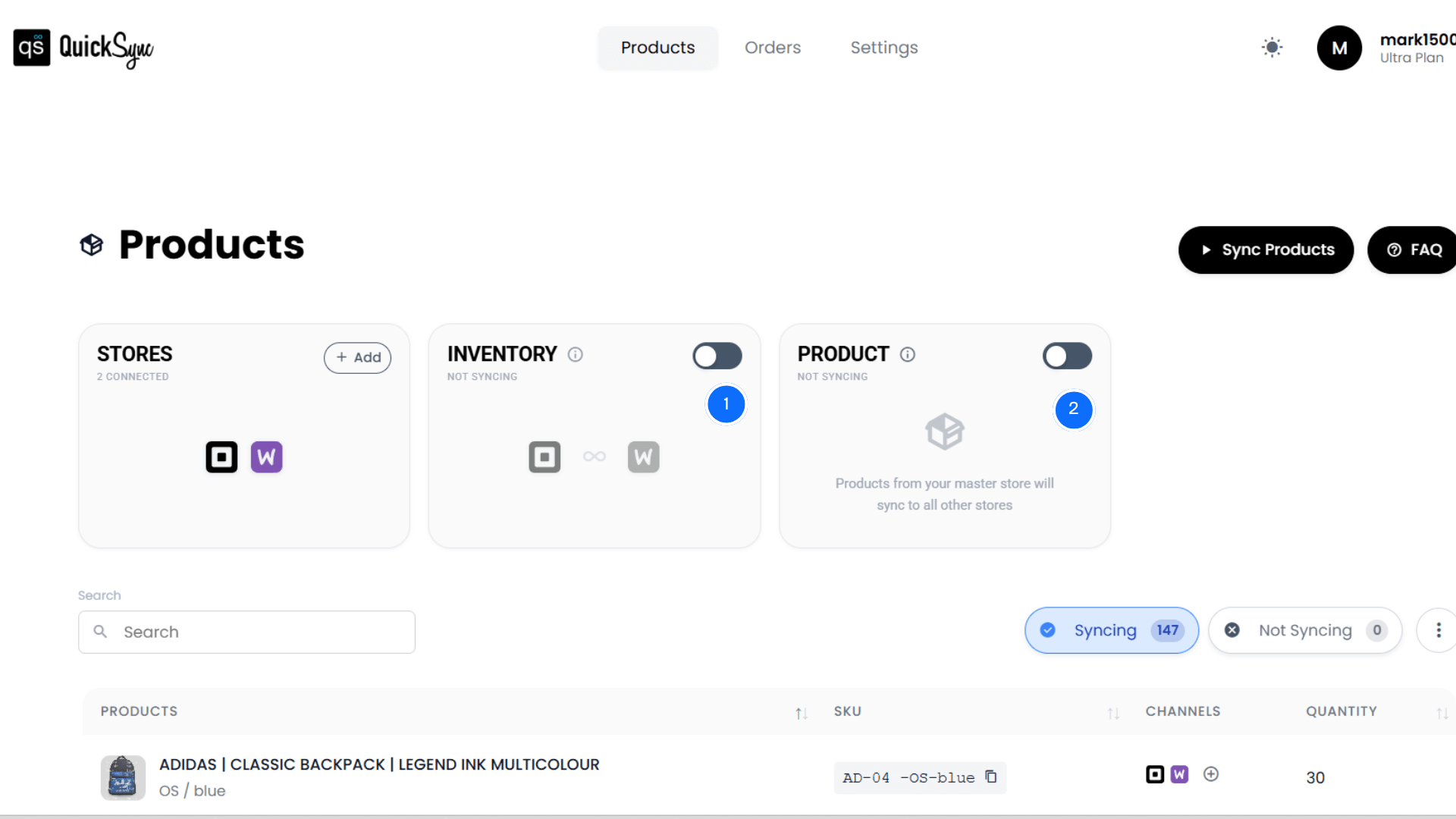
Once both Square and WooCommerce are connected, go to the QuickSync dashboard and configure your sync settings.
This is where you decide how data should move between both platforms. QuickSync lets you control what gets synced, how updates are handled, and which platform should lead specific workflows.
Inventory Sync activates automatically once both platforms are connected. This helps your store show more accurate inventory without constant manual checks.
Product Sync can be toggled from the dashboard. You can choose which platform should act as a master store. Once the master store is set up, any changes in the product details will automatically be reflected in all connected stores.
Order Sync can be toggled from the top of the dashboard. Choose one store as a fulfillment store, and all the orders will sync to that place automatically.
QuickSync will now automatically sync Square POS and WooCommerce in real time. Any changes to product data, inventory, or orders are reflected across both platforms immediately.
Common WooCommerce Square Integration Issues (And Fixes)
WooCommerce Square integration can save a lot of time. But problems can happen when product data, payment settings, inventory rules, site plugins, or sync settings are not configured properly.
The good news is that most issues can be fixed with the right setup. Here are the most common problems and how to solve them.
Issue 1: Inventory Is Not Syncing Correctly
This is one of the most common WooCommerce Square issues. Stock may update in Square but not in WooCommerce. Or WooCommerce may show an old quantity after a Square POS sale.
This can happen because the Square WooCommerce inventory sync is not enabled. Another reason might be that product SKUs do not match, or sync settings are wrong.
Fix: Inside QuickSync, check that inventory sync is enabled for both platforms. Review SKU matching, location mapping, and product sync status. QuickSync verifies inventory pushes and retries failed updates, so stock changes do not fail silently.
Issue 2: Product Variations Do Not Match
WooCommerce and Square accept different product formats. WooCommerce uses simple and variable products. Square uses items and item variations. If the integration does not map these correctly, size, color, material, or other options may break.
Fix: Use QuickSync to map WooCommerce variable products into Square item variations. QuickSync supports option groups, variation-level SKUs, and product attribute mapping. This keeps product data cleaner across both systems.
Issue 3: Orders Are Missing From One Platform
Sometimes Square orders do not appear in WooCommerce. Sometimes WooCommerce orders do not show inside the Square dashboard. This usually happens because order sync is disabled, incomplete, or not configured for both directions.
Fix: In QuickSync, enable order sync for the direction you need. QuickSync also uses webhook deduplication and backup polling to prevent missed or duplicate orders.
Issue 4: Payment Gateway Is Active, but Checkout Fails
A Square payment gateway may appear on your WooCommerce checkout page, but payment processing can still fail. This may happen because payment settings are incomplete, the Square account is not connected properly, the test payment mode is active, or digital wallets are not configured.
Fix: Review your Square payment settings, payment methods, currency, store location, and checkout setup. Test payment flow before going live. If you use QuickSync for sync and Square for payments, make sure your payment gateway settings and sync settings do not conflict.
Issue 5: WooCommerce Plugin Conflicts Break Sync
WooCommerce sites are self-hosted. That means themes, security plugins, caching plugins, checkout plugins, and custom code can affect API responses.
Some WooCommerce plugins can inject unexpected content into REST responses. Security plugins can also block external API requests.
Fix: QuickSync is built for self-hosted WooCommerce stores. It can detect domain changes, handle messy plugin output, and use fallback connection methods when security plugins block normal requests. This keeps the integration more stable without constant technical work.
How QuickSync Simplifies Square and WooCommerce Integration
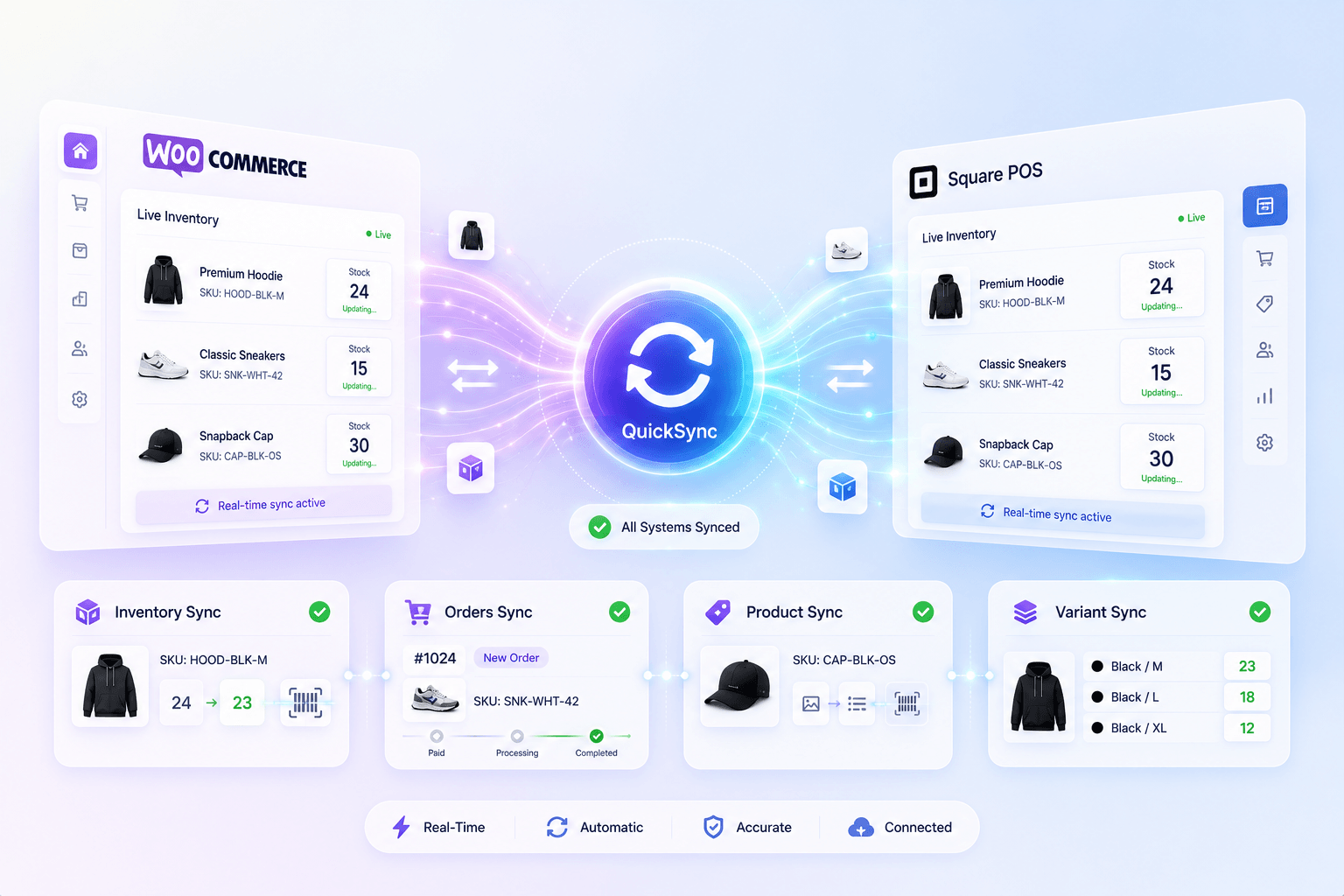
QuickSync is built for merchants who use WooCommerce online and Square POS in person. It gives both platforms a live sync layer, so your store data does not stay scattered across separate systems.
Instead of managing the Square dashboard, WooCommerce admin, and merchants can manage all the operations from one QuickSync dashboard.
Here’s what QuickSync offers:
Proper product mapping: With QuickSync, WooCommerce products sync to Square in the right format. Simple products move as normal Square items. Products with options like size, color, or material move as Square variations. So your catalog stays clean on both platforms.
Real-time inventory sync: The inventory sync feature keeps stock levels updated across WooCommerce and Square. This helps you avoid overselling, wrong stock counts, and manual inventory checks.
Automated order flow: Merchants can activate order sync, and all Square and WooCommerce orders can land in one dashboard. Your team can track online and in-person orders without switching between both platforms all day.
Payment tracking: QuickSync shows the payment type inside WooCommerce when an order comes from Square. Your team can see whether the customer paid by card, cash, or another method. This makes daily sales reports and payment matching easier.
Customer data unification: It helps sync customer data across online and in-person purchases. It can also pull customer details from Square payment records when the order has limited customer information.
Advanced pricing rules: QuickSync helps keep regular prices, sale prices, compare-at prices, and currency conversion aligned between WooCommerce and Square. This reduces pricing errors online and at the register.
SKU and barcode sync: QuickSync keeps SKUs and UPC barcodes matched between WooCommerce and Square. This makes products easier to scan, track, and manage through Square POS hardware.
Conclusion
Square and WooCommerce can help you sell in more places. But they only work well together when your stock, products, orders, payments, and customer data stay connected.
Without proper sync, your team keeps fixing the same problems: wrong inventory, missing orders, duplicate product updates, delayed fulfillment, and messy reports. That is not a scalable way to run an online and retail business.
QuickSync gives your WooCommerce Square integration the automation it needs. Products sync cleanly. Inventory updates in real time. Orders flow into the right place. Square POS and WooCommerce stop working like two separate systems and start running like one connected operation.