On this page
- What It Means to Sync Inventory Between Two Shopify Stores
- Do Shopify’s Built-In Features Allow Inventory Sync Between Multiple Stores?
- Challenges in Managing Inventory Across Multiple Shopify Stores
- How to Sync Inventory Between Two Shopify Stores
- Manual vs Automated Shopify Inventory Sync: What Works Better
- How to Sync Inventory Between Two Shopify Stores Using QuickSync
- How Inventory Sync Tools Simplify Shopify Multi-Store Management
- Smart Tips for Managing Shopify Multi-Store Inventory Sync Smoothly
- Conclusion
Running multiple Shopify stores is a smart way to expand your business. It allows you to target different markets, manage separate brands, and scale faster. But as soon as you start selling the same products across two stores, inventory management becomes a critical challenge.
Without proper inventory sync, you lose visibility over your actual stock. One Shopify store may show products as available, while the other store has already sold out. This disconnect leads to overselling, stock mismatches, refund requests, and unnecessary restocking decisions.
Over time, these issues impact both customer experience and internal operations. Teams spend more time fixing inventory errors instead of focusing on growth, marketing, or fulfillment.
Research from BigCommerce on inventory management shows that retailers managing multiple storefronts manually spend an average of 10+ hours per week on inventory reconciliation alone.
This is why syncing inventory between two Shopify stores is critical. A reliable Shopify inventory sync solution ensures stock levels update automatically in real time as sales occur. These tools are designed to seamlessly connect multiple Shopify stores, eliminate manual work, and maintain accurate inventory across your entire operation.
In this guide, we’ll break down the most effective ways to connect and sync inventory between two Shopify stores, and help you choose the right approach for long-term, scalable operations.
What It Means to Sync Inventory Between Two Shopify Stores
Let me explain what this actually means. To sync inventory between two Shopify stores, both stores must share the same inventory data. When stock changes in one store, the other store should update automatically.
This is especially important when both Shopify stores sell the same products. If inventory is not connected, each store tracks stock separately. That means inventory levels become unreliable as soon as orders start coming from both stores.
Here’s how Shopify inventory sync works:
- Both Shopify stores are connected through an inventory sync tool.
- Products are matched using SKUs or product identifiers.
- One store can be selected as the source store or master store.
- Inventory updates move between connected stores.
- Stock levels update after sales, refunds, returns, or manual adjustments.
- Existing products can be mapped across both stores.
- New products can be synced when needed.
Here’s what most store owners miss. Shopify can manage inventory inside one store, but it does not natively sync inventory between multiple Shopify stores. That is why merchants need a proper inventory sync app like QuickSync.
Do Shopify’s Built-In Features Allow Inventory Sync Between Multiple Stores?
Shopify provides strong inventory management features within a single store. However, when it comes to managing inventory across multiple Shopify stores, Shopify does not offer native support for syncing inventory between separate store accounts.
Each Shopify store operates independently, with its own product catalog, inventory data, and settings. This means stock updates in one store do not automatically reflect in another store.
Here’s why Shopify’s built-in features are not enough to sync multiple store inventories.
- Shopify does not support real-time inventory sync between separate store accounts.
- Each Shopify store maintains its own independent inventory system.
- Inventory updates must be handled manually or through external processes.
- Shopify’s multi-location feature works only within a single store and cannot be used to connect or sync inventory across different Shopify stores.
- There is no automatic SKU-based product mapping between stores
Also Read: How to Integrate Shopify and Clover: Best Tools, Methods & Tips
Challenges in Managing Inventory Across Multiple Shopify Stores
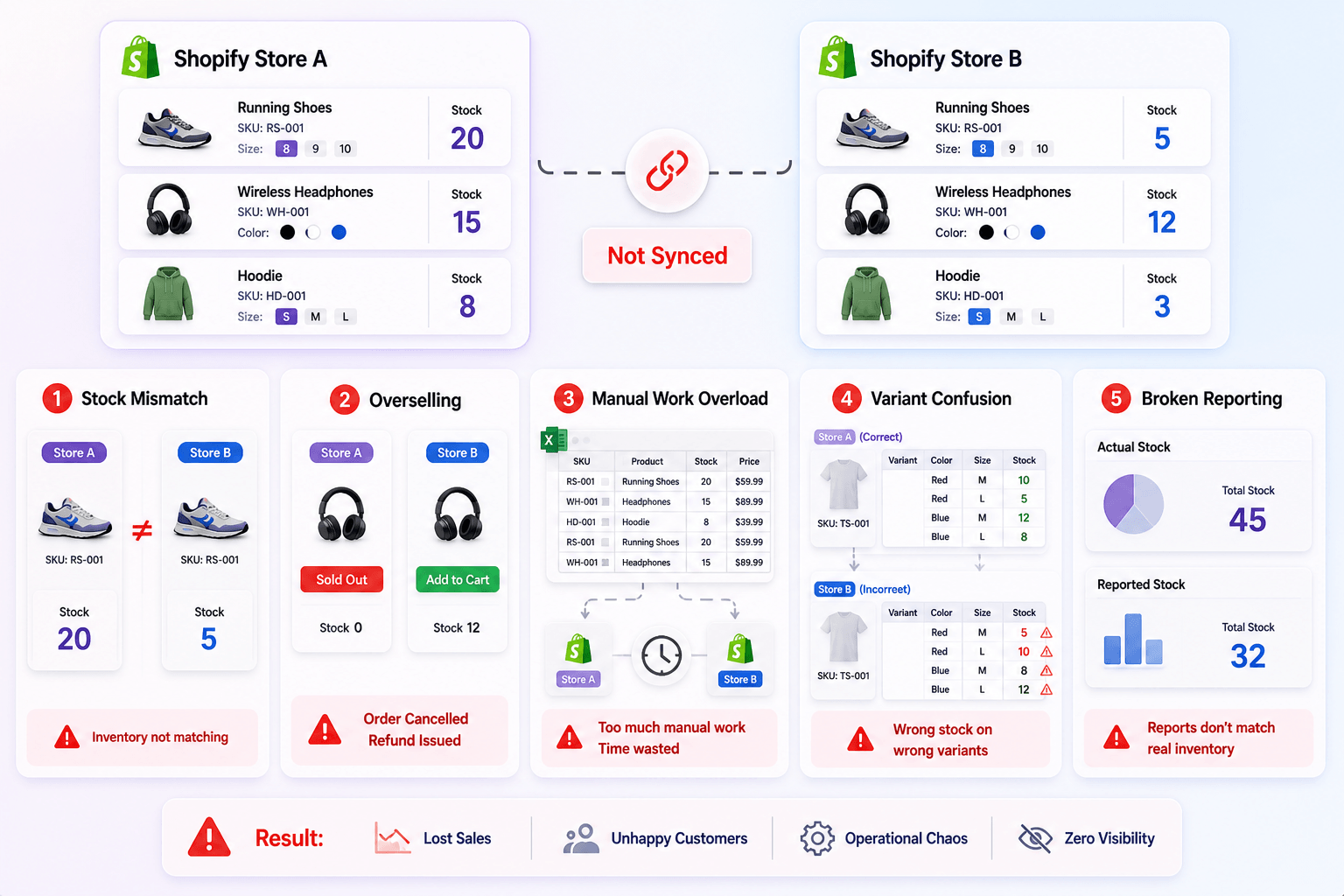
Managing inventory across multiple Shopify stores becomes difficult when each store tracks stock separately. Small errors grow quickly when orders come from two stores.
Here are the inventory challenges merchants usually face.
Stock Levels Stop Matching
When two Shopify stores manage inventory independently, stock levels begin to diverge quickly. One store may display higher availability than the other. This leads to stock confusion and reduced control over actual inventory positions.
Over time, this creates gaps in inventory visibility across stores. Even a 5–10% mismatch in stock accuracy can impact fulfillment and sales decisions at scale.
Overselling Across Stores
Unsynced inventory is the number one reason for overselling. Even a small number of oversold orders can lead to refunds, cancellations, and negative customer experiences, especially during peak sales periods.
Repeated overselling can impact customer trust and store performance. It also increases refund processing and adds operational pressure on fulfillment workflows.
Manual Updates Take Too Much Time
When two Shopify stores’ inventory is not synced, merchants try to handle stock with manual updates. Manual inputting of stock numbers can be time-consuming. Some merchants even hire additional staff, which is an unnecessary expense.
On average, businesses spend 10–15 hours per week on manual inventory management. This increases the risk of data entry errors. This leads to major financial decisions such as unnecessary restocking.
Variants Become Hard to Track
If you are someone who is selling various product variants across your Shopify stores. Then keeping track of variant inventory is tougher. Products with multiple variants, such as size, color, or requiring accurate variant-level tracking.
Without proper synchronization, inventory updates may not apply to the correct variant. This results in incorrect availability for specific variants.
Inventory Reports Become Unreliable
When inventory data is fragmented across multiple Shopify stores, reporting accuracy declines. Sales data, stock availability, and reorder insights may no longer reflect actual inventory conditions.
Retail data shows that poor inventory visibility can reduce revenue by up to 5%. This makes it harder to plan purchases, forecast demand, and manage stock effectively.
How to Sync Inventory Between Two Shopify Stores
There are different methods to sync inventory between two Shopify stores. Different merchants try different inventory management approaches. However, only some methods work in the long term and offer inventory sync for a large catalog.
Let’s compare different inventory management methods for two Shopify stores.
Method 1: Manual Inventory Updates
Manual inventory updates involve adjusting stock levels separately in each Shopify store. Merchants check inventory in one store and then manually update the same stock values in the second store. While this approach gives direct control. It quickly becomes inefficient as order volume and product catalog size increase.
Here’s why manual updates are not reliable in the long run:
- Stock levels are not updated instantly across both stores. This delay creates gaps in inventory data.
- Manual data entry increases the chances of incorrect stock updates.
- Each sale, return, or restock requires manual adjustments in both stores.
- Managing hundreds or thousands of SKUs across two stores is not practical without automation.
- Manual updates often fail to track variant-level inventory accurately.
- There is no centralized view of inventory. Merchants must switch between stores to check stock levels.
- Manual inventory updates may work for small stores, but they do not support business growth.
As sales volume increases, this method becomes unsustainable and creates more operational challenges.
Method 2: CSV Import and Export
CSV import and export involve downloading inventory data from one Shopify store and uploading it into another store using structured files. This method allows bulk updates and appears more organized than manual updates. However, it is still a static process that does not maintain a continuous connection between stores.
Here’s why CSV import and export are not reliable for inventory sync:
- CSV files only reflect inventory at the time of export. Once uploaded, any new sales or stock changes are not updated automatically.
- Since inventory changes frequently, CSV-based updates become outdated almost immediately. This leads to incorrect stock levels.
- CSV files must follow strict column structures. Even small formatting issues, missing fields, or incorrect values can break the upload.
- Managing variant-level inventory through CSV files can be difficult. Each variant requires separate rows, and increasing the chances of incorrect stock updates.
- Inventory updates often depend on correct product mapping. If SKUs or identifiers are inconsistent, CSV imports may update the wrong products.
- Every inventory update requires exporting, editing, and re-uploading CSV files. This repetitive workflow increases operational workload.
- CSV methods are not built for stores with ongoing sales. As order volume increases, maintaining accurate inventory through CSV uploads becomes impractical.
Method 3: QuickSync Inventory Sync Tool
QuickSync is designed for merchants who need a scalable way to sync inventory between two Shopify stores. Unlike manual updates or CSV-based methods, QuickSync provides real-time inventory sync. It ensures stock levels stay accurate across all connected stores at all times.
QuickSync is not just a basic connector. It is built as a complete inventory sync system for multi-store Shopify operations. It automatically connects Shopify stores and keeps inventory synced without requiring any monitoring.
QuickSync offers various features for Shopify inventory sync, like:
- Real-Time Inventory Sync: Stock levels sync automatically after every sale, return, or exchange. Both Shopify stores stay synced without manual updates.
- Variant-Level Sync: QuickSync tracks inventory for product variants like size, color, and style. Each variant updates correctly across connected stores.
- Automatic SKU Creation: If products do not have SKUs, QuickSync can generate them. This helps map products correctly between both stores.
- Multi-Location Sync: Inventory can be tracked across multiple locations. This helps merchants manage stock by warehouse, store, or fulfillment point.
- Two-Way Inventory Sync: QuickSync supports flexible two-way sync. Stock updates can move between both Shopify stores based on your setup.
- Central Dashboard: Merchants can view real-time inventory from a single dashboard. Merchants can view inventory settings and sync activity from one place.
- Product Sync Support: Sync product details like titles, images, descriptions, tags, prices, with QuickSync.
- Order Sync Support: QuickSync can also sync orders between connected stores. This helps merchants keep fulfillment and reporting more organized.
Manual vs Automated Shopify Inventory Sync: What Works Better
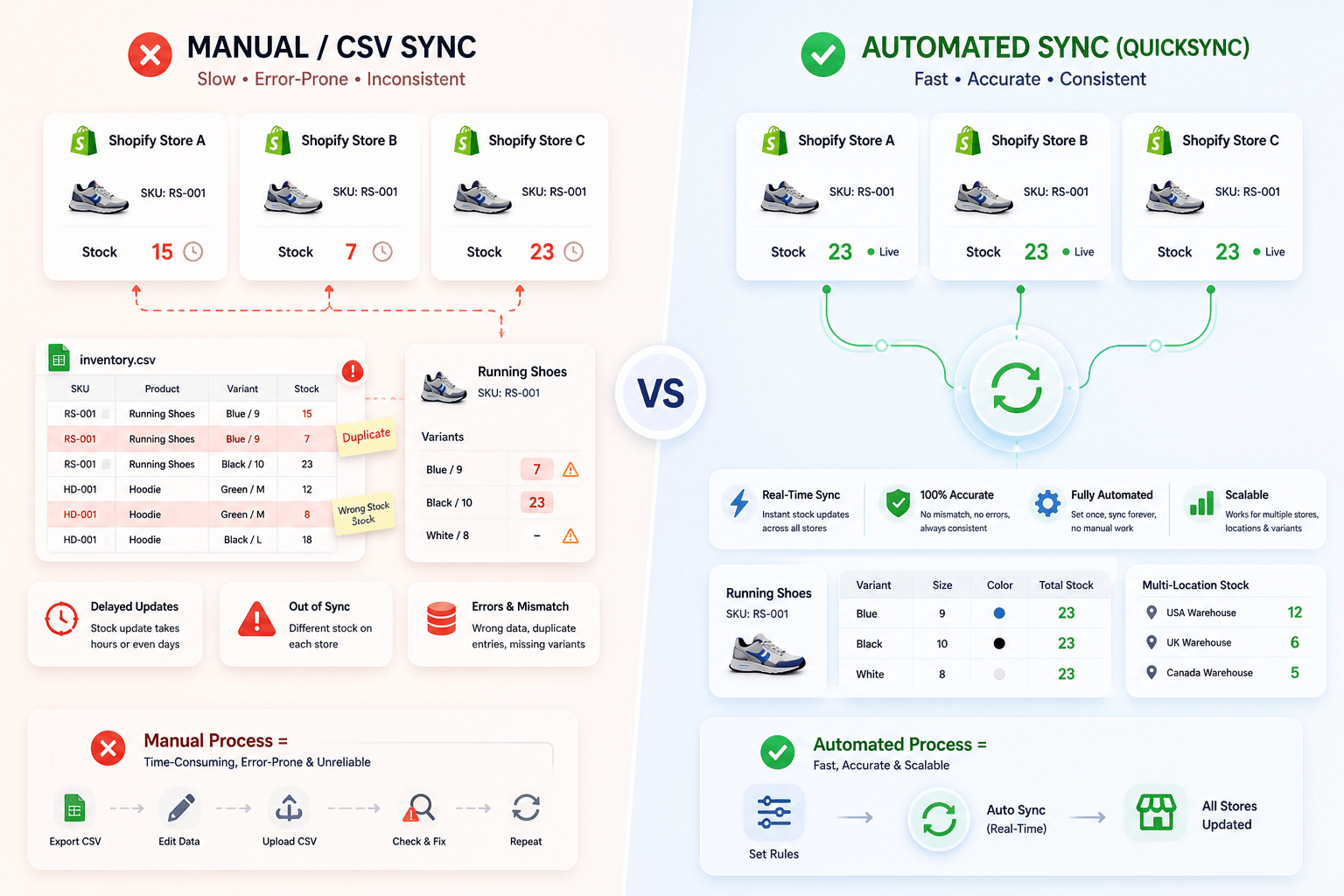
Manual syncing can work for very small stores with limited products and low order volume. But as soon as you start managing multiple Shopify stores, inventory complexity increases fast.
Automated inventory sync becomes essential because stock updates need to happen instantly and accurately across all connected stores.
Here’s a clear overview of manual vs automated Shopify inventory sync.
| Area | Manual / CSV Sync | Automated Sync with QuickSync |
|---|---|---|
| Inventory updates | Delayed updates based on manual input or file uploads | Real-time inventory updates after every sale, return, or stock change |
| Product matching | Depends on manual SKU checks and data cleanup | Automatic SKU mapping ensures accurate product matching across stores |
| Variant management | High risk of missing or incorrect variant updates | Variant-level inventory sync keeps sizes, colors, and options aligned |
| Large catalogs | Becomes slow and difficult to manage as the product count grows | Built to handle large catalogs with thousands of SKUs efficiently |
| Overselling risk | High due to delayed updates and inconsistent stock data | Significantly reduced with real-time stock synchronization |
| Team workload | Requires repetitive manual work and constant monitoring | Fully automated updates reduce operational workload |
| Multi-location inventory | Difficult to track stock across locations manually | Supports location-based inventory syncing across stores |
| Data accuracy | Prone to human error and inconsistent updates | High accuracy with automated syncing and validation |
| Scalability | Not suitable for growing businesses or multi-store setups | Designed for scaling across multiple Shopify stores |
| Operational efficiency | Slows down processes and increases manual dependency | Improves efficiency with centralized inventory control |
Manual methods may work in the beginning, but they create gaps as your business grows. Automated sync with QuickSync gives you real-time control, accurate inventory visibility, and a scalable foundation for managing multiple Shopify stores without operational stress.
How to Sync Inventory Between Two Shopify Stores Using QuickSync
Compared to manual updates and CSV uploads, QuickSync is a cleaner way to connect two Shopify stores. It removes repeated stock checks, manual imports, and spreadsheet work.
QuickSync is built for merchants who want seamless inventory sync without hiring extra staff. It handles inventory sync, product sync, SKU mapping, variant-level updates, and order sync from one dashboard.
Here’s how to get started.
Step 1: Create Your QuickSync Account
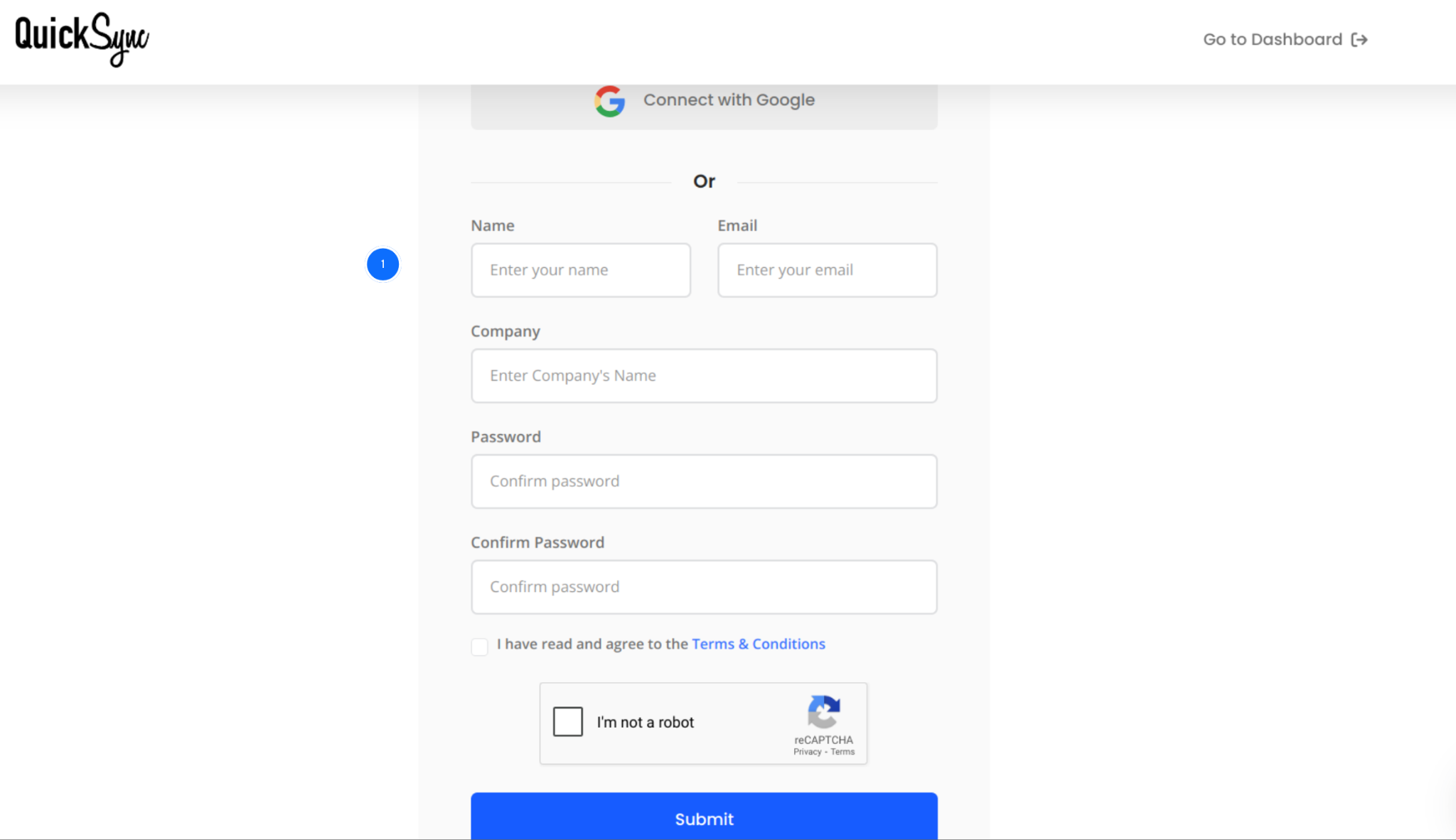
- Go to quicksync.pro and sign up with your email and business details.
- If you already have an account, log in and open your dashboard.
- This dashboard is where you manage connected stores, inventory settings, product sync, and order flows.
- You can also review sync status, connected stores, and any setup options from one place.
Step 2: Connect Your First Shopify Store
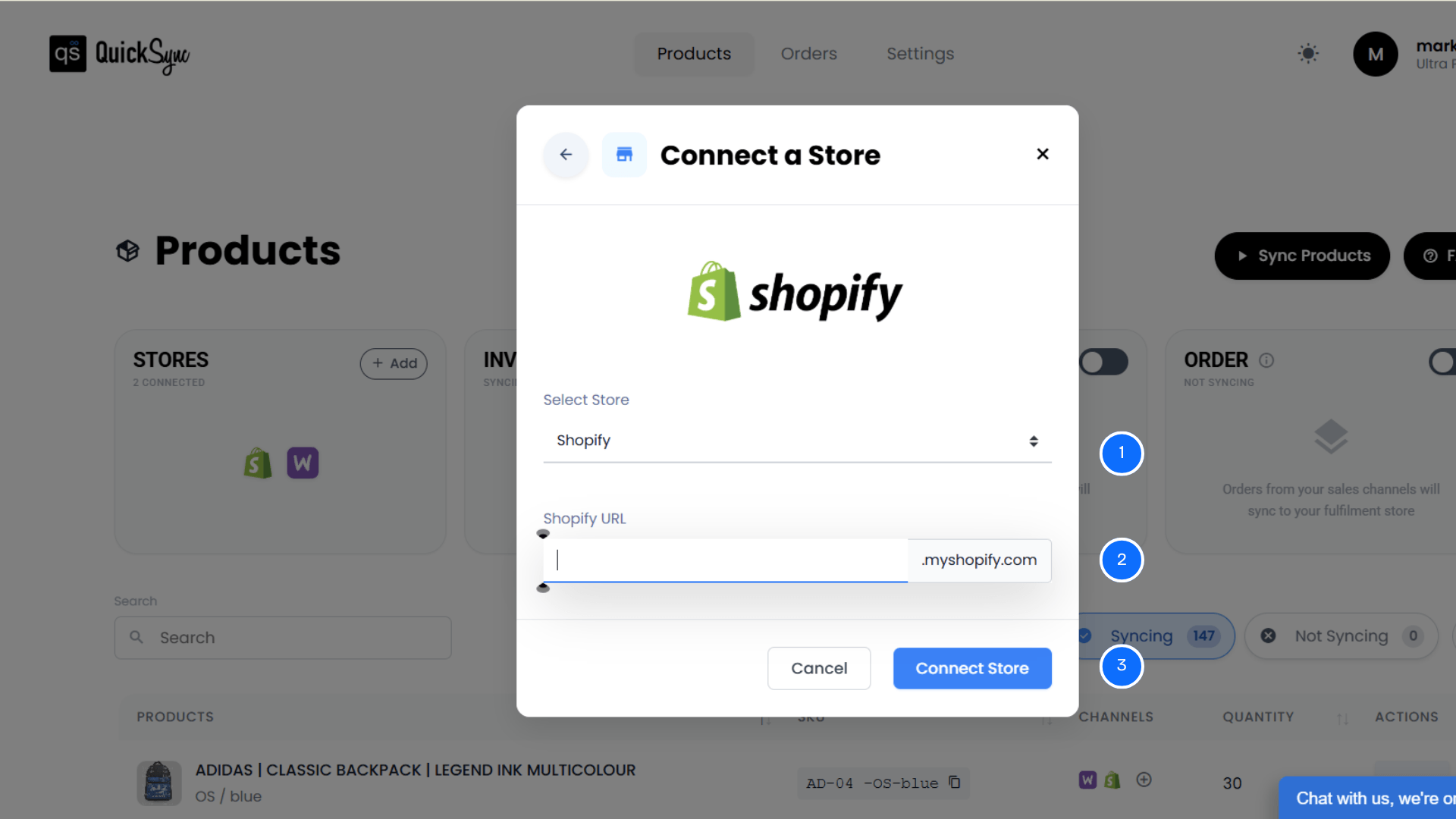
- Go to Dashboard → Sync Products → Add Store.
- Choose Shopify from the platform list.
- Enter your Shopify store URL, such as yourstore.myshopify.com.
- Click Add Store and log in to your Shopify admin.
- Approve permissions for products, images, inventory, and orders.
- QuickSync imports your Shopify store details, locations, and product catalog.
Step 3: Connect Your Second Shopify Store
- Go back to Dashboard → Sync Products → Add Store.
- Select Shopify again.
- Enter the second Shopify store URL.
- Log in to that Shopify admin account.
- Approve the required permissions for products, images, inventory, and orders.
- QuickSync imports the second store’s products, locations, and inventory data.
Step 4: Configure Inventory Sync Options
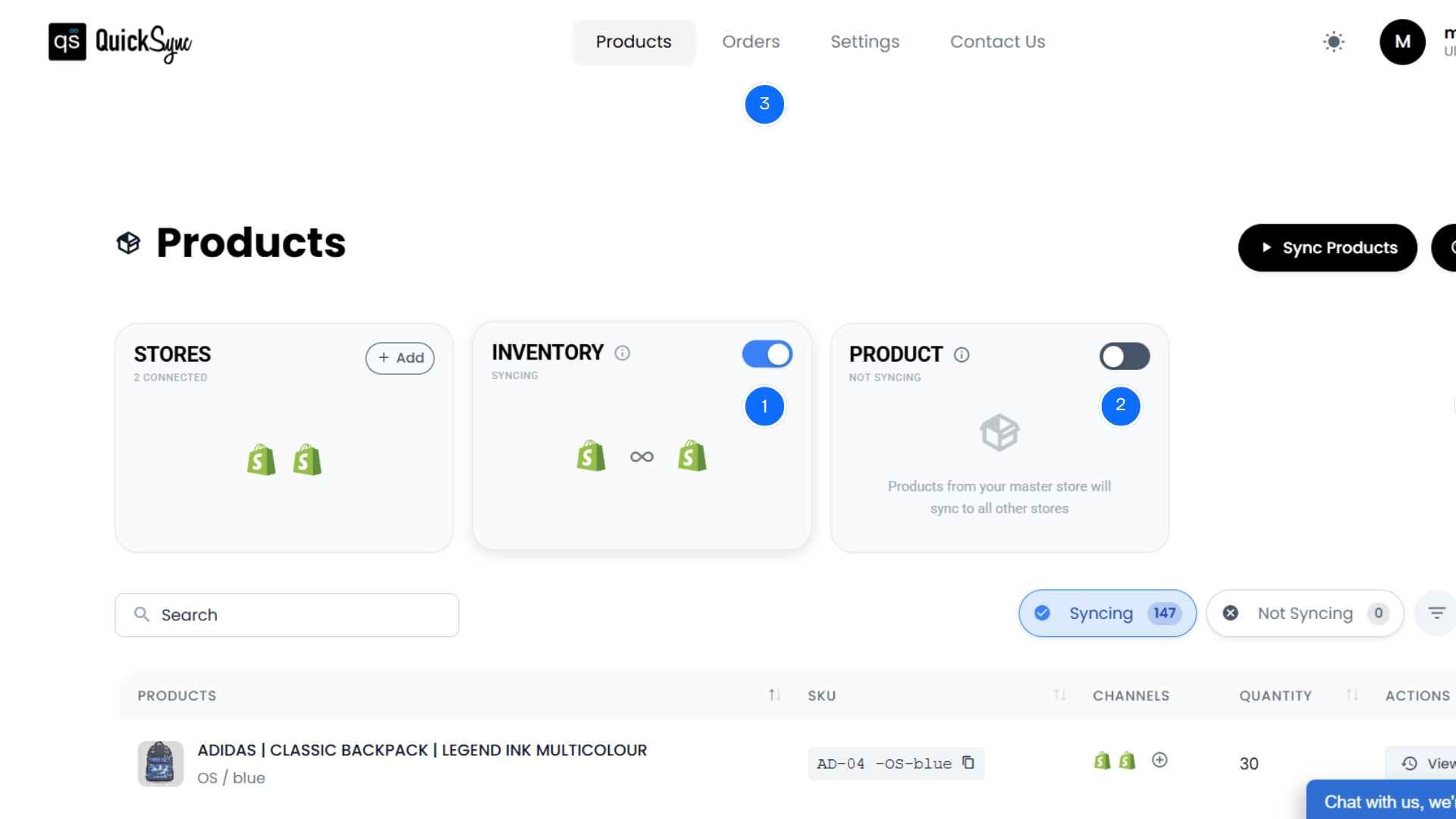
- Once both Shopify stores are connected, Inventory Sync is ready to run.
- Inventory sync activates automatically when the stores are connected. Stock levels update in real time after every sale, return, refund, restock, or manual adjustment.
You can also configure:
- Product Sync: Choose your Master Store. Product updates made in the Master Store can sync to the destination store. This keeps product titles, descriptions, images, collections, tags, pricing, and variants aligned.
- Order Sync: Enable order sync if you want orders to stay visible across your connected workflow. This helps with reporting, fulfillment, and inventory control between both Shopify stores.
Once configured, QuickSync keeps both Shopify stores connected and synced automatically.
Also Read: How to Handle Customer Returns: Process, Tips & Best Practices
How Inventory Sync Tools Simplify Shopify Multi-Store Management
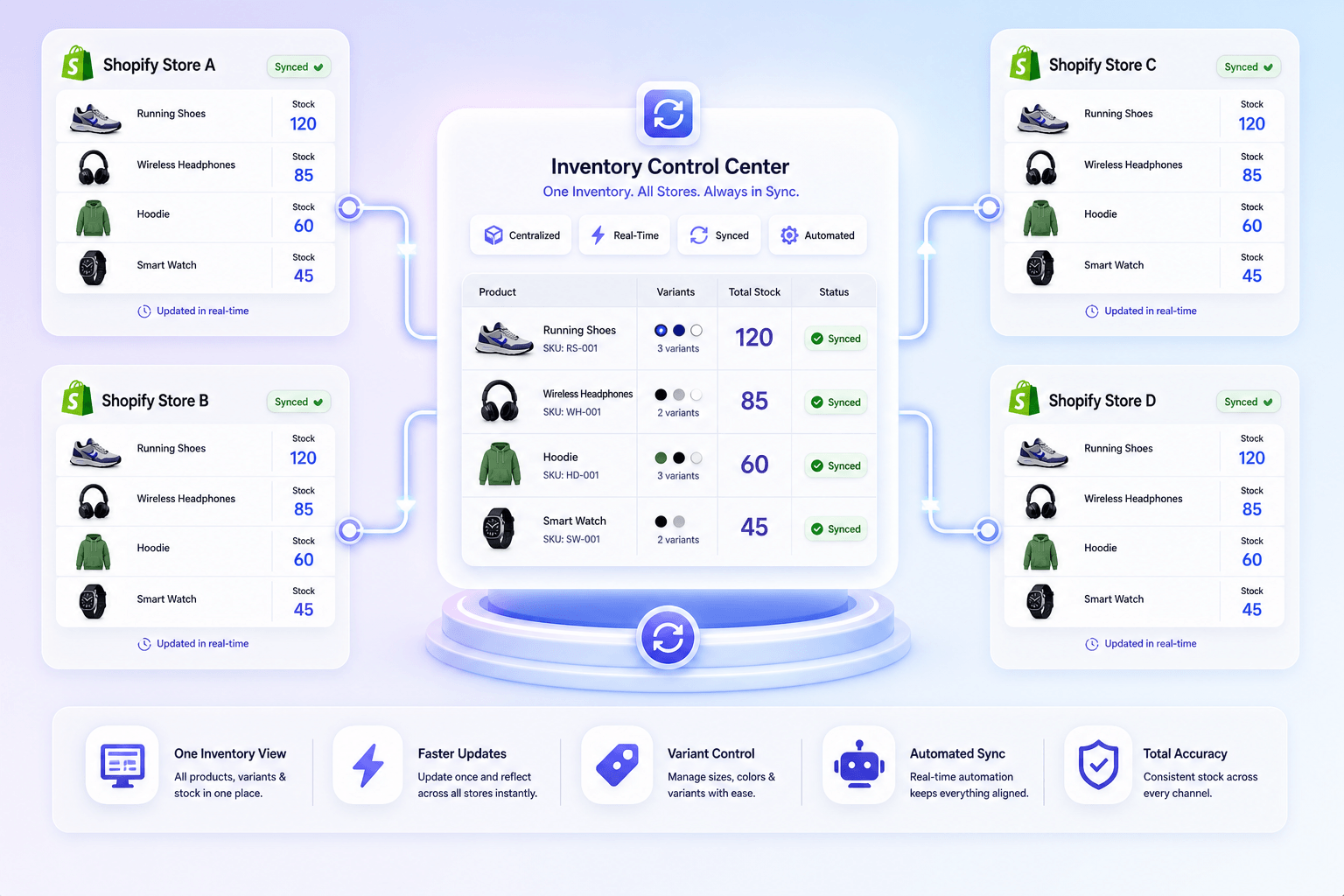
Inventory sync tools remove the most complex part of managing multiple Shopify stores. They create a connected system where inventory updates flow automatically across stores without constant manual intervention. This improves accuracy, speed, and operational efficiency.
Here’s how an inventory sync tool like QuickSync simplifies Shopify multi-store operations.
One Inventory View
A sync tool gives merchants a centralized view of inventory across all connected Shopify stores. Instead of switching between multiple Shopify admin panels, you can monitor stock levels, synced products, and store activity from one dashboard with better visibility.
This unified view improves inventory decision-making. It reduces dependency on manual tracking. Businesses with centralized inventory systems report up to 20–30% improvement in inventory accuracy and operational control.
Faster Stock Updates
Automated inventory sync happens in real time across connected Shopify stores. When stock changes in one store, the update is instantly reflected in the other store, ensuring both stores stay aligned without delays.
This significantly reduces overselling and stock mismatches. Real-time inventory syncing has been shown to reduce stock-related errors by over 25% in multi-store operations.
Better Variant Control
Inventory sync tools track product variants individually, including size, color, and style combinations. Each variant maintains its own stock level, ensuring accurate availability across all connected stores.
Without variant-level syncing, inventory errors can increase significantly. Proper variant tracking improves product availability accuracy and enhances the overall customer shopping experience.
Less Manual Work
Manual stock updates require constant monitoring and repeated data entry. This increases operational workload. Inventory sync tools automate these updates, allowing merchants to focus on growth, marketing, and fulfillment instead of routine tasks.
On average, businesses can save 10–15 hours per week by automating inventory management, reducing operational costs, and minimizing human error in stock updates.
Smart Tips for Managing Shopify Multi-Store Inventory Sync Smoothly
Syncing inventory between two Shopify stores is a strategic move for scaling operations. However, without the right practices, it can quickly create inconsistencies. Inventory sync requires clear data ownership, proper setup, and controlled workflows. Small gaps in setup often lead to larger inventory issues over time.
These tips will help you maintain reliable and scalable inventory sync across multiple Shopify stores.
Align Inventory Policies Across Stores
Make sure both Shopify stores follow the same inventory policies, like “continue selling when out of stock” or “deny orders when stock is zero.” Misaligned settings can create overselling in one store. It also blocks sales in another, even if the inventory sync is working correctly.
Map Products Using Accurate SKUs
Ensure products are mapped correctly using consistent SKUs across both Shopify stores. Inventory sync depends on SKU matching to update the right products. If your products have a missing SKU, you can use the QuickSync auto SKU creation option, and it will assign one to all.
Limit Duplicate Product Creation
Avoid creating the same product manually in both Shopify stores before syncing. Duplicate products can break SKU mapping and split inventory. Always sync products from one source store to maintain a clean inventory and avoid mismatched stock levels.
Monitor Sync Activity
Check sync logs regularly, especially during the first few weeks. This helps catch product mapping issues, failed updates, or missing SKUs early. Small checks prevent bigger inventory problems across both stores later. Ongoing monitoring helps maintain system reliability.
Avoid Manual Inputs
Once inventory sync is active, avoid changing stock manually in both stores. Manual input overrides can create conflicting data. Make updates from your chosen source store, then let QuickSync push the correct stock everywhere.
Conclusion
You can sync inventory between two Shopify stores. The real question is whether you want to do it manually or automatically. Manual updates and CSV files may work for a short time. But they become slow, risky, and difficult as your catalog grows.
QuickSync gives merchants a better way.
QuickSync connects multiple Shopify stores, syncs inventory in real time, maps products through SKUs, supports variants, and helps manage stock from one dashboard.
If you want fewer stock errors, less manual work, and cleaner multi-store inventory control, QuickSync is built for that.