
Selling on Etsy is the easy part. Keeping track of your finances is where many sellers struggle. Your Etsy dashboard tells you how much you sold, but it doesn’t show your true profit after fees, shipping costs, supplies, refunds, and taxes. Without proper bookkeeping, it’s easy to lose track of where your money goes.
This guide explains how you need to make QuickBooks for Etsy sellers work for your shop as well as how to use QuickBooks for your Etsy shop, from selecting the right plan and recording payouts to tracking expenses, claiming deductions, and automating your bookkeeping.
TL;DR: QuickBooks for Etsy Sellers at a Glance
| → QuickBooks helps Etsy sellers track real profit by recording sales, fees, expenses, refunds, and taxes. → Record gross sales, not Etsy payouts, to keep your financial reports accurate. → Set up a proper Chart of Accounts and use an Etsy Payout Clearing account for easier reconciliation. → Track each Etsy fee separately, including listing, transaction, payment processing, and Offsite Ads fees. → Record Etsy-collected sales tax as a liability, not as income. → Keep track of deductible business expenses throughout the year to simplify tax filing. → Automating your Etsy and QuickBooks sync saves time, reduces errors, and makes bookkeeping easier. |
Do Etsy Sellers Really Need QuickBooks?
The foremost thing Etsy sellers ask is, “Do they really need QuickBooks?” To be honest. Yes, and the reason is simpler. Etsy’s dashboard was built to help you sell products, not to manage your accounting.
For example, imagine an Etsy seller makes $5,000 in sales in one month. That does not mean they made $5,000 in profit. First, Etsy takes its fees, including listing, transaction, payment processing, and offsite ads fees. These can add up to $750 to $1,000. Then the seller pays for materials, packaging, shipping, and other expenses. The money left after paying all of these costs is the true profit.
Without QuickBooks or similar bookkeeping software, it is difficult for most Etsy sellers to know exactly how much they actually earned.
So if we put it in simple terms, Etsy shows you gross sales, order counts, and traffic, but it does not clearly show your actual profit, your real tax obligation, or which of your products is actually making you money after all costs are included. That’s why Etsy sellers need QuickBooks for accurate bookkeeping.
Which QuickBooks Plan Is Best for Etsy Sellers?
Once you understand that you need QuickBooks, then you have to choose a plan, and this is the question most guides skip entirely. Before you set up anything, you need to choose the right version of QuickBooks for your situation. The wrong plan either costs more than you need to spend or misses features you genuinely need.
Here is a clear breakdown of the QuickBooks plan options for Etsy sellers.
| Feature | Simple Start | Essentials | Plus |
| Monthly cost (official list price) | $38/mo | $75/mo | $115/mo |
| Current promotional price | $19/mo (first 3 months) | $37.50/mo (first 3 months) | $57.50/mo (first 3 months) |
| Income and expense tracking | Yes | Yes | Yes |
| Invoicing | Yes | Yes | Yes |
| Sales tax tracking | Yes | Yes | Yes |
| Multiple users | 1 | 3 | 5 |
| Bill management | No | Yes | Yes |
| Inventory tracking | No | No | Yes |
| Chart of accounts | Full | Full | Full |
| Profit & loss reports | Full | Full | Full |
| Self-employment tax calculation | No | No | No |
| Best for Etsy sellers | Most Etsy shops | Growing teams | Inventory-based businesses |
Once you’ve selected the right QuickBooks plan, the next step is setting it up correctly. To do that, you first need to understand how Etsy transactions flow through your business and how they should be recorded in QuickBooks. In the following sections, you’ll learn about the chart of accounts, tracking income and expenses, categorizing every type of Etsy fee, reconciling payouts, and other bookkeeping practices that help keep your financial records accurate.
How Etsy Money Actually Moves: Understanding the Flow Before You Start
Before you record a single transaction in QuickBooks, you need to understand exactly how money moves through Etsy. This understanding is the foundation of everything that follows. Without it, even a correctly configured QuickBooks setup will produce confusing results because the data going in will not match the reality of how Etsy Payments actually works.
| Stage | What Happens | Who Handles It | What You See in QuickBooks |
| 1 | Buyer places order and pays | Buyer and Etsy Payments | Gross sale amount recorded as income |
| 2 | Etsy records the gross sale | Etsy | Full sale amount before any deductions |
| 3 | Etsy deducts its fees | Etsy automatically | Listing fee, transaction fee, and payment processing fee recorded as expenses |
| 4 | Refunds processed if applicable | Etsy and seller | Refund amount and fee reversals recorded |
| 5 | Net payout calculated by Etsy | Etsy automatically | Difference between gross sale and all deductions |
| 6 | Payout released on Etsy schedule | Etsy | Payout deposit clears the clearing account |
| 7 | Bank deposit arrives | Your bank | Bank transaction matches the clearing account balance |
Key Reason Why Your Payout Is Always Less Than Your Sales
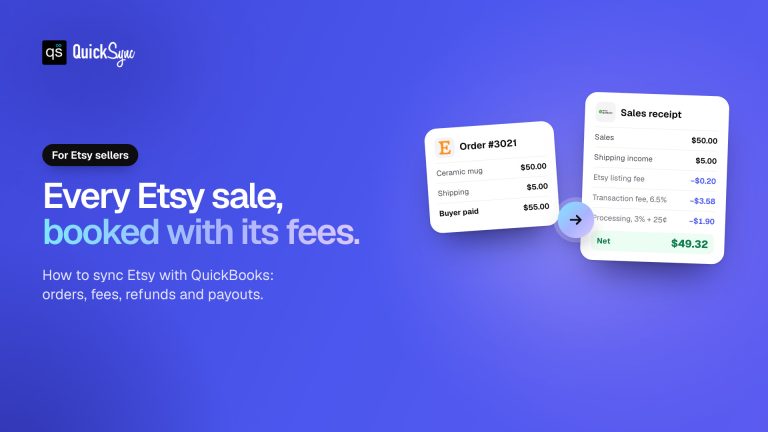
Here is a concrete example. You sell a product for $50 with $5 in shipping. Your gross sale is $55. Before that money reaches you, Etsy deducts the $0.20 listing fee, the transaction fee of 6.5% of $55 which is $3.58, and the payment processing fee of 3% plus $0.25, which is $1.90.
That brings the sale down to $49.12 before any Offsite Ads charges or refunds. By the time the payout is released, you may receive $48 to $49 for a $55 sale.
Multiply this across dozens or hundreds of orders and the gap between your Etsy sales total and your actual bank deposits becomes significant. QuickBooks makes this gap visible and understandable by recording both sides: the gross sale as income and each deduction as a properly categorized expense.
The Timing Difference That Causes Month-End Confusion
Etsy does not release your payout the moment a sale happens. Payouts follow a schedule and are typically released a few days after the sale. This means a sale made on March 30 may not reach your bank account until April 3. If you record income only when the payout arrives, your March sales appear in April and your financial reports do not reflect the month in which you actually earned the revenue.
QuickBooks handles this correctly through the payout clearing account method which we cover in full in the reconciliation section below. Understanding that sales and payouts are separate events happening at different times is the key insight that makes Etsy bookkeeping work correctly.
Setting Up Your QuickBooks Chart of Accounts for Etsy
The chart of accounts is your financial filing system inside QuickBooks. Every transaction you record goes into one of these accounts. Getting this right at the start means every report you generate later will be accurate and useful. Getting it wrong means your profit and loss statement, your tax reports, and your fee analysis will all produce misleading numbers.
Think of it as creating labeled folders before you start filing. The right folders make finding information easy. The wrong folders make everything confusing.
| Account Name | Account Type | What Goes Here | Common Mistake |
| Etsy Product Sales | Income | Revenue from every Etsy product sale at full gross amount | Recording only the payout instead of gross sale |
| Etsy Shipping Income | Income | Shipping fees you charged buyers on top of product price | Combining with product sales into one income line |
| Etsy Listing Fees | Expense | $0.20 charged per listing published or renewed | Forgetting to record because the amount is small |
| Etsy Transaction Fees | Expense | 6.5% of each sale total including shipping | Combining with other fees into one expense category |
| Payment Processing Fees | Expense | 3% plus $0.25 per transaction through Etsy Payments | Treating as part of the transaction fee instead of separate |
| Offsite Ads Fees | Expense | 12% to 15% fee when Etsy promotes your listing off-platform | Missing entirely because it only appears on qualifying orders |
| Shipping Label Costs | Expense | Cost of shipping labels purchased through Etsy | Confusing with shipping income charged to buyers |
| Packaging and Supplies | Expense | Boxes, bubble wrap, tissue paper, tape, and packaging materials | Recording as COGS instead of a separate expense |
| Cost of Goods Sold | Cost of Goods Sold | Materials and components used to make your products | Mixing with general expenses instead of tracking as COGS |
| Sales Tax Collected by Etsy | Other Current Liability | Sales tax Etsy collects from buyers and remits to government | Counting as income, which inflates revenue incorrectly |
| Etsy Payout Clearing | Other Current Asset | Temporary holding account that bridges sales and bank deposits | Not setting this up and trying to reconcile directly to bank |
What is a Payout Clearing Account and Why Do You Need It?
The payout clearing account is the single most important account in an Etsy seller’s QuickBooks setup and the one most commonly skipped. Here is why it matters. When you record a sale in QuickBooks, the money does not go directly to your bank account. It goes to Etsy first. When Etsy releases the payout days later, the bank deposit arrives as one combined figure covering multiple orders.
The clearing account sits between your sales records and your bank account. Every sale flows into the clearing account. Every fee flows out of it. When Etsy releases the payout, the deposit clears the remaining balance in the clearing account. A zero balance in the clearing account after matching your bank deposit tells you your reconciliation is correct. Without this account, reconciling Etsy payouts to your bank statements is one of the most frustrating bookkeeping experiences an Etsy seller can face.
What to Record in QuickBooks and Where?
With your chart of accounts set up, the next step is knowing exactly which Etsy item maps to which QuickBooks account. This mapping table covers every type of transaction you will encounter as an Etsy seller and explains in simple language why each one goes where it does.
| Item from Etsy | QuickBooks Account | Account Type | Explanation |
| Product sale amount | Etsy Product Sales | Income | The full price the buyer paid for your product before any fees come out |
| Shipping charged to buyer | Etsy Shipping Income | Income | What the buyer paid for shipping, separate from the product price |
| Listing fee ($0.20) | Etsy Listing Fees | Expense | Etsy’s charge for publishing each listing, recorded when charged |
| Transaction fee (6.5%) | Etsy Transaction Fees | Expense | Etsy’s cut of each sale, applied to the item price plus shipping |
| Payment processing fee (3% + $0.25) | Payment Processing Fees | Expense | Etsy Payments fee for handling the card transaction |
| Offsite Ads fee (12-15%) | Offsite Ads Fees | Expense | Only applies when Etsy successfully promoted your listing elsewhere |
| Shipping label cost | Shipping Label Costs | Expense | What you paid for the label, different from what the buyer paid |
| Refund issued to buyer | Sales Returns and Allowances | Contra Income | Reverses the original sale amount, keeping revenue trends accurate |
| Fee credit on refund | Relevant fee expense account | Expense reduction | Etsy refunds some fees when you issue a refund, reverse each one |
| Etsy-collected sales tax | Sales Tax Collected by Etsy | Other Current Liability | Not your money, passes through to government via Etsy |
| Etsy payout deposit | Etsy Payout Clearing | Other Current Asset | The net deposit that clears when it matches your bank statement |
The most important principle across all of these mappings is to record the gross sale amount as income, not the payout amount. Every fee is then a separate expense that explains the difference between what the buyer paid and what you received. This approach keeps your revenue numbers accurate, your expense categories meaningful, and your profit and loss report genuinely useful for business decisions.
How to Track and Categorize Every Etsy Fee in QuickBooks
Etsy charges several different types of fees, and each one works differently. Combining them all into a single expense category called Etsy fees is one of the most common Etsy bookkeeping mistakes. When all fees are lumped together, you lose the ability to see which cost is eating the most into your margins and where you might be able to make changes.
Listing Fees: $0.20 Per Listing
Every time you publish or renew a listing on Etsy, you are charged $0.20. This fee applies whether the item sells or not. For sellers with large catalogs and frequent renewals, listing fees add up more than most sellers realize. Record these in your Etsy Listing Fees expense account.
The most common mistake with listing fees is forgetting to record them because the individual amounts are small. Over a year with hundreds of listings and renewals, the cumulative total can be significant and it is entirely deductible.
Transaction Fees: 6.5% of Every Sale
Etsy charges a transaction fee of 6.5% on the total order amount including the item price and the shipping you charged the buyer. This is Etsy’s primary revenue source from sellers and for most shops it is the largest fee category. Record these in your Etsy Transaction Fees expense account.
On a $60 order including shipping, the transaction fee is $3.90. On a $600 order, it is $39. Tracking this separately from other fees allows you to see the true cost of Etsy’s marketplace access as a percentage of your revenue.
Payment Processing Fees: 3% Plus $0.25 Per Transaction
When buyers pay through Etsy Payments, Etsy charges a payment processing fee of 3% of the order total plus $0.25 per transaction. This covers the cost of handling the card payment. Record these in your Payment Processing Fees expense account.
These fees are separate from the transaction fee even though both apply to the same order. Keeping them in separate categories shows you the full cost breakdown of selling on Etsy.
Offsite Ads Fees: 12% to 15% on Qualifying Orders
Offsite Ads fees are the least understood fee type and the one that most frequently surprises sellers. When Etsy promotes your listing on platforms like Google, Facebook, or Pinterest, and a buyer clicks that promoted listing and purchases within 30 days, Etsy charges an Offsite Ads fee of 12% to 15% of the order total.
Sellers who made over $10,000 in the previous 12 months are required to participate in Offsite Ads. Sellers below that threshold can opt out. The fee only applies when an Offsite Ads promotion directly results in a sale. Record these to your Offsite Ads Fees expense account and check your Etsy payment account to identify which orders carry this charge.
| “Offsite Ads fees are the most common fee that Etsy sellers miss in their bookkeeping. They do not appear on every order, and the rate is higher than other fees, which means missing even a handful of them can significantly distort your expense records. Always check your Etsy payment account statement rather than relying on order-level data alone to capture every fee type correctly.” -Marija Bacelic, COO at QuickSync and Multichannel Ecommerce Expert |
Why Your Etsy Payout Does Not Match Your Sales and How to Fix It
Your Etsy payout is always less than your total sales because Etsy deducts all fees, refunds, and adjustments before releasing the money. The payout is the net amount after everything comes out.
This is the most common source of confusion in Etsy seller accounting and the one that causes the most bookkeeping errors. Sellers who record only the payout as income instead of the gross sale miss all the fee deductions that explain the difference. Their revenue looks lower than it actually was and their expenses disappear entirely from the books.
Let’s understand it with a real example
Here is what a single Etsy payout might look like and how it breaks down.
- Gross sales from 10 orders: $480.00
- Shipping charged to buyers: $65.00
- Total buyer payments: $545.00
- Less listing fees (10 listings at $0.20): $2.00
- Less transaction fees (6.5% of $545): $35.43
- Less payment processing fees (3% plus $0.25 per order): $18.85
- Less one Offsite Ads fee (15% on a $120 order): $18.00
- Net payout deposited to bank: $470.72
The seller’s bank account shows $470.72 arriving. Their gross sales were $545. The difference of $74.28 is a real business expense that needs to be recorded in QuickBooks to show the true cost of selling on Etsy. Without recording it, profit looks $74.28 higher than it actually is on every payout cycle.
How to Reconcile an Etsy Payout in QuickBooks
In the previous example, the seller received $470.72, even though customers paid $545.00. That difference wasn’t missing money, but a proper reconciliation. You have to reconcile the gross sale, each Etsy deduction, and the final bank deposit as separate transactions. This approach ensures your revenue, expenses, and profit are all reported correctly.
Follow these steps to reconcile every Etsy payout in QuickBooks:
- Record the gross sales in your Etsy Product Sales income account. Record the full amount the buyer paid for each order, including shipping charged to the customer. Do not subtract Etsy fees at this stage.
- Record each Etsy fee separately in its appropriate expense account. For example, listing fees go to Etsy Listing Fees, transaction fees to Etsy Transaction Fees, payment processing charges to Payment Processing Fees, and advertising costs to Offsite Ads Fees.
- Use an Etsy Payout Clearing account to bridge the difference between your gross sales and the final payout. Sales increase the clearing account balance, while Etsy fees, refunds, and other deductions reduce it until the remaining balance matches the payout amount.
- Match the bank deposit to the clearing account when the payout arrives in your bank account. If everything has been recorded correctly, the clearing account balance should return to zero, confirming that the payout has been fully reconciled.
- Investigate any remaining balance. If the clearing account does not return to zero, review your records for missing fees, refunds, adjustments, or timing differences between Etsy orders and payout dates.
How to Handle Etsy Sales Tax in QuickBooks Without Inflating Your Revenue
After reconciling your Etsy payouts, the next step is making sure sales tax is recorded correctly. This is a common mistake that can make your revenue appear higher than it actually is.
In most U.S. states, Etsy collects and remits sales tax on your behalf. Since that money never belongs to you, it should not be recorded as income in QuickBooks. Only your actual sales revenue should be included in your books.
Steps to Record Etsy Sales Tax Correctly
- Create a Sales Tax Collected by Etsy liability account. This is an Other Current Liability account, not an income account.
- When recording a sale, split the entry. The product sale amount and buyer-paid shipping go to income accounts. The sales tax amount goes to the liability account.
- When Etsy clears the sales tax from your payout, clear the liability. Etsy’s payout statement shows that tax was collected and remitted. Match this to the liability account to zero it out.
In states where you are still responsible for collecting and remitting your own sales tax, you will need a separate tax control account and a regular process for filing returns. If you sell internationally, VAT and GST have their own requirements depending on the countries involved. QuickBooks handles all of these correctly when the accounts are set up properly.
How to Record Etsy Refunds in QuickBooks Correctly
Once sales tax is correctly handled, the next step is managing refunds. Etsy refunds are not simple reversals because they may also include fee adjustments that need separate tracking. When you issue a refund, Etsy does not simply cancel the original sale. It processes a refund and also reverses some of the fees that were charged on that order.
Steps to record a full refund
- Create a refund receipt in QuickBooks for the full order amount. This goes to your Sales Returns and Allowances account, which is a contra-income account that keeps your revenue trends accurate without distorting your sales history.
- Record the fee reversals separately. When Etsy refunds a sale, it typically credits back the transaction fee and payment processing fee. Record each credit back to the relevant expense account as a reduction in that expense.
- Adjust the clearing account. The refund reduces the amount coming through the payout clearing account so your next payout will be lower by the refund amount.
Recording a Partial Refund
- Record only the refunded amount in Sales Returns and Allowances
- Check Etsy for any fee credits and record them separately
- Do not reverse the full original sale
The most common mistake is recording refunds as a single negative sale entry. This leads to incorrect profit and understates your actual expenses.
What Etsy Sellers Can Claim as Tax Deductions in QuickBooks
After correctly handling payouts, sales tax, and refunds, the next step in accurate Etsy bookkeeping is tracking tax deductions. One of the biggest advantages of using QuickBooks is that it automatically records your business expenses throughout the year, instead of forcing you to reconstruct everything at tax time. Self-employed sellers can deduct all ordinary and necessary business expenses (IRS Publication 535). For Etsy sellers, these typically include:
- Materials and supplies: Raw materials used in production, typically recorded under Cost of Goods Sold.
- Shipping and packaging: Fulfillment costs including postage, packaging materials, and supplies.
- Etsy platform fees: All marketplace fees including listing, transaction, processing, and advertising fees.
- Home office deduction: A portion of home expenses may qualify if used exclusively for business purposes.
- Equipment and tools: Business equipment such as machinery, cameras, and computers.
- Marketing and advertising: All promotional expenses including Etsy Ads and social media marketing.
- Professional services and software: Accounting services, bookkeeping tools, and business software subscriptions.
- Photography equipment: Tools used for product photography and editing.
Do you need an Accountant if You Use QuickBooks for your Etsy Shop?
This is a common question among Etsy sellers, and the honest answer is that QuickBooks and an accountant serve different purposes. QuickBooks helps you organize your day-to-day bookkeeping, while an accountant helps you interpret and optimize that data. For most growing Etsy businesses, both play an important role.
What QuickBooks Does Well
- Records every transaction automatically when connected correctly to your Etsy shop.
- Categorizes income and expenses into the right accounts.
- Generates profit and loss reports, expense summaries, and cash flow statements.
- Tracks all your deductible expenses throughout the year.
- Keeps your records aligned with your 1099-K from Etsy.
- Reconciles payouts to your bank statements.
What an Accountant Adds That QuickBooks Cannot Replace
- Tax strategy to reduce overall tax burden.
- Identifying additional deductions you may miss.
- Planning and calculating quarterly estimated taxes.
- Sales tax compliance across multiple states.
- Guidance on business structure changes such as LLC or S-Corp.
- Preparing and filing annual tax returns.
When You Definitely Need an Accountant Alongside QuickBooks
- Your Etsy revenue exceeds $50,000 per year.
- You sell into multiple states and are unsure about your sales tax obligations.
- You have employees or independent contractors working with you.
- You are considering changing your business structure.
- You are in your first year of self-employment and unfamiliar with the tax requirements.
When QuickBooks Alone Is Genuinely Sufficient
- You are just starting and selling only on Etsy
- Your business is simple, with no inventory complexity
- Your revenue is still relatively low
- You are comfortable filing your own Schedule C using QuickBooks reports.
Common QuickBooks Mistakes Etsy Sellers Make and How to Avoid Each One
Now that you understand how to set everything up correctly, here are the most common errors that send sellers’ books off track. Each one connects directly to something covered in this guide.
Recording Only the Payout as Income Instead of Gross Sales:
This is the most damaging mistake in Etsy bookkeeping. When you record only the payout, your revenue looks lower than it actually was and all your fees disappear from your books. The fix is recording gross sales as income and every fee deduction as a separate expense.
Combining All Etsy Fees Into One Expense Category:
Listing fees, transaction fees, payment processing fees, and Offsite Ads fees each tell a different story about the cost of selling on Etsy. Combining them all into one line removes the ability to see which fee category is growing and where you might be able to optimize. Keep each fee type in its own account.
Counting Etsy-Collected Sales Tax as Income:
Sales tax that Etsy collects from buyers and remits to the government on your behalf is not your money. Recording it as income inflates your revenue, inflates your apparent tax liability, and creates a discrepancy with your 1099-K. Use a Sales Tax Collected by Etsy liability account and keep it completely separate from income.
Recording Refunds as a Single Negative Entry:
A refund reverses the sale and partially reverses related fees. Recording it as one negative number against income loses the fee reversal information and distorts your expense records. Always reverse the sale amount and the relevant fee credits as separate line items.
Creating Duplicate Transactions From Bank and Etsy Imports:
If both your bank account and your Etsy integration are importing transactions into QuickBooks, the same payout can appear twice. This inflates your income and expenses equally and makes your books look balanced while actually being wrong. Choose one import source and use the other as a reconciliation check only.
Not Setting Up the Payout Clearing Account:
Trying to reconcile Etsy payouts directly to a bank account without a clearing account is one of the most frustrating experiences in Etsy accounting. The clearing account is the bridge that makes reconciliation clean and straightforward. Set it up before you start recording any transactions.
Mismatching Payout Timing Between Sales Month and Deposit Month:
Recording income only when the payout arrives rather than when the sale occurred causes your financial reports to misrepresent the month in which you earned the revenue. Use accrual basis accounting or, if using cash basis, be consistent about how you handle timing differences so your reports reflect reality accurately.
Different Ways to Connect Etsy to QuickBooks?
You now know exactly how QuickBooks for Etsy sellers should be set up and what it needs to do. The final question is how to actually get your Etsy data into QuickBooks without creating the errors we have spent this guide explaining how to avoid.
| Criteria | Manual Entry | Basic Bank Feed | QuickSync Automated Sync |
| Time required per month | 4 to 8+ hours | 2 to 4 hours | Under 30 minutes |
| Etsy fee tracking | Manual, error-prone | Partial, needs cleanup | Automatic and accurate |
| Payout reconciliation | Manual and confusing | Semi-manual | Automatic |
| Refund handling | Manual, often wrong | Basic | Correct line by line |
| Duplicate entry risk | High | Medium | None |
| Sales tax handling | Manual, risky | Partial | Automatic |
| Works as shop grows | No | Sometimes | Yes |
| Cost | Free but costly in time | Varies | From $19 per month |
| Best for | Fewer than 5 orders per month | Hobby sellers | Any growing Etsy shop |
If your Etsy shop receives regular orders, automating your bookkeeping is often the most practical choice. While manual entry is free, it also creates the greatest risk of missed transactions and recording mistakes. Bank feeds help import deposits, but they cannot accurately categorize Etsy fees, refunds, or payouts. On the other end, QuickSync automates the entire process, ensuring every transaction is recorded correctly from the very first order.
How QuickSync Connects Etsy to QuickBooks Automatically
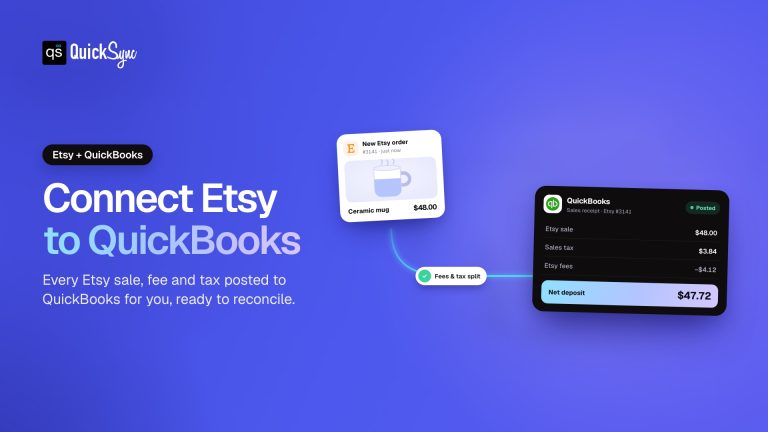
QuickSync is an automated sync platform that connects your Etsy shop directly to QuickBooks Online and handles every type of transaction correctly without manual work. Where a basic bank feed only imports your net payout as a single lump sum, QuickSync records every individual order, every fee, every refund, and every payout with the correct document types and account mappings that the sections above explain you need.
What QuickSync Handles for You
- Every Etsy sale is recorded as a sales receipt in QuickBooks: the gross sale amount to income, each fee to its correct expense account, and all entries offset to the payout clearing account.
- Correct document types automatically: Sales receipts for sales, refund receipts for refunds, never the wrong document type that causes reconciliation problems.
- Fee-level detail for every order: Listing fee, transaction fee, payment processing fee, and Offsite Ads fee each recorded separately to their dedicated expense accounts.
- Refunds handled correctly: The sale reversal and the fee credits recorded as separate line items so your profit and loss report stays accurate.
- Payout reconciliation automatic: The payout clearing account zeroes correctly against every bank deposit without manual matching.
- No duplicate entries: QuickSync processes each transaction exactly once, eliminating the double-entry problem that bank feeds create.
- Product and order sync: Beyond accounting, QuickSync also syncs products and orders between Etsy and other platforms like Shopify, Amazon, and eBay for sellers operating across multiple channels.
Start your free 14-day trial at QuickSync.pro. No credit card required. Setup takes under 20 minutes and your Etsy books start staying accurate automatically from day one.
Final Words
In short, accurate bookkeeping is essential for running a profitable Etsy business. With the right setup of QuickBooks for Etsy sellers, can confidently track sales, Etsy fees, refunds, payouts, and deductible expenses while generating reliable financial reports throughout the year. The strategies covered in this guide provide a solid foundation for maintaining accurate records, understanding your profitability, and preparing for tax season with confidence. To automate your bookkeeping, QuickSync integrates Etsy with QuickBooks and records transactions in the correct accounts automatically.