If a store has more than one location, QuickSync syncs only the locations you connect. A connection groups matching locations from two or more stores, and they share one count. We copy counts between them. We never add them up.
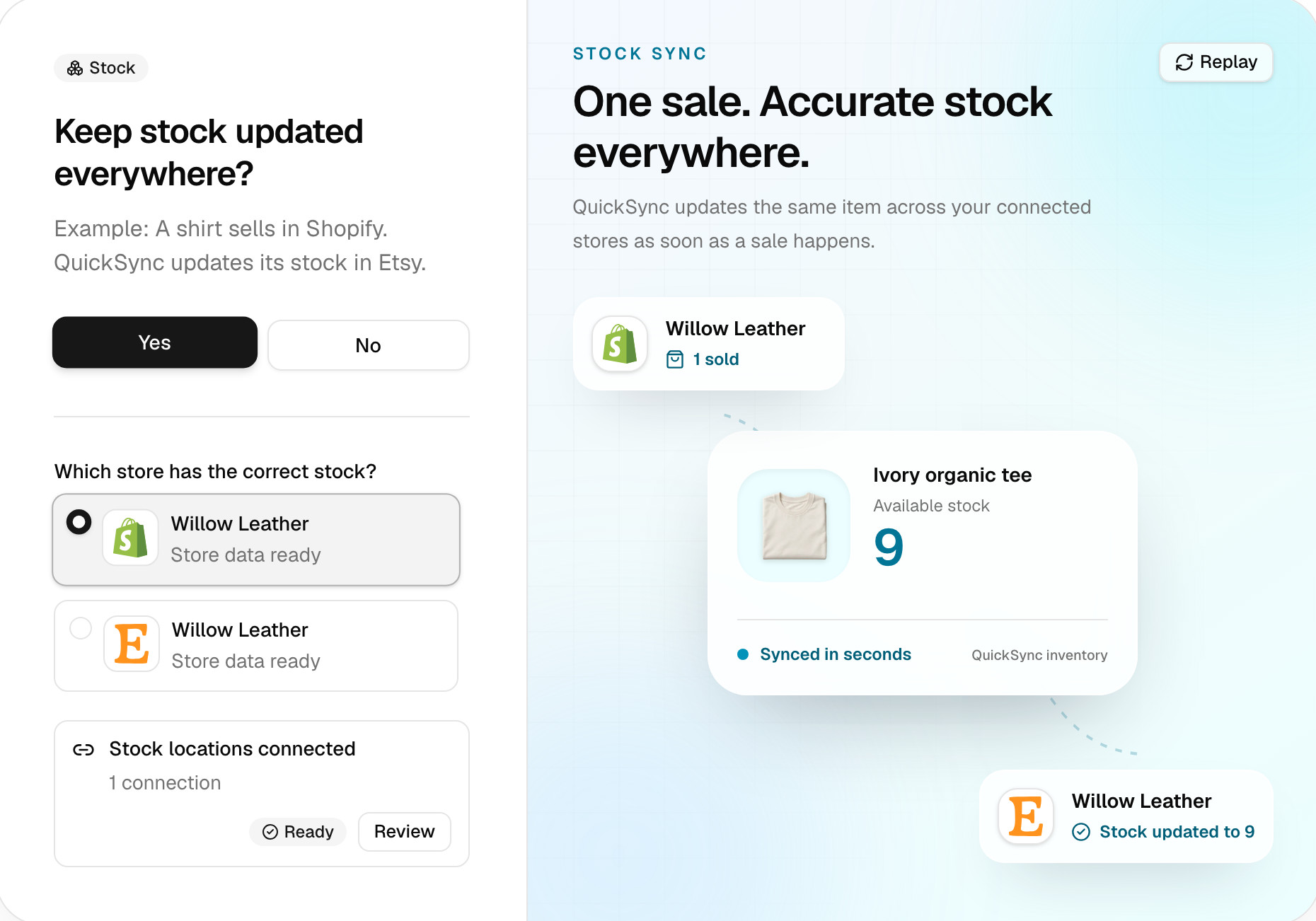
Two stores with one location each pair up on their own, and there’s nothing to set up. Below: which stores have locations, where to connect them, how a connection shares stock, and the locations you leave out.
Which stores have locations
| Store | Locations we sync |
|---|---|
| Shopify | Every active location. Locations another app runs, such as a print-on-demand service, only with Dropshipping locations on |
| Square | Every active location |
| Lightspeed | Every outlet |
| TikTok Shop | Warehouses you run, not TikTok’s own, return or disabled ones |
| Wix | One, or each warehouse on a site that has several |
| eBay | Your eBay locations, but each listing holds one count |
| Clover | One per Clover merchant. Connect each merchant as its own store |
| WooCommerce | One, even if a plugin adds more |
| Etsy, Amazon, Squarespace, QuickBooks, Xero | One |
Each store’s card under Settings, Stores shows how many locations we see for it. You’ll find Dropshipping locations under Review settings when you click Manage on a Shopify store.
Where to connect them
Three places open the same window:
- Settings, then General, then Manage on the Connect locations row.
- Setup’s Stock step, when a store has more than one location. The Connect stock locations row reads Required until you’ve connected every store. Click Connect or Review.
- Products, the Product Syncing card, then Manage next to Inventory locations. It’s there while product syncing is on.
In the window:
- Click Add connection. If you don’t have any yet, it opens straight on a new one.
- Tick the matching location in each store, for example your Leeds warehouse in Shopify and your Leeds shop in Square.
- Click Create connection. It needs locations from at least two stores.
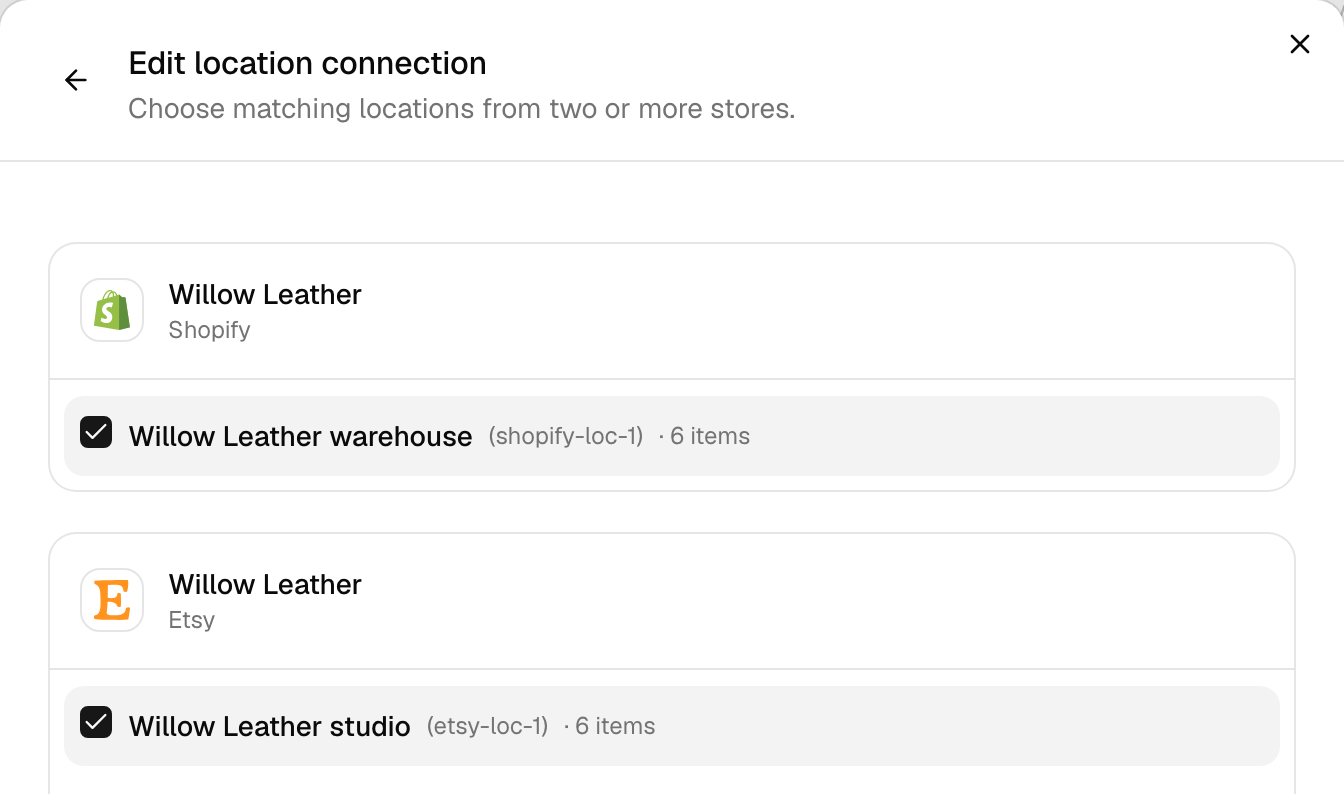
A location can belong to one connection only. One that’s taken says Already used by another connection. Use the pencil to change a connection and the bin to remove it.
How a connection shares stock
A connection shares one count. When stock changes at any location in it, we copy that location’s new count to every other location in the connection, in your other stores and in the same store. We never add locations together.
Pair locations one to one where you can. Your Leeds warehouse in Shopify shares a count with your Leeds shop in Square. Manchester pairs with Manchester. Each pair keeps its own number.
Trouble starts when two locations of one store sit in the same connection. Say Shopify’s Leeds holds 5, Manchester holds 7, and both connect to your Etsy shop. Etsy won’t show 12. The next change at either one copies its count to the other and to Etsy, so all three show the same number. Group two locations of one store only if you want them to match.
If one connection holds two or more locations of your starting store, setup asks for a Starting stock location. At the first sync, we copy that location’s count to the rest of the connection. That includes the other locations in the same store.
Locations you leave out
A location outside every connection isn’t part of the sync. A sale or delivery there doesn’t reach your other stores, and we don’t change its counts. We may add a 0 for a product with no record there.
We need a stock record for each product at a connected location, even a count of 0. Without one, it doesn’t sync. It shows Not stocked at a connected location under Needs attention. Stock it at a connected location in that store, or connect the location it’s already in. In Shopify, Square, Lightspeed and TikTok Shop, QuickFix can set up its stock at the connected location for you.
Other stores show Stock needs setup in this store instead. That one you fix in the store itself. Every status is in What each product status means.
Adding a location later
A new location doesn’t join a connection by itself. Its stock stays out of the sync until you add it to one. Shopify and Square tell us about a new location, and we list it in that window.
One case we handle for you. Say a Shopify or Square store goes from one location to two. We connect its first location to your single-location stores, so stock keeps moving. Then you set up the new one.
Saving a connection doesn’t change any counts. It decides where the next change goes. To even out counts now, click Sync products on the Products page and pick the store with the correct stock. Give a new or edited connection up to 10 minutes to take effect.
Common questions
Does QuickSync add up stock from multiple locations?
No. A connection shares one count between its locations. When stock changes at one of them, we copy that count to every other location in the connection. If two Shopify locations both connect to one Etsy shop, the next change at either copies its count to the other and to Etsy. Etsy won’t show their total. Pair locations one to one, or connect only the location whose stock Etsy should show.
Why isn’t stock at my second location syncing?
We sync stock only at connected locations, and a new location never joins a connection by itself. Open Settings, General, Connect locations, and check the location sits in a connection with its match in your other store. A product that isn’t stocked at any connected location shows Not stocked at a connected location under Needs attention.
Do I need to connect locations if each store has one?
No. Two stores with one location each pair up on their own, so stock syncs between them without a connection. You’ll need one only when a store has more than one location, such as a Shopify store with a warehouse and a shop, or a Square account with two locations. Setup shows a Connect stock locations row when that’s the case.
Why does a second Clover location count as another store?
Clover holds one stock count per merchant account, so we connect each Clover merchant as its own store with one location. Two shops on two Clover merchants are two stores. A plan covers two stores, and each extra one adds the plan price again, up to 8. Accounts that pay through the Clover App Market hold Clover plus one other store. Square and Shopify keep all their locations in one account, so extra locations don’t add stores.
What happens when I remove a location connection?
We stop sharing stock between those locations, and neither store disconnects. We don’t change any counts. If both stores have one location each, they’ll still pair up on their own, so stock keeps syncing. If a store has several, stock at the removed locations stops moving until you connect them again.
Next step
To see how counts move once you’ve connected your locations, read How stock syncs. If a sale at one location didn’t reach your other stores, work through Stock didn’t update after a sale.