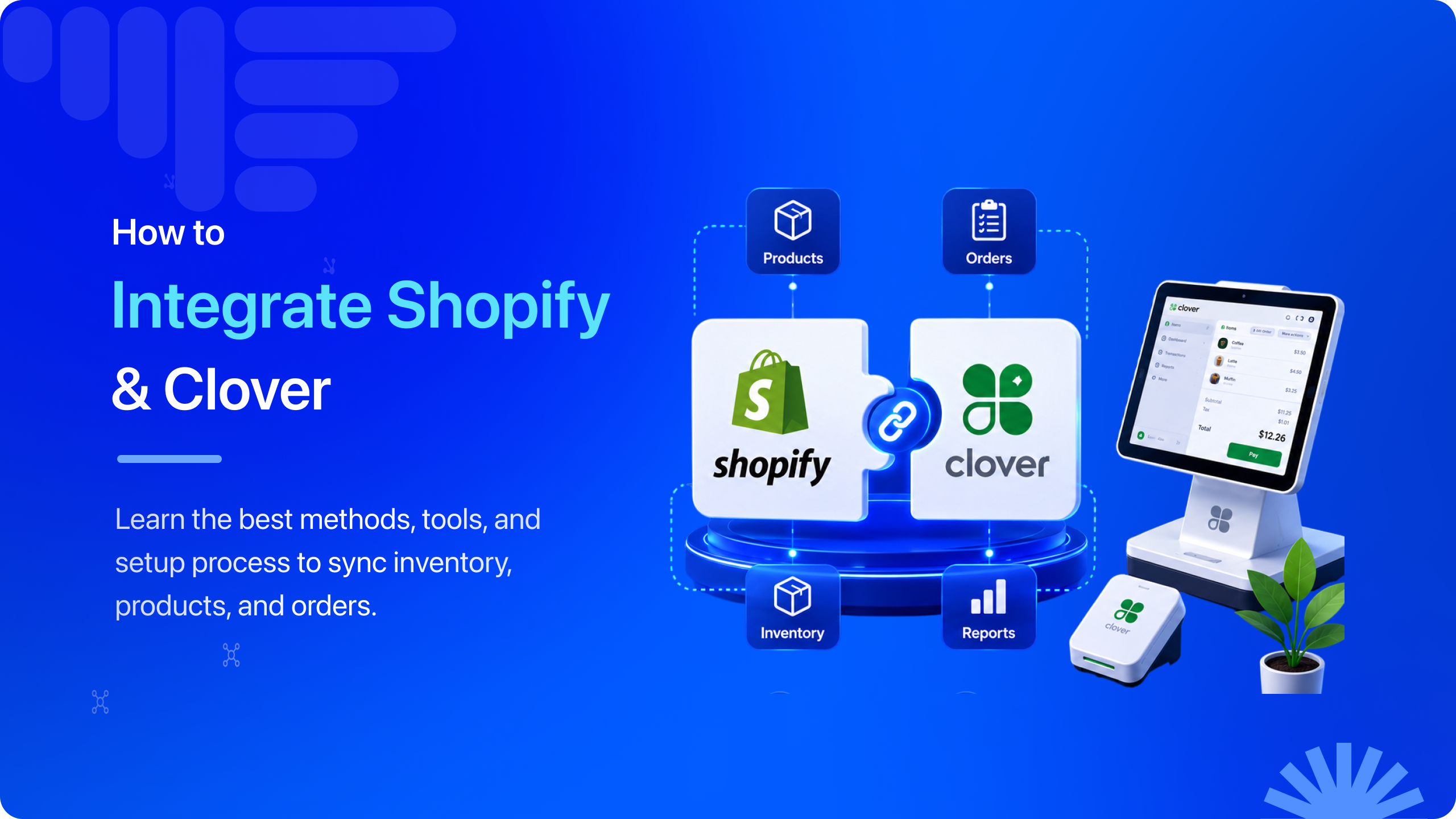
If you are running Shopify and Clover together and looking for ways to connect both platforms, you’re in the right place. Selling both online and in-store helps you reach more customers and grow revenue, but it also adds operational complexity.
Without a proper Shopify Clover integration, you might be updating inventory in two places. Rewriting product descriptions to maintain catalogs. Tracking orders across multiple dashboards. Forrester and NRF found that 56% of retailers struggle with inventory accuracy in omnichannel operations. This shows why connected inventory systems matter.
The good news is that a reliable Clover Shopify integration eliminates these challenges. It lets you manage two ecommerce platforms from one unified dashboard. This helps reduce manual work, improve inventory accuracy, and keep your online and in-store operations running smoothly. The key is choosing an integration solution that offers complete automation instead of basic data sharing.
However, connecting Shopify and Clover is not that simple. The built-in features don’t offer complete integration, leaving merchants to manage inventory and orders manually. Merchants get confused between different methods for syncing Shopify with Clover POS and end up choosing the wrong tool/
In this guide, I’ll show you the different ways to integrate Shopify and Clover. Explain which option works best for different businesses. And walk you through setting up a reliable integration that grows with your store.
Key Takeaways
- Shopify and Clover don’t offer a complete built-in integration.
- Manual updates become difficult as your product catalog grows.
- CSV imports work, but they don’t provide real-time synchronization.
- QuickSync automatically syncs products, inventory, and orders.
- Real-time inventory sync helps prevent overselling and stock discrepancies.
- Two-way order synchronization simplifies fulfillment across both platforms.
- The right integration saves time and supports long-term business growth.
Problems Merchants Face Without Shopify Clover Integration
If your Shopify store and Clover are not integrated, you are not only facing operational issues but also opening doors for other big problems. The more orders you start getting, the more your inventory gets messed up. You deal with angry customers and end up with a bad brand image.
Here are some of the problems merchants handle without Shopify Clover integration.
You End Up Managing Two Different Inventory Records
If you sell online and in-store, inventory becomes harder to manage. Every Shopify order changes your available stock. Every Clover sale changes it again. Without real-time inventory syncing, you update stock manually.
Manual inventory updates are rarely accurate. They also take valuable time. You may sell products already out of stock. Many merchants spend hours every week fixing inventory discrepancies.
Every Product Update Becomes Double the Work
Adding new products should help your business grow. It shouldn’t create extra work. Many merchants update products in Shopify first. Then they repeat the same updates in Clover POS. This includes titles, descriptions, prices, images, categories, and variants.
As your catalog grows, duplicate work also increases. One missed update creates bigger problems. Prices may not match. SKU mappings can break. Product information becomes inconsistent across both platforms.
Your Orders Stay Scattered Across Two Platforms
When Shopify and Clover aren’t connected, orders stay separated. Shopify manages online orders. Clover handles in-store sales. Your team checks both dashboards throughout the day. They constantly switch between systems.
This slows order processing and fulfillment. It also makes daily operations harder. Many merchants waste valuable time tracking orders. A connected workflow keeps everything in one place.
Small Manual Errors Turn Into Bigger Business Problems
Without a Shopify Clover integration, small mistakes add up quickly. A missed stock update creates inventory differences. An outdated product creates pricing issues. Both Clover Point of Sale and Shopify shop begin showing different product information.
As orders increase, these problems become expensive. They cause overselling and cancelled orders. Stock counts become unreliable. Many merchants discover these issues during inventory audits or customer complaints.
You’re Losing Sales Without Realizing It
Many merchants focus only on getting more traffic. They rarely look at inventory accuracy. If Shopify and Clover aren’t synchronized, customers may buy unavailable products. Other products may appear out of stock when inventory exists.
Every cancelled order affects your revenue. Delayed shipments reduce customer satisfaction. Missed sales slow business growth. A connected workflow helps you capture every possible sale while keeping inventory accurate.
Can Shopify and Clover Integrate Through Built-in Features?
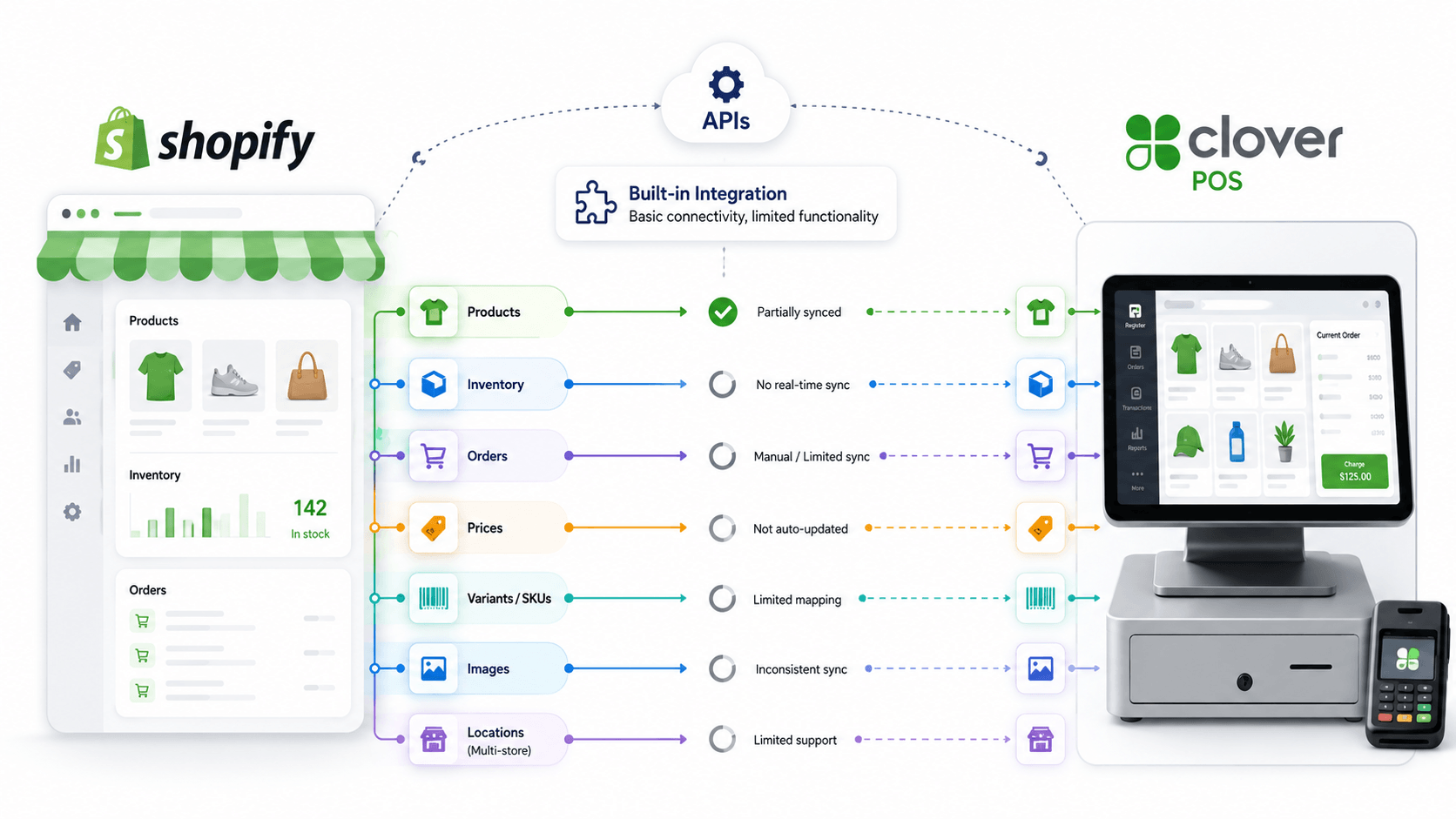
Yes, Shopify and Clover can integrate, but they lack the complete functionality most merchants need to manage both platforms efficiently.
Both platforms offer APIs and support selected third-party connections. However, Shopify and Clover don’t provide a complete built-in integration. Products, inventory, orders, prices, and catalog updates don’t sync automatically. Many merchants still update both platforms manually or depend on multiple apps.
Growing businesses need more than basic connectivity. Every sale, product update, inventory change, and order should sync automatically. This saves time, reduces errors, and keeps both platforms working together.
What built-in integration lacks
- No complete real-time inventory synchronization across both platforms.
- Limited automatic product catalog synchronization between systems.
- Orders often require additional configuration or separate processing workflows.
- SKU mapping options remain limited for larger product catalogs.
- Product images and variants may not sync consistently.
- Multi-location inventory support is often unavailable.
- Minimal automation for pricing updates and catalog changes.
- Growing businesses usually require multiple apps for complete functionality.
For merchants selling online and in-store, built-in features aren’t enough. A dedicated Clover and Shopify integration automates products, inventory, and orders. It keeps both platforms connected through one simple workflow.
How to Choose the Right Shopify Clover Integration Tool
“Merchants often focus on connecting Shopify and Clover. The real goal is keeping products, inventory, and orders synchronized automatically. A reliable integration removes manual work, improves inventory accuracy, and creates a better shopping experience across every sales channel.”
– Marija Bacelic (Ecommerce Integration Expert)
Not every Shopify Clover integration offers the same features. Some only sync inventory. Others only import orders. Many merchants install an app first, then discover it doesn’t support their growing business.
Let me explain what actually matters.
Choose an integration that keeps your inventory, products, and orders connected automatically. Look for real-time syncing instead of scheduled updates. Check whether it supports SKU mapping, multi-location inventory, product variants, and pricing sync. These features become essential as your catalog grows.
Here’s what I recommend checking before choosing any integration:
- Real-time inventory synchronization after every online and in-store sale.
- Automatic product sync with variants, images, prices, and descriptions.
- Two-way order synchronization between Shopify and Clover.
- SKU mapping for accurate product matching.
- Multi-location inventory support.
- Selective sync for specific products or collections.
- Reliable onboarding and customer support.
- Scalability for growing catalogs and higher order volumes.
Choosing the right Shopify Clover integration tool today saves countless hours later. It also helps prevent inventory errors, duplicate work, and costly fulfillment mistakes.
Different Methods to Integrate Shopify and Clover
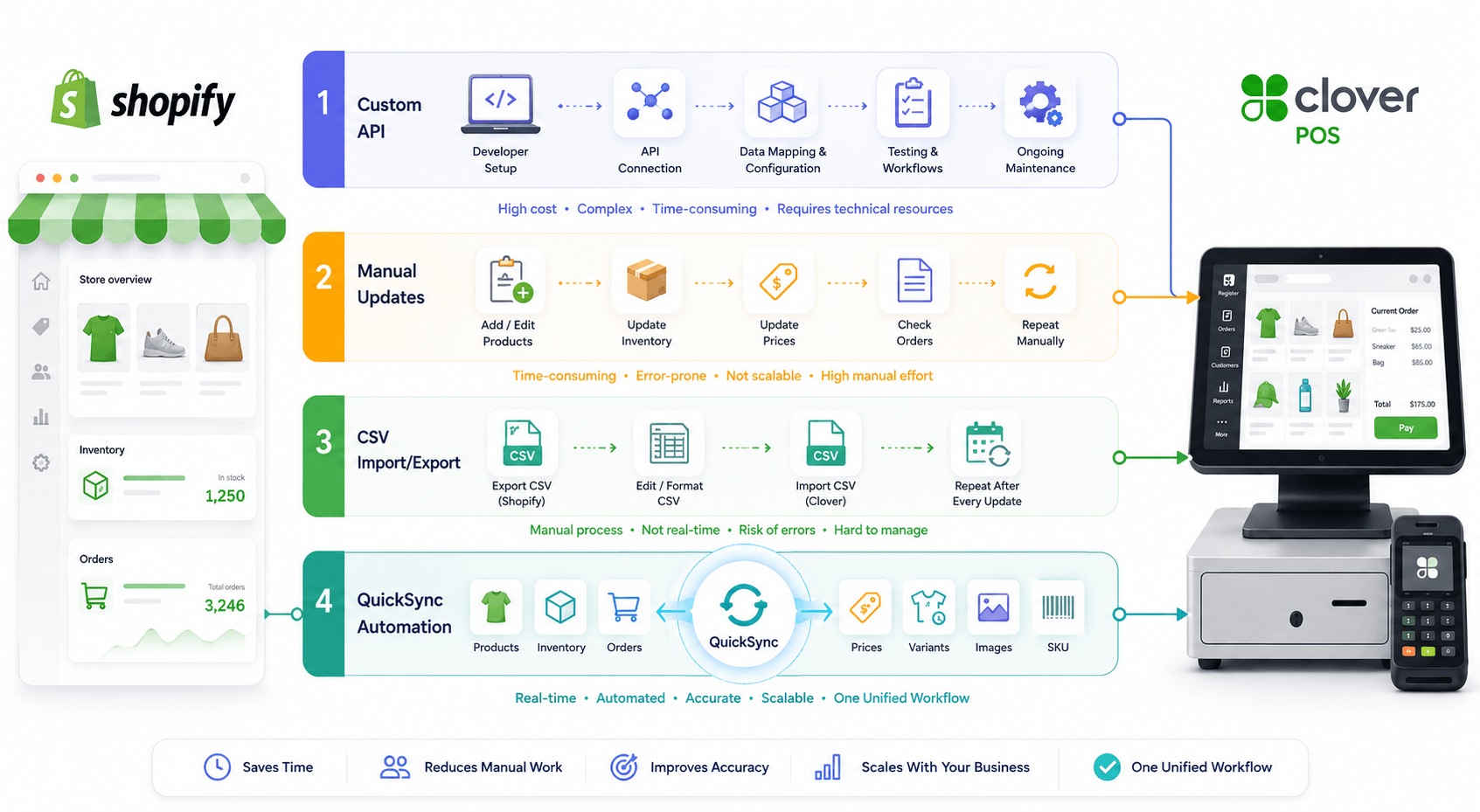
Now that you understand why native features aren’t enough. Let’s look at the different ways merchants integrate Shopify and Clover.
Method 1: Build a Custom Shopify Clover Integration
Some businesses create a custom Shopify Clover integration using both platform APIs. This gives them complete control over product, inventory, pricing, and order synchronization. While it offers flexibility, building a custom integration requires ongoing development and testing. It requires maintenance whenever either platform updates its API.
Here are some of the challenges of building a custom Shopify Clover integration tool.
- Requires experienced developers to build and maintain.
- High upfront development and ongoing maintenance costs.
- API updates require continuous code changes.
- Setup can take weeks or even months.
- Troubleshooting depends on your development team.
- Expensive for small and medium-sized businesses.
- Not practical for merchants wanting a quick deployment.
Method 2: Manage Shopify and Clover Manually
Many merchants initially manage Shopify and Clover without any integration. Products are added separately, inventory is adjusted manually, and orders are monitored from both dashboards. This approach may work for a very small catalog, but it quickly becomes difficult as sales increase.
Why this method becomes limiting
- Inventory must be updated after every online and in-store sale.
- Products need to be created and edited twice.
- Prices and variants often become inconsistent.
- Order management remains split across two platforms.
- Higher risk of overselling and stock discrepancies.
- Consumes valuable staff time every day.
- Doesn’t scale as your business grows.
Method 3: Import and Export CSV Files
Another common method is using CSV files. Merchants export product or inventory data from Shopify. Then they import the same file into Clover POS. They repeat this process whenever products or inventory change. While this reduces duplicate work, it still relies on manual file management.
Why this method becomes limiting
- Inventory isn’t synchronized in real time.
- Every update requires exporting and importing files.
- CSV formatting errors can cause failed imports.
- Product variants may not map correctly.
- Orders don’t synchronize automatically.
- Large catalogs become difficult to manage.
- Frequent imports increase the chance of data errors.
Method 4: Use a Dedicated Shopify Clover Integration Tool
If you want Shopify and Clover to work as one system, QuickSync is the easiest solution. You don’t need manual updates, CSV files, or custom development. QuickSync automatically syncs your products, inventory, and orders between Shopify and Clover.
Built for growing merchants, QuickSync connects your online store and Clover POS through one centralized workflow. Every sale, product update, and inventory change stays synchronized automatically. This keeps both platforms accurate and helps your team manage the business from one place.
Why merchants choose QuickSync
- Real-Time Inventory Synchronization: QuickSync automatically syncs inventory between Shopify and Clover after every online and in-store sale. Stock stays accurate across platforms automatically.
- Automatic Product Synchronization: Create products once. QuickSync syncs titles, prices, descriptions, variants, categories, and images across both platforms.
- Two-Way Order Synchronization: QuickSync sends Shopify orders to Clover automatically. Process orders faster without switching between dashboards.
- Smart SKU Mapping: QuickSync matches products using existing SKUs. Reduce duplicate listings and keep your product catalog organized.
- Selective Product Synchronization: Sync only the products you choose with QuickSync. Control collections, categories, and listings with ease.
- Multi-Location Inventory Support: QuickSync manages inventory across multiple Clover locations. Show accurate stock levels in your Shopify store.
- Easy Setup & User-Friendly Dashboard: Connect Shopify and Clover with QuickSync in minutes. No coding or technical experience is required.
- Centralized Sync Dashboard: Manage products, inventory, and orders from one QuickSync dashboard. Stop switching between Shopify and Clover.
How to Integrate Shopify and Clover Using QuickSync
If you want to integrate Shopify Clover, QuickSync makes the process simple. You don’t need to write code or manage multiple apps. Connect both platforms in minutes. Then choose your sync settings and automate your daily workflow.
Once connected, QuickSync keeps your products, inventory, and orders synchronized. Your Shopify store and Clover POS always stay up to date automatically. Instead of updating two separate systems, you manage everything from one centralized dashboard.
Here’s how you can connect Shopify with Clover using QuickSync.
Step 1: Create Your QuickSync Account
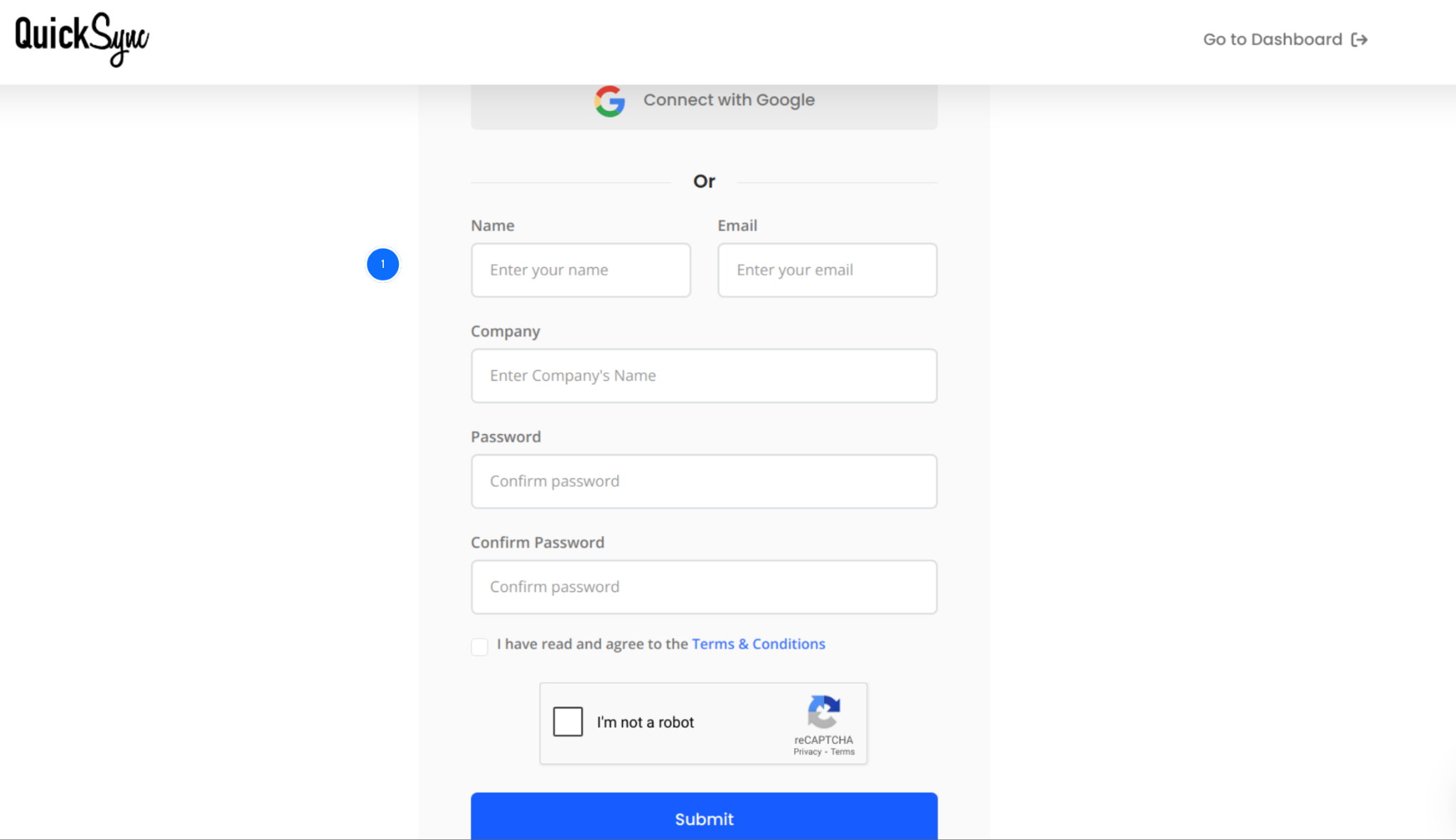
- Visit QuickSync.pro and create your account using your email address and business details.
- If you already have a QuickSync account, simply sign in and open your dashboard.
- This is where you’ll connect your stores. Manage sync settings from one place. Monitor sync activity and control your inventory and orders.
Step 2: Connect Your Shopify Store
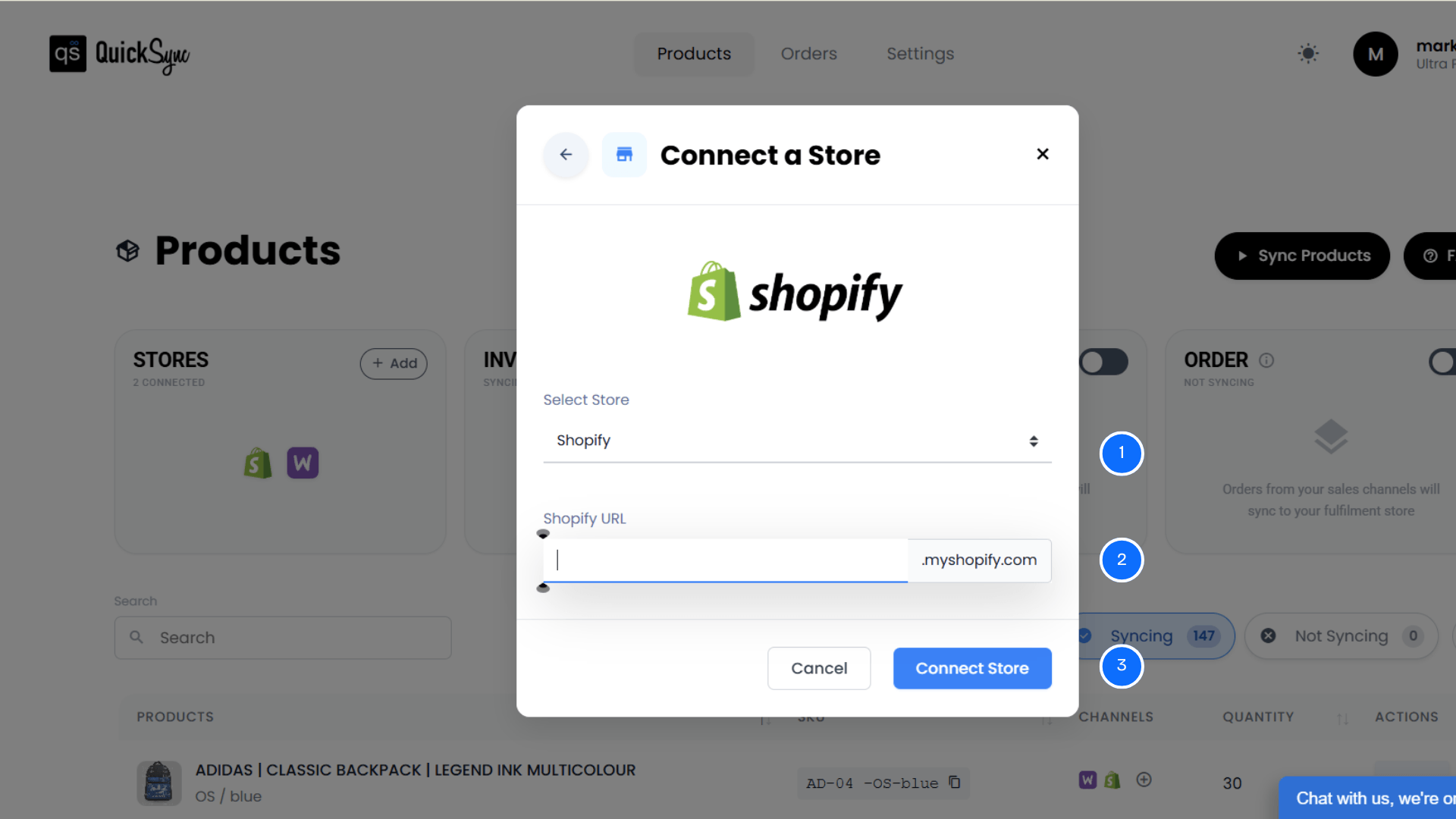
- After signing in, open your QuickSync dashboard.
- Go to Sync Products → Add Store and select Shopify.
- Enter your Shopify store URL, such as yourstore.myshopify.com, then log in to your Shopify account.
- Approve the requested permissions for products, inventory, images, and orders.
- QuickSync automatically imports your Shopify product catalog, inventory locations, product variants, and existing store data.
Step 3: Connect Your Clover POS
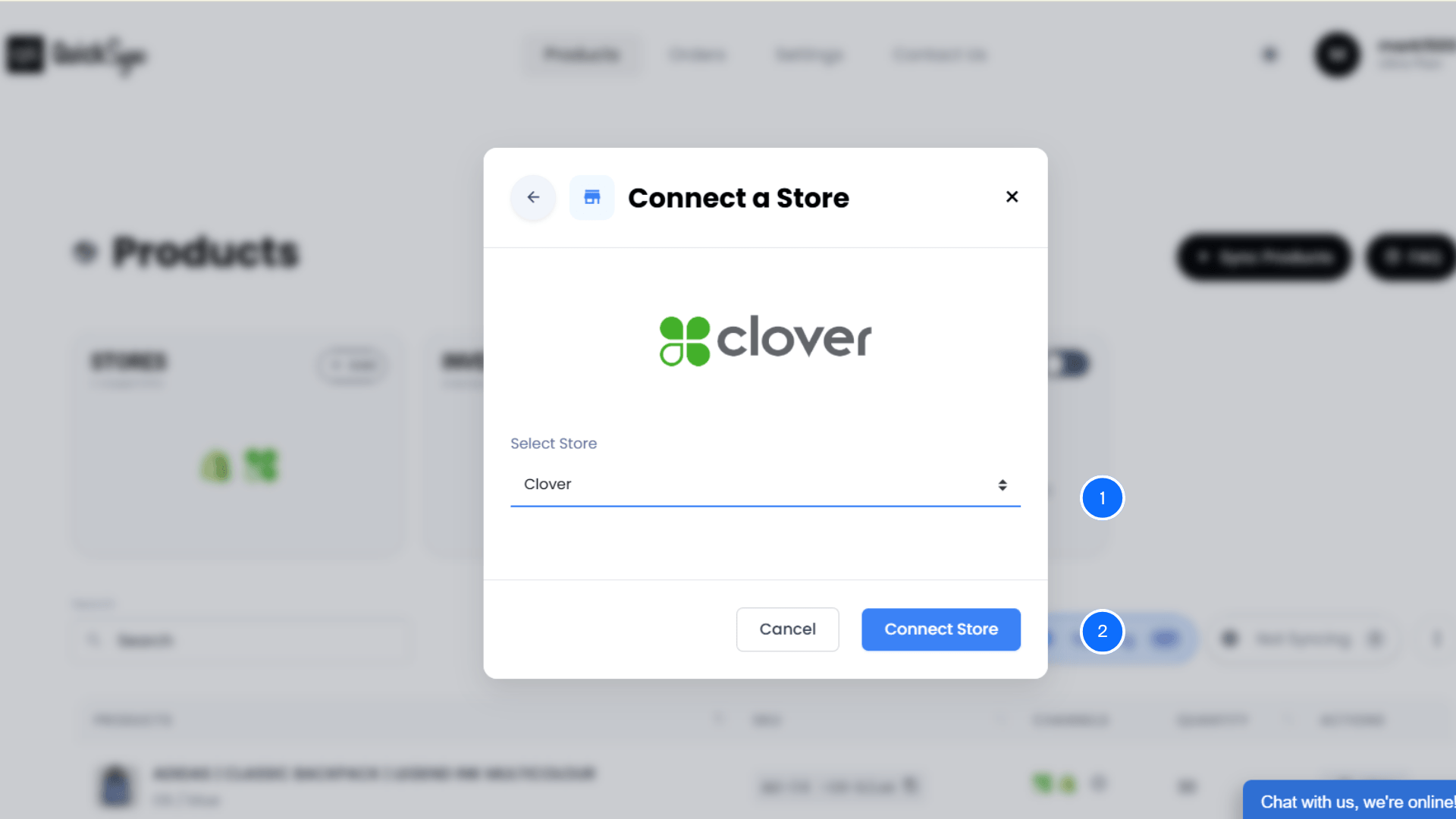
- Return to the Sync Products section from your dashboard.
- Select Clover as your second platform.
- Sign in to your Clover account and authorize QuickSync to access your Clover POS.
- Once connected, QuickSync imports your Clover catalog, inventory, products, and location details. Both platforms are now ready for synchronization.
Step 4: Configure Your Sync Settings
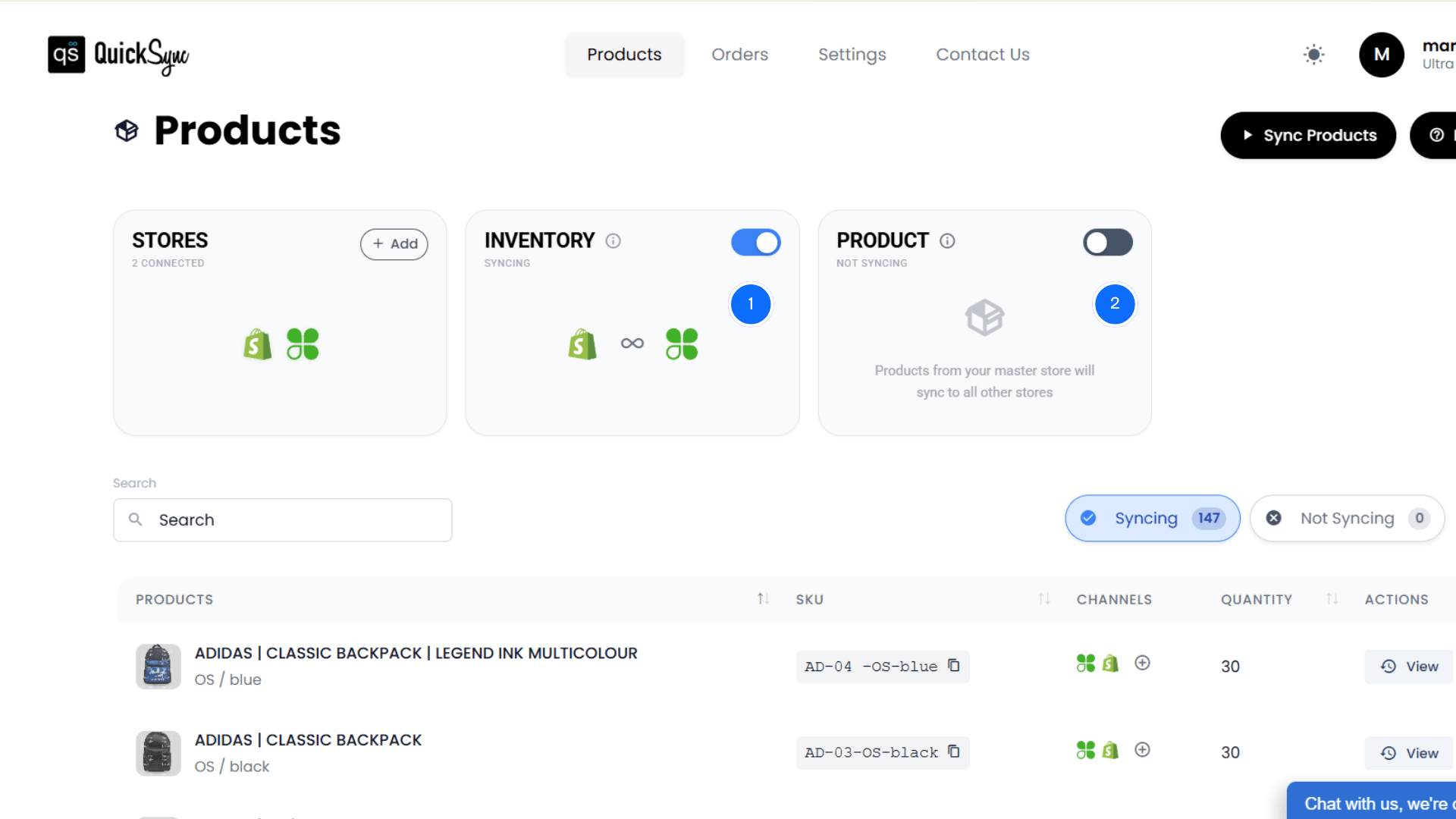
Once Shopify and Clover are connected, open the Sync Settings section from your QuickSync dashboard. This is where you decide how both platforms should work together.
- Inventory Sync is enabled automatically as soon as both stores are connected. Every sale, return, exchange updates inventory across Shopify and Clover in real time.
- Next, enable Product Sync and choose your Master Store. You can select either Shopify or Clover as the master store. Once selected, QuickSync automatically keeps the second platform updated whenever product information changes.
- Finally, enable Order Sync and choose your Fulfillment Store. This determines where new orders will appear for processing. For example, you can send Shopify orders into Clover POS or bring Clover POS orders into Shopify. Your team manages fulfillment from one platform while QuickSync keeps order information sync.
That’s it. Your Shopify and Clover integration is now live.
QuickSync continues working in the background to keep your products, inventory, and orders synced automatically. So you can spend less time updating data and more time growing your business.
Benefits of Integrating Shopify with Clover

Connecting Shopify and Clover isn’t just about saving a few hours every week. It changes how your business operates. Let me explain the biggest benefits of Shopify and Clover integration.
Save Hours on Daily Operations
A Shopify Clover integration removes repetitive tasks from your daily workflow. Instead of updating products, inventory, and orders separately. The changes sync automatically across Shopify and Clover POS.
Your team spends less time on administration. They spend more time serving customers and growing the business. Saving just one hour each day adds up to 250+ productive hours every year for one employee.
Keep Inventory Accurate Across Every Sales Channel
Every online and in-store sale updates your inventory automatically. Stock stays accurate across your Shopify store and Clover POS. You no longer need constant manual inventory updates.
This helps prevent overselling and inventory discrepancies. It also gives you confidence in your stock levels. Your customers always see accurate product availability, wherever they shop.
Process Orders Faster from One Dashboard
Shopify and Clover orders move into your chosen fulfillment store automatically. This makes every order easier to manage. Your team no longer switches between multiple platforms throughout the day.
Everything stays in one dashboard. Orders are processed faster. Fulfillment mistakes decrease. Customers receive their purchases sooner.
Deliver a Better Shopping Experience
A connected Shopify Clover integration creates a consistent shopping experience. Products, prices, and inventory stay synchronized across both platforms. Customers always see accurate product information.
Accurate stock levels improve customer confidence. Faster fulfillment builds trust. Consistent product information encourages repeat purchases and improves the overall shopping experience.
Scale Your Business with Confidence
As your business grows, QuickSync grows with you. With proper integration, you can add more products and expand to new locations without doubling workload. You can increase online sales without creating extra work.
Automation keeps Shopify and Clover synchronized. Your team spends less time managing data. You get a scalable workflow that supports long-term business growth.
Common Shopify Clover Integration Mistakes to Avoid
Even with the right integration tool, a few setup mistakes can create issues later. Here are the most common mistakes merchants make and how you can avoid them.
Using Different SKUs Across Both Platforms
SKUs help match products between Shopify and Clover. Different SKUs create product mapping problems. QuickSync may not match the correct products during synchronization. Review your catalog before connecting both platforms. Make sure matching products use the same SKU.
Not Choosing the Right Master Store
Your Master Store controls how product information syncs. Choosing the wrong one can create unwanted product updates. Decide which platform will manage your products first. Then enable Product Sync. QuickSync automatically updates the second platform.
Ignoring Duplicate Products
Duplicate products make synchronization more difficult. Similar product names or SKUs create mapping problems. They also cause inconsistent product information. Remove duplicate products before connecting Shopify and Clover. This helps QuickSync match products accurately from the beginning.
Syncing Everything Immediately
You don’t need to sync every product on day one. Start with a small group instead. Check that everything works correctly first. Then sync the remaining products. This reduces corrections and makes the setup process much smoother.
Skipping Inventory Checks Before Setup
Review your inventory before connecting Shopify and Clover. Start with accurate stock counts on both platforms. This helps QuickSync synchronize inventory correctly. It also reduces inventory discrepancies after your integration goes live.
Tips to Maintain a Smooth Shopify Clover Integration
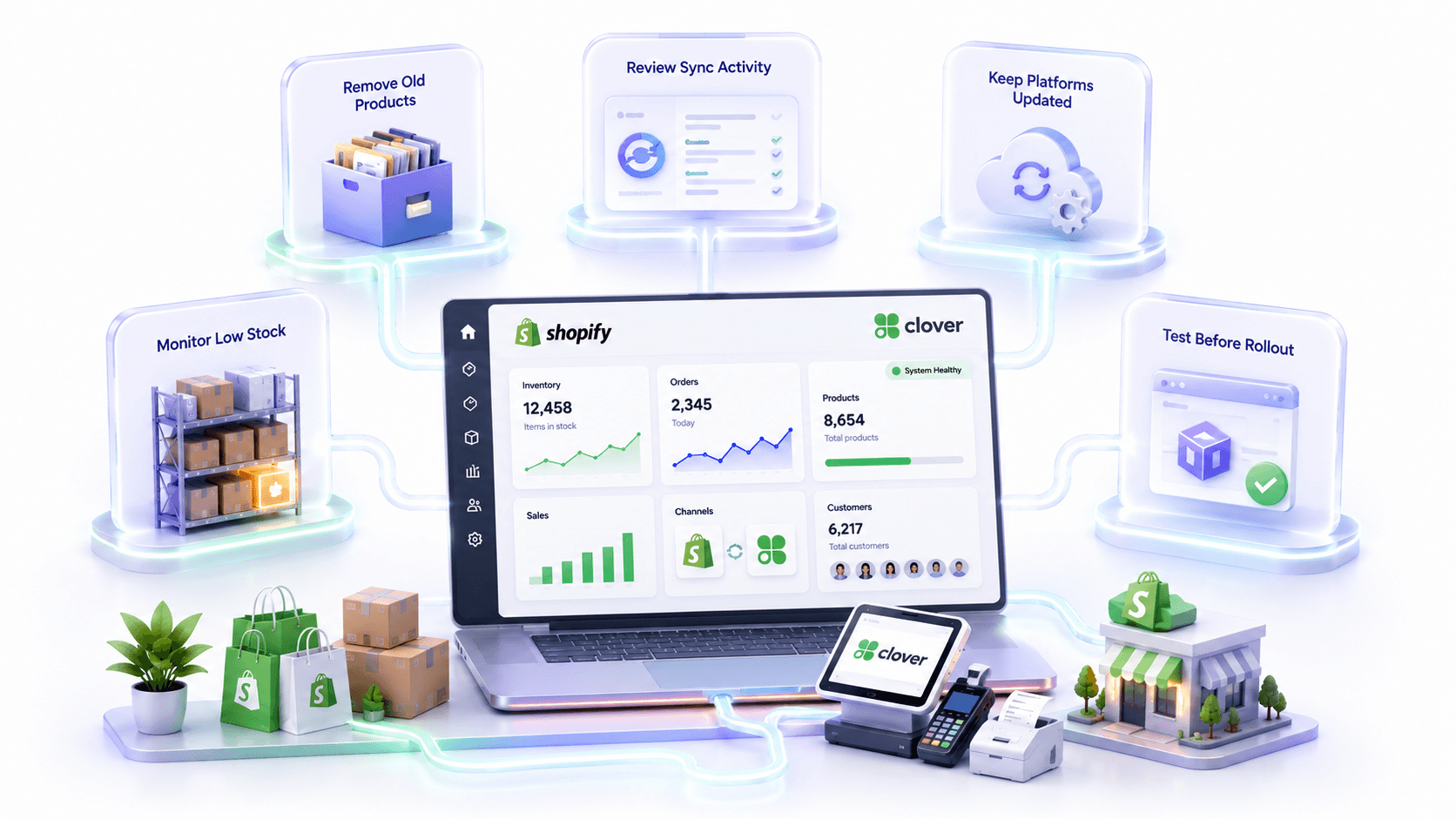
Once your integration is live, a few simple habits will help everything continue running smoothly.
Remove Old or Inactive Products
Archive products you no longer sell. Remove outdated listings from your catalog. A clean catalog is easier to manage. It also keeps product data organized. Fewer inactive products make future synchronization faster and more accurate.
Review Your Sync Activity Regularly
Check your QuickSync dashboard regularly. Make sure products, inventory, and orders sync correctly. This helps you catch issues early. Small problems are easier to fix. You also get a clear view of every synchronization between Shopify and Clover.
Keep Both Platforms Updated
Use the latest versions of Shopify apps, Clover software, and your integration tool. Software updates often include performance improvements, security fixes, and compatibility updates. Keeping everything up to date helps your integration run smoothly and reduces unexpected sync issues.
Review Low-Stock Products Regularly
Keep an eye on products that are running low across your Shopify store and Clover POS. This helps you reorder inventory before products sell out. Maintaining healthy stock levels reduces missed sales and improves the customer shopping experience.
Test New Sync Settings Before Full Rollout
If you change sync settings or add new workflows, test them with a few products first. This helps you confirm everything works as expected before updating your entire catalog. A quick test reduces errors and gives you confidence before making larger changes.
Conclusion
If you’re wondering how to integrate Shopify and Clover, the answer depends on how you want to run your business. While manual updates, CSV imports, and custom integrations are available, they often require extra time, ongoing maintenance, or technical expertise. A dedicated Shopify Clover integration gives you a much simpler and more reliable solution.
With QuickSync, you can automatically synchronize products, inventory, and orders between Shopify and Clover without switching between multiple systems. Whether you sell online, in-store, or across multiple locations, QuickSync helps you maintain accurate inventory, reduce manual work, and manage your entire business from one connected workflow.
If you’re ready to simplify your operations, QuickSync gives you everything you need to connect Shopify and Clover with confidence.