If you are running a retail business on Lightspeed and thinking about moving to Shopify, you are not alone. Lightspeed to Shopify migration is one of the most common platform switches happening in retail right now, and for good reason. Shopify powers over 4.6 million businesses worldwide and has grown into one of the most capable commerce platforms available for businesses that want to sell both in person and online.
But switching platforms is not something to rush into. A migration done without proper planning can mean lost data, broken inventory counts, confused staff, and days of store downtime you cannot afford. We have seen it happen, and it is entirely avoidable with the right approach.
This guide covers everything you need to know about migrating from Lightspeed to Shopify, including why businesses switch, how the platforms compare, what data can be migrated, and the steps to complete the transition without disrupting operations. We also cover what to do during the transition period when both systems need to run at the same time, because that is the part most migration guides skip entirely.
Why Businesses Move From Lightspeed to Shopify
Before we go deeper into the migration process, let’s first uncover the major reasons why businesses want to migrate from Lightspeed to Shopify.
Lightspeed is a solid platform for physical retail. It handles point of sale, inventory, and in-store operations well. So why are thousands of retailers making the switch to Shopify? The answer almost always comes down to one thing: growth.
As retail businesses expand beyond their physical stores and start selling online, through social media, and across multiple channels, Lightspeed’s limitations start to show. The platform was built primarily for in-store operations. Shopify was built for commerce everywhere.
The Most Common Reasons we found are as follows:
- Limited ecommerce capabilities: Lightspeed’s online store features are basic compared to what Shopify offers. Merchants who want a serious online presence, abandoned cart recovery, advanced product pages, or seamless checkout experiences find Lightspeed’s e-commerce tools limiting.
- Smaller app marketplace: Shopify’s app store has over 8,000 integrations covering marketing, accounting, shipping, loyalty, analytics, and more. Lightspeed’s marketplace integration options are significantly more limited, which means merchants often cannot connect the tools they need.
- Multichannel selling: Shopify connects natively to TikTok Shop, Instagram, Facebook, Amazon, and eBay. Selling across these channels from one Shopify backend is straightforward. Doing the same from Lightspeed requires workarounds and third-party tools.
- Pricing and value: Many merchants feel that as their business grows, the cost of Lightspeed does not match the value they receive, particularly for ecommerce features that are standard on Shopify’s plans.
- Better analytics for growth decisions: Shopify’s reporting tools give merchants deeper insight into online and multichannel performance. For businesses making decisions about which products to stock, which channels to invest in, and where their customers are coming from, Shopify’s analytics are more useful.
- Stronger customer tools: Shopify’s customer profiles connect online and in-store purchase history, making it easier to run targeted marketing, loyalty programs, and personalized promotions across every channel.
None of these reasons means Lightspeed is a bad platform. For a retailer who operates primarily in-store and does not need a strong online presence, Lightspeed works well. But for businesses that want to grow beyond the shop floor, Shopify is simply the stronger foundation to build on.
Difference Between Lightspeed POS and Shopify Store
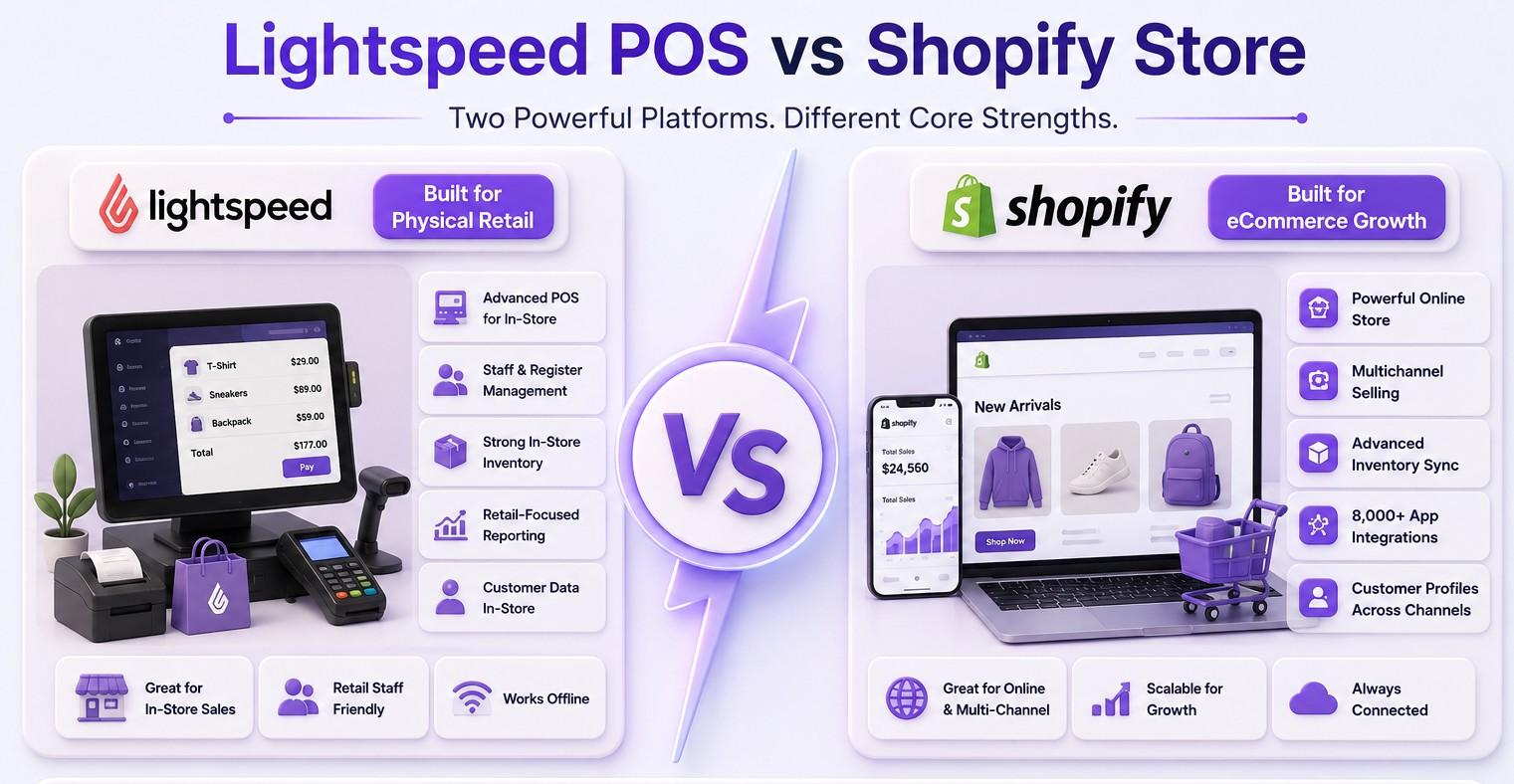
Lightspeed and Shopify are built for different core purposes, and that difference shapes every feature they offer.
Lightspeed was designed from the ground up for physical retail. Its strengths are in the POS experience, in-store inventory management, and tools for staff at the register. Shopify was designed from the ground up for ecommerce. Its strengths are in the online store, multichannel selling, and tools for growing a brand beyond a single location.
This does not mean one is better than the other in absolute terms. It means they are optimized for different things. Below is a quick comparison across the factors that matter most for a retail business making this decision.
| Factor | Lightspeed | Shopify |
| Primary Purpose | Built for physical retail and POS operations | Built for ecommerce with strong POS extension |
| Online Store | Basic ecommerce, limited features | Industry-leading online store with full ecommerce tools |
| App Marketplace | Smaller selection of integrations | 8,000+ apps covering every business need |
| Multichannel Selling | Limited multichannel selling capability | Built-in: TikTok, Instagram, Amazon, eBay, and more |
| Inventory Management | Strong for physical retail locations | Multi-location, robust, real-time across all channels |
| Pricing | Higher monthly fees for full feature set | Plans from $39/mo with transparent pricing |
| Ease of Use | Good for retail staff at the register | Beginner-friendly for both online and in-store |
| Customer Data | Stored within Lightspeed ecosystem | Full customer profiles across online and in-store |
| Reporting | Good for retail metrics and POS data | Strong ecommerce analytics and multichannel reporting |
| Payment Processing | Lightspeed Payments, limited processors | Shopify Payments plus wide third-party support |
| Best For | Established physical retailers focused on in-store | Businesses wanting strong ecommerce and growth |
In short, the very core difference between Lightspeed and Shopify is that if you want to grow online and sell across more channels, Shopify gives you more opportunities to do that. If your business is mainly focused on in-store sales, Lightspeed can still be a great fit.
What Data Can You Migrate From Lightspeed to Shopify?
This is the question every merchant asks first, and it deserves an honest and specific answer. Not everything transfers cleanly from Lightspeed to Shopify. Some data moves automatically, some need manual work, and some do not transfer at all.
Understanding this before you start saves you from sudden surprises halfway through the migration. Here is the complete breakdown.
| Data Type | Transfer Status | Notes |
| Product name and description | Transfers | Full text including HTML formatting |
| Product images | Transfers | Up to 5 images per product |
| Product variants | Transfers | Size, color, and other variant types map correctly |
| SKU | Transfers | Up to 15 characters recommended |
| Barcode | Transfers | EAN, ISBN, ITF, UPC, JAN formats supported |
| Price and cost price | Transfers | Both retail price and unit cost carry over |
| Product category and tags | Transfers | Category and tag structure preserved |
| Vendor and brand | Transfers | Supplier and brand names carry over |
| Tax settings | Transfers | Tax codes and taxable status preserved |
| Inventory quantities | Transfers | Per-location stock levels sync correctly |
| Multi-location stock | Transfers | Each outlet maps to a Shopify location |
| Customer information | Transfers | Name, email, address, and contact details |
| Order history | Transfers | Line items, totals, tax, discounts, and status |
| Order notes and messages | Transfers | Staff notes and order instructions preserved |
| Cancellations and refunds | Transfers | Cancelled and refunded orders sync correctly |
| Product videos | Does Not Transfer | Must be re-uploaded to Shopify manually |
| Weight and dimensions | Does Not Transfer | Must be re-entered on Shopify product pages |
| Compare-at price | Does Not Transfer | Sale pricing needs manual setup in Shopify |
| Digital products | Does Not Transfer | Digital items need manual recreation in Shopify |
| Tracking numbers | Does Not Transfer | Fulfillment tracking must be managed in Shopify |
| Gift cards | Needs Manual Work | Gift cards must be recreated in Shopify |
| Loyalty points | Needs Manual Work | Requires a migration plan and manual transfer |
| Custom pricing rules | Needs Manual Work | Pricebooks need manual recreation in Shopify |
In simple terms, some data can only be transferred manually, and certain data points cannot be transferred at all. The good news is that QuickSync can automatically transfer around 90% of the essential data you need.
Items such as gift cards and loyalty balances do not always transfer automatically. However, QuickSync makes it easy to move these over as well, with minimal manual effort.
What to Check Before Starting Your Lightspeed to Shopify Migration
A successful migration starts with proper preparation. That’s why spending a little time on this checklist now can help you avoid costly mistakes, missing data, and unnecessary delays later.
Back Up Everything in Lightspeed First:
Before touching anything, export a complete backup of your Lightspeed data. This includes your full product catalog, customer list, order history, and inventory counts. Store these exports somewhere safe because if anything goes wrong during the migration, these files will be safe.
Clean Up Your Product Catalog:
Next is to do the housekeeping you have been putting off. Go through your Lightspeed product catalog and remove discontinued products, fix SKUs that are duplicated or inconsistent, standardize product naming across your catalog, and remove any test products or placeholder entries. A clean catalog migrates correctly, and a messy one creates problems that are much harder to fix after migration.
Decide How to Handle Gift Cards and Loyalty Points:
If you have active gift cards in circulation, you need a plan. Gift cards do not transfer automatically between platforms. You will need to either recreate them manually in Shopify or use a third-party gift card app to bridge the gap. The same applies to loyalty point balances. Talk to your customers who have significant balances and decide whether to honor them on the new platform or offer an alternative.
Choose Your Shopify Plan Before Migrating:
Different Shopify plans include different features. Before you start migrating, decide which plan you need so you know exactly what tools will be available to you on day one. Setting up on a plan that is too limited and then upgrading partway through creates confusion. Choose once and migrate into the right plan from the start.
Set a Go-Live Date and Plan Around It:
Pick a go-live date and work backward from it. A realistic migration timeline for a mid-size retail store is two to four weeks from start to live. Plan your migration window for a slow period in your business calendar, not the week before a major promotion or the start of your busiest season.
Decide Whether to Keep Lightspeed Running During the Migration:
Many merchants choose to run both Lightspeed and Shopify simultaneously during the transition period rather than cutting over all at once. This is the safer approach because it means your business never has a gap where neither system is fully operational. If you choose this route, you will need a way to sync inventory and orders between both platforms during the overlap. Below, we covered how to do this in the QuickSync section.
Set Up Your Shopify Store Basics First:
Before importing any data, set up the foundations of your Shopify store: your domain, your payment processor, your shipping settings, your tax settings, and your basic theme and branding. Importing products into a store that is not configured yet means you will need to make adjustments after the import that could affect how products display.
What Are The Different Ways to Migrate Lightspeed to Shopify
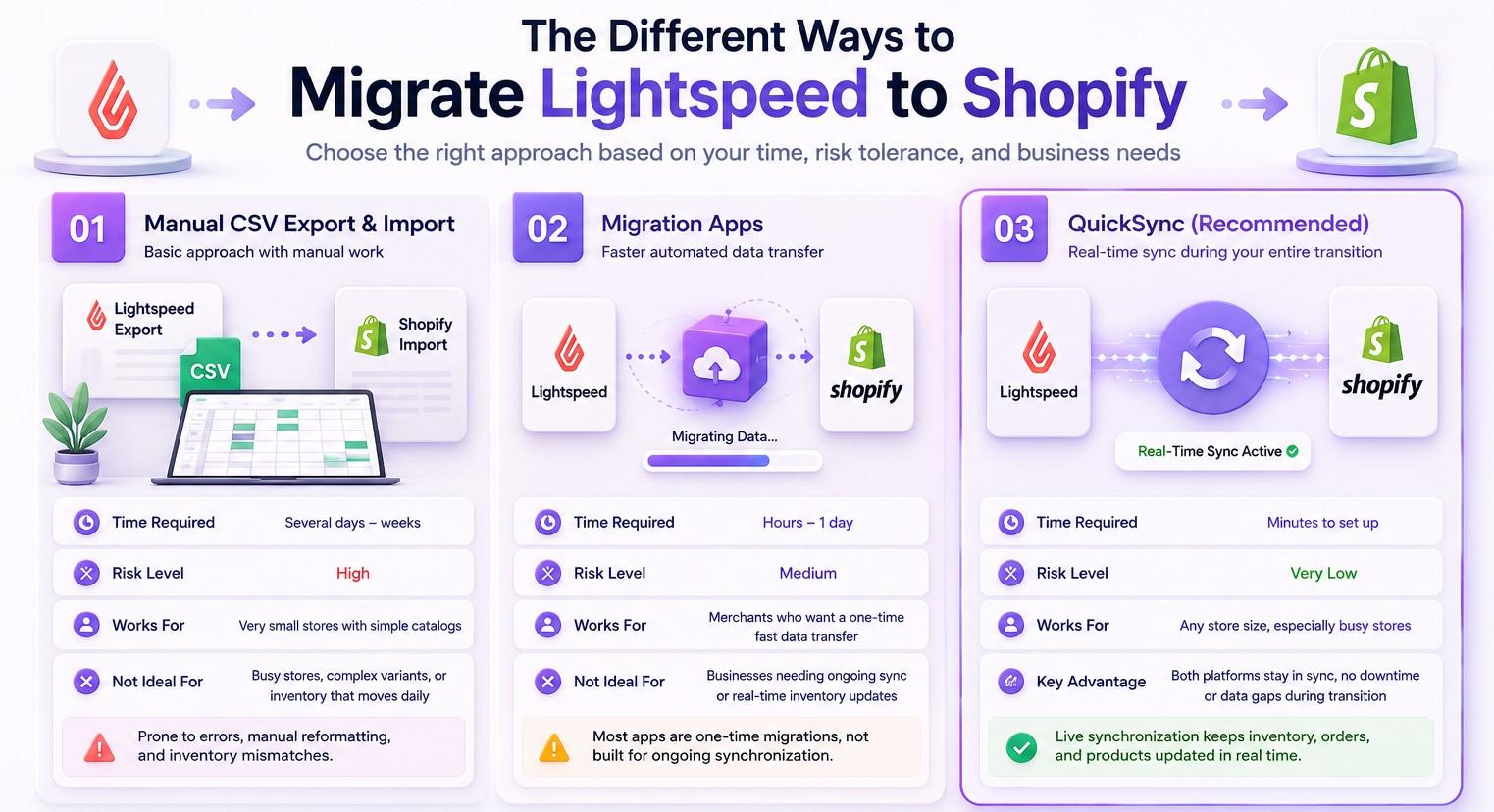
Once your preparation work is complete, the next step is choosing how you want to move your data from Lightspeed to Shopify. There is no single migration method that works for every business.
The right approach depends on your catalog size, inventory complexity, available time, and how much risk your business can tolerate during the transition.
Broadly speaking, retailers have three options. Let’s look at how each one works, along with the pros, limitations, and ideal use cases.
Method 1: Manual CSV Export and Import:
The most basic approach is to export your data from Lightspeed as CSV files and then import those files into Shopify using Shopify’s built-in import tools.
- How it works: You download product, customer, and order data from Lightspeed as spreadsheet files, reformat them to match Shopify’s required format, and upload them to your new Shopify store.
- Time required: Several days to weeks depending on catalog size and how much reformatting is needed.
- Risk level: High. Manual reformatting introduces errors. Variant structure often does not map correctly without careful work. Inventory counts can be wrong if there is any delay between export and import.
- Works for: Very small stores with simple catalogs and no ongoing inventory movement during the migration.
- Not ideal for: Busy stores where inventory is moving every day, stores with complex variant structures, or any business that cannot afford data errors.
Method 2: Migration Apps:
Several third-party migration apps are built to automate the data transfer from one ecommerce platform to another. These tools handle the reformatting automatically and can transfer more data types than a manual CSV approach.
- How it works: You connect both platforms to the migration app, choose what data to transfer, and the app handles the movement automatically.
- Time required: Hours to a day depending on catalog size.
- Risk level: Medium. Most migration apps do a reasonable job with products and customers but can struggle with complex variant structures and platform-specific data.
- Works for: Merchants who want a faster transfer than manual CSV and are comfortable with a one-time data move.
- Not ideal for: Merchants who need inventory to stay synchronized between both platforms during a transition period, or who need ongoing two-way sync after migration.
Method 3: QuickSync (Recommended)
QuickSync is not just a migration tool. It is a live sync bridge that keeps both Lightspeed and Shopify connected and synchronized during your entire transition period.
Instead of a one-time data dump, QuickSync creates a real-time connection between both platforms so changes on either side flow to the other automatically.
- How it works: You connect both platforms to QuickSync, set your sync preferences, and QuickSync keeps products, inventory, and orders synchronized between Lightspeed and Shopify in real time throughout your migration.
- Time required: Minutes to set up. The migration itself happens gradually and safely over whatever timeline works for your business.
- Risk level: Very low. Because both platforms stay synchronized throughout the transition, there is no gap where inventory is wrong or orders are missed.
- Works for: Any store size. Particularly valuable for busy stores that cannot afford downtime or data errors during migration.
- Key advantage: You do not have to rush your migration. Keep Lightspeed running for your in-store operations while you build and test your Shopify store, with everything staying synchronized the entire time.
Quick Comparison of Lightspeed to Shopify Migration Methods
| Factor | Manual CSV | Migration Apps | QuickSync |
| Time required | Days to weeks | Hours to days | Minutes to set up |
| Technical skill needed | High | Medium | Low |
| Data accuracy | Error-prone | Good | Excellent |
| Live sync during transition | No | No | Yes |
| Inventory stays accurate | No | No | Yes, in real time |
| Orders sync both ways | No | No | Yes |
| Gift cards handled | No | No | Yes, automatically |
| Loyalty points sync | No | No | Yes, cross-channel |
| Pricebook sales on Shopify | No | No | Yes, automatic badges |
| Bundle stock deduction | No | No | Yes, per component |
| Risk of data loss | High | Medium | Very low |
| Best for | Very small stores | Simple migrations | Any store size |
How to Migrate Lightspeed to Shopify with QuickSync?
Moving from Lightspeed to Shopify is easier than most retailers expect. With QuickSync, you can keep both systems connected while you make the switch, so your business continues running without disruption.
- Set up your Shopify store. Create your Shopify account and choose your plan. Set up your domain, payment processing, shipping settings, tax configuration, and basic store theme before importing any data.
- Export your Lightspeed data. Export your complete product catalog, customer list, and order history from Lightspeed. Store these files safely as your reference and backup throughout the migration.
- Clean your product catalog. Review your exported data and fix any issues before importing. Remove discontinued products, fix duplicate SKUs, standardize naming, and make sure your variant structure is consistent.
- Connect Lightspeed and Shopify via QuickSync. Sign up at QuickSync.pro and start your free trial. Connect your Lightspeed account and your Shopify store. QuickSync imports your existing Lightspeed catalog automatically and maps products between both platforms using SKUs.
- Set your sync preferences. Choose what QuickSync should keep synchronized: products, inventory, orders, pricing, loyalty, gift cards, or everything. Set Lightspeed or Shopify as your Master Store based on where your team primarily manages data. Set it once, and QuickSync manages everything automatically.
- Run a test sync and verify your data. Before going live, check that your products have transferred correctly to Shopify. Verify that inventory counts match. Place a test order on Shopify and confirm it appears on the Lightspeed register. Check that a Lightspeed sale appears in the Shopify dashboard.
- Set up Shopify-specific features. Configure tools that are unique to Shopify and were not available in Lightspeed: abandoned cart recovery, email marketing integrations, Shopify Analytics, and any apps from the Shopify App Store your business needs.
- Train your team. Before going live, make sure your staff is comfortable with the Shopify interface. Taking a day to walk through the key workflows prevents confusion and mistakes after launch.
- Go live on Shopify. Launch your Shopify store. With QuickSync running, your Lightspeed POS and your Shopify store stay synchronized in real time. Your staff can continue using Lightspeed at the register while customers shop on your new Shopify storefront.
Once you are confident that Shopify is running smoothly and your team is comfortable, you can decide when to fully transition away from Lightspeed. Because QuickSync has kept both platforms synchronized throughout, the final cutover is straightforward rather than stressful.
Common Lightspeed to Shopify Migration Problems and How to Fix Them
Even well-planned migrations run into issues. Here are the most common problems merchants encounter during a Lightspeed to Shopify migration and what to do about each one.
Variant Structure Does Not Map Correctly:
Lightspeed organizes product variants using a family structure with parent and child relationships. Shopify organizes them as a single product with multiple options. When this mapping does not work correctly, you end up with duplicate products or variants that appear as separate products.
How to fix it: If you are using QuickSync, the variant translation is handled automatically. QuickSync reads Lightspeed’s family structure and maps it correctly to Shopify’s product variants with all sizes, colours, and options preserved. If you are migrating manually, you will need to reformat your CSV files carefully to match Shopify’s variant structure.
Inventory Counts Are Wrong After Migration:
If there is any gap between when you export your inventory from Lightspeed and when it is imported into Shopify, sales made during that window will not be reflected. This is especially problematic for busy stores.
How to fix it: Using QuickSync eliminates this problem entirely. Because inventory stays synchronized in real time throughout the migration, there is no gap. A unit sold on Lightspeed during the transition immediately updates your Shopify inventory and vice versa.
Gift Cards and Loyalty Points Have No Equivalent:
In a manual migration, Lightspeed’s gift card and loyalty systems do not automatically transfer to Shopify. Customers who have gift card balances or loyalty point credits find those balances missing when you switch platforms.
How to fix it: This is one of the clearest advantages of using QuickSync. QuickSync bridges Lightspeed’s gift card and loyalty APIs to Shopify automatically. Gift cards issued at the Lightspeed register get a corresponding Shopify discount code. Loyalty points earned at the register appear in the Shopify customer account. Customers never experience a gap. If you are not using QuickSync, you need to export all active gift card balances and loyalty point totals manually and contact affected customers about the transition.
Pricebook Sales Do Not Show on Shopify:
When you run a sale or promotion in Lightspeed using pricebooks, those discounts do not automatically appear on your Shopify storefront in a standard migration. Your in-store prices are discounted but your online prices still show full price.
How to fix it: QuickSync automatically maps active Lightspeed pricebook prices to Shopify’s compare-at price field, which triggers the strikethrough Was/Now display and sale badges on your Shopify storefront. Run a sale on Lightspeed, and your website updates automatically. Without QuickSync, you need to manually update Shopify prices every time you run an in-store promotion.
Customer Records Create Duplicates:
If you have customers who appear multiple times in Lightspeed under slightly different names or email addresses, those duplicates will carry over into Shopify.
How to fix it: Before migrating, deduplicate your customer list in Lightspeed. Export your customer data and look for entries with the same email address. Merge or remove duplicates before the migration so you start with a clean customer database in Shopify.
Staff Get Confused During the Transition Period:
When both systems are running simultaneously, staff can get confused about which system to use for which tasks and where to check inventory levels.
How to fix it: Create a simple one-page guide for your team before going live that explains exactly what each system is used for during the transition. If you are using QuickSync, the answer is simple: staff continue using Lightspeed at the register as normal while Shopify handles the online store. Both stay synchronized automatically, so there is no confusion about which inventory count is correct.
SKU Mismatches Create Sync Errors:
If your Lightspeed SKUs contain characters that Shopify does not accept, or if some products do not have SKUs at all, the migration will create products that cannot be matched between platforms.
How to fix it: Before migrating, make sure every product in your Lightspeed catalog has a unique SKU that is no longer than 15 characters. Remove any special characters that might cause formatting issues. SKUs are the key that links products between platforms.
How QuickSync Helps During a Lightspeed to Shopify Transition
Most migration tools do one thing: move data from one platform to another in a single transfer. QuickSync does something fundamentally different. It creates a live, two-way connection between Lightspeed and Shopify that keeps both platforms synchronized in real time throughout your entire transition period, and it handles far more data than any standard migration tool.
When you connect Lightspeed and Shopify through QuickSync, you are not choosing one platform over the other during the transition. You are running both, with everything staying accurate automatically.
QuickSync Syncs Everything Between Lightspeed and Shopify
This is the full picture of what QuickSync Lightspeed Shopify Integration handles between both platforms. It is significantly more than most merchants expect from a sync tool.
| Category | What QuickSync Does | What It Means for Your Business |
| Products | Two-way product sync including name, description, images, variants, SKU, barcode, price, cost, category, tags, vendor, and tax | Update a product in Lightspeed, and it updates on Shopify. Update it on Shopify, and it updates in Lightspeed. One catalog, two channels. |
| Variant Mapping | Lightspeed product families with sizes and colours correctly map to Shopify’s nested variant structure with up to 3 option types and 200 variants per family | A shirt in sizes S/M/L with two colours at your register shows up as the same shirt with the same options on your website. No duplicates. No missing variants. |
| Inventory | Real-time inventory sync across both platforms, the moment any sale happens on either channel | A sale at your Lightspeed register drops Shopify stock instantly. A sale on your Shopify store drops Lightspeed stock before the next customer walks in. |
| Multi-Location | Each Lightspeed outlet maps to a Shopify location so stock at every physical location stays accurate on both platforms | Three stores, one website. Stock at each location is correct on your website, for each location, always. |
| Orders: Register to Shopify | Closed Lightspeed register sales appear in your Shopify orders dashboard automatically | See all your revenue, both in-store and online, in one Shopify dashboard. No separate Lightspeed report. No manual reconciliation. |
| Orders: Shopify to Register | Shopify online orders flow to the Lightspeed register immediately for pick, pack, and fulfill | Customer buys on your website. Your register shows the order immediately. Staff pick and pack without typing anything twice. |
| Order Cancellations | Cancel on Shopify and Lightspeed voids it. Void on Lightspeed and Shopify cancels it. Stock restores on both sides. | Cancel anywhere. Both platforms update. Stock comes back. Accounting stays clean. |
| Pricebook Sale Badges | Active Lightspeed pricebook sales automatically set the compare-at price on Shopify, triggering strikethrough Was/Now display and sale badges | Set up a sale on Lightspeed. Your Shopify website shows the original price crossed out and the sale price with a badge automatically. No logging in twice. |
| Promotions and Discounts | Active Lightspeed promotions propagate to Shopify as automatic discounts or compare-at price adjustments in real time | Run a 20% off sale on your Lightspeed register. Your Shopify website prices drop too. No separate Shopify discount to set up. |
| Customer Group Pricing | VIP, staff, and wholesale customer group pricing from Lightspeed pricebooks applies correctly on both channels | VIP customers always pay their VIP price, whether they shop in your store or on your website. One pricing strategy, consistent everywhere. |
| Loyalty Points | Loyalty points earned at the Lightspeed register appear in the Shopify customer account. Redemptions on Shopify apply at the register. | Customer earns points on your register. Logs into your website and redeems them. One loyalty program, both channels. No third-party app needed. |
| Gift Cards | Gift cards issued at the Lightspeed register get a corresponding Shopify discount code. Gift cards purchased on Shopify work at the register. | Buy a gift card in store, use it on the website. Buy one online, use it at the register. It just works. |
| Bundles and Composites | Lightspeed composite products sync to Shopify as bundles. When a bundle sells on Shopify, Lightspeed automatically deducts stock from each component. | Sell a Starter Kit on your website. Lightspeed removes one of each component from stock. No manual adjustments. |
| Fulfillment Status | Staff mark an order shipped on the Lightspeed register and the customer receives an automatic Shopify shipping notification | Staff mark it shipped on the register. Customer gets an automatic shipping email from your Shopify store. No manual Shopify update needed. |
| Supplier Data | Supplier names, codes, and wholesale cost prices from Lightspeed sync to Shopify vendor field and cost metafield | Your supplier names and wholesale costs stay accurate on Shopify. Margin calculations work without manual data entry. |
Look back at the data migration table in Section 4 of this guide. The items marked as needing manual work in a standard migration, gift cards, loyalty points, pricebook sale pricing, promotions, customer group pricing, bundle stock management, and fulfillment status notifications, are all handled automatically by QuickSync. These are the items that cause the most headaches in manual migrations and the ones where most merchants spend the most time after migration, cleaning up problems.
QuickSync removes those problems before they start. You do not need to manually export and recreate gift card balances. You do not need to contact every loyalty customer about their points. You do not need to log into Shopify every time you run a Lightspeed promotion to update your online prices. QuickSync handles all of it.
How QuickSync Handles the Transition of LightSpeed to Shopify
Here is what the migration period looks like when you use QuickSync.
- Your Lightspeed catalog pushes to Shopify automatically with all variants, pricing, images, and product details mapped correctly.
- Inventory levels stay accurate on both platforms in real time throughout the entire transition period.
- Sales made at the Lightspeed register immediately update Shopify stock, so your online store never shows stock that is no longer available.
- Orders placed on your Shopify store appear on the Lightspeed register immediately, so your staff can pick and fulfill them without checking a second system.
- Pricebook sales on Lightspeed automatically show as sale badges on your Shopify storefront.
- Loyalty points customers earn at the register appear in their Shopify account automatically.
- Gift cards work across both channels without any manual bridging.
- When you are ready to fully move to Shopify, you can wind down Lightspeed gradually rather than in a single, stressful cutover.
QuickSync keeps your Lightspeed and Shopify stores synchronized throughout your entire migration, with far more data handled automatically than any other tool.
The Bottom Lines: What Next!
Summing it up, a successful Lightspeed to Shopify migration is not about moving everything at once. It is about moving with control. Keeping your data accurate, your inventory aligned, and your operations uninterrupted while you transition. But for that, merchants need to pick the right solutions.
And there comes QuickSync, giving you full control. Two-way real-time sync between Lightspeed and Shopify, covering products, inventory, orders, pricing, gift cards, loyalty points, and more. Migrate at your own pace, with zero downtime and zero guesswork.
Start your free 14-day trial at QuickSync.pro and make your migration the smoothest part of your growth.