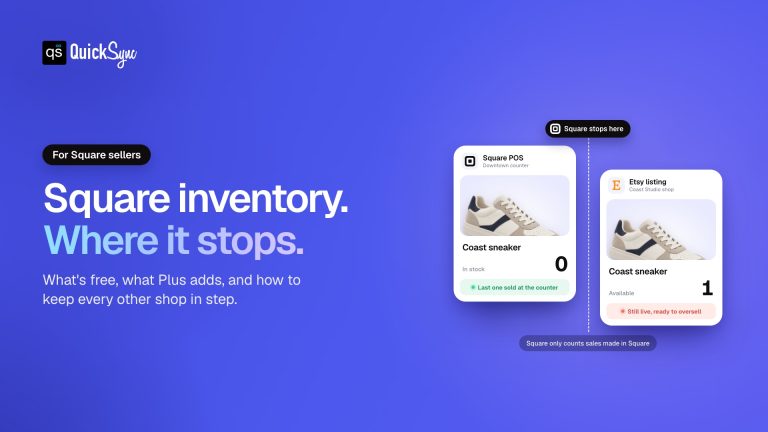
Two Square logins means two stock counts. Sell a unit in one location and the other still shows it available until somebody updates both by hand. Connecting and syncing multiple Square accounts is how you keep one warehouse number behind every till.
This guide explains when to use Square’s built-in multi-location features, when separate Square accounts actually make sense, and the best ways to sync products, inventory, and orders in real time. You’ll also learn how to choose the right syncing method, avoid common setup mistakes, and manage all your Square accounts more efficiently.
Related: see the Square on QuickSync page for what QuickSync moves between these shops, then start a 14-day trial.
Quick Overview of Syncing Multiple Square Accounts
| → You can sync multiple Square accounts, but separate accounts require a third-party tool or custom API because Square doesn’t support native syncing between independent accounts. → If all your stores belong to the same business, Square’s built-in multi-location feature is usually the simplest solution. → Real-time syncing can keep products, inventory, and orders consistent across connected Square accounts. → Choosing one master account and maintaining consistent SKUs helps prevent synchronization errors. → Third-party sync tools are the fastest option for most businesses because they require little to no technical setup. |
Can You Connect and Sync Multiple Square Accounts?
This is a very common question that retailers ask: Is it possible to connect multiple Square accounts? So the short answer is yes. Square allows you to manage multiple accounts, and you can connect and sync them.
But before getting into how, it is worth being specific about what multiple Square accounts actually mean and when they are the right choice for your business.
Square allows only one account activation at a time per device, but the platform fully supports operating multiple separate accounts across different devices, locations, and business entities. Many businesses run multiple Square accounts to separate sales by location, brand, or ownership structure. Multiple Square accounts can also link to the same bank account if needed, though only account owners can link bank accounts.
When Multiple Square Accounts Make Sense
- Different business entities: you own two separate businesses that happen to both use Square POS and need completely separate financial records.
- Different brands: you operate distinct brands under separate business names that require their own Square merchant accounts and independent reporting.
- Separate ownership structures: multiple business partners each own separate Square accounts for their respective operations.
- Different locations with distinct business models: two locations that operate differently enough to require completely separate account configurations rather than just separate location settings.
When Multiple Square Accounts Are Not Needed
If you operate one business with multiple locations, you probably don’t need separate Square accounts. Square’s multi-location feature allows you to manage different locations from one account with shared inventory and reporting.
Using separate accounts can create extra work because each account needs to be managed independently. Since Square does not support merging separate accounts, setting up your account structure correctly from the start is important.
Difference Between Square Locations vs Separate Square Accounts
This is the most important distinction to understand before choosing how to manage your Square setup and it is the one that most sellers researching this topic find most confusing. Getting this wrong at the setup stage creates operational complexity that is difficult to undo later.
What are Square Locations?
Square Locations let you manage multiple stores or selling points from a single Square account. Instead of creating separate accounts for each location, you can use one main account to manage everything in one place.
Each location can have its own sales tracking while still sharing the same Square product catalog and inventory system. This means you get one login, one Square Dashboard, and a complete view of all your locations.
Because all locations are connected under the same account, Square automatically syncs inventory between them. You do not need any additional Square inventory automation tools to keep stock levels updated across your different locations.
What Are Separate Square Accounts?
Now separate Square accounts are individual accounts that operate independently from each other. Each account has its own login, Square Dashboard, product catalog, inventory records, and sales reports. If you need one sales report, read how to combine reports from multiple Square accounts. Reporting and shared inventory are separate tasks.
Because these accounts are not connected by default, any changes made in one account do not automatically appear in another. For example, adding a new product or updating inventory in one Square account will not update your other accounts.
You can still manage multiple Square accounts separately, but keeping them synchronized requires an additional solution such as third-party inventory sync software or custom integration.
Quick Side-by-Side Comparison of Square Locations and Separate Square Accounts
| Factor | Square Locations (One Account) | Separate Square Accounts |
| Login credentials | One login for all locations | Separate login per account |
| Product catalog | Shared across all locations | Completely separate per account |
| Inventory tracking | Centralized, syncs natively | Separate, no native sync |
| Reporting | Unified by default | Isolated per account |
| Native sync support | Built in, no tools needed | Requires third-party tool or API |
| Setup complexity | Simple, one dashboard | Complex, multiple dashboards |
| Best for | One business, multiple locations | Separate businesses or brands |
The best setup depends on whether your locations are part of the same business or operate separately.
If you run one business with multiple locations, a single Square account is usually the better choice. It provides built-in syncing and unified reporting without extra costs.
If you manage separate businesses or brands, you may need separate Square accounts. However, you will need a sync solution to keep data consistent between them.
Square sitting behind a Shopify store is a different setup: connect Shopify to Square covers keeping one stock count across the till and the online shop.
Different Methods to Connect and Sync Multiple Square Accounts
There are three distinct approaches to connecting and syncing multiple Square accounts. Understanding all three honestly is what allows you to choose the right one rather than defaulting to whatever is easiest to find.
Method 1: Square’s Built-In Multi-Location Tools
Square’s built-in tools allow you to use a master account for multiple locations under a single Square account. This is the simplest and most cost-effective approach because it requires no additional tools and no technical knowledge.
- What it does well: You can manage all your locations from one place with synced inventory, shared products, combined reports, and separate settings for staff and payments.
- How to set it up: You can create a new Square location directly from your dashboard. Simply open Settings, select Locations, click Create Location, and provide the required information.
- The limitation: This only works when all locations operate under the same Square merchant account. It does not solve the sync problem for genuinely separate Square accounts
This option might be an ideal choice for businesses that operate multiple physical or online locations under the same company and can manage everything through one Square account.
Method 2: Third-Party Sync Tools (QuickSync.Pro)
Now, another method is using third-party integration solutions. These can help synchronize completely separate Square accounts without any coding. A common workflow for synchronization involves connecting each Square account to an integration platform that handles the data flow automatically.
This is the approach that solves the problem Square’s built-in tools cannot address: keeping genuinely separate accounts accurate and connected in real time.
- What it does well: These tools make managing separate Square accounts much easier by automatically syncing data between them. You do not need technical skills, and you can expand your setup by connecting Square with more marketplace integrations.
- The limitation: Third-party sync tools require a monthly subscription, unlike Square’s free built-in multi-location features.
This option works well for businesses that need to keep multiple Square accounts connected but want a simple solution without coding or developer support.
Method 3: Custom API Integration
Square provides a developer API that allows businesses to build fully customized connections between their accounts. This gives complete flexibility but comes with significant complexity and cost.
- What it does well: A custom API gives you full control over how your systems connect, allowing you to build a solution around your unique workflows.
- The limitation: The main limit of this option is complexity. API integrations require a developer, take longer to implement, and need regular maintenance over time.
This option may work best for larger companies with available developers and that need a custom solution built around their specific workflows.
Which Method Is Best to Connect and Sync Multiple Square Accounts?
The best syncing method depends on how your business is structured and what you need to manage. Each option has different advantages, costs, and requirements. The comparison below will help you choose the right approach for your setup.
| Criteria | Built-In Tools | Custom API | Third-Party Sync Tool (QuickSync) |
| Setup time | Minutes | Weeks to months | Under 20 minutes |
| Technical skill | None | Developer required | None |
| Works with separate accounts | No | Yes | Yes |
| Real-time sync | Locations only | Possible but complex | Yes, fully automatic |
| Ecommerce connections | None | Custom build required | Shopify, WooCommerce, Etsy, eBay, Amazon |
| Ongoing maintenance | None | Continuous | Handled automatically |
| Monthly cost | Free | High development cost | From $19 per month |
| Best for | One account, multiple locations | Large enterprises | Any multi-account business |
The simplest choice depends on your account structure. Use Square’s built-in tools for locations under one account, third-party inventory sync solutions for separate accounts, and custom APIs only for complex enterprise requirements.
Things to Prepare Before Syncing Multiple Square Accounts with QuickSync
Taking a few minutes to prepare before connecting your accounts makes the setup process significantly faster and prevents the most common issues from appearing during or after configuration.
- Admin access to each Square account: you need full admin or owner-level access to each Square account you want to connect. Limited staff access will not have the permissions required to authorize a third-party integration.
- A QuickSync account: sign up at QuickSync.pro with a free 14-day trial. No credit card required to start.
- Accurate inventory counts on each account: the sync maintains accuracy from whatever counts it finds at the moment it activates. If your starting counts are wrong, the sync will maintain those wrong counts accurately. Do a stock check on each account before going live.
- A designated master account: decide which of your Square accounts will be the master account before you start. This is the account that controls the direction of product data. All product updates and new product additions should be made in the master account after the sync is active.
- Clean product data in your master account: ensure that product names, descriptions, images, and pricing are accurate and consistent in your master account before connecting. The sync carries over whatever it finds at setup.
No developer is required. No coding knowledge is needed. No complicated configurations. The entire setup is managed through a visual dashboard.
How to Connect and Sync Multiple Square Accounts via QuickSync
Setting up your Square account sync does not require coding or technical knowledge. Follow these steps to connect your accounts and start syncing your data.
Step 1. Sign up or log in to QuickSync
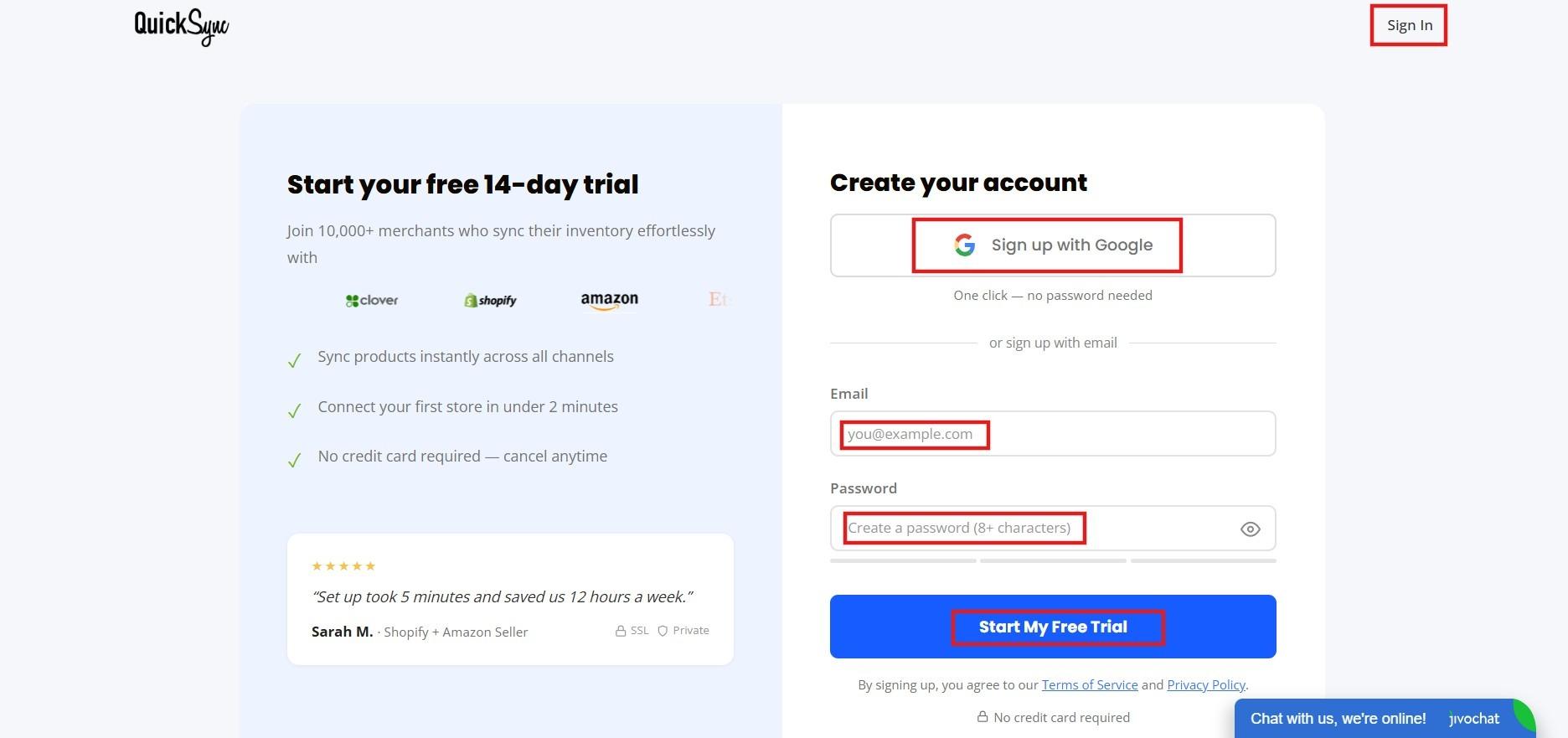
Visit QuickSync.pro and create your account or log in if you already have one. Your QuickSync dashboard is where all connected Square accounts are managed from one place.
Step 2. Connect Your Square Accounts.
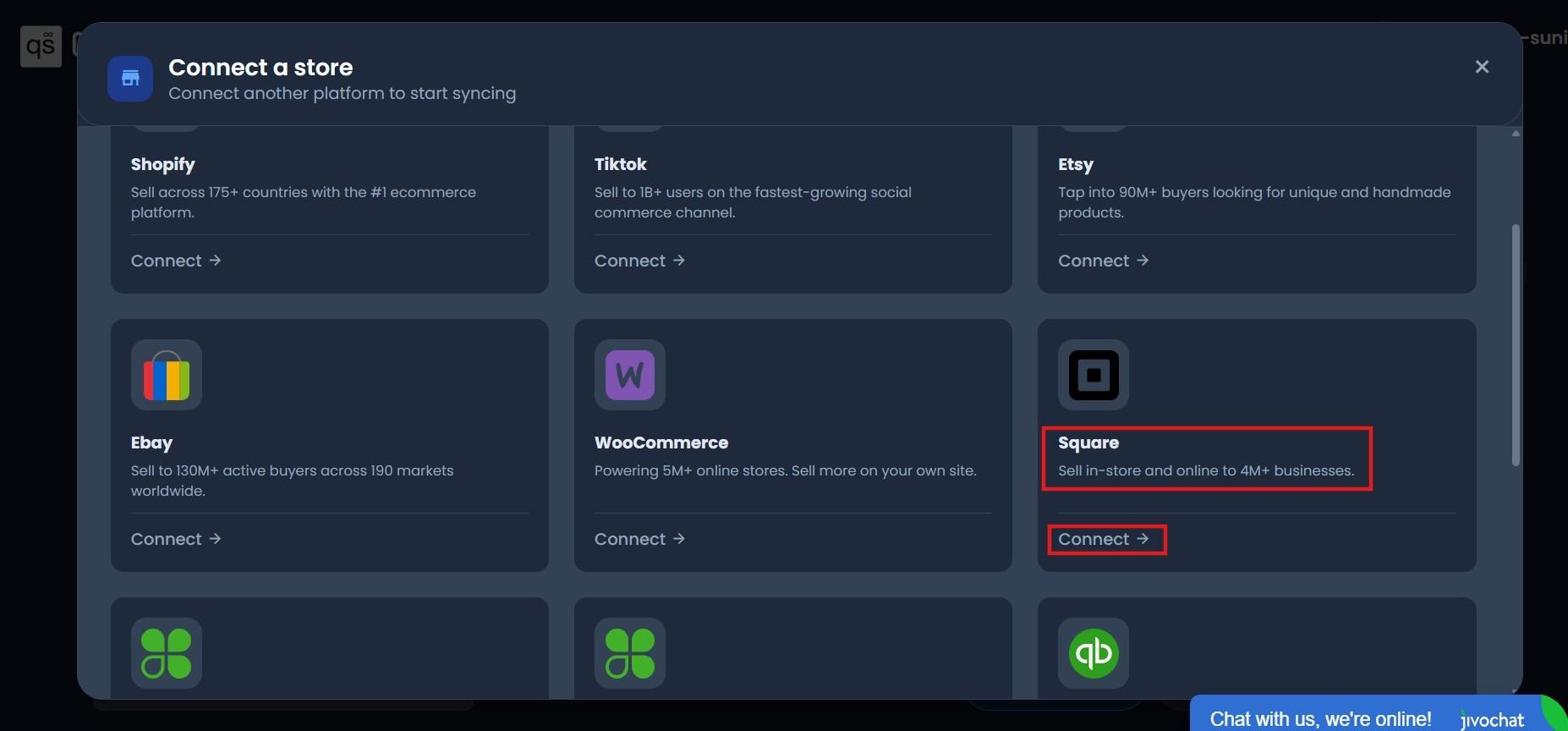
After logging in, you will be taken to the QuickSync Dashboard. Click Connect Store and select Square from the list of available commerce platforms to begin connecting your account.
Step 3. Log in to your first Square account and authorize access.
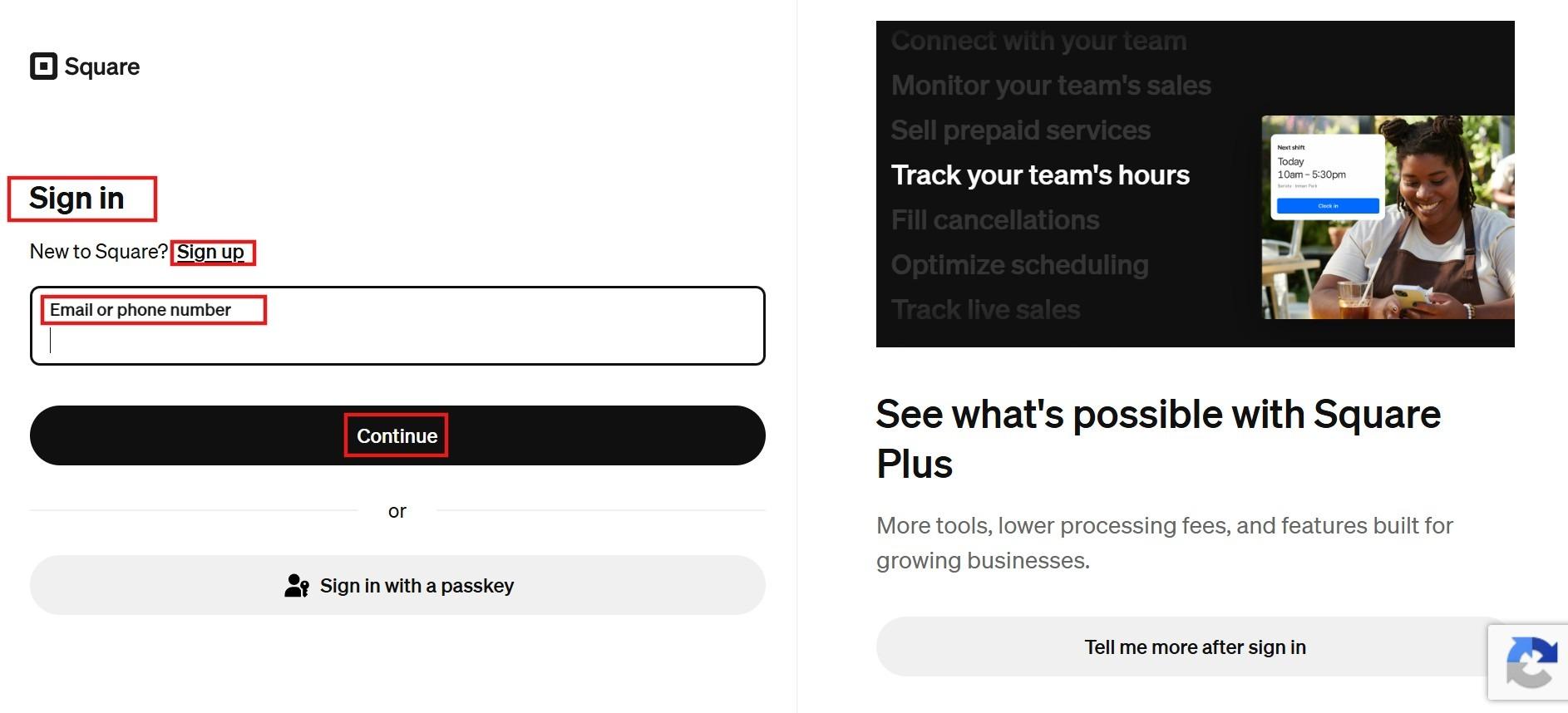
You will be redirected to the Square app login screen. Enter the credentials for your first Square account and authorize QuickSync to access it. QuickSync will import your product catalog and Square inventory counts automatically.
Step 4. Repeat to connect each additional Square account.
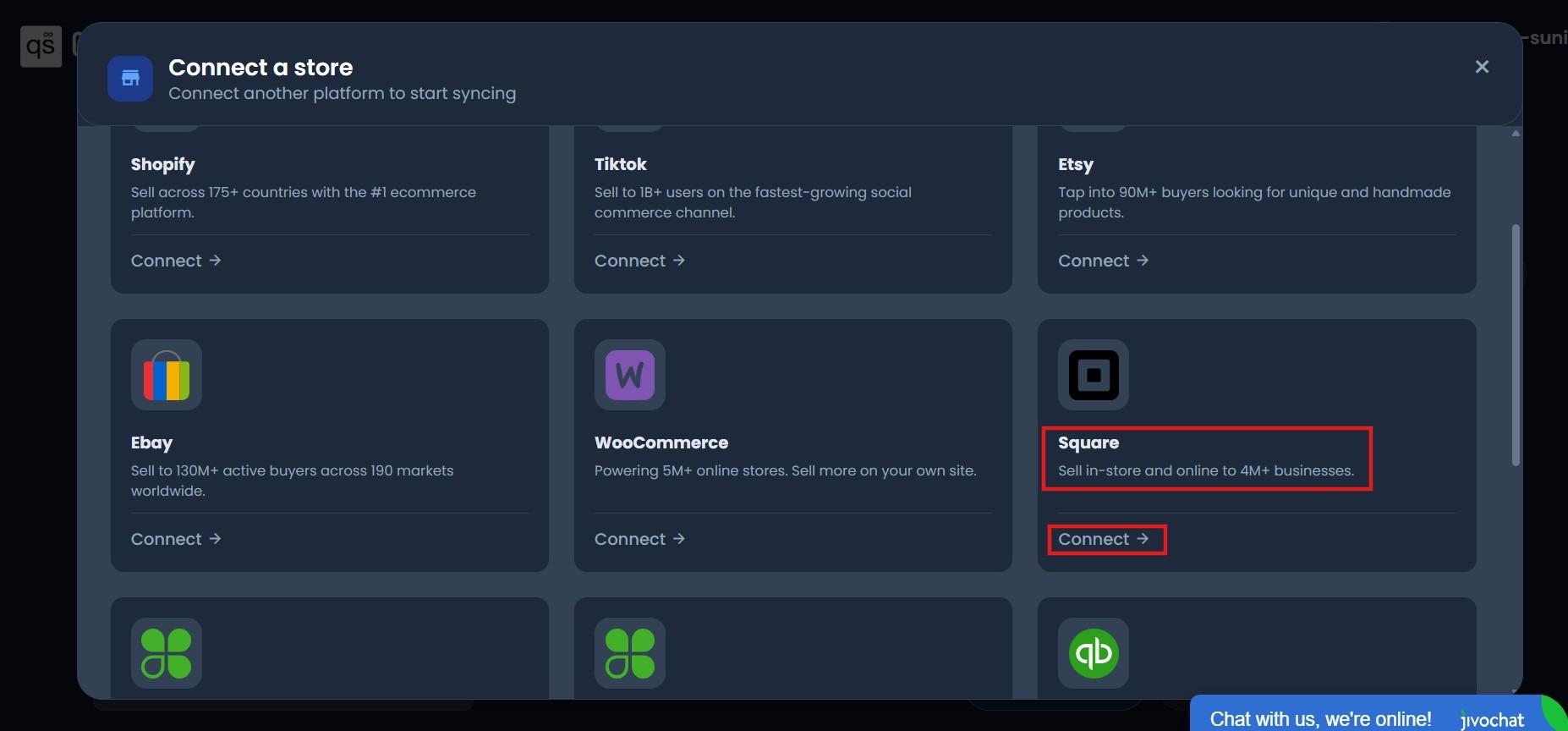
Return to the QuickSync dashboard and click Connect Store again. Select Square and log in with the credentials for your next Square account. Authorize access. Repeat this process for every Square account you want to connect. There is no limit on how many accounts you can add.
Step 5. Choose what you want to sync
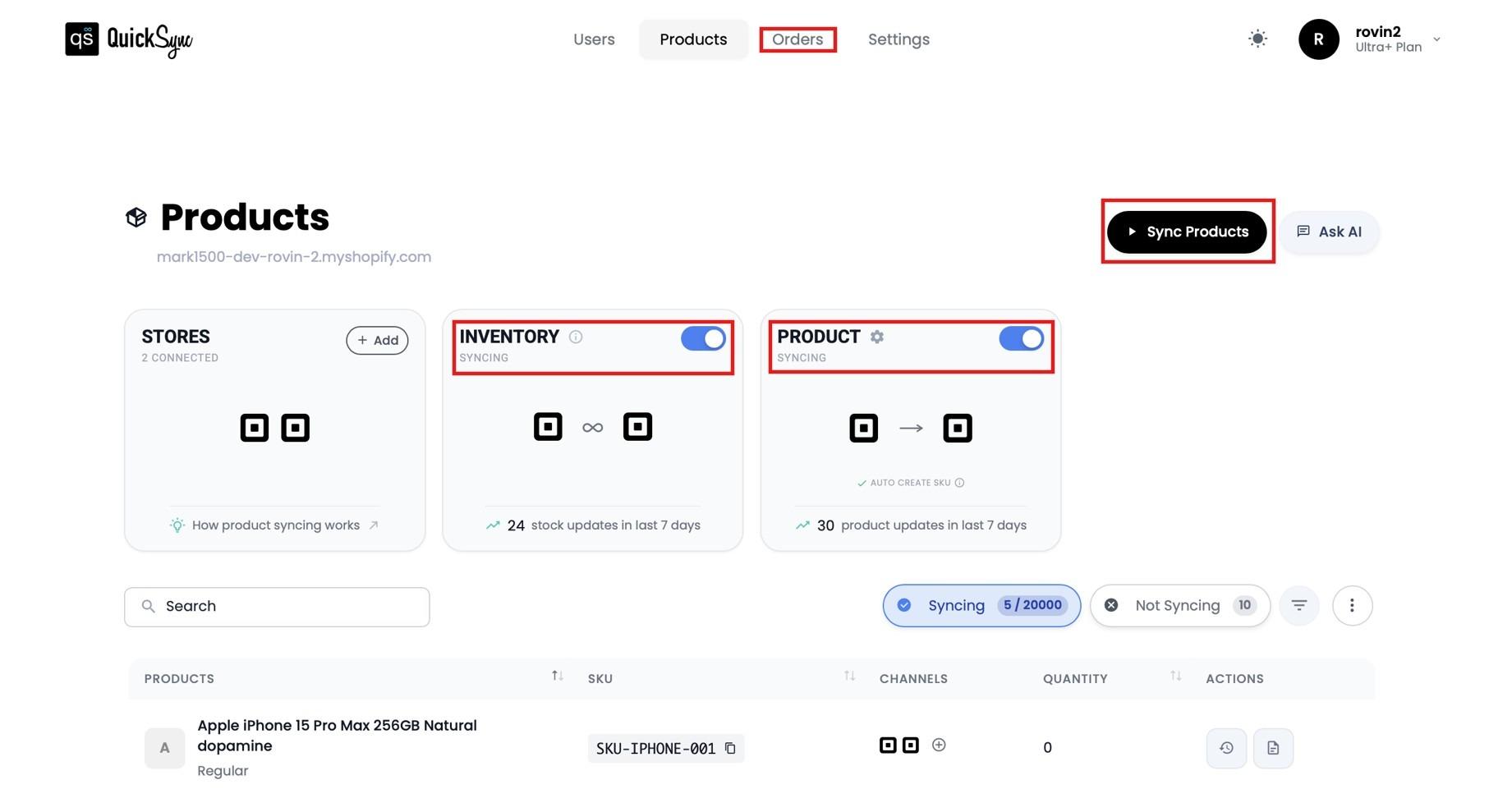
Select which data you want QuickSync to sync across your connected accounts.
- Enable inventory syncing to keep stock levels consistent.
- Enable product syncing to keep product details uniform.
- Enable order syncing to route orders to the correct fulfillment location.
You can even enable all three simultaneously and click Start Sync.
QuickSync begins syncing your products, inventory, and orders across all connected Square accounts immediately. Check the unified dashboard after the initial sync completes to confirm that products appear correctly on all accounts and that inventory counts match what you expect.
Best Practices for a Smooth Sync Between Multiple Square Accounts
Connecting your Square accounts is only the first step. To keep your data accurate and your sync running smoothly over time, follow a few best practices that help prevent common issues.
Use One Master Account for Product and Inventory Updates:
Choose one Square account as your master account to control product information and inventory changes. This helps prevent conflicts and keeps all connected accounts consistent. Once syncing is enabled, avoid making changes in non-master accounts because those updates can be overwritten by the next sync.
Set Accurate Inventory Counts Before Starting the Sync:
Before activating the sync, make sure your inventory counts are accurate across all Square accounts. The sync will maintain the data it finds when it starts, so incorrect stock levels will continue to appear across connected accounts.
A quick physical inventory check at each location before going live can help prevent future discrepancies.
Monitor the Dashboard in the First Week After Setup:
Once your Square accounts are connected, spend the first week checking that everything is working properly. Review your dashboard for errors, incorrect inventory levels, or products that did not sync as expected. A quick daily check can help keep your data accurate and prevent future problems.
Use Your Master Store for All Product Updates:
After setup, treat your master store as the main place for managing products. Making changes in other connected stores can create mismatched data and syncing problems. Always update products from the master account so the changes flow correctly to other accounts.
Use Selective Syncing for Account-Specific Products
Selective syncing gives you control over which products are shared between your Square accounts. Instead of syncing your entire catalog everywhere, you can choose specific products to appear only in the accounts where they are needed. This allows you to keep centralized control while still maintaining different product catalogs for different locations or businesses.
Final Words
Summing it up, managing multiple Square accounts becomes much easier when you have the right setup. If your locations operate under one Square account, the built-in multi-location tools may be enough. But for separate Square accounts, a sync solution helps keep products, inventory, and orders connected automatically.
Knowing how to connect and sync multiple Square accounts allows you to choose the right approach, reduce manual work, and avoid inventory errors.
QuickSync helps businesses connect separate Square accounts without coding or complex setup. Start syncing your accounts today and manage your products, inventory, and orders from one place.