On this page
- Quick Overview of Syncing Multiple Clover Accounts
- What Sellers Can Sync Between Multiple Clover Accounts
- Difference Between Clover Locations vs Separate Clover Accounts
- Different Methods to Connect and Sync Multiple Clover Accounts
- Method 1: Clover’s Built-In Multi-Location Feature
- Method 2: Third-Party Sync Tools (QuickSync)
- Method 3: Custom API Integration
- Which Method Is Best to Connect Multiple Clover Accounts?
- Things to Prepare Before Connecting Your Clover Accounts Smoothly
- How to Sync Multiple Clover Accounts Via QuickSync Step by Step
- Best Practices for a Smooth Sync Between Multiple Clover Accounts
- Final Words
- Frequently Asked Questions-
Managing multiple Clover accounts gets complicated faster than most businesses expect. As you add new locations, inventory, products, and sales data become spread across separate accounts, making it harder to keep everything accurate and up to date.
If you’re looking for how to sync multiple Clover accounts, you’re likely trying to solve more than an inventory problem. You want every location to work from the same data, reduce manual updates, and gain a clear view of your business.
This guide explains the best ways to connect your accounts, synchronize inventory, and manage multiple locations more efficiently in 2026.
Quick Overview of Syncing Multiple Clover Accounts
- Separate Clover accounts don’t sync with each other automatically. If each location has its own Clover account, you need a sync solution to connect them.
- There are three main approaches. Clover’s built-in locations work for one merchant account, custom APIs offer maximum flexibility, and third-party sync tools are the simpler option for separate accounts.
- QuickSync can connect separate Clover accounts without coding. You can connect multiple accounts from one dashboard and manage the sync from there.
- Sync products, inventory, and orders in real time. Keep your Clover accounts updated without manually changing each one.
- Manage everything from one dashboard. See and manage connected accounts, inventory, and orders in one place.
- Keep one master account and consistent SKUs. This helps keep product data accurate across every connected account.
What Sellers Can Sync Between Multiple Clover Accounts
Before connecting your accounts, understanding exactly what data moves between them sets the right expectations and helps you prepare your product information correctly.
Here is what a sync tool actually moves between your connected Clover accounts automatically.
- Product Sync: Product details such as names, descriptions, images, prices, variants, and SKUs sync automatically from your master account to all connected Clover accounts. Any updates made in the master account, including new products, are reflected across every connected account without manual work.
- Inventory Sync: Inventory stays updated across all connected Clover accounts in real time. When a product is sold at one location, the stock count is adjusted across every connected account within seconds. This helps prevent overselling and keeps inventory accurate at every location.
- Order Sync: Orders from all connected Clover accounts are brought together in a single dashboard. This gives your team one place to view, manage, and fulfill orders while still tracking which account each order came from.
- Selective Sync: You don’t have to sync your entire catalog. Selective sync lets you choose which products, categories, or locations to synchronize, making it easy to keep location-specific items separate while sharing the products that matter.
What Does Not Sync
Account-specific settings, staff permissions, payment configurations, and Clover-specific configurations that are intentionally separate per account do not sync. These remain independent to preserve the operational separation between accounts that is often the reason for having multiple accounts in the first place.
Difference Between Clover Locations vs Separate Clover Accounts
This is the most important distinction to understand before understanding how to sync multiple Clover accounts. Getting this wrong at the start creates operational complexity that is genuinely difficult to undo later. Many sellers searching for how to sync multiple Clover accounts actually need Clover’s built-in location feature rather than a sync tool for separate accounts.
What Are Clover Locations?
Clover Locations let you manage multiple stores under a single Clover merchant account. Instead of creating separate accounts, you use one login and one dashboard to manage every location.
Each location can track its own sales and inventory while sharing the same product catalog. Because everything is managed within one account, Clover can synchronize inventory across locations without requiring a third-party syncing solution.
What Are Separate Clover Accounts?
Separate Clover accounts are completely independent accounts with their own login credentials, their own Clover dashboard, their own product catalog, their own inventory tracking, and their own reporting.
No data passes between them automatically. You can manage multiple Clover accounts separately, but without a sync tool, they operate in complete isolation from each other.
Different Methods to Connect and Sync Multiple Clover Accounts
There are three major methods of connecting and syncing multiple Clover accounts. Understanding all three honestly is what allows you to choose the right one for your specific business structure rather than defaulting to whatever is easiest to find.
Method 1: Clover’s Built-In Multi-Location Feature
Clover’s built-in multi-location feature allows businesses to manage multiple locations under a single Clover merchant account. It provides one centralized dashboard where you can manage products, inventory, sales, and reporting without needing any additional software.
Pros of Clover’s Built-In Multi-Location Feature
- Native inventory sync between locations.
- Shared product catalog across all locations.
- Centralized sales reporting and management.
- Easier staff and location management.
- No additional software costs.
Cons of Clover’s Built-In Multi-Location
- Only works when all locations are part of the same Clover merchant account.
- Does not connect or sync separate Clover accounts.
- Less suitable for businesses operating different entities, brands, or independently managed locations.
Who should choose Clover’s Built-In Multi-Location option?
Clover’s built-in multi-location feature is the right choice for businesses that have multiple locations under one Clover account and want a simple, no-cost way to manage them. However, if each location already has its own separate Clover account, this option will not solve the synchronization challenge.
Method 2: Third-Party Sync Tools (QuickSync)
Third-party sync tools connect separate Clover accounts and automatically sync important data, such as products, inventory, and orders. Unlike Clover’s built-in multi-location feature, these tools are designed specifically for businesses that need to connect independent Clover accounts without building a custom system.
Pros of Third-Party Sync Solutions
- With this option, sellers can sync data across separate Clover accounts in real time.
- Third-party sync requires no coding or developer involvement.
- It offers faster setup compared to custom Clover inventory integrations.
- It helps manage inventory, products, and orders from one connection.
- Sellers can connect Clover with other sales channels such as Shopify, WooCommerce, and Etsy.
- It provides a practical solution for multichannel sellers that need automation without technical complexity.
Cons of Third-Party Sync Solutions
- Most solutions require a monthly or annual subscription, which adds an ongoing cost.
- Features and syncing capabilities vary between providers, so not every tool supports the same workflows.
Who Should Choose Third-Party Sync Solutions?
Third-party sync solutions are the best choice for sellers who want to connect separate Clover accounts quickly without building a custom integration. They are especially useful for multistore and multichannel sellers who want automated syncing with minimal technical effort.
Method 3: Custom API Integration
A custom API integration allows you to build a direct connection between Clover accounts using Clover’s developer API. While it offers the highest level of flexibility, it also requires technical expertise, a longer implementation timeline, and ongoing maintenance.
Pros of Custom API Integration
- Build a solution that matches your exact business processes and requirements.
- Sync the specific data your business needs without the limitations of standard tools.
- Integrate Clover with internal systems, ERP platforms, CRMs, or other business applications.
- Scale the integration as your business grows, and your workflows become more complex.
Cons of Custom API Integration
- This requires experienced developers to build, test, and maintain the integration.
- This takes significantly more time to implement than a ready-made sync solution.
- The development and maintenance costs can be high, especially for complex projects.
- Ongoing updates may be required whenever Clover changes or expands its API.
- Troubleshooting and support are your responsibility unless you work with a development partner.
Who Should Choose a Custom API Integration?
A custom API integration is the right choice for large businesses with unique workflows, dedicated development resources, and integration needs that off-the-shelf solutions cannot meet.
Which Method Is Best to Connect Multiple Clover Accounts?
Each method has its own strengths, and the right choice depends on how your business is set up. If you compare them side by side, it becomes a lot easier to identify the option that best fits your operational needs.
| Criteria | Built-In Feature | Custom API | Third-Party Sync Tool (QuickSync) |
| Setup time | Minutes | Weeks to months | Under 20 minutes |
| Technical skill | None | Developer required | None |
| Works with separate accounts | No | Yes | Yes |
| Real-time sync | Locations only | Possible but complex | Yes, fully automatic |
| Ecommerce connections | None | Custom build required | Shopify, WooCommerce, Etsy, Amazon, eBay |
| Ongoing maintenance | None | Continuous | Handled automatically |
| Monthly cost | Free | High development cost | From $19 per month |
| Best for | One account, multiple locations | Large enterprises | Any multi-account business |
In practice, each option serves a different kind of business. The built-in feature functions well when every location shares one Clover merchant account. Custom API integrations provide maximum flexibility but require significant development time and ongoing maintenance.
For most businesses managing separate Clover accounts, a third-party inventory Sync softwareoffers the best balance of automation, ease of use, and cost.
| “Many businesses create multiple Clover accounts too quickly without checking if a multi-location setup would work better. Taking a few minutes to review your options early can prevent unnecessary complexity and make future growth much easier.” – Marija Bacelic, COO at QuickSync and Multichannel Ecommerce Expert |
Things to Prepare Before Connecting Your Clover Accounts Smoothly
Taking a few minutes to prepare before connecting your accounts makes the setup process significantly faster and prevents the most common issues from appearing during or after configuration.
- Admin access to each Clover account: you need full admin or owner-level access to each Clover account you want to connect. Limited staff access does not have the permissions required to authorize a third-party integration
- A QuickSync account: sign up at QuickSync.pro with a free 14-day trial. No credit card required to start
- Consistent SKUs across all accounts: QuickSync uses SKUs to match the same product across different Clover accounts. If the same product has a different SKU on each account, the sync cannot reliably identify them as the same item. Audit and standardize your SKUs before connecting
- A designated master account: decide which of your Clover accounts will be the master account before you start. This is the account that controls the direction of product data. All product updates and new additions should be made in the master account after the sync is active
No developer is required. No coding knowledge is needed. The entire setup is managed through a visual dashboard in under 20 minutes.
How to Sync Multiple Clover Accounts Via QuickSync Step by Step
Connecting multiple Clover accounts does not require coding or technical expertise. With QuickSync, you can complete the setup process in under 20 minutes and start syncing your stores quickly.
Step 1: Create Your QuickSync Account
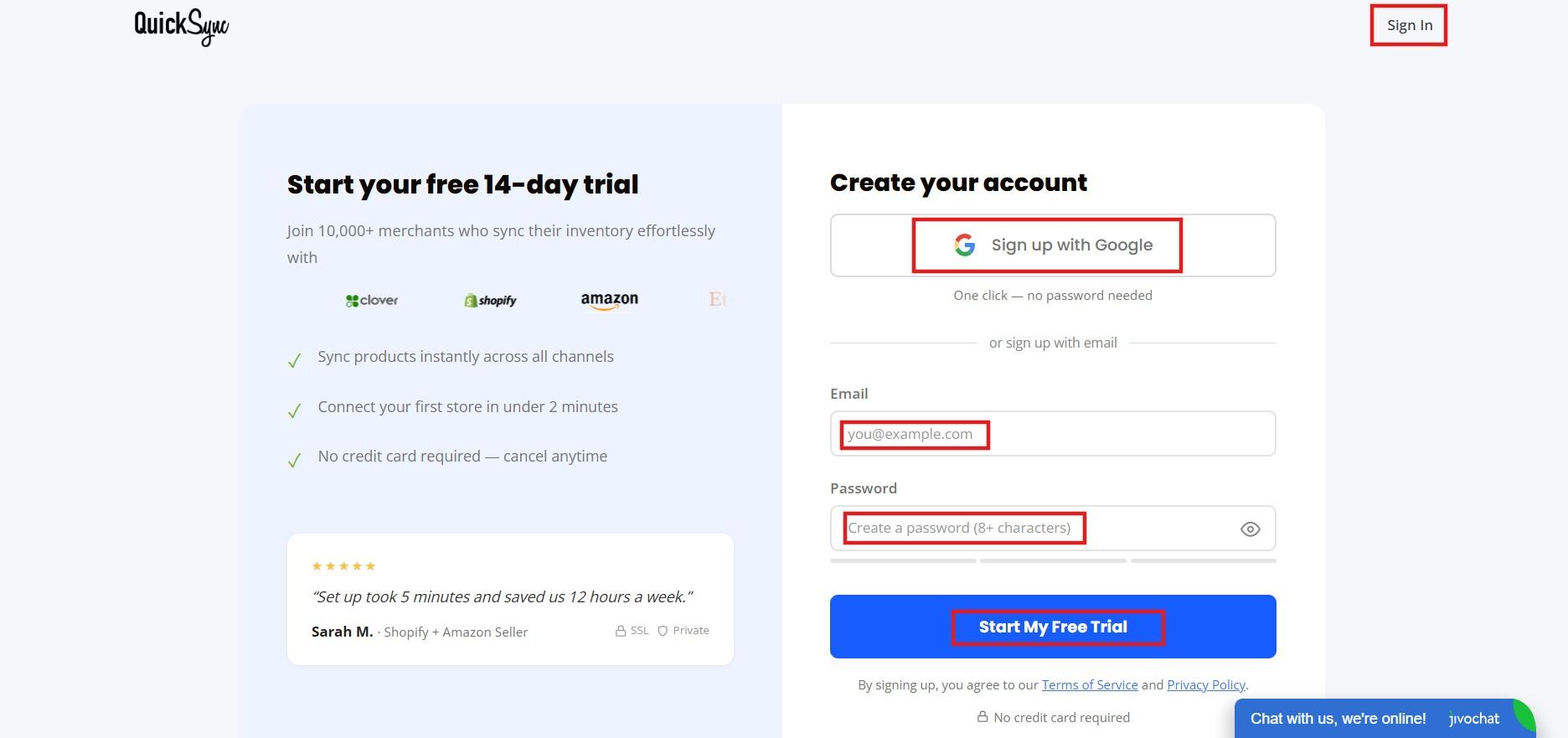
Visit QuickSync.pro and click on “Create an account” or log in if you already have one. The setup process will guide you through the initial configuration and connection steps.
Step 2: Select Clover as Your Platform
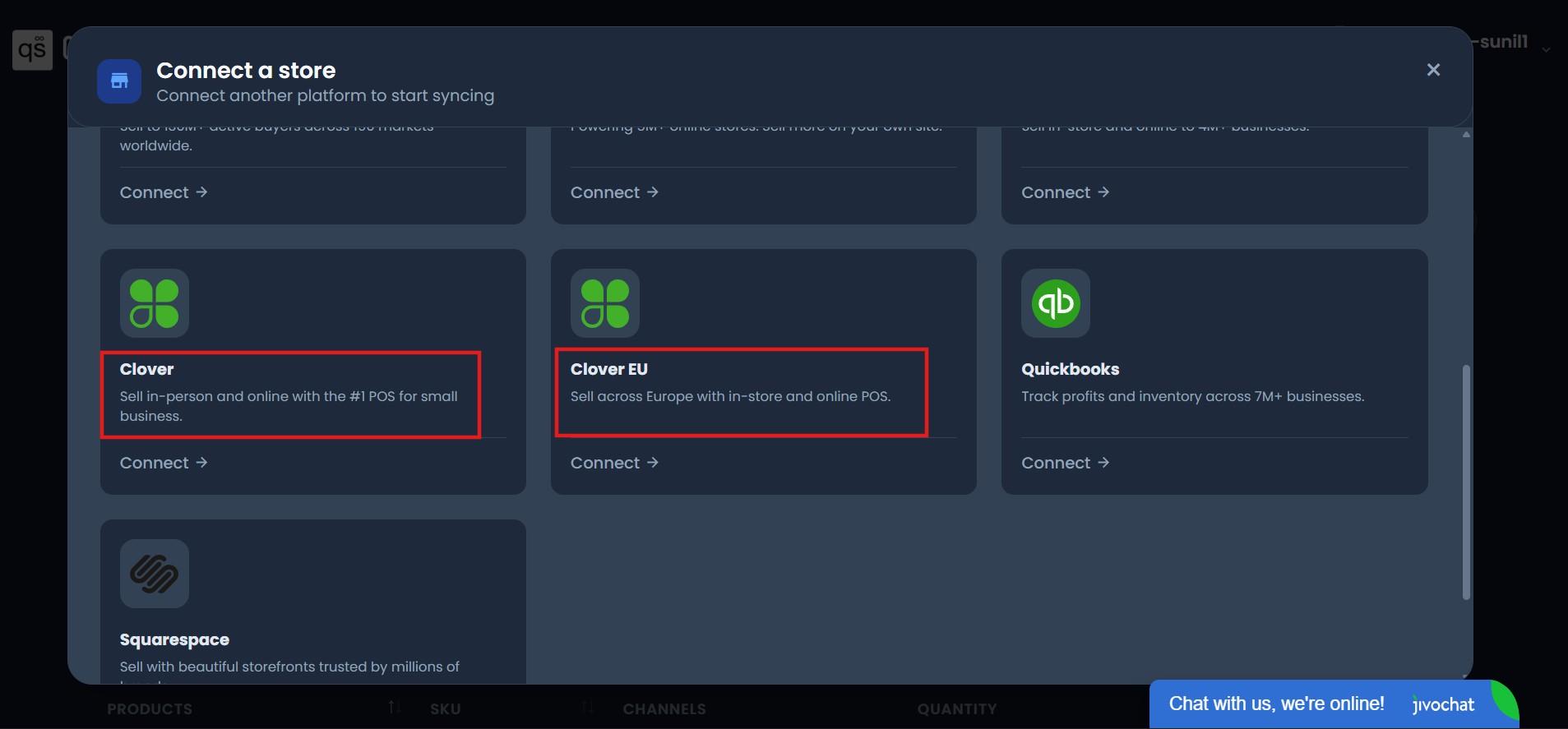
From the available platform options, choose:
- Clover for accounts in the US and Canada.
- Clover EU for accounts based in European regions.
After selecting your Clover platform, you will be redirected to the Clover login page.
Step 3: Connect Your Clover Account
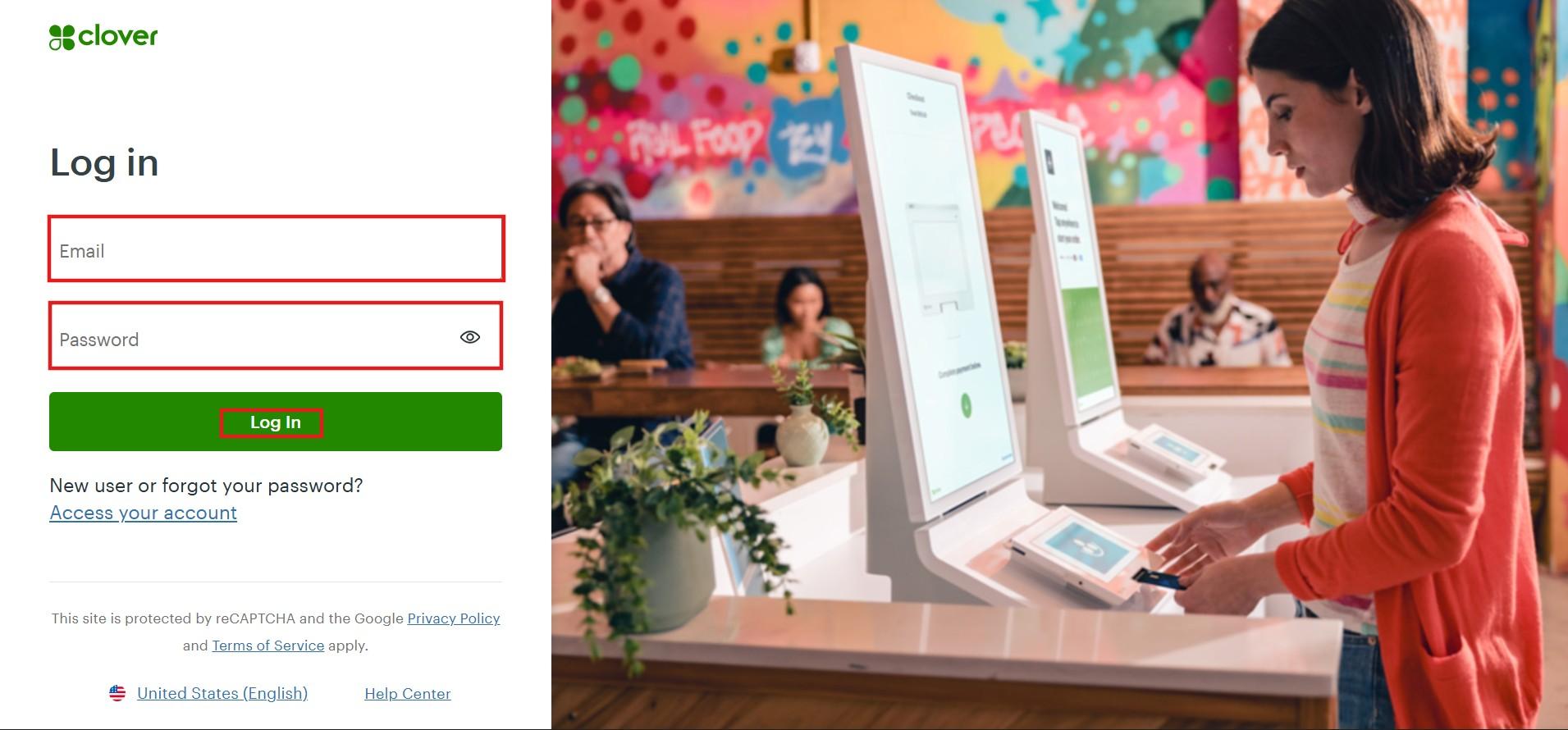
Log in to your Clover merchant account using your Clover credentials. After signing in, you will be asked to authorize QuickSync to access your Clover account.
Once you approve access, your first Clover account will be connected successfully.
Step 4: Connect Your Additional Clover Accounts
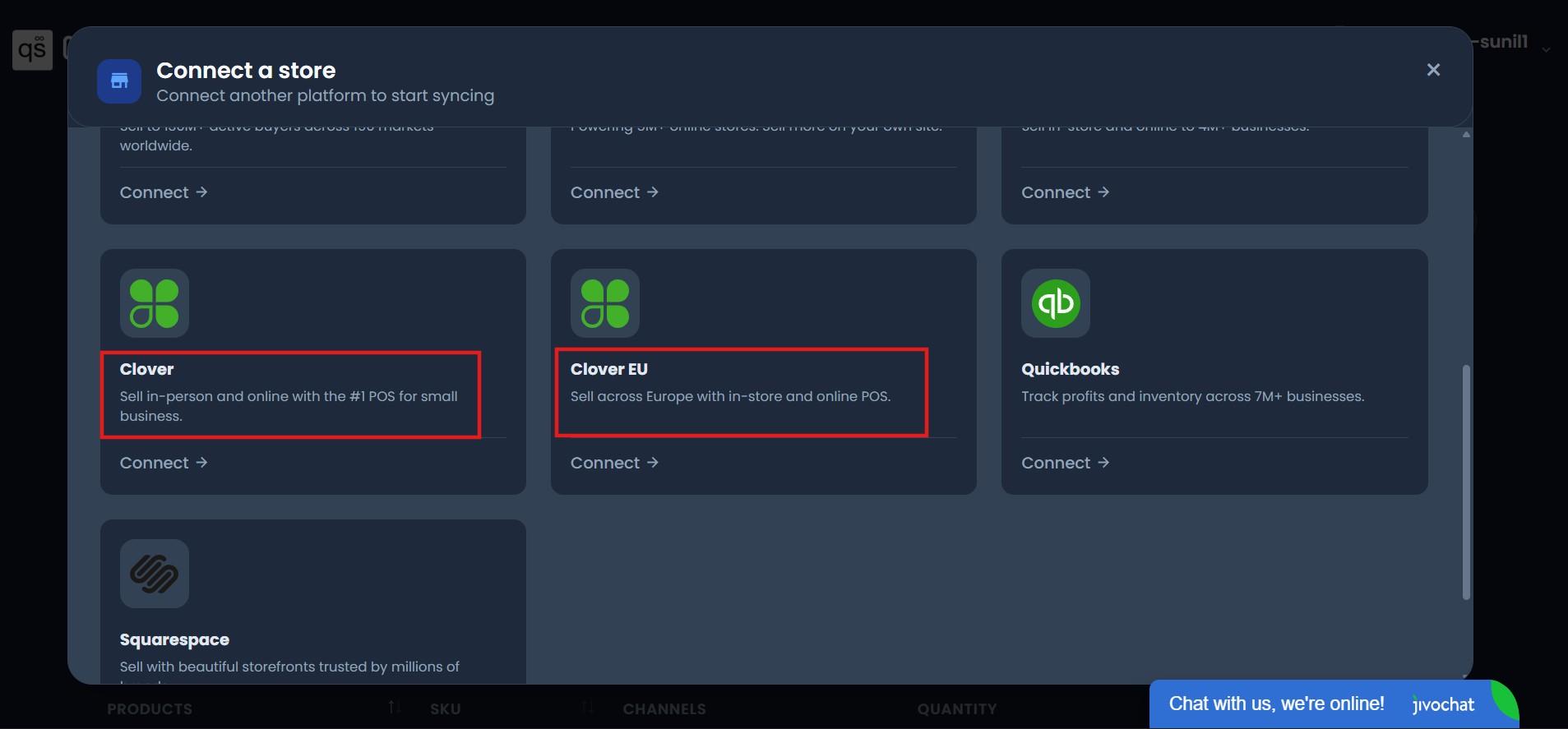
To connect more Clover accounts, repeat the same process:
- Select Clover or Clover EU based on the account region.
- Sign in to the next Clover account.
- Approve QuickSync access.
Repeat these steps for every Clover account you want to connect.
Step 5: Choose What Data You Want to Sync
After connecting your Clover accounts, select the information you want to keep synchronized across locations:
- Inventory Sync: Keeps stock levels updated across connected Clover accounts.
- Product Sync: Keeps product details consistent across locations.
- Order Sync: Keeps order information connected between accounts.
You can choose one or enable multiple sync options based on your business needs. Once setup is complete, QuickSync will begin syncing your selected data between your connected Clover accounts.
Best Practices for a Smooth Sync Between Multiple Clover Accounts
Getting the connection working correctly is step one. Keeping it accurate and reliable over the long term requires a few consistent habits that prevent the most common issues from developing.
Use One Master Account for Product Updates:
Choose one Clover account as your master account and make all product changes there. Avoid editing products directly in other connected accounts because those changes may be overwritten during the next sync. Having a single source of truth helps keep product data consistent across every location.
Keep SKUs Consistent:
SKUs are used to match the same product across connected Clover accounts. Changing a SKU in only one account can break that connection and create duplicate products. If you need to update SKUs, make the change across all connected accounts at the same time before resuming the sync.
Verify Inventory Before You Start:
Check your inventory counts before enabling the sync. If the starting inventory is inaccurate, those errors will continue across all connected accounts. A quick stock count before setup can save time and prevent Clover management inventory issues later.
Monitor the Sync After Setup:
Keep an eye on your sync during the first few days after setup. Review your dashboard regularly to make sure products, inventory, and orders are syncing correctly. Fixing small issues early helps avoid larger problems as your business grows.
Final Words
Managing multiple Clover accounts does not have to be difficult. With the right connection method, you can bring your accounts together, keep inventory accurate, and manage orders across all locations with less manual work.
For multi-location businesses and multichannel sellers, keeping every sales channel connected is essential for smooth operations. Knowing how to sync multiple Clover accounts helps you avoid common issues like stock mismatches, overselling, and reporting gaps while giving you a clearer view of your business.
QuickSync helps Clover sellers connect their accounts, sync products and inventory automatically, and manage orders from one centralized platform.