If the count on the Products page is still going up, your sync is running. Leave it. It runs on our servers, so you can close the tab, and we’ll email you when your first sync finishes.
If the count hasn’t moved for a while, or the card says Stopped, use the checks below. You won’t have to clear a dead run yourself: every 10 minutes we look for sync runs that have stopped working, and clear them. Waiting on one sale or edit instead? See how fast changes arrive.
What the first sync does
We read both catalogues when you connect your stores. After you press Start syncing, the first sync does four things, in this order:
- It matches products across your stores by SKU.
- It creates what your other stores lack, if you chose Create missing products. With Create missing SKUs on, it first adds a SKU to products that have none.
- It sets each matched product’s stock to your starting store’s count.
- It gives every product a status, under Syncing or Needs attention.
When it’s done, the progress card disappears. After a first sync, we also send an email headed Your stores are syncing.
1. Check the count is moving
Open Products. While a sync runs, the heading says Sync in progress. A card titled Product sync in progress shows how far it’s got:
- The step. Sending to stores means we’re creating missing products. Matching catalogues means we’re matching products and setting stock.
- The count. For example, 120 of 450 synced. It rises as products finish.
- The time. It says Calculating time remaining… until we can estimate, then something like About 12 minutes remaining.
If the count or the time has changed since you last looked, it’s working. Overview shows the same run. While we’re still reading a store’s products, the card says Fetching products from your stores… with no count. That’s normal.
2. Allow for what slows it
A slow sync isn’t a stuck one. Two things set the pace:
- Catalogue size. We match products in batches of 10, so 5,000 variants take far longer than 50.
- Platform limits. Every platform caps how many requests we can send it. When one tells us to slow down, we wait and try again. We send eBay at most 3 listings at a time per store.
Etsy can pause us longest. If it limits us while we read your listings, we wait 15 minutes, then 30, 60 and 120, before trying again. Pressing Start syncing again won’t help: setup won’t start a second run while one is going.
3. Expect stock to wait
While a sync runs, we hold the stock changes that come in, so a sale can’t fight the count the sync is setting. We retry them every few minutes. They go through once the run ends. Product edits you make in your main store wait the same way.
So a count can look wrong during a first sync. Check it again after the card has gone.
4. If setup says Fetching
Before you can start, we read each store’s products, stock and locations. The store’s row says Fetching store data… while we do. Continue with 2 stores stays greyed out until every row says Store data ready. Click Fetching on a row to see what we’re reading.
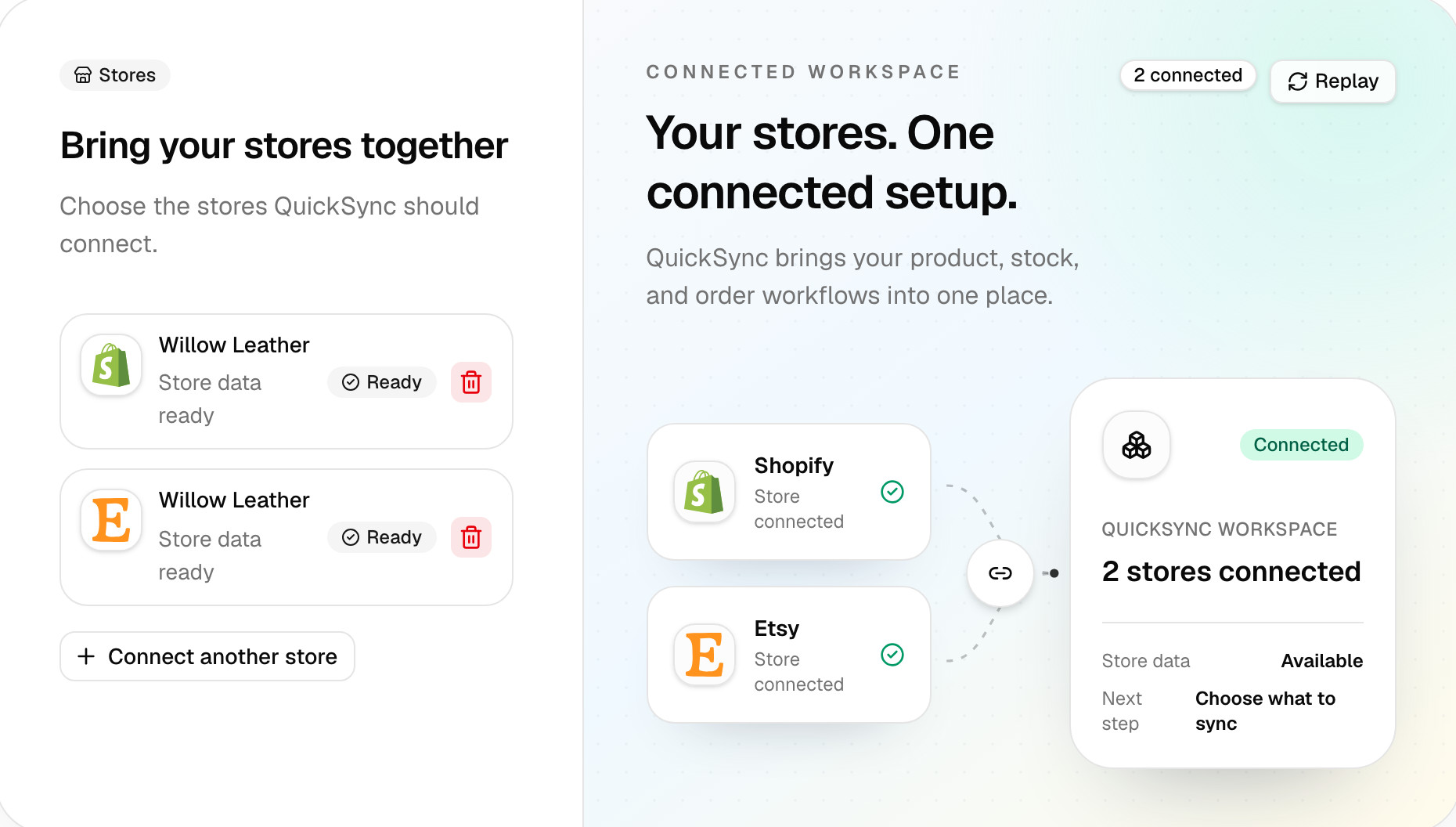
Big catalogues take longer here too, and Etsy’s limits apply. You don’t need to wait on the page: we’ll email you when the last store finishes. If a row shows Reconnect, sign in to that store again. If it shows Review settings, that store needs a few settings first, such as an Etsy processing profile.
5. If the card says Stopped
A card titled Product sync could not start, with a Stopped badge, means the run ended early. Click Review setup, check your answers, and press Start syncing again. If it stops twice, contact support.
A Status unavailable badge is different. We couldn’t load the progress just now, but the sync may still be running. Click Try again.
6. If the count stops moving
A run can stop partway, for example when a server restarts mid-job. Some steps retry by themselves. For the rest, we check every 10 minutes for sync runs that started over 30 minutes ago and have nothing left queued or running. We clear those. We leave a slow run alone while it’s still working.
Once we’ve cleared a run, the card goes away and Sync products comes back on the Products page. Click it to start again. If the card stays and nothing on it changes across a few of those checks, contact support.
7. Refresh details that look old
Has the sync finished, but QuickSync still shows old details for some products? Go to Settings and click Fetch latest products. Under Products to fetch, pick Syncing products or Not syncing, then click Fetch products.
Once the first sync has linked your products, we refuse a full All products fetch, because it would throw those links away. The fetch runs in the background, and we email you when it’s done. It won’t start while a sync is running.
When to contact us
Contact support if a run stops twice, if the count stays still across several of our 10-minute checks, or if you need a run stopped. You can’t stop one from your account. Tell us:
- the stores you connected, and which one is your starting store,
- what you pressed, such as Start syncing, and roughly when,
- what the card shows: the step, the count and the time.
Common questions
How long does a QuickSync sync take?
It depends on how many variants you have and where you sell, so there’s no single time. The Products page shows a live count and, once enough products have finished, an estimate of the time left. Some platforms slow us down: we send eBay 3 listings at a time, and Etsy can pause us for 15 minutes to 2 hours while we read your listings. We email you when your first sync finishes.
Does QuickSync keep syncing if I close the page?
Yes. The sync runs on our servers, not in your browser. Closing the tab, refreshing or signing out doesn’t stop it or restart it. Open the Products page any time to see the count. After your first sync, we email you when it’s done, as long as email notifications are on in Settings. Later Sync products runs don’t send an email, so check the Products page.
Why does QuickSync say Calculating time remaining?
We only estimate once there’s enough to measure: at least 30 seconds in, with 5 products done and 2% of the total. On a very large catalogue the estimate may never appear, because we don’t show one longer than 24 hours. Neither case means your sync is stuck. Watch the count instead. If it goes up between two looks, the run is working.
Can I stop a sync once it’s started?
Not from your account: there’s no stop button. If you started a sync with the wrong settings, contact support, and our team can stop the run. Once it has stopped or finished, change your answers in setup and press Start syncing again. Until then, setup, the sync switches on the Products page and Fetch latest products all wait for the run.
Why do my products show as not syncing during a sync?
A Sync products run starts by clearing every product’s status. Then it gives each one a status again as it works through your catalogue. Until it finishes, products can look unsynced, and counts can differ between stores. Wait for the progress card to go before you work through Needs attention. Anything still there afterwards has a real reason, and its status names it.
Next step
If one product still isn’t updating after the sync, read Products aren’t syncing. If a sale didn’t change the count in your other stores, read Stock didn’t update after a sale.