Changed a title, price or photo in one store, and the other store didn’t follow? Check two things first. Product syncing has to be on, and the change has to start in your main store. Below are all eight checks, in the order to try them, each with its fix.
This page covers product details. If a sale didn’t change the stock count, read Stock didn’t update after a sale instead.
1. Check product syncing is on
On the Products page, the Product Syncing card has a switch. If it’s off, no product details move. Product syncing needs Pro or above.
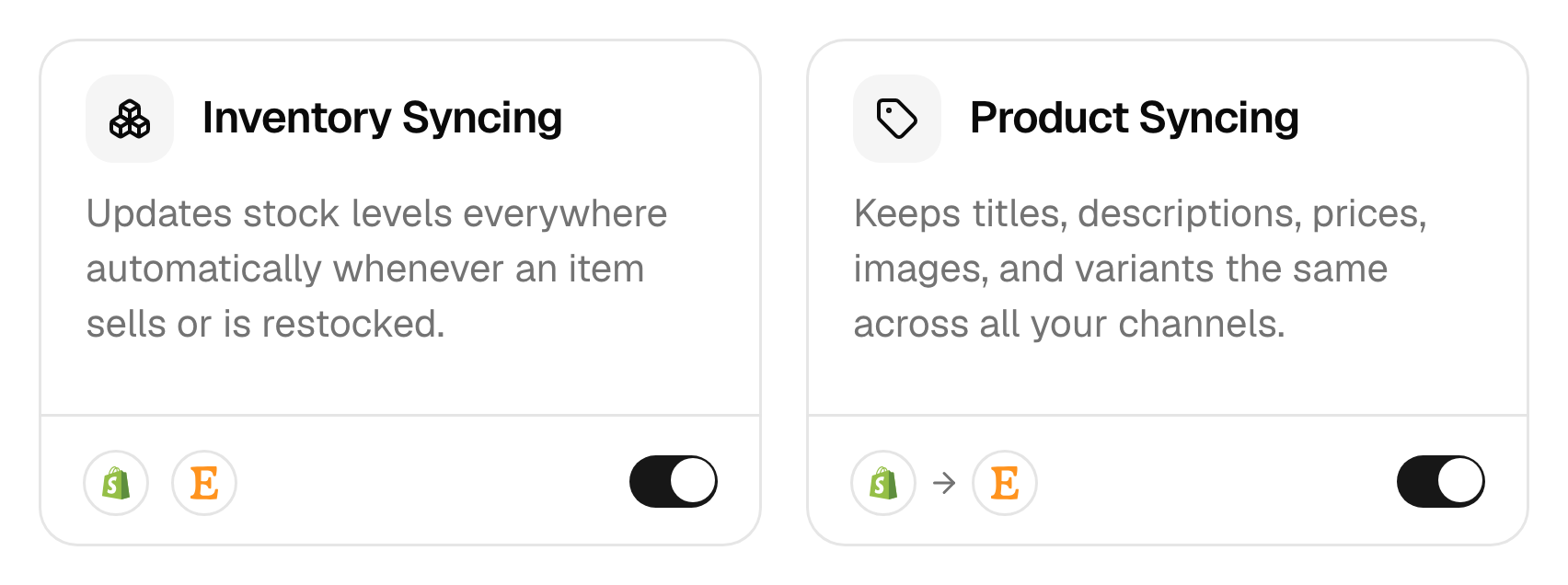
- It’s off, and nobody turned it off. Check Settings, then Your plan. We switch product syncing off when you move to Lite, or when a free trial ends without a paid plan.
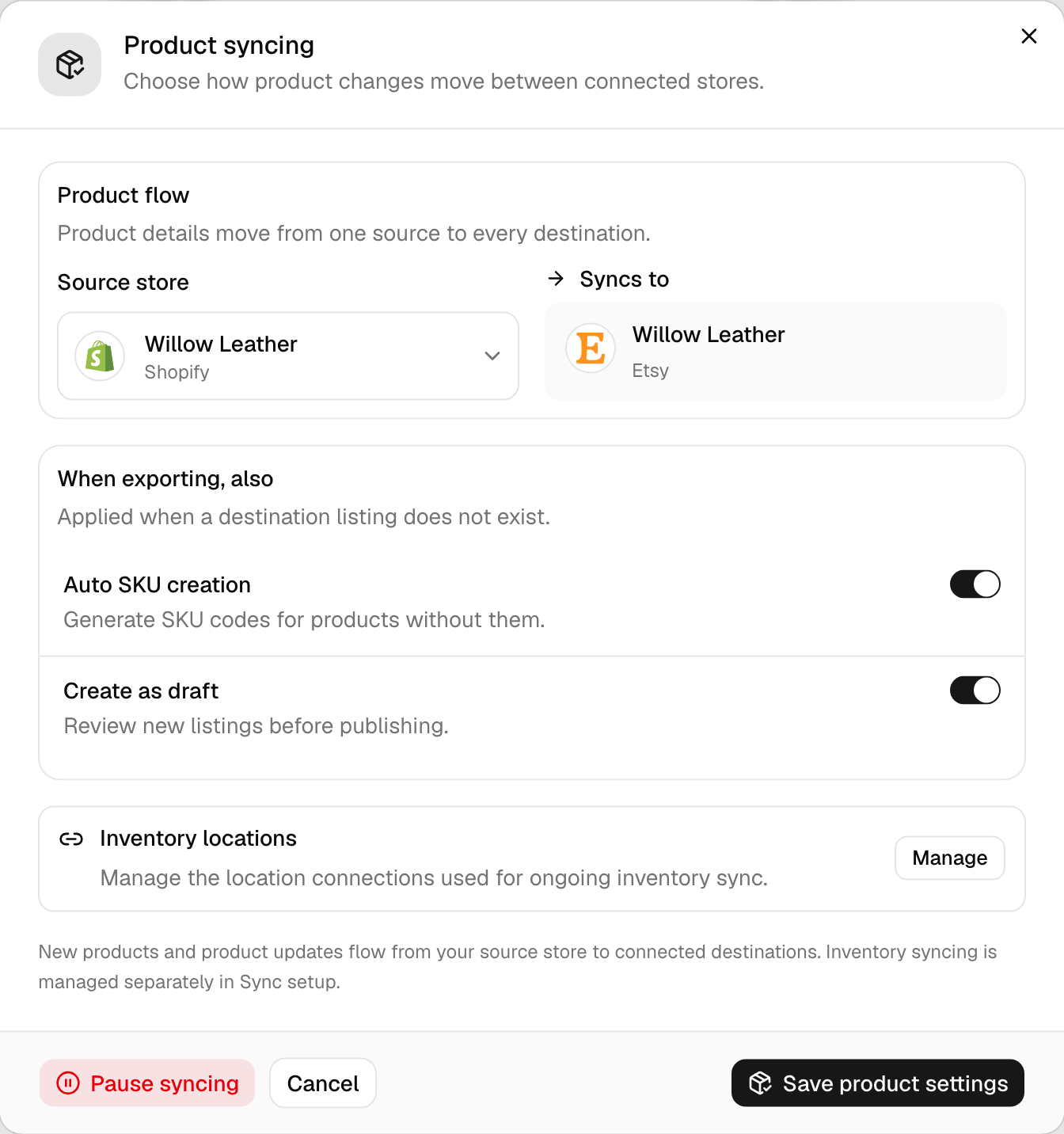
- Someone paused it. Pause syncing turns product syncing off and clears your main store. To turn it back on, click the card, pick the Source store, and click Start syncing. That starts a sync run first. Is my sync stuck? explains the progress card.
2. Make the edit in your main store
Product details flow one way, out of your main store. The Product syncing window calls it the Source store, and the arrow on the card starts at it. We don’t send out edits you make in other stores. The next time that product changes in your main store, we copy its version over them.
So make the change in your main store. To send a product’s current details without editing it, open it and click Sync product. Want a different price on one store? Set a price rule for it (Ultra and above) instead of editing that store. More in When an edit doesn’t stick.
3. Check the product has a match
Find the product on the Products page and click it. Under Inventory by store, each store we’ve linked it to by SKU has its own row.
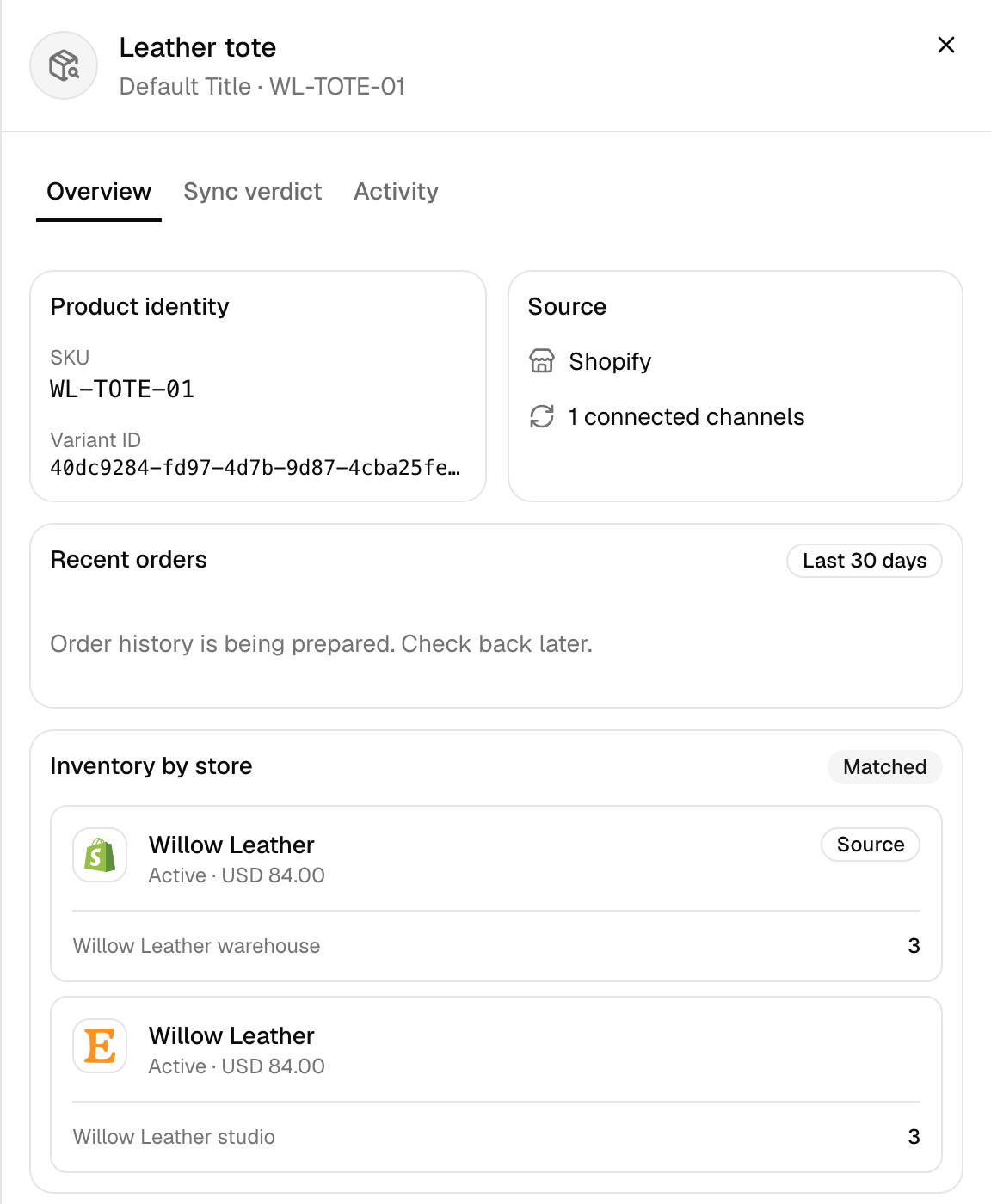
If it’s under Needs attention instead, we aren’t syncing it at all. Its status names the reason. The usual ones are No SKU found, No match found and Multiple same SKU found. A product with no SKU only goes out if Auto SKU creation is on in the Product syncing window.
4. Check the field syncs
We copy titles, descriptions, prices, images and variants, but not every platform takes every field. What product syncing changes lists them by platform. Three limits catch people out:
- Clover. We don’t send photos or descriptions to Clover. Add those in Clover.
- Videos and SEO fields. They need Ultra or above, on the platforms that take them.
- Amazon. It takes stock and orders only. We don’t create or update Amazon listings.
5. Know when we create products
With product syncing on, we create each new product from your main store in your other stores. It needs five things:
- a SKU, or Auto SKU creation turned on,
- an Active or Draft status, unless your main store’s Product status filter says otherwise,
- some stock, if your main store’s Only products in stock setting is on,
- a place on your sync list, if you use one,
- room under your plan’s variant limit.
With product syncing off, we don’t create anything on our own. A new product only reaches your other stores when you ask. Run Sync products with Create missing products on, use QuickFix on a product marked No match found, or, for TikTok Shop, open the product and click Sync product. QuickFix asks you to accept listing fees before it lists on Etsy or eBay.
6. Check the other store accepted it
Sometimes the other store refuses a product. eBay wants business policies, say, or Etsy finds too many options. The product then shows one of the rejected statuses, with the reason where the platform gives one. Its Activity tab lists each attempt.
Fix the cause, then use QuickFix on the product, or edit it in your main store, to try again. After 5 failures with the same error, we stop retrying that product on that store, so we don’t keep sending what it refuses. QuickFix, or a change to the product in your main store, starts the retries again.
7. Check your sync list
If you picked Choose products in setup, we only sync the products on your sync list. You’ll see a Selective Sync card on the Products page. It shows how many products you’ve picked. We don’t add new products to the list for you, so one you’ve added shows Not in your sync list.
Use QuickFix to add it, or change the list from the Selective Sync card. More in Sync only some products.
8. Check for drafts
If Create as draft is on, every listing we create starts as a draft in the stores that have drafts. Buyers can’t see it until it’s published. In Shopify and WooCommerce, that happens the next time the product changes in your main store, if it’s active there. The setting only applies when we create a listing.
Etsy has two more rules. Our updates don’t change an Etsy listing’s status, so a draft there stays a draft until you publish it in Etsy. A new Etsy listing also stays a draft until it has a photo. Add one to the product in your main store, and we try again.
Still not syncing?
Contact support with the product’s SKU, your main store, the store that didn’t update, and what you changed. If the product’s Activity tab shows a failed attempt, include its message.
Common questions
Why are my product changes not syncing to my other store?
First check two things: that product syncing is on, and that you made the change in your main store. Product details only flow out of the main store, which the Product syncing settings call the source store. Product syncing needs Pro or above. If both are fine, open the product on the Products page. Its status shows whether it’s matched and syncing, and names the problem if it isn’t.
Does QuickSync add new products to my other stores automatically?
Yes, while product syncing is on. When you add a product to your main store, we create it in your other stores. It needs a SKU, or Auto SKU creation turned on. If you use a sync list, it has to be on that too. With product syncing off, a new product only goes out when you ask: through Sync products with Create missing products, QuickFix, or, for TikTok Shop, the product’s Sync product button.
Why do edits in my other store get overwritten?
Because product details flow out of your main store only. When that product next changes in your main store, we copy its version to your other stores, over any edits you made there. Make product changes in your main store instead. Need different prices in one store? Set a price rule for it (Ultra and above) instead of editing prices there.
Why can’t I see synced products on Etsy?
They’re probably drafts. With Create as draft on, every listing we create on Etsy starts as a draft. A new listing without a photo stays a draft too. Our updates don’t change an Etsy listing’s status, so publish drafts yourself in Etsy. To have new listings go live instead, turn off Create as draft in the Product syncing settings on the Products page.
Do product photos sync to Clover?
No. We don’t send product photos or descriptions to Clover, so add those in Clover itself. Product syncing still sends Clover each product’s name, price, SKU, barcode and category, with every variant as its own Clover item. Stock still syncs both ways between Clover and your other stores.
Next step
For every status and its fix, read What each product status means. To change where product edits come from, read Choose your main store.