A price rule changes the price QuickSync sends to one store. It’s a percentage or a fixed amount, up or down. Set 10% on Etsy, and a bag that costs $40 in Shopify sells for $44 on Etsy. Currency conversion then turns that price into the store’s own currency.
Both need Ultra or above. Both work only when we send a price to a store. That’s why product syncing has to be on for listings you already have. Older guides call price rules price modification.
How a price rule works
- One rule per store. You set it on a store that gets its prices from your main store. Your main store’s prices don’t change.
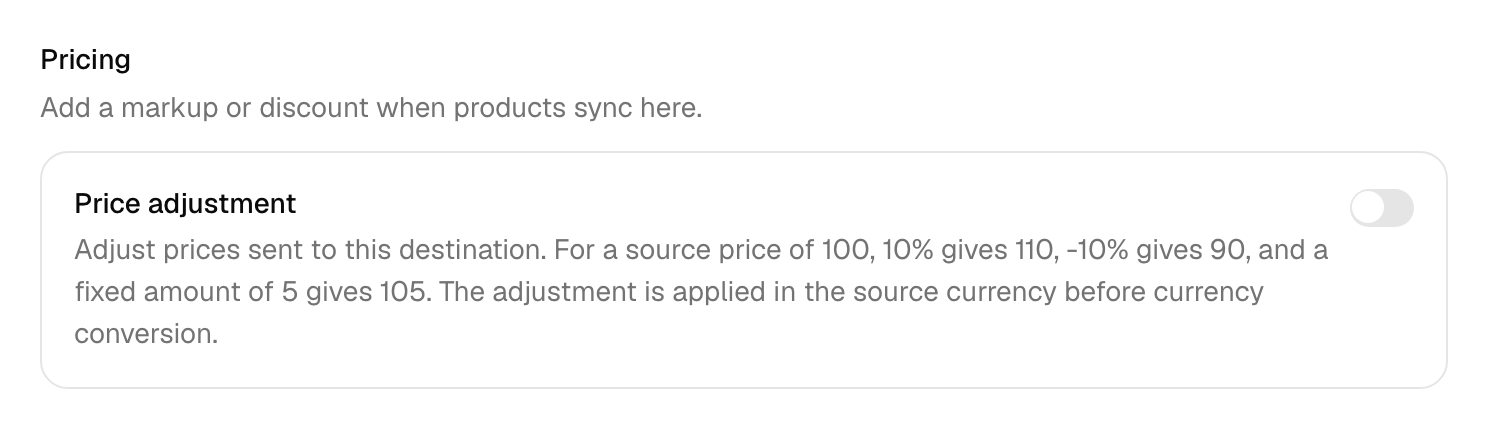
- A percentage or a fixed amount. An amount of 10 adds 10%, and -10 takes 10% off. A fixed amount of 5 adds 5 in your main store’s currency.
- The selling price. We don’t apply the rule to the unit cost, or to a compare-at price except on Wix.
- Rounded to the cent. A percentage result rounds to 2 decimal places, so $19.99 plus 15% is $22.99. A rule on its own never rounds to .99.
Set a price rule
- Open Settings and the Stores tab.
- Click Manage on the store whose prices you want to change.
- Under Pricing, turn on Price adjustment.
- Pick an Adjustment type, Percentage or Fixed amount, and enter the Amount. For a discount, put a minus sign in front.
- To reprice the products already in that store, tick Update products already listed on this store.
- Click Save changes.
The Update products already listed on this store box needs product syncing on. It sends every product in your main store to that store again, titles and photos included. We’ll email you when it’s done. Leave it unticked, and each listing takes the new price the next time that product changes in your main store.
Worked examples
Your main store is Shopify, in US dollars, and the rule sits on your Etsy shop.
| Shopify price | Rule on Etsy | Price we send to Etsy |
|---|---|---|
| $40.00 | Percentage, 10 | $44.00 |
| $40.00 | Percentage, -10 | $36.00 |
| $40.00 | Fixed amount, 5 | $45.00 |
| $19.99 | Percentage, 15 | $22.99 |
| $50.00, after a price rise | Percentage, 10 | $55.00 |
When the price changes
With product syncing on, we apply the rule again each time the product changes in your main store. Raise the bag to $50 in Shopify, and Etsy gets $55.
Edit the price on Etsy instead, and it lasts only until that product next changes in Shopify. Then we send the rule’s price again. Change the rule itself, and existing listings keep their old price until each product next syncs. Tick the update box to skip the wait. Turning the rule off works the same way, one product at a time.
Currency conversion
Open Settings, then General. Under Preferences, find Currency conversion, click Manage and then Turn on. The badge says Ultra if your plan doesn’t include it.
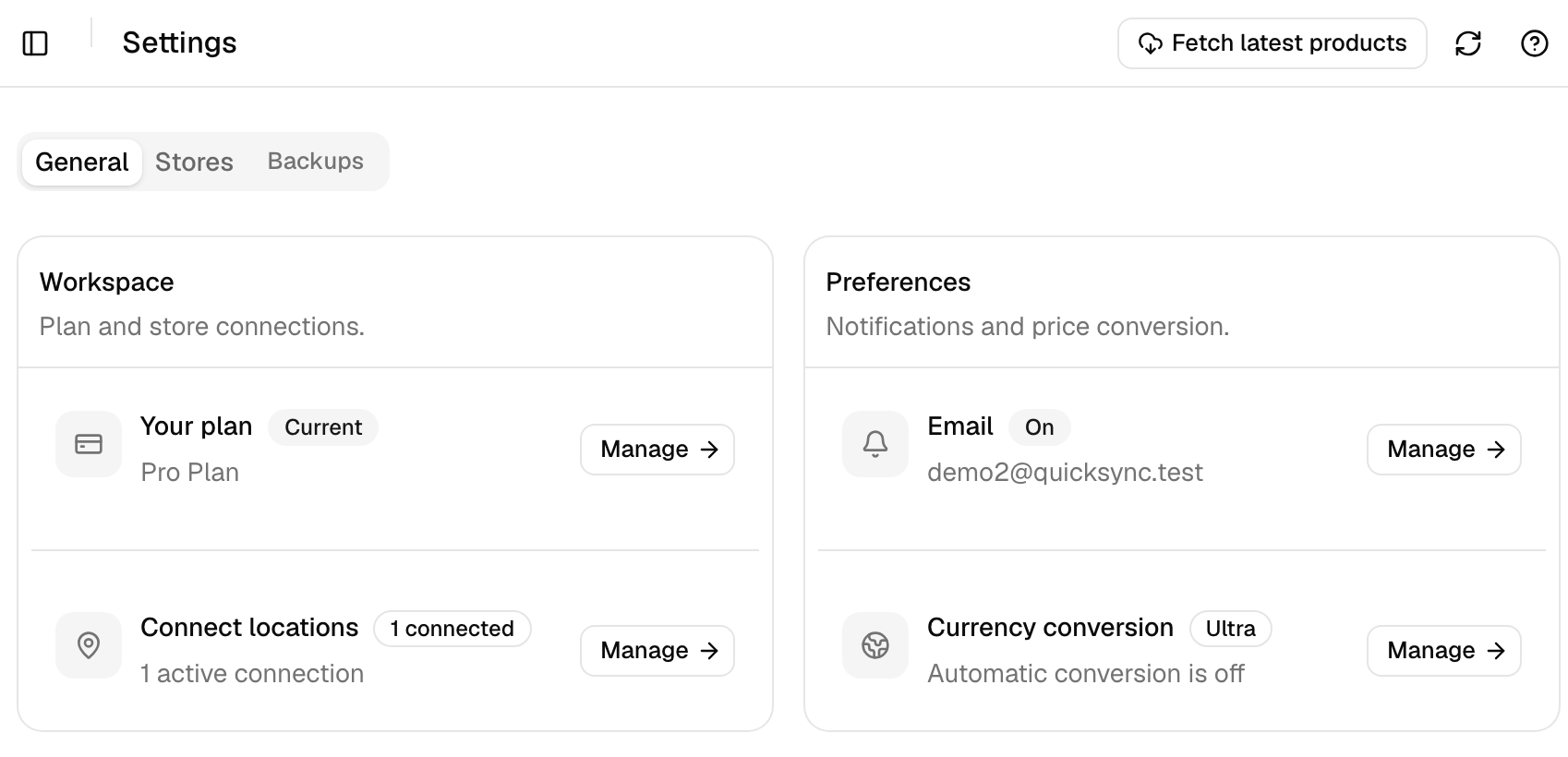
There’s one switch for your whole account. It applies to every store whose currency differs from your main store’s. We read each store’s currency from the store itself. We don’t convert between stores that share a currency.
- Rates. We use market rates from ExchangeRate-API. We fetch new ones when a price needs converting and ours are over an hour old. If the provider is down, we use the last rates we saved.
- Rounding. A converted price ends in .49 or .99. Cents of .50 or less become .49, and anything higher becomes .99. A whole amount stays whole.
- What converts. The selling price, the compare-at price and the unit cost.
- The order. We apply your price rule first, in your main store’s currency. Then we convert, then round.
Say your Etsy shop sells in pounds and has a 10% rule. The $40.00 bag becomes $44.00, then £34.76 at an example rate of 0.79. Etsy gets £34.99.
Turning conversion on doesn’t reprice anything by itself. Each product converts the next time we send it. You can’t switch it while a sync is running. If you’re on Ultra or above when you connect an Etsy shop, we turn it on for you.
What has to be on
- Ultra or above. Lite and Pro don’t include either. Nor does the 14-day trial, which has Pro features. If you move below Ultra, we’ll switch both off.
- Product syncing, for listings you already have. With it off, we stop sending price changes from your main store. Existing listings keep their prices, unless you push a product to TikTok Shop yourself with Sync product.
- Nothing extra for new listings. When we create a product in a store, it gets that store’s rule and currency, even with product syncing off. That covers Create missing products and QuickFix.
Common questions
Can I charge more on Etsy than on Shopify?
Yes, with a price rule on your Etsy shop, on Ultra and above. In Settings, Stores, click Manage on Etsy, turn on Price adjustment and set a percentage such as 10, or a fixed amount. A $40 Shopify price then becomes $44 on Etsy. It follows every later Shopify price change while product syncing is on. We don’t work out Etsy’s fees, so choose the figure yourself.
Why did my price change back after I edited it on Etsy?
While product syncing is on, your main store’s prices win. An edit you make on Etsy lasts until that product next changes in your main store. Then we send the main store’s price again, with Etsy’s price rule applied if you set one. To keep a different price on Etsy, set a price rule there instead of editing Etsy, or turn product syncing off.
Can I keep different prices without the Ultra plan?
Yes, by turning product syncing off. Stock keeps syncing between your stores. We stop copying titles, prices and photos from your main store, so each store keeps the prices you set in it. The cost is that product edits no longer copy across. Products we create for you later still start at the main store’s price, and so does any product you push to TikTok Shop with Sync product. A rule that keeps a fixed gap needs Ultra.
Do price rules apply to products already listed?
Not straight away. We apply a rule whenever we send a price, so existing listings change the next time each product changes in your main store. To reprice them all now, tick Update products already listed on this store before you click Save changes. That needs product syncing on. It sends every product from your main store to that store again, details included.
How often does QuickSync update exchange rates?
We take market rates from ExchangeRate-API. We fetch fresh ones when a price needs converting and the rates we hold are more than an hour old. If we can’t reach the provider, we use the last rates we saved, so syncing doesn’t stop. Rates move, so the same product converted on two different days can end at different prices. Rounding to .49 or .99 doesn’t change that.
Next step
Prices always come from your main store, so read Choose your main store before you set a rule. To see what else product syncing copies, read What product syncing changes.