QuickSync links a product in one store to the same product in another by its SKU. We do it variant by variant, and the two codes have to match exactly. Titles, photos, barcodes and prices don’t count.
That’s the rule behind most surprises. Two listings with different SKUs never link, however alike they look. And if we create a listing in a store that already holds the item under another code, you get two of it.
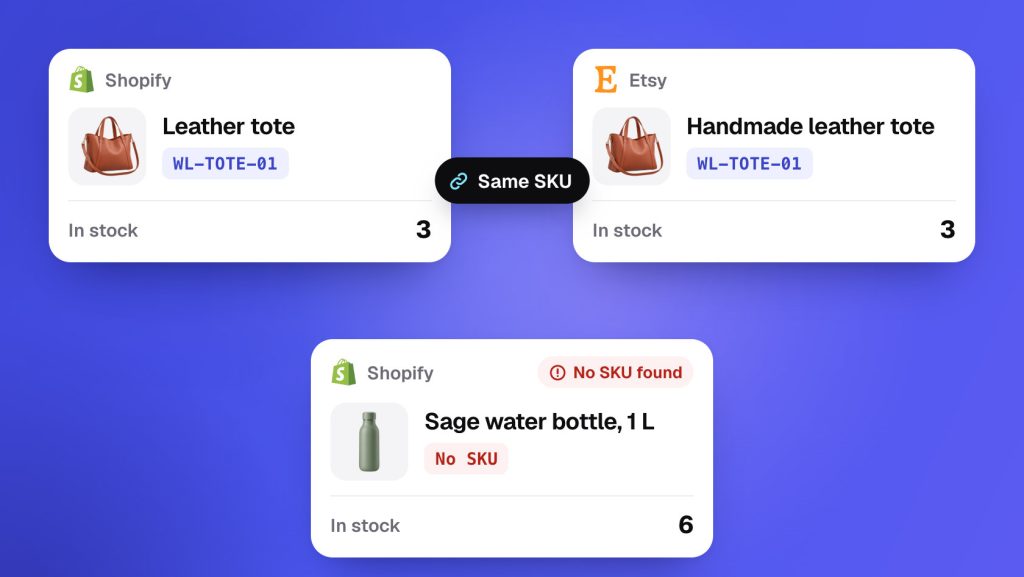
How we match
We compare one variant at a time. A shirt in three sizes needs three SKUs, and each size links on its own.
- The codes must be identical. We compare SKUs exactly as each store sends them. Capitals and spaces count, so
WL-TOTE-01won’t matchwl-tote-01. Nor will it matchWL-TOTE-01with a space at the end. - One listing per code in each store. If two variants in one store share a SKU, we can’t tell which to link. Neither links, and you’ll see Multiple same SKU found. Drafts and archived products count too.
- We match through one store. We compare every store with your starting store, or with your main store when product syncing is on. A product that store lacks won’t link between your other stores, even with a shared SKU.
- Nothing but the SKU. We never match on titles, barcodes or the stores’ own IDs. You can’t pair two listings by hand, either. Change one SKU to match the other.
Two stores fill an empty SKU before we compare. A Lightspeed variant with no SKU uses its barcode, and we trim spaces off the ends of Lightspeed SKUs. An eBay listing with no variations and no Custom label uses its eBay item number. That won’t match anything elsewhere.
Once two listings link, the link holds. Stock follows the link, not the SKU, so a later change to either code doesn’t break it. Change a SKU later covers what does change.
To check a product, click it on the Products page. If it’s linked, Inventory by store lists it in each of your stores, and a Matched badge means their counts agree.
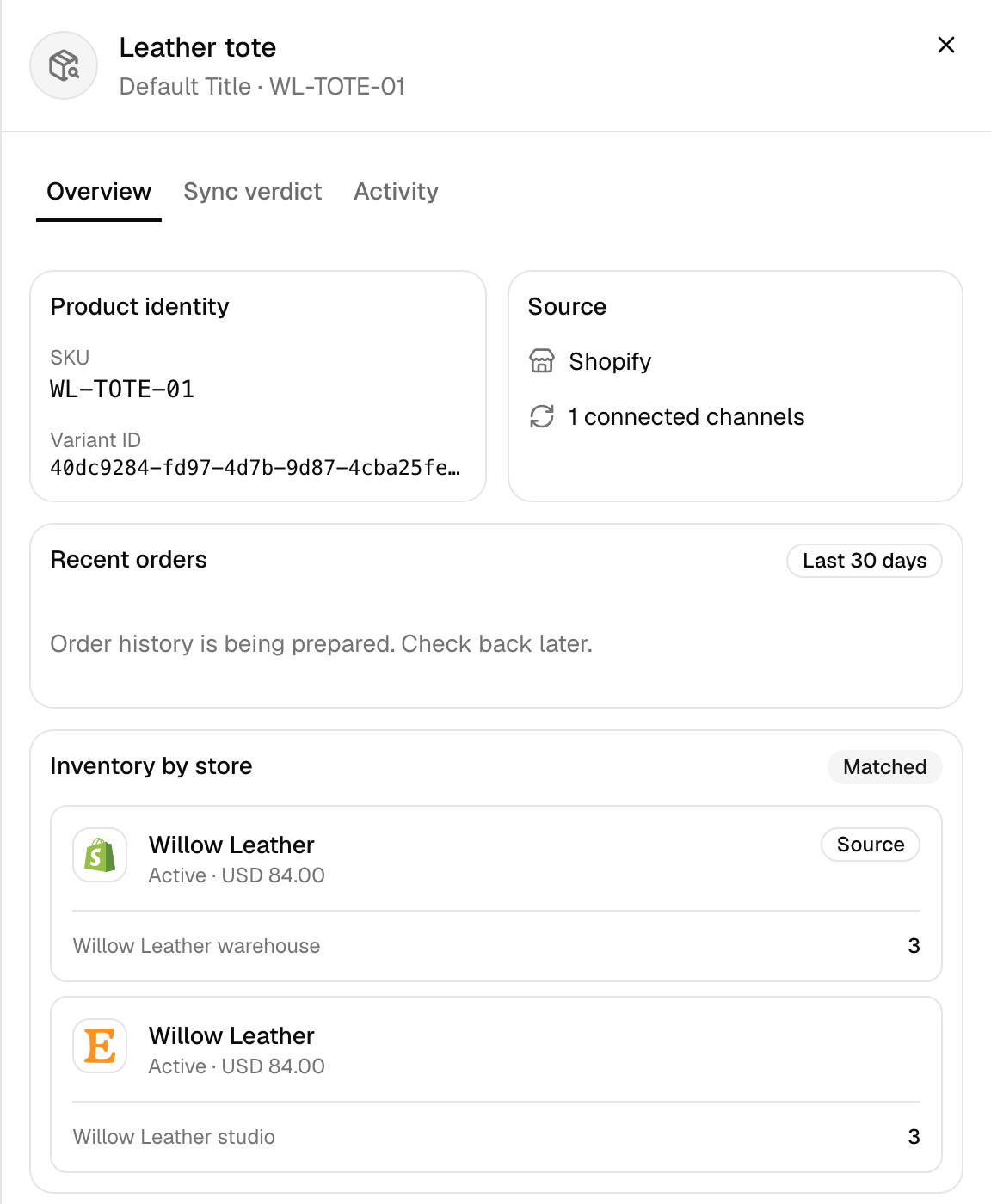
When matching runs
- The first sync. When you press Start syncing at the end of setup, we link every SKU your starting store shares with each other store.
- Sync products. This button on the Products page reopens setup. Press Start syncing again and we link any new matches. Existing links stay.
- QuickFix. It links items under Needs attention whose SKU already appears in the other store. It doesn’t touch the rest of your catalogue.
- New products. With product syncing on (Pro and above), a product you add to your main store goes out to your other stores by itself. If a store already has a listing with that SKU, we link it and update it. If not, we create one.
With product syncing off, nothing links by itself after the first sync. A product you add later waits under Needs attention until you run QuickFix or Sync products.
Each Sync products run also resets stock. Every linked product in your other stores takes your starting store’s count. So when setup asks which store has the correct stock, pick the one whose numbers are right.
When a product doesn’t match
An unlinked product waits under Needs attention. Its status tells you why.
- Available to Sync (Align) or Needs Alignment. A listing with the same SKU exists, but the two aren’t linked yet. Run QuickFix or Sync products. Until then, the same product in your starting store may show No match found.
- No match found. We found no listing with the same SKU. The other store doesn’t have the product, or it holds it under another code. Compare the two SKUs character by character.
- Not present in synced store. It’s an older label for the same thing. Treat it the same way.
- Product unavailable in Master Store. Product syncing is on, and your main store doesn’t have this product. Its details have nowhere to come from.
Where duplicates come from
We create a listing in a store only when we can’t find the product there. First we look for the listing it’s linked to. Then we look for one with the same SKU. If the store holds the item under a different code, or none, it looks missing to us, so we make another.
These create listings:
- Create missing products. A Yes to it in setup, on your first sync or a later Sync products run.
- Turning on product syncing. Switching it on from the Product Syncing card copies over what your main store has and the others lack.
- Product syncing itself. While it’s on, each product you add or edit in your main store goes to the others.
- Product fixes. A fix that ends in a sync, such as Export Product or Create SKU & Sync, can create listings even with product syncing off.
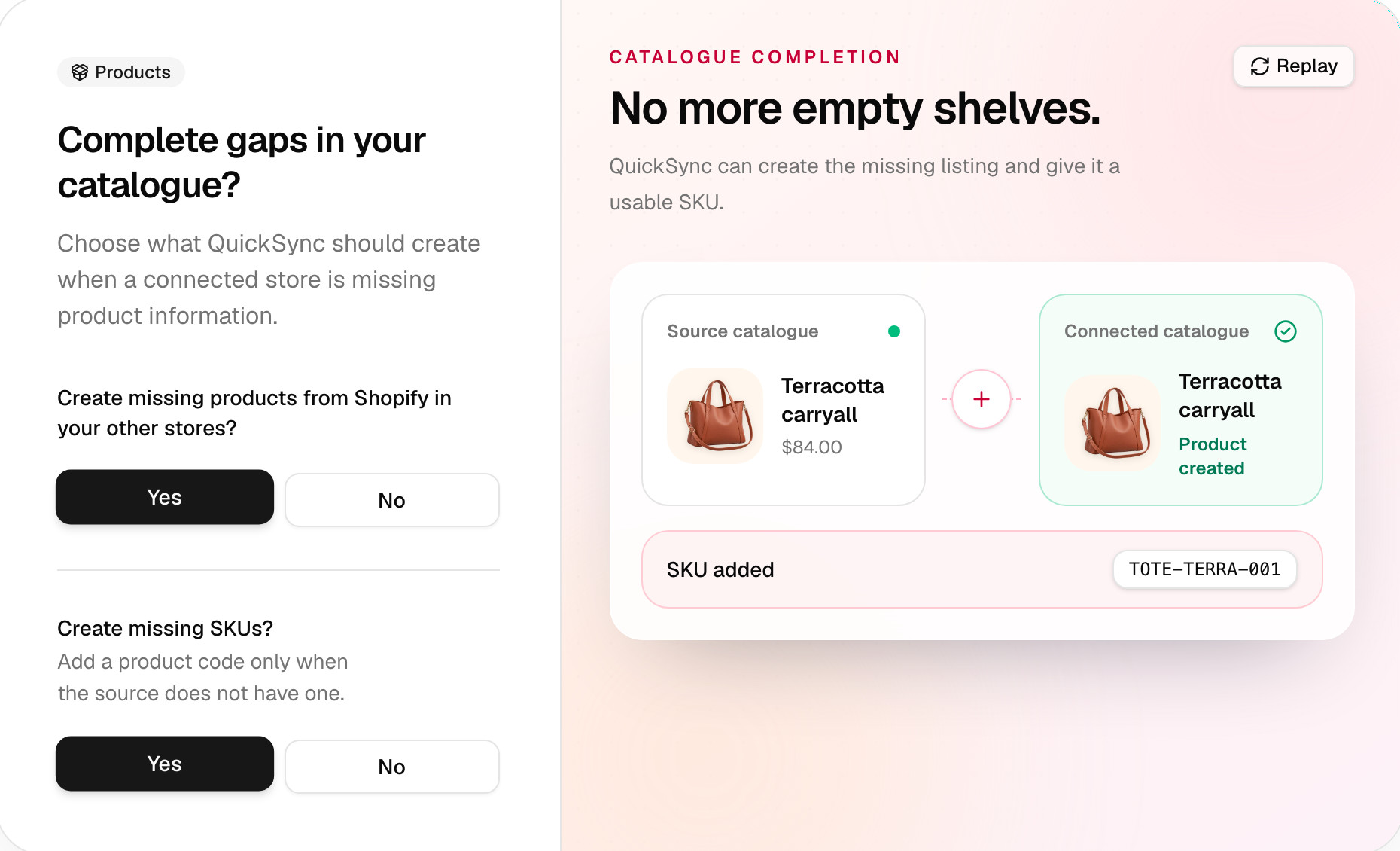
Generated SKUs cause the most surprises. With a Yes to both questions, Create missing SKUs? gives a product in your starting store a new code made from its own ID. The same item in your other store doesn’t carry that code, so we copy it across. Before you answer Yes to either question, give each product the same SKU in every store. Fix missing and duplicate SKUs shows where to type them.
Clean up duplicates
We don’t delete listings for you. Delete the extra one in that store’s own admin, and we’ll drop it once the store reports the deletion. Decide which one to keep first.
To keep the copy we created, delete your original. It wasn’t linked, so nothing else changes.
To keep your original, go in this order, so the copy can’t come back:
- Give your original the copy’s SKU. Both now show Multiple same SKU found, which holds them out of syncing for now.
- Delete the copy.
- Run QuickFix on your original, or click Sync products. We link it by its SKU.
Why that order? With product syncing on, if you delete the copy first, the next edit to that product in your main store creates it again. Some stores, such as WooCommerce, refuse a SKU that’s already in use. There, delete the copy and set the SKU straight after.
Deleting in your main store isn’t the same. With product syncing on, it can also delete the linked listings in your other stores, including ones you made yourself and we matched by SKU. To keep them, turn off the switch on the Product Syncing card before you delete. If you’ve got hundreds to clear, contact support first. Delete, archive or hide a product has the details.
Re-match after fixing SKUs
- Change the SKU in your store, so both listings carry exactly the same code.
- Check we’ve got it: search the Products page for the new code. Most stores tell us about a change as it happens, and we check the rest on a timer (how often). If the old code still shows, click Fetch latest products in Settings and choose Not syncing.
- Link them. For a few products, run QuickFix on the ones showing Available to Sync (Align). For many, click Sync products and go through to Start syncing. Answer No to creating missing products if you only want links.
Switching your main store
Switching changes which store we match the others against. It doesn’t change any SKUs, and it doesn’t create listings when you save. Run Sync products afterwards, so your other stores link to the new main store by SKU. Anything the new main store lacks shows Product unavailable in Master Store until you add it there with the same SKU. The steps are in Choose your main store.
Common questions
Can QuickSync match products by barcode or title?
No. QuickSync matches products by SKU alone, and the codes have to be identical, capitals and spaces included. Titles, barcodes, prices and photos don’t count, and there’s no way to pair two listings by hand. Lightspeed is the one place a barcode matters: a variant with no SKU there uses its barcode instead. To link two listings, give them the same SKU.
Why did QuickSync create duplicate products?
We create a listing in a store when we can’t find the product there, by its link or its SKU. If that store already had the item under a different SKU, or none, you get a second copy. It follows a Yes to creating missing products, turning on product syncing, or a fix such as Export Product. Matching SKUs in every store first prevents it.
Can I link two products that have different SKUs?
Not as they are. QuickSync has no manual pairing, and it links two listings only when their SKUs are identical. Change the SKU in one store to match the other. Check the Products page shows the new code, then run QuickFix on the product or click Sync products. Once they’re linked, they stay linked even if you change a SKU later.
Why does a product say No match found when it’s in both stores?
Because the two SKUs aren’t identical, or one listing has none. We compare codes character by character. A capital letter, a space at the end or a dash where the other has an underscore keeps them apart. With three or more stores, there’s one more cause: we compare every store with your starting store, so a product it lacks won’t link between the others. And if the codes do match, your starting store’s copy says No match found until QuickFix or Sync products links them.
Which duplicate should I delete?
Keep the listing whose history you care about. To keep the copy QuickSync created, delete your original: it wasn’t linked, so nothing else changes. To keep your original, give it the copy’s SKU, delete the copy, then run QuickFix or Sync products. In that order, the copy can’t come back the next time you edit the product in your main store.
Next step
To add or fix the codes themselves, read Fix missing and duplicate SKUs. For every status and its fix, read What each product status means.