Your main store is the one store whose product details win. Change a title or a price there and we copy it to your other stores. Change it anywhere else, and the main store’s version comes back the next time that product changes in the main store.
It only matters if product syncing is on, which needs Pro or above. Stock and orders don’t depend on it. Setup calls it the main store, the Product syncing settings call it the source store, and older guides call it the master store. They’re the same thing.
What it controls
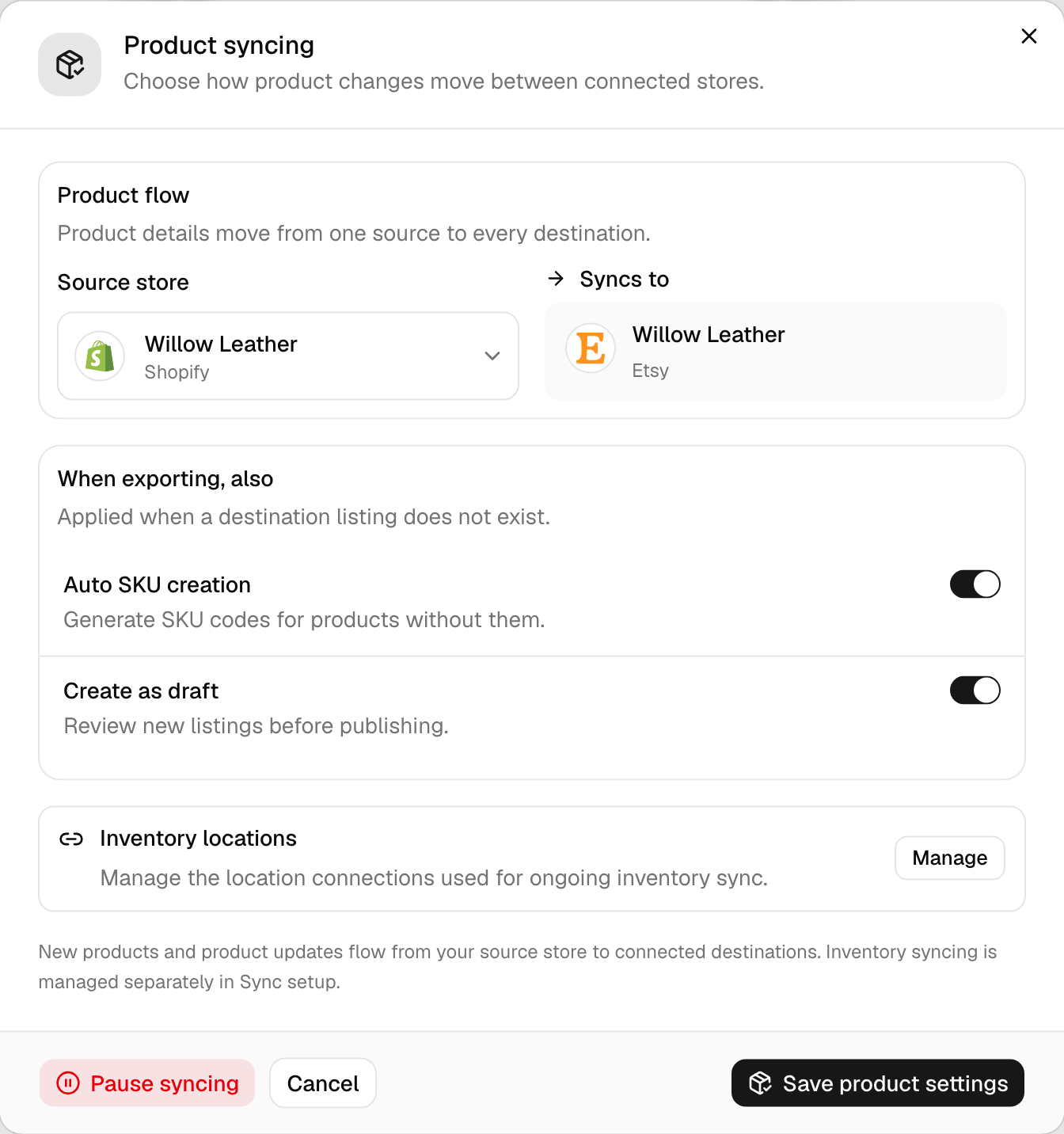
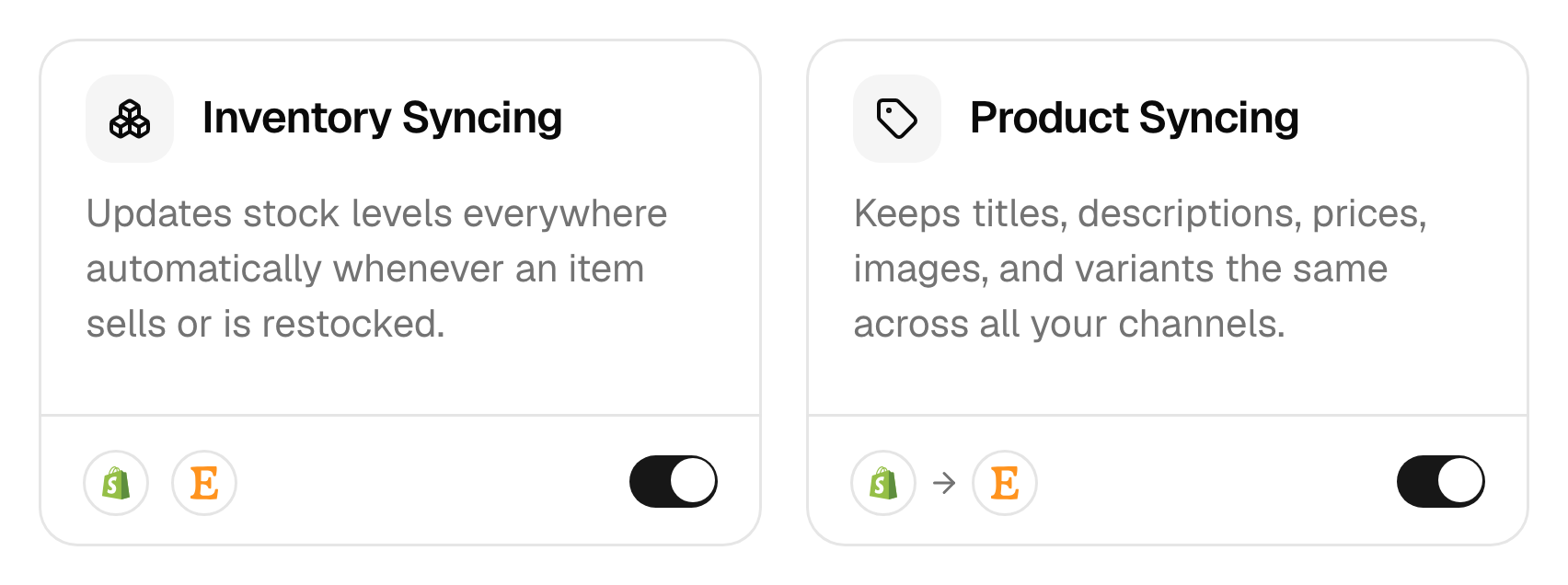
Product details flow one way, out of the main store to every other connected store: titles, descriptions, prices, images and variants. Nothing flows back. You can have one main store at a time.
Two things it doesn’t control:
- Stock. Stock syncs between all your stores in both directions, except that Amazon only receives it, and so does Lightspeed while another store packs your orders. A sale on Etsy lowers the count in your main store too.
- Orders. Orders go to your packing store, which is a separate choice. It can be the same store, but it doesn’t have to be.
Pick the right store
Choose the store you already edit products in. A good main store has:
- your fullest listings: titles, descriptions, photos and every variant,
- a SKU on every product, because we match by SKU,
- a product editor you’re happy to work in every day.
Most sellers pick Shopify, WooCommerce or Wix. A marketplace like Etsy or eBay can be the main store too, but marketplace listings often hold less, such as fewer photos or options, and whatever it lacks can’t flow out to your other stores.
Change your main store
- Open Products and click the Product Syncing card.
- Under Source store, pick the new main store. Syncs to shows where its details will go.
- Click Save product settings.
Saving switches your main store straight away. Products it doesn’t have lose their match and stop syncing until you add them there. Switching doesn’t delete or change anything in your other stores. It only changes where product edits come from. Afterwards, click Sync products on the Products page, so we match your products from the new main store. Until that’s done, products can stop syncing, stock included.
On your first setup, the main store has to be the same store as the one with the correct stock. You can switch it any time after that.
When an edit doesn’t stick
- You edited a product in another store and it changed back. That’s the main store winning. The next edit to that product in the main store pushes its version out again. Make the change in the main store.
- A product didn’t update after you edited the main store. Check that product syncing is on and that the product has the same SKU in both stores. If product syncing was off when you added the product, edit it once more in the main store to send it.
- You want a different price on one store. Don’t edit that store. Set a price rule for it instead, which adds a fixed amount or a percentage on top of the main store’s price (Ultra and above).
- Your stores use different currencies. Turn on currency conversion (Ultra and above).
Pause product syncing
Click Pause syncing in the same window to stop product details moving between stores. Stock keeps syncing, and we don’t undo anything already synced. Pausing also clears your main store and turns off Auto SKU creation and Create as draft. When you’re ready, turn it back on from the Product Syncing card: pick the source store and those options again, and we start a sync run first, which also copies over products your other stores are missing.
Common questions
What is a master store in QuickSync?
The master store is the store your product details come from. We copy the titles, descriptions, prices, images and variants you change there to your other connected stores, and edits made in those stores never flow back. QuickSync now calls it the main store in setup and the source store in Product syncing settings. You need one only if product syncing is on.
Can I have two main stores?
No. There’s one main store per account at a time, because two stores both sending product details would overwrite each other. If you want different prices or currencies on another store, use price rules or currency conversion instead. Stock is different: it already syncs both ways between your stores.
Does the main store control stock?
No. Stock syncs between your connected stores in both directions, whichever store is the main store. A sale or a restock in any store updates the others, except that Amazon only receives stock, and so does Lightspeed while another store packs your orders. The main store only decides where product details such as titles, prices and photos come from.
What happens to my products when I switch the main store?
We don’t delete anything. Products the new main store doesn’t have lose their match until you add them there. Click Sync products afterwards, so we match the rest from the new main store. Until then, products can stop syncing, stock included. Your other stores keep their listings as they are. From then on, edits come from the new main store.
Next step
To see what product syncing copies on each platform, read What syncs where. For the full picture of stock, products and orders, read How QuickSync works.