Setup has up to eight screens, and a basic one takes 10 to 15 minutes. Nothing changes in your listings until you press Start syncing on the last screen (Square has one exception, in step 1), so you can go back and change any answer before then.
You’ll need two stores to connect, an admin login for each, and a SKU on the products you want synced. Below are the screens in order, what to pick on each, and what happens after you start.
Before you start
- Know which store has the right stock today. The first sync copies its counts to your other stores, so pick the one you trust.
- Check your SKUs. We match products by SKU, so a product without one won’t sync. Setup can create missing SKUs in your starting store for the products it copies.
- Check your plan. Stock syncing works on every plan. Product syncing and order syncing need Pro or above, and setup shows a View plans link if yours doesn’t include them.
1. Connect your stores
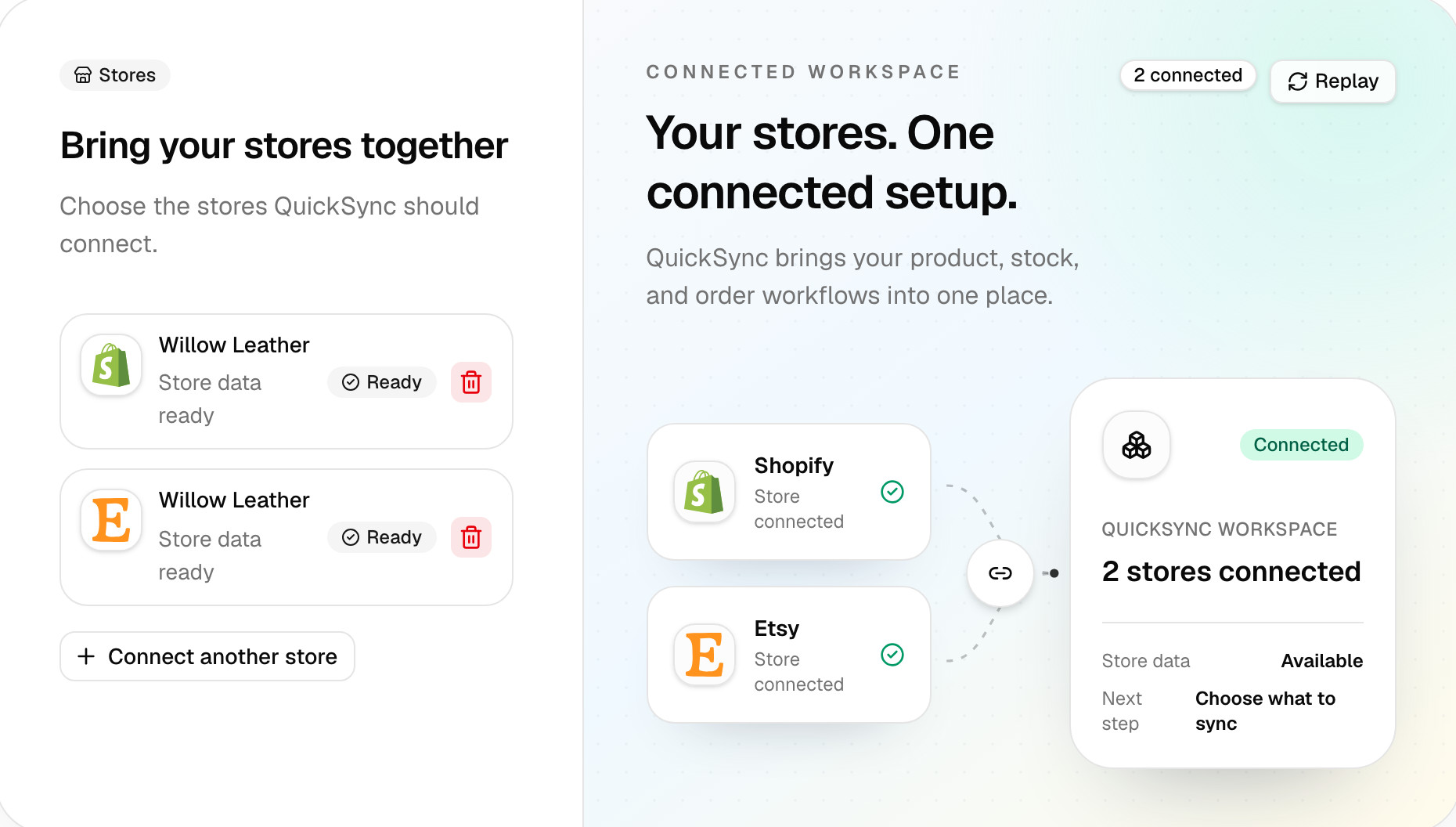
Open Overview in QuickSync. Click Connect another store (Connect your first store if you have none yet), pick the platform, sign in to it and approve access. Do the same for your second store.
Each store says Fetching store data while we read its products, stock and locations, then Store data ready. Reading doesn’t change your listings, though Square items with no stock count at a location get a count of 0. When both are ready, click Continue with 2 stores. If a store needs settings first, such as Etsy or eBay, this opens its Review settings.
2. Keep stock updated
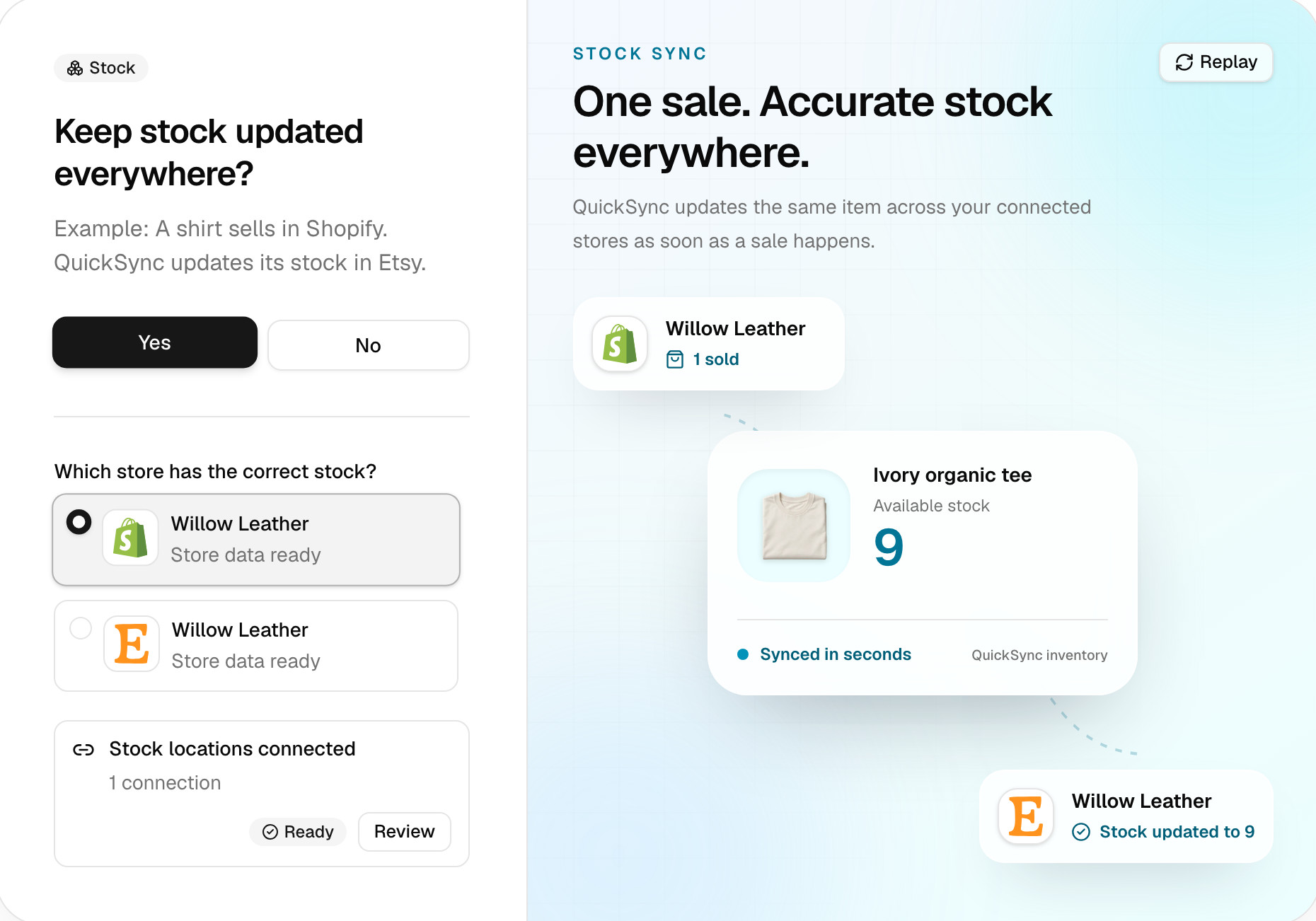
Answer Yes to Keep stock updated everywhere? unless you only want orders synced. A No skips the product screens and goes straight to orders. Then pick the store that has the correct stock. That’s your starting store: the first sync sets every other store’s count to match it.
If any of your stores has more than one location, a Connect stock locations row appears under the stores. Click Connect and pair each location with its match in the other store. With one location per store, there’s nothing to do. More on this in Locations.
3. Pick a main store
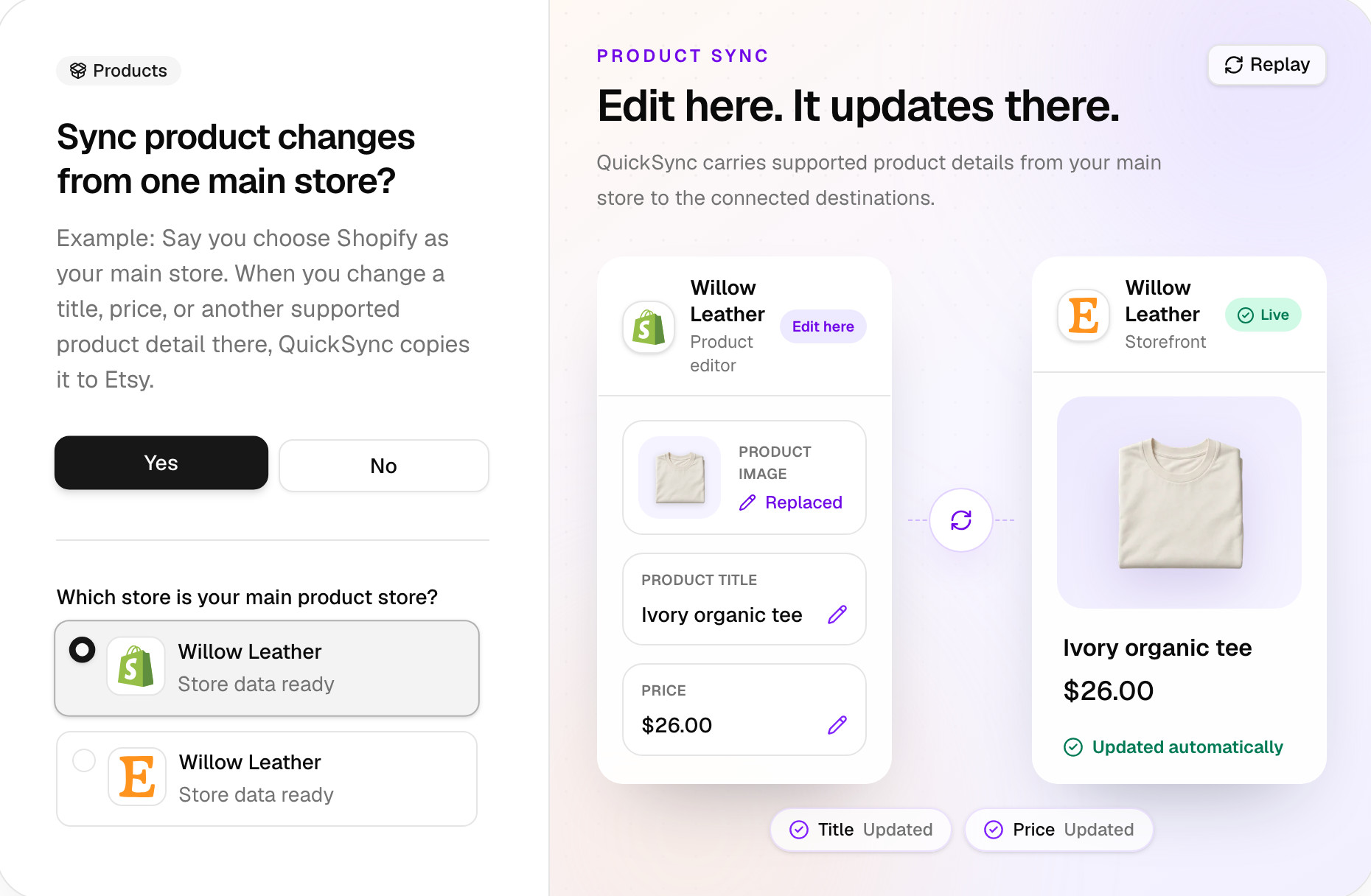
Sync product changes from one main store? decides whether edits to titles, prices, photos and variants flow from one store to the others. Answer Yes and pick the store you edit products in. Product changes go out from it and never come back.
On your first setup, the main store has to be the same store as your starting store. Picking it here makes it your starting store too. You can switch it later in the Product Syncing settings on the Products page, where it’s called the source store.
4. Choose which products sync
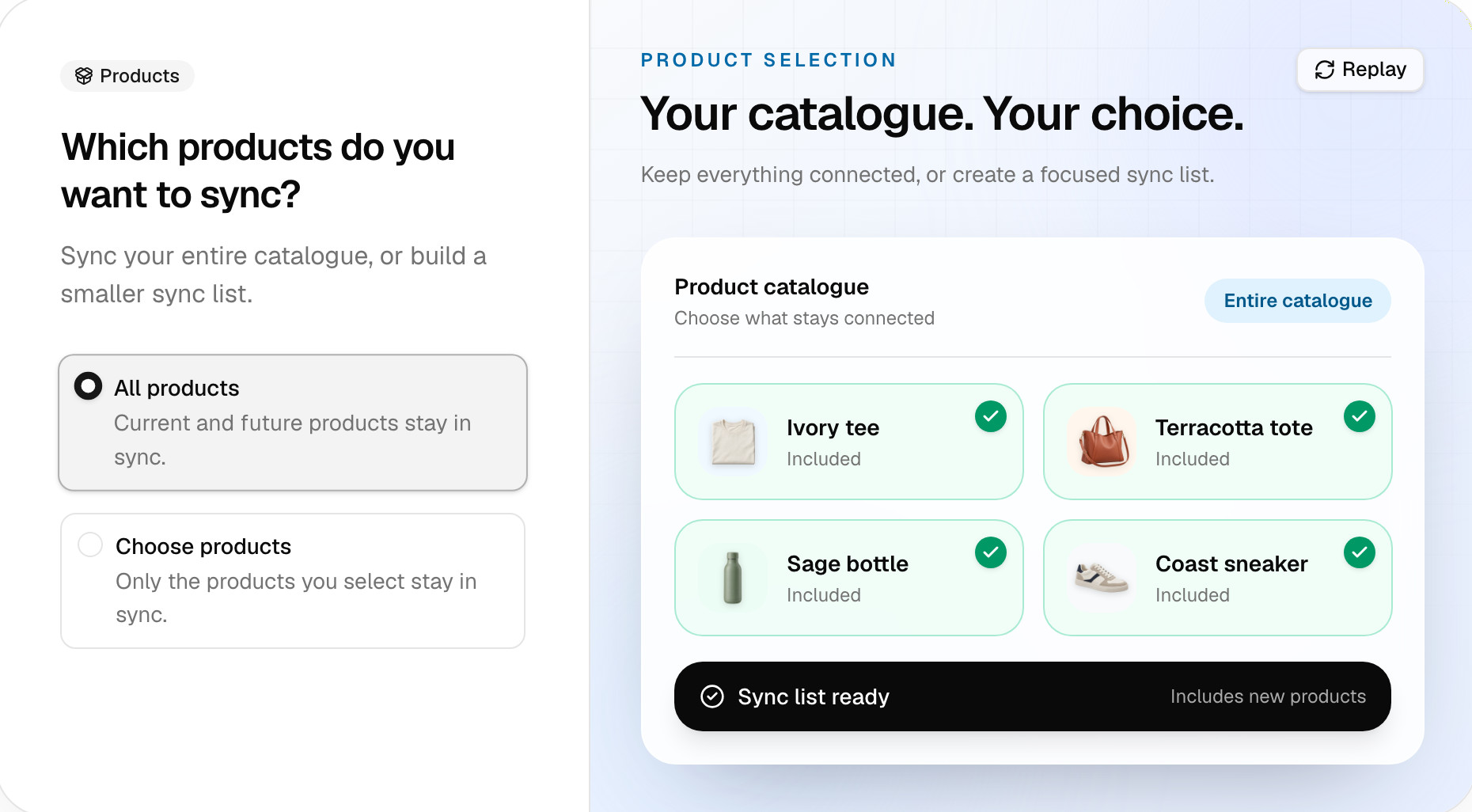
All products keeps your whole catalogue in sync, including products you add later. Choose products builds a sync list, and only the products on it sync. The list is useful when only part of your range sells on the other store. See Selective syncing for how the list behaves.
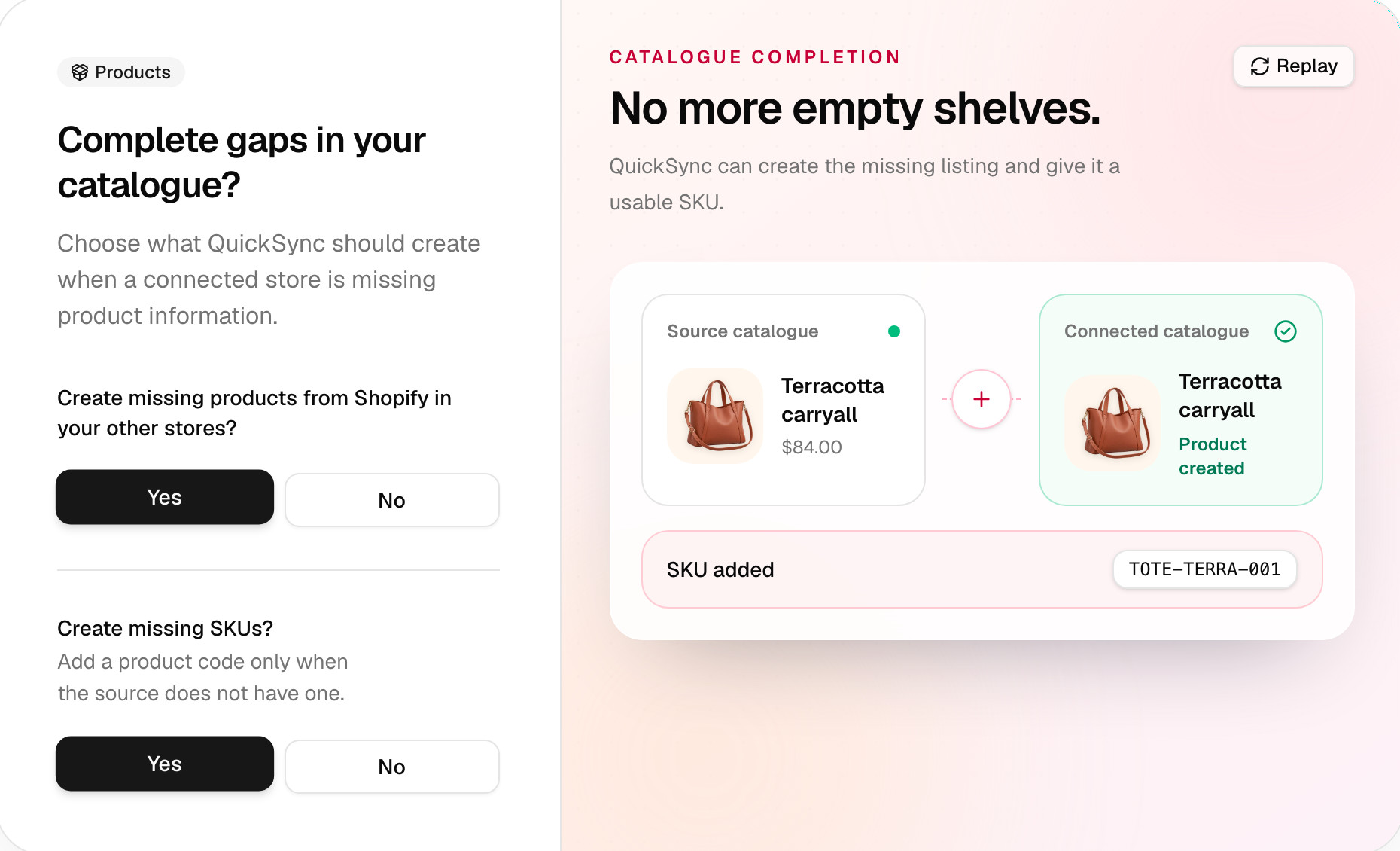
5. Fill the gaps
Two questions. Create missing products copies products from your starting store to the stores that lack them. Say No if your stores already list the same things and you only want them matched.
Create missing SKUs adds a SKU to the products we copy from your starting store if they don’t have one, so the copies match. It does nothing if you answer No to creating missing products, and it doesn’t change SKUs that already exist.
6. Drafts or live
This screen appears when you said yes to creating missing products and a store we’d add them to has drafts or charges listing fees. Add new products as drafts? applies to the products we create. Answer Yes and they start hidden, so you can check prices and photos first. Shopify, WooCommerce, Etsy and TikTok Shop have drafts, but on Shopify and WooCommerce the next update from your main store can publish them. On most other stores, new products go live. If we’d list on Etsy or eBay, tick I accept these estimated listing fees to go on, unless you chose drafts.
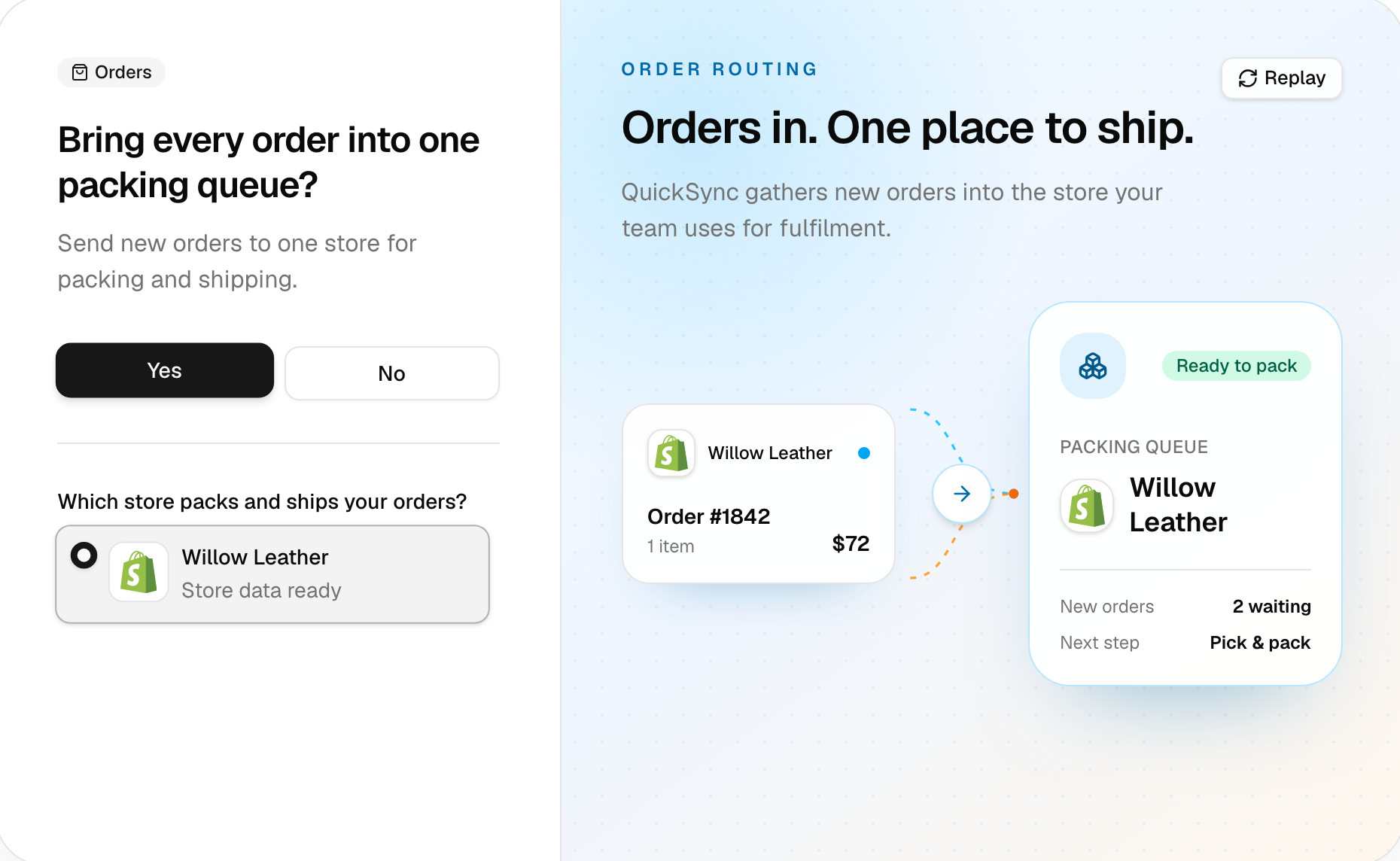
7. Send orders to one store
Bring every order into one packing queue? sends orders from your other stores into the store you ship from, with the customer’s address and the items. Answer Yes and pick that store, your packing store.
Only stores that can take orders in appear in the list. Etsy, eBay, Amazon, TikTok Shop, Squarespace and Wix send orders out but can’t take them in, so they never show here. If you ship from each marketplace separately, answer No.
8. Check and start
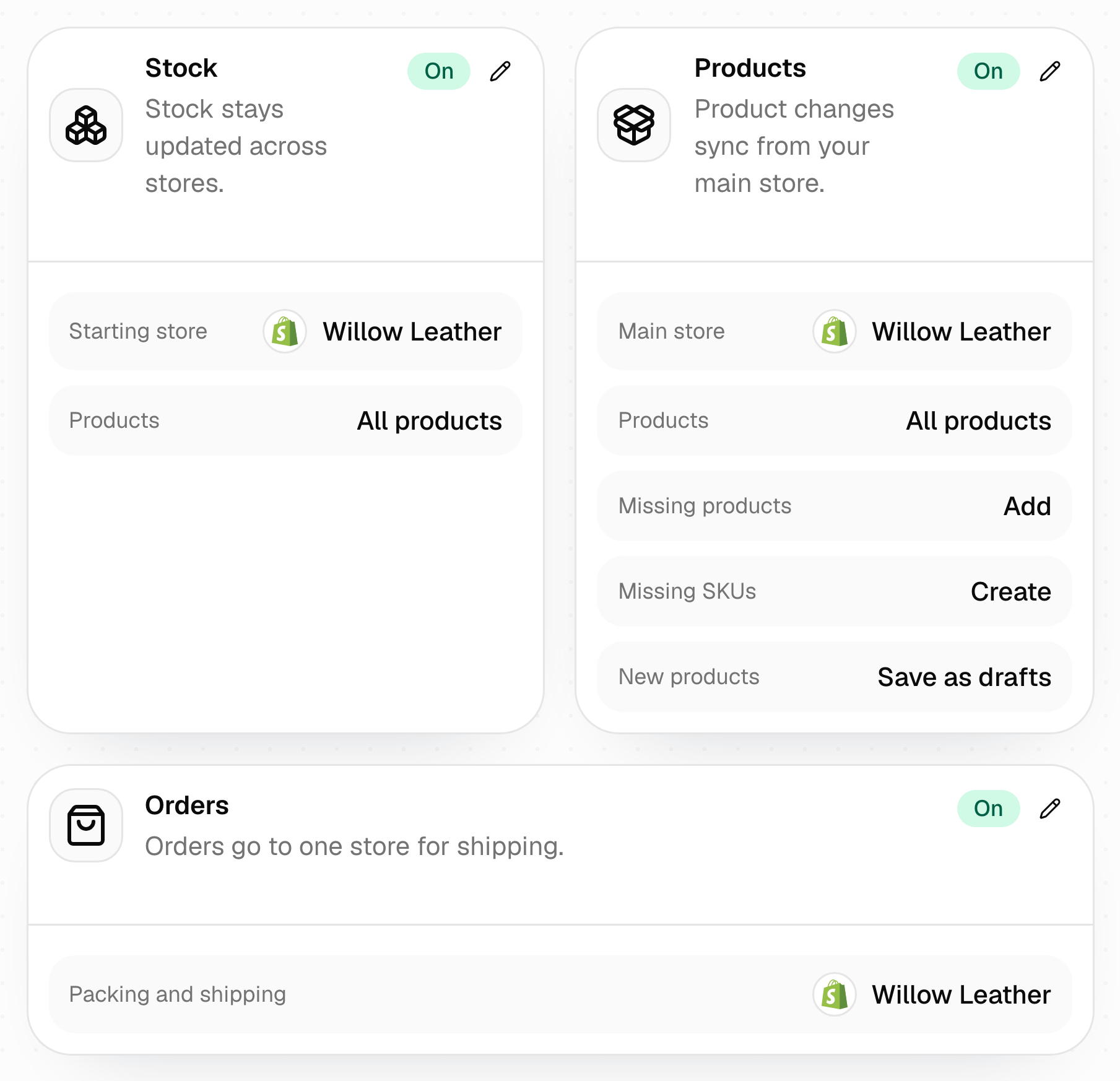
The last screen lists every choice. Click the pencil on any card to change it, then press Start syncing.
We keep a backup copy of each store’s products after we read them. If a store’s catalogue is too big for that copy, this screen asks you to download your own copy from that store first, and to tick I have saved a copy of my products before you can start.
After you start
Setup says Your setup is saved and takes you to Products. The first sync matches your products by SKU and sets stock to your starting store’s counts. A big catalogue can take a while, and we’ll email you when it finishes.
Products that matched show under Syncing. Anything we couldn’t match waits under Needs attention with the reason, such as No SKU found. Product syncing statuses explains each one.
You can change these choices later: stock and product syncing from their cards on the Products page, and the packing store from the Order route card on the Orders page. If you open setup again while a sync is running, it says A sync is already in progress. Wait for it to finish before you start another.
Common questions
How long does QuickSync setup take?
A basic setup takes 10 to 15 minutes: connecting two stores, answering the setup questions and starting the first sync. The first sync then runs on its own. A catalogue of a few hundred products usually finishes quickly, and a big one can take longer. We email you when it’s done.
Can I change my setup answers later?
Yes. Before you press Start syncing, use the pencil on the final screen or the Back buttons. Afterwards, change stock and product syncing from their cards on the Products page, the main store in the Product Syncing settings (it’s called the source store there), and the packing store from the Order route card on the Orders page.
What if I only want stock to sync?
Answer Yes to keeping stock updated, and No to product changes, to creating missing products and to the packing queue. Stock then syncs between your stores and nothing else moves. That works on every plan. Products still need matching SKUs, because that’s how we know which items share a count.
Why can’t I pick Etsy as my packing store?
Etsy, eBay, Amazon, TikTok Shop, Squarespace and Wix can send their orders to QuickSync, but we can’t create orders in them. So none of them can be the packing store. Pick the store you ship from, such as Shopify, WooCommerce, Square, Clover or Lightspeed.
Do I need to back up my products before I start?
For most stores, no. We keep a backup copy of each store’s products after we read them. If a catalogue is too large for that copy, the final setup screen asks you to download your own copy from that store, and you can’t start until you confirm you have one.
Next step
Once the first sync finishes, open Products and check Needs attention. If it’s empty, you’re done. If not, Product syncing statuses says what each item needs. For how the pieces fit together, read How QuickSync works.