A sync list tells QuickSync to sync only the products you pick. Products on it sync stock, and their details too if product syncing is on. We don’t sync products off it at all, not even their stock, and we don’t change, hide or delete them in any store.
You build the list in setup, on the screen that asks Which products do you want to sync? Older guides call it selective syncing. It’s on every plan, Lite included.
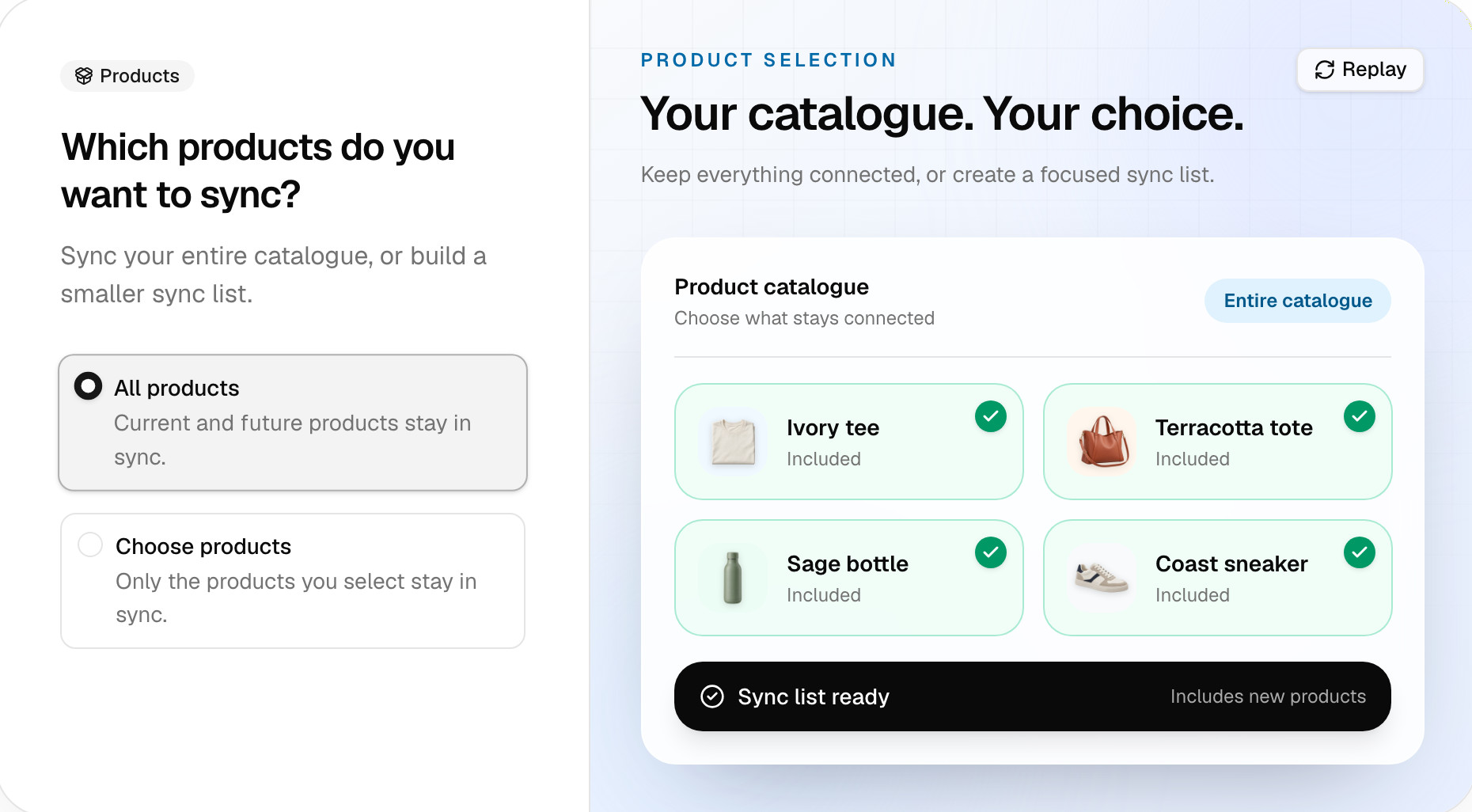
Build the list
The screen has two answers. All products syncs everything you sell, including products you add later. Choose products syncs only the ones you tick. Pick it, and a table of your products opens below.
Search the table by product name or SKU, or filter it by status, location, category or collection. Then tick the Select all box above the table. It picks every match across every page, up to 10,000 products, so a whole collection goes on in one go.
We list the products in your main store, or in your starting store if product syncing is off. You pick whole products, not variants. Every variant of a product goes on the list with it, so you can’t sync one size of a shirt and leave the rest out.
What happens off the list
We leave a product that isn’t on your list out of every sync:
- No stock syncing. When it sells in one store, we don’t lower its count in the others. Each store counts on its own, and that’s how an off-list product sells twice.
- No product syncing. We don’t copy edits from your main store.
- No new listings. When we create missing products, we only create ones on the list.
We don’t delete it, hide it or change its price. It stays in each store with its last count. On the Products page, it waits under Needs attention as Not in your sync list. That’s expected for off-list products.
Add or remove products
- Open Products and click Sync products. Setup opens at Which products do you want to sync? Your current list is already ticked.
- Tick products to add them. Untick products to remove them.
- Click Continue through the remaining screens, then press Start syncing.
We replace the old list with what you save, so keep everything you still want ticked. The run then matches the listed products again. It also sets their stock in your other stores to your starting store’s counts, as on your first sync. Check those counts before you start.
We don’t add new products to the list for you. Add each one the same way, or with QuickFix below. While the list is on, a Selective Sync card sits on the Products page. It shows the list’s size. For the full list, open Actions and click Export selected products.
Not in your sync list
This status means you chose which products to sync, and this one isn’t on the list. We skip it.
To add one product, click it on the Products page, open its Sync verdict tab and click Add to Sync List & Sync. To add several, click QuickFix on the Needs attention card. It groups items by issue. Once you confirm, it adds this group to your list.
Products you meant to leave off can stay. To clear them from the tab, select them and click Mark as resolved. We still won’t sync them. Show resolved brings them back into view.
Switch back to all products
Click Sync products, pick All products, continue through setup and press Start syncing. We clear the list and match every product by SKU. Then we set each matched product’s stock to your starting store’s counts.
The switch on the Selective Sync card turns the list off too, but it goes further. It clears the list. It also removes the links between your stores. Until you run Sync products again, no product syncs, stock included. Use it only when you’re about to set up syncing afresh.
Plans and the item limit
Every plan includes sync lists. If you move down to Lite, we’ll keep your list, because it also decides which products sync stock.
Only products on the list count toward your plan’s item limit. The limit counts variants, so a bag in three sizes uses 3. Lite holds 1,000 variants, Pro 2,500, Ultra 10,000 and Ultra+ 20,000. Over the limit? A list of the products that matter keeps you under it.
Common questions
Do new products sync automatically with selective syncing?
Not with a sync list. With All products and product syncing on, a new product in your main store reaches your other stores by itself. A sync list only holds the products you picked. A product you add later stays off it, so we don’t sync its stock or details. It shows under Needs attention as Not in your sync list. Add it with Sync products, or with the Add to Sync List & Sync button on the product.
Does selective syncing stop stock syncing too?
Yes. With a sync list on, we only sync stock for the products on it. A product off the list keeps its own count in each store. When it sells in one store, we won’t lower its count in the others, so it can sell twice. If something sold and another store didn’t update, check its status on the Products page. Not in your sync list means it’s off your list.
Will removing a product from my sync list delete it from my other store?
No. Taking a product off your list only stops us syncing it. We don’t delete, hide or edit it anywhere. It keeps its title, price and last stock count in every store. To remove it from one store, delete it there yourself. With product syncing on, take it off the list first. Otherwise the next change to it in your main store can create the copy again.
Can I sync only one collection or category?
Yes, with a sync list. In setup, pick Choose products and filter the table by collection or category. Then tick Select all to add every match. We save those products, not the collection. A product you add to the collection later needs adding to your list too. Taking one out of the collection doesn’t remove it from your list either.
Do products off my sync list count toward my plan limit?
No. Your plan’s item limit counts the variants we’re syncing. Off-list products aren’t among them. That’s why a sync list can keep you under the limit without upgrading. Lite holds 1,000 variants, Pro 2,500, Ultra 10,000 and Ultra+ 20,000. Off-list products still show under Needs attention, but plan usage leaves them out.
Next step
For every status a product can show, read What each product status means. To see the setup screens around this one, read Set up your first sync.