
If you sell on eBay and use QuickBooks, you already know the bookkeeping pain.
You have to track eBay sales, payouts, fees, refunds, shipping, taxes, and deductions. Then you have to make everything match inside your QuickBooks Online account.
For many eBay sellers, the real issue starts when eBay payouts land in the bank account, but the sales, fees, refunds, and taxes are not recorded in the correct accounts.
That is where many eBay sellers struggle.
The biggest mistake is recording one eBay payout as simple sales income. It makes your revenue look wrong. It hides fees. It also creates reconciliation problems later, when your QuickBooks numbers do not match your bank deposits.
This is why connecting eBay to QuickBooks for automated bookkeeping is a smart choice. Ecommerce accounting automation can save sellers 10 to 20 hours per week on bookkeeping tasks. That means fee tracking, income and expense accounts, and correct accounts management are not optional if you want accurate profit reports.
Once both platforms are connected, your sales data, orders, fees, taxes, refunds, eBay transactions, payouts, products, and inventory can sync into QuickBooks Online. You spend less time fixing numbers. Your books stay cleaner. Your reports become easier to trust.
However, the result depends on the approach and tool you choose. A basic connection may move sales data. But it may not handle fees, refunds, taxes, and payout matching properly.
So, in this guide, I will explain how to connect eBay to QuickBooks. Know which is the best eBay and QuickBooks integration tool and the different ways to link both platforms.
Does QuickBooks Integrate With eBay?
Yes, QuickBooks can work with eBay. But there is no perfect built-in setup where eBay integrates directly with QuickBooks Online and handles everything accurately.
Most sellers need a reliable QuickBooks connector, eBay connector, or QuickBooks Online integration to move data between both systems.
Let me explain this clearly. eBay and QuickBooks are built by different companies for different jobs.
eBay manages listings, fees, and payouts. QuickBooks manages your books, tax categories, and reconciliation. The two systems do not speak the same language out of the box. So a connector has to translate between them.
A proper eBay QuickBooks integration should help you:
Send eBay sales into the right income accounts.
Record eBay fees into the right expense accounts.
Map each order to the corresponding tax code.
Create deposits automatically for cleaner bank feed matching.
Keep stock levels updated after each eBay sale.
Reduce human error from manually entering order details.
Here’s what most store owners miss: connecting tools is easy. Keeping accounting clean after hundreds of eBay orders is the real challenge.
Why eBay Sellers Sync eBay with QuickBooks
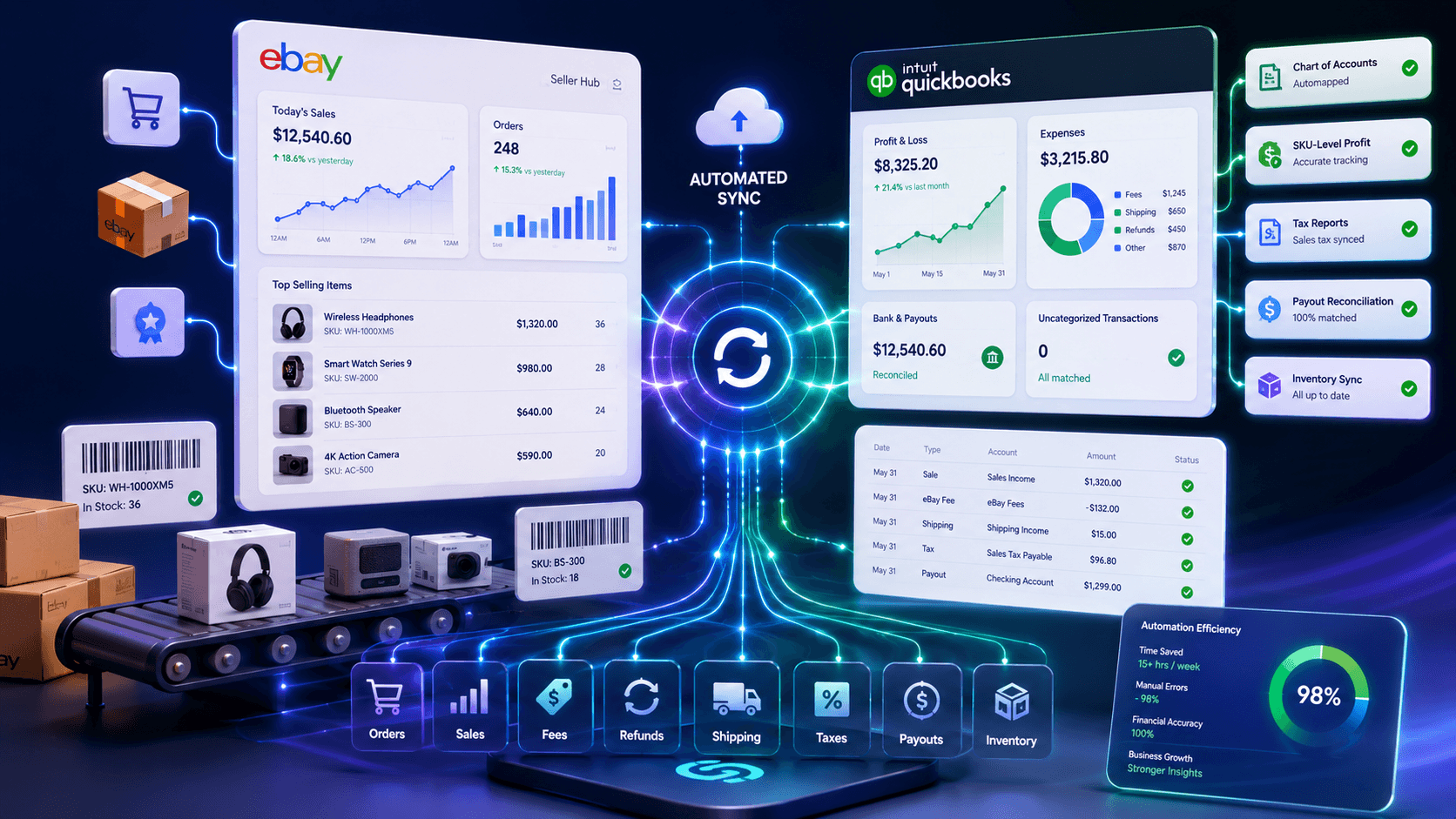
eBay sellers sync eBay with QuickBooks because manual bookkeeping breaks down quickly. It may work for a few orders. But once sales grow, every payout, refund, fee, and tax adjustment adds more cleanup.
Here are five reasons sellers stop doing it by hand.
Stop Hours of Manual Data Entry
Every eBay sale has many details. You have the item price, shipping charges, shipping fees, sales tax, discount, eBay fee, and payout amount. When sellers manually enter data, mistakes are common.
When eBay and QuickBooks sync automatically, your sales data moves without daily copying. You save hours every week. You also avoid late-night spreadsheets and repeated manual updates.
Track Product Profit Clearly
Many sellers only see total revenue in QuickBooks. But total revenue does not tell the full story. You need to know which product made money. You also need to know which product has a low margin after fees, refunds, and shipping costs.
When eBay orders sync into QuickBooks with SKU-level details, each sale connects to the right product. Your profit reports become clearer. You can make better pricing, inventory, and restocking decisions.
Keep Inventory Accurate
Inventory becomes hard to manage when eBay sales do not update QuickBooks stock. You may think products are still available, but they might be sold. Small business owners spend around 31 hours a week on daily operations, according to QuickBooks research.
This can lead to overselling, late restocking, and wrong inventory reports. When eBay and QuickBooks sync properly, inventory syncs after sales, refunds, and stock changes. You can avoid manual quantity updates and make better buying decisions.
Reduce Tax Filing Mistakes
Tax tracking can become confusing for eBay sellers. Sales tax rules can change by location, marketplace, and order type. Manual entry makes mistakes easier. You may record the wrong tax amount. You may also mix marketplace-collected tax with your own tax records.
When eBay and QuickBooks sync correctly, tax details move in a cleaner way. This helps you prepare better reports. It also makes tax season easier for you and your accountant.
Manage Orders From One Place
Order management becomes difficult when eBay orders stay separate from your accounting system. You have to check eBay for order details. Then you have to enter customer data, products, shipping, and payment details into QuickBooks.
When eBay orders sync into QuickBooks, order data moves automatically. You get cleaner records, faster updates, and less manual checking. This helps you manage sales, customer details, and fulfillment information with more confidence.
What eBay and QuickBooks Sync Actually Includes
Before you pick a tool to link eBay to QuickBooks, you need to know what a proper sync tool actually covers.
Most sellers assume any connector does the job. It does not. Here are the five features your tool should offer to make the eBay QuickBooks integration genuinely useful.
Fast, Automatic Sync
Fast, automatic sync is the most important feature in any eBay to QuickBooks tool. eBay does not announce a sale, so a good tool checks for new orders every couple of minutes and posts the sale, fees, and tax to QuickBooks as soon as they land. Your tool should not run on hourly batches. So your books stay current all day.
SKU-Level Line Item Sync
Your tool should match every eBay order line item to the matching product in QuickBooks by SKU. Without this, sales show as generic line items with no link to inventory. SKU matching enables profit-by-product reports, accurate COGS, and automatic inventory decrements.
Fee and Payout Breakdown
eBay fees include final value fees, insertion fees, store subscription fees, and ad fees. Your tool should split each fee into its own QuickBooks expense category. Payouts should be reconciled against the underlying orders. Without this, fee tracking is guesswork.
Refund and Return Handling
When a buyer returns an item, your tool should create a proper Refund Receipt in QuickBooks, not a vague credit memo. The refund should point to the right bank account so reconciliation works cleanly. Inventory should be added back at the same time.
Multi-Currency Support
If you sell on eBay UK, eBay Australia, or eBay Canada, your tool must convert foreign currency to your QuickBooks home currency. The conversion should match the rate eBay used on the day of the sale. Your tool should round properly and avoid the precision gaps that break the account balance.
Different Ways to Connect eBay to QuickBooks
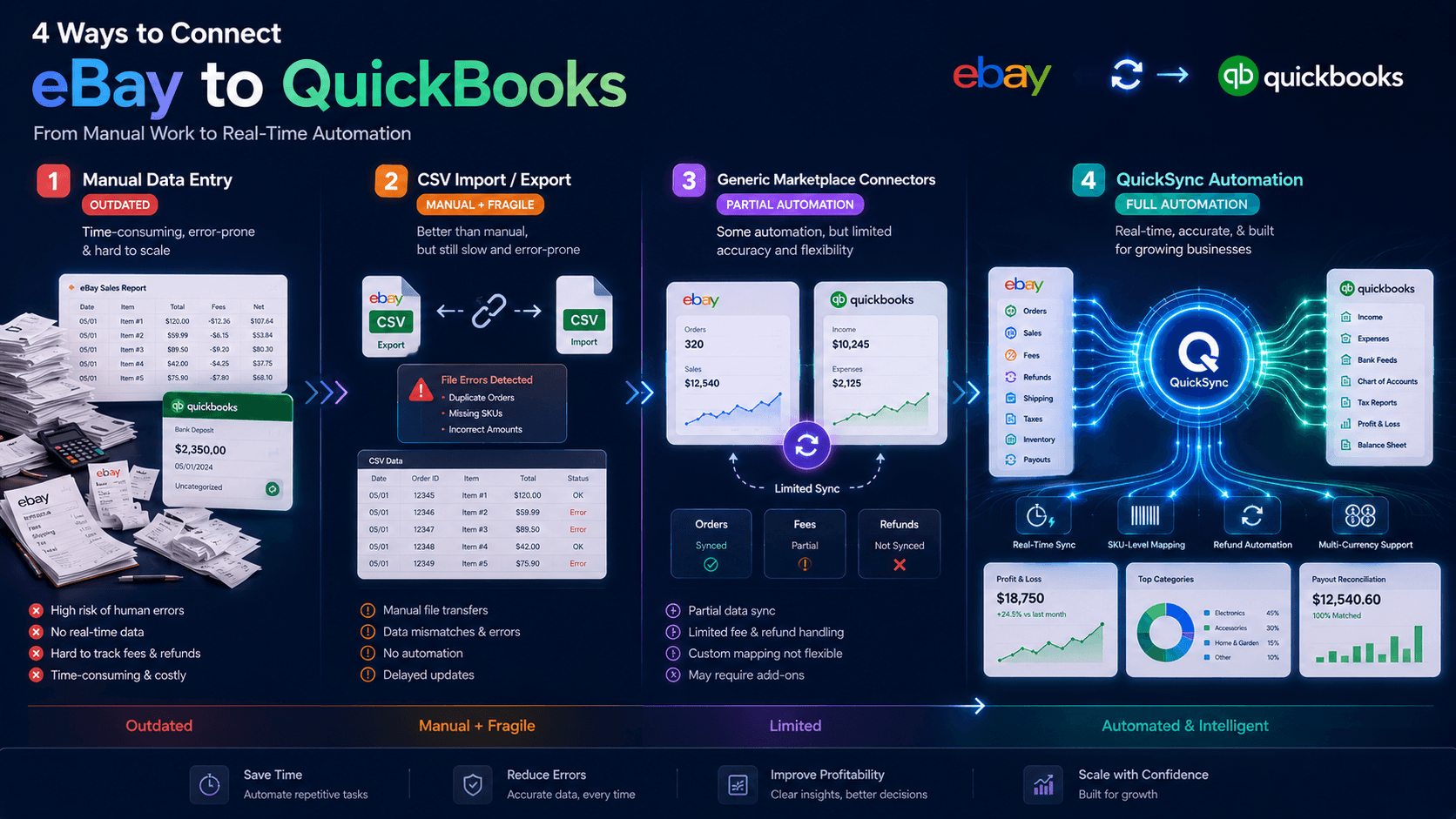
There are four common ways to connect eBay to QuickBooks. Each comes with different trade-offs in time, accuracy, and cost. Three of these methods work in theory but break down at scale. Only one keeps your books clean without daily effort. Let me walk you through all four so you can pick the right path for your business.
Method 1: Manual Data Entry
The most basic option is typing each eBay sale into QuickBooks by hand. This is called manual data entry, and many merchants start here because it feels simple.
You open Seller Hub, check the order, and enter the details as a sales receipt or invoice in QuickBooks.
At first, it may not feel like a big problem. But once orders increase, this method becomes slow, tiring, and risky. One missed fee or refund can affect your reports.
Here is why it falls apart fast.
Each eBay order can take five to eight minutes.
Fees and refunds are easy to miss manually.
Multi-currency sales need manual conversion and careful checking.
Sales tax categories can become inconsistent across different orders.
No SKU link means weak product-level profit reporting.
eBay payout reconciliation becomes slow, messy, and frustrating.
Manual typing increases duplicate entries and reporting mistakes.
Method 2: CSV Import and Export
The next step is exporting eBay orders as a CSV file and importing them into QuickBooks. It sounds better than typing every order manually.
You download reports from eBay Seller Hub. Then you clean the file and upload it into QuickBooks.
But here is the problem. CSV files only move data. They do not understand your accounting rules. You still need to check fees, taxes, refunds, SKUs, and payout details yourself.
Here is why CSV imports do not work well long term.
eBay CSV columns rarely match QuickBooks fields correctly.
Fees, taxes, and shipping still need manual mapping.
One wrong header can break the entire upload.
Refunds and partial returns need separate file uploads.
Each CSV upload is static, not real-time.
Historical edits can create duplicates after repeated uploads.
SKU matching still needs manual work for every product.
Large CSV files become harder to clean and review.
Method 3: QuickBooks App Marketplace Tools
QuickBooks has an app marketplace with different eBay connector tools. These tools promise an easier setup than manual work or CSV uploads.
For small sellers, some tools may look good at first. You connect eBay and QuickBooks, and start moving data.
But many basic connectors are built for simple stores. Once you have more orders, refunds, products, SKUs, fees, and international sales, the gaps become clear.
Here is where many marketplace tools fall short.
Many tools lump eBay payouts into one journal entry.
Fees, taxes, and refunds often need manual cleanup.
International eBay marketplaces may not be fully supported.
SKU-level matching is missing in many basic connectors.
Refunds may appear as vague credits, not receipts.
Customer support can be slow or handled externally.
Pricing often increases quickly as order volume grows.
Complex catalogs can create mapping issues and sync errors.
Method 4: QuickSync eBay QuickBooks Integration Tool (Recommended Method)
This is where QuickSync changes the game for eBay sellers. QuickSync is a purpose-built integration that connects eBay and QuickBooks the way it should have worked from day one.
No manual entry. No CSV uploads. No bad third-party plugins. Just clean, automatic sync between Seller Hub and QuickBooks.
QuickSync handles every eBay order, fee, refund, and payout automatically. You save the hours you used to lose to spreadsheets. You save the money you used to lose to wrong fee categorization. And you get reports your accountant actually trusts.
Now let me show you the features QuickSync offers for the eBay QuickBooks integration that no other tool delivers:
Automatic Sync: QuickSync pushes every eBay order into QuickBooks as soon as it sees it. eBay does not notify us, so we check every two minutes rather than waiting for an hourly or daily batch.
Inventory Sync: QuickSync updates inventory after eBay sales, refunds, and stock changes, so QuickBooks quantities stay more accurate.
SKU Line-Item Matching: QuickSync finds the right QuickBooks Item for every eBay sale using the SKU, so reports show profit per product clearly.
Auto Account Assignment: QuickSync assigns the correct Income, COGS, and Asset accounts to every product automatically, based on whether the item is physical or digital.
Refund Receipt Routing: Every eBay refund creates a proper Refund Receipt in QuickBooks, pointing to the right bank account, making reconciliation clean and easy.
Multi-Currency Conversion: QuickSync converts eBay sales in 190+ markets into your QuickBooks home currency at accurate rates, with proper rounding to avoid balance gaps.
Fee Recovery Pricing: QuickSync can mark up your eBay listing prices to cover final value fees, protecting your margins on every single sale automatically.
Out-of-Stock Protection: When stock hits zero, QuickSync hides your eBay listing instead of ending it, so search ranking and sales history stay intact for restocks.
Business Policy Automation: QuickSync applies your shipping, payment, and return policies to every eBay listing in one click, so you stop configuring policies per product.
Multi-Channel Support: QuickSync helps you expand beyond to more channels, sync Shopify, eBay, and Amazon, and other sales platforms. You can sync products, orders, and inventory across channels without creating listings from scratch or managing stock manually on each platform.
To make the choice easier, here is a quick comparison of all four methods based on setup effort, accuracy, automation, and long-term fit.
|
Method |
Setup Time |
Best For |
Accuracy |
Real-Time Sync? |
Main Limitation |
|---|---|---|---|---|---|
|
Manual Data Entry |
No setup |
Hobby sellers with very few monthly orders |
Low |
No |
Too slow once orders, fees, and refunds increase |
|
CSV Import and Export |
Hours per batch |
Sellers with low order volume and simple records |
Medium |
No |
Still needs manual cleanup, mapping, and duplicate checks |
|
QuickBooks App Marketplace Tools |
1–2 hours |
Sellers with basic US-only eBay accounting needs |
Medium |
Partial |
May miss advanced fees, refunds, SKUs, and multi-currency support |
|
QuickSync |
Under 15 minutes |
Growing eBay sellers who need clean automated accounting |
High |
Within about two minutes |
Best when sellers want full automation, not manual control |
How to Connect eBay to QuickBooks Using QuickSync
QuickSync makes the eBay QuickBooks connection easier because it focuses on both accounting and operations.
QuickSync is the easiest way I’ve found to link eBay to QuickBooks without writing a single line of code. The interface is built for sellers, not developers. You connect QuickBooks and eBay, choose your sync settings, and the tool handles the rest. Even sellers with 5,000+ SKUs are usually live in under 20 minutes.
Here’s how to get started with connecting QuickBooks to eBay.
Step 1: Create Your QuickSync Account
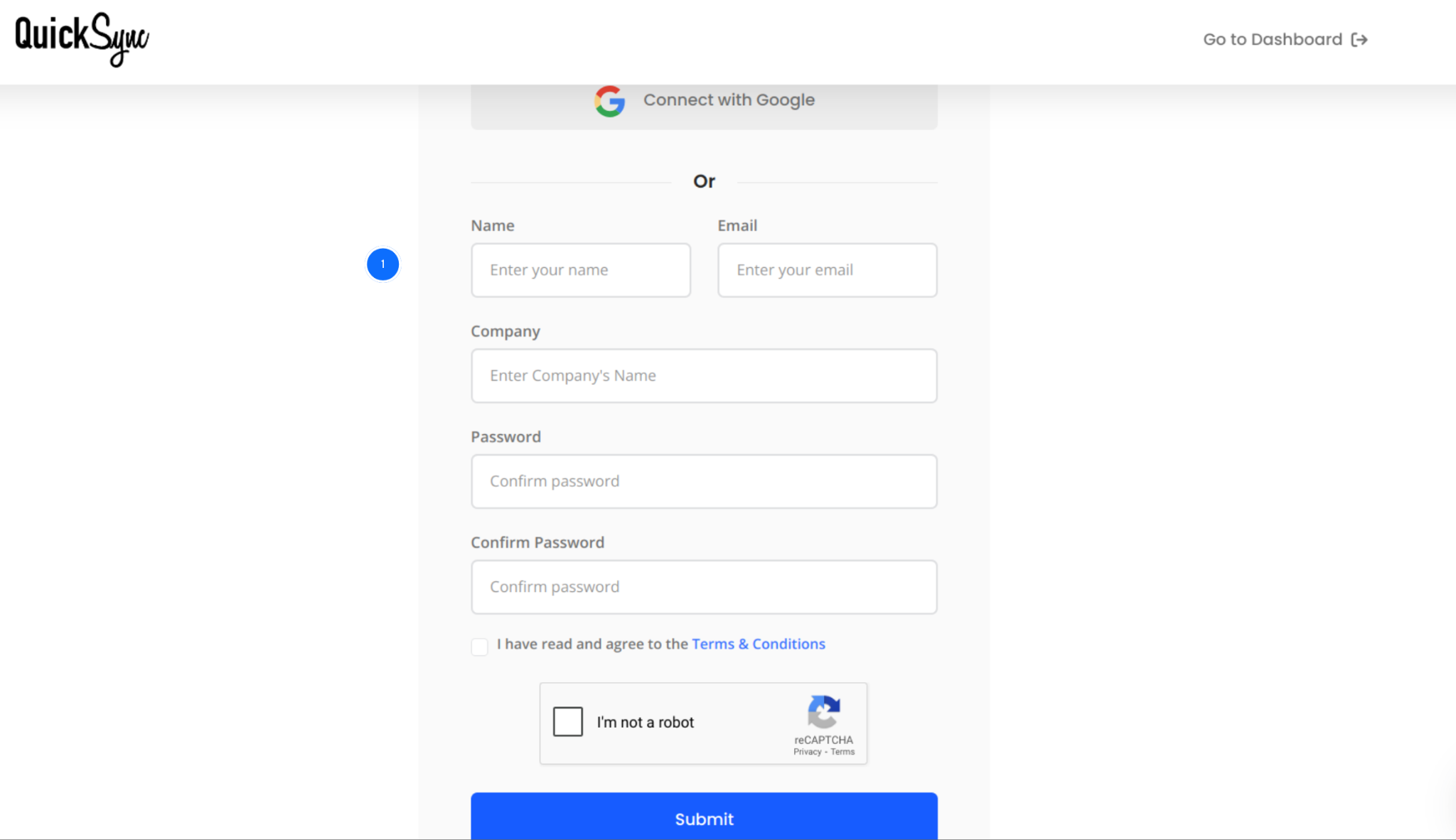
Go to quicksync.pro and sign up using your email and business details.
The signup form takes about a minute.
If you already have a QuickSync account, log in and open your dashboard. This is where you’ll manage all connected stores, sync settings, and order flows in one place.
Step 2: Connect Your eBay Account
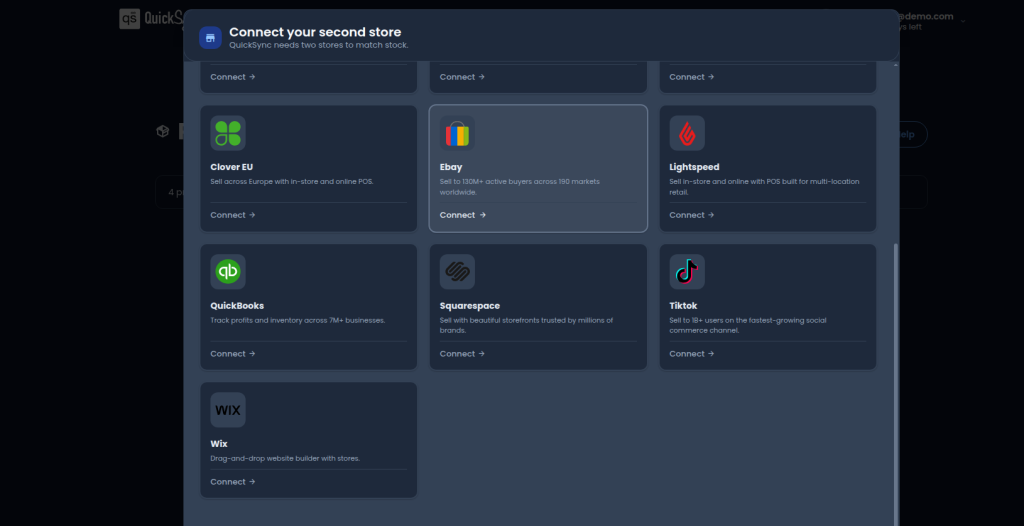
Open the dashboard and go to Sync Products → Add Store.
Select eBay from the list of supported channels.
Click Add a Store, and you’ll be redirected to eBay’s official login screen.
Approve the permissions QuickSync needs to read your listings, orders, and inventory levels.
Step 3: Connect Your QuickBooks Account
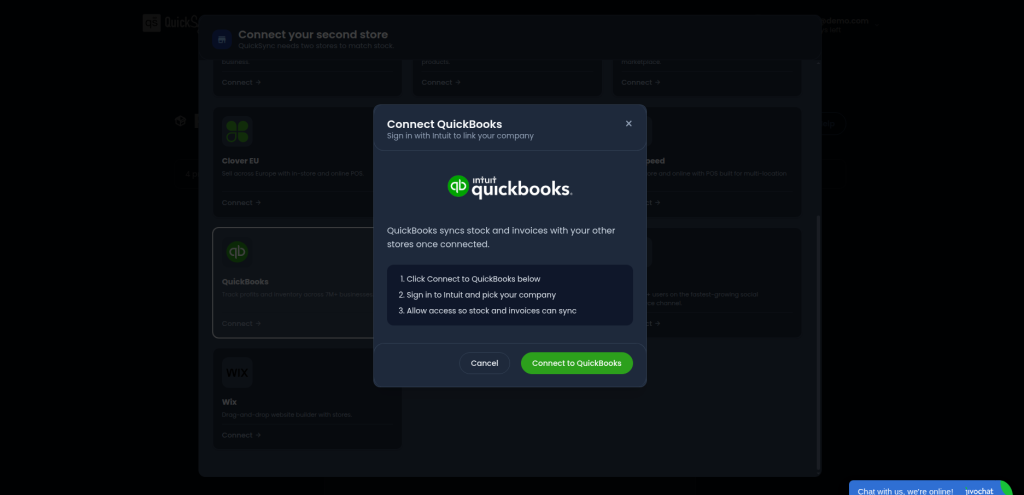
Now connect QuickBooks. Go to Dashboard → Sync Products → Select QuickBooks.
Log in to your QuickBooks account when prompted and authorize QuickSync to access your company file.
QuickSync imports your QuickBooks chart of accounts, item list, and tax codes.
Step 4: Configure Sync Settings
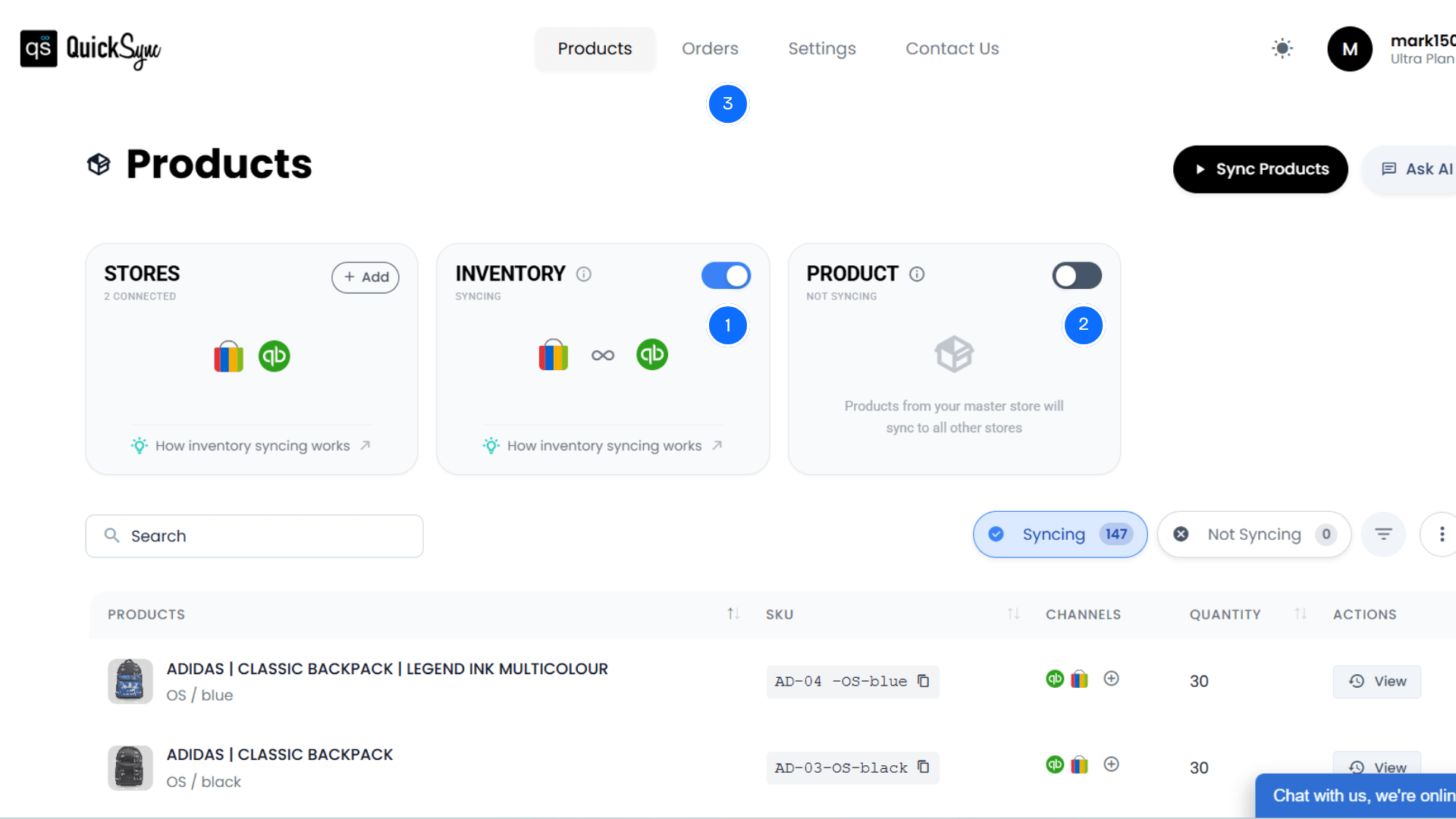
Once both accounts are connected, go to your QuickSync dashboard and open the sync settings.
Your inventory sync is already active once eBay and QuickBooks are connected. This means QuickSync can start keeping stock updates aligned between both platforms.
Next, you can turn on product sync from the dashboard. Choose one store as your Master Store. This is the store that controls product data such as prices, descriptions, images, variants, and SKUs.
The next setting is order sync, which is available at the top of the dashboard. Toggle order sync on and choose your Fulfillment Store.
Within a couple of minutes of an eBay sale, QuickSync creates the matching QuickBooks transaction.
What to Check Before Syncing eBay and QuickBooks
Before syncing eBay to QuickBooks, there are a few quick checks worth running. These take ten minutes total and prevent the most common setup mistakes.
Here are eight things to confirm first.
Your eBay account is active and properly connected.
Your bank account is selected for payout matching.
Your income accounts are ready for eBay revenue.
Your expense accounts are ready for eBay fees.
Your discount product is created for discount tracking.
Your shipping item is ready for shipping income.
Your tax configuration page has the right settings.
Your support team can access setup details if needed.
Common eBay QuickBooks Integration Problems
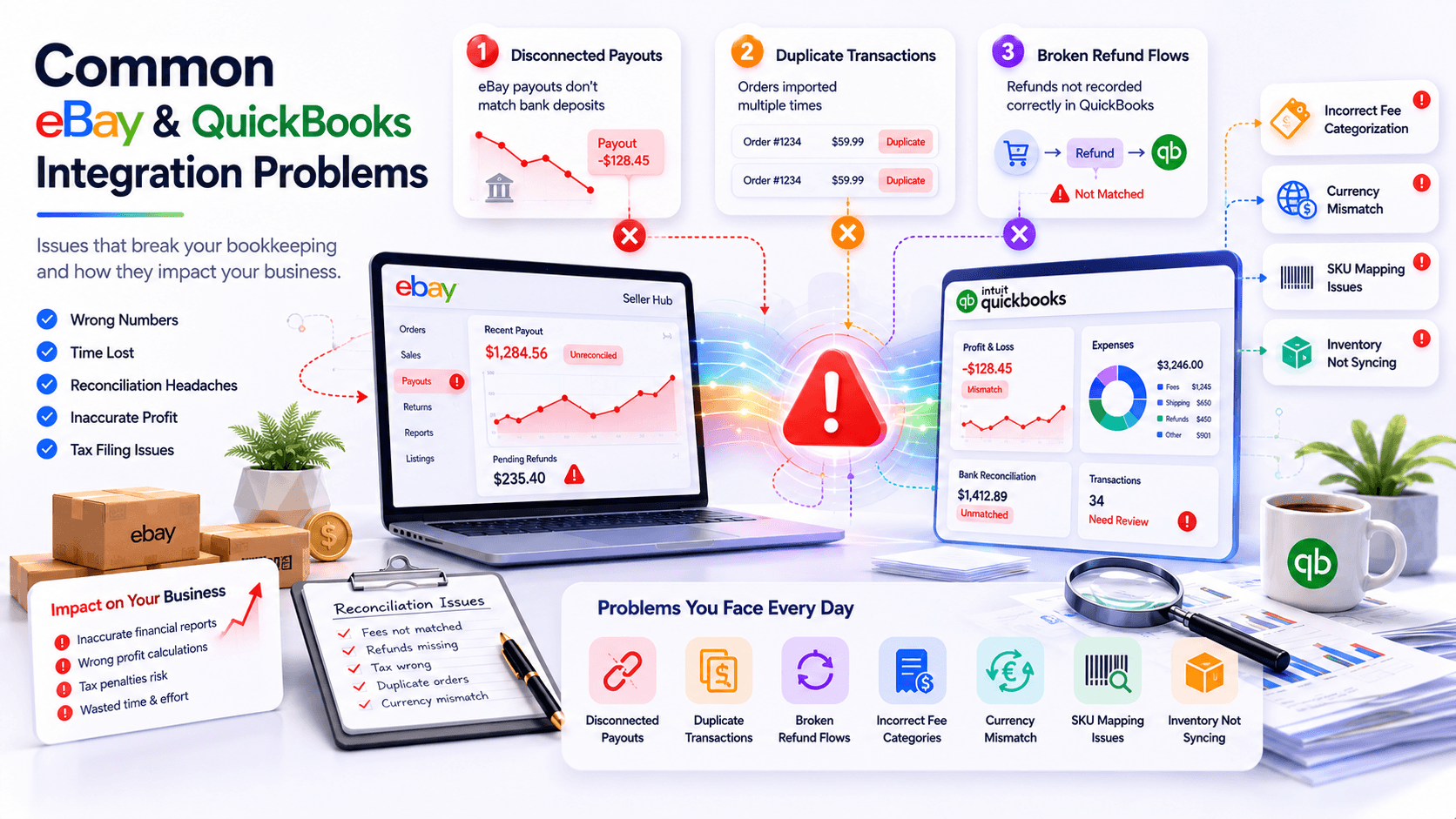
Even with a good tool, eBay-to-QuickBooks integrations hit common issues. Most issues come from how eBay’s dashboard structures payouts and how QuickBooks expects clean line items.
Here are five problems sellers run into and how QuickSync fixes each one.
Problem 1: eBay Payouts Don’t Match QuickBooks Deposits
eBay payouts combine orders, fees, taxes, and refunds into one deposit. But QuickBooks needs those details recorded separately. When you enter everything manually, the payout and sales records often do not match.
Fix: QuickSync splits every eBay payout into its individual components inside QuickBooks. Orders, final value fees, shipping income, and refunds each post separately. Reconciliation matches to the cent every time.
Problem 2: Duplicate Transactions in QuickBooks
Some sellers import eBay orders manually, then turn on a sync tool later. The result is double-counted revenue, inflated tax liability, and a messy P&L. Fixing it manually takes hours of detective work.
Fix: QuickSync’s order matching engine checks each eBay order ID against existing QuickBooks transactions before posting. Duplicates are skipped automatically. Your revenue stays accurate even during the switchover from manual entry.
Problem 3: eBay Fees Not Tracked Properly
Cheap connectors lump all eBay fees into one generic expense category. You lose visibility into where the cost goes: final value fees, ad fees, or store subscriptions. Margin analysis becomes impossible.
Fix: QuickSync helps place marketplace fees into the right expense accounts, while sales revenue goes into the right income accounts. You see exactly how much you spent on promotional listings versus final value fees each month. Margin clarity returns.
Problem 4: Refunds Show Up as Vague Credits
When eBay processes a refund, weak tools post a generic credit memo with no bank account routing. Bookkeepers cannot tell where the money came from. Reconciliation breaks down.
Fix: QuickSync can retrieve refunded orders and post cleaner refund records, so your books do not show random credits without context.
Problem 5: International Sales Wreck the Books
If you sell on eBay UK or eBay Australia, foreign currency sales often post in the wrong currency. Revenue figures get distorted. Tax filings start showing weird discrepancies.
Fix: QuickSync handles currency conversion across 190+ markets with accurate same-day rates. The precision difference between eBay’s decimal pricing and QuickBooks’ rounding is handled properly. Your home currency books stay clean.
Why Sellers Choose QuickSync for eBay QuickBooks Automation
QuickSync is built for eBay sellers who need more than basic data transfer.
It helps sales, orders, inventory, fees, refunds, products, and payouts sync into QuickBooks properly.
You get cleaner accounting without daily spreadsheets, CSV uploads, or manual corrections. Here are the reasons sellers choose QuickSync for eBay QuickBooks automation.
Easy Setup
QuickSync gives sellers a clear dashboard to connect eBay and QuickBooks. You do not need custom development, spreadsheets, or repeated manual imports. Once connected, the workflow becomes easier to manage from one place.
Automatic Sync
Batch syncing can delay accounting updates and create gaps. QuickSync syncs products, inventory, and order data continuously, picking up eBay changes within about two minutes, so your systems stay current after sales, refunds, and stock changes.
Large Catalog Support
QuickSync handles catalogs with thousands of SKUs without choking. Whether you sell 200 items or 20,000, sync stays accurate and fast. There are no hidden volume limits that punish sellers for growing. The tool scales with you.
One Dashboard for All Stores
You manage every connected channel from one QuickSync dashboard. Whether you sync Shopify and QuickBooks, or connect eBay to Etsy, you can manage all channels from one unified dashboard. ou stop juggling browser tabs and seller portals. Operations feel like one system instead of five.
Smart Chart of Accounts Mapping
QuickSync assigns Income, COGS, and Asset accounts to every product automatically. Physical goods get Inventory accounts. Digital goods get Other Current Assets. You skip the per-product setup that other tools force on you.
Accurate Refund and Fee Handling
Refunds become proper Refund Receipts. Fees split into separate expense categories. Payouts reconcile against the underlying orders. The accounting detail QuickSync ships with is what your bookkeeper has been asking for the whole time.
Affordable Pricing
QuickSync starts at $19 per month, with no per-order fees and no surprise overages. Many competitors charge based on transaction volume, which punishes growth. With QuickSync, you pay one flat price and sync as much as you need.
Dedicated Support
QuickSync support team offers live chat and Zoom support, not just an email ticket queue. If something looks off in your sync, a real person walks you through the fix. That kind of support keeps sellers loyal for years.
Final Thoughts
You can connect eBay to QuickBooks in different ways. Manual entry works for a few orders. CSV imports help a little. Basic connectors can move simple data.
But if you want cleaner accounting, you need more than basic syncing.
You need a workflow that handles eBay sales, payouts, fees, refunds, taxes, products, SKUs, inventory, and reconciliation properly.
That is where QuickSync gives sellers a stronger option. It helps reduce manual bookkeeping, keeps records cleaner, and gives you more control over how eBay data reaches QuickBooks.
When your accounting is accurate, decisions become easier. You can see real revenue, real costs, real margins, and real product performance.