The moment you start selling on both Shopify and WooCommerce, you’re no longer managing one ecommerce store. You’re managing two separate systems that need to stay perfectly aligned. Without an automated connection, inventory goes out of sync, orders require extra attention, and your team spends more time fixing errors than growing the business.
That’s why choosing the right Shopify and WooCommerce integration is critical. The right solution keeps products, inventory, orders, and other essential store data synchronized automatically. However, with so many integration apps, plugins, and custom solutions available, finding the right one isn’t always straightforward. Each option differs in terms of features, pricing, ease of setup, scalability, and the data it can synchronize.
To make your decision easier, we’ve analyzed the leading Shopify and WooCommerce integration methods available in 2026 and compared them based on real business needs. In this guide, you’ll learn how Shopify and WooCommerce integration works, explore the best integration methods, compare their pros and cons, and follow a step-by-step setup process to choose and implement the right solution for your business.
Key Takeaways for Managing Shopify and WooCommerce Together
| → Shopify and WooCommerce integration helps sellers manage two ecommerce platforms from a connected system by syncing products, inventory, and orders automatically. → Real-time two-way sync keeps stock levels accurate, reduces overselling risks, and eliminates repetitive manual updates. → Sellers can choose from four integration methods: CSV migration, connector plugins, third-party sync tools, and custom API solutions. → Manual methods are suitable for one-time transfers, while active multichannel sellers need automated syncing. → Third-party sync tools like QuickSync are the most practical choice for businesses that want real-time product, inventory, and order synchronization without technical complexity. → Proper setup requires matching SKUs, accurate inventory data, admin access, and a defined master store. |
What Is Shopify and WooCommerce Integration?
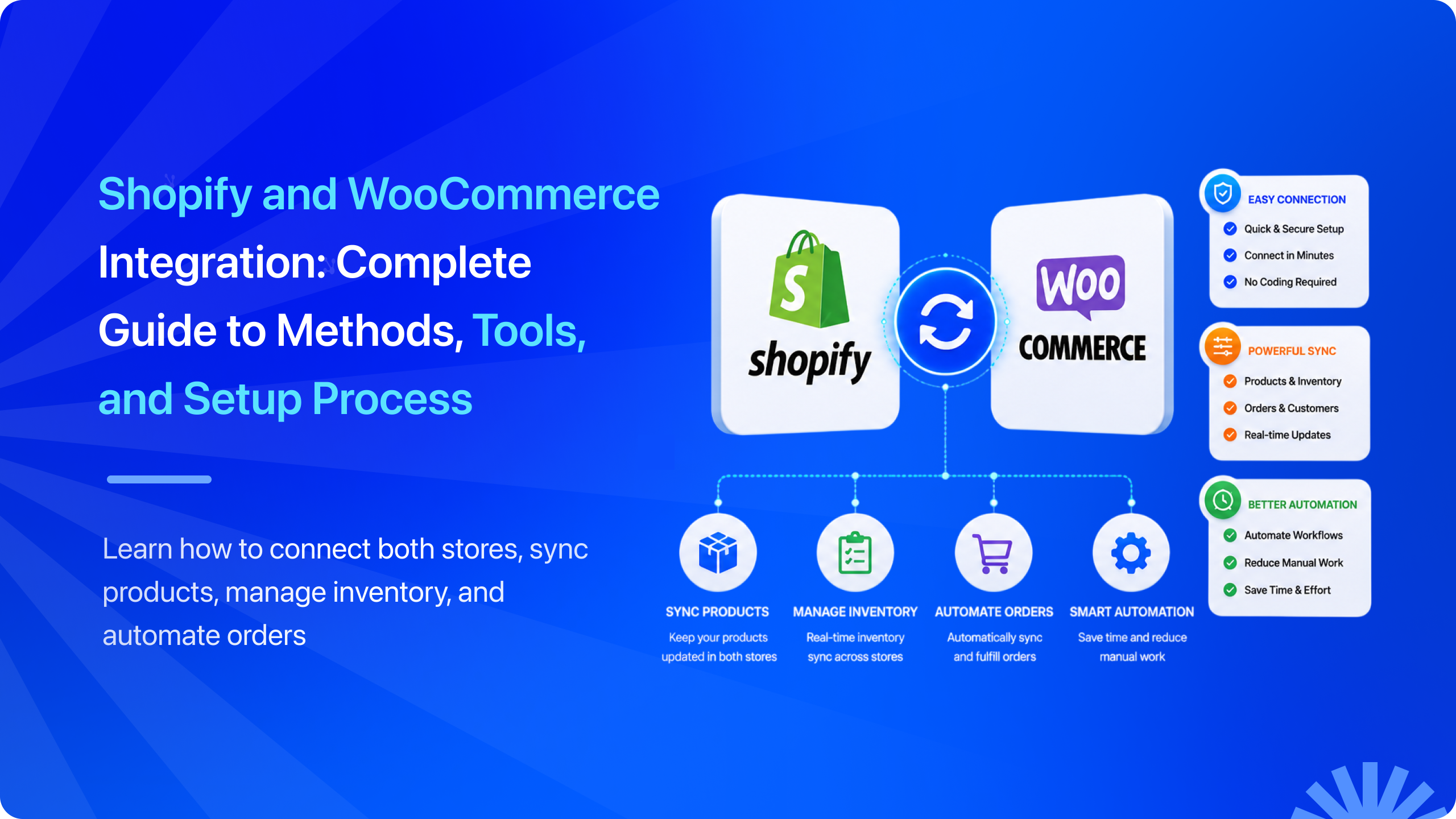
Shopify and WooCommerce integration is the process of connecting both ecommerce platforms so they share data automatically in real time without requiring manual updates on either side.
Integration allows businesses to synchronize data between Shopify and WooCommerce stores so that products, inventory levels, orders, and pricing stay consistent across both platforms simultaneously.
To understand why integration matters, it helps to know what each platform is genuinely built for and why sellers choose to use both together.
Why Sellers Use Shopify and WooCommerce Stores Together
Using Shopify and WooCommerce together might seem unusual at first, but for many businesses, it’s a practical way to get the best features of both platforms. Shopify offers a reliable checkout experience, built-in payment processing, and easy online store management, while WooCommerce gives you the flexibility of WordPress for creating content, improving SEO, and customizing your website.
Instead of choosing one platform over the other, many sellers use both to support different business goals. Here are some of the most common reasons businesses run Shopify and WooCommerce together:
- Real-time inventory sync: Keep stock levels updated across both platforms automatically, helping prevent overselling and stock discrepancies.
- Automatic product synchronization: Create or update products, prices, descriptions, images, and categories once, then reflect those changes across both stores.
- Centralized order synchronization: Orders placed on either platform are synchronized automatically, making it easier to process and fulfill them without switching between dashboards.
- Consistent product information: Ensure customers see the same product details, pricing, and availability regardless of which store they shop from.
- Reduced manual work: Eliminate repetitive tasks like updating inventory or product information in two separate systems, saving time and reducing human error.
- Improved order accuracy: Keep inventory, products, and orders aligned so your team spends less time fixing mistakes and more time serving customers.
Without an integration, Shopify and WooCommerce operate independently. A product sold on one platform isn’t automatically updated on the other, increasing the risk of inventory mismatches, canceled orders, and unnecessary manual work.
Benefits of Shopify and WooCommerce Integration for Sellers
The benefits of integrating Shopify with WooCommerce become most visible when you consider what running both platforms without integration actually costs. Manual stock reconciliation. Duplcate product management. Separate order dashboards. Inventory counts that drift apart every time a sale happens on either platform without the other being updated.
Real-Time Two-Way Inventory Sync Prevents Overselling
Real-time inventory management prevents overselling by updating stock across both platforms the moment any sale happens. Real-time sync updates inventory across Shopify and WooCommerce so a sale on either platform drops the count on both within seconds. This is not a scheduled batch update. It is an immediate response to every transaction that makes overselling structurally impossible.
Centralized Product Management
Manage your products from one place by syncing only the fields you need, such as price, SKU, images, and descriptions. Whether you want to import WooCommerce products to Shopify or keep both stores connected, updates made in your master store automatically appear on the other platform.
Unified Order Management
Shopify orders can automatically create corresponding WooCommerce orders and vice versa, giving your fulfillment team a single view of all new orders regardless of which platform they originated from. Automatic order syncing reduces manual entry errors by removing the human step from order data transfer between platforms.
Elimination of Manual Update Work
Automatic Shopify and WooCommerce inventory sync reduces manual work for users by removing the need to update stock levels, product details, and order records on two separate platforms separately. The time saved compounds significantly as catalog size and order volume grow.
Accurate and Reliable Business Data
When both platforms share the same data in real time, your reporting reflects your actual business performance rather than two separate partial pictures that need to be manually combined. Every inventory count, every order record, and every product detail is consistent across both systems at all times.
“The true advantage of two-way sync between Shopify and WooCommerce is data accuracy. In multichannel ecommerce, disconnected systems create operational risks that grow as sales volume increases. Real-time synchronization keeps inventory, products, and orders aligned across platforms, allowing sellers to scale efficiently while maintaining a consistent customer experience.”
Different Methods to Integrate Shopify and WooCommerce
When it comes to connecting Shopify and WooCommerce, sellers have multiple options to choose from. However, the easiest solution isn’t always the right one. A small store with a few Shopify products may need a simple plugin, while a growing business with high order volumes may require a more powerful automation tool or custom integration.
In this section, we’ll explore the four main methods of Shopify and WooCommerce integration, how each one works, and which type of seller each method is best suited for.
Method 1: Manual CSV Import and Export
Manual CSV import and export is the most basic way to move data between WooCommerce and Shopify. Instead of connecting both platforms automatically, you manually transfer your store information using a spreadsheet file.
The process is simple: export your product data from WooCommerce as a CSV file, make any required changes to match Shopify’s format, and then upload the file to Shopify. You can use the same method to transfer customer data when moving from one platform to another.
This method is mainly useful when you want to move your store data once, such as during a platform migration.
What Manual CSV Import and Export Does Well:
- Free to use: You don’t need any paid apps, plugins, or third-party tools.
- Good for one-time transfers: It works well when moving products or customer data from one platform to another.
- Simple for small catalogs: Sellers with a limited number of products can complete the process easily.
Limitations You Should Know:
- No automatic updates: Shopify and WooCommerce will not stay connected. If you update inventory, change prices, or add new products, you have to repeat the entire export and import process manually.
- More chances of errors: A small mistake in the spreadsheet, such as missing information or incorrect formatting, can create problems, especially with larger product catalogs.
- Not suitable for daily selling on both platforms: If you’re actively managing both Shopify and WooCommerce, manually updating data becomes time-consuming and difficult to maintain.
This is a good free option for one-time migrations, but not suitable for sellers who need regular syncing between Shopify and WooCommerce.
Method 2: WooCommerce Shopify Connector Plugin
A WooCommerce Shopify connector plugin creates a basic connection between your WooCommerce and Shopify stores. After installing the plugin on WooCommerce, you can transfer products, categories, and some store data to Shopify.
This method is mainly useful for simple migrations or basic data transfers. However, it is not designed for sellers who actively run both platforms and need continuous synchronization.
What This Method Does Well:
- Easy and affordable: Simple to install and doesn’t require advanced technical skills.
- Good for basic transfers: Useful for moving products and categories between platforms.
- Suitable for migrations: Works well when shifting from one platform to another.
Limitations You Should Know:
- Limited syncing: It does not fully sync important data like inventory, orders, and other store updates.
- No reliable real-time inventory updates: Stock changes may not reflect automatically across both stores.
- Not ideal for active multichannel selling: Managing two live stores becomes difficult without complete automation.
This option is good for basic migrations, but not a complete solution for ongoing multichannel selling.
Method 3: Third-Party Sync Tool (QuickSync)
A third-party sync tool like QuickSync is a dedicated platform that connects Shopify and WooCommerce and keeps both stores updated automatically. Unlike manual methods, it creates a continuous connection between both platforms, so changes made on one store are reflected on the other in real time.
For example, when a customer places an order on Shopify, the inventory can automatically update in WooCommerce. Similarly, product updates, stock changes, and orders can sync between both platforms without manual work.
These tools connect with Shopify and WooCommerce through secure access, match products using SKUs, and keep your store data synchronized as long as both platforms remain connected.
What Third-Party Method Does Well:
- Real-time two-way syncing: Automatically syncs products, inventory, and orders between both platforms.
- No technical skills required: Easy setup without coding or developer support.
- Saves time: Removes the need for manual updates across multiple stores.
- Scales with your business: Works well as your product catalog and order volume grow.
- Supports multiple channels: Many tools can also connect with marketplaces like Amazon, eBay, Etsy, and TikTok Shop.
Limitations You Should Know:
- Monthly cost: Unlike free methods, third-party sync tools usually require a subscription, with plans often starting around $19/month.
This is the best option for most multichannel sellers who want accurate real-time syncing without technical complexity.
Method 4: Custom API Integration
A custom API integration is a solution built specifically for your business needs. Instead of using an existing sync tool, developers create a direct connection between Shopify and WooCommerce to control exactly what data is shared and how the synchronization works.
This method gives businesses complete flexibility. It can connect Shopify to WooCommerce with other systems like ERPs, CRMs, inventory management software, or custom business tools to support complex workflows.
What It Does Well:
- Fully customizable: You can decide exactly what data syncs and how both platforms communicate.
- Handles complex needs: Works well for businesses with unique processes or advanced requirements.
- Connects with other systems: Can integrate with internal tools, enterprise software, and custom workflows.
Limitations You Should Know:
- Expensive to build and maintain: Requires developers, making it costly compared to ready-made solutions.
- Takes longer to launch: Development can take weeks or even months depending on the complexity.
- Requires ongoing maintenance: Updates to Shopify or WooCommerce APIs may require technical changes over time.
This is a powerful option for enterprises with complex needs but unnecessary for most sellers who can use ready-made sync solutions.
Choosing the Right Shopify and WooCommerce Integration Solution
Each Shopify and WooCommerce integration method has its own advantages and limitations. The best choice depends on whether you are moving data once, running both stores together, or managing a large commerce operation.
| Criteria | Manual CSV | Connector Plugin | Third-Party Sync Tool | Custom API |
| Setup time | Hours | 30 to 60 min | Under 20 minutes | Weeks to months |
| Technical skill | Basic | Basic | None | Developer required |
| Real-time two-way sync | No | No | Yes | Possible but complex |
| Product sync | Manual only | Limited | Full automatic | Custom build |
| Inventory sync | No | No | Yes real-time | Possible |
| Order sync | No | Partial | Yes automatic | Custom build |
| Scalability | Very limited | Limited | Scales fully | Scales for enterprise |
| Monthly cost | Free | Low one-time | From $19 per month | High dev cost |
If your goal is to actively sell on both Shopify and WooCommerce while keeping everything accurate, a third-party sync tool is usually the most practical choice. It provides real-time synchronization without requiring developers or ongoing technical maintenance.
Things to Prepare Before Shopify and WooCommerce Integration With QuickSync
After comparing the different Shopify and WooCommerce integration methods, a third-party inventory sync software like QuickSync is the most practical choice for sellers who want to run both platforms together. Before connecting your stores, preparing a few important things will help you avoid setup issues and make the integration process much smoother.
Here are the things you should have ready:
- Active Shopify Store: Make sure your Shopify store is live with products, payment settings, and basic store details already configured.
- Ready WooCommerce Store: Your WooCommerce store should be installed on WordPress, working properly, and ready to connect.
- QuickSync Account: Create your QuickSync account before starting. You can begin with the free 14-day trial without a credit card.
- Admin Access: Make sure you have admin access to both your Shopify and WooCommerce accounts to authorize the connection.
No coding or developer support is required. QuickSync provides a simple dashboard that allows you to connect both stores and manage synchronization easily.
How to Integrate Shopify and WooCommerce via QuickSync Step-by-Step
Connecting Shopify and WooCommerce through QuickSync does not require coding or technical expertise. Follow these steps to connect both stores, configure your sync preferences, and start managing your products, inventory, and orders from one place.
Step 1: Sign Up or Log In to QuickSync
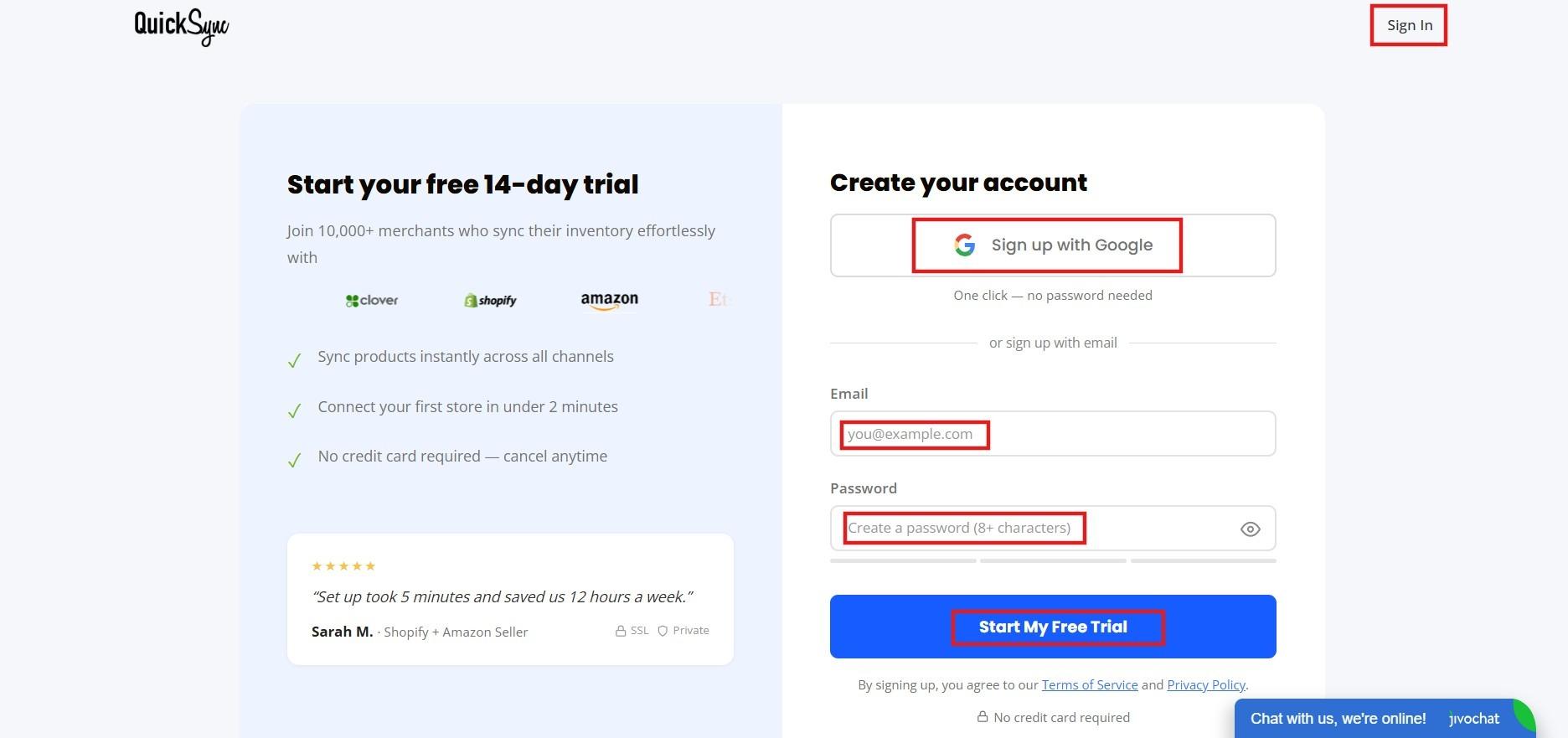
Visit QuickSync.pro and create your account or log in if you already have one. Your QuickSync dashboard is where you will connect and manage your Shopify and WooCommerce stores.
Step 2: Connect Your Shopify Store
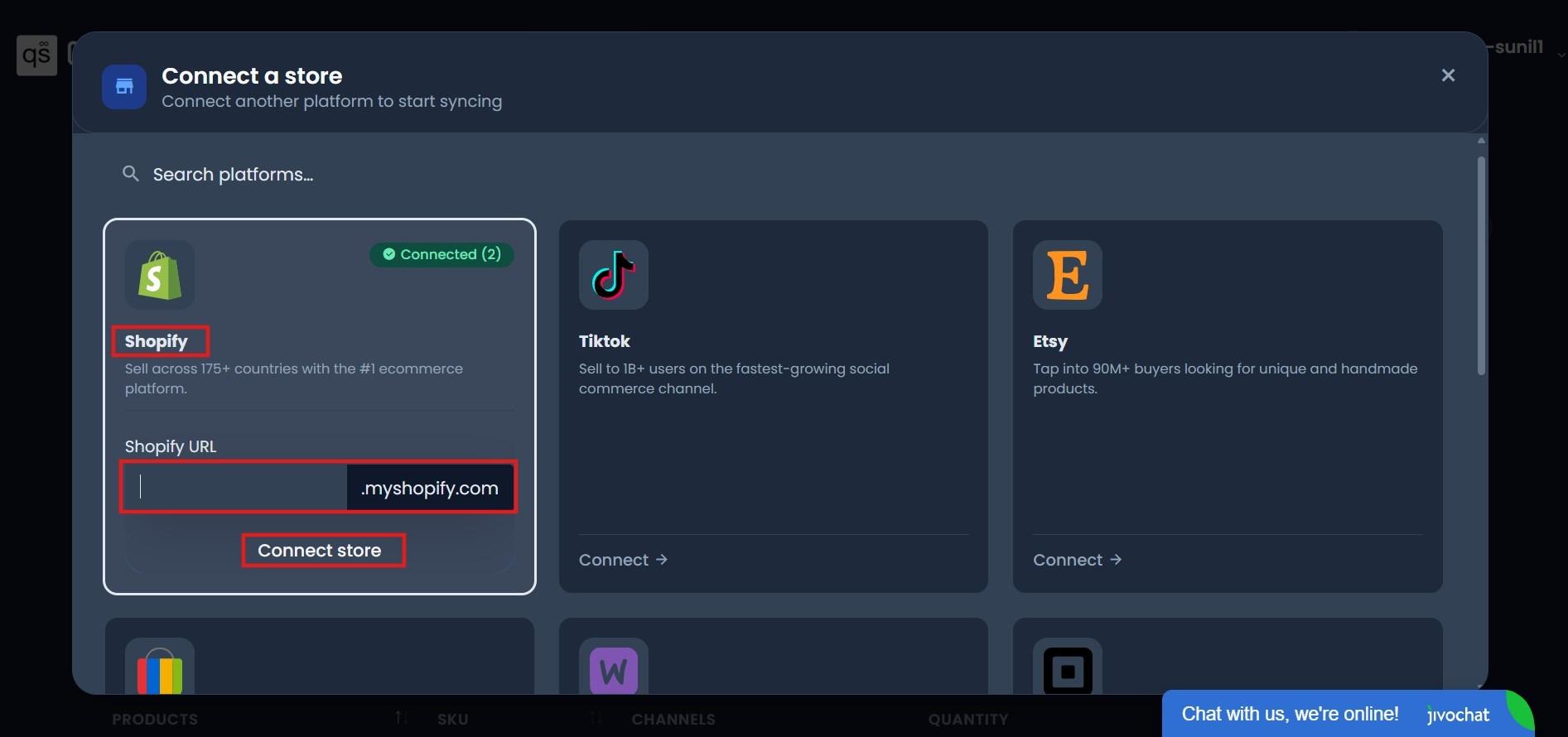
- After logging in, you will be redirected to your QuickSync dashboard.
- From the available ecommerce platforms, find and select Shopify.
- Click Connect Store to start connecting your Shopify account.
- Enter your Shopify store URL and authorize QuickSync to access your store.
Once authorized, QuickSync will connect with your Shopify store and prepare it for syncing.
Step 3: Connect Your Second Platform WooCommerce
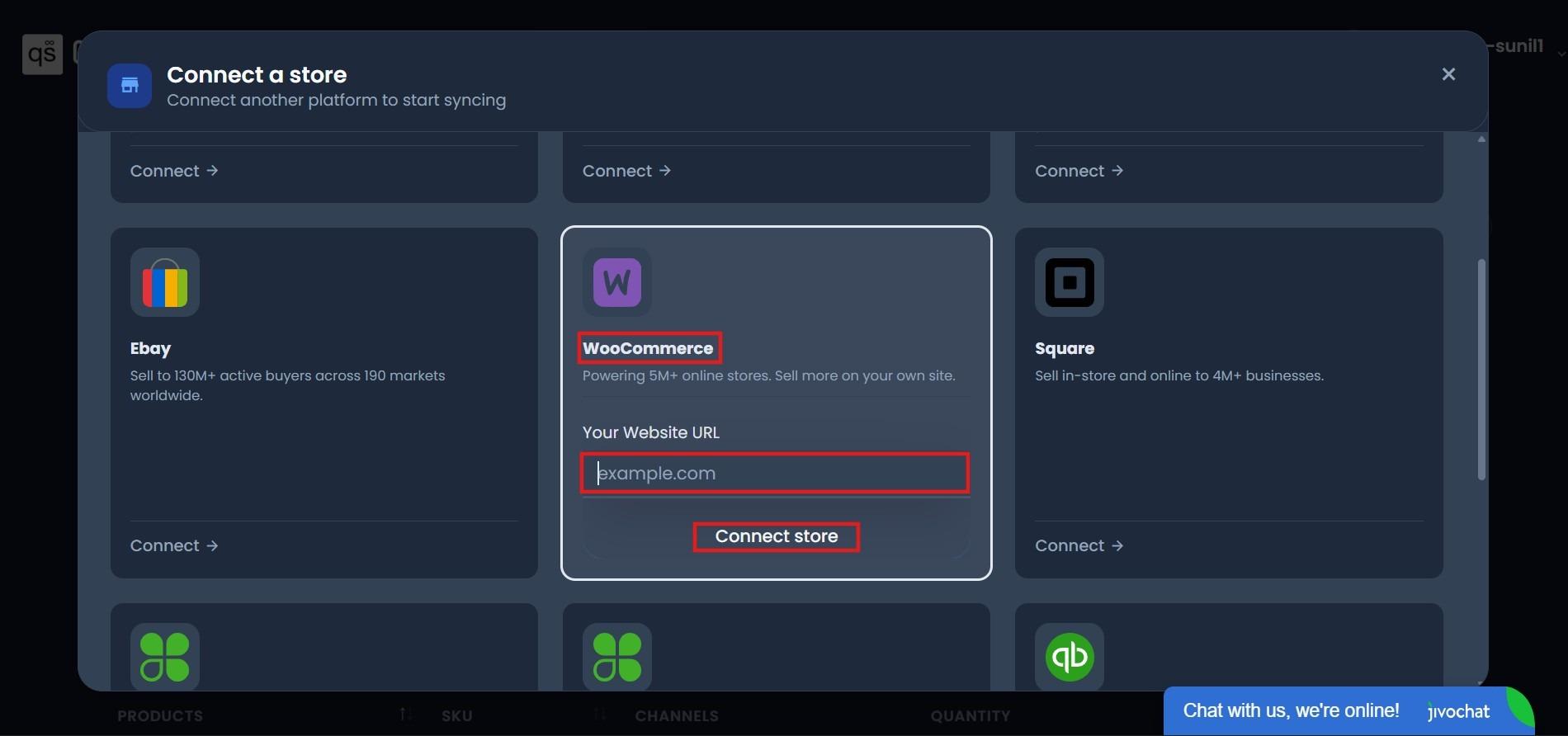
- After connecting your Shopify store, QuickSync will prompt you to connect your second store.
- From the ecommerce platform list, select WooCommerce.
- Click Connect Store to start the connection process.
- Enter your WooCommerce store URL and click Connect Store.
Once authorized, QuickSync will securely connect with your WooCommerce store and import your product information automatically.
Step 5: Choose Your Sync Settings
Now you need to select the data you want to sync between Shopify and WooCommerce. You can enable:
- Product sync: Keeps product names, descriptions, images, prices, and other details updated across both platforms.
- Inventory sync: Keeps stock levels accurate in real time whenever a product is sold or updated.
- Order sync: Helps keep orders organized by syncing order information between both stores.
You can enable all sync options together based on your business requirements.
Step 6: Start the Sync
After reviewing your settings and choosing the master store, click Start Sync.
QuickSync will begin syncing your products, inventory, and orders between Shopify and WooCommerce. The initial sync may take a few minutes depending on the size of your catalog.
Best Practices for a Smooth Shopify and WooCommerce Sync
Once your Shopify and WooCommerce stores are connected and syncing through QuickSync, the setup process is complete. However, keeping your data accurate over time requires a few simple best practices.
A successful integration is not just about connecting two platforms. It is about maintaining clean product data, following the right workflow, and avoiding changes that can create syncing issues later.
Follow these best practices to keep your Shopify and WooCommerce sync accurate and reliable:
Keep One Platform as Your Master Store:
Before activating the sync, decide which store will be your main source for product information. After the connection is live, make all product changes, such as price updates, descriptions, and new products, from your master store only. Making changes directly on the other platform can create conflicts or cause those updates to be replaced during the next sync.
Keep Product SKUs the Same on Both Platforms:
SKUs help QuickSync identify the same product across Shopify and WooCommerce. Make sure the same product has the same SKU on both platforms. If you change a SKU after syncing is active, the system may not recognize the product correctly, which can lead to duplicate products or syncing errors.
Test With a Few Products First:
Before syncing your entire catalog, start with a small group of products. Check that product details appear correctly on both platforms and confirm that inventory updates are working properly. Once everything looks good, you can expand the sync to your full product catalog with confidence.
Monitor Sync Activity After Setup:
The first few days after integration are important. Check your QuickSync dashboard regularly to make sure products, inventory, and orders are syncing correctly. If you notice any missing products, inventory differences, or sync errors, fixing them early will prevent bigger problems later.
Start With Accurate Inventory Numbers:
Before turning on the sync, make sure your inventory counts are correct on both platforms. QuickSync will keep your inventory accurate based on the information available when the sync starts. Starting with incorrect stock numbers can create confusion, so a quick inventory check before going live is always recommended.
Avoid Making Changes on the Non-Master Store:
Once syncing is active, avoid manually updating products on the store that is not your master store. These changes may be overwritten when data syncs from the main store. Make sure everyone managing your Shopify or WooCommerce store follows the same process to avoid unnecessary conflicts.
Following these simple practices will help your Shopify and WooCommerce integration stay accurate, reduce errors, and save you time as your business grows.
The Bottom Lines
Summing it up, managing Shopify and WooCommerce together becomes much easier when both platforms are connected through the right solution. A proper Shopify and WooCommerce integration helps sellers keep products, inventory, and orders synchronized while reducing manual work and costly mistakes.
While simple methods can work for basic transfers, businesses running both platforms actively need a reliable way to automate their daily operations. A third-party sync tool like QuickSync provides real-time synchronization without requiring coding or technical expertise.
Connect your online stores, simplify your workflow, and spend more time growing your ecommerce business.