Your Clover report says the shop took $3,412.50 today. QuickBooks says nothing at all until someone types it in. Then the bank deposit lands a day later with a different amount, and then your evening goes on working out what went wrong.
That kind of work takes up too much time and can frustrate you. In Xero’s February 2026 study of US small businesses, 70% of owners named financial management as a source of stress. Retyping Clover takings into QuickBooks manually every night is a big part of that load for a shop or online seller.
A Clover QuickBooks integration does that work for you. This guide compares seven Best Clover QuickBooks Integration Apps on price, how they record sales, QuickBooks Desktop support and inventory. Every price and feature was checked on each vendor’s own pages carefully. QuickSync is one of the seven, and each section says where another option is the better pick then another.
Does Clover Integrate with QuickBooks?
Yes. Clover has a built-in feature called Accounting Sync that sends your sales to QuickBooks Online every day, at no extra cost, on Clover plans that include it. Apps from the Clover App Market and other vendors go further. They add QuickBooks Desktop support, a record for each sale, deposit matching or stock counts.
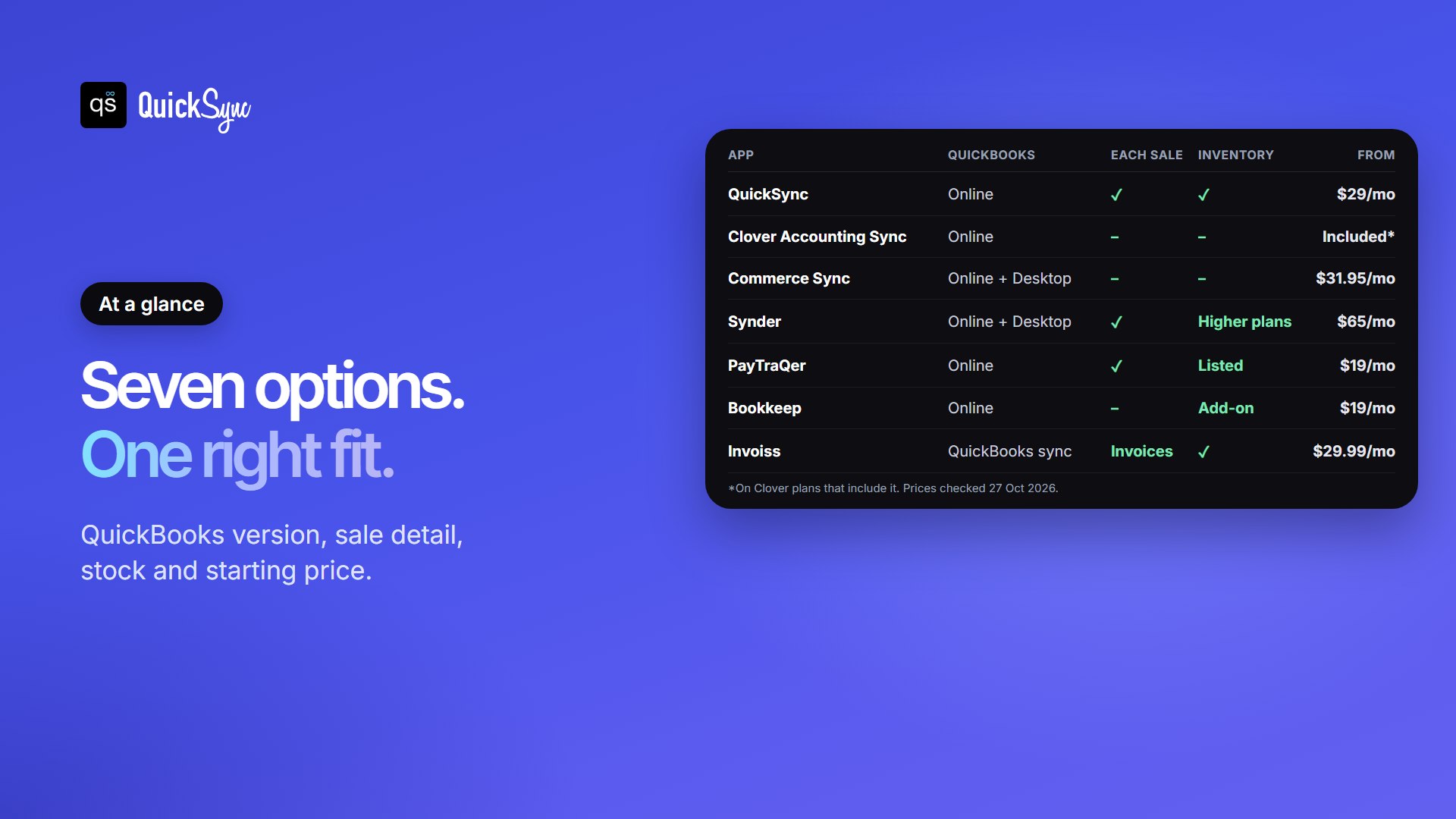
The Best Clover QuickBooks Integrations at a Glance
| App | Best for | Records sales as | QuickBooks | Inventory | Price from (trial) |
|---|---|---|---|---|---|
| Clover QuickBooks Integration QuickSync | Each sale and stock counts in QuickBooks, or Clover plus online shops | A sales receipt or invoice per order | Online | Yes, by SKU | $29/mo for two shops (14 days, no card) |
| Clover Accounting Sync | A free, simple start | Daily sync with tax and payment-type mapping | Online | Not stated | Included on eligible Clover plans |
| Commerce Sync | Daily totals, and QuickBooks Desktop | Daily summary, or by category on Expert | Online and Desktop | No | $31.95/mo per location (30 days) |
| Synder | Several payment sources in one set of books | Each sale or a daily summary | Online and Desktop | Higher plans | $65/mo for 500 transactions (15 days) |
| PayTraQer | Itemized detail on a budget | Each transaction, with fees and refunds | Online | Listed on plans | $19/mo for 500 transactions (15 days) |
| Bookkeep | Accountants and multi-location stores | A journal entry per deposit | Online | Separate product | $19/mo up to $200k revenue (14 days) |
| Invoiss | Invoicing, house accounts and wholesale | Invoices, with two-way QuickBooks sync | QuickBooks | Yes | $29.99/mo plus $1 per online card payment |
We tested each Clover QuickBooks Integration option on four things a Clover owner feels at month-end. How do sales land in QuickBooks? Do fees and deposits reconcile? Does stock follow? And does it work with your version of QuickBooks? Here’s the detail, starting with the app we know best.
1. Clover Integration by QuickSync
QuickSync writes each Clover order into QuickBooks Online as its own document. A fully paid sale becomes a sales receipt, and an unpaid or part-paid one becomes an invoice. Every product is a line with its quantity and price, matched to a QuickBooks item by SKU. Tax, tips, shipping and service charges each get a line of their own.
It also moves stock. QuickSync sets the quantity on each linked QuickBooks inventory item and keeps it in sync with your other shops. That needs a QuickBooks Online plan with inventory tracking. Clover and QuickBooks both allow 100-character SKUs, so SKUs aren’t cut between them.
Best for: stores that want every sale and stock count in QuickBooks, or that sell the same stock on Shopify, Etsy, or eBay too.
Pricing: sales sync needs the Pro plan, at $29 a month for two connected shops and up to 2,500 items. Lite, at $19, syncs stock only. QuickSync prices on items, not orders, so a busy month doesn’t raise your bill. There’s a 14-day trial with no credit card.
Where it falls short: it works with QuickBooks Online only, not Desktop. It doesn’t post Clover deposits or processing fees, so you still match deposits in QuickBooks banking. If you only want one total per day, a summary app is tidier.
2. Clover Accounting Sync
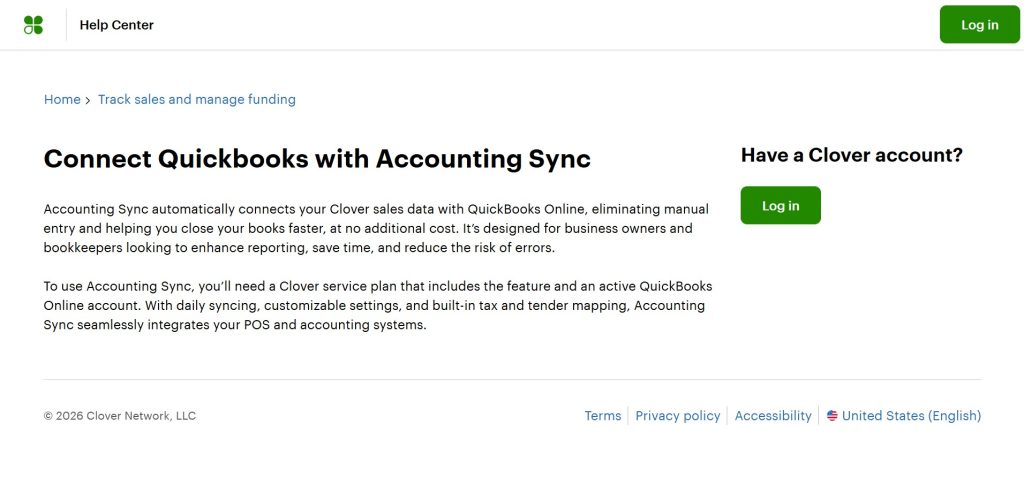
Best for: single-location stores on QuickBooks Online that just want daily sales in the books.
Accounting Sync is Clover’s own connection to QuickBooks. It syncs your sales to QuickBooks Online daily, with customizable settings and built-in tax and payment-type mapping. Clover says it comes at no additional cost, as long as your Clover service plan includes the feature.
Where it falls short: it’s QuickBooks Online only, and Clover doesn’t describe inventory or per-item sync. Check your service plan first, because not every Clover plan includes it.
3. Commerce Sync
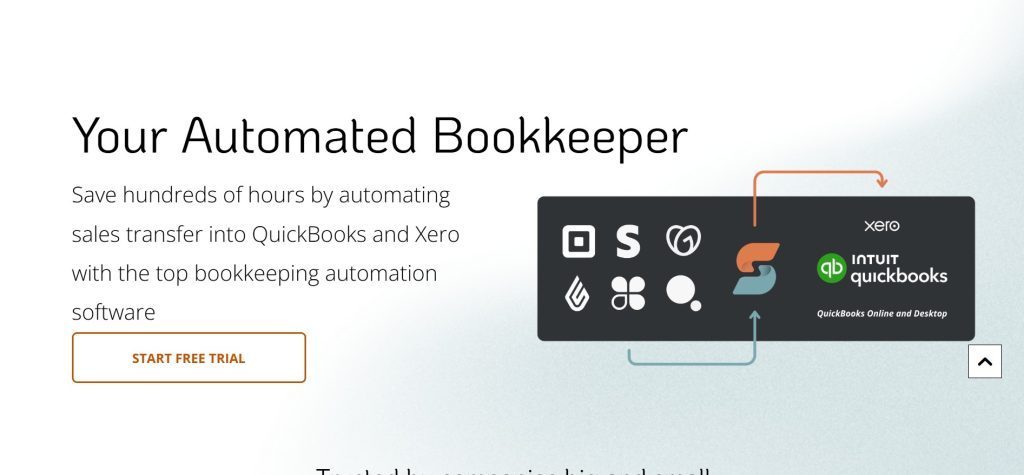
Commerce Sync is one of the longest-running Clover accounting apps. It transfers your Clover sales every night, as a daily summary or split by the categories you use in Clover. There’s no cap on the number of sales, and several locations can roll into one invoice. It’s rated 4.1 from 25 ratings on the QuickBooks App Store.
Best for: owners who want clean daily totals, including anyone still on QuickBooks Desktop.
Pricing: Essential costs $31.95 a month per location for QuickBooks Online or Xero. Expert costs $59.95 a month and adds QuickBooks Desktop and sales by category. Both have a 30-day free trial, and older sales can be brought across for a flat fee.
Where it falls short: its own FAQ says it doesn’t support inventory or cost of goods sold. The price is per location, so it adds up for multi-store owners. A few older reviews on the QuickBooks App Store mention slow support replies.
4. Synder
Synder connects Clover to QuickBooks Online and QuickBooks Desktop. It maps each transaction type to an account, sending sales to revenue, tax to tax payable and tips to a gratuity account. You can sync automatically or review entries first, and choose each sale or a daily summary.
Best for: businesses that take payments through Clover and other platforms, like Stripe, PayPal or an online store.
Pricing: Basic costs $65 a month for up to 500 sales transactions. Essential costs $129 a month for 3,000 transactions and adds cost of goods tracking. There’s a 15-day free trial.
Where it falls short: it’s the priciest starting point here, and busy Clover counters can pass 500 transactions quickly.
5. PayTraQer
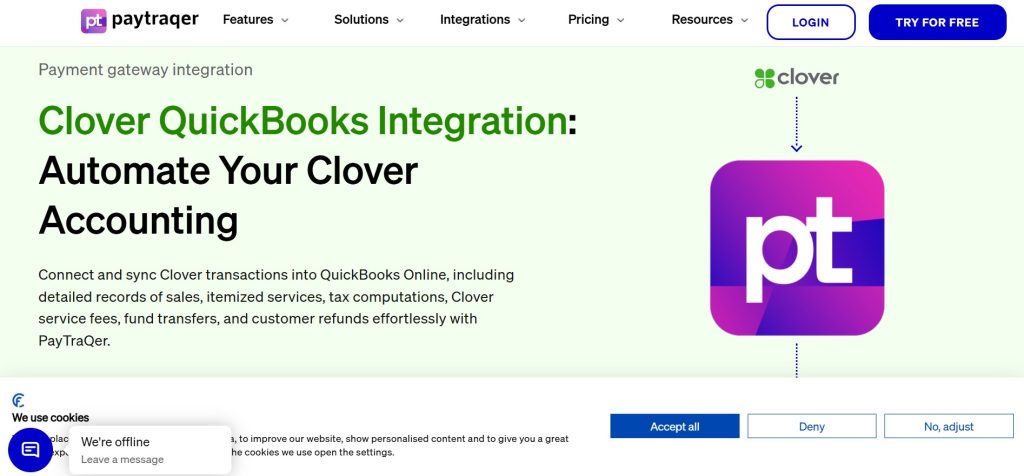
PayTraQer, from SaasAnt, brings Clover transactions into QuickBooks Online with products, customers, fees, discounts, refunds and tax. It also imports historical transactions and works with Xero.
Best for: stores that want itemized detail without paying Synder’s prices.
Pricing: Rise costs $19 a month for 500 transactions, Scale $29 for 1,000, and Large $49 for 5,000. The 15-day free trial covers 10 transactions and needs no card.
Where it falls short: pricing is per transaction, so a busy month can push you up a plan. PayTraQer doesn’t offer refunds, so use the trial properly before you pay.
6. Bookkeep
Bookkeep posts a clean, cash-based journal entry for every Clover deposit. Tips, gift cards, discounts, refunds and itemized fees are split out, and revenue can be separated by location. It posts to QuickBooks Online, Xero or Zoho Books.
Best for: accountants, restaurants and multi-location stores that reconcile by bank deposit.
Pricing: Lite costs $19 a month for up to $200,000 in annual revenue on one sales channel. Starter costs $49. There’s a 14-day free trial with no card, and past entries cost $0.35 each.
Where it falls short: you get deposit totals, not each sale, and Lite posts summarized entries. Inventory is a separate Bookkeep product.
7. Invoiss
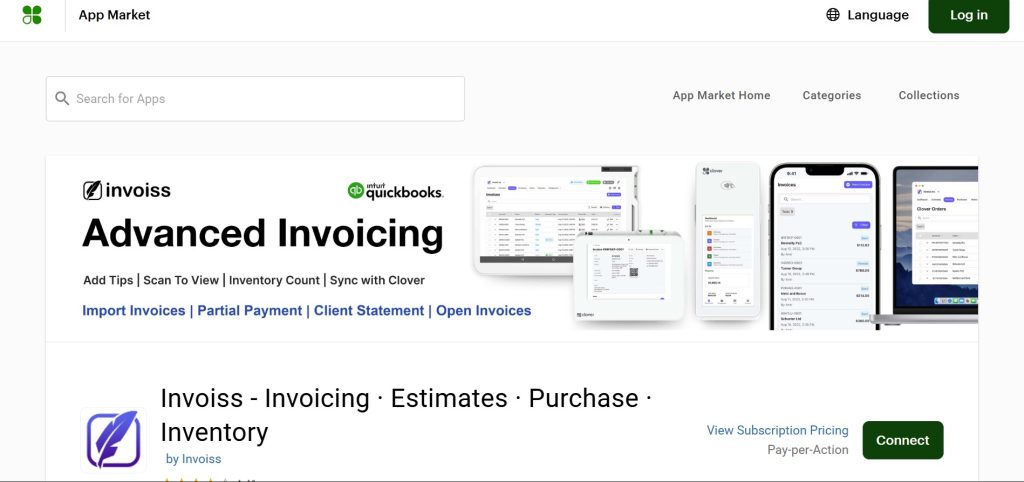
Invoiss is a back-office app on the Clover App Market. It adds invoices, estimates, purchase orders, house accounts and inventory across locations, with a two-way QuickBooks sync. It’s rated 4.41 from 21 reviews on the Clover App Market.
Best for: Clover businesses that invoice customers, run house accounts or sell wholesale.
Pricing: Essentials costs $29.99 a month, plus $1 when a card payment is taken online. Cash, checks and payments on your Clover device carry no extra fee.
Where it falls short: it’s a whole back-office system, not just a sync. If you only need sales in QuickBooks, it’s more than you need.
Daily Sales, Bank Deposits or Individual Transactions: What’s Best?
The seven options record the same Clover day in one of three ways. Picking the method first makes the app choice easy.
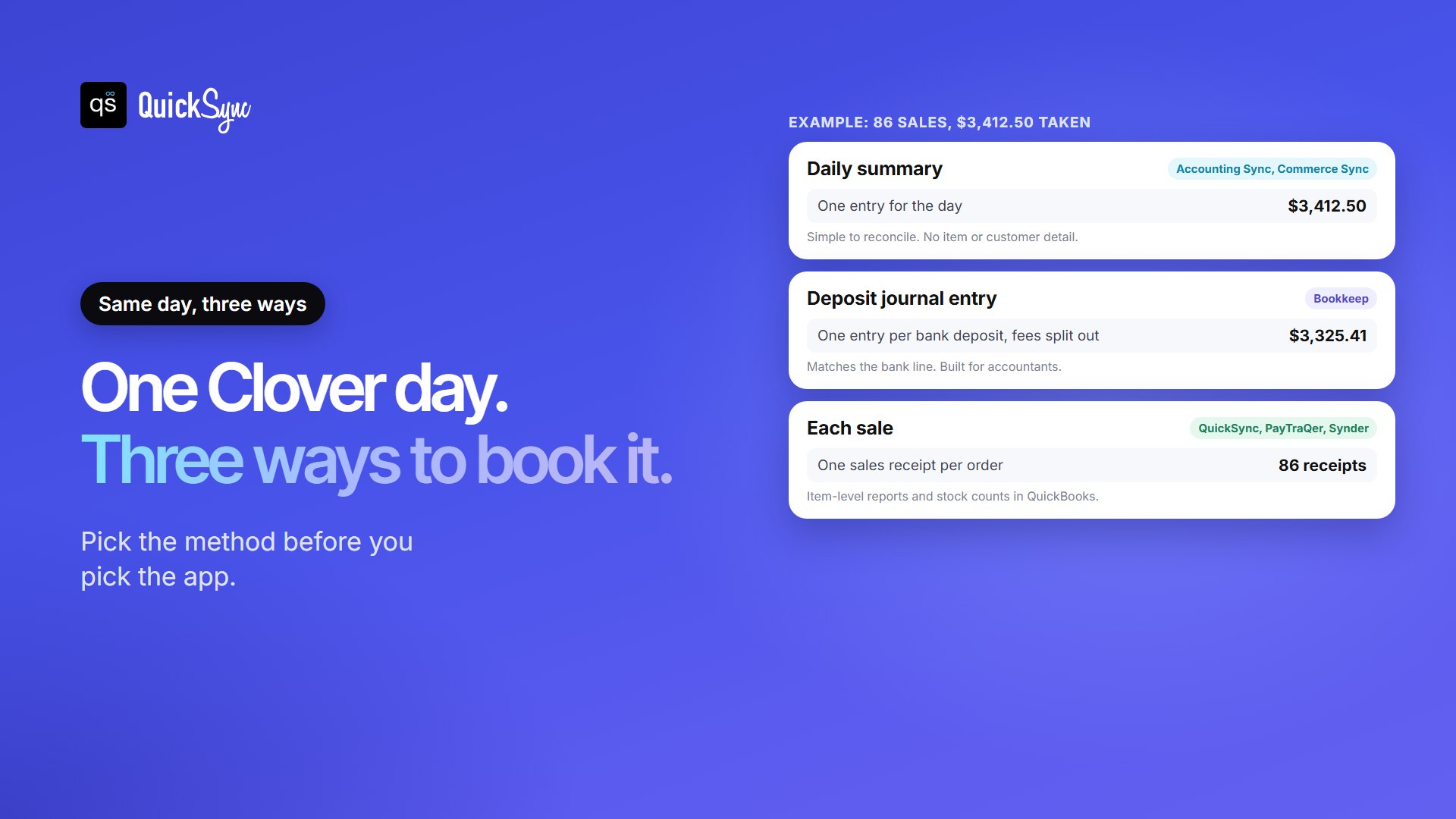
- A daily summary posts one entry for the day. It’s the simplest to reconcile, but QuickBooks won’t show which items sold. Accounting Sync and Commerce Sync work this way.
- A deposit journal entry posts one entry per bank deposit, with fees, tips and gift cards split out. It matches your bank feed line for line. Bookkeep works this way.
- Each sale posts a document per order, with items and tax. You get item-level reports and stock counts in QuickBooks. QuickSync, PayTraQer and Synder work this way.
If you’re unsure, ask your accountant one question: “Do you need each sale, or just the daily or deposit total?”
Clover and QuickBooks Desktop
If you still run QuickBooks Desktop, your choice narrows to two: Commerce Sync on its Expert plan, or Synder. Clover’s Accounting Sync, QuickSync, PayTraQer and Bookkeep all work with QuickBooks Online only.
It’s also worth planning ahead. In the US, Intuit stopped selling new subscriptions to Desktop Pro Plus, Premier Plus and Mac Plus after 30 September 2024. Desktop Enterprise is still sold, and existing subscribers can keep renewing. If you’re setting up a new Clover sync today, QuickBooks Online gives you far more choice.
Map Clover Fees, Tips, Taxes, and Gift Cards in QuickBooks
Clover sales carry more than item prices, and these extras are where QuickBooks reports usually go wrong. Set up an account for each before you connect anything:
- Tips: tips belong to staff, not to you. Map them to a liability account, not to sales.
- Gift cards: a gift card sale is money owed back in goods. Map it to a liability, then to sales when it’s redeemed.
- Processing fees: map them to an expense account. Your deposit is the sales total minus these fees, which is why it never matches the day’s takings. Our guide to Clover fees and pricing shows the rates by plan.
- Sales tax: map each Clover tax rate to the matching QuickBooks rate.
- Refunds and discounts: decide whether they reduce sales directly or go to their own accounts, and keep it consistent.
Ask your accountant to check the mapping once. Fixing it after a month of syncing means editing every entry.
5 Things to Do Before Connecting Clover to QuickBooks
Setup takes minutes with any option here. A little preparation saves hours of clean-up:
- Pick a start date. Choose the day after your last manual entry, so nothing is recorded twice.
- Choose one tool to post sales. Two tools writing the same sales doubles your revenue. If you switch, turn the old one off before the new start date.
- Map your accounts. Set up tips, gift cards, fees and tax as above.
- Check your SKUs if you plan to sync stock. Each Clover item needs a unique SKU that matches its QuickBooks item. Our guide on what a SKU is covers how to set them up.
- Connect both sides. Approve the app in your Clover dashboard, then sign in to QuickBooks and pick your company file.
- Check the first day. Compare one synced day with your Clover sales report before you trust the totals.
Which Clover QuickBooks Integration Should You Choose?
- You want each sale and stock counts in QuickBooks, or you sell online too: QuickSync.
- You want a free start on QuickBooks Online: Clover Accounting Sync, if your plan includes it.
- You want daily totals, or you’re on QuickBooks Desktop: Commerce Sync.
- You take payments in several places: Synder.
- You want itemized detail for less: PayTraQer.
- Your accountant reconciles by deposit, or you run several locations: Bookkeep.
- You invoice customers or sell wholesale: Invoiss.
If your Clover stock also sells on a website or marketplace, the bigger risk isn’t the books. It’s selling an item at the counter that someone just bought online. That’s when one app that moves both sales and stock pays for itself.
FAQs
Running Clover alongside other tools? See our guides to the best inventory apps for Clover, Clover vs Square and the best Square QuickBooks integration apps.