On this page
- Can You Link WooCommerce to eBay?
- Why Sellers Connect WooCommerce With eBay
- What WooCommerce and eBay Sync Tool Actually Includes
- Different Ways to Connect WooCommerce to eBay
- How to Connect WooCommerce to eBay Using QuickSync
- What to Check Before Starting WooCommerce eBay Sync
- Common WooCommerce eBay Sync Problems
- Why Sellers Choose QuickSync for WooCommerce eBay Integration
- Final Thoughts
- FAQs
Selling on WooCommerce and eBay can help you reach more buyers. But managing both platforms separately can quickly become difficult.
You have to update product details, stock quantity, prices, images, and orders in two places. If one platform is not updated on time, you can face overselling, wrong listings, delayed fulfillment, and extra manual work.
WooCommerce allows flexible product data and variations, while eBay has stricter listing rules. A product that looks perfect in WooCommerce may need category mapping, item specifics, title changes, pricing rules, and cleaned descriptions before it can work properly on eBay.
Retailers lose around 4.1% of annual revenue because of stockouts. Synced inventory helps protect those sales.
That is why merchants connect WooCommerce to eBay with a proper integration tool.
With the right WooCommerce eBay connector, products, inventory, listings, orders, and tracking can stay synced between both platforms. You can sell through your own store and the eBay marketplace without rebuilding listings, updating stock manually, or managing orders in two separate dashboards.
In this guide, I will explain how to connect WooCommerce to eBay, what a proper sync should include, the different methods available, and how QuickSync helps automate WooCommerce eBay integration without daily manual updates.
After the summary rather than the setup? The WooCommerce and eBay integration page covers what syncs each way, and why eBay gets checked every couple of minutes instead of announcing a sale itself.
Can You Link WooCommerce to eBay?
Yes, you can link WooCommerce to eBay. But WooCommerce does not include a full built-in eBay integration by default. To connect both platforms properly, you need a reliable WooCommerce eBay connector, plugin, or third-party integration tool.
A lot of merchants assume WooCommerce has a built-in eBay option because WordPress has plugins for almost everything. The reality is different. The few free plugins that exist are limited, abandoned, and outdated eBay API versions. That causes failed listings, missing item specifics, and broken inventory updates.
That’s why you need a proper WooCommerce eBay integration that handles the full sync cycle.
Here is what that a reliable integration tool actually does once it is in place.
- It pulls your WooCommerce products and pushes them to eBay as live listings.
- It maps your WooCommerce stock quantity to eBay inventory automatically.
- It receives eBay orders and drops them straight into your WooCommerce dashboard.
- It sends tracking numbers back to eBay buyers the moment you ship.
- It updates prices and product descriptions across both platforms automatically.
- It prevents duplicate listings by matching SKUs across your multiple WooCommerce stores and eBay shop.
Built-in features inside WooCommerce or eBay alone cannot do this. They are not accurate, they do not offer full functionality, and they were never designed for multi-channel selling.
Why Sellers Connect WooCommerce With eBay
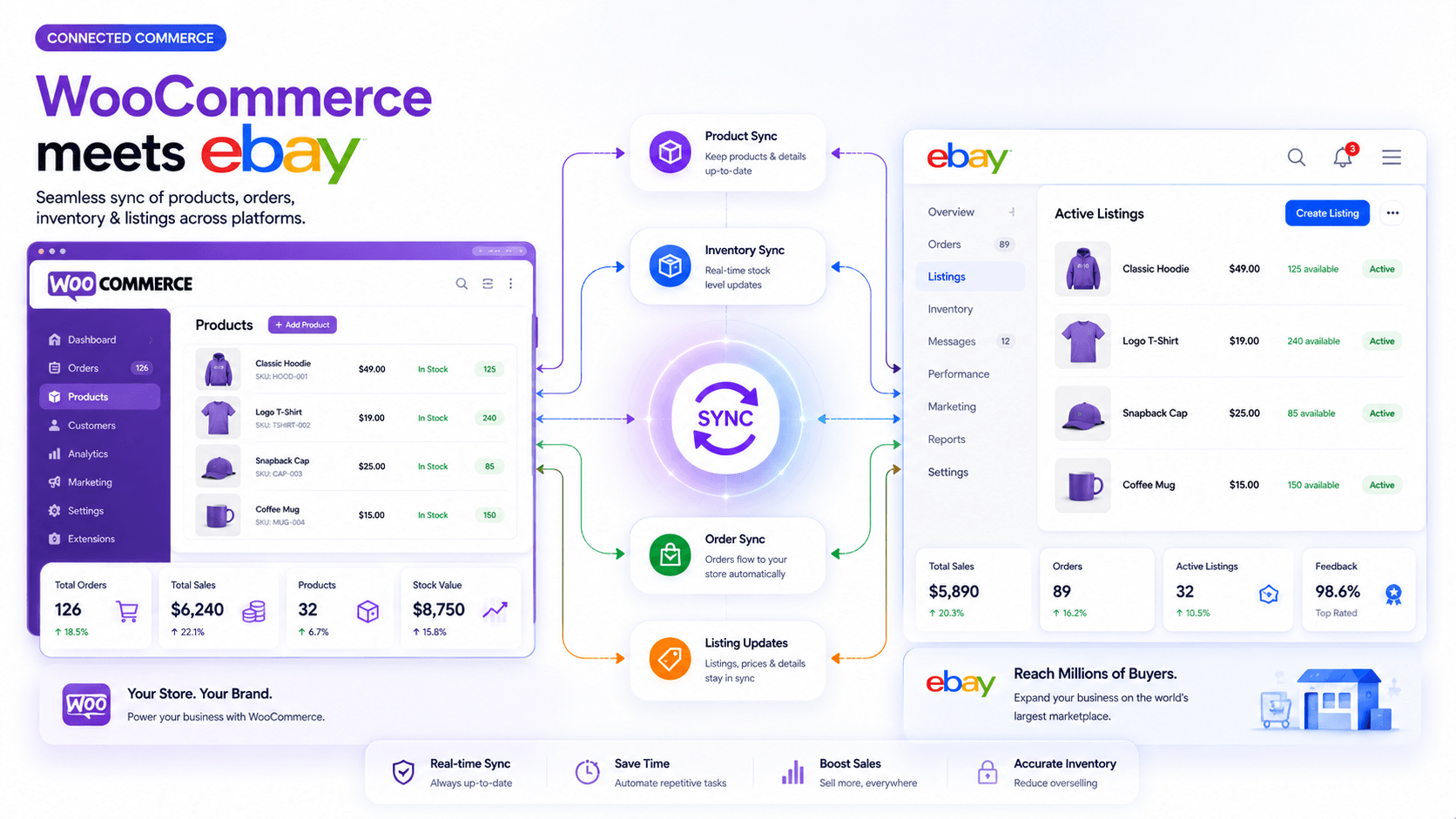
Sellers connect WooCommerce with eBay because both platforms solve different problems. WooCommerce gives you control. eBay gives you marketplace reach. Together, they help you sell through your own website and a trusted marketplace.
Here are the key benefits.
Save Time on Product Listing
Connecting WooCommerce to eBay makes product listing much easier. You do not need to copy product details from your WooCommerce store and create the same listing again on eBay.
A proper WooCommerce eBay connector can sync product titles, descriptions, prices, images, SKUs, variations, and categories. This saves time and keeps product information more consistent across both platforms.
Prevent Overselling With Inventory Sync
Connecting WooCommerce to eBay makes inventory easier to control across both platforms. With real-time inventory sync, stock updates after every sale, refund, exchange, or manual adjustment.
This helps sellers avoid overselling because both stores show more accurate stock levels. Merchants can see what is available, what is running low, and what needs restocking before it affects sales.
Fulfill eBay Orders From WooCommerce
Order fulfillment becomes easier when eBay orders flow into WooCommerce. You do not have to check two dashboards all day.
A proper sync can import eBay orders into your WooCommerce dashboard with customer details, product details, shipping details, and payment information. This helps your team process and sync multiple WooCommerce orders from one place and reduce missed order updates.
Protect Margins With Better Pricing Control
Selling on eBay can bring more orders, but marketplace fees can reduce margins if pricing is not managed carefully. When WooCommerce and eBay are connected, sellers can manage prices more strategically across both channels.
With the right integration, eBay pricing can include markup rules, sale pricing, and fee-aware adjustments, so products stay profitable.
Reduce Manual Store Work
Running WooCommerce and eBay separately creates repeated work. You update products in one place, then repeat the same update on the other platform.
When both platforms are connected, many daily tasks become easier. Product updates, stock changes, order details, and listing information can move between WooCommerce and eBay automatically. This gives you more time to focus on sales, customers, and growth.
Also Read: How to Sync Multiple WooCommerce Stores
What WooCommerce and eBay Sync Tool Actually Includes
Before you choose a tool, you need to know what WooCommerce eBay sync should include. A good integration should do more than connect accounts. It should keep products, inventory, orders, listings, and fulfillment details updated.
Here are the features your tool should offer.
Real-Time Inventory Sync
Real-time sync is one of the most important features in an integration tool. The tool should sync inventory in real-time, not batches, not weekly updates. This keeps inventory accurate all the time. This reduces overselling and helps sellers avoid manual stock checks across both stores.
Product Listing Sync
Your tool should sync WooCommerce products to eBay without repeated manual listing work. This includes product titles, images, descriptions, pricing, SKUs, variations, and product details. This saves listing time and keeps your product data consistent.
Order Sync
A reliable integration should sync eBay orders into WooCommerce. This lets you manage orders, customer details, shipping details, and order fulfillment from your WooCommerce dashboard. This helps your team manage orders from a unified dashboard.
Variant Handling and Option Translation
WooCommerce and eBay handle product variations differently. Your sync tool should translate WooCommerce variations into an eBay-friendly format. This helps products with size, color, material, style, or other options list correctly without manual restructuring.
Pricing Sync
Your sync tool should let you set pricing rules for WooCommerce and eBay separately. It should update regular prices, sale prices, and eBay markup automatically. This helps you cover marketplace fees and, keep pricing consistent,
Category Mapping
WooCommerce store categories and eBay marketplace categories are different. Your tool should help map both properly. Without category mapping, products may land in the wrong eBay category. That can affect listing visibility, buyer trust, and marketplace performance.
Different Ways to Connect WooCommerce to eBay
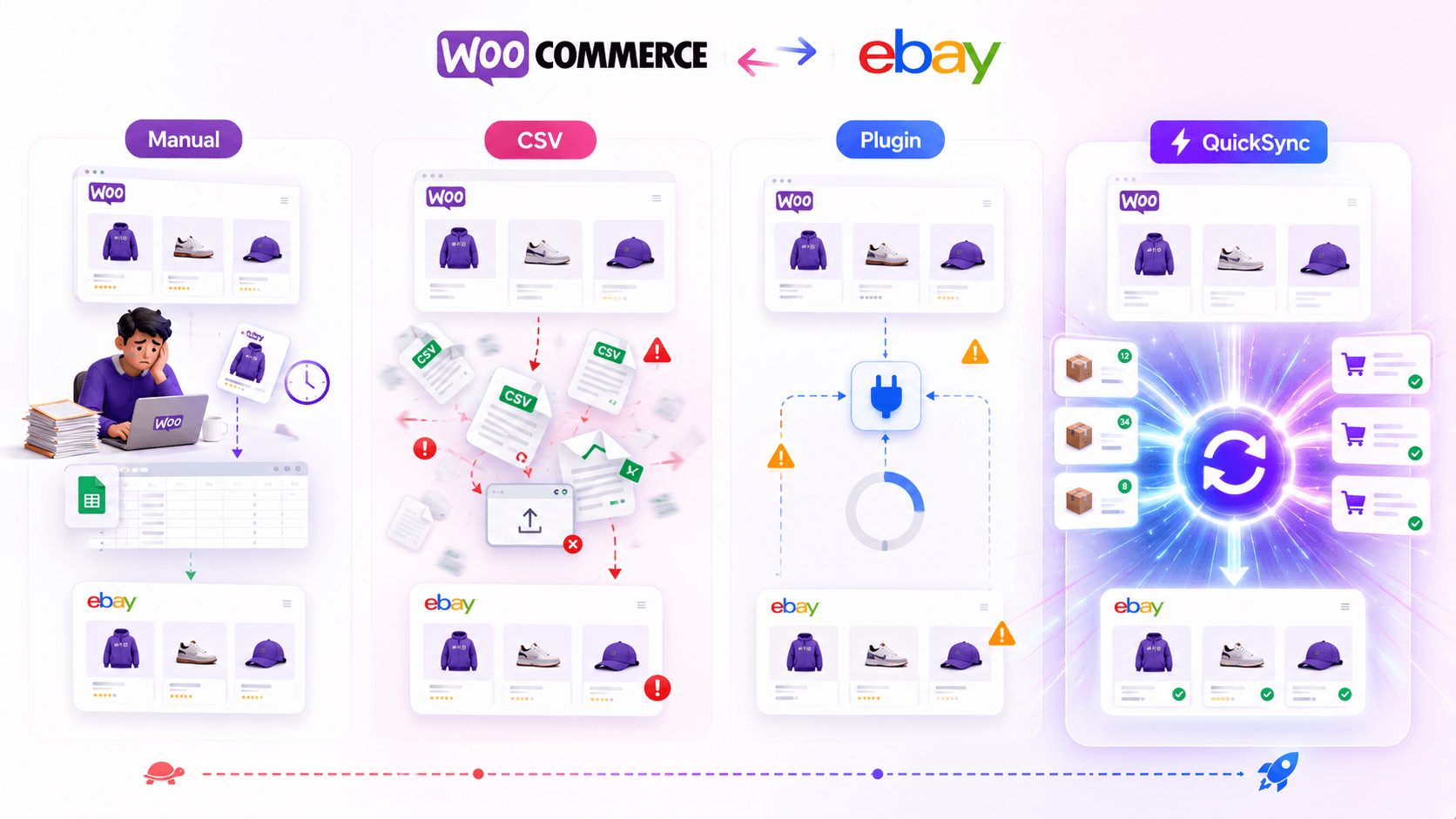
There is more than one way to link WooCommerce to eBa. Some methods work for a week and break the moment your catalog grows. Others demand hours of manual work that defeat the whole point of automation.
There is a method that connects eBay to WooCommerce seamlessly and works in the long run. Here are the four most common methods to connect WooCommerce to eBay
Method 1: Manual Entry
Manual entry means rebuilding every WooCommerce product on eBay by hand. You copy product titles, descriptions, images, prices, SKUs, shipping details, and stock quantity into eBay’s listing tool one product at a time.
This may feel manageable when you have only a few products. But once your WooCommerce store grows, manual listing becomes slow, repetitive, and risky.
Why this method doesn’t work:
- You waste hours per product on copy and paste tasks.
- Stock counts go out of sync the moment one channel sells.
- Overselling becomes a daily problem with no warning.
- Price changes have to be made twice, every single time.
- Listing errors cause eBay search ranking to drop.
- Human typos lead to bad reviews and refund disputes.
- Scaling past 50 SKUs becomes practically impossible.
Method 2: CSV Import and Export
CSV import means exporting WooCommerce products into a spreadsheet, cleaning the file, matching eBay’s template, and uploading it to your eBay seller account. It sounds faster than manual entry because you can move products in bulk.
But CSV files only move data at one point in time. They do not keep WooCommerce and eBay connected after the upload. If prices, inventory, product details, or images change later, you still have to update everything again.
Here’s why CSV import does not offer full eBay WooCommerce integration:
- Inventory updates are never real time with CSV files.
- Every export is a snapshot that goes stale immediately.
- eBay rejects CSV uploads with even minor formatting errors.
- Variant products often break during the export process.
- Item specifics rarely transfer cleanly between the systems.
- You still manage orders and tracking in two separate dashboards.
- One mistake in the spreadsheet can corrupt your entire catalog.
Method 3: Built-In WordPress Plugins
There are some of free WooCommerce plugins that claim to connect to eBay. At first, they look like a simple shortcut because you can install them directly inside WordPress and avoid a separate integration tool.
The problem is reliability. Many free WooCommerce plugins are outdated, limited, or not built for serious marketplace selling. Once eBay changes its API, your catalog grows, or order volume increases, these plugins often start creating sync issues.
- Free plugins often stop receiving updates after a year.
- Most cannot handle complex variants or large catalogs cleanly.
- Real-time inventory sync is rarely supported at all.
- eBay API changes regularly break the plugin overnight.
- Support tickets go unanswered for weeks at a time.
- Order sync is usually missing or one direction only.
- Your seller account is at risk if listings fail repeatedly.
Method 4: QuickSync (The Recommended Path)
QuickSync is built specifically for multi-channel sellers who want their WooCommerce store and eBay listings to behave like one system. It connects directly to both platforms with no Shopify middleman, and no custom code.
There is no manual work needed, no spreadsheet, and no second dashboard to log into. You save time because you stop entering data twice.
Here is what QuickSync actually does for the WooCommerce eBay integration specifically.
- Direct WooCommerce Connection. QuickSync connects your self-hosted WordPress store to eBay without forcing you to use Shopify as a hub.
- Product Sync: QuickSync automatically syncs WooCommerce products, images, prices, descriptions, SKUs, and variations to eBay.
- Inventory Sync: QuickSync updates stock after WooCommerce sales, eBay sales, refunds, and manual changes.
- Order Sync: It brings eBay orders into WooCommerce store for easier fulfillment and tracking.
- AI eBay Item Specifics. QuickSync uses AI to fill required eBay aspects like Brand and Material from your WooCommerce product data automatically.
- Variant Group Translation. It merges WooCommerce’s 10 attributes into eBay’s 5-attribute limit, so complex products sync cleanly without errors.
- Compare-At Pricing. QuickSync maps eBay’s flat price into WooCommerce sale price, giving your store strikethrough badges from marketplace imports.
- Dual Tracking Push. Enter tracking once in either platform, and QuickSync pushes it to the other so buyers get notified automatically.
- Out-of-Stock Preservation. When stock runs out, your eBay listing stays visible instead of being ended, so search ranking stays intact.
- Business Policy Automation. Shipping, payment, and return policies set once, applied to every eBay listing without per-product configuration.
- Currency Conversion. Sell across 190 eBay markets with automatic price conversion and fee recovery markups built into every listing.
Quick Comparison of All Four Methods
Here’s a quick comparison of all 4 eBay to WooCommerce methods we discussed:
| Method | Setup Time | Real-Time Sync | Reliability | Cost | Best For |
|---|---|---|---|---|---|
| Manual Entry | Very high | No | Low | Free | Single test product only |
| CSV Import/Export | High | No | Medium | Free | Static catalogs under 20 SKUs |
| WordPress Plugins | Medium | Sometimes | Low to medium | Free or paid | Hobby sellers, light catalogs |
| QuickSync | Low (under 10 min) | Within about two minutes | High | From $19/mo | Real sellers scaling on both platforms |
How to Connect WooCommerce to eBay Using QuickSync
QuickSync is the best way to link your WooCommerce store to your eBay shop. Everything runs from one dashboard, and the entire setup takes under 10 minutes.
What makes QuickSync different is the direct connection. Most multi-channel tools force you to add Shopify as a middleman, which means another subscription and another platform to learn. QuickSync treats WooCommerce as a first-class platform. You connect WooCommerce, you connect eBay, and the sync starts.
Here is exactly how to connect WooCommerce to eBay using QuickSync.
Step 1: Create Your QuickSync Account
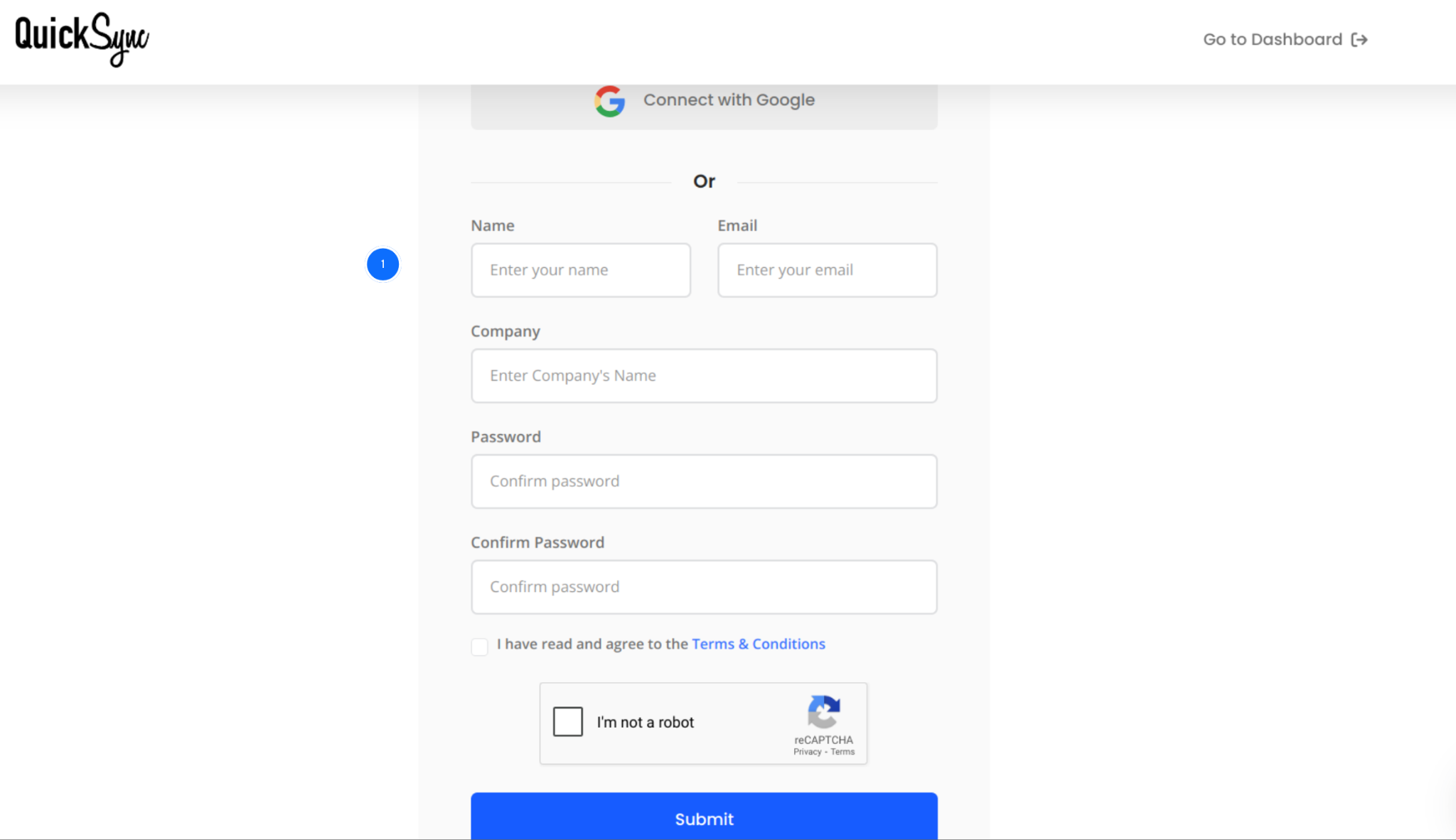
- Go to quicksync.pro and sign up with your email and business details.
- If you already have an account, just log in and open your dashboard.
- This is where you will manage all connected stores, sync settings, and order flows from a single place.
Step 2: Connect Your WooCommerce Store
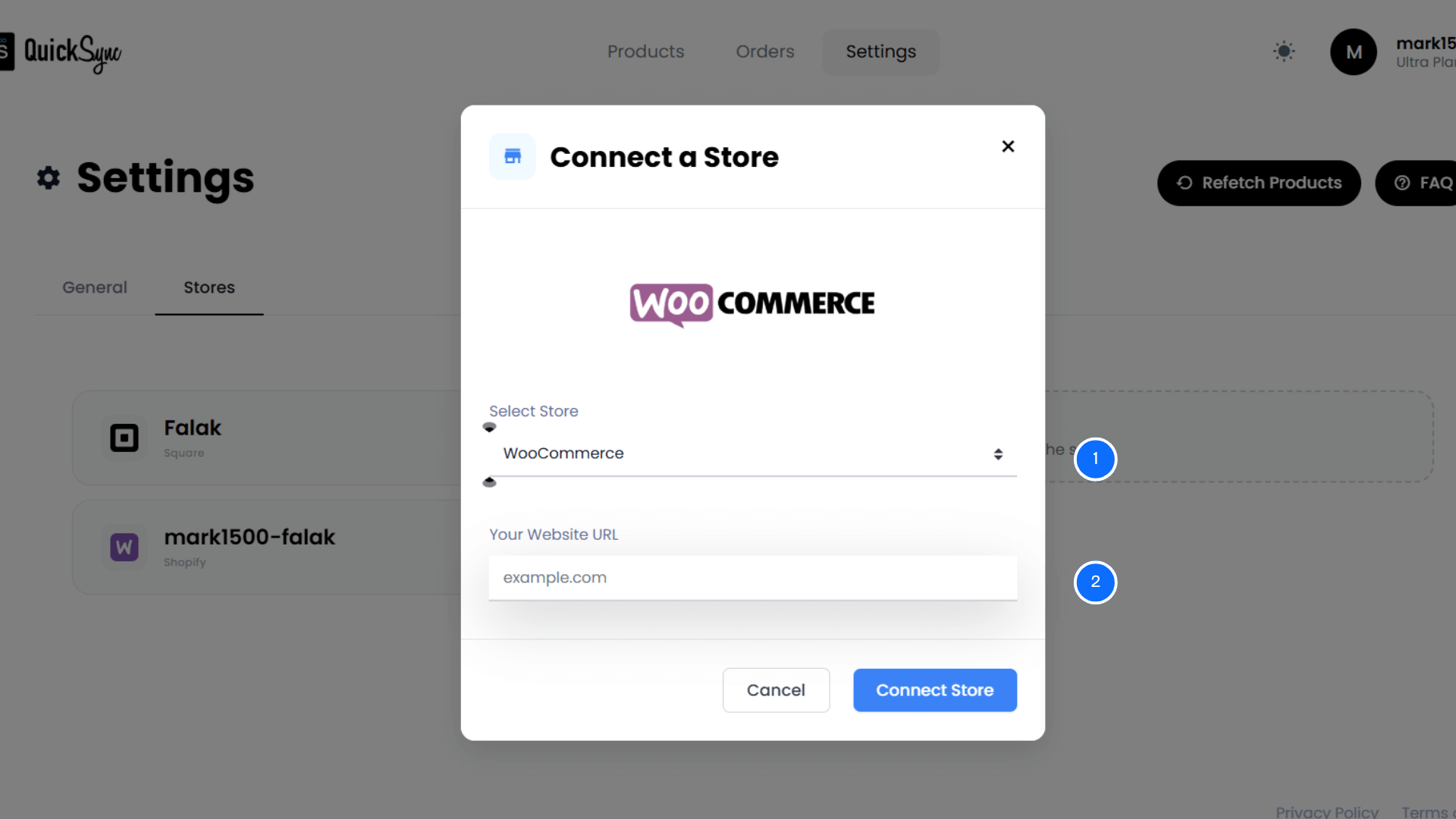
- After signing up, go to the central QuickSync dashboard.
- Choose Sync Products → Add Store and select WooCommerce.
- Enter your WooCommerce store URL (for example, yourstore.com)
- Approve the permissions for products, images, inventory, and orders.
Step 3: Connect Your eBay Store
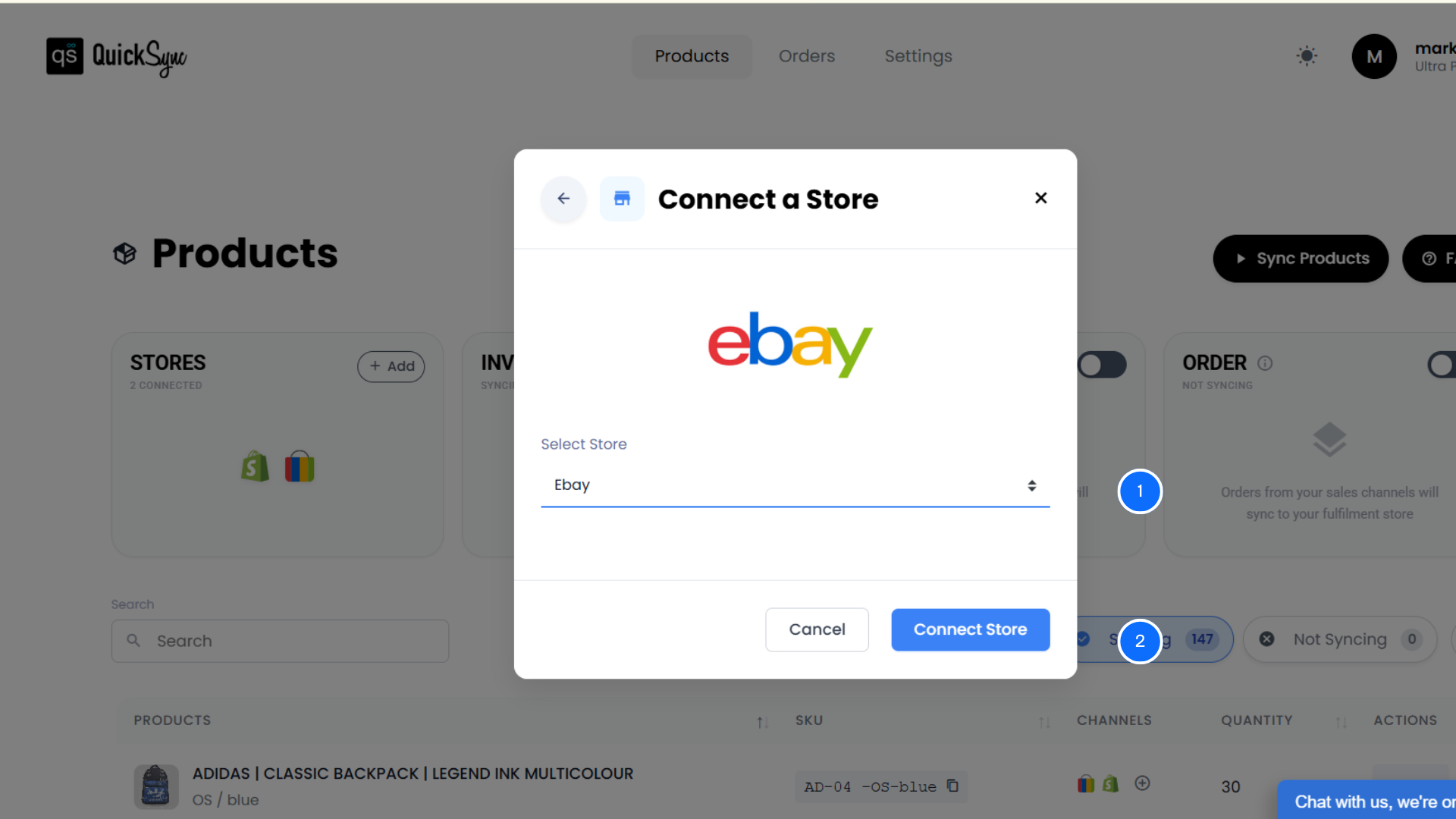
- Go back to Dashboard → Sync Products.
- Select eBay as your second platform from the list.
- Log in to your eBay account and authorize QuickSync to access your eBay store.
Step 4: Configure Sync Settings
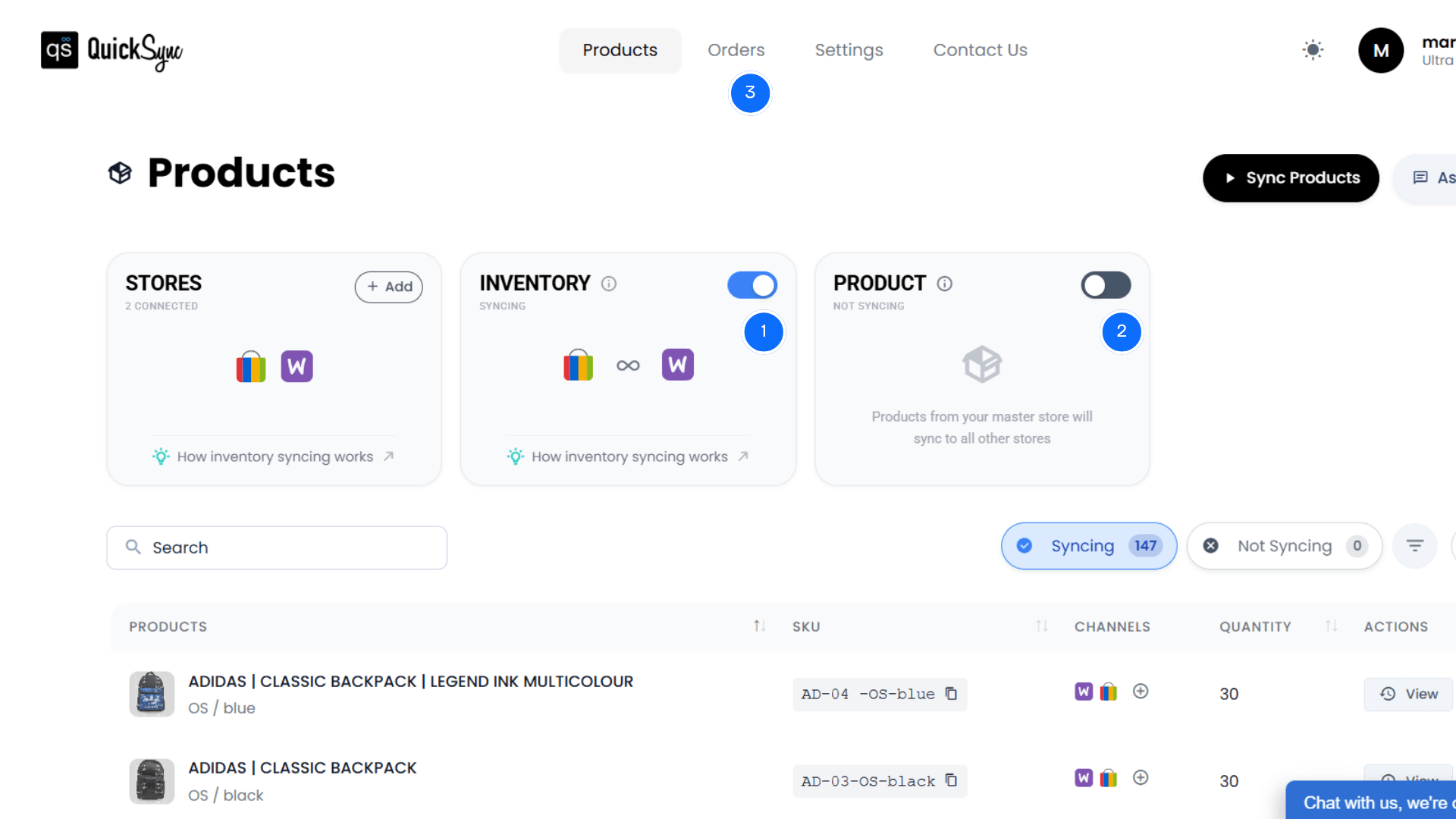
Once both stores are connected, go to your QuickSync dashboard and open sync settings.
- Inventory sync is already active once both stores are connected. This helps QuickSync keep stock updates aligned between WooCommerce and eBay.
- Next, turn on product sync from the dashboard. Choose one store as your Master Store. This is the store that controls product data like prices, product descriptions, images, variants, SKUs, and stock details.
- Then turn on order sync from the top of the dashboard. Choose your Fulfillment Store. Once set, eBay orders can sync into WooCommerce, so your team can manage order fulfillment from one place.
What to Check Before Starting WooCommerce eBay Sync
Before starting WooCommerce eBay sync, check your setup first. This helps avoid failed listings, wrong stock, order issues, and category errors.
Here are eight things to confirm.
- Match SKUs across WooCommerce and eBay listings.
- Clean up duplicate or unused WooCommerce store categories.
- Confirm eBay business policies are set up correctly.
- Resolve any out-of-stock products in your catalog.
- Make sure product images meet eBay size requirements.
- Verify your WooCommerce store has shipping methods configured.
- Check that variant attributes use consistent naming everywhere.
- Set your default currency and tax settings correctly.
Common WooCommerce eBay Sync Problems
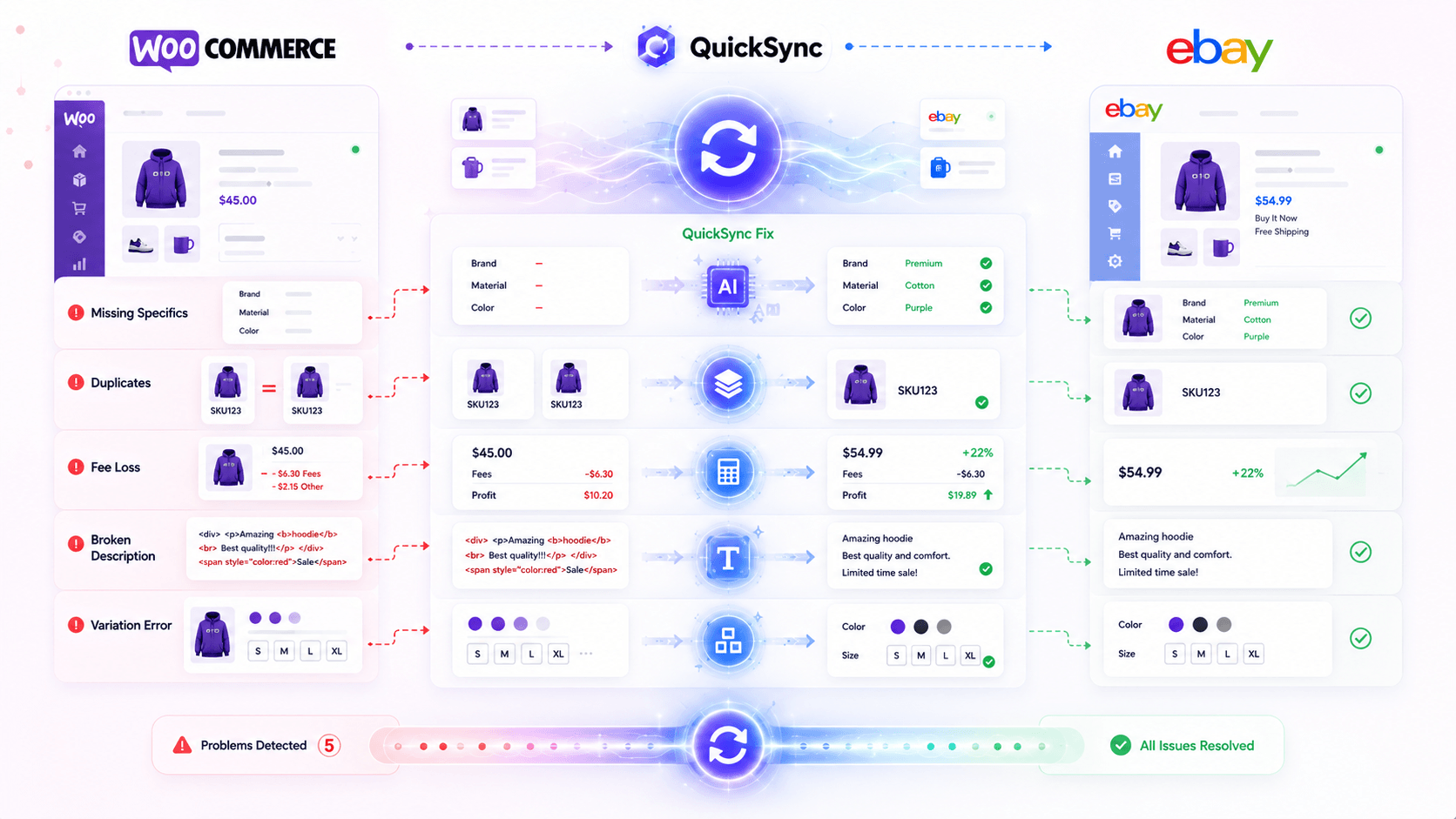
Even with a connection, sellers can still face some sync problems. Most problems happen when products, inventory, categories, orders, and listings are not mapped properly.
Here are the issues I see most often, and how QuickSync handles each one before it costs you a sale.
Problem 1: Missing eBay Item Specifics
Your eBay listing goes live, but does not show up in eBay search. The reason is missing item specifics like Brand, Material, and Color are missing, which eBay requires for ranking.
Fix: QuickSync’s AI-powered item specifics fill these gaps automatically from your WooCommerce product data. Brand pulls from vendor data, and fallback defaults handle the rest. Your eBay listings rank because they meet the requirements without manual data entry.
Problem 2: Duplicate Listings
You list the same product twice on eBay because a sync ran, and you did not realize the SKU already existed. Now you have duplicate listings competing with each other.
Fix: QuickSync uses SKU matching as the unique identifier across both platforms. If a product already exists, QuickSync updates it rather than creating a new one. You get one clean listing per product, no duplicates.
Problem 3: eBay Fees Hurt Margins
If you list WooCommerce prices on eBay without fee adjustment, your margins may shrink. eBay fees and marketplace costs can reduce profit.
Fix: QuickSync can apply price markup rules for eBay. This helps protect margins when listing WooCommerce products on the eBay marketplace.
Problem 4: Product Descriptions Look Broken
WooCommerce descriptions may include rich HTML. eBay allows limited formatting. This can create broken layouts or messy listing pages.
Fix: QuickSync can optimize WooCommerce product descriptions for eBay-safe HTML. This keeps listings cleaner and more professional.
Problem 5: Product Variations Break
WooCommerce allows more flexible product options. eBay has stricter variation limits. That can make complex products harder to list.
Fix: QuickSync helps translate WooCommerce options into eBay-friendly variation structures. This helps a complex product list without losing important option details.
Why Sellers Choose QuickSync for WooCommerce eBay Integration
There are plenty of tools that claim to handle multi-channel sync. Most of them break the moment your catalog grows past a few hundred SKUs, or they force you to add Shopify as a middleman just to function.
QuickSync was built differently. QuickSync is built for WooCommerce sellers who want direct marketplace sync.
Here are the reasons sellers pick QuickSync over everything else.
Continuous Sync
QuickSync syncs your WooCommerce store and eBay listings continuously, not in scheduled batches every hour. A WooCommerce sale updates eBay within seconds. An eBay sale is picked up on a two-minute check, because eBay does not notify us. Safety stock covers that window on fast movers.
Large Catalog Support
QuickSync handles large catalogs without errors or slowdowns. Whether you have 500 products or 10,000, the sync runs at the same speed and reliability. QuickSync scales with your business instead of becoming the bottleneck.
One Dashboard for Everything
You manage every store, every order, every product sync, and every setting from a single QuickSync dashboard. No tab switching, no logging into five platforms, and tracking sync all live in one place. That single-screen control is what makes scaling actually manageable.
AI Item Specifics
QuickSync uses AI to fill eBay’s required item specifics from your WooCommerce product data automatically. Brand, Material, Color, and category-specific aspects all get filled without manual entry. Your eBay listings meet eBay’s ranking requirements from day one.
Order and Tracking Automation
Every eBay order flows into your WooCommerce dashboard as a real order, not a notification. You ship from WooCommerce, enter the tracking number once, and QuickSync pushes it back to the eBay buyer automatically.
Live Support and Easy Setup
QuickSync support is available through chat, phone, and Zoom, which is rare in the sync tool space. Setup takes under 10 minutes for most sellers. You get help from real people, fast, when something needs attention.
Out-of-Stock Listing Protection
When WooCommerce stock reaches zero, QuickSync can protect your eBay listing instead of ending it completely. The listing can stay preserved for restock. This helps protect sales history, listing visibility, and marketplace ranking value.
Pricing and Fee Control
QuickSync can help apply pricing rules when products move from WooCommerce to eBay. This is useful because eBay fees can reduce margins. Sellers can use markup rules and price controls to keep eBay listings profitable without editing every product manually.
Final Thoughts
You can connect WooCommerce to eBay in several ways. Manual listing works for a few products. CSV imports help with bulk uploads. Basic plugins can support simple store needs.
But if you want reliable WooCommerce eBay sync, you need more than a one-time import. You need product sync, inventory sync, order sync, category mapping, variation handling, tracking updates, and listing protection.
That is where QuickSync gives sellers a stronger option.
It connects WooCommerce and eBay directly. It helps reduce manual work. It keeps products, inventory, and orders easier to manage. And it gives WooCommerce sellers a practical way to sell on eBay without moving to Shopify.