Forty WooCommerce orders came in this week. QuickBooks knows about none of them until someone copies each one across: the customer, the items, the tax, the shipping. Miss a refund or a tax rate, and the books are wrong before the month is even over.
That kind of money admin quietly eats a business owner’s time. In Xero’s February 2026 study of US small businesses, financial pressure cost owners an average of 33 working days of productivity a year. Retyping store orders into accounting software is one of the most avoidable parts of that load.
A WooCommerce QuickBooks integration does that work for you. This guide compares seven best WooCommerce QuickBooks integration apps on price, how they record orders, QuickBooks Desktop support and inventory. Every price and rating was checked on 27 October 2026, on WordPress.org, the QuickBooks App Store, WooCommerce.com or the vendor’s own site. QuickSync is one of the seven, and each section says where another option is the better pick.
Does QuickBooks integrate with WooCommerce?
Yes. Intuit offers a free WooCommerce Connector that sends each order to QuickBooks Online as an invoice or sales receipt. WooCommerce plugins and other apps go further. They add QuickBooks Desktop support, payouts and fees, more control over mapping, or stock that stays in step across several shops.
The best WooCommerce QuickBooks integrations at a glance
| App | Best for | Records orders as | QuickBooks | Inventory | Price from |
|---|---|---|---|---|---|
| WooCommerce Integration by QuickSync | WooCommerce plus other sales channels | A sales receipt or invoice per order | Online | Two-way, by SKU | $29/mo for two shops (14-day trial) |
| WooCommerce Connector by QuickBooks | A free, simple start | An invoice or sales receipt per order | Online | Listed | Free |
| MyWorks Sync | Deep control, and QuickBooks Desktop | Each order, or summaries on higher plans | Online, Desktop, POS | Two-way from Grow | Free up to 20 orders/mo |
| QuickBooks Integration for WooCommerce (WP Swings) | A one-off yearly price | Invoices, sales receipts or estimates | Online | Can be turned on | $99/year |
| CRM Perks | Custom field mapping on a budget | Whatever you map: invoice, receipt, estimate | Online | Not listed | Free; Pro $119/year |
| Webgility | Larger stores selling on several channels | Orders with fees, tax and inventory | Online and Enterprise | Yes | $69/mo for 300 orders |
| Synder | Payments from several platforms | Each sale or a daily summary | Online and Desktop | COGS on higher plans | $52/mo for 500 transactions |
We judged each option on four things a WooCommerce store owner feels at month-end. How do orders land in QuickBooks? Does tax come through right? What happens to stock? And what does it cost as orders grow? Here’s the detail, starting with the app we know best.
1. WooCommerce QuickBooks Integration By QuickSync
QuickSync writes each WooCommerce order into QuickBooks Online as its own document. A fully paid order becomes a sales receipt, and an unpaid or part-paid one becomes an invoice. Products match QuickBooks items by SKU, and quantities on linked inventory items move with every sale. Change a count on one channel, and your other shops follow.
Pricing: order sync needs the Pro plan, at $29 a month for two connected shops and up to 2,500 items. Lite, at $19, syncs stock only. QuickSync prices on items, not orders, so a busy month doesn’t raise your bill. There’s a 14-day trial with no card.
Best for: WooCommerce stores that also sell on Shopify, Etsy, eBay, Amazon or a POS like Square, and want one stock count plus every order in QuickBooks.
Where it falls short: it works with QuickBooks Online only. It doesn’t post payouts or payment fees, so you still match deposits in QuickBooks banking. Stock sync needs a QuickBooks Online plan with inventory tracking.
2. WooCommerce Connector by QuickBooks
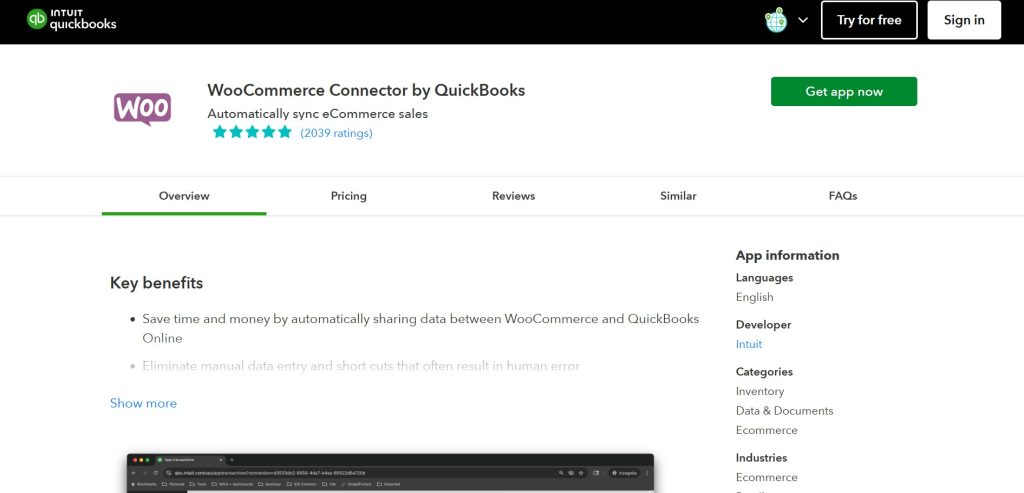
Intuit’s own connector creates an invoice or sales receipt in QuickBooks Online for each WooCommerce order. It also creates the products and customers used in those orders and sends payments across. You can review imported data before it posts, and choose from several import settings. It’s rated 4.8 from 2,039 ratings on the QuickBooks App Store, and it’s free.
Best for: single WooCommerce stores on QuickBooks Online that want a free start.
Where it falls short: Intuit’s own summary of reviews says users often report problems with sales tax handling and limited customization. It doesn’t work with QuickBooks Desktop, and it’s built for one WooCommerce store, not several channels.
3. MyWorks Sync
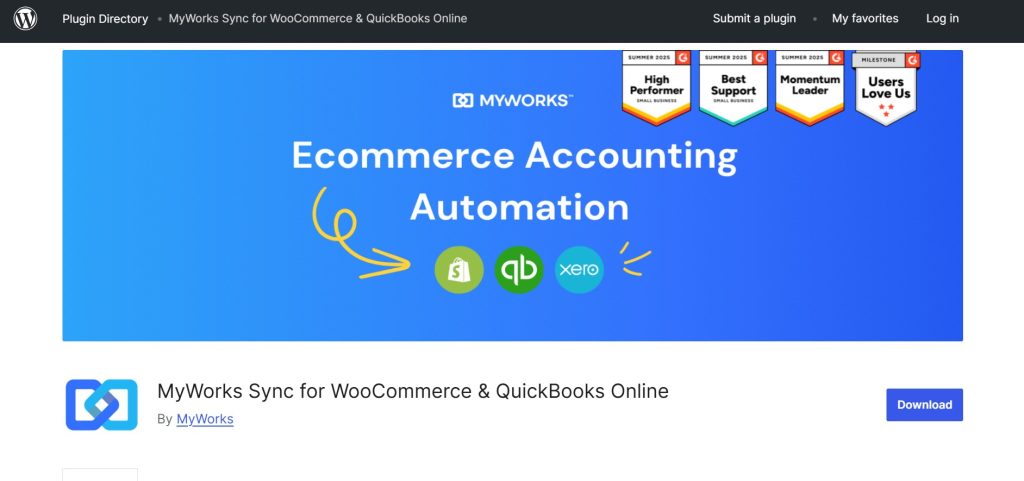
MyWorks Sync is a WordPress plugin with a MyWorks account behind it. It syncs orders, customers, payments, transaction fees and bank deposits, as often as every five minutes. It’s rated 4.7 from 75 reviews on WordPress.org, with over 5,000 active installs. Separate plans cover QuickBooks Desktop (Pro, Premier and Enterprise), QuickBooks POS and Intuit Enterprise Suite.
Pricing: the Launch plan is free for up to 20 orders a month. On MyWorks’s pricing page, paid plans run from $19 a month billed yearly for 100 orders, to $39 for 300 and $69 for 1,000. Two-way inventory sync and payouts start on the $39 Grow plan.
Best for: WooCommerce-only stores that want the most settings, and anyone on QuickBooks Desktop.
Where it falls short: pricing climbs with orders, so a growing store moves up plans quickly. It connects WooCommerce, not your other channels, so stock on Etsy or Amazon needs another tool.
4. QuickBooks Integration for WooCommerce (WP Swings)
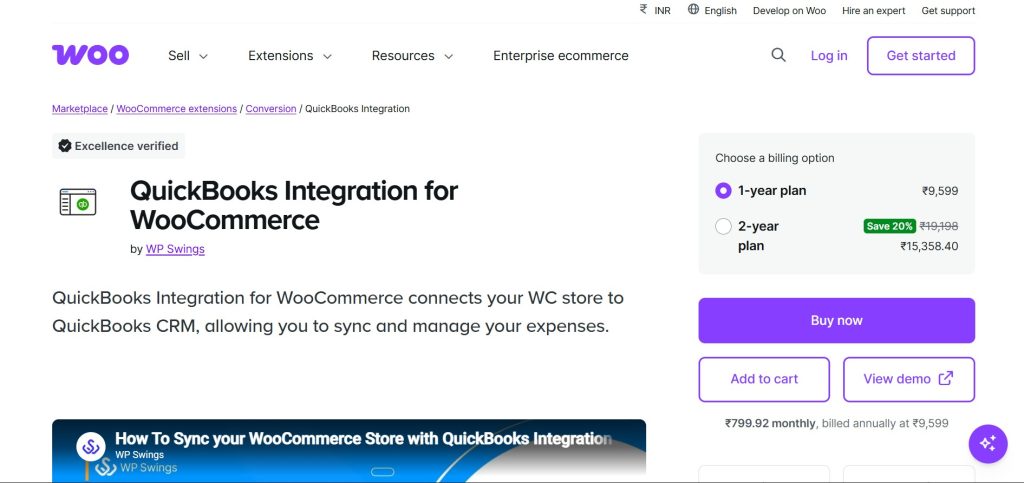
This WP Swings plugin sends orders to QuickBooks Online as invoices, sales receipts or estimates, and creates customers and items. Refunds become refund receipts, and product stock sync can be turned on or off. It’s rated 4.3 from 6 reviews on WooCommerce.com.
Pricing: $99 a year on WP Swings’ site, with a 30-day money-back guarantee through WooCommerce.com.
Best for: stores that prefer a yearly plugin price to a monthly subscription.
Where it falls short: it works only with QuickBooks Online. With just six reviews, there’s little track record to judge it on.
5. CRM Perks Integration for WooCommerce and QuickBooks
CRM Perks works through “feeds.” You choose which QuickBooks object an order creates, such as an invoice, sales receipt, estimate or payment, and map WooCommerce fields to it. You can send orders automatically on a status change, or with a “Send to QuickBooks” button. It’s rated 4.9 from 15 reviews on WordPress.org, with over 1,000 active installs.
Pricing: the core plugin is free. Pro costs $119 a year for one site and adds premium add-ons.
Best for: store owners comfortable mapping fields themselves, who want a free or low-cost tool.
Where it falls short: data moves one way, from WooCommerce to QuickBooks, and inventory sync isn’t listed. The flexible mapping also means more setup work.
6. Webgility
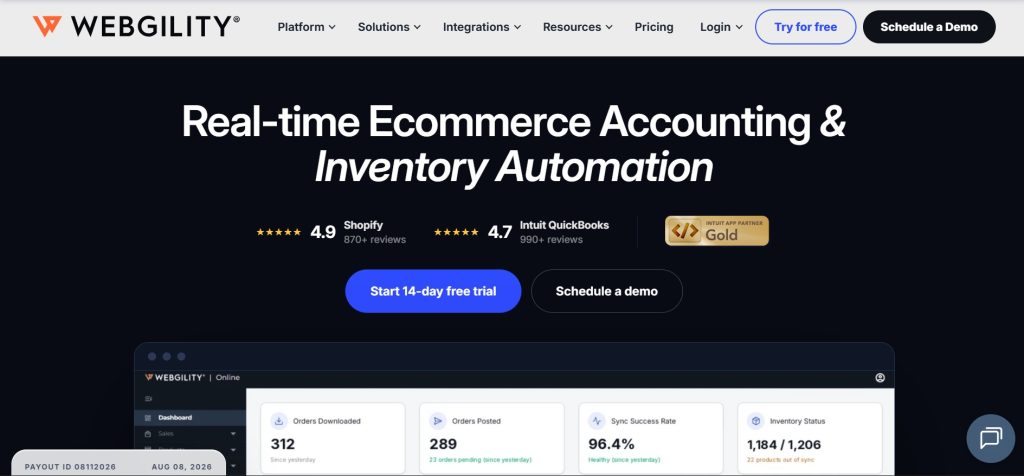
Webgility records orders, fees, taxes and inventory from WooCommerce and other channels in QuickBooks. It supports QuickBooks Online, Intuit Enterprise Suite and QuickBooks Enterprise.
Pricing: Pro costs $69 a month billed yearly, or $79 monthly, for 300 orders and two sales channels. Extra orders cost $10 a month per 500.
Best for: larger stores selling on several channels that want accounting and inventory in one system.
Where it falls short: it’s priced for growing businesses, and the trial length isn’t stated on its pricing page.
7. Synder
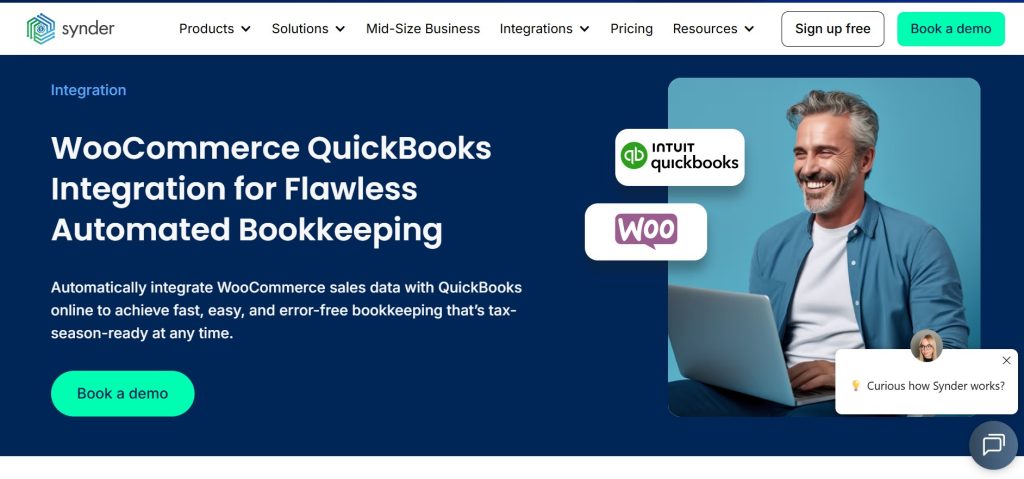
Synder records each sale with its customer, products and tax, or posts one summary per day. It works with QuickBooks Online and Desktop, and pulls payments from Stripe, PayPal and online stores into the same books.
Pricing: the Basic plan costs $52 a month billed yearly, or $65 monthly, for up to 500 sales transactions. There’s a 15-day free trial.
Best for: businesses that take payments in several places, like WooCommerce plus Stripe invoices or PayPal.
Where it falls short: it costs more than the WooCommerce-only plugins, and cost of goods tracking starts on its $129 plan.
What Each Option Costs at 500 Orders a Month
Starting prices only tell part of the story. Each app charges in a different way, by orders, transactions, items or by the year. So we priced the same store, taking 500 orders a month.
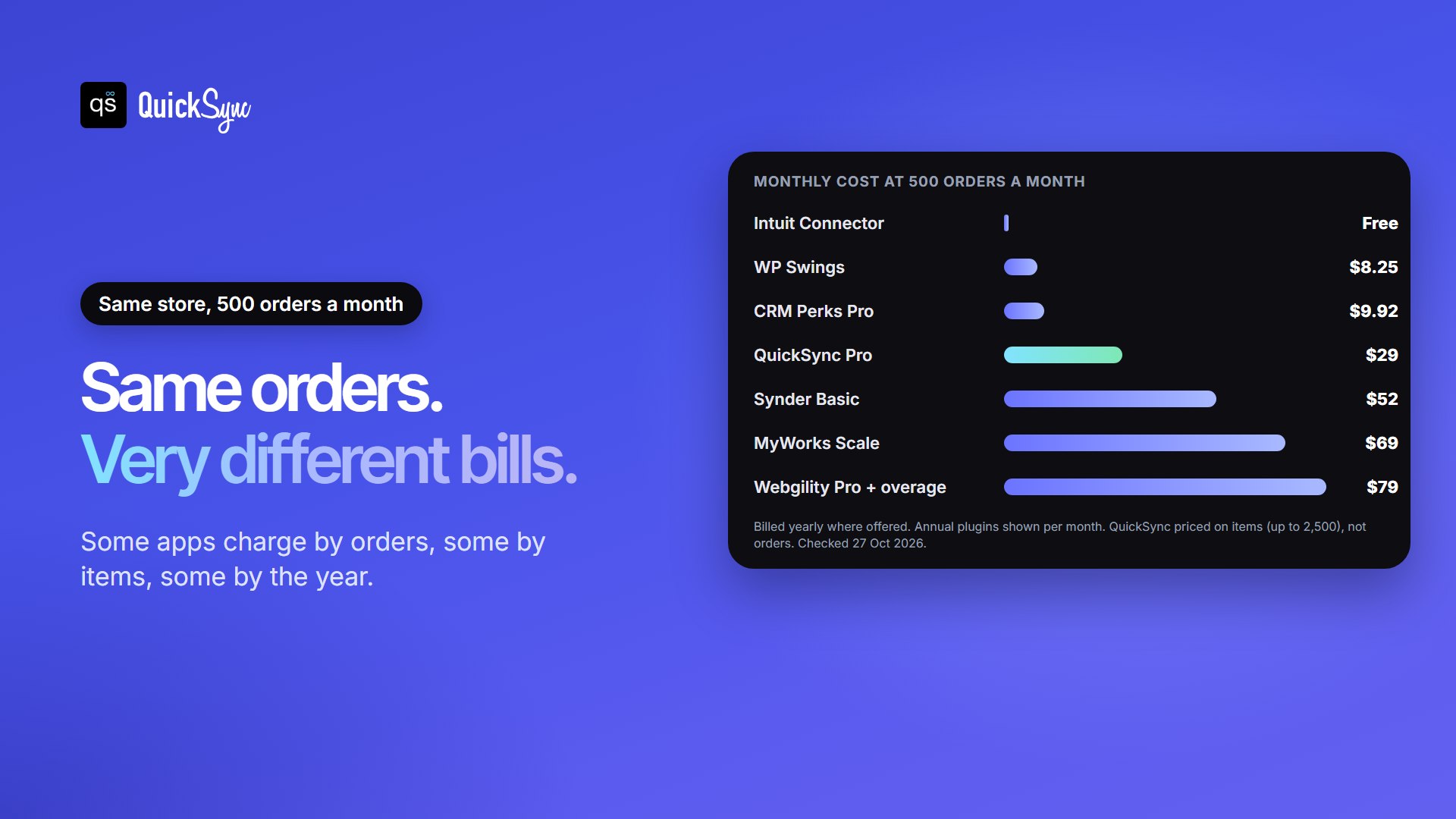
At that volume, the free connector and the yearly plugins are cheapest. MyWorks has to move up to its $69 Scale plan, because Grow covers 300 orders. QuickSync stays at $29, however many orders you take, as long as your catalog fits in 2,500 items. The cheapest tool isn’t always the best fit, though, so weigh the price against what each one actually syncs.
WooCommerce and QuickBooks Desktop
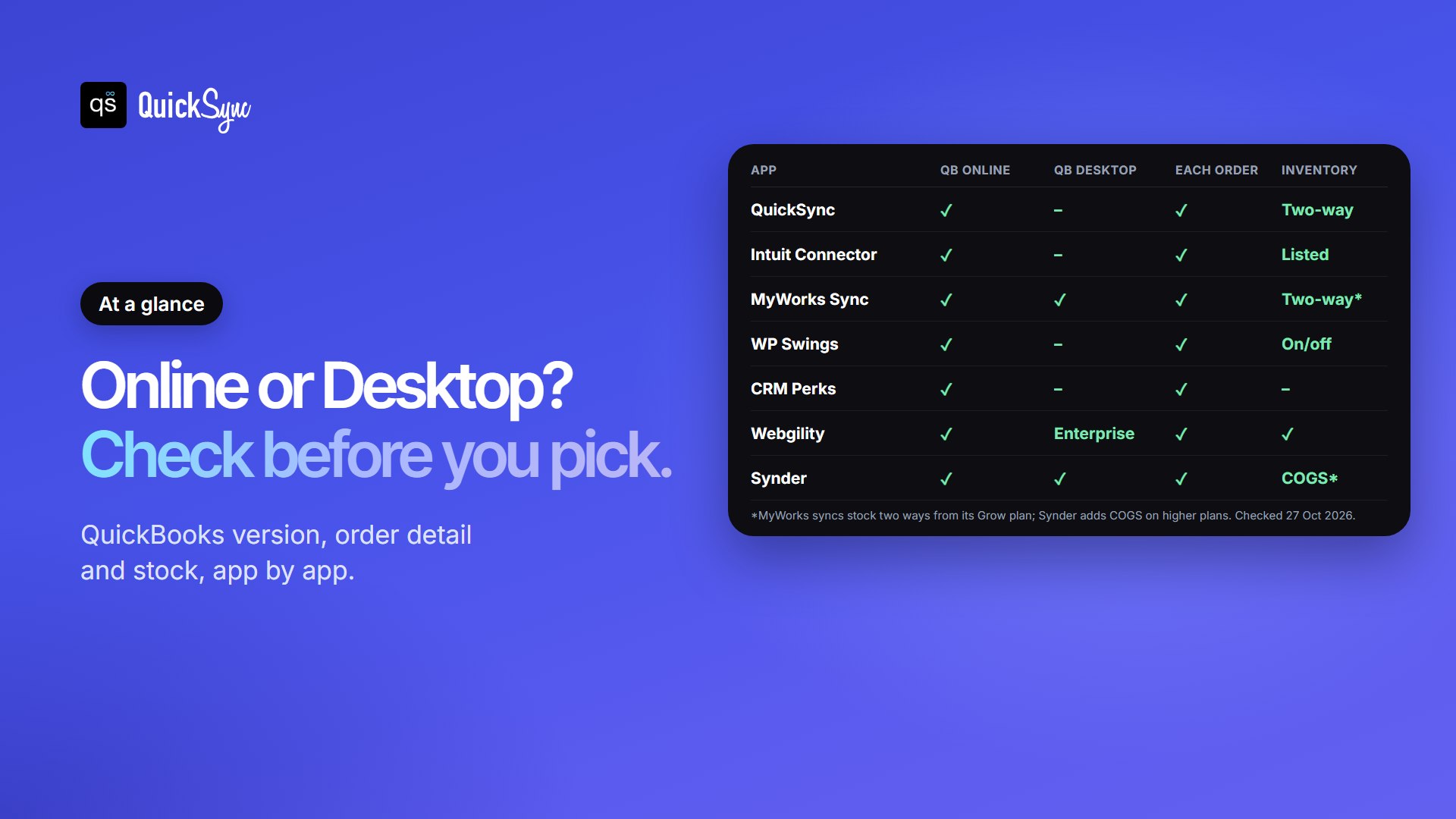
If you run QuickBooks Desktop Pro, Premier or Enterprise, most of the options above won’t work for you. Your choices are MyWorks (on its Desktop plan), Synder, and Webgility for QuickBooks Enterprise.
Desktop syncing also works differently. QuickBooks Desktop runs on your own computer, so MyWorks uses its WordPress plugin together with Intuit’s Web Connector. Orders wait in a queue until the Web Connector runs, and MyWorks suggests running it every 30 to 60 minutes. That means the computer running QuickBooks needs to be switched on for orders to arrive.
Plugin or Connected App: Does it Matter?
Some options run inside WordPress as plugins, like CRM Perks, WP Swings and MyWorks’s plugin. Others, like QuickSync, Synder and Intuit’s connector, run outside your site and connect through WooCommerce’s API.
Neither is better in every case. A plugin lives on your server, so you keep it updated alongside WooCommerce, and it uses your hosting resources. A connected app does its work elsewhere, so your site stays lighter, but you’re trusting another service with access to your orders. Check either way how access can be removed if you stop using it.
Preparation to Do Before Connecting WooCommerce to QuickBooks
Setup takes minutes with any option on this list. A little preparation first saves hours of clean-up later.
- Pick a start date. Choose the day after your last manual entry, so no order is recorded twice.
- Choose one tool to post orders. Two tools writing the same orders doubles your revenue. If you’re switching, turn the old one off first.
- Map your tax rates. Match each WooCommerce tax class to the right QuickBooks tax rate. Tax is the most common complaint about WooCommerce syncs, so check this twice.
- Check your SKUs. Give every product and variation a unique SKU that matches its QuickBooks item. Our guide on what a SKU is shows how.
- Connect both sides. Approve access in your WordPress admin, then sign in to QuickBooks and pick the company file.
- Check the first day. Compare one day of synced orders with your WooCommerce reports before you trust the totals.
Which WooCommerce QuickBooks integration Should You Choose?
- You sell on WooCommerce and other channels: QuickSync. One stock count across every shop, and each order in QuickBooks Online.
- You run one store and want a free start: WooCommerce Connector by QuickBooks.
- You want every setting, or you use QuickBooks Desktop: MyWorks Sync.
- You’d rather pay once a year: WP Swings.
- You want to map fields yourself on a budget: CRM Perks.
- You’re a larger multichannel business on QuickBooks Enterprise: Webgility.
- You take payments outside WooCommerce too: Synder.
If WooCommerce is one of several places you sell, the bigger risk usually isn’t the books. It’s selling an item twice because another shop didn’t hear about the first sale. Our guide to WooCommerce inventory sync covers that side.
FAQs
Comparing other setups? See our guides to the best Shopify QuickBooks integration apps and why WooCommerce inventory stops updating.