Sell-through rate tells you how much of what you stocked has sold. It’s one of the quickest ways to spot products that sell out too fast and products that sit on the shelf.
It’s simple to work out for one store. It gets harder when the same stock sells on Shopify, Etsy, eBay, and Amazon, because each channel reports sales in its own way.
This guide explains the sell-through rate formula with an example, a free calculator, and what a good sell-through rate looks like. You’ll also learn how to track it across different sales channels and what to do when your rate is too low or too high.
What is sell-through rate?
Sell-through rate (STR) is the percentage of the stock you had available that sold during a period, usually a week, a month or a season. A high sell-through rate means a product sells well for the amount you stocked. A low one means you bought too much, priced it too high, or it isn’t getting seen.
It works for a single product, a category, or your whole store.
Sell-through rate formula
Here’s the formula most retailers use:
Sell-through rate = units sold ÷ units available × 100
Units available means the stock you started the period with, plus anything you received during it.
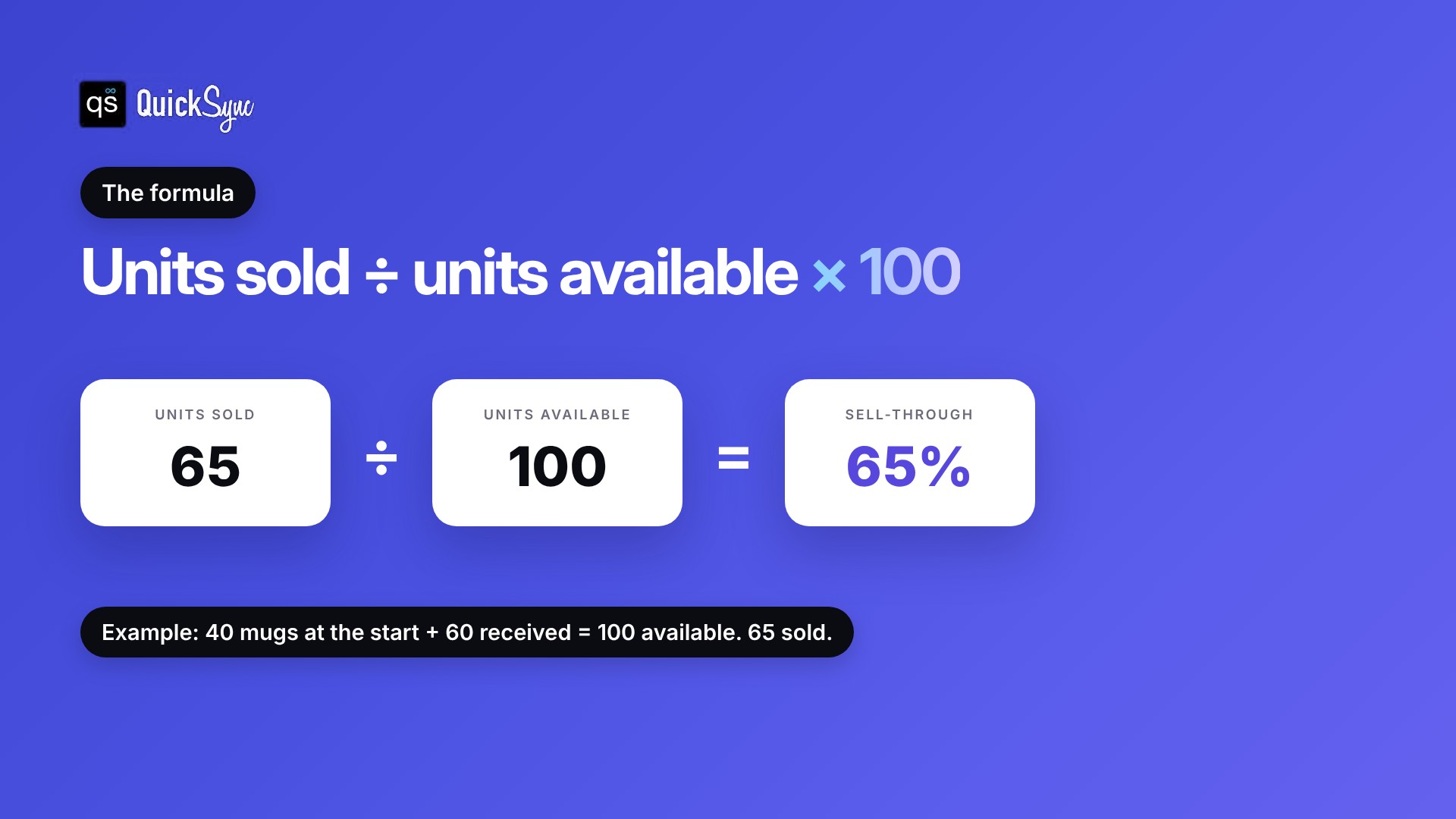
Example: You sell handmade mugs. On November 1, you have 40 in stock, and you receive another 60 during the month. That’s 100 available. You sell 65 by November 30.
65 ÷ 100 × 100 = 65% sell-through rate
You’ll also see a second version. Shopify’s Products by sell-through rate report uses units sold ÷ (units sold + units still in stock at the end of the period). For the mugs, that’s 65 ÷ (65 + 35), which is also 65%.
The two versions match when no stock was returned, lost or damaged during the period. Returns and write-offs change what’s left in stock without changing units sold. If the two numbers are far apart and you had few returns, it’s worth a recount.
What is a good sell-through rate?
There’s no single number that’s right for every product. A good rate depends on how long the product is meant to be on sale.
Shopify’s guide to sell-through rate gives these rough ranges:
| Product type | Sell-through rate to aim for |
|---|---|
| Seasonal or limited products | Over 80% within the selling window |
| Products meant to sell this season | Around 70% to 80% |
| Products you sell all year | Around 40% to 60% a month or quarter |
Treat these as a starting point. The most useful comparison is with your own numbers: the same product last month, last year, or on another channel.
A rate that’s very high isn’t always good. If a product hits 95% halfway through the month, you probably ran out and missed sales. Our safety stock calculator helps you work out how much buffer to keep.
How to track sell-through rate by channel
If you sell the same stock on several channels, your overall sell-through rate hides where it sold. Splitting it by channel shows you which channel moves your stock.
When every channel sells from one shared stock count, use the same units available for each channel:
Channel sell-through rate = units sold on that channel ÷ total units available × 100
Back to the mugs. You had 100 available and sold 65:
| Channel | Units sold | Sell-through rate |
|---|---|---|
| Shopify | 30 | 30% |
| Etsy | 25 | 25% |
| eBay | 10 | 10% |
| Total | 65 | 65% |

The channel rates add up to your overall rate. Now you can see that Shopify made almost half of the sales and eBay barely moved. That’s the kind of thing you’d miss with one store-wide number.
If you split stock instead, with a fixed number of units on each channel, divide each channel’s sales by the units you gave that channel.
Where to find the numbers on each channel
Each channel reports this differently, so it helps to know what you’re looking at:
– Shopify has a built-in report called Products by sell-through rate. Find it under Analytics > Reports, filtered to the Inventory category, according to Shopify’s help center.
– eBay shows a sell-through rate in Product research in Seller Hub. That number is for similar items across all of eBay, not your own listings. It’s useful for checking demand before you list.
– Amazon uses its own FBA sell-through rate: units shipped in the last 90 days divided by your average units in its warehouses. It’s a ratio like 3.0, not a percentage, so don’t compare it directly with your other channels.
– Other channels: if a channel doesn’t show sell-through for your own stock, count units sold from your orders for the period and use the formula.
The simplest way is to take units sold per channel from your orders and use one stock count for units available. That only works if your stock count is right on every channel.
How QuickSync helps
Sell-through rate is only as accurate as your stock numbers. If a sale on Etsy doesn’t lower your Shopify stock, your units available are wrong on every channel, and so is your rate.
QuickSync keeps one stock count across your channels. When something sells on one channel, the quantity drops on the others too.
– One stock count across 13 integrations, including Shopify, Etsy, eBay, Amazon, TikTok Shop, WooCommerce, Square and Clover. See all integrations.
– Orders from every channel in one list on the Pro plan, so you can count units sold by channel from one place.
– Matched by SKU, so the same product is counted as one product everywhere. Our guide on what a SKU is explains how to set them up.
Plans start at $19 a month for two shops, with unlimited orders, according to the pricing page. QuickSync doesn’t calculate sell-through for you. It keeps the numbers you calculate with correct.
How to improve a low sell-through rate
A low rate means too much stock for the demand you have. Some ways to fix it:
1. Buy less next time. Use last period’s sell-through rate to set your next order. If a product sold 30% of what you stocked, order less of it.
2. List it on another channel. A product that’s slow on your own store might sell on Etsy, eBay or TikTok Shop. Your channel split shows where similar products sell best.
3. Check the listing. Weak photos, a vague title or a missing size chart can keep a good product from selling. Fix these before you cut the price.
4. Discount or bundle it. If it still won’t move, a markdown or a bundle with a best seller frees up cash and shelf space.
5. Stop restocking it. If a product stays low every period, drop it and put that money into what sells.
What if your sell-through rate is too high?
Selling out fast feels good, but it often means lost sales. Order more of that product, reorder sooner, or keep a small buffer. If you sell on several channels, make sure the last few units can’t sell twice. Our guide on how to prevent overselling covers how.
Sell-through rate vs inventory turnover
Both measure how fast stock sells, but they answer different questions:
| Sell-through rate | Inventory turnover | |
|---|---|---|
| What it measures | Share of available stock sold in a period | How many times you sell through your average stock |
| Formula | Units sold ÷ units available × 100 | Cost of goods sold ÷ average inventory value |
| Uses | Units | Money |
| Best for | Checking one product, drop or season | Checking your whole store over a year |
Use sell-through rate to decide what to reorder this month. Use turnover to see how hard your inventory money is working. Our inventory turnover ratio guide covers turnover in detail.
Start tracking sell-through rate this month
Sell-through rate is units sold divided by units available. Check it every month for your best sellers and slow movers, and compare it with your own past numbers.
If you sell on more than one channel, split it by channel to see where your stock sells. Just make sure every channel works from the same stock count first, or the numbers won’t add up.