

If you are trying to figure out how to connect Shopify to Squarespace, you are probably looking for a smarter way to run your store. But here is the truth. Most integrations fail quietly within the first 90 days.
The reasons are painfully predictable. The wrong integration tool. Lack of proper syncing. Cheap solutions that promise automation but deliver delays. Merchants think they are saving money until the overselling starts and the negative reviews pile up.
They spent more time fixing sync errors than actually selling. And it’s enough now.
I am writing this blog because I am tired of seeing the same pattern of choosing the wrong Shopify integration method and then dealing with overselling and delayed syncing. Hence, being blunt, if you are serious about syncing Shopify with Squarespace the right way, not the quick way, keep reading.
What is Shopify Squarespace integration: A Brief overview

I often see merchants assume that syncing a Shopify account with a Squarespace account just means product listing of the same product on both platforms. BUT IT IS NOT. Real integration process happens when both systems communicate automatically.
All product details, inventory updates, and order details flow between synced sales channels in real-time. Your entire stock stays accurate, your product images stay consistent, and you are not constantly switching between two platforms, even for inventory tracking.
When this is missing, you are basically running two separate e-commerce online stores. I have seen sellers update inventory in multiple places and manually copy product data between Squarespace and Shopify. That approach always leads to errors and unnecessary stress.
In the next section, I will show you what usually goes wrong and how to set this up properly from the start.
Problems Merchants Face Without Proper Shopify Squarespace Syncing
Now that I’ve explained what real syncing actually looks like, let’s talk about what happens when it’s missing. From my experience, most issues don’t show up on day one. Everything feels manageable at the start.
But as orders increase and your Shopify products increase, small gaps turn into serious operational problems. I’ve seen these patterns repeat across different businesses, and the impact is almost always the same.
Selling Out While Orders Keep Coming:
I’ve seen this happen many times. A product shows 12 units available on both platforms. You get 8 orders on Shopify and 5 on Squarespace, but you only have 12 in stock. Now you are forced to cancel an order, apologize to a customer, and risk a negative review.
This happens because your platforms are not talking to each other. Nearly 70% of online shoppers switch to competitors if an item is out of stock. One stockout can lose you a customer forever.
Updating Products Manually Twice:
Every time you add a new product, change a description, or update a photo, you must do it twice. Once in Shopify and once in Squarespace. But if you miss one detail, your listings look unprofessional.
This double work drains hours you could spend on marketing, customer service, or product development.
Creating Duplicate Listings and Mismatched SKUs:
When you manage two catalogs separately, SKUs inevitably start to drift. For instance, you might create PRODUCT-001 in Shopify and Product_001 in Squarespace. Before you know it, your warehouse is shipping the wrong variant because the codes don’t match.
And, of course, returns get routed to the wrong system. On top of that, analytics quickly become meaningless. It’s frustrating, messy, and entirely avoidable.
Showing Inconsistent Prices or Variants:
A product goes on sale in Shopify but stays at full price in Squarespace. At the same time, a color option might sell out in one store while remaining available in the other. Naturally, customers notice these inconsistencies, and trust starts to erode.
They screenshot the lower price and demand refunds. They order variants that do not exist and leave angry reviews when you have to cancel. Over time, frustration spreads, and your brand’s credibility takes a hit.
Losing Visibility Across Orders:
You log into Shopify to check some orders, then switch to Squarespace for others, and finally open a spreadsheet to reconcile everything. In the resulting confusion, urgent orders get missed, shipments are delayed, and follow-ups with customers fall through because your data is scattered across multiple places.
Research shows that shipping errors cost US businesses over $17 billion each year due to returns, corrections, and delays. Most of these problems start with fragmented order management.
Key Features to Look for in a Shopify Squarespace Integration Solution
By now, you’ve seen what goes wrong when your systems are not properly connected. And if you look closely, none of these problems is random. Because let’s be clear. Not all tools that claim to sync Shopify to Squarespace are built the same way.
Some only move data occasionally. Others lack proper error handling. And a few simply break when your store starts growing.
So before you decide how to connect Shopify to Squarespace, here are the features that actually matter:
| Feature | Why It Matters | What Happens Without It |
| Real-time inventory sync | Keeps stock levels accurate across both platforms | Overselling, cancellations, unhappy customers |
| Unified order management | Brings all orders into one dashboard | Missed orders, delayed shipping, confusion |
| Product sync automation | Updates titles, images, and variants automatically | Manual work, inconsistent listings |
| SKU mapping & consistency | Ensures products match correctly across systems | Wrong shipments, tracking issues |
| Pricing sync rules | Keeps pricing aligned across platforms | Margin loss, customer complaints |
| Error detection & recovery | Identifies and fixes sync failures | Silent errors, operational chaos |
| Multi-channel scalability | Supports future growth beyond two platforms | Rebuilding systems again later |
If your integration cannot keep inventory aligned between Shopify and Squarespace, handle orders centrally, and maintain product consistency, you are setting yourself up for the same problems we discussed earlier.
Key Methods to Integrate Shopify Store to Squarespace
When it comes to how to connect Shopify to Squarespace, most merchants end up choosing one of these three approaches. At first glance, all of them seem workable. But once your store grows, the differences become very clear.
Method 1: Manual Setup
This is where most sellers begin. You create products separately on both platforms, manage inventory manually, and handle orders individually.
It feels manageable in the beginning. No extra cost. Full control. But here’s where it breaks:
- Inventory is never truly synced
- Product updates must be done twice
- Orders are scattered across platforms
- Human errors become unavoidable
This method is not integration. It’s a duplication. It may work for very small catalogs, but the moment your orders increase, it becomes unsustainable.
Method 2: Basic Connector Apps
These basic connectors promise automation and are often marketed as easy solutions for Shopify and Squarespace integration.
They typically include a higher monthly fee and basic syncing features. But in reality, here’s what most merchants experience:
- Delayed syncing instead of real-time updates
- Limited support for product variants
- Weak error handling (issues go unnoticed)
- No scalability for multi-channel selling
These tools can help you connect Shopify with Squarespace, but only at a surface level. They reduce some manual work, but they don’t eliminate the core risks.
Method 3: QuickSync – Third-Party Integration
This is where things change. QuickSync is not just a Shopify and Squarespace integration tool. It’s a full syncing engine designed for multichannel sellers who want reliability, not manual fixes.
Here’s why it stands out:
- Inventory updates across both platforms — seconds out to Squarespace, and a two-minute check coming back
- Centralized order management inside Shopify
- Automatic product syncing (including variants and images)
- Smart SKU mapping to prevent mismatches
- Built for scaling beyond just two platforms
Instead of managing two separate systems, you run one unified operation.
That’s the difference between “connecting platforms” and actually syncing Shopify to Squarespace the right way.
Meet QuickSync: Reliable Shopify–Squarespace Integration
QuickSync is built for merchants who are tired of fixing sync errors and want a system that works effortlessly.
Here’s what makes it reliable:
- Simple Setup: No technical expertise required
- Live Syncing: Inventory, products, and orders update automatically
- Stable Performance: Handles growing catalogs without breaking
- Dedicated Support: Help is available when you need it
- Multichannel sync: Supports various integrations like Squarespace QuickBooks integration, Shopify to WooCommerce integration, Shopify to QuickBooks, etc.
With QuickSync, you are not constantly checking if things are working. They just are.
How to Connect Shopify to Squarespace Using QuickSync
Connecting Shopify to Squarespace via QuickSync is a super simple process. You do not even need to have technical knowledge to sync your e-commerce stores. Just a few clicks here and there, and it’s done. Yes, it is that simple and quick.
Here’s how it works:
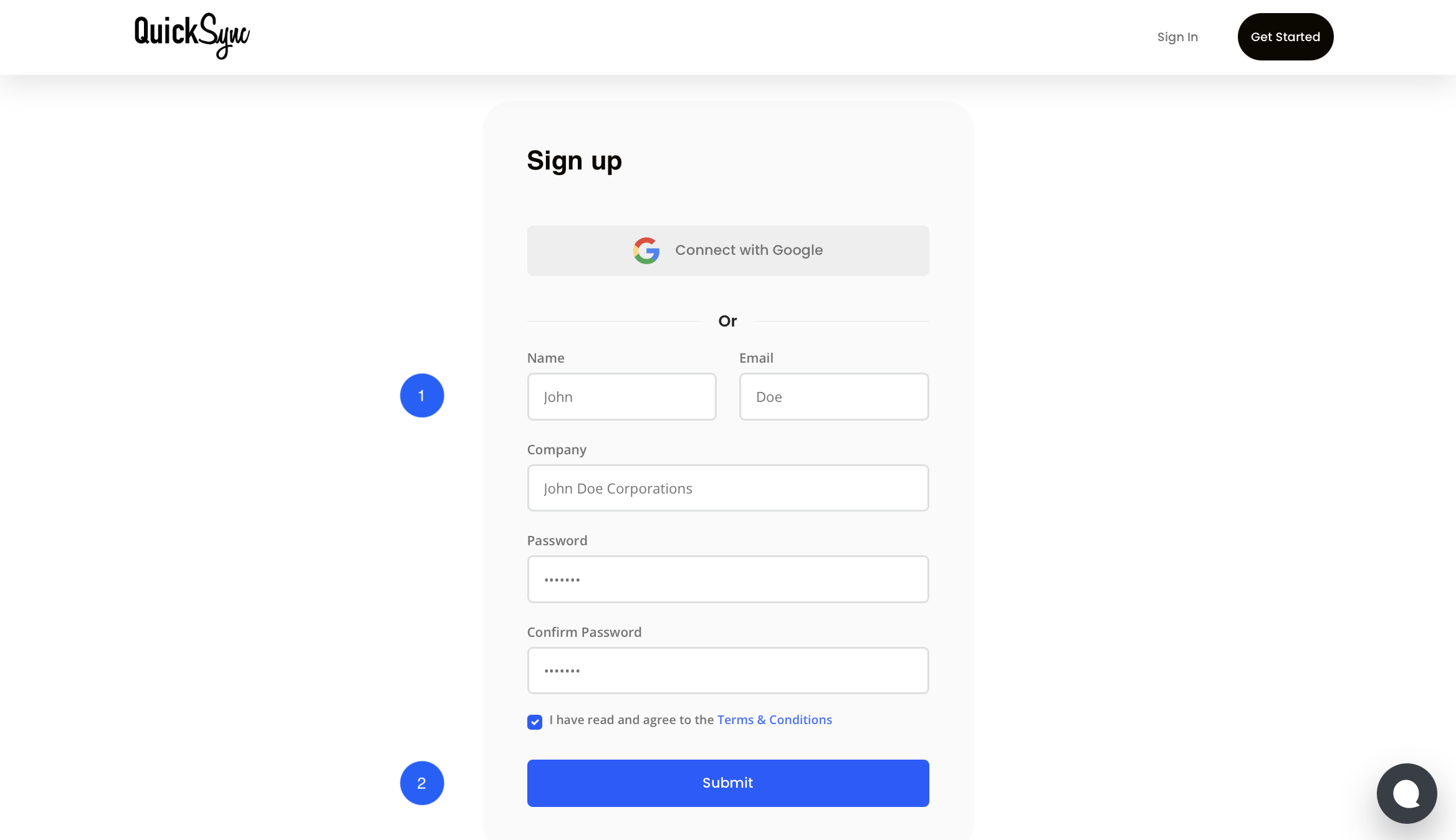
Step 1: Create Your QuickSync Account
- If you are new to QuickSync, start by signing up on QuickSync.pro.
- But if you already have an account, simply log in and open your QuickSync dashboard.
Step 2: Connect Your Shopify Store
- Come to your QuickSync dashboard, go to Sync Products, and select Store → Add a Store.

- Choose Shopify and enter your store URL (e.g., mark1597.myshopify.com).
- Click Connect a Store, log in to your Shopify account, and approve permissions for products, images, inventory, and orders.
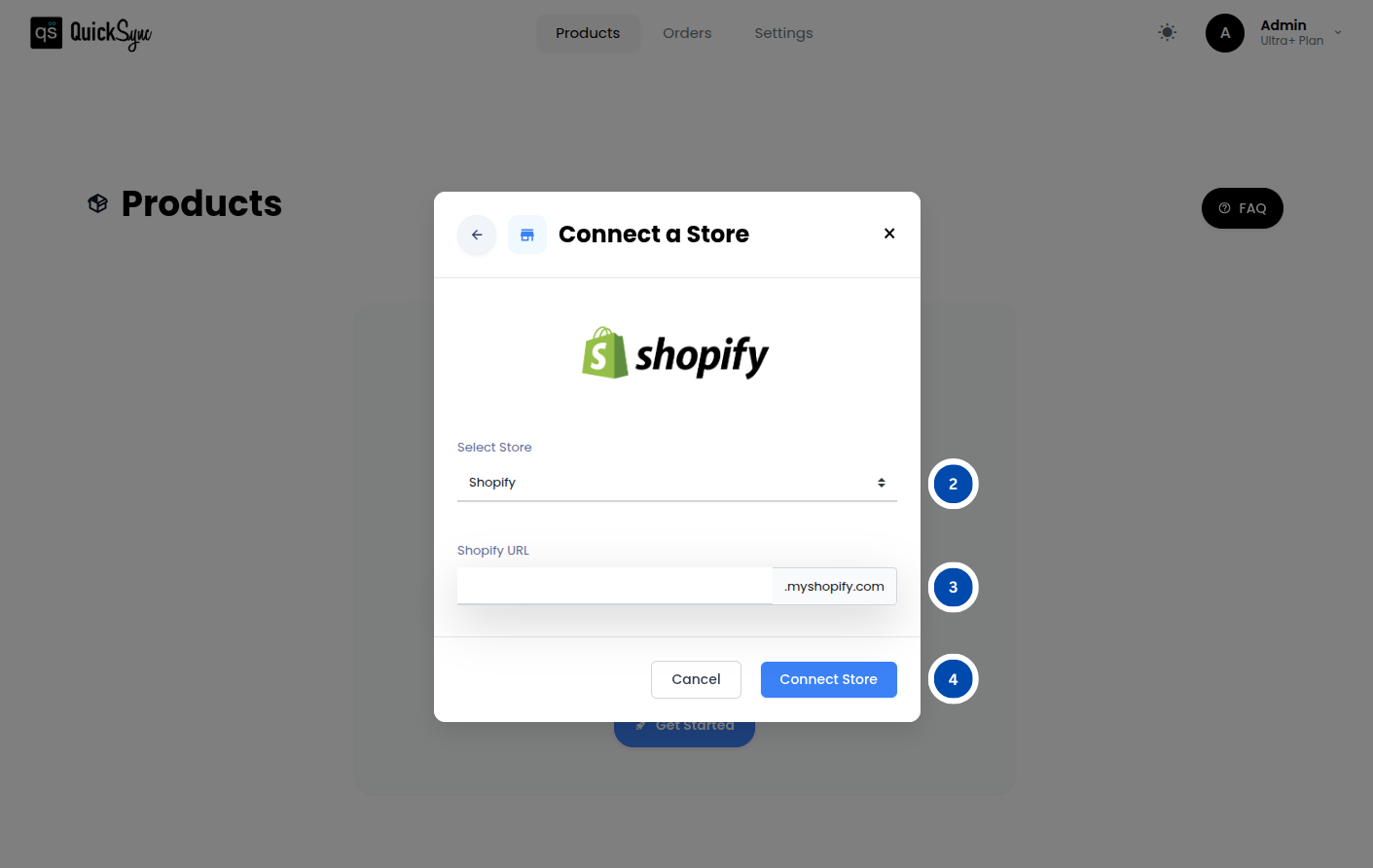
After approval, QuickSync will automatically start importing your store data. Wait for the progress bar to finish before continuing.
Step 3: Connect Your Squarespace Store
- Now, similarly, from your QuickSync account, navigate to the Sync Products section.
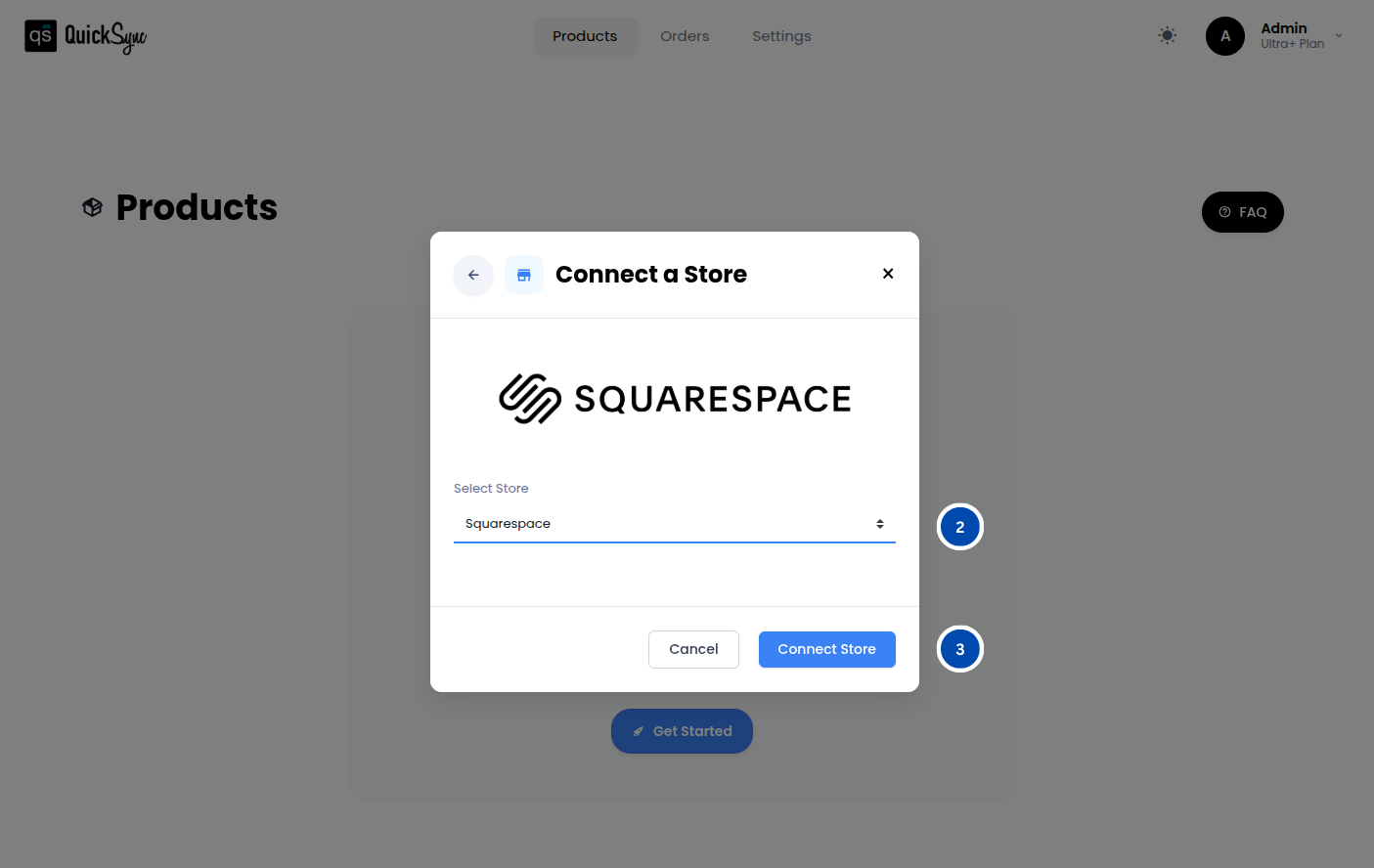
- Go to Store → Add a Store, select Squarespace, and click Connect a Store.
- Log in to your Squarespace account and approve access to products, images, inventory, and orders.
Once connected, QuickSync will automatically import your store data, including pages and products.
Step 4: Configure Sync Settings
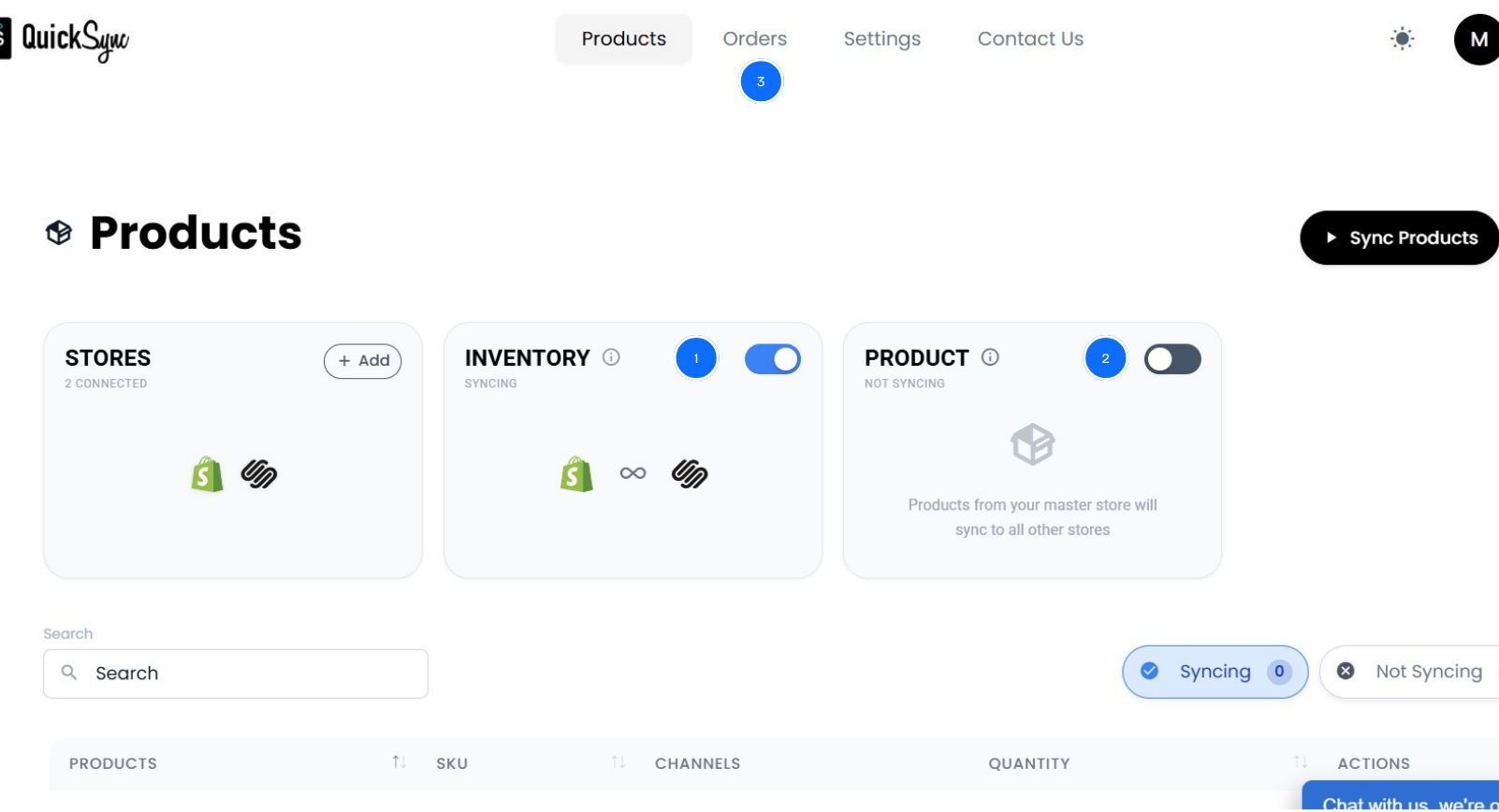
- Inventory sync
- Product sync
- Order sync
Once configured, QuickSync will continuously sync inventory between Shopify and Squarespace. Stock is written to Squarespace within seconds; a stock edit made inside Squarespace is picked up on a two-minute check.
Best Practices for a Smooth Shopify Squarespace Sync
Connecting your stores is only the beginning. What really determines success is how you manage your Shopify Squarespace integration daily.
I’ve seen merchants set everything up correctly, but still run into problems later because they ignored the fundamentals. A proper system is only as strong as the habits behind it.
Here are the practices that actually keep your Shopify Squarespace sync stable, accurate, and stress-free.
Use Shopify as Your Source of Truth:
If you want consistency, make Shopify the source of truth. Make all product updates, inventory changes, and pricing adjustments inside Shopify first. Let your integration automatically push those updates to Squarespace.
Avoid making direct edits in Squarespace. Even small changes can cause data conflicts, duplicate entries, or inventory mismatches. When Shopify acts as your master system, your workflow stays simple, and your team always knows where to make updates.
Keep Syncing Continuously:
Timing is critical when syncing inventory between Shopify and Squarespace. Some tools offer delayed syncing to reduce costs, but that delay is exactly where problems begin.
That gap leads to overselling, cancellations, and unhappy customers. Continuous syncing shrinks that gap to about as small as it goes. Stock is written to Squarespace within seconds, and a stock edit made inside Squarespace is picked up on a two-minute check, with no manual intervention either way.
Maintain Clean and Consistent SKUs:
Before you connect Shopify with Squarespace, take time to clean your SKU structure:
- Use a consistent naming format
- Ensure every product has a unique SKU
- Remove duplicates or outdated codes
Even a small mismatch can disrupt synchronization, leading to incorrect shipments, inaccurate inventory updates, or tracking issues. A clean SKU system ensures your products stay correctly mapped across both platforms.
Monitor and Reconcile Weekly:
Automation does most of the heavy lifting, but it doesn’t mean you should ignore your system completely. Ensure to spend 10–15 minutes each week reviewing your sync:
- Check inventory levels on both platforms
- Review order flows
- Look for any sync errors or alerts
This small habit helps you catch issues early, before they turn into customer complaints or operational disruptions.
Keep Your Product Data Standardized:
Consistency is not just about SKUs. Your product titles, descriptions, variants, and images should also match across Shopify and Squarespace. If your data is inconsistent, syncing tools may struggle to map products correctly, leading to:
- Missing variants
- Incorrect listings
- Broken product updates
Standardized product data ensures smooth syncing and a consistent customer experience across both platforms.
The Bottom Line: What Next?
In short, you have seen what goes wrong when Shopify and Squarespace run separately, what works, and what doesn’t, and how to connect Shopify to Squarespace the right way. The right integration unifies your business, while the wrong one creates constant problems.
If you are tired of fixing inventory issues, apologizing for overselling, and wasting time on manual updates, QuickSync is the solution.
Start your free 14-day trial today and bring clarity back to your multichannel business.