Your units are prepped, your boxes are packed, and the shipment is ready in Seller Central. The last step is the labels, and it’s an easy place to slip up.
Amazon is strict about it. Its shipping label requirements warn that boxes without the required FBA box ID label “may lead to blocking of future shipments.”
This guide explains what Amazon FBA box labels are and how they differ from FNSKU and carrier labels. You’ll learn how to print them, choose the right label sizes and printer settings, and place them correctly on boxes and pallets.
Every rule here comes from Amazon’s own Seller Central help pages, checked in November 2026.
What is an Amazon FBA box label?
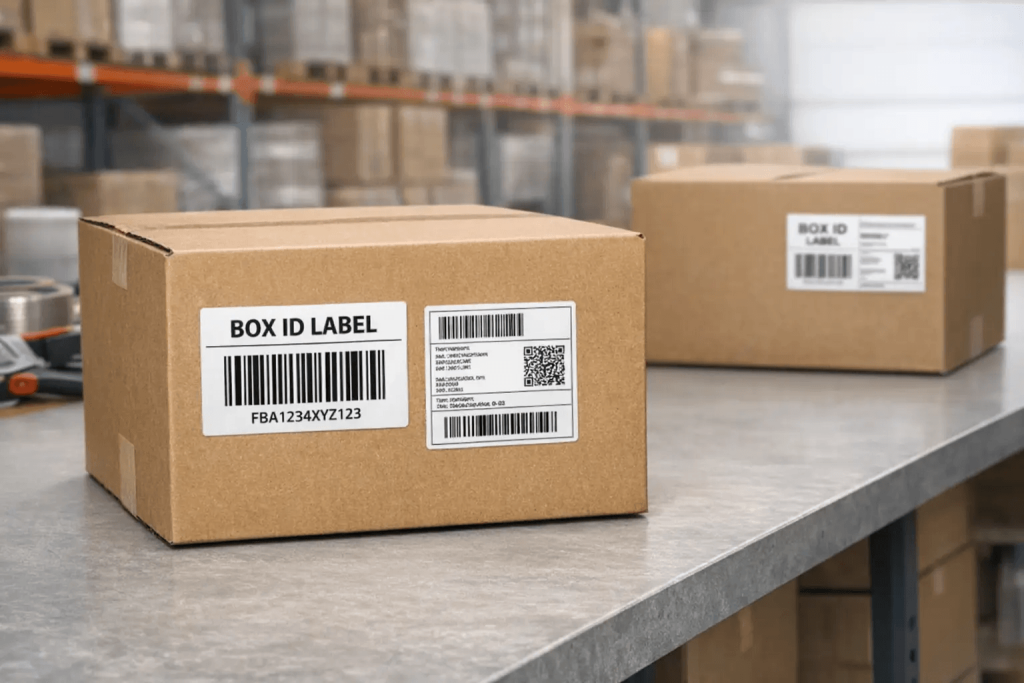
An FBA box label, also called an FBA box ID label, is the shipping label Amazon creates for each box in an FBA shipment. Its barcode tells the fulfillment center which shipment the box belongs to and which box it is. Every box needs its own unique label, in addition to the carrier label.
Amazon numbers boxes by adding a box number to your shipment ID. In Amazon’s box content guide, box 1 of shipment FBA2HCHGWK is FBA2HCHGWKU000001, and box 2 is FBA2HCHGWKU000002.
That’s why the labels can’t be shared. If you provided box content information, each label is tied to the units you said were in that box. If you put label 3 on box 5, the fulfillment center will count the wrong units.
Box labels vs FNSKU labels vs carrier labels
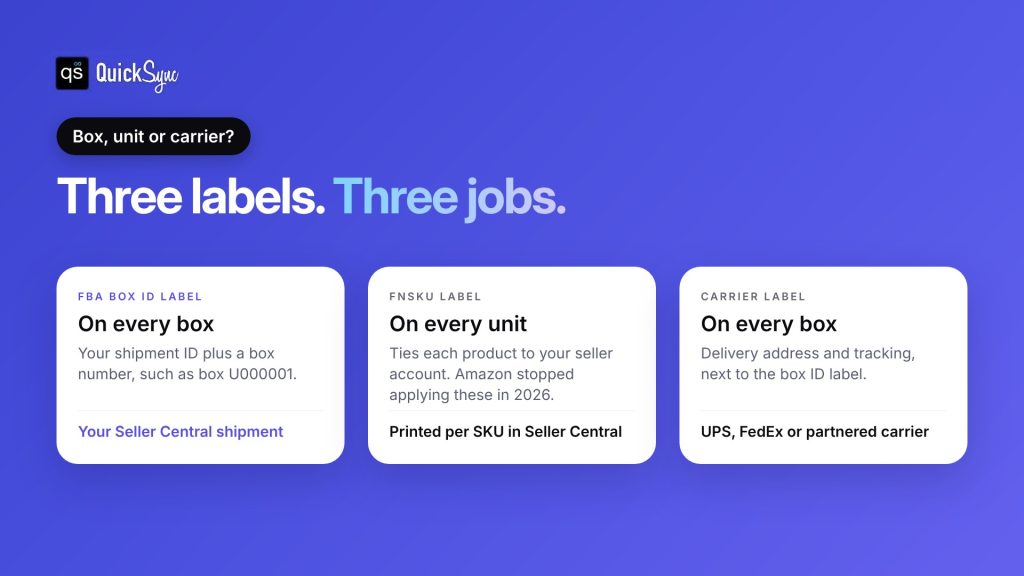
Sellers often mix these up. There are three different labels, and each one has its own job.
| Label | Goes on | What it identifies | Where you get it |
|---|---|---|---|
| FBA box ID label | Each shipping box | The shipment and the box number | Your shipment in Seller Central |
| FNSKU label (Amazon barcode) | Each unit | The product, tied to your seller account | Seller Central, printed per SKU |
| Carrier label | Each shipping box | The delivery address and tracking | UPS, FedEx or Amazon’s partnered carrier |
Two changes in 2026 affect item labels, not box labels:
- Amazon stopped labelling units for you. From January 1, 2026, Amazon no longer offers prep and item labeling for FBA shipments in the US store. Units must arrive already labelled.
- Resellers now need FNSKU stickers. As of March 31, 2026, Amazon’s barcode FAQ says resellers must use Amazon barcodes even when a product has a UPC. Brand owners in Brand Registry can still use the manufacturer barcode.
Neither change affects box labels. You print and apply those yourself for every shipment, from your shipment in Seller Central.
You may also hear the FNSKU label called an “Amazon barcode label” or an “ASIN label.” It’s the sticker on each unit, not the box. New to FBA? Our guide to what Amazon FBA is covers fees and how it works.
Selling on Amazon and other channels too? Jump to keeping your other stock counts right.
How to print Amazon FBA box labels
Print FBA box labels from your shipment in Seller Central. Send to Amazon takes you through choosing inventory, packing, and shipping, then printing box labels. Choose your label paper, print the full set, and use one label per box. For a shipment you’ve already created, open it from the Shipping Queue.
Here’s the process, step by step:
- Create the shipment. In Send to Amazon, choose the SKUs and quantities you’re sending.
- Enter box contents. Say what’s in each box, with box weight and dimensions. Use the web form, upload a file, or use 2D barcodes.
- Confirm shipping. Pick small parcel or pallet delivery and your carrier.
- Print box labels. Choose your paper type and print the full set.
- Check before you stick. Match each label’s box number to the right box.
Don’t skip step 2. If you skip box contents, Amazon charges a manual processing fee of $0.10 per unit from January through October, and $0.15 per unit in November and December.
Label size and paper
Amazon’s label requirements list two sizes:
| Option | Size | Best for |
|---|---|---|
| Label sheets | 3⅓ x 4 inches (8.47 x 10.16 cm) | Laser printers using label sheets |
| Thermal labels | 4 x 6 inches (10 x 15 cm) | Thermal label printers |
Printer settings
Amazon says its label tools are made for thermal printers. Laser printers work too, but don’t use an inkjet printer.
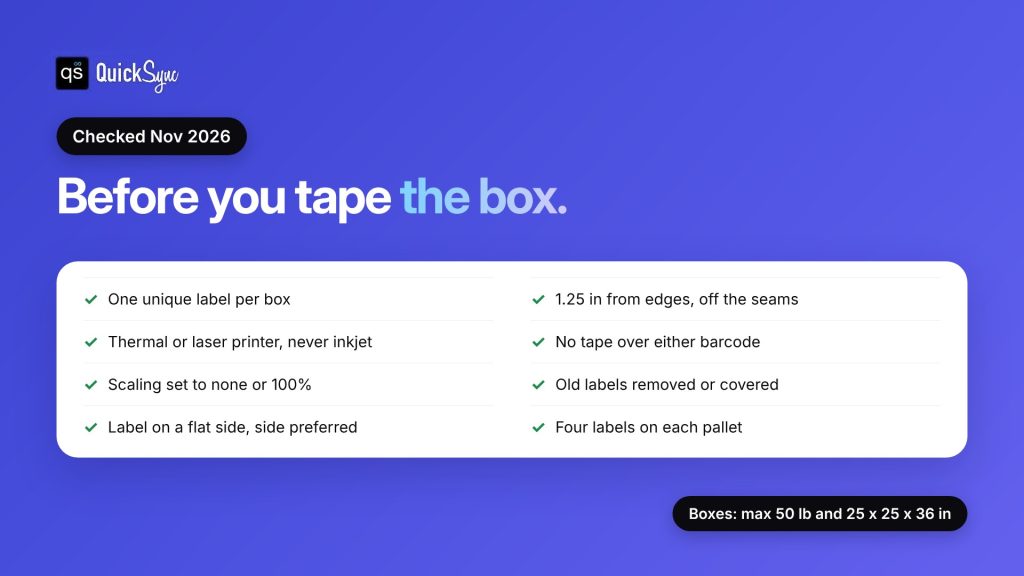
Set the printer’s scaling to “none” or 100% so the PDF doesn’t shrink. Then scan one label before you print the rest.
FBA box label placement: where to put the label
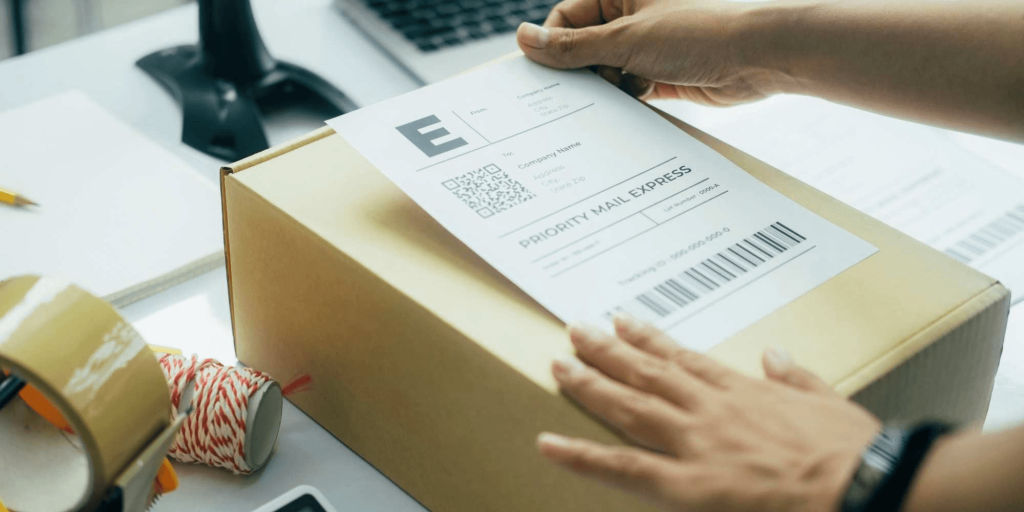
Put the FBA box ID label on a flat side of the box, next to the carrier label. Keep both labels off seams and openings, at least 1.25 inches from any edge, and uncovered by tape. Side placement is preferred over the top. Every box gets its own label.
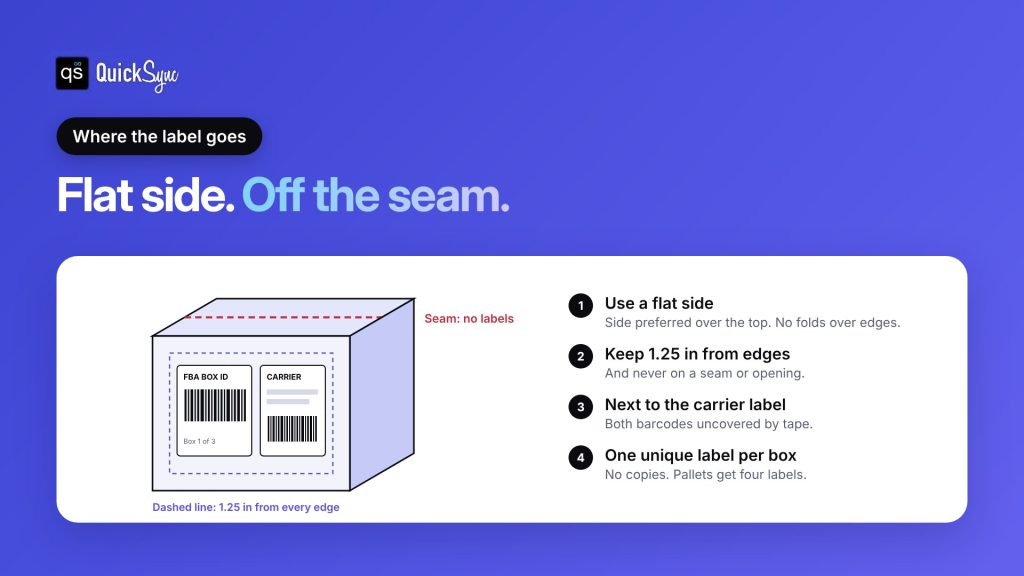
Amazon’s small parcel delivery rules and shipping label requirements add up to this:
- Use a flat side. Labels must not fold over edges or corners.
- Pick the side, if you can. Labels can go on the top or a side, but Amazon prefers the side.
- Stay off seams. A label on the box opening gets cut when the box is opened.
- Keep 1.25 inches from every edge, wherever possible.
- Don’t tape over labels. Both the box ID and carrier barcodes must stay scannable.
- One label, one box. Don’t photocopy, reuse or edit labels for extra boxes.
- Remove old labels. On reused boxes, take off or cover every old label and barcode.
Pallet labels
For pallet shipments (LTL or FTL), each pallet needs four FBA pallet ID labels, one on the top center of each side. Each box on the pallet still needs its own box label.
Case packs inside a larger box
If you ship several case packs inside one bigger box, label only the outer box. You don’t need to label the case packs inside it.
FBA box size and weight limits
Labels won’t save a box that’s too big or too heavy. These limits come from Amazon’s shipping and routing requirements:
| Rule | Limit |
|---|---|
| Maximum size | 25 x 25 x 36 inches (length up to 36, width and height up to 25) |
| Maximum weight | 50 lb per box |
| Single item over 50 lb | Up to 65 lb, with “Team Lift” labels on the top and sides (5 in total) |
| Jewelry or watches | 40 lb per box |
| Recommended minimum | 6 x 4 x 1 inches and 1 lb, to reduce receiving delays |
| Small parcel boxes per shipment | 200 with Amazon’s partnered carrier, 500 with other carriers |
Amazon doesn’t supply “Team Lift” labels. You print those yourself.
Common FBA box label mistakes
Most label problems come from a few habits:
- Reusing a label. Each box ID is unique, so a copied label points two boxes at the same contents.
- Putting labels on the wrong boxes. If your box contents say box 2 holds 24 mugs, label 2 must go on that box.
- Using an inkjet printer. Amazon says not to. Blurry barcodes slow down receiving.
- Scaling the PDF. “Fit to page” shrinks the barcode. Print at 100%.
- Leaving old barcodes visible. Cover them with opaque tape or cross them out with a black marker.
- Labelling over a seam or edge. The barcode gets cut or bent and won’t scan.
- Assuming a 2D barcode is enough. Amazon says 2D barcodes don’t replace FBA box ID labels.
Using a supplier or prep center
Amazon’s FBA Prep Service page says most sellers now prep and label through their own team, their manufacturer or a third-party provider. If a supplier or prep center ships for you, box labels still follow the same rules.
According to Amazon’s shipping and routing requirements, if a distributor ships straight to a fulfillment center, it needs the correct FBA box ID labels for your shipment. You can give it limited access to your seller account to print them.
Before you hand it over, check three things:
- Who prints the labels. You or the supplier, but not both.
- That box contents match. The units in each box must match what you entered in the shipment.
- That your own counts are clear. Track which units go to FBA, so the stock you list on other channels only includes what you can ship yourself.
Ship to FBA without overselling on your other channels
Packing boxes for FBA moves stock off your own shelf. If the same products also sell on Shopify, eBay, Etsy, or as merchant-fulfilled Amazon listings, those counts need to drop too.
Here’s what goes wrong. You have 40 mugs in your warehouse, listed on Shopify and eBay. You pack 24 into FBA boxes. If nobody updates Shopify and eBay, they still show 40, and you can sell mugs that are already on their way to Amazon.
QuickSync keeps one stock count across the stores you sell from yourself:
- Your channels: Shopify, eBay, Etsy, TikTok Shop, WooCommerce, Squarespace, Square, Clover and more stay on the same count.
- Amazon, merchant-fulfilled: QuickSync sends your count to Amazon and takes changes back for items you ship yourself, according to the Amazon integration page.
- Amazon FBA: FBA stock keeps its own count, which Amazon owns. QuickSync doesn’t change it.
So when 24 mugs leave for FBA, you lower the count once, and every channel you ship from updates. Plans start at $19 a month for two shops, with unlimited orders. See the pricing page for details.
Get the labels right once, then make it routine
FBA box labels aren’t hard, but they’re strict. One unique label per box, printed at full size, on a flat side away from seams and edges. Pallets get four. Boxes stay under 50 lb and 25 inches on their short sides.
Write the rules into your packing routine so every shipment goes the same way:
- Pack and weigh each box. Write the weight and size on it in pencil.
- Enter box contents in Send to Amazon. Match units, weights and dimensions to what’s in each box.
- Print the full label set. Use thermal or laser, at 100%, on the paper you picked.
- Match labels to boxes. Box number 3 goes on the box you entered as box 3.
- Scan one label. If it reads, label the rest and tape the boxes.
- Update your other channels. Take the units you sent out of the stock you sell elsewhere.
It takes a few minutes per shipment, and it costs far less than a refused box.
Step 6 is the one most sellers forget. Sell a unit on Shopify that’s already in an FBA box and you’re left cancelling the order. If you sell the same products on Shopify and Amazon or eBay and Amazon, keep those counts in sync so the units you send to FBA can’t be sold twice.