The best WooCommerce inventory management plugin depends on where you sell. If you only sell on WooCommerce, ATUM is a strong free pick for purchase orders and suppliers. Stock Manager for WooCommerce and Smart Manager are better for editing stock in bulk. If you also sell on Etsy, eBay, Amazon, TikTok Shop, or Shopify, you need a sync tool like QuickSync or LitCommerce to keep stock matched on every channel.
There are a lot of WooCommerce inventory plugins, and most do different jobs. Some help you edit stock faster. Some add purchase orders and suppliers. Others connect WooCommerce to your other sales channels.
Picking the wrong type is the most common mistake. A plugin that only works inside WordPress won’t stop you from overselling on Etsy, however good it is.
This guide compares six WooCommerce inventory management plugins and tools. For each one, it covers what it does, what it costs, and who it’s for. We checked every price and plugin page in November 2026.
What is a WooCommerce inventory management plugin?
A WooCommerce inventory management plugin adds stock features that WooCommerce doesn’t have on its own. Most fall into one of two groups:
– Plugins that work inside your store. They make it faster to view and edit stock, or add purchase orders, suppliers, and stock history. ATUM, Stock Manager for WooCommerce and Smart Manager are in this group.
– Tools that connect your store to other channels. They keep WooCommerce stock in step with marketplaces and other stores, so a sale on one channel lowers the count everywhere. QuickSync and LitCommerce are in this group.
If you only sell on WooCommerce, you need the first group at most. If you sell anywhere else, you need the second.
What WooCommerce does without a plugin
Before you install anything, check what’s already there. WooCommerce has inventory settings under WooCommerce > Settings > Products > Inventory. According to the WooCommerce settings guide, you can:
– Turn on stock management to track quantities for physical products.
– Hold stock for unpaid orders for a set number of minutes.
– Get email alerts when a product hits your low stock or out-of-stock threshold.
– Hide out-of-stock products from your catalog.
– Choose how stock shows to buyers, or hide the number.
You can also set a quantity and allow backorders on each product or variation. For a single store with a small catalog, this covers the basics.
What it doesn’t do: show every product and variation in one editable table, track purchase orders, or see sales from anywhere outside your WooCommerce store. Its bulk edit can change stock for several products at once, but only for products on the current page of your product list.
That’s why you need a WooCommerce inventory management plugin. It helps you manage stock faster, update multiple products at once, and keep track of inventory without checking each product manually. If you sell on multiple channels, the right plugin can also keep your stock updated across all your stores.
What to look for in a WooCommerce inventory plugin
Pick a tool based on the problem you have. Five things to check:
Where you sell. If you sell on Etsy, eBay, Amazon, TikTok Shop, or another store, this decides everything. Plugins that only work inside WordPress can’t see those orders.
How you edit stock. If you update hundreds of products or variations, look for a single table where you can change quantities in bulk.
Purchasing. If you reorder from suppliers, look for purchase orders and incoming stock.
Variations. Check that the tool handles stock for each size or colour, not just the parent product.
Total cost. Free plugins often sell paid add-ons. Add up the add-ons you’d actually need.
Best WooCommerce inventory plugins at a glance
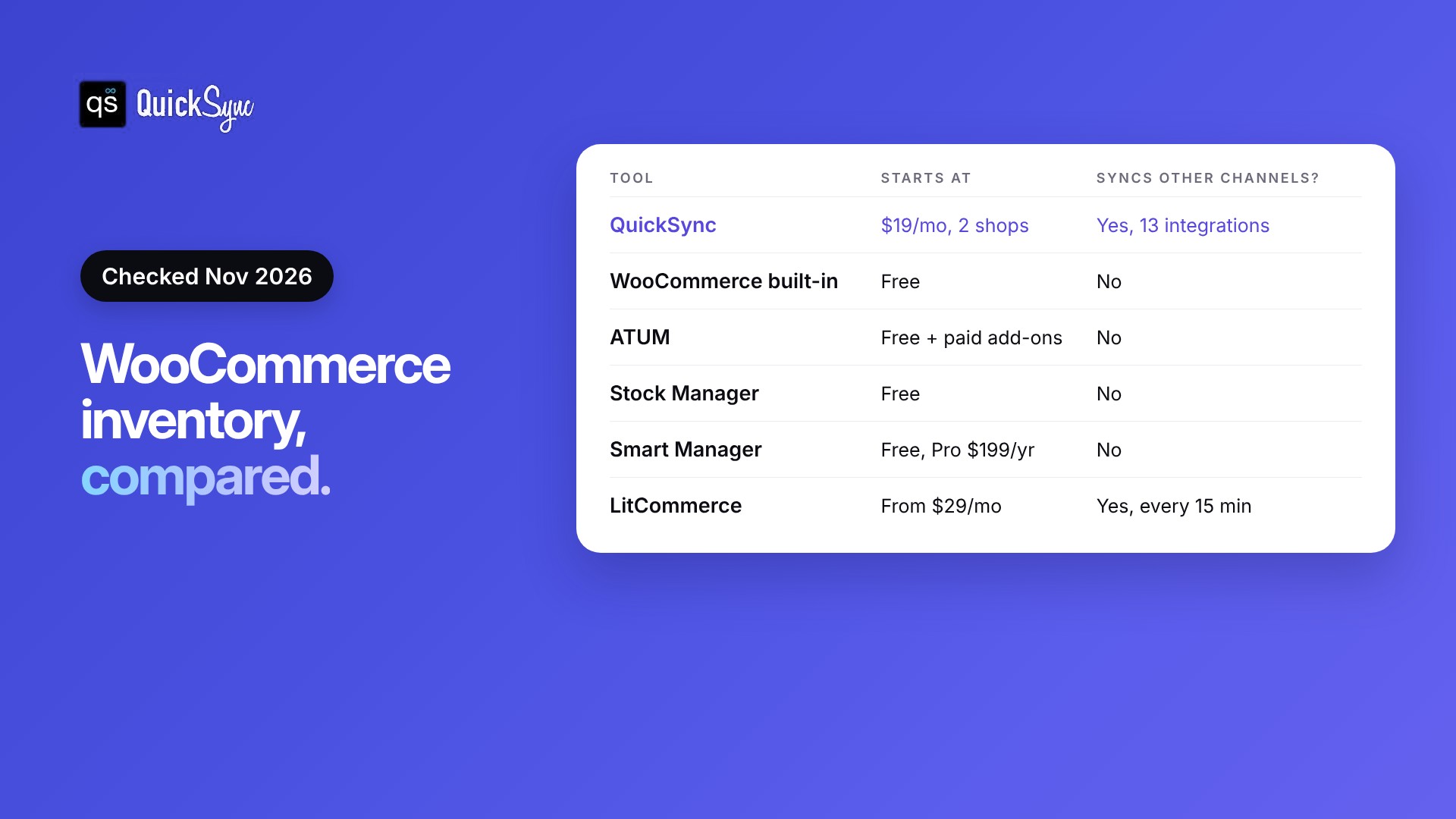
| Tool | Starting price | Best for | Syncs stock with other channels? |
|---|---|---|---|
| QuickSync | $19/month for 2 shops | WooCommerce plus Etsy, eBay, Amazon, TikTok Shop, Shopify or a POS | Yes, 13 integrations |
| WooCommerce built-in | Free | One store, small catalog | No |
| ATUM | Free, paid add-ons | Purchase orders and suppliers | No |
| Stock Manager for WooCommerce | Free | Quick stock edits on one screen | No |
| Smart Manager | Free, Pro $199/year | Bulk editing a large catalog | No |
| LitCommerce | From $29/month | WooCommerce plus marketplaces | Yes, every 15 minutes |
Already know you sell on more than one channel? Jump to the setup steps.
The 6 best WooCommerce inventory management tools
1. QuickSync: best for selling on WooCommerce and other channels
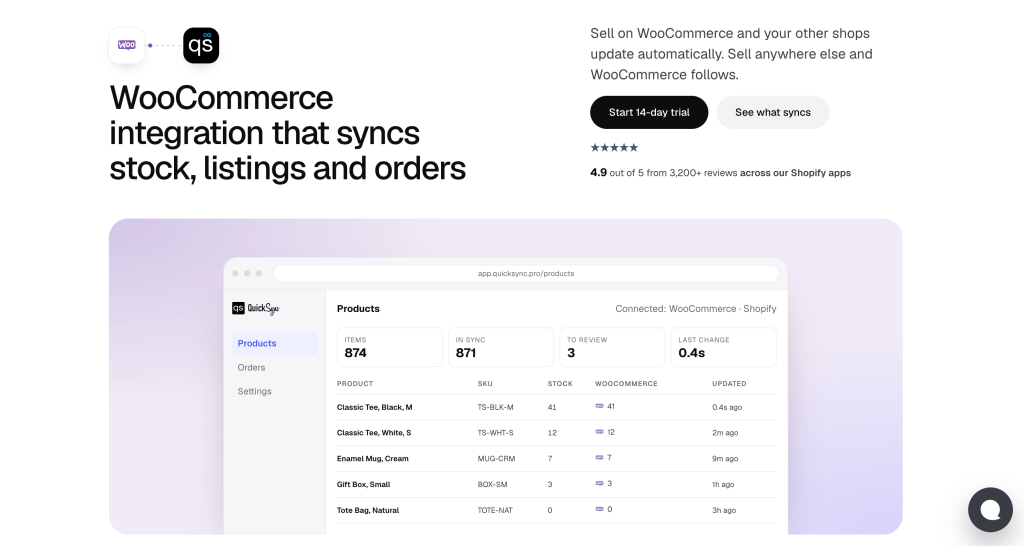
QuickSync keeps one stock count across WooCommerce and your other channels. When something sells on Etsy, eBay or your Square POS, the quantity drops in WooCommerce too, and the other way around.
It isn’t a WordPress plugin. You enter your store address, approve the access request in your WordPress admin, and QuickSync connects.
What it does with WooCommerce, according to the WooCommerce integration page:
– Stock syncs both ways between WooCommerce and your other shops. Products match by SKU.
– Orders from other shops can be filled in WooCommerce, with the customer, address, and items.
– Tracking goes back. Add a tracking number in QuickSync and WooCommerce notifies the buyer.
– Listings can be created and updated, including photos, sizes, and colours. You can create them as drafts to review first. Ongoing product sync is on the Pro plan.
It connects 13 platforms, including Shopify, Amazon, Etsy, eBay, TikTok Shop, Square, Clover and Lightspeed. You can also sync more than one WooCommerce store.
Pricing: Lite is $19 a month for two shops and 1,000 items, with stock sync. Pro is $29 a month for 2,500 items and adds product and order sync. Orders are unlimited on every plan, according to the pricing page. Every plan has a 14-day free trial with no card.
Good fit if: you sell the same products on WooCommerce and at least one other channel.
Not a fit if: you only sell on WooCommerce. You don’t need sync.
2. WooCommerce built-in stock management: best for one small store
WooCommerce’s own stock settings are free and already installed. You get stock tracking, held stock for unpaid orders, low and out-of-stock emails, and backorders. See the WooCommerce settings guide for each option.
Pricing: Free.
Good fit if: you sell only on WooCommerce and update stock for a small number of products.
Not a fit if: you edit hundreds of variations at a time, buy from suppliers often, or sell on other channels.
3. ATUM: best for purchase orders and suppliers
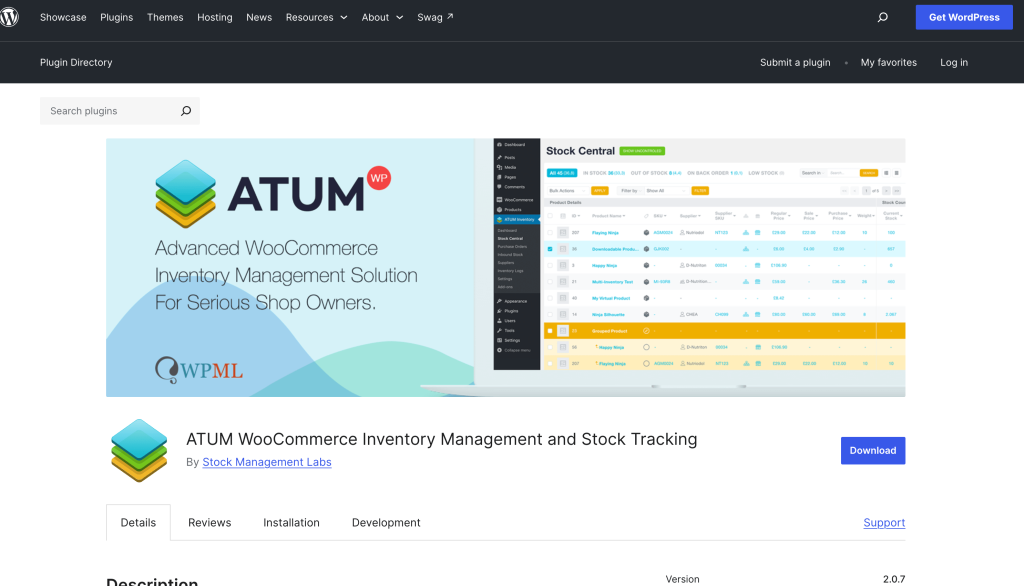
ATUM is a free WooCommerce inventory plugin with over 10,000 active installs and a 4.7 out of 5 rating on WordPress.org. It goes further than most free plugins, adding the purchasing side of inventory to WooCommerce. It was last updated in October 2026, and paid add-ons are available if you need multiple warehouses or stock takes later.
The free version includes:
– Stock Central, one screen to view and edit stock, SKUs, prices, suppliers, and locations.
– Purchase orders for stock you’re buying, with PDF export.
– Suppliers linked to products and variations.
– Inbound stock so you can see what’s on the way.
– Inventory logs for returns, damages, and other stock changes.
Paid add-ons include Multi-Inventory (several inventories per product, such as warehouses), Product Levels (bills of materials), Stock Takes, and Barcodes PRO. Prices are shown at checkout, and each add-on has a free trial.
Pricing: Free. Add-ons are paid.
Good fit if: you buy from suppliers and want purchase orders and incoming stock inside WordPress.
Not a fit if: you need stock to sync with Etsy, eBay, or Amazon. ATUM doesn’t do that.
4. Stock Manager for WooCommerce: best for quick stock edits
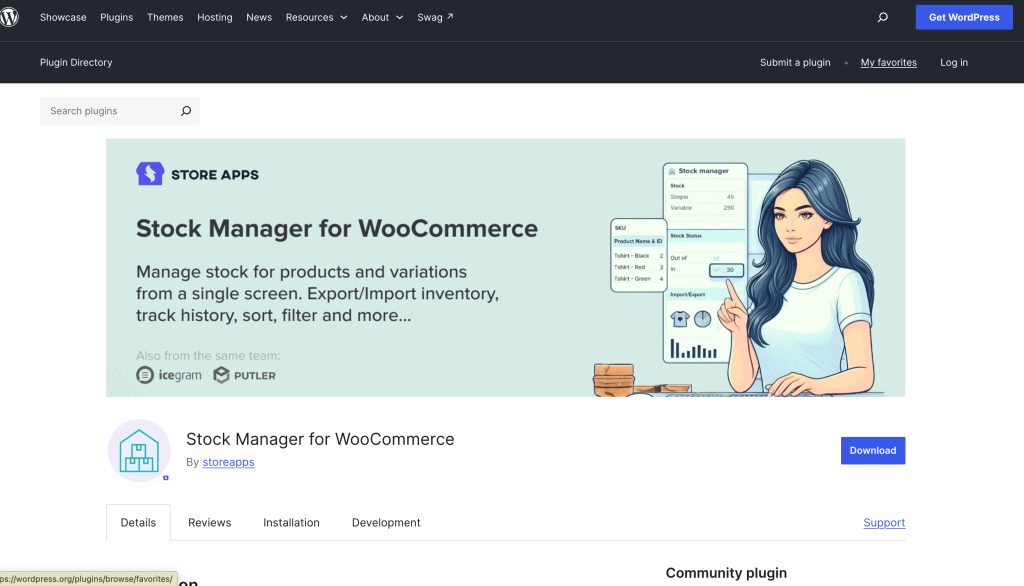
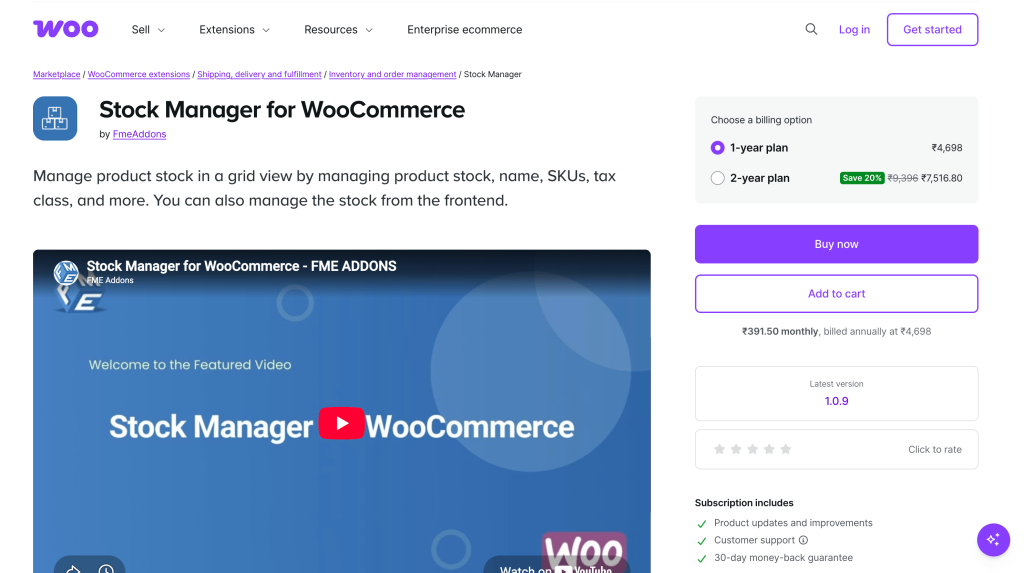
Stock Manager for WooCommerce by StoreApps puts all your products and variations in one table. It has over 20,000 active installs and a 4.2 out of 5 rating.
– Edit stock in a table instead of opening each product.
– Update many products at once with the inline editor.
– See a stock log for each product.
– Export and import stock by CSV. The plugin page says this feature needs work, so test it on a copy first.
Pricing: Free.
Good fit if: you want a faster way to update quantities and nothing more.
Not a fit if: you need purchase orders or sync with other channels.
5. Smart Manager: best for bulk editing a large catalog
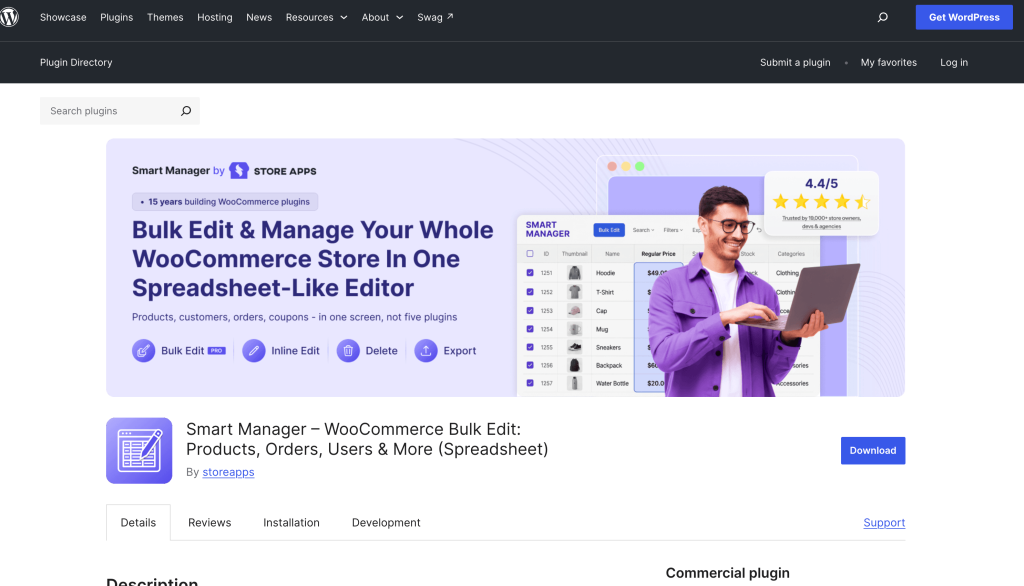
Smart Manager, also by StoreApps, shows your products in a spreadsheet view. It has over 10,000 active installs and a 4.4 out of 5 rating.
The free Lite version lets you edit stock quantity, stock status and backorders in the grid, and view a stock log. Pro adds bulk updates across many products and variations, colour-coded low stock, and scheduled edits you can undo.
Pricing: Lite is free. Pro is $199 a year, as listed on its WordPress.org page.
Good fit if: you manage a big catalog and change stock, prices and other fields in bulk.
Not a fit if: you sell on other channels. It only edits your WooCommerce data.
6. LitCommerce: best for listing WooCommerce products on marketplaces

LitCommerce connects WooCommerce to marketplaces like Amazon, eBay, Etsy, Walmart and TikTok Shop. You install its free plugin from WordPress.org, then manage listings in the LitCommerce app.
Stock, prices, and orders sync every 15 minutes, and marketplace orders come into WooCommerce for fulfillment.
Pricing: From $29 a month for 1,000 listings, with unlimited orders and a 7-day free trial, according to the LitCommerce pricing page.
Good fit if: your main job is listing a WooCommerce catalog on several marketplaces.
Not a fit if: a 15-minute sync is too slow for your fast sellers.
Which WooCommerce inventory plugin should you use?
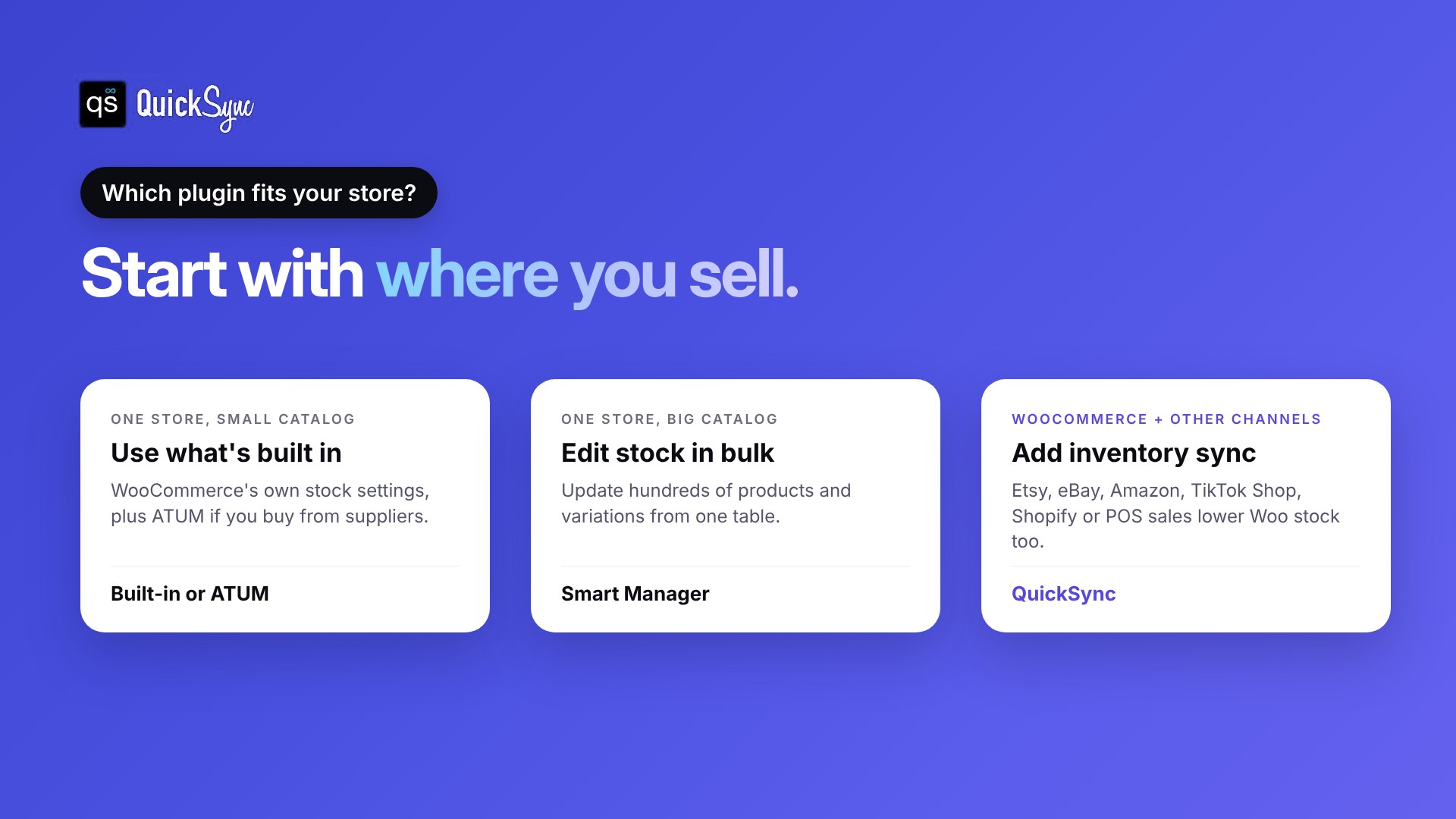
Start with where you sell, then what slows you down.
| Your situation | What to use |
|---|---|
| One WooCommerce store, small catalog | WooCommerce built-in stock |
| One store, you buy from suppliers | ATUM |
| One store, lots of products or variations to update | Stock Manager for WooCommerce or Smart Manager |
| WooCommerce plus Etsy, eBay, Amazon, TikTok Shop or Shopify | QuickSync |
| WooCommerce plus a Square, Clover or Lightspeed POS | QuickSync |
| Listing a WooCommerce catalog on many marketplaces | LitCommerce or QuickSync |
You can use both kinds together. For example, ATUM for purchase orders inside WordPress and QuickSync to keep WooCommerce in step with Etsy.
Here’s why the second group matters. You make candles and sell them on WooCommerce and Etsy. You have one Lavender candle left. It sells on Etsy at 9 p.m.
Without sync, your WooCommerce store still shows one in stock. A second buyer orders it, and you have to cancel. With sync, WooCommerce drops to zero right after the Etsy sale, so the second order never happens. Our guide on how to prevent overselling covers more ways to avoid this.
Signs you’ve outgrown WooCommerce’s built-in stock management
WooCommerce’s own stock settings work well for a small store that sells in one place. These are the signs it’s time to add something:
- You edit variations one at a time. If updating sizes and colours means opening each product, a bulk editor like Stock Manager for WooCommerce or Smart Manager will save you hours.
- You track supplier orders in a spreadsheet. If you reorder stock often, ATUM keeps purchase orders, suppliers and incoming stock inside WordPress.
- You start selling on a second channel. Once the same products are on Etsy, eBay, Amazon, or TikTok Shop, WooCommerce can’t see those sales. You need inventory sync. For eBay, we compare the best WooCommerce eBay integration plugins.
- You’ve had to cancel an order because the item was already gone. That usually means a sale happened somewhere WooCommerce didn’t know about. Sync fixes this.
- You spend time every day matching stock between channels. If you’re copying numbers from one dashboard to another, that’s the job a sync tool does for you.
If only the first two apply, a plugin is enough. If any of the last three apply, you need a tool that keeps every channel on the same count.
Final thoughts
The best WooCommerce inventory plugin depends on one question: do you sell anywhere besides WooCommerce?
If you don’t, start with WooCommerce’s own settings. Add ATUM for purchasing, or Stock Manager or Smart Manager for faster editing. If you do, you need a tool that keeps every channel on the same count. Plugins that only work inside WordPress can’t do that. Our guide to WooCommerce inventory sync goes into more detail.