It’s Saturday night and a buyer has just asked where their order is. Another wants to know if a size runs small. A third is asking why you cancelled their order. On Amazon, each of those messages comes with a clock: you have 24 hours to reply, and Amazon tracks how fast you do.
The Amazon Message Center is where all of that happens. It’s also where sellers get into trouble, because Amazon has strict rules about what you can say, when you can message first, and what counts as a reply.
This guide explains how the Message Center works for sellers in 2026, the rules you need to follow, and how to cut down the number of messages you get in the first place. Every rule here comes from Amazon’s own Seller Central help pages, checked in November 2026.
What is the Amazon Message Center?
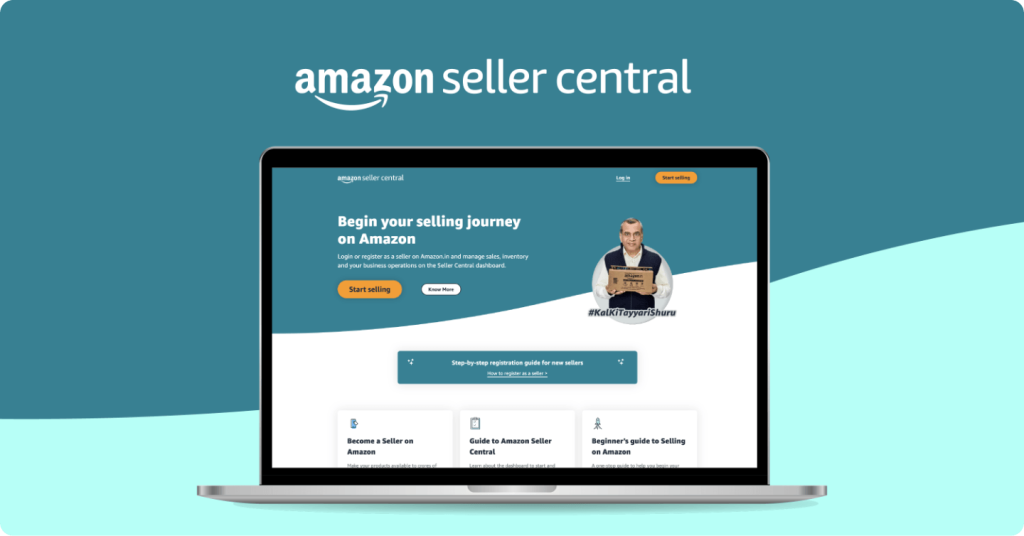
The Amazon Message Center is where sellers read and reply to messages from buyers. Sellers often call it the Amazon seller message center. In Seller Central, Amazon calls it Buyer-Seller Messages, and the system behind it is the Buyer-Seller Messaging Service.
According to Amazon’s help page, Buyer-Seller Messaging is “the only approved method for communicating with buyers on Amazon.” You can use it from Seller Central or from your own email account. Either way, every message is saved on the Buyer-Seller Messages page.
Amazon keeps both sides private. Buyers get an encrypted email alias for each seller, so you never see their real email address, and they never see yours.
How to find the Message Center in Seller Central
There are three ways in:
Step 1: The Messages link. In the top-right corner of your Seller Central home page, click Messages. This opens Buyer-Seller Messages, according to Amazon’s templates guide.
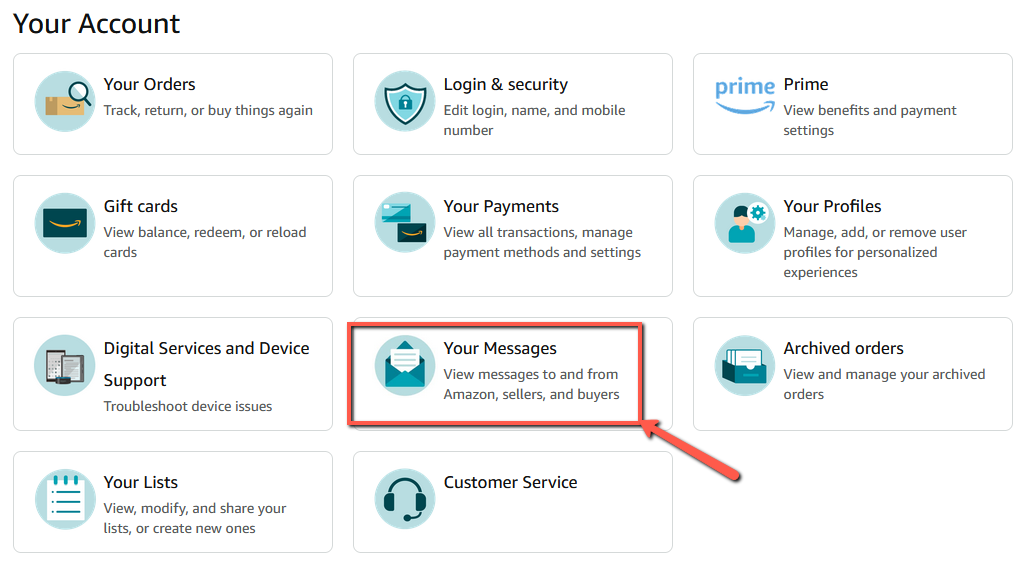
Step 2: From an order. Click the buyer’s name or the Contact buyer button on Manage Orders, Feedback Manager, Manage Returns, Manage A-to-z Claims or the Buyer-Seller Messages page. Pick a contact reason, write your message and click Send.
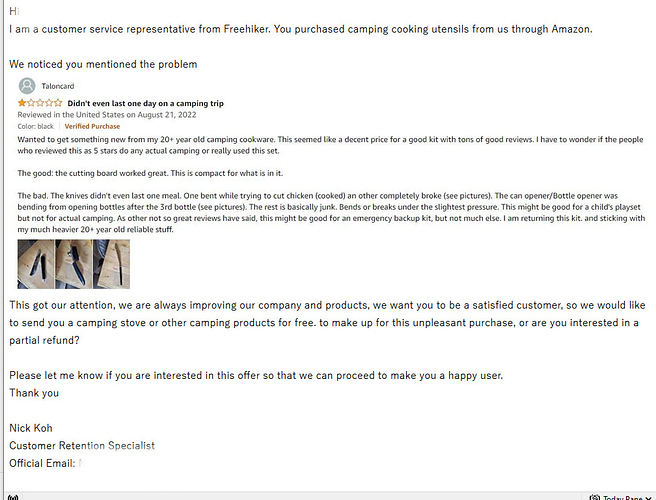
Step 3: From your email. Reply to a buyer’s message from the email address you registered with Amazon. Your reply is still saved in Seller Central. If teammates reply from their own email, add their addresses on the Messaging Permissions page first, or Amazon rejects the message.
By default, the Buyer-Seller Messages page shows messages that still need a response. Click the Response Needed filter to switch to all, unread, sent, received or archived messages. To find one order’s messages, type the order ID in the search box at the top. New to Seller Central? Start with our guide to what Amazon Seller Central is.
The 24-hour response rule
Amazon’s communication policy says sellers “are expected to respond to buyer messages within 24 hours of receipt.” It adds that after 48 hours, the buyer may be able to file an A-to-z Guarantee claim on a seller-fulfilled order.
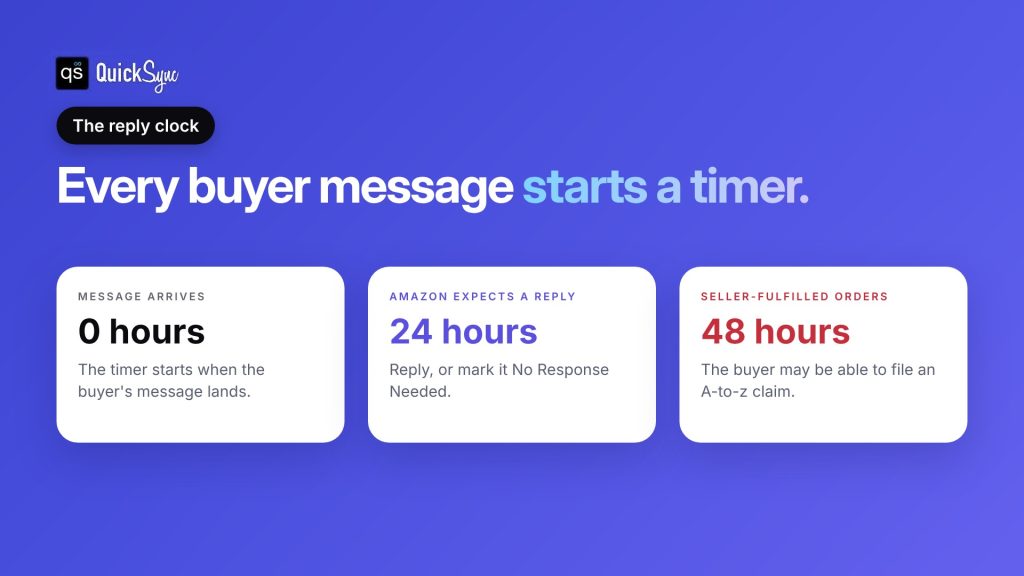
| Time since the buyer’s message | What it means |
|---|---|
| Under 24 hours | Reply within Amazon’s expected window |
| 24 hours | Amazon expects a reply by now |
| 48 hours | The buyer may be able to file an A-to-z claim on a seller-fulfilled order |
Not every message needs a reply. If a buyer just says “thanks”, click No Response Needed below the message, or use the “Mark as no response needed” link in the email. According to Amazon’s Buyer-Seller Messages FAQ, this removes the message from your response-time calculation.
Want to stop messages before they start? Jump to how to get fewer buyer messages.
What you can and can’t send
Amazon only lets you message buyers who have asked you a question before buying, or who recently bought from you. Everything else is off limits. Here’s a summary of Amazon’s communication policy.
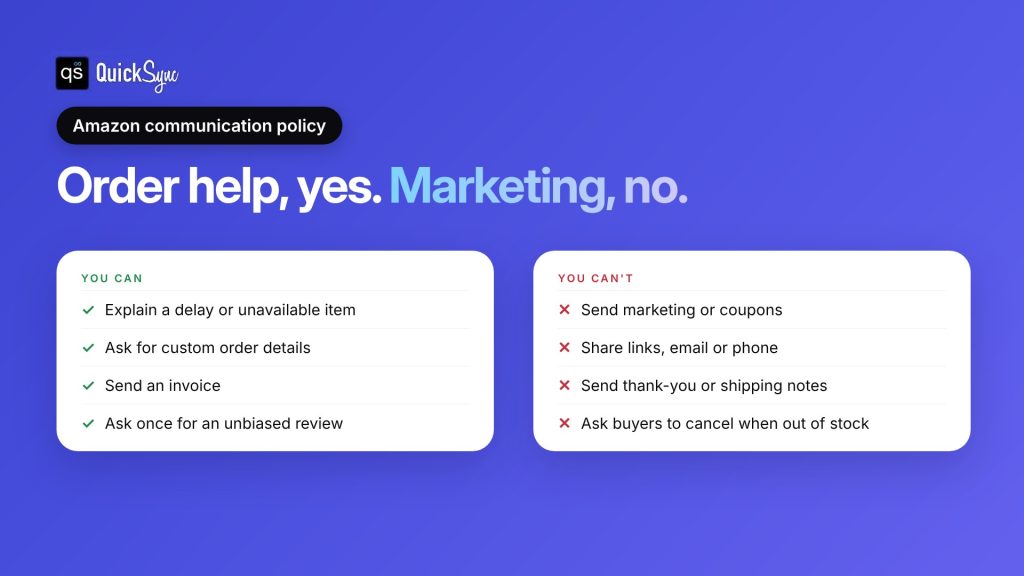
| You can message a buyer to… | You can’t message a buyer to… |
|---|---|
| Tell them an item is unavailable or a shipment is delayed | Send marketing, coupons or free product offers |
| Ask for details you need for a custom order | Share your email, phone number or website |
| Ask return or refund questions, or offer a partial refund | Send order, shipping or “thank you” confirmations |
| Send an invoice | Ask them to cancel because you’re out of stock |
| Schedule delivery of a heavy or bulky item | Ask for a positive review, or ask them to change one |
| Ask once for an unbiased review or feedback | Ask for payment through PayPal, Venmo or Zelle |
Messages you start yourself, which Amazon calls proactive messages, have extra rules. They must:
- be sent within 30 days of the order being completed
- include the full 17-digit order number
- be in the buyer’s preferred language
- be for one of the allowed purposes above
Amazon also bans some styling, including emojis, animated GIFs, links without descriptive text and unsecured (http) images. Breaking these rules can get your message blocked, limit your ability to send messages, or put your selling account at risk.
How to get fewer buyer messages
The fastest way to stay on top of the Message Center is to give buyers fewer reasons to write. Most messages come from a handful of problems:
- “Where’s my order?” Confirm shipment with tracking on time. When you confirm a shipment in Manage Orders, Amazon sends the shipping and tracking emails for you, so you don’t need to message them yourself.
- “Will this fit?” or “Does this work with…?” Answer it in the listing. Clear sizes, compatibility and photos stop pre-order questions.
- “Why was my order cancelled?” This one usually means you sold something you didn’t have.
That last one is common for sellers who also sell on Shopify, eBay, Etsy or TikTok Shop. A product sells on another channel, Amazon still shows it in stock, and an Amazon buyer orders it. Now you have to cancel. Amazon’s policy also says you can’t ask the buyer to cancel for you when you’re out of stock. Our guide on how to prevent overselling covers the causes in more detail.
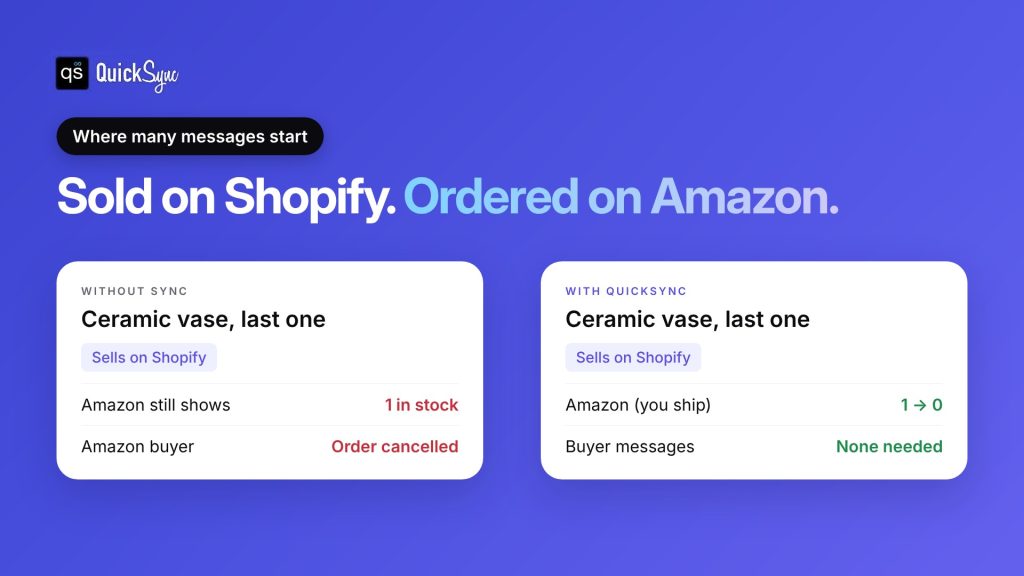
A multichannel selling tool stops this before it starts. QuickSync keeps stock, listings and orders in step across Amazon and your other channels. According to QuickSync’s Amazon page:
- Stock. For items you ship yourself, stock syncs both ways, so a sale on Shopify or Etsy lowers your Amazon count. For FBA items, QuickSync sends your count to Amazon.
- Orders. On Pro, Amazon orders come into one place with your other channels’ orders.
- Tracking. For eligible orders you ship yourself, tracking goes back to the Amazon order, so buyers can see where it is.
- Channels. Amazon connects to Shopify, eBay, Etsy, TikTok Shop, WooCommerce, Square, Clover, Squarespace, Wix and Lightspeed.
Pricing: Lite costs $19 a month for two shops and up to 1,000 items, with stock sync and unlimited orders. Pro costs $29 a month and adds listings and orders. Every trial is 14 days with no card. See the QuickSync pricing page.
QuickSync doesn’t reply to buyer messages for you. It cuts the oversold orders and missing tracking that cause many of them.
FBA orders vs orders you ship yourself
The Message Center works a little differently depending on who ships the order.
- Orders you ship yourself (FBM). Buyer-Seller Messaging is on by default. You handle questions about delivery, returns and refunds.
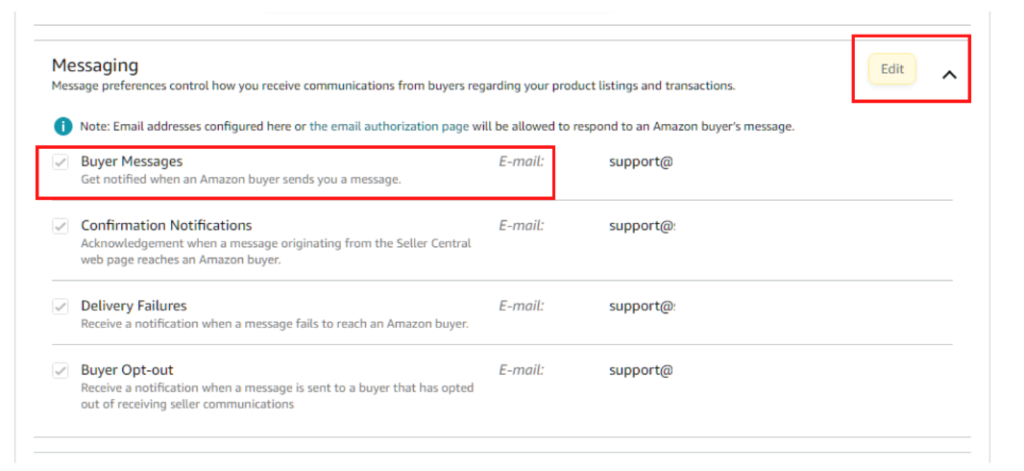
- FBA orders. Amazon handles delivery, returns and refunds, so Amazon’s FAQ says to point buyers to Amazon customer service for those questions. FBA messaging is for product questions only. To turn it on, go to Settings > Notification Preferences, click Edit next to Messaging, and tick Buyer Messages. Read more in our guide to what Amazon FBA is.
Templates and the Seller Messaging Assistant
If you send the same replies again and again, templates save time. According to Amazon’s templates guide:
- Amazon managed templates appear when they fit the message you’re replying to. Amazon translates them into the buyer’s language automatically.
- Your own templates can be created from Manage Email Templates on the Buyer-Seller Messages page. Click Select Template above the reply box to use one.
Amazon also has a Seller Messaging Assistant. According to Amazon, it answers common buyer questions automatically, like where an order is, cancellations, returns and invoices. It only passes a message to you when it can’t answer it. You can configure its auto-responses for your products.
Two more limits worth knowing:
- Daily message limit. You can send up to 5 times your average daily order volume, plus 600 messages a day.
- Buyer opt-out. Buyers can opt out of messages from sellers. Your message still gets through if you’re replying to their message, or if it’s critical to completing the order, like a customization question, delivery scheduling or a shipping address issue.
Final thoughts
The Amazon Message Center is simple to use and strict to get right. Open it from the Messages link in Seller Central, reply within 24 hours, mark messages that need no reply, and only message buyers about their order. Templates and the Seller Messaging Assistant take care of the repeat questions.
The bigger win is getting fewer messages. Clear listings answer questions before they’re asked, and on-time tracking answers “where’s my order?” for you. If you sell on Amazon and somewhere else, one shared stock count stops the oversold orders that lead to cancellations and unhappy buyers.
Check your Buyer-Seller Messages page today, clear anything over 24 hours old, and set up templates for the questions you answer most.