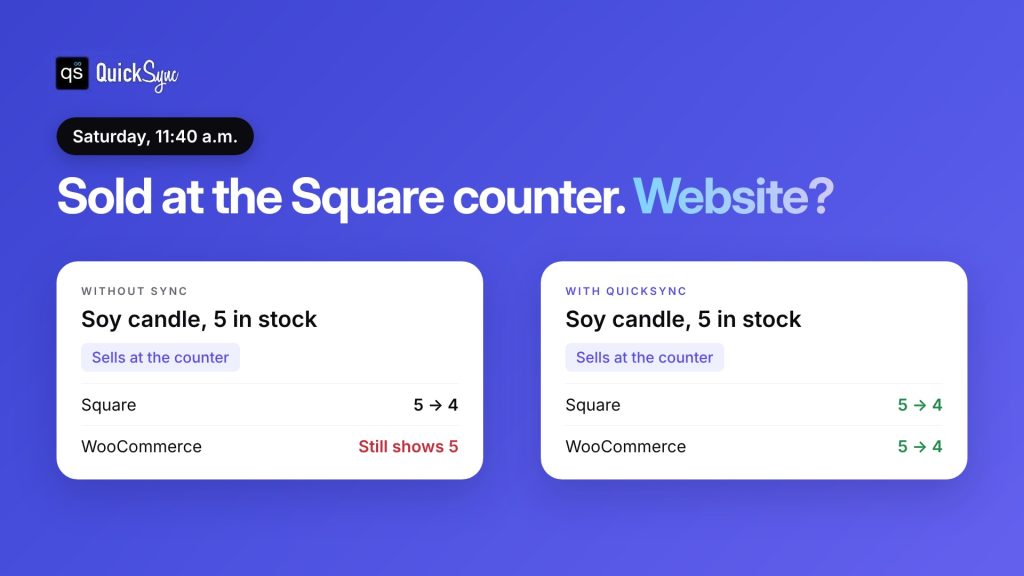
You’ve got a shop counter running on Square and a WooCommerce store selling the same products online. On a quiet day, keeping the two in step by hand is fine. On a busy Saturday, a customer buys the last candle at the till while someone else is checking out the same candle on your website.
A WooCommerce Square integration fixes that by connecting the two, so a sale on one updates the other. This guide compares the 4 best Square WooCommerce integration plugins and tools in 2026. You’ll see what each one syncs, what it costs and what to watch out for. Every detail comes from each tool’s own website or plugin listing, checked in November 2026.
What is a Square WooCommerce integration?
A Square WooCommerce integration connects your Square POS to your WooCommerce store so they share data. At the very least, it keeps stock levels matched. Better tools also sync product details, prices and orders, so you manage one catalogue instead of two.
Some integrations also let you take payments through Square on your WooCommerce checkout. That’s useful, but it’s a separate job from keeping stock in step, so check which one a tool actually does.
What to look for in a WooCommerce Square plugin
- Sync direction. Does a sale at the counter lower your web stock, and does a web order lower Square? You need both.
- How fast it syncs. Some tools check on a schedule. Others update as soon as a sale happens. The gap is when items sell twice.
- What syncs. Stock only, or also names, prices, photos, variations and orders?
- Square locations. If you have more than one shop, check that you can choose which location feeds your website.
- Other channels. If you also sell on Etsy, eBay, Amazon or Shopify, a WooCommerce-only plugin won’t cover them.
Square WooCommerce integration plugins at a glance
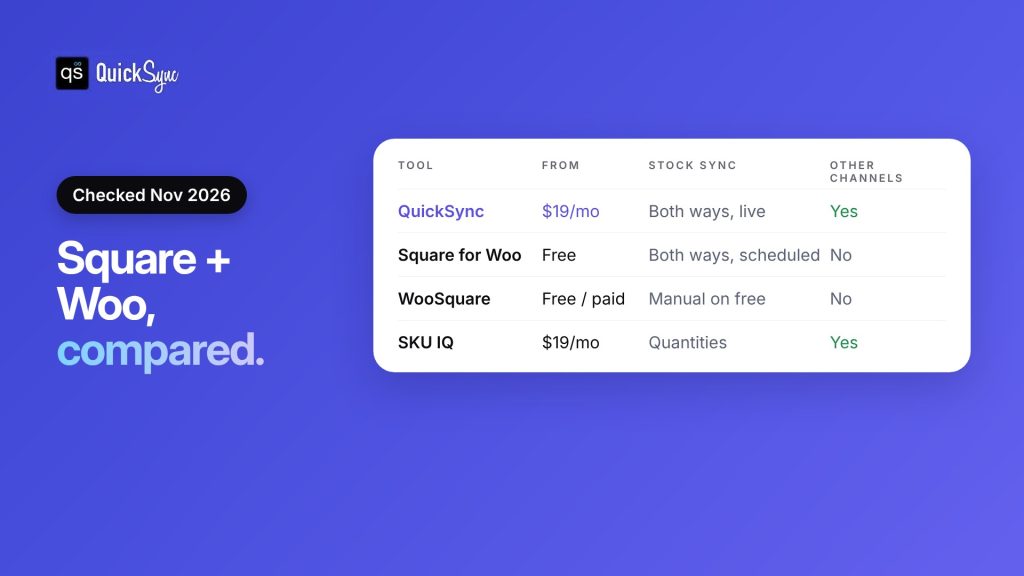
| Tool | Best for | Starting price | Stock sync | Other channels |
|---|---|---|---|---|
| QuickSync | Square, WooCommerce and other channels together | $19 a month | Both ways | Yes, 13 integrations |
| Square for WooCommerce | Square payments and a simple catalogue | Free | Both ways, checks Square on a schedule | No |
| WooSquare | WordPress users who want a plugin | Free, paid version for automatic sync | Manual on free, automatic on paid | No |
| SKU IQ | Quantity sync across POS and online stores | $19 a month | Yes | Yes |
Already know you want stock, products and orders in one place? Jump to the setup steps.
The 4 best Square WooCommerce integration plugins, reviewed
1. QuickSync: best for Square, WooCommerce and other channels together
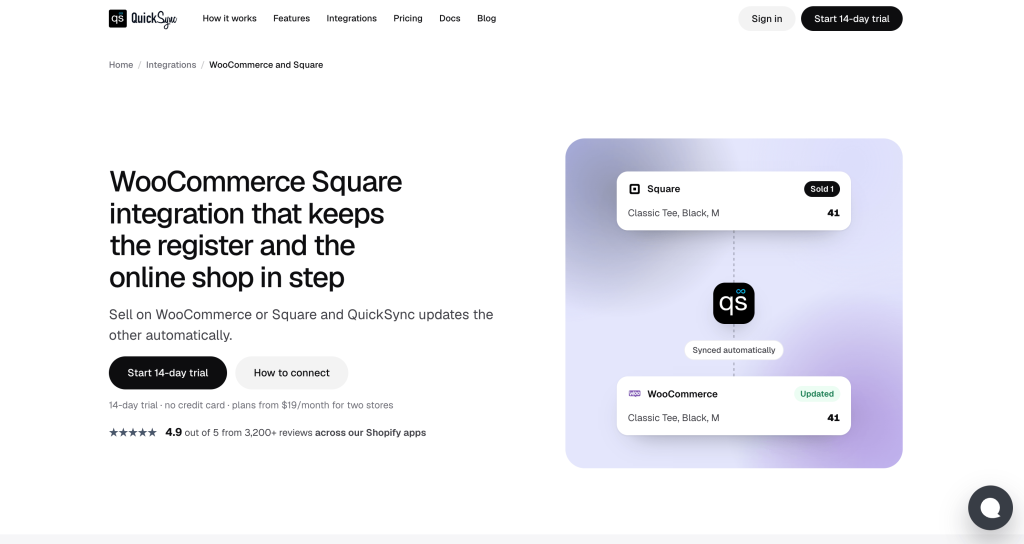
If your shop counter and your WooCommerce store are only two of the places you sell, QuickSync keeps WooCommerce and Square in step with everything else. It’s a multichannel selling tool that connects Square and WooCommerce to each other, and to Etsy, eBay, Amazon, Shopify, TikTok Shop and more.
According to QuickSync’s WooCommerce Square page, it handles:
- Stock, both ways. A counter sale lowers your WooCommerce count, and a web order lowers what Square will sell. Both platforms report changes to QuickSync straight away, so there’s no scheduled check to wait for.
- Square locations. You choose which Square locations sync with your store.
- Products. Existing listings match by SKU, so you don’t need to re-list anything. On Pro, product details stay in step from your main store.
- Orders. On Pro, orders from Square and WooCommerce come into one place. Tracking goes back to the WooCommerce order.
- Price rules. On Ultra, Square and WooCommerce can carry different prices.
Pricing: Lite costs $19 a month for two stores and up to 1,000 items, with stock sync and unlimited orders. Pro costs $29 a month and adds products and orders. Every trial is 14 days with no card, and the team connects your first two stores with you on a free 30-minute call. See the QuickSync pricing page.
Best for: Shops that sell on Square and WooCommerce, and maybe Etsy, eBay or Amazon too.
Watch out for: QuickSync doesn’t process payments. If you want to take Square payments on your WooCommerce checkout, use Square’s free plugin for that alongside it. Square has a shorter SKU limit (80 characters) than WooCommerce, so check your longest SKUs before connecting.
2. Square for WooCommerce: best free option for payments and a simple catalogue
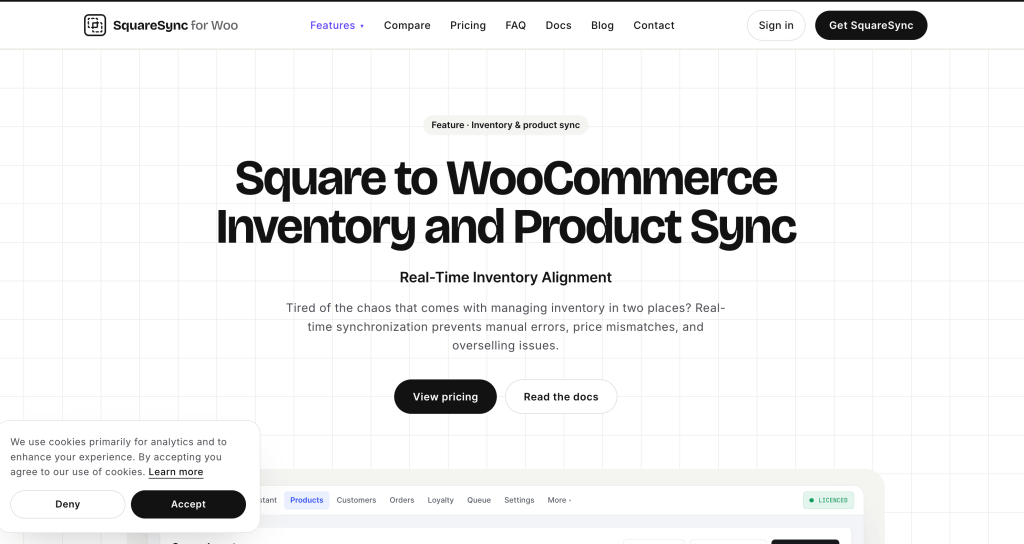
If you mainly want to take Square payments on your website and keep a small catalogue matched, start with Square for WooCommerce. It’s the official free plugin listed on WooCommerce.com.
How it syncs: According to WooCommerce’s sync settings guide, you pick one platform as your “system of record.” If it’s WooCommerce, product updates push to Square. If it’s Square, they pull into WooCommerce. Inventory can sync in both directions, and WooCommerce checks Square for stock changes on a schedule. It syncs names, prices, descriptions, images, categories and stock.
Pricing: Free. Square’s own card processing fees apply.
Best for: Small shops that want Square payments online, including Apple Pay, Google Pay, Cash App Pay and Afterpay.
Watch out for: WooCommerce checks Square for changes on a set interval, so there’s a gap where an item can sell twice. Reviews are mixed. On WooCommerce.com, it has an average of 3.4 out of 5 from about 130 reviews, and some reviewers report sync problems.
3. WooSquare: best plugin for WordPress users who want more control
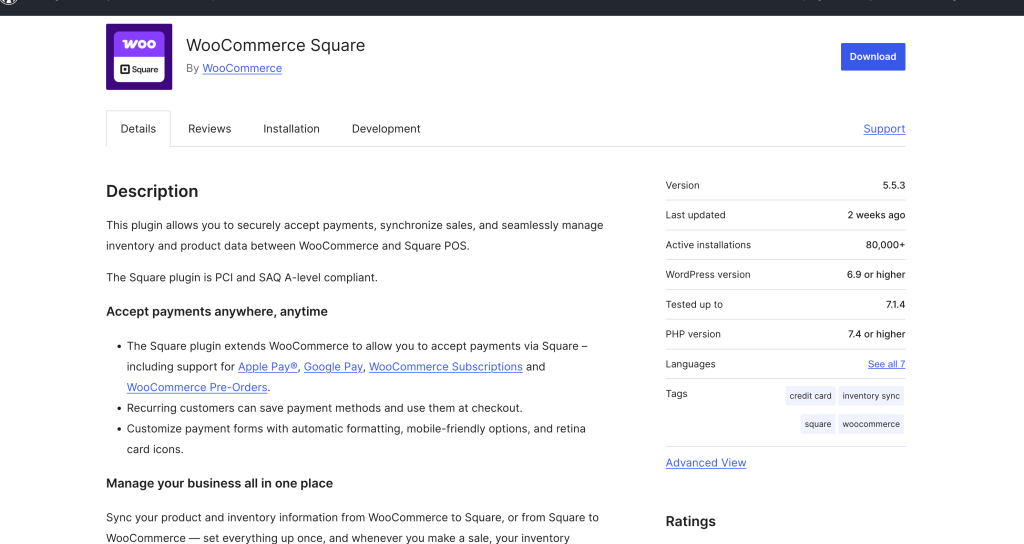
If you’d rather manage everything inside WordPress with a dedicated plugin, WooSquare is worth a look. The free version is listed on WordPress.org, and the paid version is sold through WC Shop Sync.
How it syncs: The free version includes Square payments, product sync and a one-click inventory sync. Automatic product, order and stock sync, Square POS order sync and customer sync are paid features. On the paid version, you can set the sync to run on a schedule, such as every hour or every day.
Pricing: The free version is on WordPress.org. WC Shop Sync’s website doesn’t list prices for the paid version, but it offers lifetime plans and a 14-day money-back guarantee.
Best for: WordPress users who want Square POS orders pulled into WooCommerce.
Watch out for: On the free version, inventory sync is manual, so you have to click to sync. On WordPress.org, it has 1,000+ active installs and a 4.4 out of 5 rating from 43 reviews.
4. SKU IQ: best for quantity sync across POS and online stores
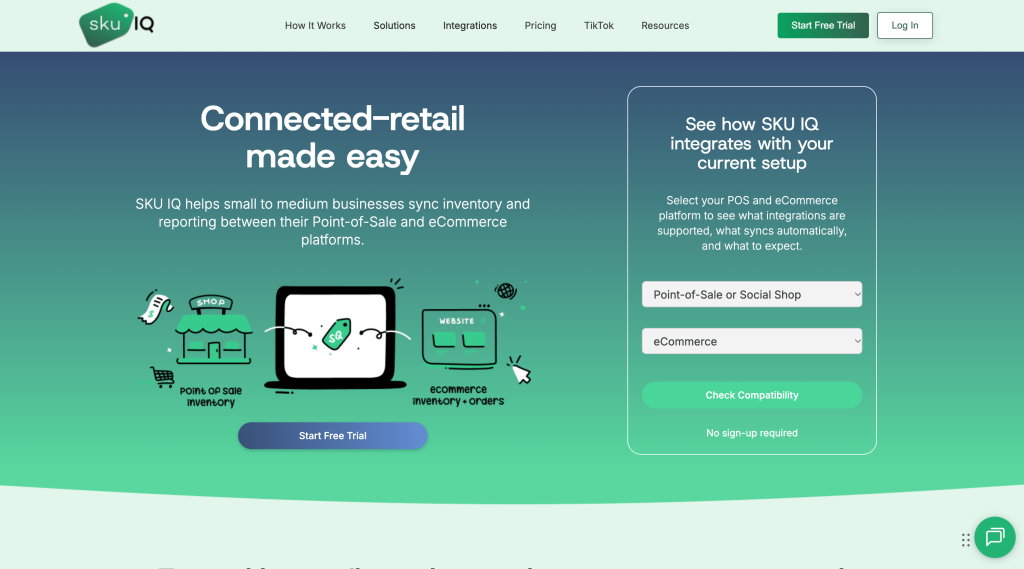
SKU IQ connects point-of-sale systems to online stores. It supports Square and WooCommerce, along with Clover, Lightspeed, Shopify, Wix, Squarespace and BigCommerce.
Pricing: According to SKU IQ’s pricing page, Basic costs $19 a month, Plus $49 and Pro $99. Every plan includes quantity sync and a unified order view. Attribute sync (titles and descriptions) and auto-pushing new items cost $15 extra each on Basic, and are included on Plus and Pro. Multi-location sync costs $10 per location. There’s a free trial of up to 14 days.
Best for: Retailers who want stock quantities matched between their POS and website.
Watch out for: Add-ons push the price up quickly. Image sync and priority syncing cost extra on Basic and Plus. See our SKU IQ alternatives guide for a fuller comparison.
Which Square WooCommerce integration fits your business?
Pick the tool that matches how many places you sell and how busy your shop gets.

| If you… | Choose |
|---|---|
| Mainly want Square payments and have a small catalogue | Square for WooCommerce |
| Want everything inside a WordPress plugin | WooSquare |
| Need stock quantities matched between POS and web | SKU IQ or QuickSync |
| Sell on Square, WooCommerce and Etsy, eBay, Amazon or Shopify | QuickSync |
Many shops use two tools together: Square’s free plugin for payments, and a sync tool for stock, products and orders. That way, checkout works the way Square intends, and your stock count stays right on every channel.
Here’s what that looks like on a busy day:
How to connect Square and WooCommerce
Here’s how to sync Square and WooCommerce inventory without selling items twice:
- Match your SKUs. Give each product the same SKU in Square and WooCommerce. Keep them under 80 characters, Square’s limit.
- Pick your Square location. If you have more than one, choose the location that holds your web stock.
- Choose your source of truth. Decide whether Square or WooCommerce holds the correct stock count when you first connect. Usually that’s whichever you counted most recently.
- Connect both platforms to your sync tool. In QuickSync, you connect Square and WooCommerce, review the starting quantities, then start syncing.
- Test with one product. Sell one item at the counter and check that WooCommerce drops by one. Then place a test order online and check Square.
- Add payments if you need them. Install Square for WooCommerce if you want Square on your checkout.
For a step-by-step setup guide with screenshots, see our guide on how to connect Square to WooCommerce.
Final thoughts
The best Square WooCommerce integration depends on what you need from it. If you mainly want Square payments on your website, the free Square for WooCommerce plugin is the place to start. If you want more control inside WordPress, WooSquare’s paid version adds automatic sync and Square POS orders. If you only need quantities matched between POS and web, SKU IQ does that from $19 a month.
But if your counter and your website are part of a bigger picture, with Etsy, eBay, Amazon or a second shop, a multichannel tool saves you running several plugins. QuickSync keeps stock, products, prices and orders in step across all of them, with unlimited orders on every plan.
Whichever you choose, match your SKUs first and test one sale each way before your next busy weekend.