Every product in QuickSync has a status. Products that sync show under Syncing on the Products page. Anything under Needs attention has one thing stopping it, and its status names that thing. Fix it as its entry below says, and the product can start syncing.
Statuses belong to variants, not whole products, because SKUs belong to variants. A shirt in three sizes can have three different statuses. Below are the statuses you’ll see most, grouped by what’s wrong, with the fix for each.
Fix several at once
The Needs attention card on the Products page has a QuickFix button. It groups the items by issue and shows what it would do for each group, such as creating a missing SKU or a missing listing. Nothing runs until you confirm. If a fix would publish new listings on Etsy or eBay, it asks you to accept their listing fees first. Some statuses have no automatic fix, and QuickFix tells you which.
Once you’ve dealt with an item another way, select it and click Mark as resolved to drop it off the list. Turn on Show resolved to see the ones you’ve cleared.
Setup
Connect 2nd store
You’ve connected only one store, so there’s nothing to sync to. Connect a second store from Overview.
Needs Alignment
We haven’t matched this product with its twin in your other store yet. Click Sync products on the Products page, or use QuickFix, so we can match by SKU. If it stays here, check that the SKU is the same in both stores.
Not in your sync list
You chose to sync only some products, and this one isn’t on the list, so we skip it. Add it to your sync list (QuickFix can do this), or run Sync products again with All products.
No master store
Product syncing is on but you haven’t picked a main store, so product details have nowhere to come from. Click the Product Syncing card on the Products page and pick a source store.
Syncing disabled
Stock, product and order syncing are all off for your account. Turn them back on from the cards on the Products page. If they turned off by themselves, check that your plan is active under Settings, Your plan.
Product limit reached
Your catalogue has more variants than your plan covers, so the ones over the limit don’t sync. Upgrade your plan, or sync fewer products with a sync list. Limits are on the plans page.
SKUs and matching
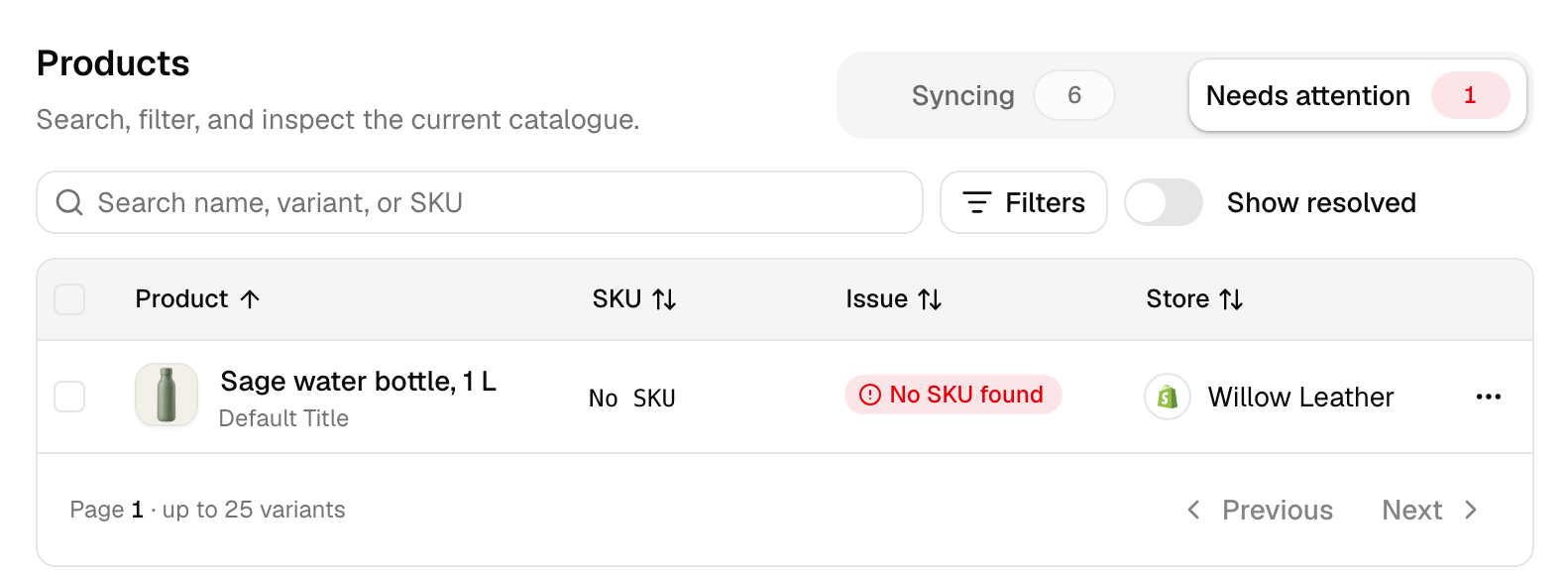
No SKU found
This variant has no SKU, and we match products by SKU, so we can’t link it to anything. Add a SKU in your store, then click Sync products. QuickFix can create SKUs for you, and so can Auto SKU creation in the Product Syncing settings.
Multiple same SKU found
Two or more variants in the same store share this SKU, so we can’t tell which one sold. Neither syncs. Give each variant its own SKU in that store, then click Sync products, or let QuickFix give the duplicates new SKUs. Etsy sellers see this most, when they reuse one SKU across several listings.
No match found
This variant has a SKU, but no product in your other store has the same one. Add the product there with the same SKU, or let QuickSync create it with QuickFix or Create missing products.
Not present in synced store
An older label for No match found. The other store doesn’t have this product, so there’s nothing there to update. Create it in that store with the same SKU, or let QuickSync create it.
Product unavailable in Master Store
Product syncing is on and this product isn’t in your main store, so it has no source for its details. Add it to the main store with the same SKU. If it’s genuinely missing there, QuickFix may offer to add it to the main store. Check what it will create before you confirm.
Available to Sync (Align)
Nothing’s wrong: the product meets every requirement, but we haven’t linked it yet. Click Sync products on the Products page, or use QuickFix on it, and it starts syncing.
Stock and locations
No inventory found
The store isn’t tracking stock for this variant, or has no stock set. Turn on stock tracking for it in your store and add a quantity. In Shopify that’s Track quantity.
Out of stock
The Only products in stock setting is on for this store or your main store, and the product has no stock there, so we skip it. Add stock, or turn that setting off if you want out-of-stock products to sync too. QuickFix can turn it off for you.
Not stocked at a connected location
The product has no stock at any location you’ve connected. Add it at a connected location, or connect the location it’s already in under Settings, Connect locations. See Locations.
Inventory unavailable in matching product
We found the twin in your other store, but we can’t update its stock there. Usually stock tracking is off for it, or it has no stock record yet. Turn tracking on and add a quantity in that store.
Product state
Draft
The product is a draft in its store, and that store’s Product status filter leaves drafts out, so we don’t sync it. Publish it there, or let QuickFix allow drafts.
Archived
Someone archived or hid the product in the store it comes from. Unarchive it there if you want it synced.
Matching product is Inactive / Archived
We found the twin in your other store, but it’s inactive or archived there, so updates won’t land. Activate it in that store, or, if it’s on Shopify or Etsy, let QuickFix do it.
Rejected by the other store
These come back from the platform when we try to create or update a listing. The status names the reason where the platform gives one. We don’t send products to Amazon at the moment, so the four Amazon statuses below only remain from earlier attempts.
Rejected by the other store
The other store refused the listing without saying why, or one of our own checks stopped it, such as TikTok’s limit of 100 variants per product. Check the product meets that platform’s rules. If it does and the status stays, contact support with the SKU and the store.
Rejected by TikTok
TikTok refused the listing and told us why. Open the product to read TikTok’s own words, fix what they name in your main store, then sync the product again.
Title length not accepted by TikTok
TikTok wants a longer or shorter title in your shop’s market, and the product shows the length it needs. Change the title in your main store, then sync again.
TikTok category not sold in your region
TikTok doesn’t sell this product’s category in your shop’s region. List it in TikTok Seller Center under a category sold there, with the same SKU. Then run Sync products, and we match it by SKU.
TikTok won’t accept a new barcode
TikTok locks a barcode once it’s submitted, and this product’s barcode has changed since. Put the original barcode back in your main store, then sync again.
Store disconnected
A store this product needs has disconnected. Reconnect it from Settings, Stores. If it still shows after that, contact support.
Product syncing needed to add missing variants
The listing already exists in the other store but is missing some variants, and only product syncing can add them. Turn product syncing on, then try again.
eBay business policies required
eBay won’t accept a listing without shipping, return and payment policies. Set up your eBay business policies, choose them in QuickSync’s eBay store settings, then sync the product again.
Too many variant options for Etsy
Etsy allows at most 70 values in one option group and 400 option combinations in one listing, and this product has more. Cut the values down, or split the product into separate listings.
Etsy could not map this product’s options
Etsy needs option groups it recognises, and this product’s options don’t fit them. Rename or reduce the options. We can send Etsy at most three option groups.
Amazon needs approval to sell this ASIN
Amazon wants approval before your shop sells this item, its brand or its category. In Seller Central, open Add Products, search for the item and click Apply to sell if Amazon offers it. Once you’re approved, list it there yourself.
Amazon will not let this seller list this ASIN
Amazon won’t let your account list this item at all, and offers no way to apply. Stop exporting it, or use a catalogue item your account can sell.
Amazon catalog has no match for this ASIN
Amazon couldn’t find this product’s ID in the marketplace your store sells in. Check the ASIN or barcode on the product, and correct it if it’s wrong. If it’s right, contact support. Don’t borrow another item’s ID.
Amazon listing is missing required details
Amazon rejected the listing because some attributes are missing, and the product names them. Add those details in Seller Central.
When statuses update
You don’t refresh statuses yourself. We check them again after you click Sync products, whenever a product syncs, after you edit a product in one of your stores, and on a regular background pass, so an old status doesn’t linger.
Common questions
What does Needs Alignment mean in QuickSync?
It means we haven’t matched that product with its twin in your other store yet. Matching happens by SKU when you click Sync products on the Products page. If the status stays after that, the SKU is missing or differs between the two stores. Make the SKUs identical, then run Sync products again.
Why does QuickSync say Multiple same SKU found?
Two or more variants in the same store share one SKU. When one of them sells, we can’t tell which, so neither syncs. Give each variant its own SKU in that store and click Sync products. It happens most on Etsy, where sellers often reuse a SKU across listings.
Why is my product not syncing when it has a SKU?
A SKU is the first requirement, not the only one. The product also needs a twin with the same SKU in your other store, a status both stores sync (Active or Draft by default), stock tracking, and, if you use them, a place on your sync list and stock at a connected location. Its status on the Products page names whichever one is missing.
What does Product limit reached mean?
Your plan caps how many variants can sync, and your catalogue is over it, so the variants over the cap stop syncing. Upgrade to a bigger plan, or use a sync list to choose the products that matter. Lite holds 1,000 variants, Pro 2,500, Ultra 10,000 and Ultra+ 20,000.
Next step
If your statuses look fine but stock still didn’t update after a sale, read how stock syncs. For how matching works, read How QuickSync works.