QuickSync can’t read stock from a Shopify variant unless Track quantity is on. With it off, Shopify gives us no count. The variant shows No inventory found in QuickSync and stays out of the sync. We switch tracking on ourselves whenever we write a count into Shopify, so you only need to do it by hand when the right count is in Shopify.
What tracking changes
- No count to read. Shopify gives apps no available count for a variant it isn’t tracking. Without one, the variant can’t sync. It waits under Needs attention as No inventory found, and its twin in your other store can show Inventory unavailable in matching product.
- Sales don’t count down. Shopify lowers stock only for variants it tracks. An untracked sale leaves the count alone. There’s nothing for us to pass on.
- New counts bounce. Shopify won’t accept a stock update for an untracked variant. That’s where we step in.
When to turn it on
That depends on which store’s count is right.
| Where the right count is | What to do |
|---|---|
| In Shopify: it’s your starting store, or you count stock there | Turn on Track quantity and enter the count in Shopify, before the first sync if you can |
| In your other store | Nothing. The first sync, or Sync products, writes the count into Shopify, and we turn tracking on as we go |
| Products we create in Shopify | Nothing. Product syncing creates every variant with tracking on, including new products you add to your main store later |
| Products you don’t want counted, like digital or made-to-order items | Keep them out of the sync with a sync list. Otherwise the next count we write turns tracking on |
When we write to an untracked variant, Shopify won’t take the count. So we turn on Track quantity for that variant. We add a count of 0 at each Shopify location that has none for it. Then we send the count again, and the location we’re writing to gets the real number.
Turn it on in Shopify
- In Shopify admin, open Products and click the product. If it has variants, click the variant.
- In the Inventory section, turn on Track quantity.
- Enter the Available count at each location that stocks it. Click Save.
- In QuickSync, open Products, click the product and click Sync product. If product syncing is off, or for many products, use Sync products on the Products page.
Shopify sets tracking one variant at a time. For a big catalogue, its product CSV file is faster. In the Inventory tracker column, shopify means tracked and a blank means not tracked. Export your products, set that column, then import the file with Overwrite products with matching handles selected. Try a few products first.
Check it worked
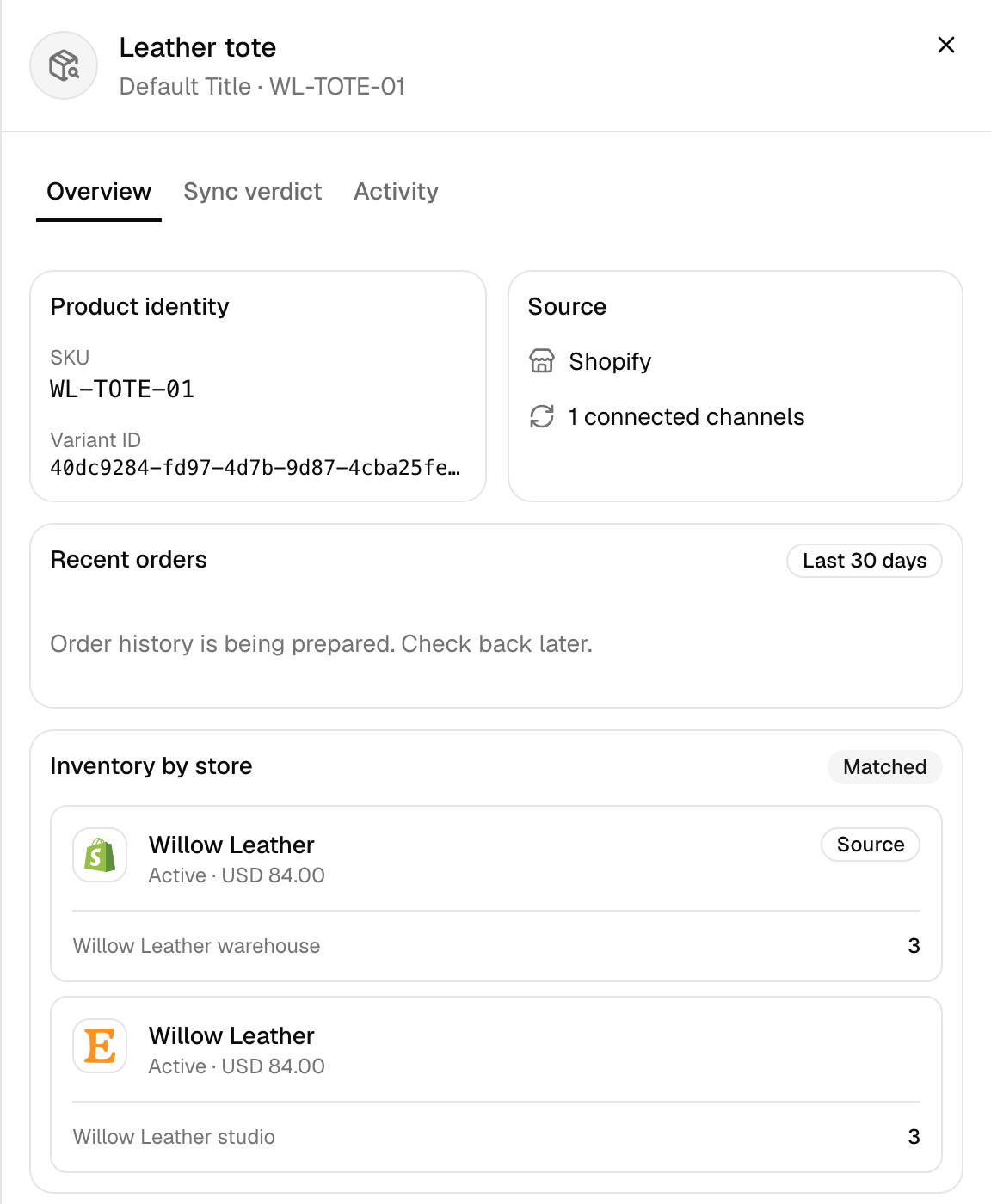
Open the product in QuickSync. Inventory by store should list a count for each Shopify location you connected. A Matched badge shows once the counts at paired locations agree. Still No inventory found? Check the variant has a SKU, and a count at a location you’ve paired under Settings, Connect locations.
Common questions
Why does QuickSync say No inventory found for my Shopify product?
QuickSync shows No inventory found when we hold no stock count for a variant. On Shopify, that’s usually because Track quantity is off, and Shopify then gives apps no count at all. Turn tracking on for the variant in Shopify admin, enter the Available count and save. Then open the product in QuickSync and click Sync product, or use Sync products on the Products page if product syncing is off, and we’ll match it again.
Does QuickSync turn on Track quantity in Shopify?
Yes, whenever we write stock into Shopify. If Shopify refuses a count because the variant isn’t tracked, we switch tracking on. We add a count of 0 at each Shopify location that has none for it, then send the count again. Variants we create through product syncing go in tracked. We don’t touch a variant we never write to, such as one waiting under Needs attention, until you run QuickFix on it.
How do I turn on Track quantity for all products in Shopify?
Shopify sets it per variant, so the product page is slow for a big catalogue. Use Shopify’s product CSV instead. Export your products, set the Inventory tracker column to shopify for the variants you want tracked, and import with Overwrite products with matching handles. Test a few first. If your other store holds the right counts, Sync products in QuickSync turns tracking on as it writes them.
Why didn’t a Shopify sale update my other stores?
If the variant isn’t tracked, Shopify doesn’t lower its count when it sells. There’s no change for us to send. Turn on Track quantity and enter today’s count. If tracking was already on, the cause is somewhere else: Stock didn’t update after a sale goes through the checks in order, most common first.
Can I leave tracking off for made-to-order products?
Yes, but keep those products out of the sync. Shopify suggests leaving tracking off for digital products, services and made-to-order items. If one of them matches a product in your other store, the next count we write switches tracking back on. A sync list keeps such products out, on any plan. So does a SKU no other store uses.
Next step
For everything else that syncs with Shopify, read Connect Shopify. The other statuses under Needs attention are in What each product status means.