
QuickSync keeps stock in line between Squarespace and your other stores, in both directions. Product details can flow into Squarespace from your main store, or out of it if Squarespace is your main store. Squarespace orders go to the store you pack from, and when you ship from Shopify, WooCommerce or Square, we add the tracking number to the Squarespace order.
Squarespace can’t be your packing store. We hear about its orders as they happen, but we check its stock and product edits on a timer.
Before you start
- A Squarespace site that sells physical products. When you connect, we read its physical products and skip other types.
- At least one store page. Every product we create on Squarespace goes on a store page. If your site has exactly one enabled store page, we’ll pick it for you. See Squarespace store pages.
- A SKU on every variant. We match products by SKU, so each Squarespace variant needs the same SKU as its twin in your other store. Keep SKUs to 60 characters or fewer. We’ll cut longer ones when we write them to Squarespace, and a cut SKU never links, so its stock won’t sync.
- The right plan. Stock syncing works on every plan. Product syncing and order syncing need Pro or above.
Connect Squarespace
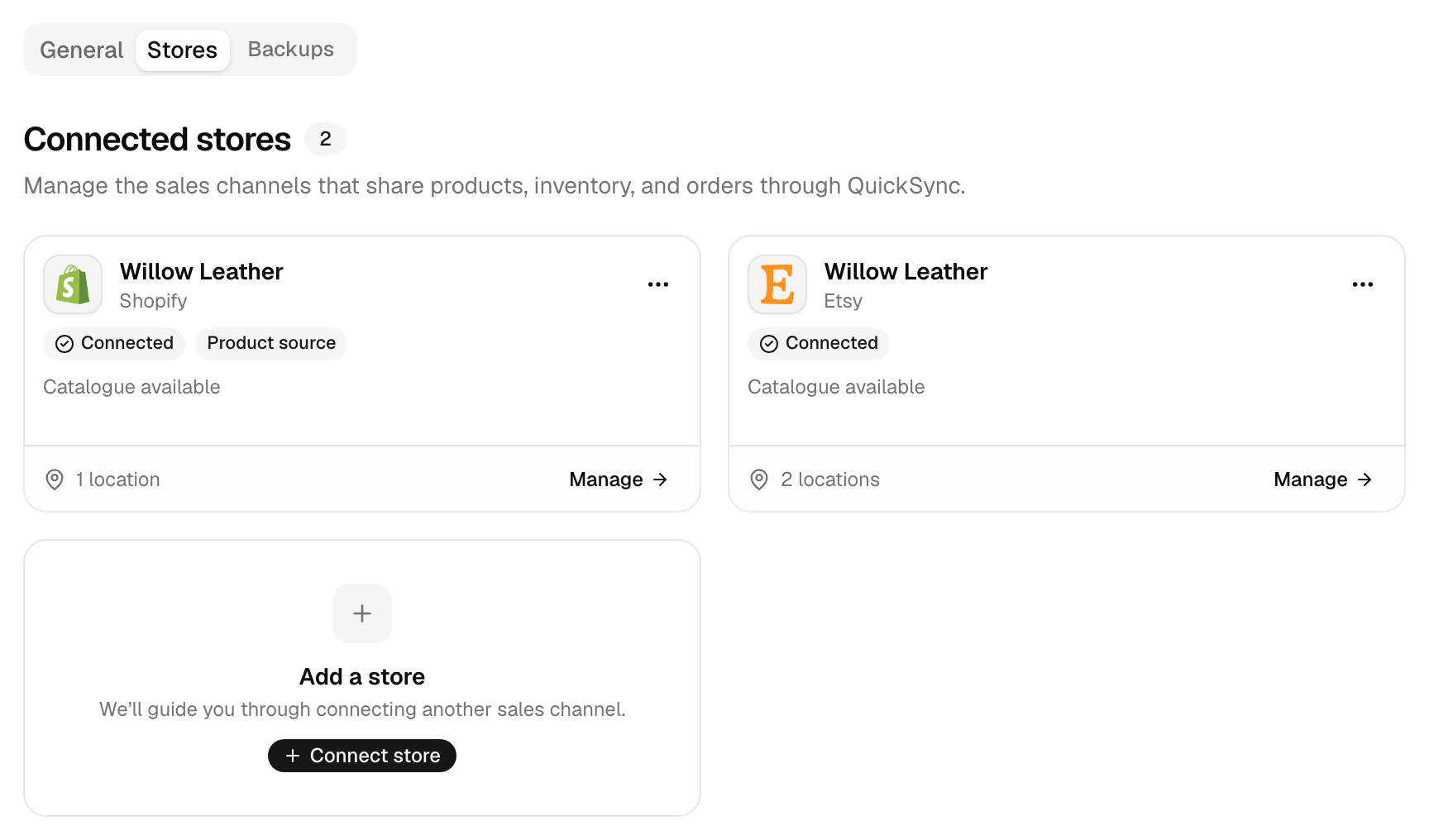
- In QuickSync, open Settings, then Stores. Click Add a store. In your first setup, use Connect your first store or Connect another store on Overview instead.
- Pick Squarespace. There’s nothing to fill in, so we take you straight to Squarespace.
- Sign in and allow QuickSync access to your site’s products, inventory and orders. Squarespace sends you back.
- Wait while the Squarespace card says Connecting. It turns Connected once we’ve read your site.
- Click Manage on the Squarespace card and open Review settings. If Default category is empty, pick the store page for new products. Then click Save changes.
Connecting reads your site’s details, your store pages and your physical products. We also ask Squarespace to tell us about new and changed orders. Your products don’t change. Until Squarespace has a default store page or you save its Review settings, setup shows Review settings on its row, and the Sync products wizard marks it Required.
What syncs
| What | With Squarespace |
|---|---|
| Stock to Squarespace | Yes |
| Stock from Squarespace | Yes |
| Product details to Squarespace | Yes, from your main store: name, description, prices, photos, options, SKUs, weight, dimensions, tags and visibility. Not vendor, product type, barcode or SEO. Copying missing products works on every plan. Keeping them updated needs Pro and above |
| Squarespace as your main store | Yes. Edits you make in Squarespace go to your other stores |
| Orders from Squarespace | Yes, on Pro and above |
| Squarespace as the packing store | No |
| Tracking back to Squarespace | Yes, when Shopify, WooCommerce or Square packs. Squarespace doesn’t send the customer a shipping email |
| How fast | Orders as they happen, plus a daily check for any we missed. Stock and product edits every 2 minutes |
Changes we send to Squarespace go out as soon as we have them. Edits made in Squarespace take longer. Squarespace tells us about orders but doesn’t mention stock or product edits, so we check for those on a timer. See how fast changes arrive for every app.
Squarespace rules
Know these before your first sync.
| Rule | What happens |
|---|---|
| Store page | New products go on your default store page. We never move a product that’s already on Squarespace, so a move you make there sticks. |
| SKUs | Up to 60 characters. We cut a longer SKU to 60 without warning, and that variant never links, so its stock doesn’t sync. Every variant needs its own SKU. |
| Variants | Up to 100 when we create a product. A product with more doesn’t go to Squarespace. |
| Options | Up to 6 option types. A product without options gets a single option called Title. |
| Photos | Up to 100 per product, as GIF, JPEG or PNG. We convert other formats first. Each variant gets one photo. |
| Prices | Price and compare-at price both sync. When the compare-at price is higher, we mark the product on sale. |
| Visibility | Active products in your main store show on Squarespace, and anything else stays hidden. While Create as draft is on, everything we create or update is hidden. Hide a product in Squarespace, and the main store’s next change to it shows it again. Hidden Squarespace products come into QuickSync as drafts. |
| Removed variants | When we update a product, we delete any of its Squarespace variants that the main store didn’t send, including ones we skipped for a missing or duplicate SKU. |
| Stock | 0 to 999,999, at one location per site. If your other store has several locations, Squarespace gets the count of the location you connect to it. |
| Weight and size | We convert both to your site’s units: pounds and inches, or kilograms and centimetres. |
| Carriers | Tracking goes back only with one of these 25 carriers: Allied Express, Aramex, Canada Post, Canpar, Chronopost, ColisPrive, Colissimo, CouriersPlease, DHL Express, DPD, Evri, FedEx, Hubbed, NinjaVan, NZ Post, Parcelforce, PostNL, Purolator, Qxpress, Sendle, SimplyPost, SingPost, TNT, UPS and USPS. For any other carrier, the order’s Activity tab in QuickSync says Tracking was not synced to Squarespace. |
Reconnect or switch site
When Squarespace stops accepting our access, we try to renew it. If Squarespace still refuses, or reports that the site’s subscription has expired, we check once more, then remove the store from QuickSync, with our copy of its products and orders. The card may say Needs attention for a short while first, and we email you if email notifications are on. If your QuickSync account was created when you connected this site, we delete the whole account: every store, product, order and login.
Once it’s gone, connect Squarespace again as a new store. We’ll read its catalogue from scratch, and its products will need matching again. Removing a store can turn off product syncing and order syncing, so check both.
To sync a second Squarespace site, add it as another store. Each site counts as one store on your plan. To drop a site, disconnect it.
Disconnecting removes the Squarespace store from QuickSync, with our copy of its products and orders. Your products stay on Squarespace. If Squarespace was your main store, product syncing turns off. With only two stores, product syncing and order syncing both turn off. Disconnecting doesn’t remove QuickSync’s access on Squarespace’s side, so remove it there too if you’re leaving.
- Under Settings, Stores, open the menu (the three dots) on the Squarespace card. Click Disconnect.
- Click Disconnect store. It can take a few minutes.
Removing QuickSync inside Squarespace doesn’t remove the store here. It’ll disappear, with our copy of its products and orders, the next time Squarespace refuses our access.
Common questions
How fast do Squarespace changes reach my other stores?
Orders reach us as they happen, because Squarespace tells us about each new or changed order. A daily check catches any we’ve missed. Squarespace doesn’t announce stock or product edits, so we check for those every 2 minutes. Changes going the other way reach Squarespace as soon as we have them. A Shopify sale updates the Squarespace count straight away.
Can orders from my other stores go into Squarespace?
No. Squarespace sends its orders to QuickSync, but we don’t create orders in it, so it can’t be your packing store. Pick the store you ship from, such as Shopify, WooCommerce, Square, Clover or Lightspeed. Your Squarespace orders go there with the customer’s address and the items. If a Squarespace order is cancelled, we record that in QuickSync, but that doesn’t reach its copy right away, so cancel the copy in your packing store yourself.
Will my Squarespace customer get a shipping email?
Not from Squarespace. When your packing store ships the order, we add the carrier and tracking number to the Squarespace order. We also tell Squarespace not to send its shipping notification. If your buyer needs the tracking number, send it to them yourself. Tracking only comes back when Shopify, WooCommerce or Square packs, with a carrier Squarespace accepts.
Can I connect Squarespace and Clover?
Yes. We match products by SKU and sync stock both ways between your Squarespace site and your Clover till. Clover can also be your packing store, except Clover EU, so Squarespace orders show up in Clover. Clover doesn’t pass tracking back to Squarespace, though. Add tracking in Squarespace yourself, or pack from Shopify, WooCommerce or Square if you want it sent for you.
Can I copy my Squarespace products to Shopify?
Yes, on every plan. In setup, pick Squarespace as the store with the correct stock, and as your main store if you sync product changes. Then answer Yes to Create missing products. We’ll copy each product Shopify doesn’t have, with its name, description, photos, prices, options and SKUs. Want a one-time copy only? Click Pause syncing in the Product Syncing settings afterwards. Disconnecting Squarespace later doesn’t delete anything in Shopify.
How much does Squarespace plus Shopify cost?
One plan covers two stores, so Squarespace and Shopify together cost the plan price. Lite is $19 a month for stock syncing, up to 1,000 variants. Pro is $29 for up to 2,500 variants, and adds product syncing and order syncing. Each store after the second adds the plan price again. A third store on Pro makes $58 a month.
Next step
To choose or change where new products go, read Squarespace store pages. Setting up for the first time? Set up your first sync covers every screen.